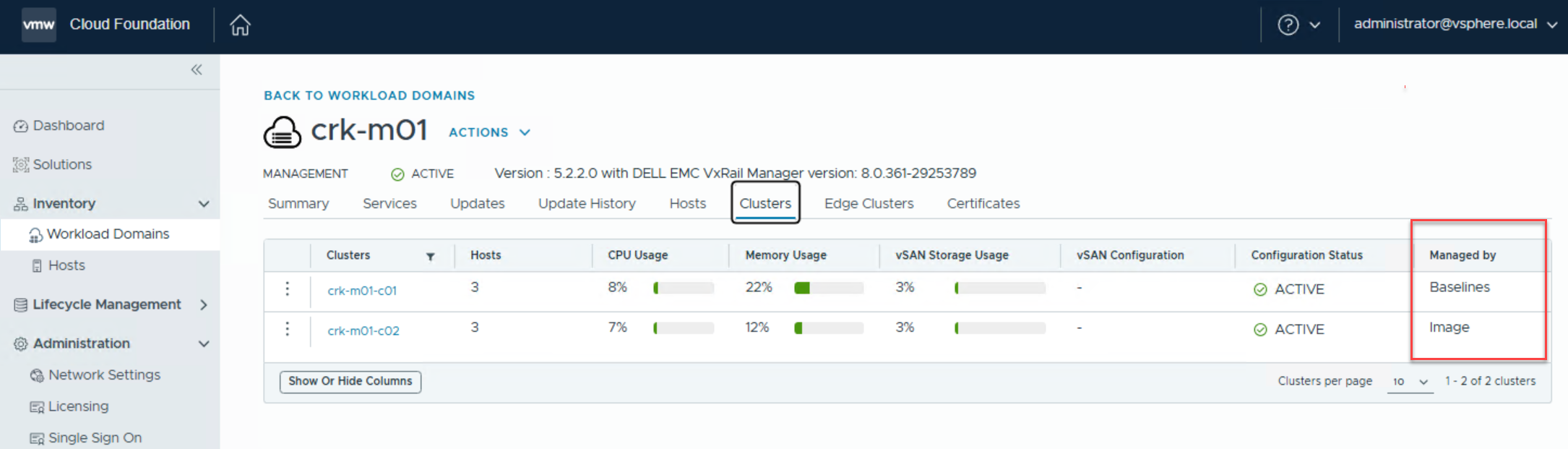
Introduced in VCF 5.2.2 on VxRail, partial Lifecycle Manager conversion enables mixed lifecycle management modes within a single workload domain. This allows one cluster to remain managed by VUM while […]
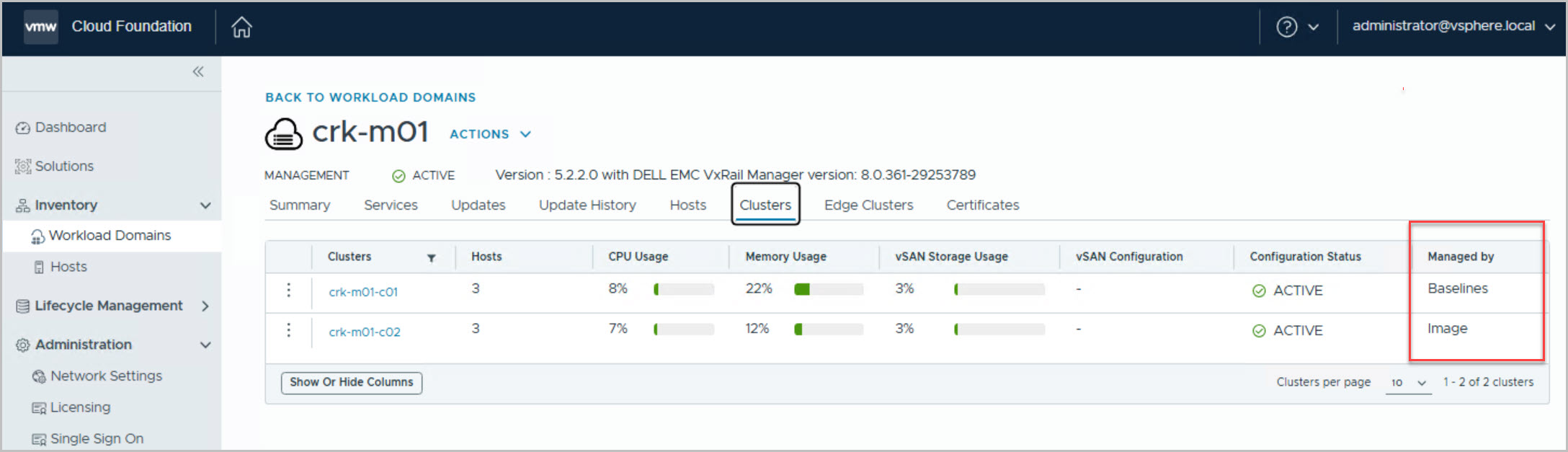
Introduced in VCF 5.2.2 on VxRail, partial Lifecycle Manager conversion enables mixed lifecycle management modes within a single workload domain. This allows one cluster to remain managed by VUM while another is managed using vLCM, giving administrators the flexibility to adopt vLCM incrementally without requiring a full domain conversion or disrupting Day‑N operations.
This capability also enables vSAN ESA adoption in previously constrained environments. Since ESA requires vLCM, VUM-managed clusters could not support ESA nodes. Partial conversion addresses this by allowing a dedicated vLCM-managed cluster for ESA workloads, while existing legacy or OSA clusters continue to run under VUM.
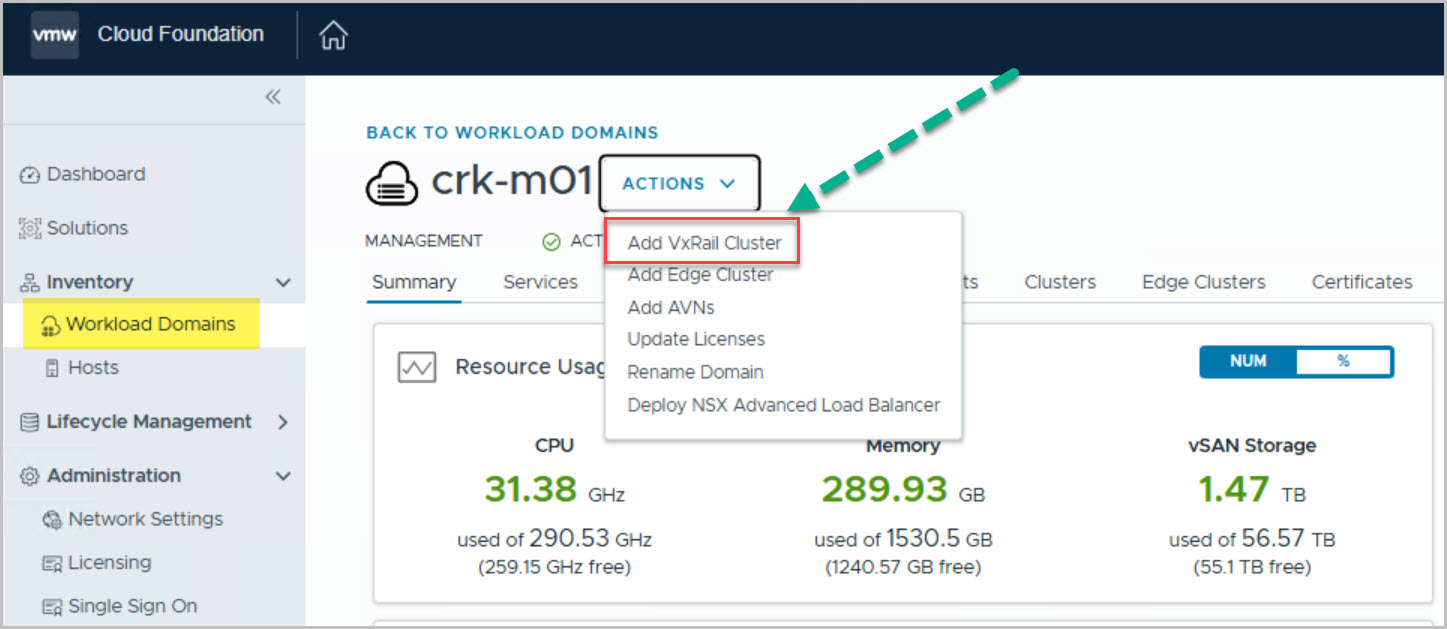
The following post provides a brief walkthrough showing how to add a VxRail cluster to a workload domain with an existing VUM (baseline-managed) cluster, and then add a second vLCM (image-based) cluster using the SDDC Manager UI.You can view a list of prerequisites and an overview of the procedure on the VMware site here.
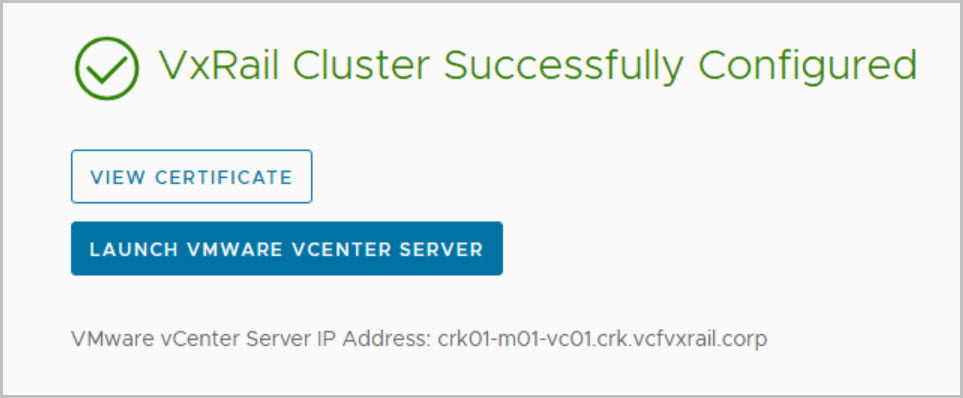
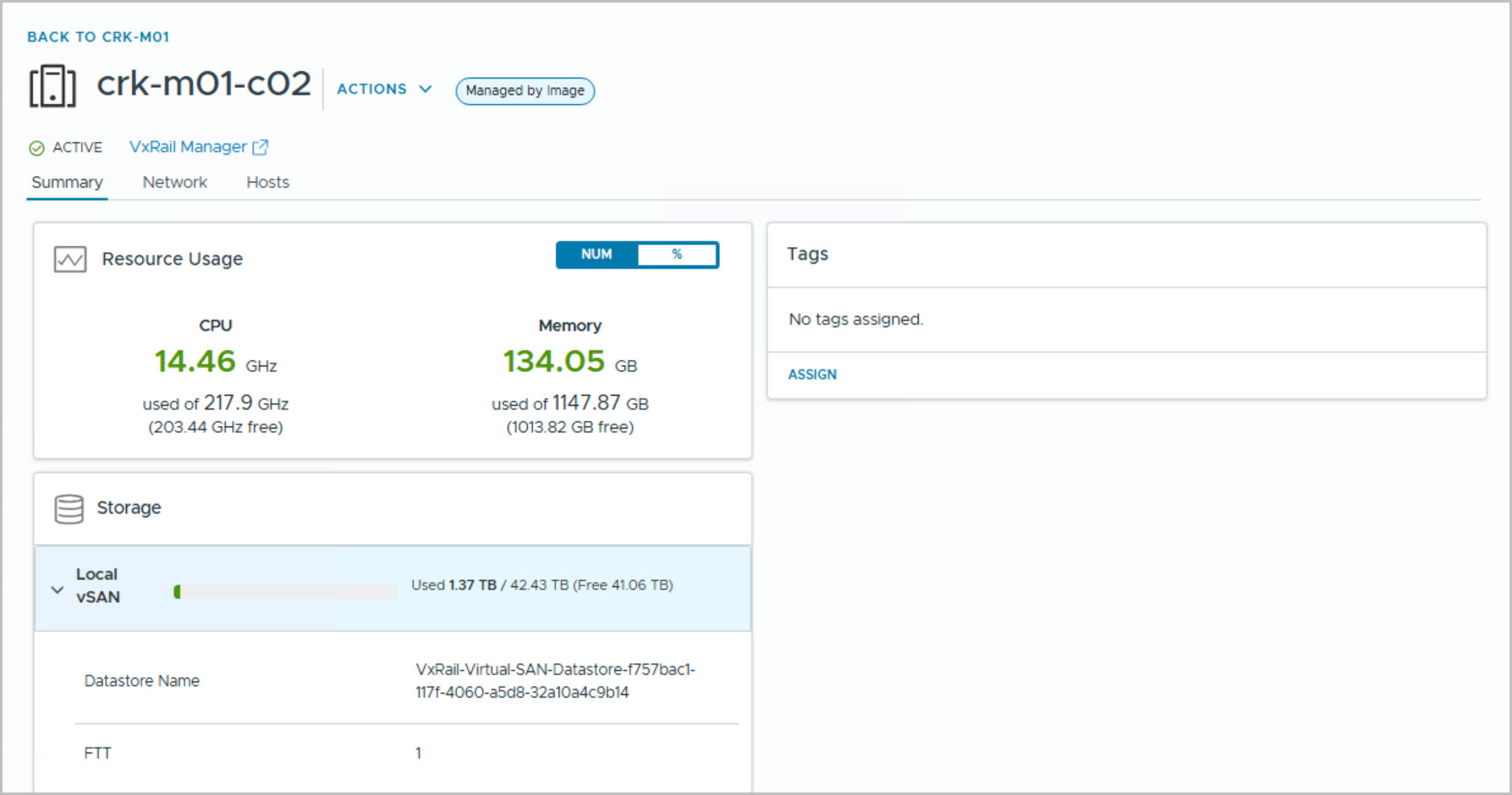
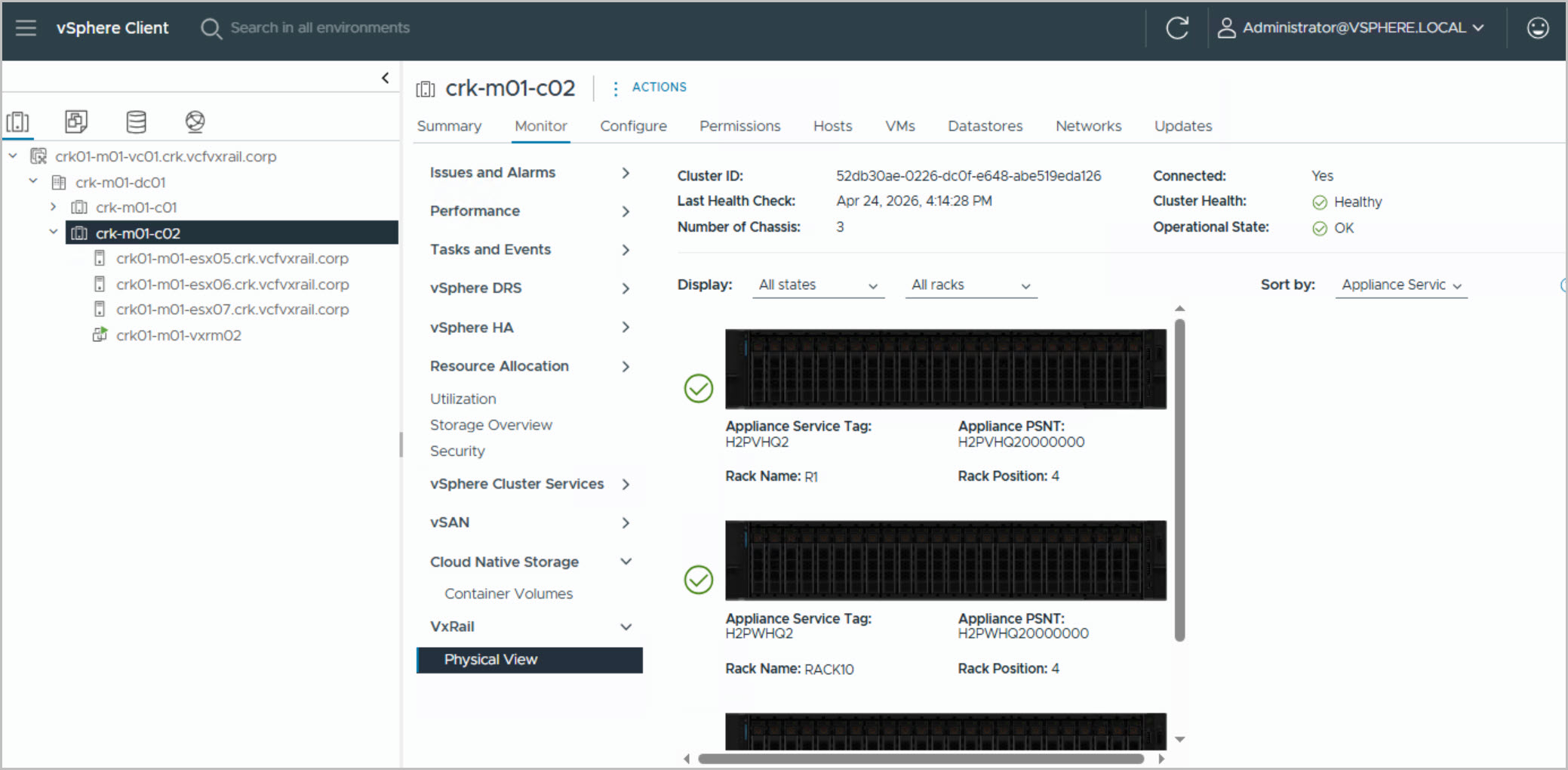
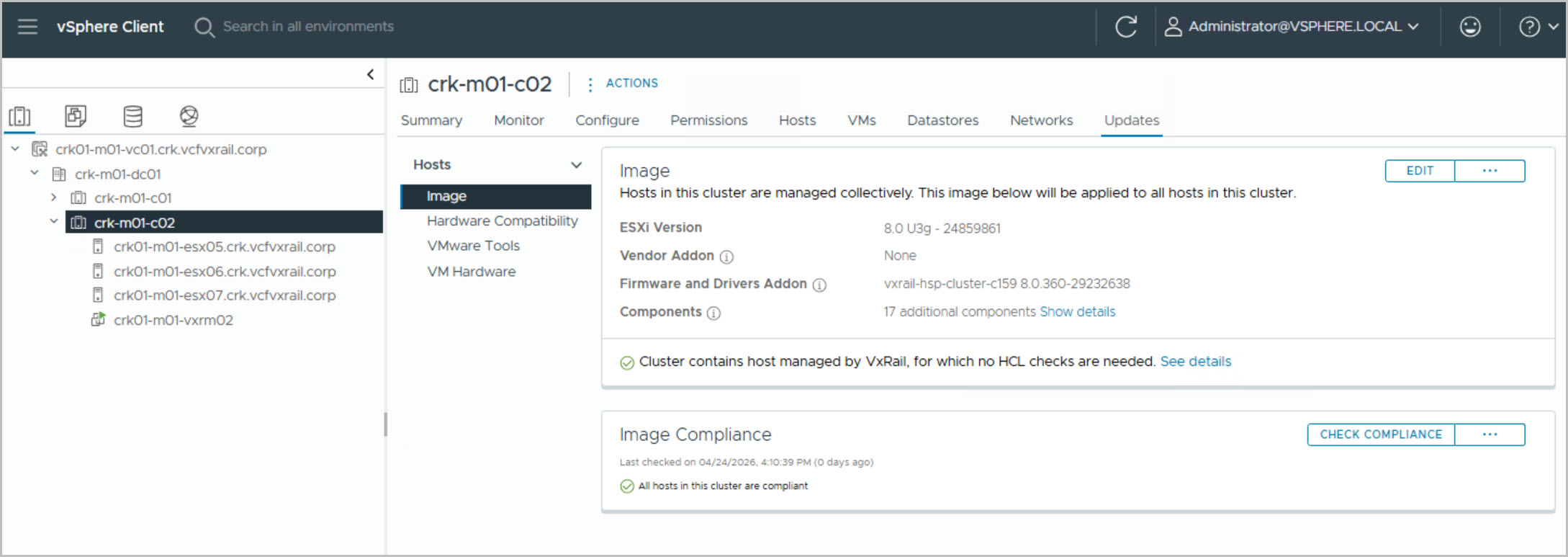
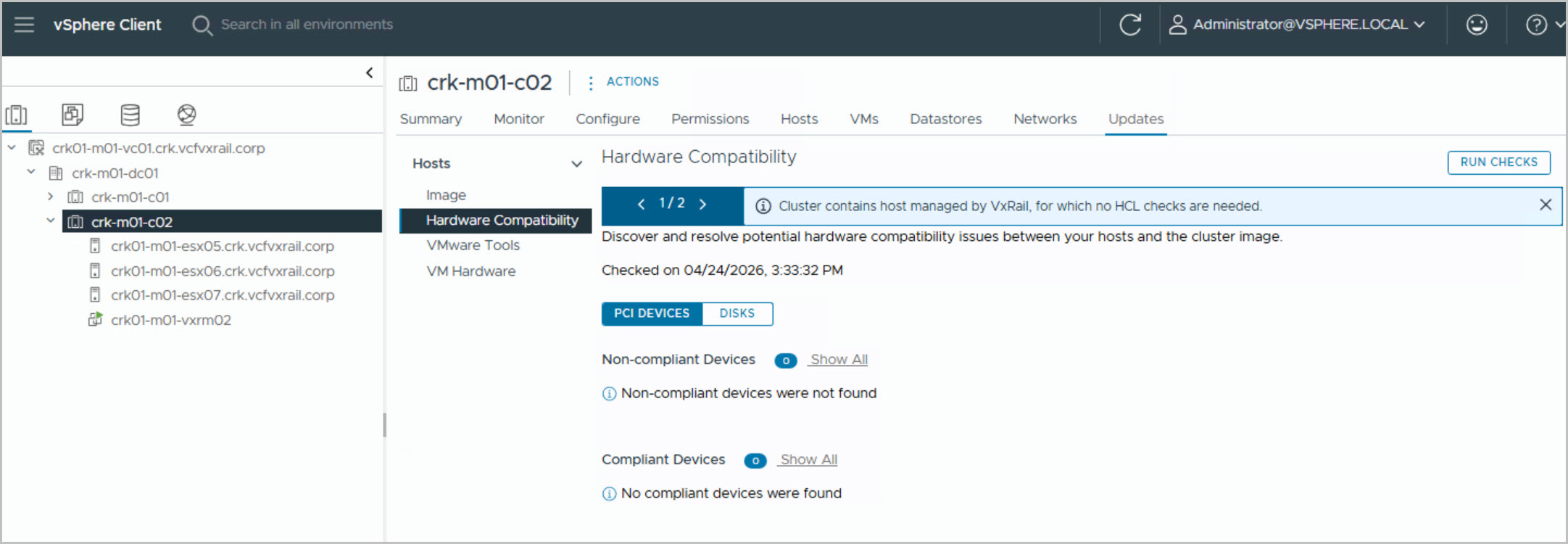
End Result:
Add a VxRail Cluster to VI WLD Using WFO UI Method
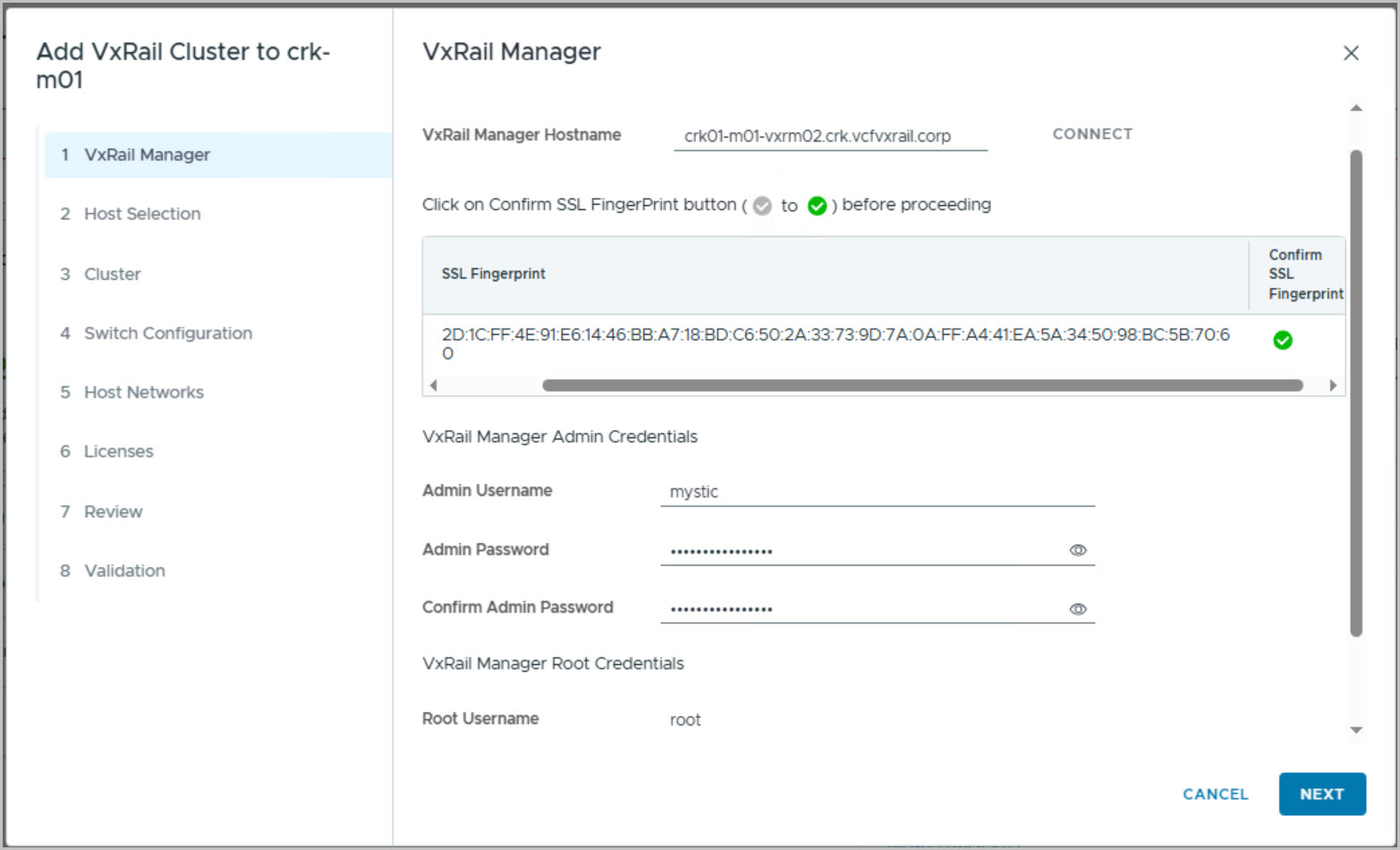
The following input values are required as per the process of expanding an existing workload domain by adding a VxRail cluster:
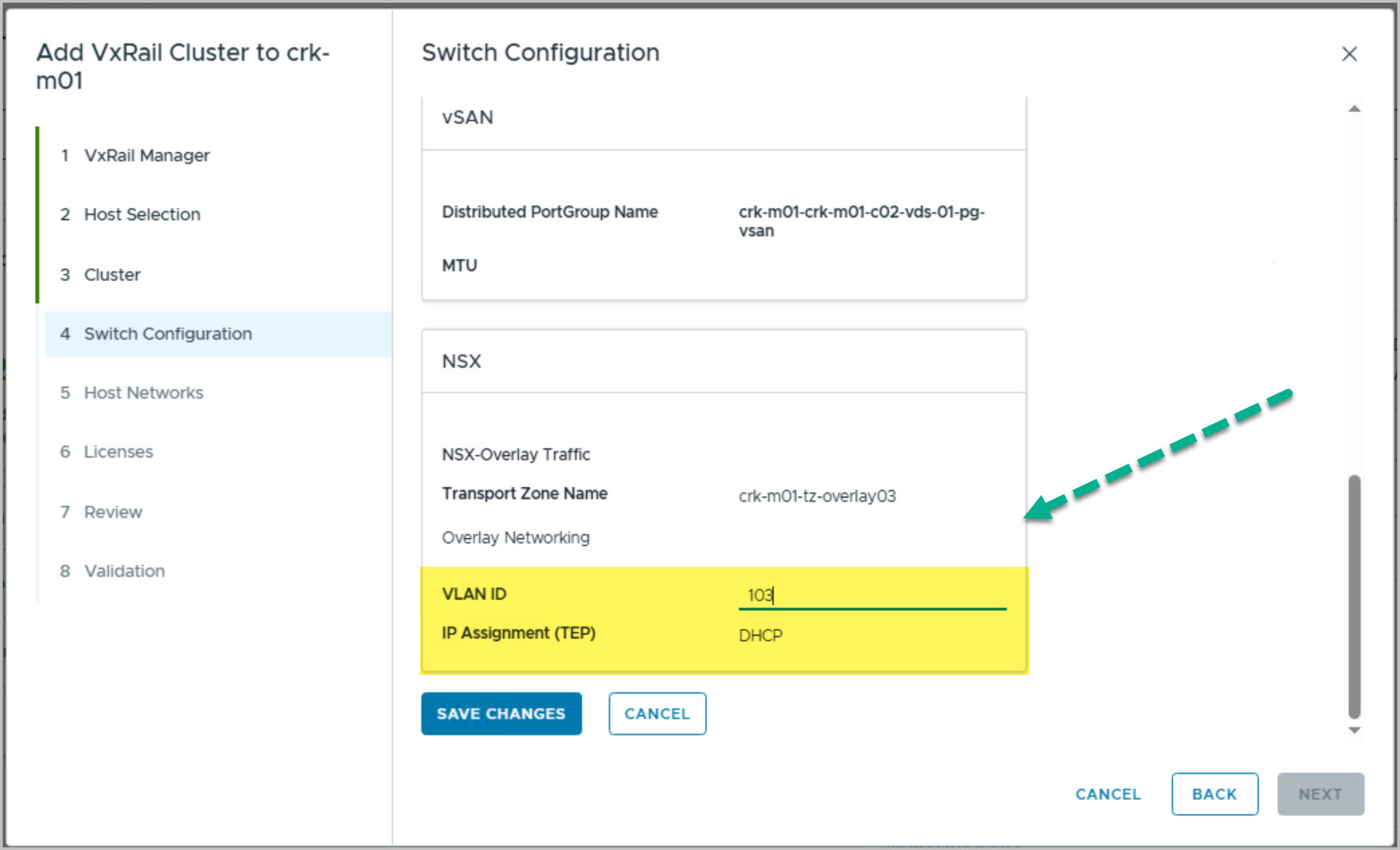
NSX Host Overlay Network (DHCP server if using). When VMware NSX creates TEPs for the VI workload domain cluster hosts, they are assigned IP addresses from the DHCP server.
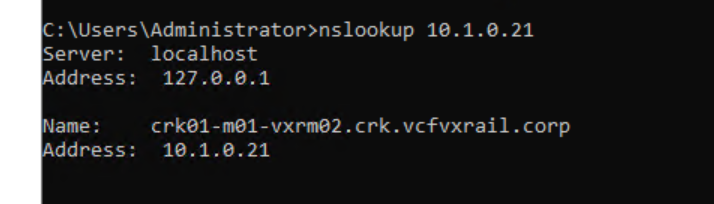
Update VxRail Manager Certificate with the correct Hostname.
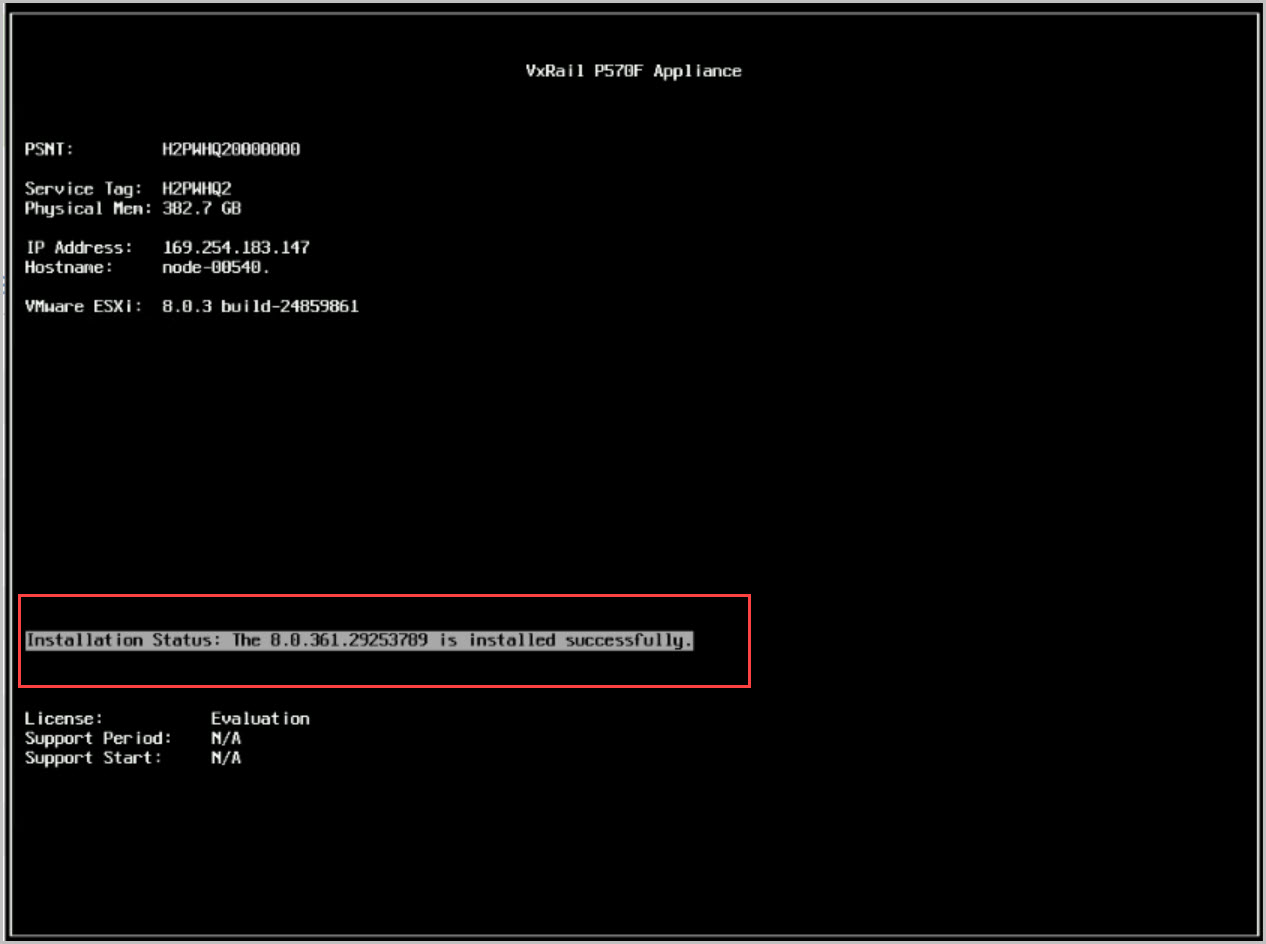
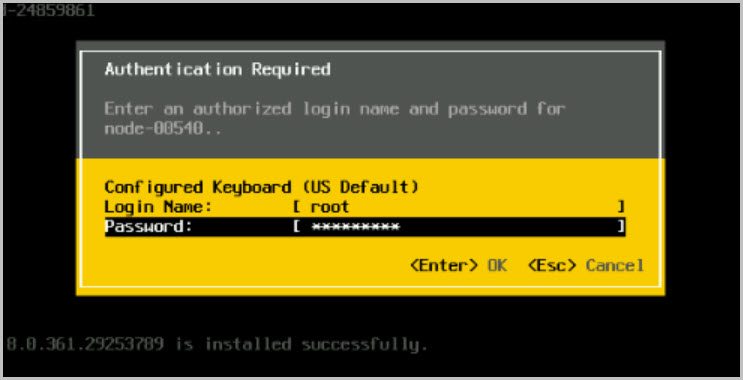
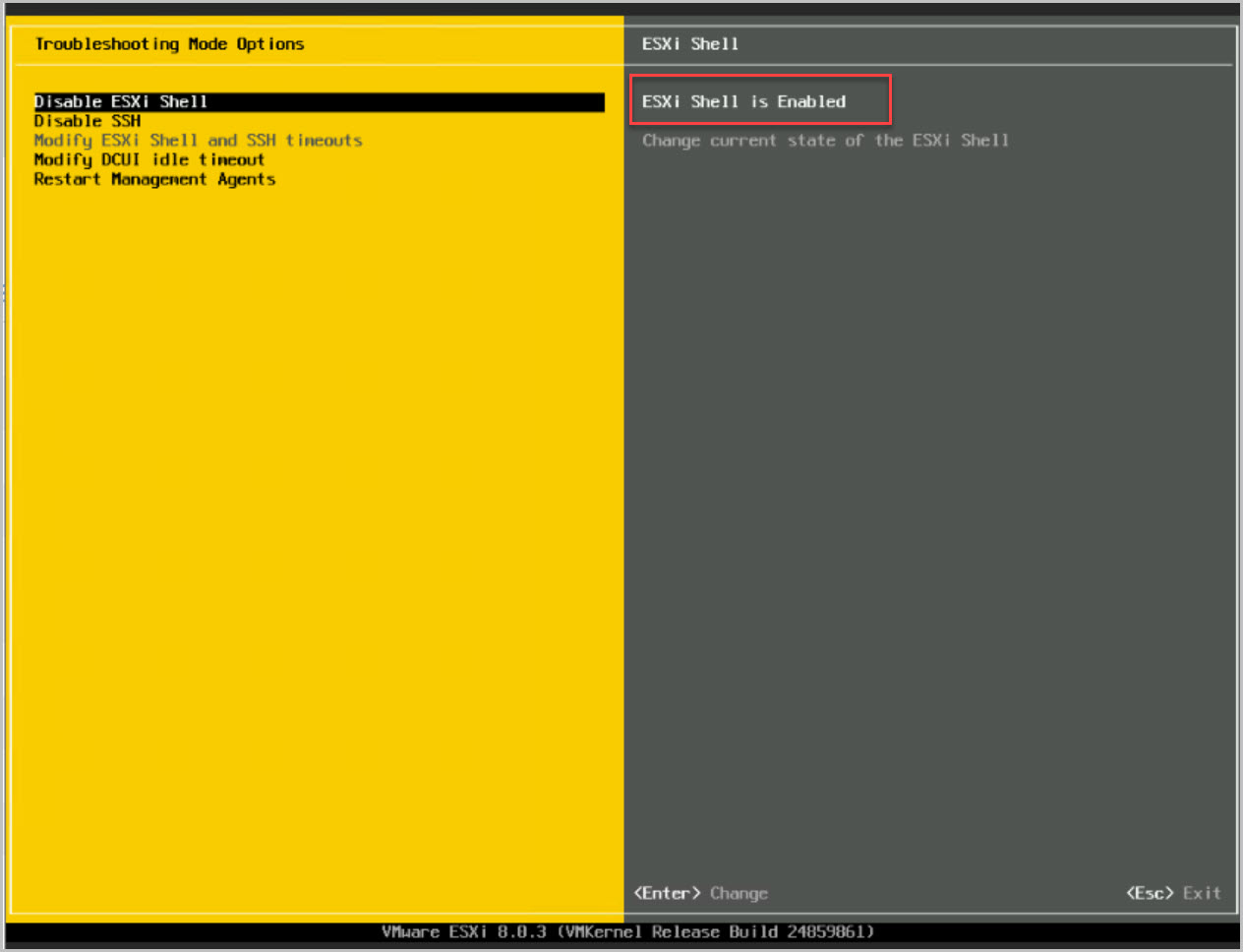
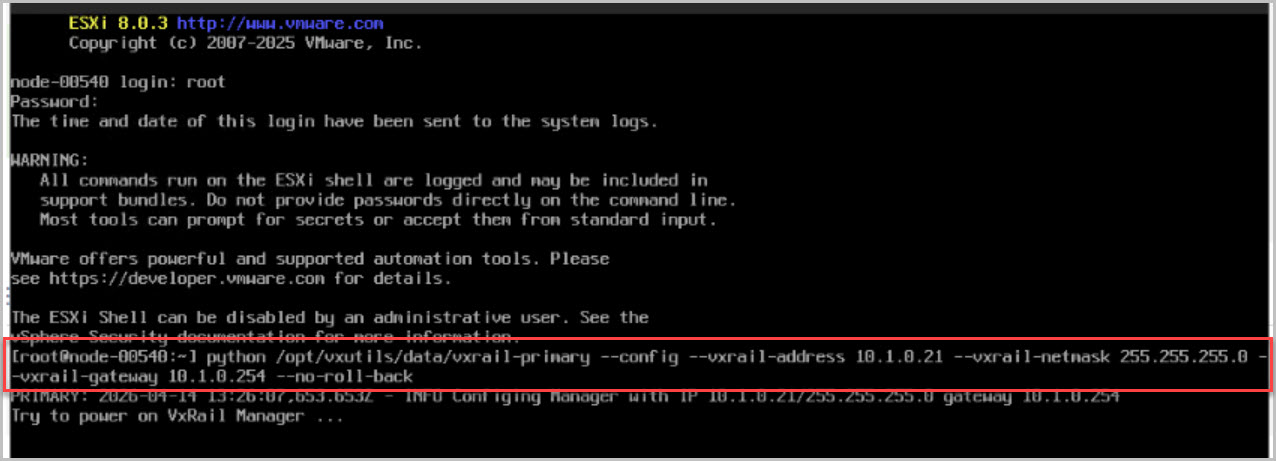
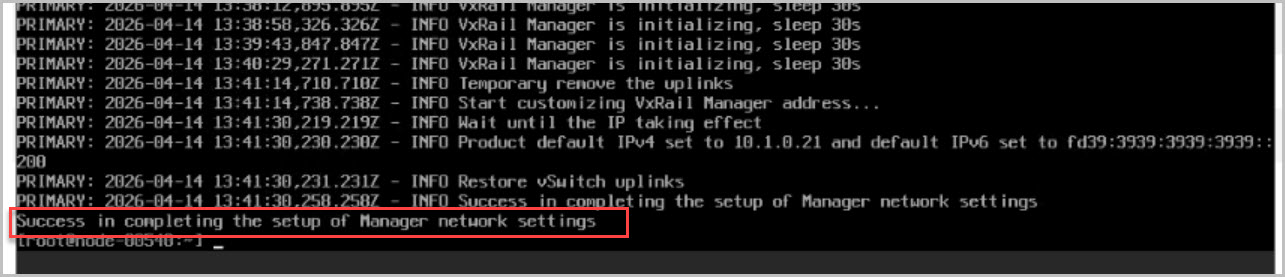
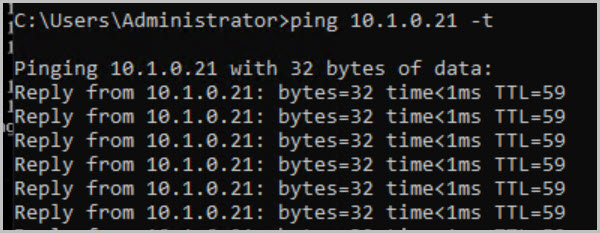
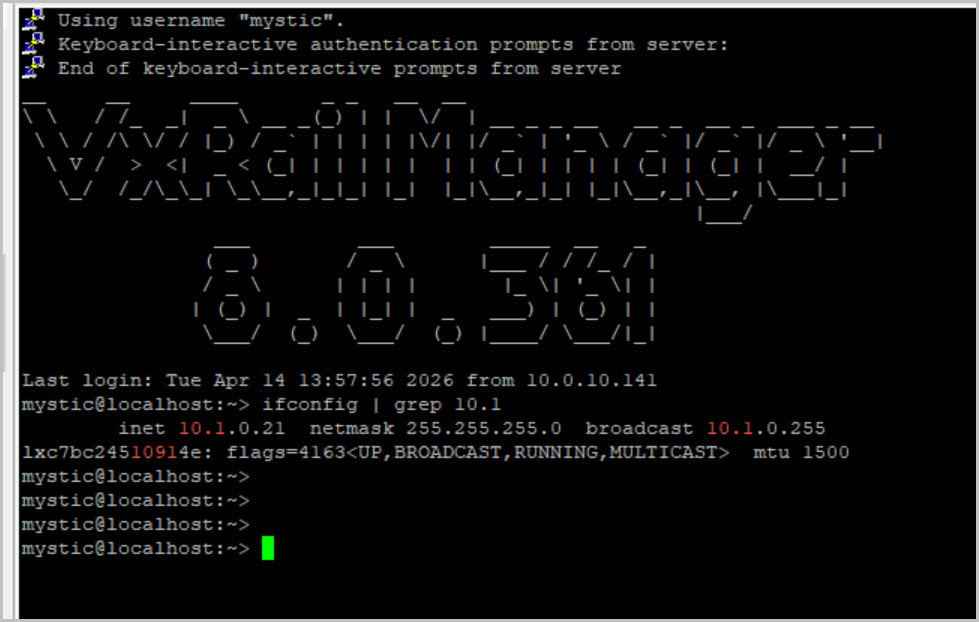
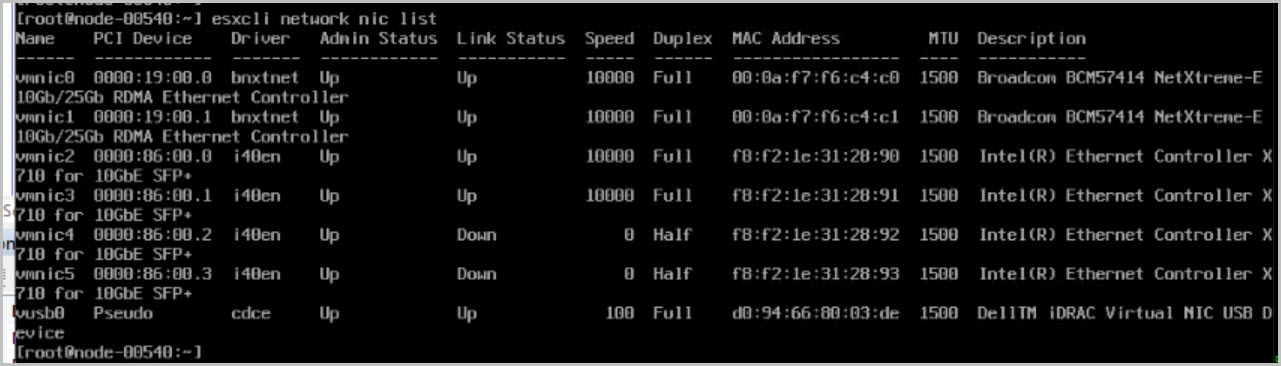
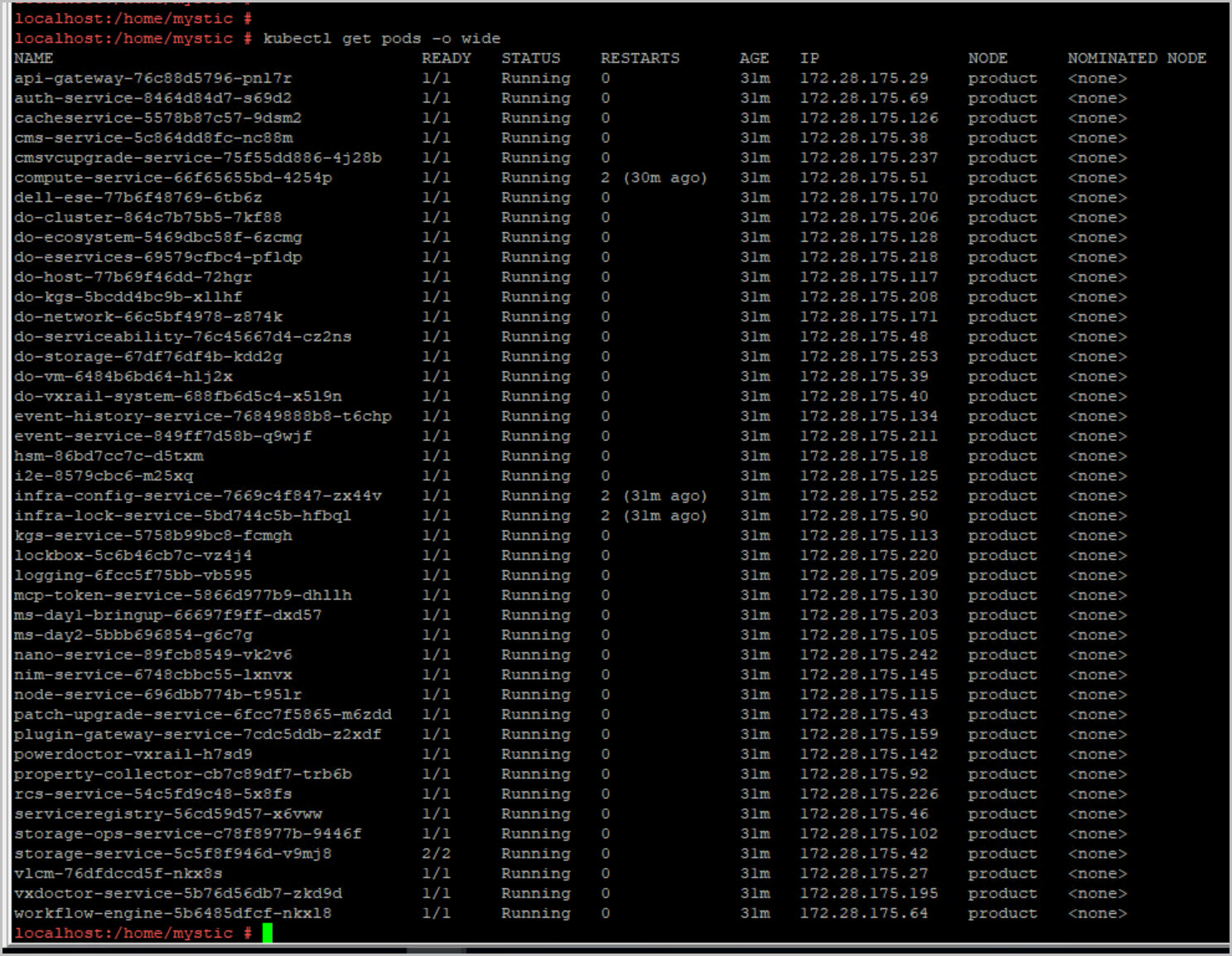
Change the VxRail Manger IP address & confirm discovery of hosts (included example steps to add host to smart fabric networking solution):
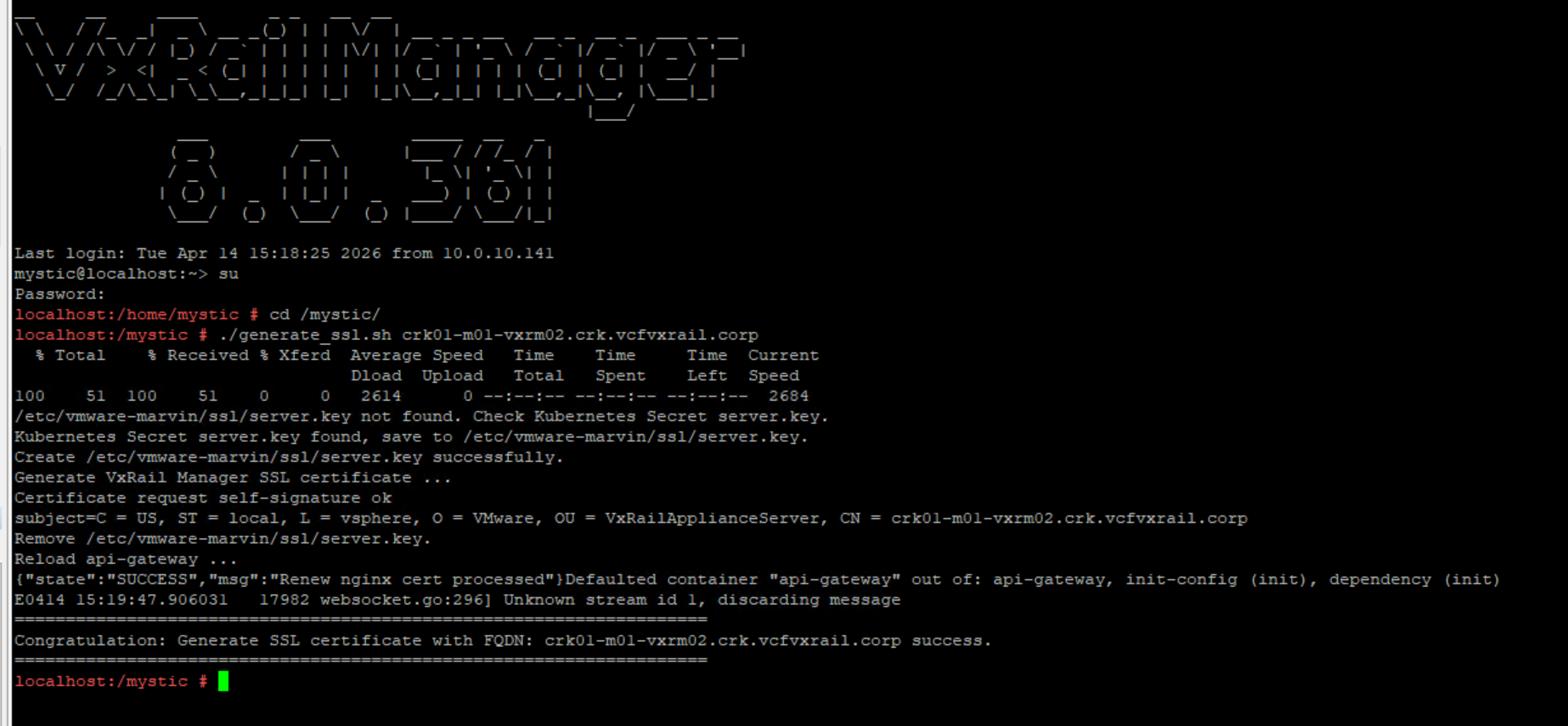
Update VxRail Manager Certificate with the correct Hostname by logging into VxRail Manager via ssh with mystic followed by su. cd /mystic dir and run the following script:
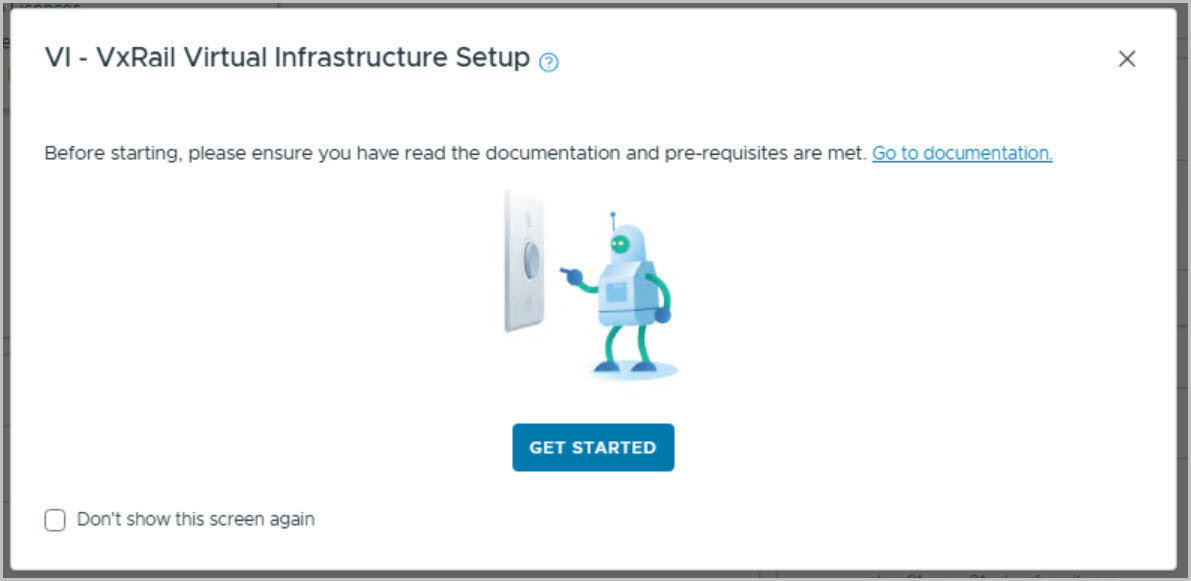
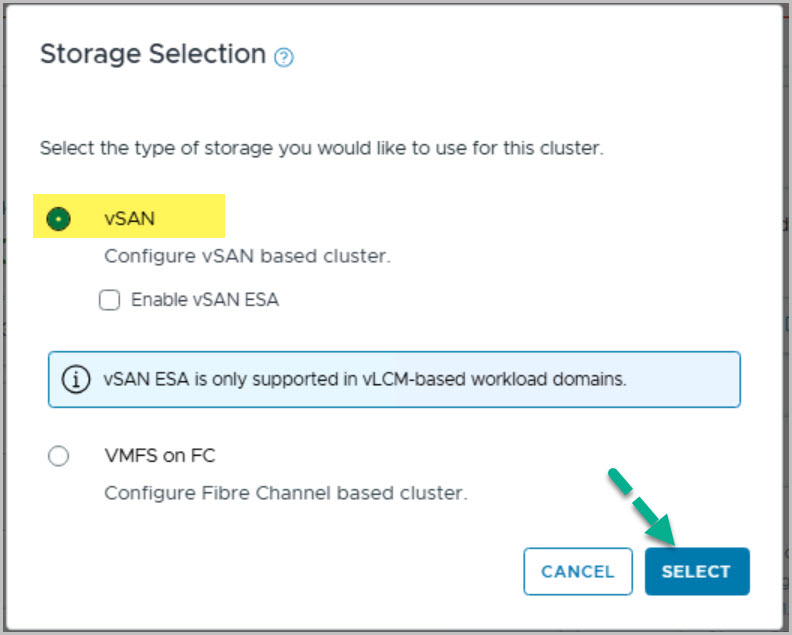
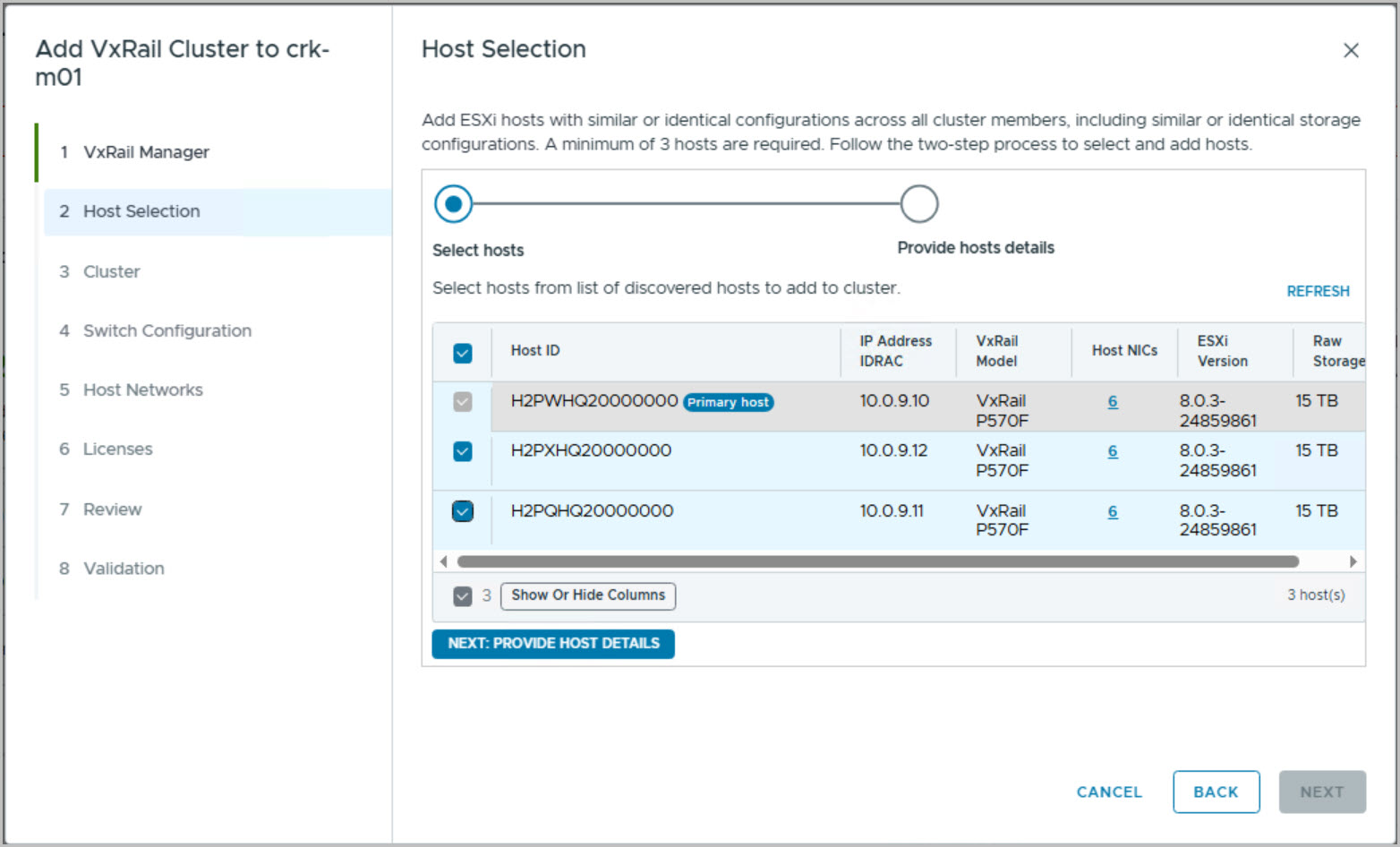
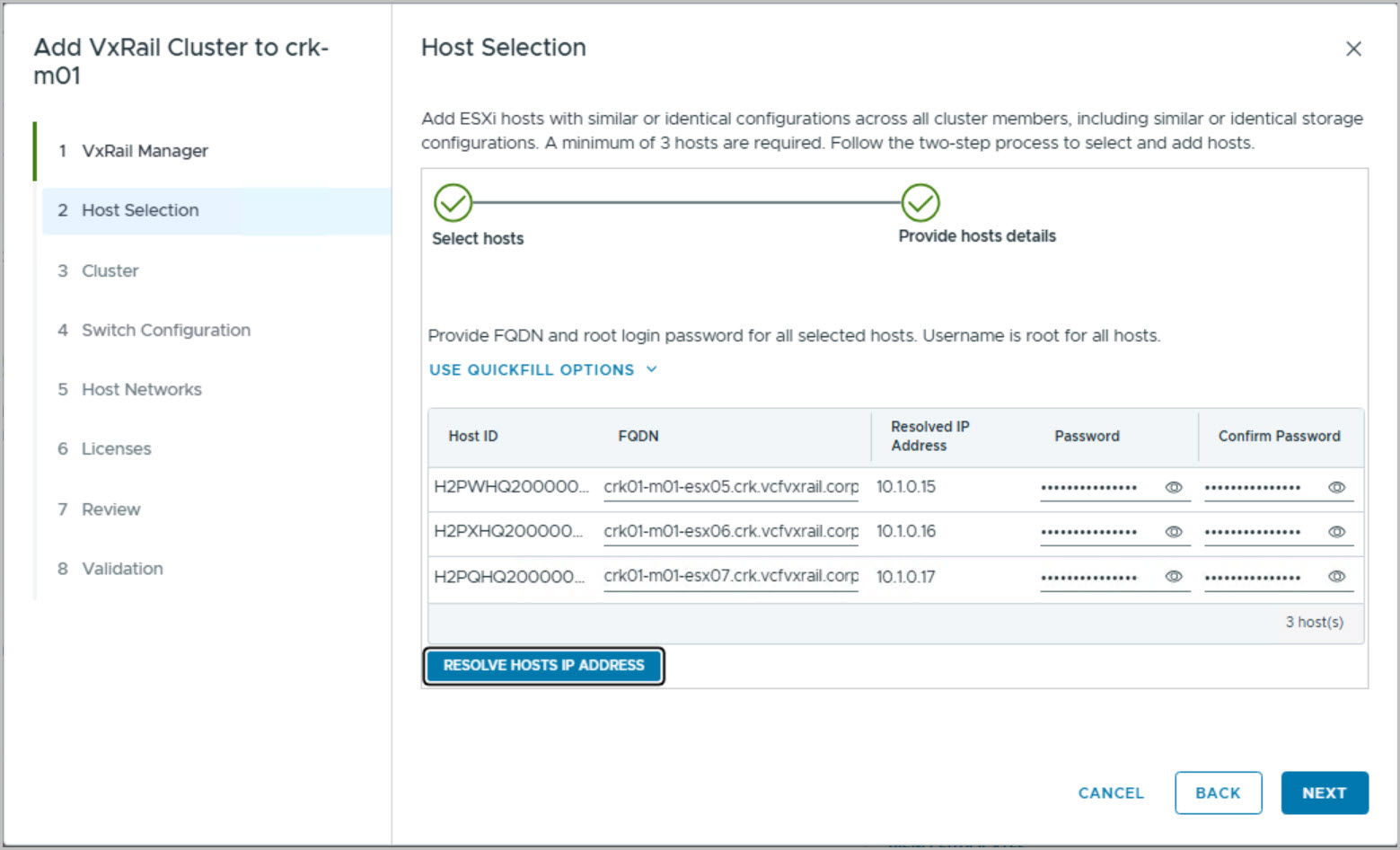
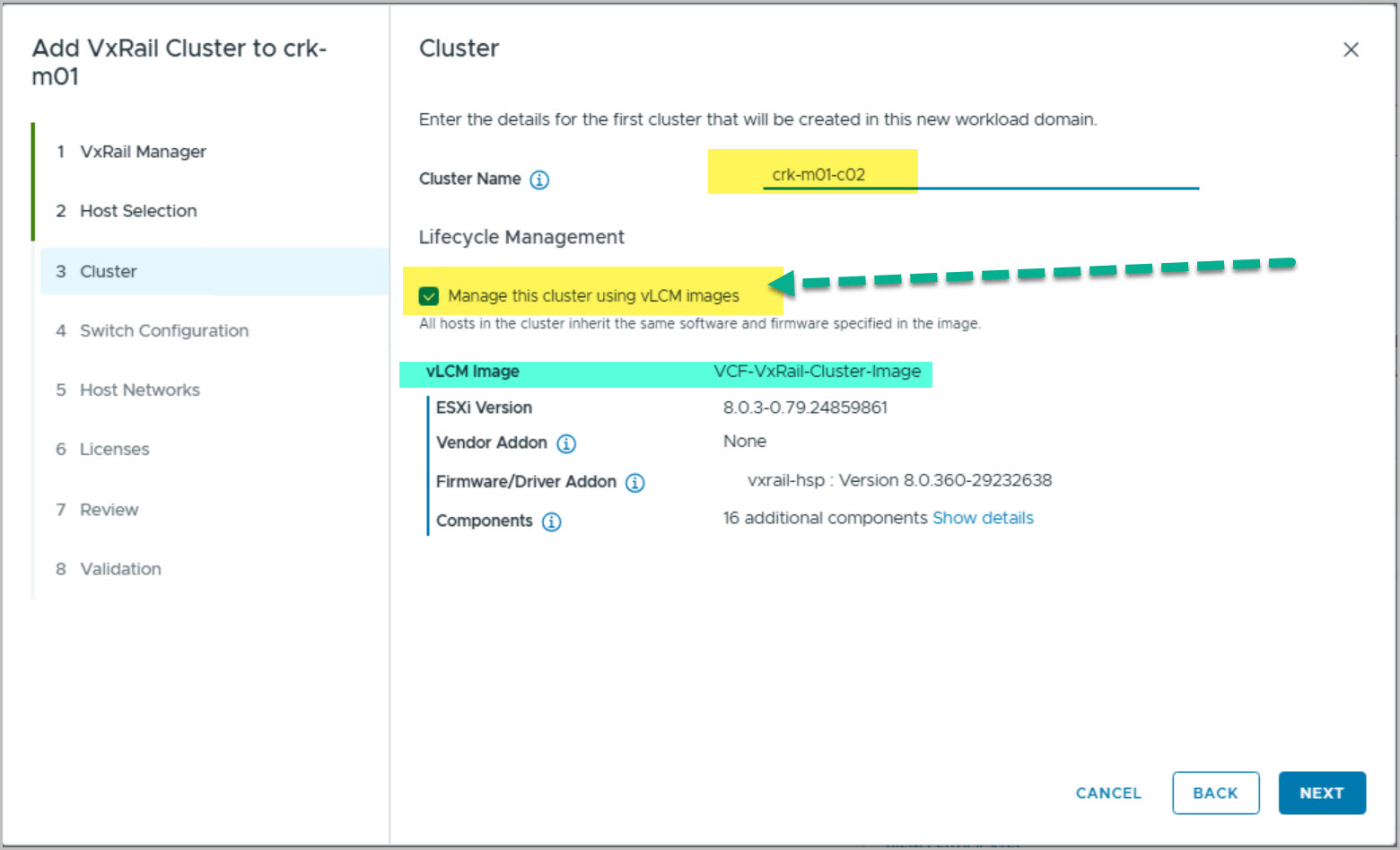
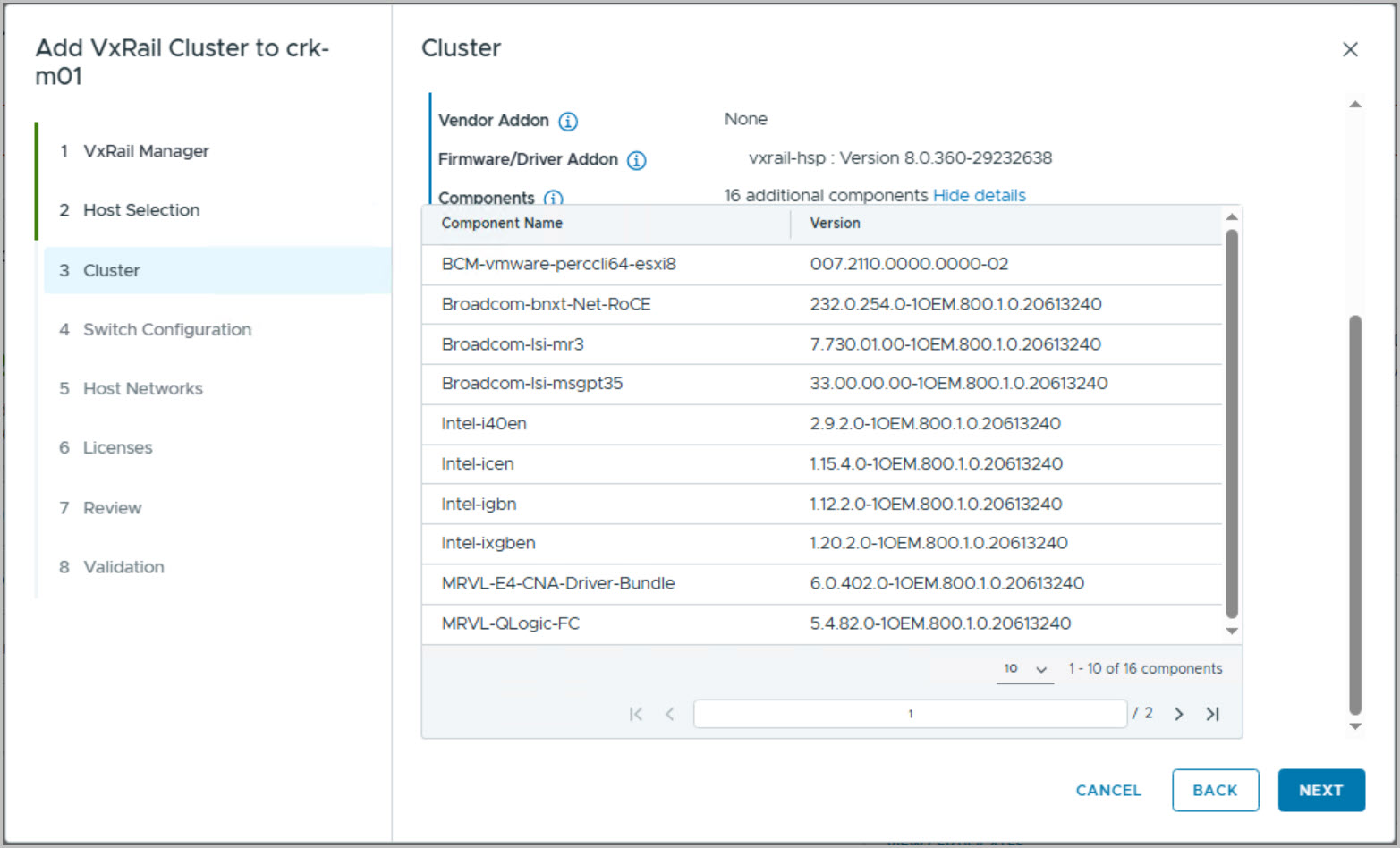
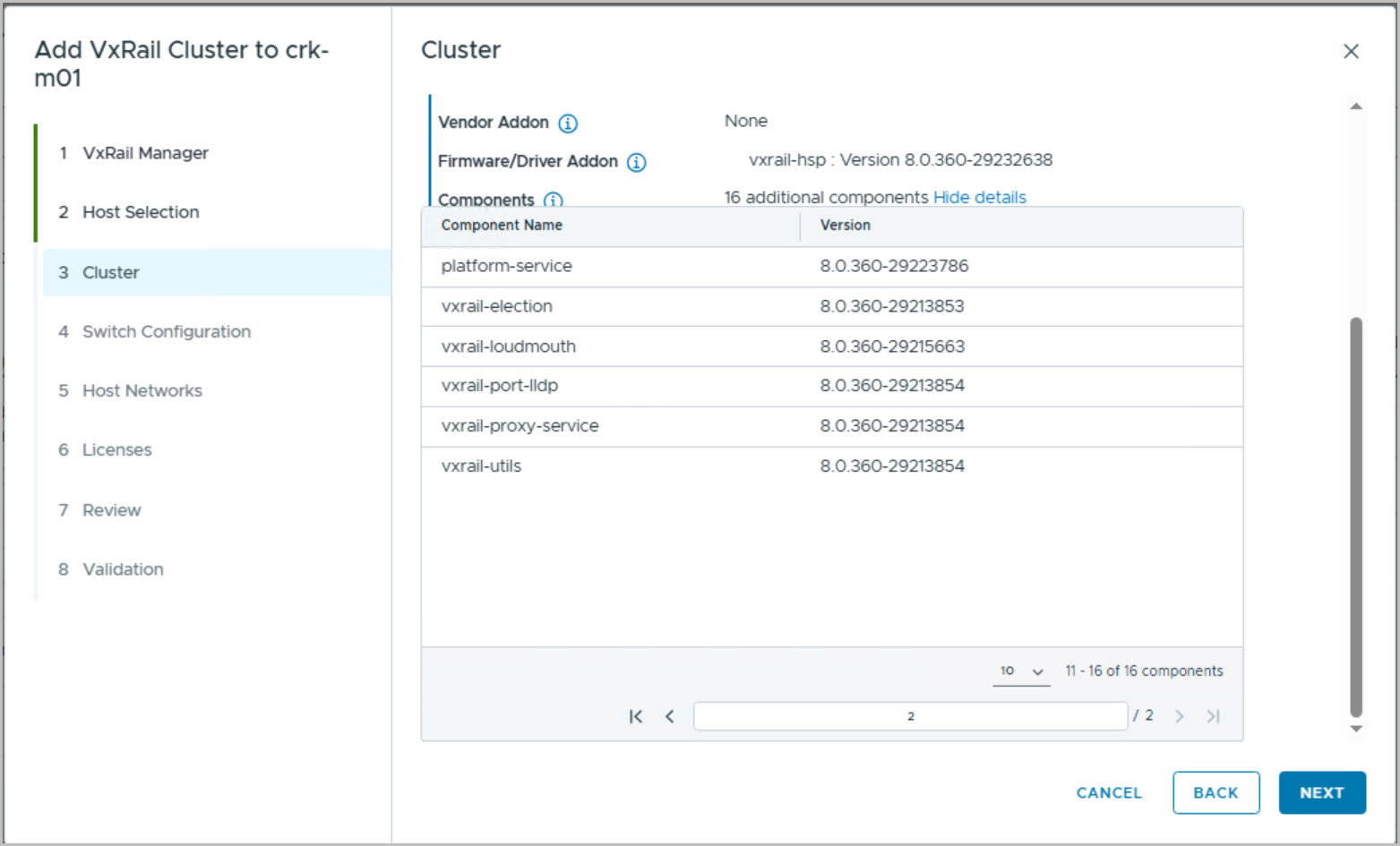
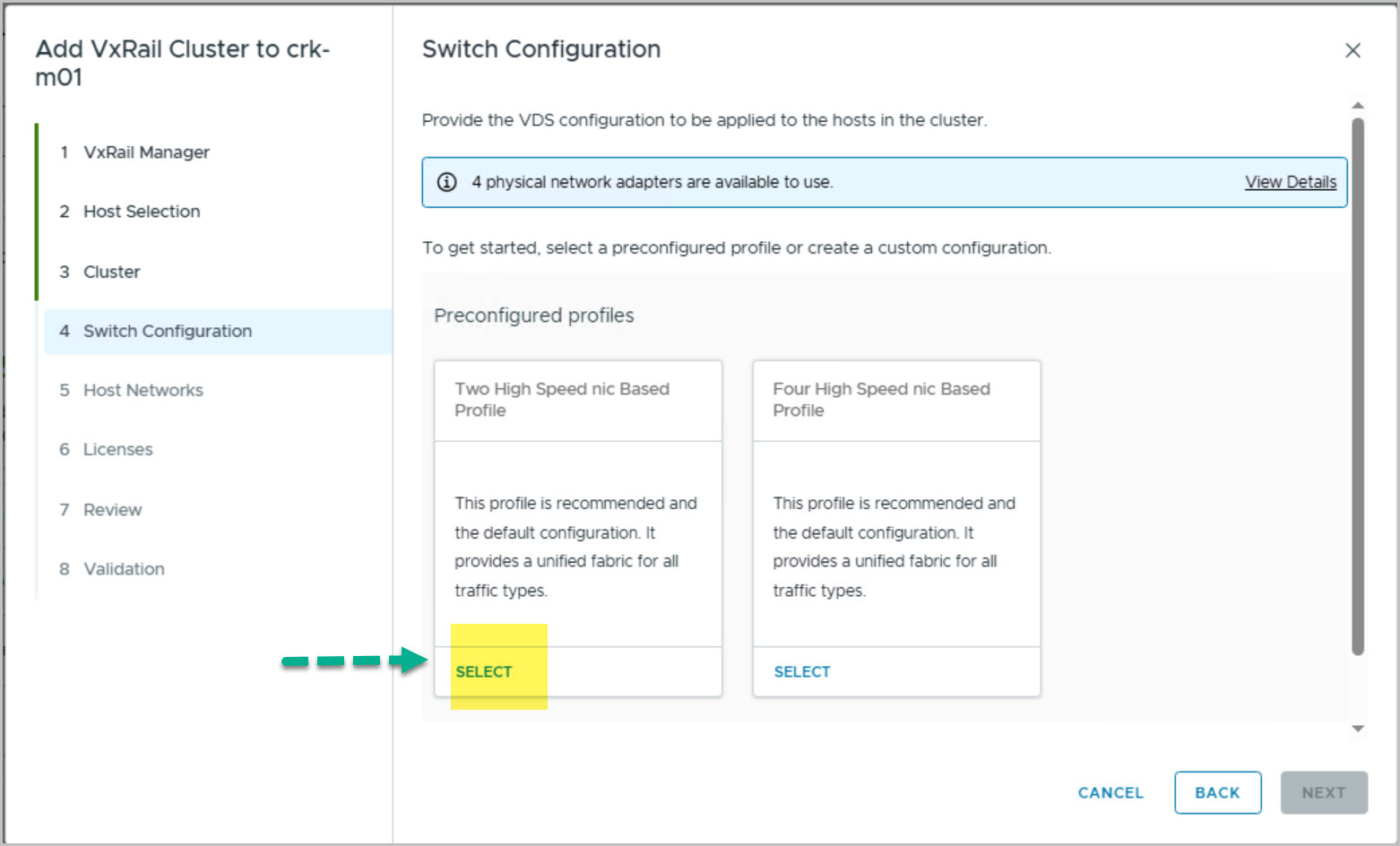
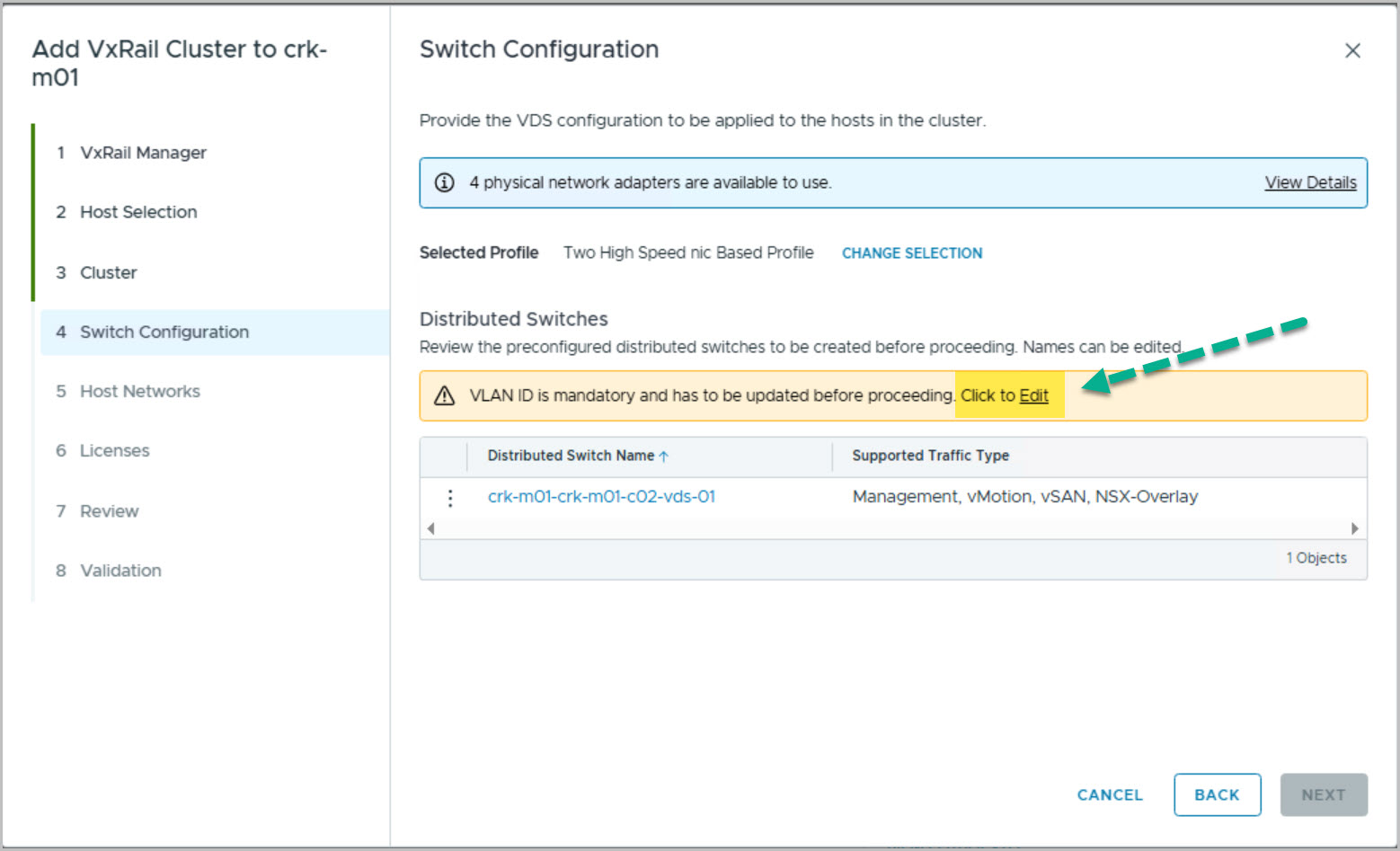
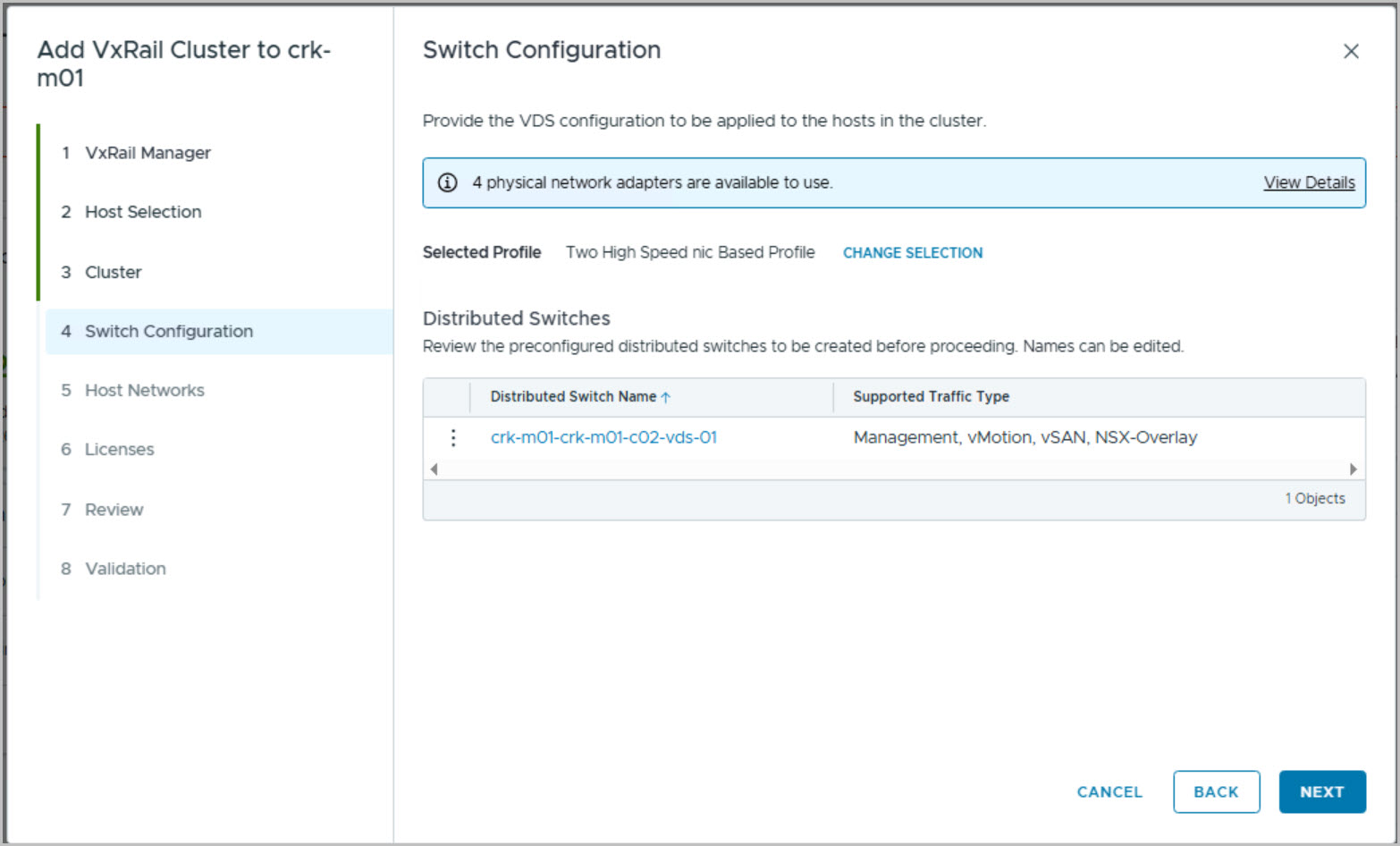
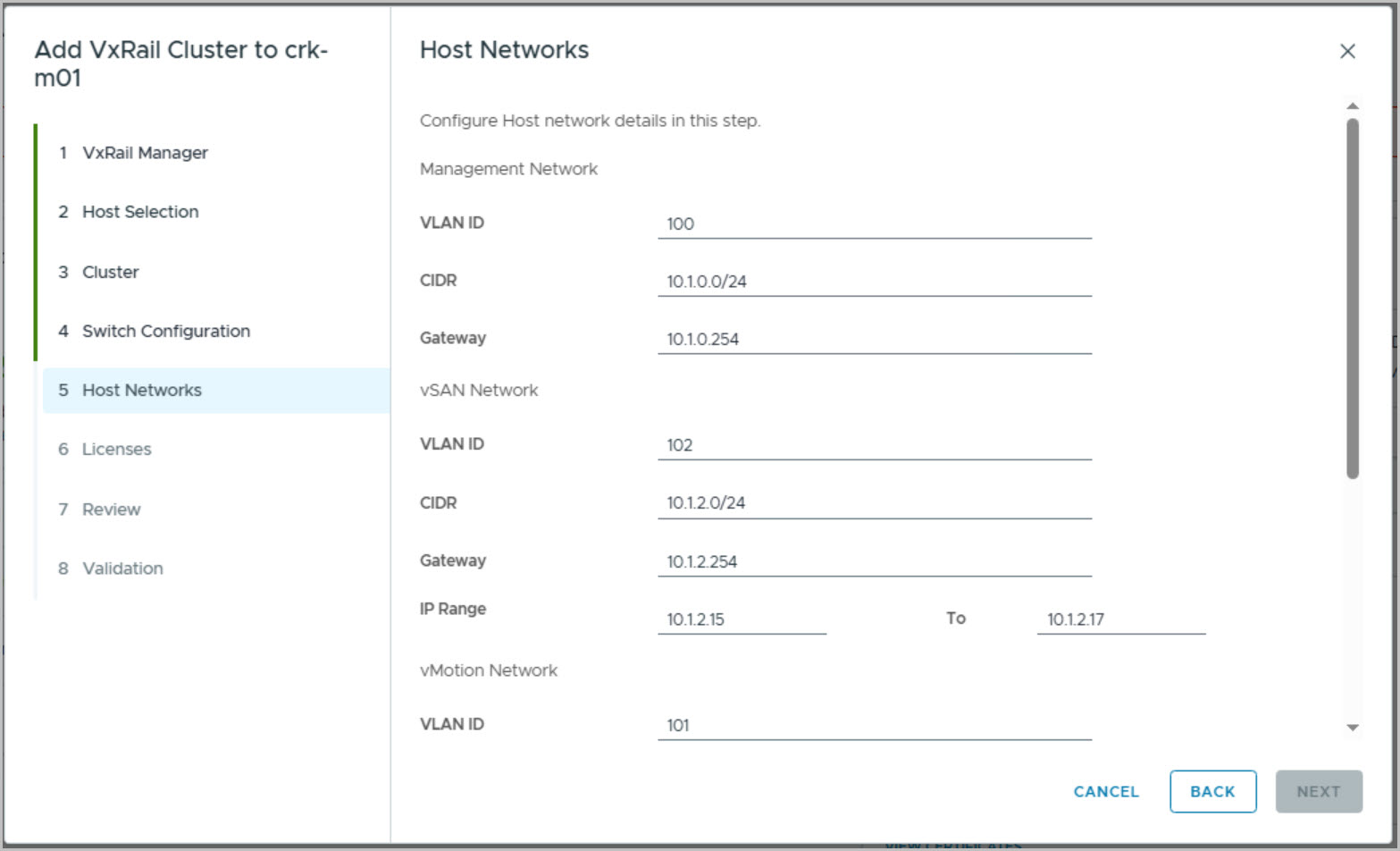
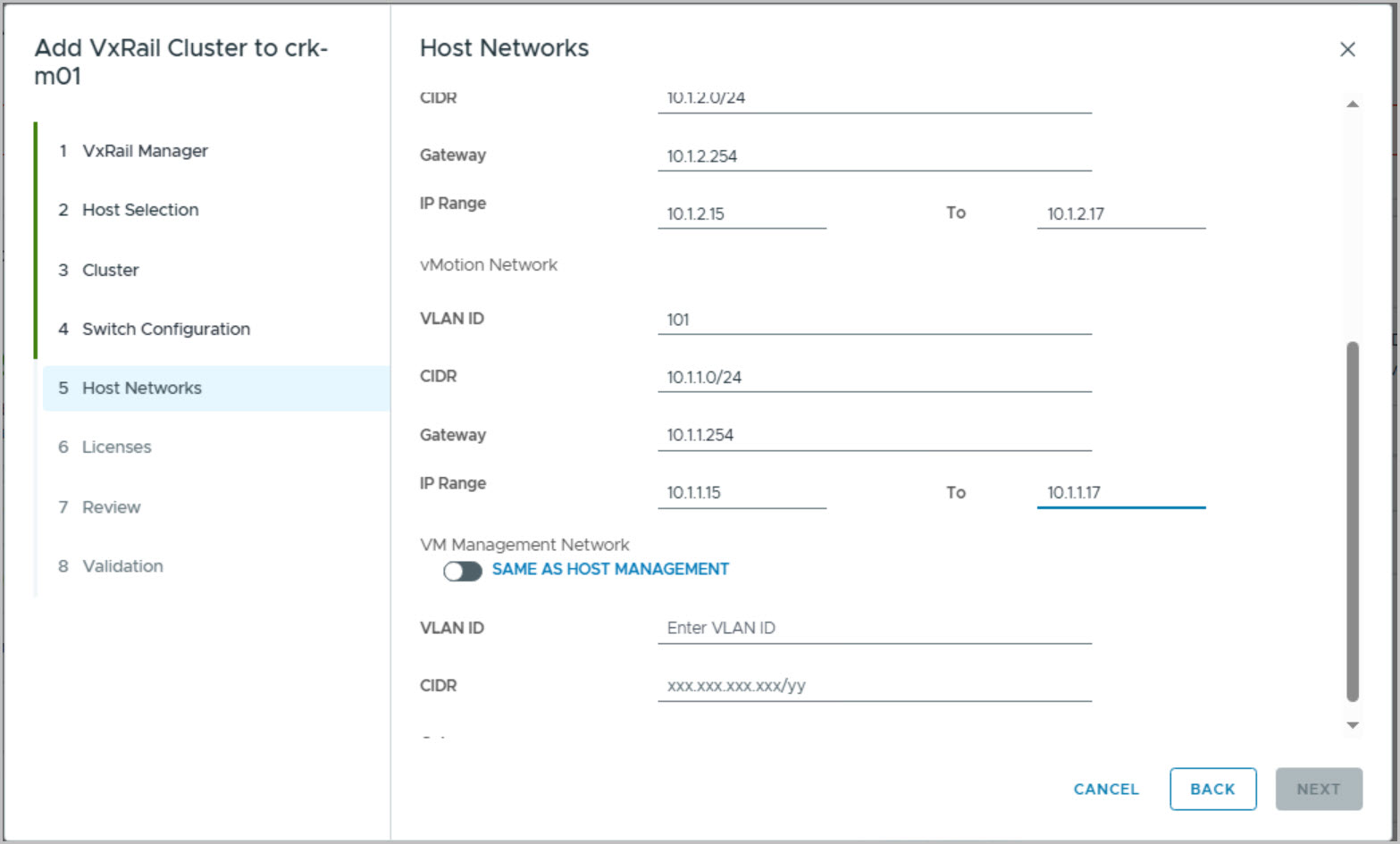
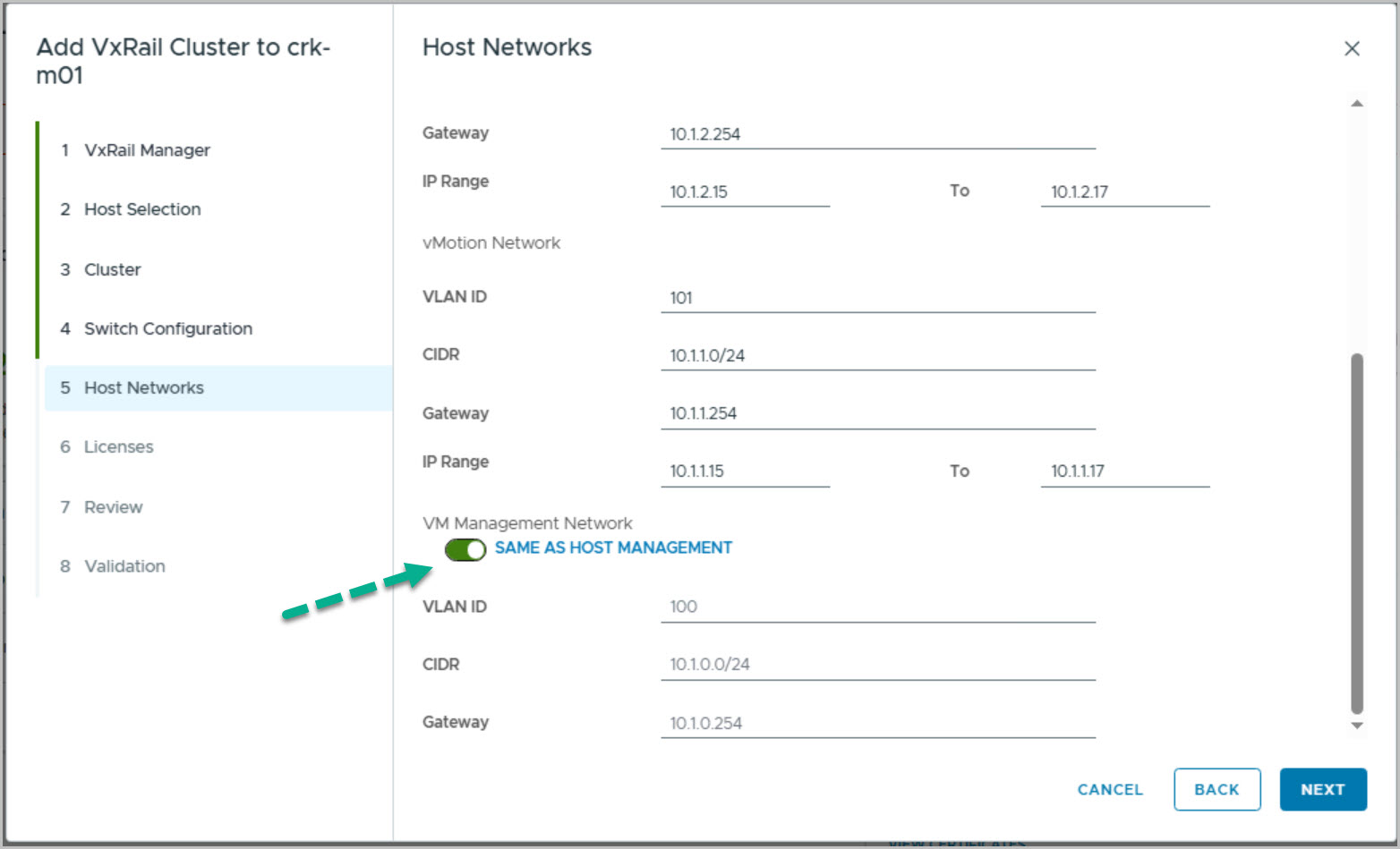
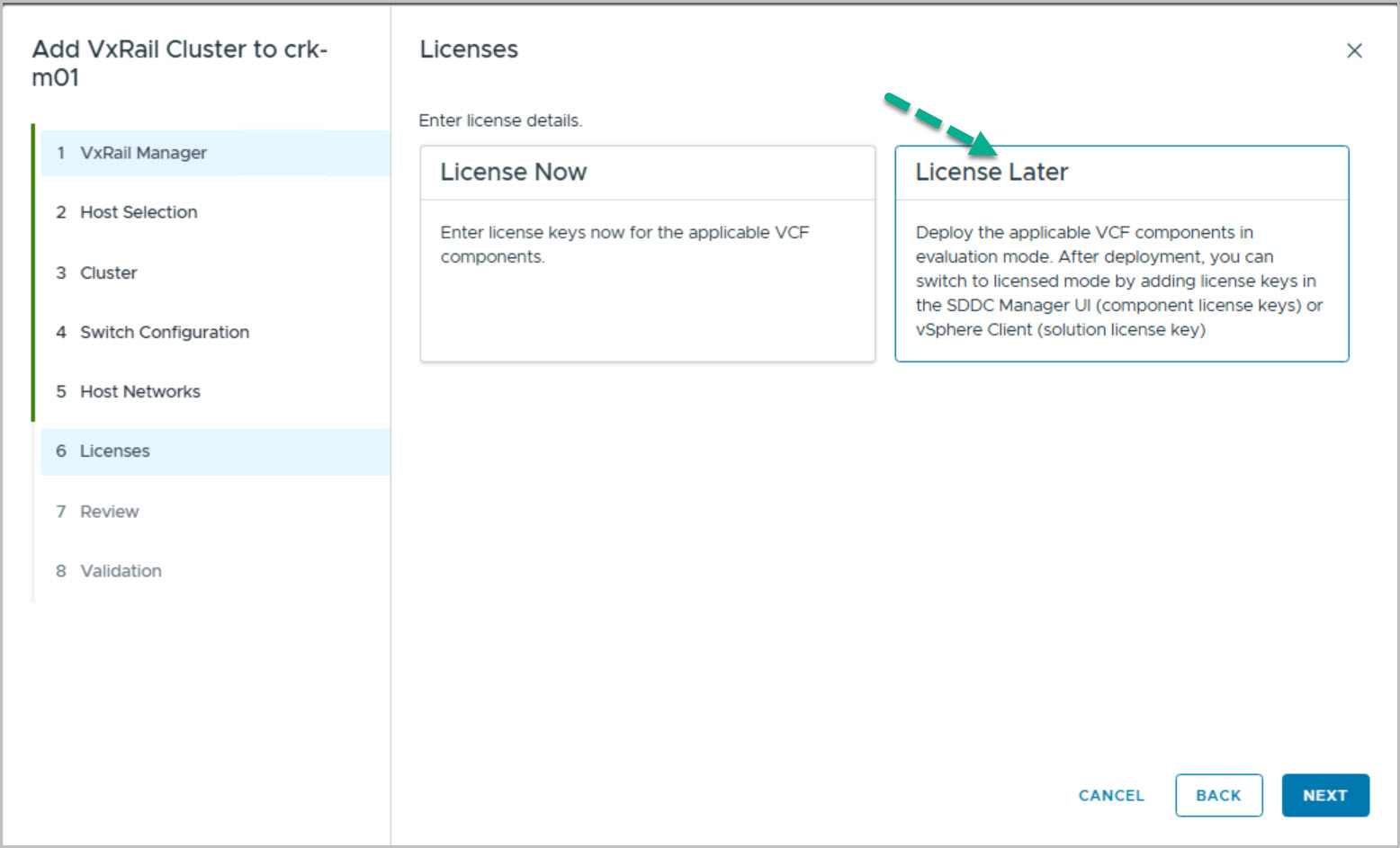
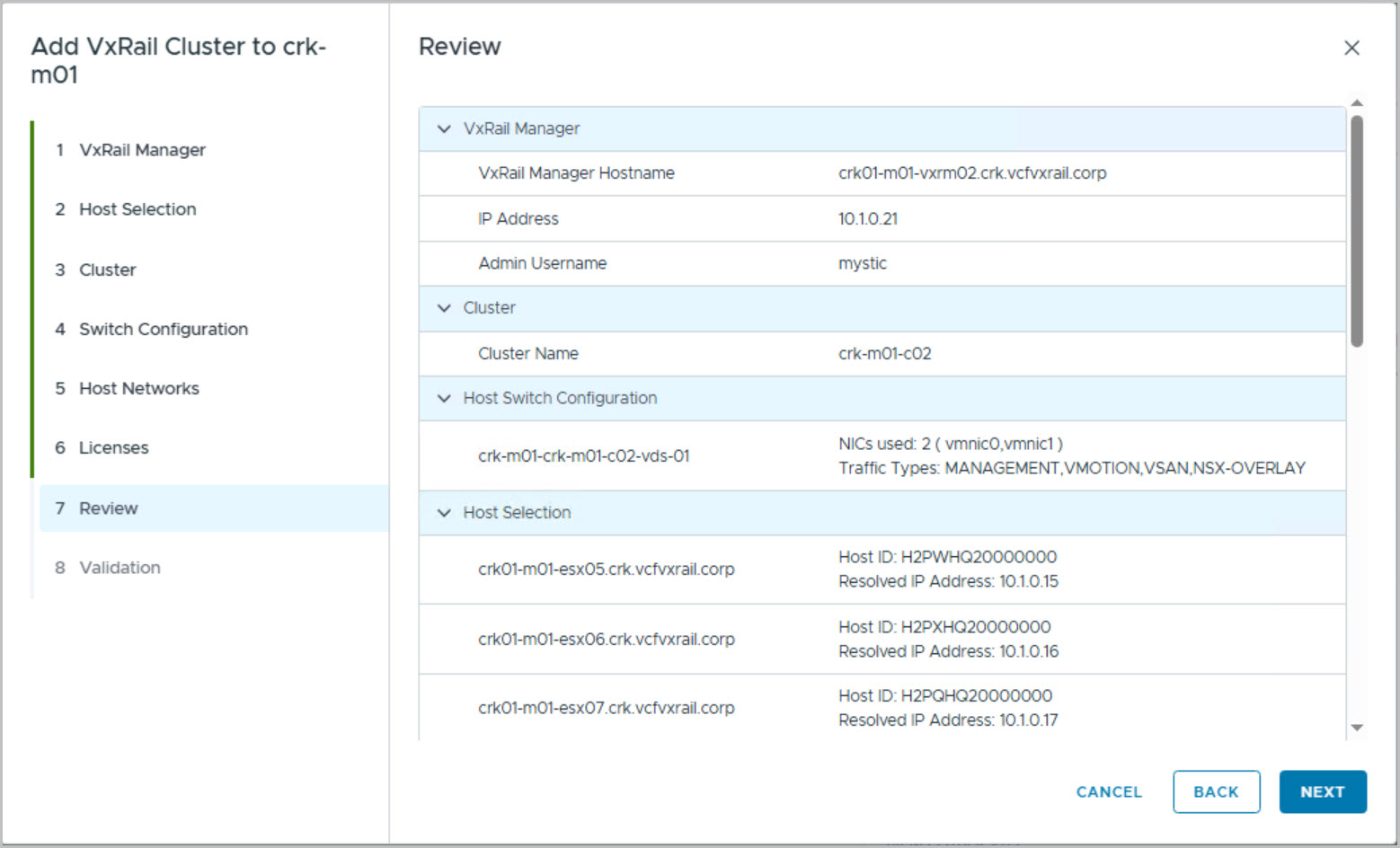
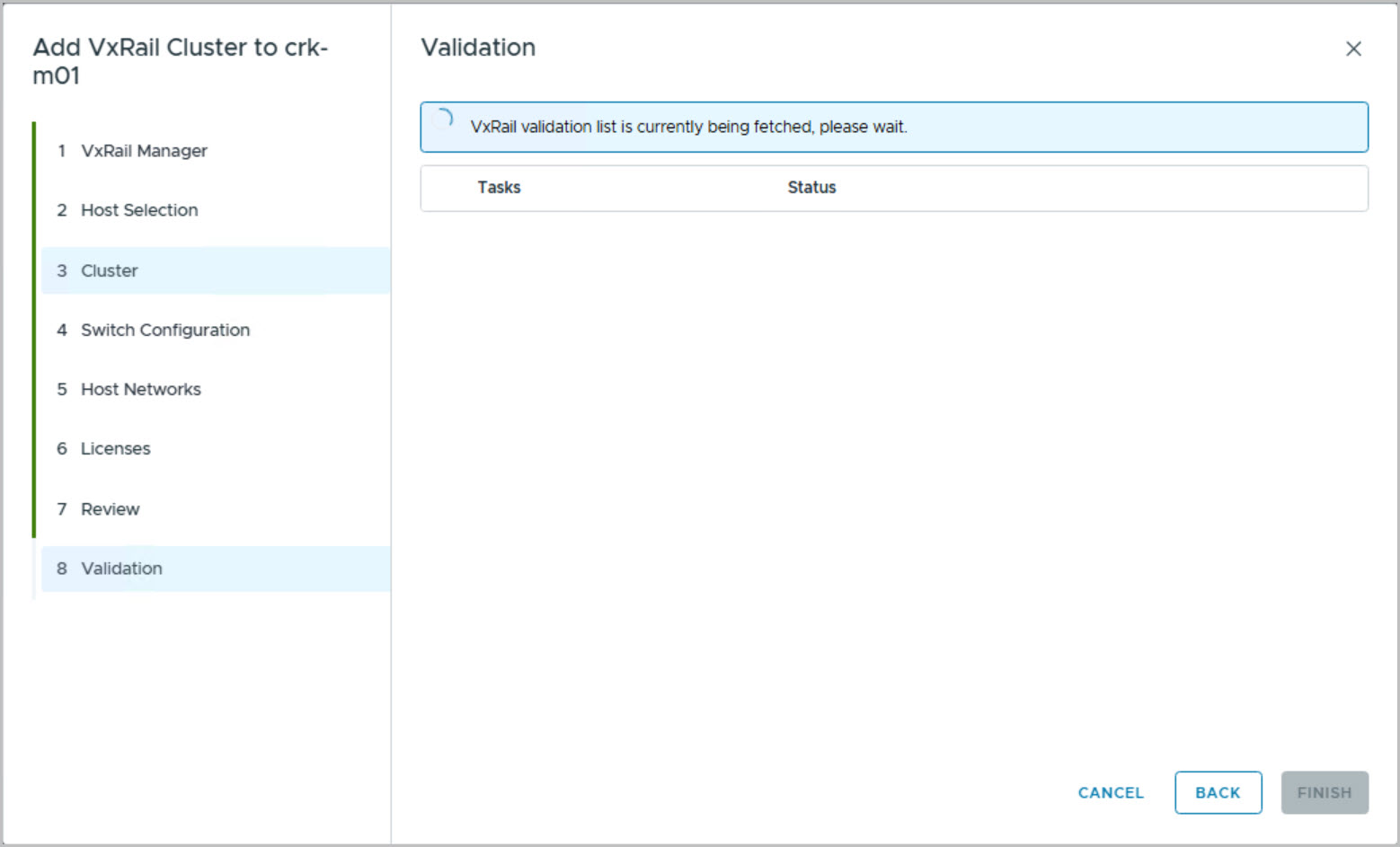
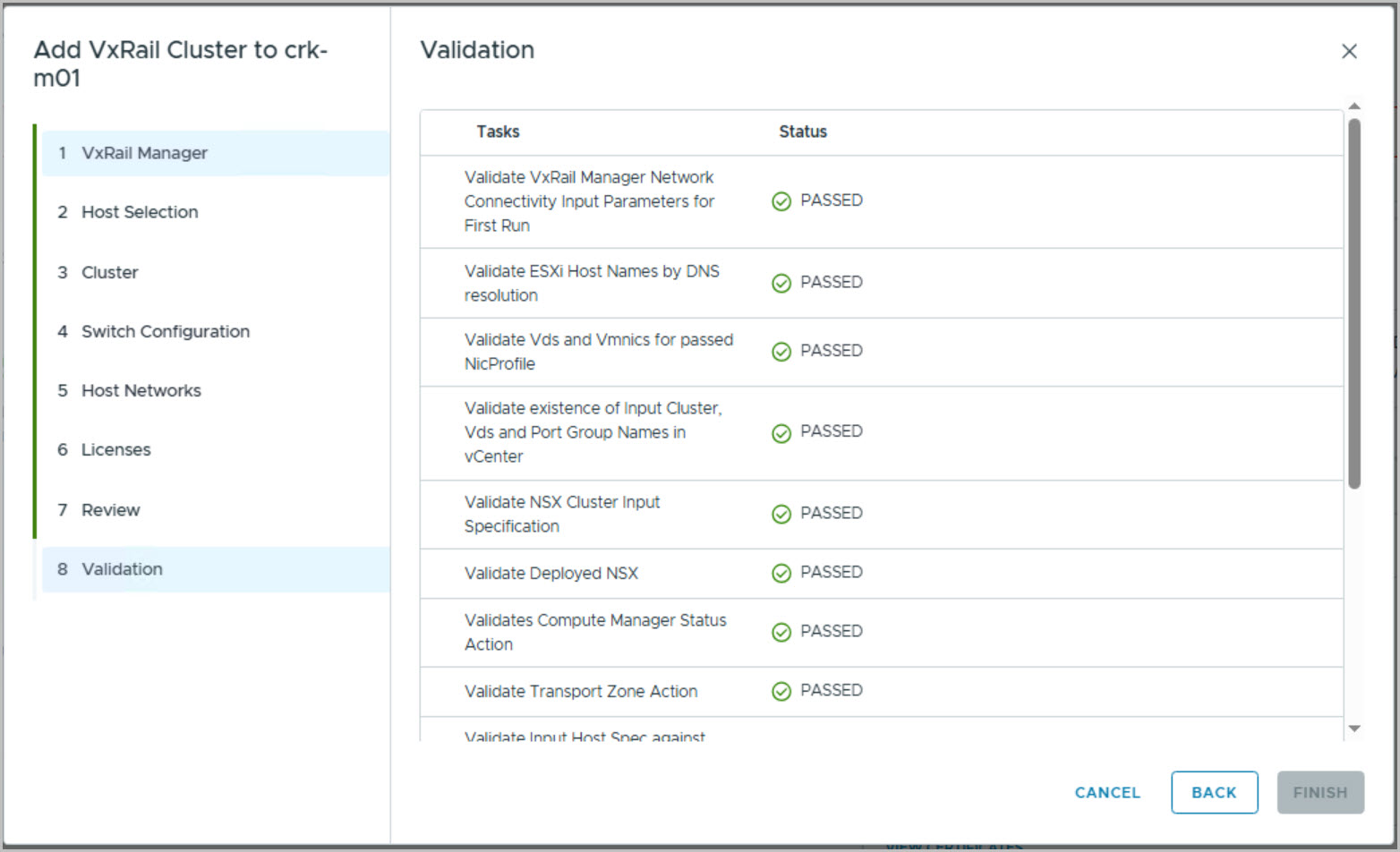
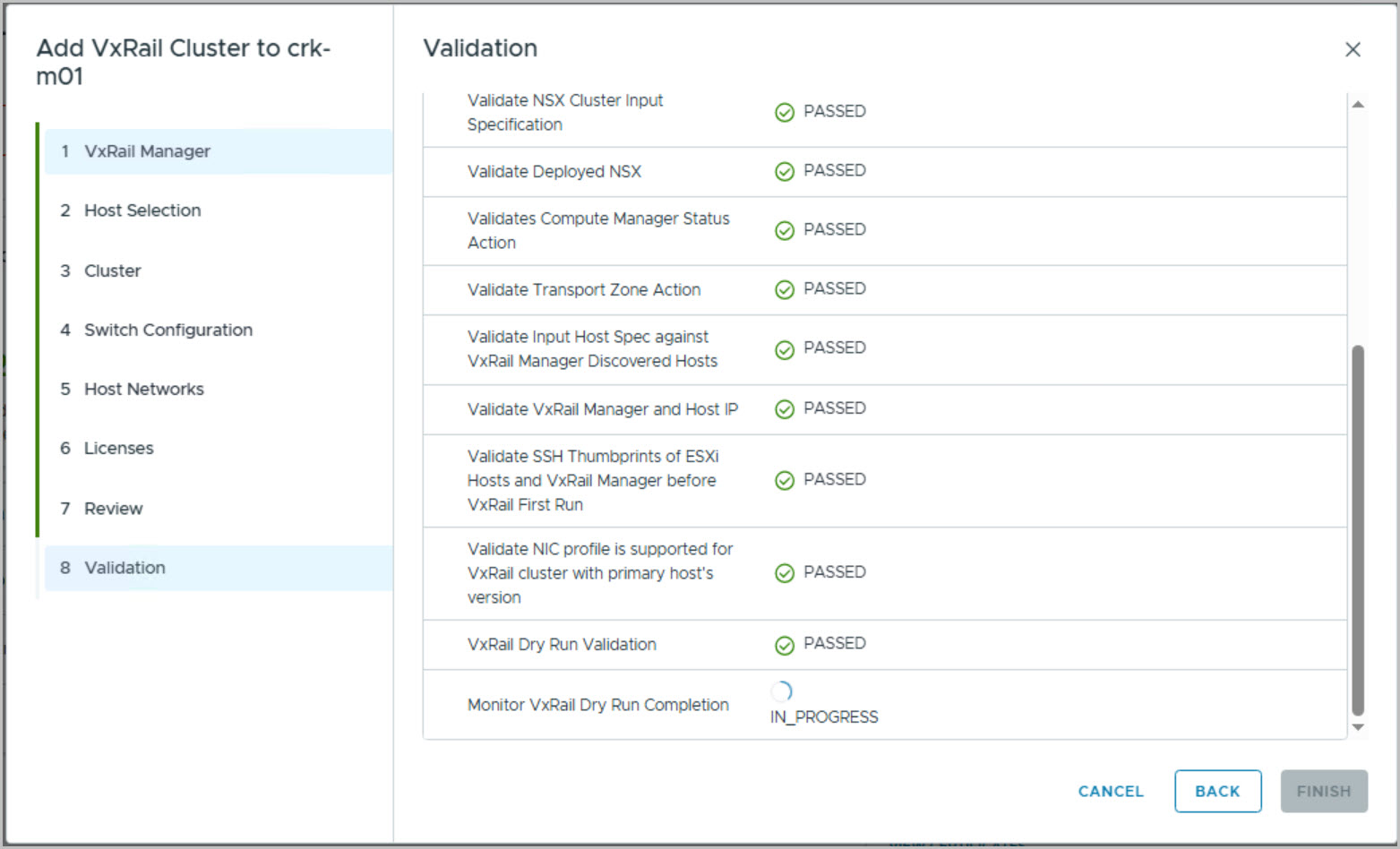
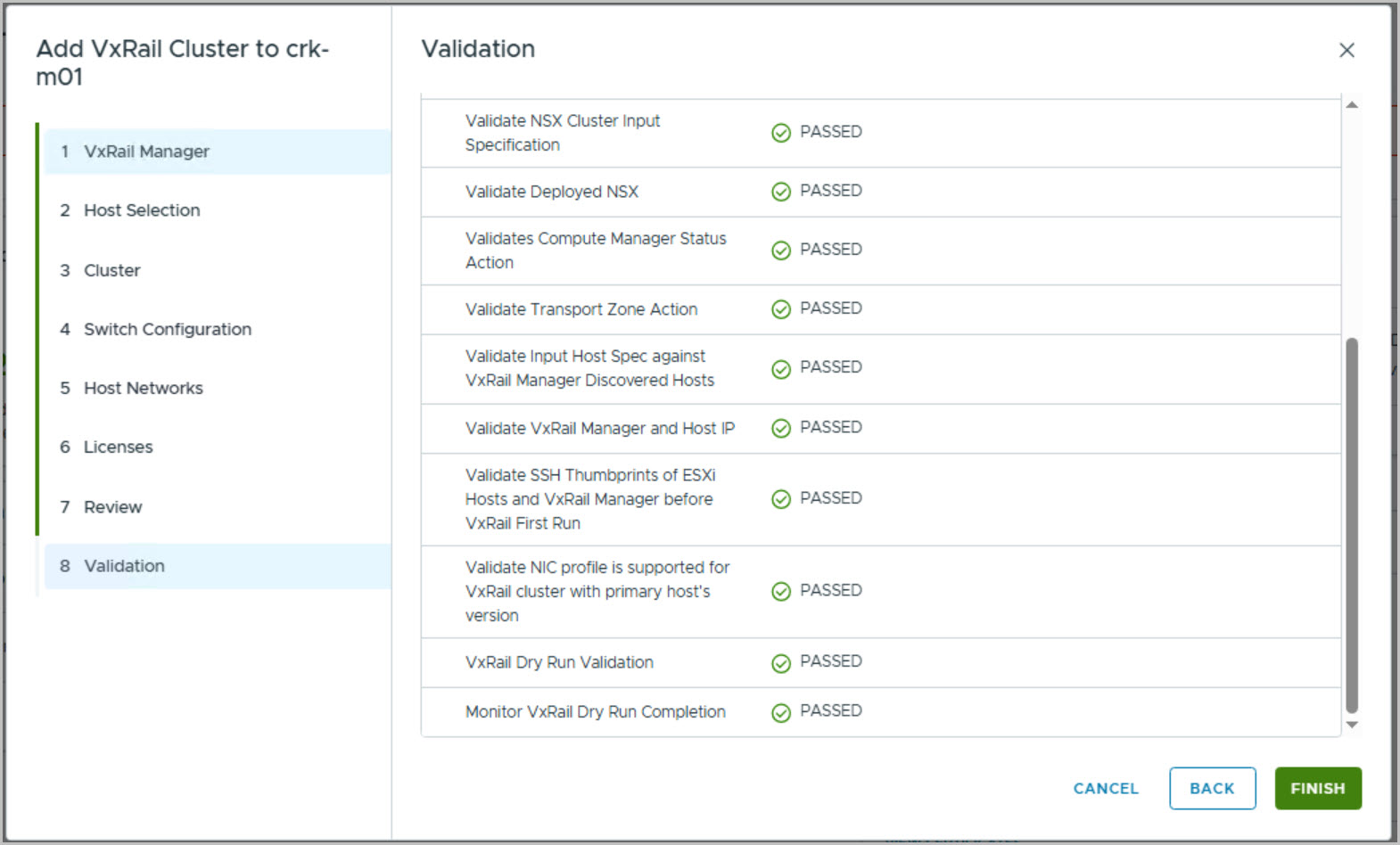
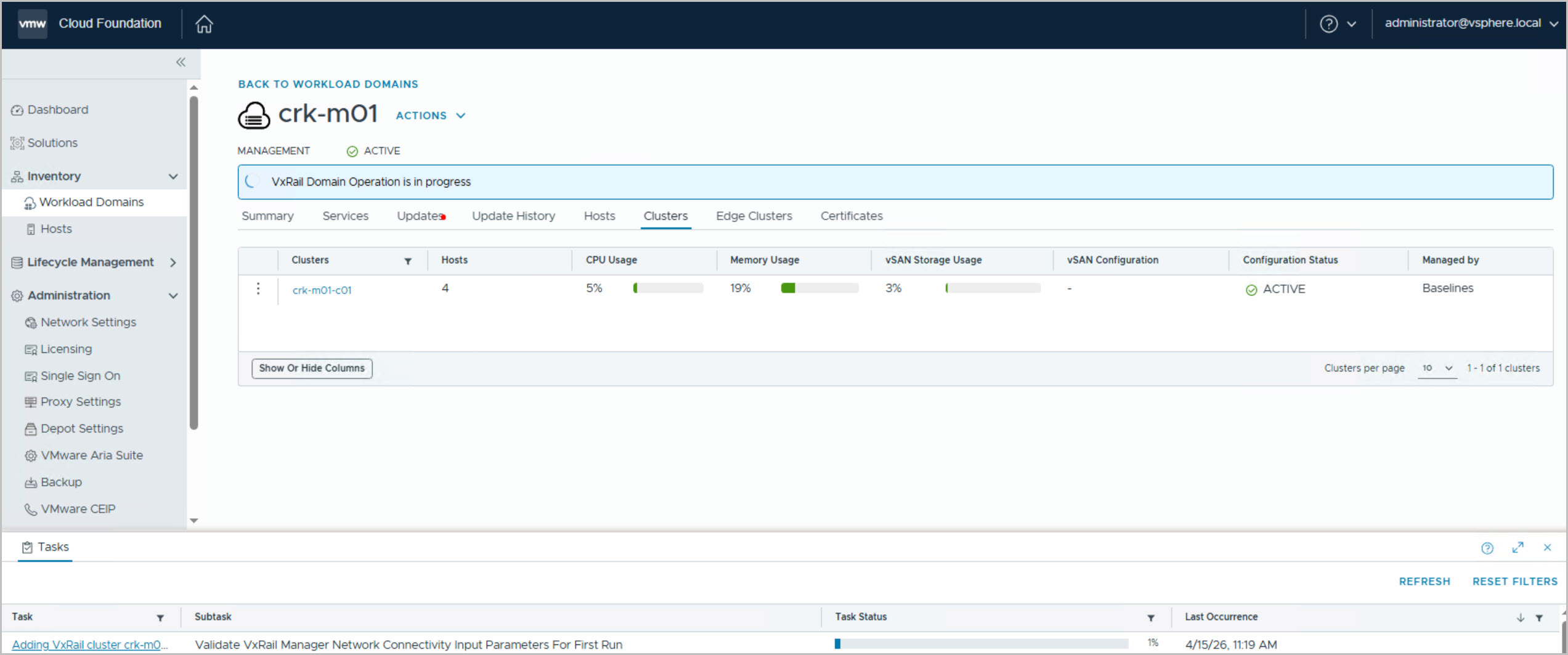
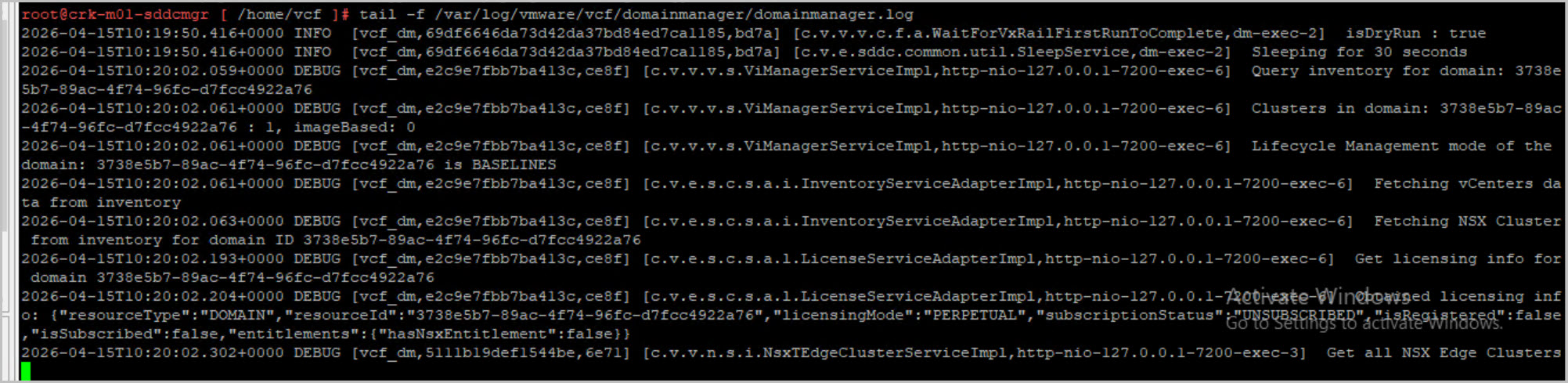
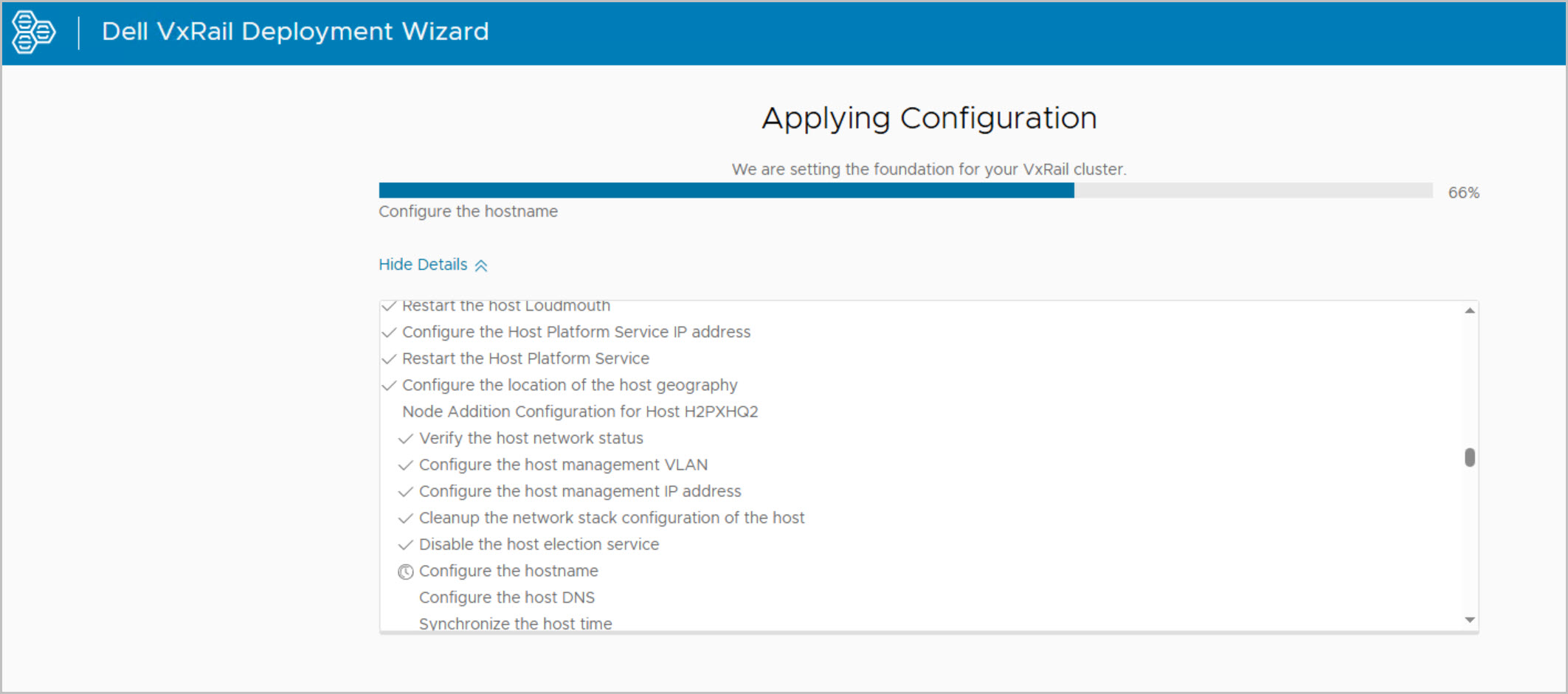
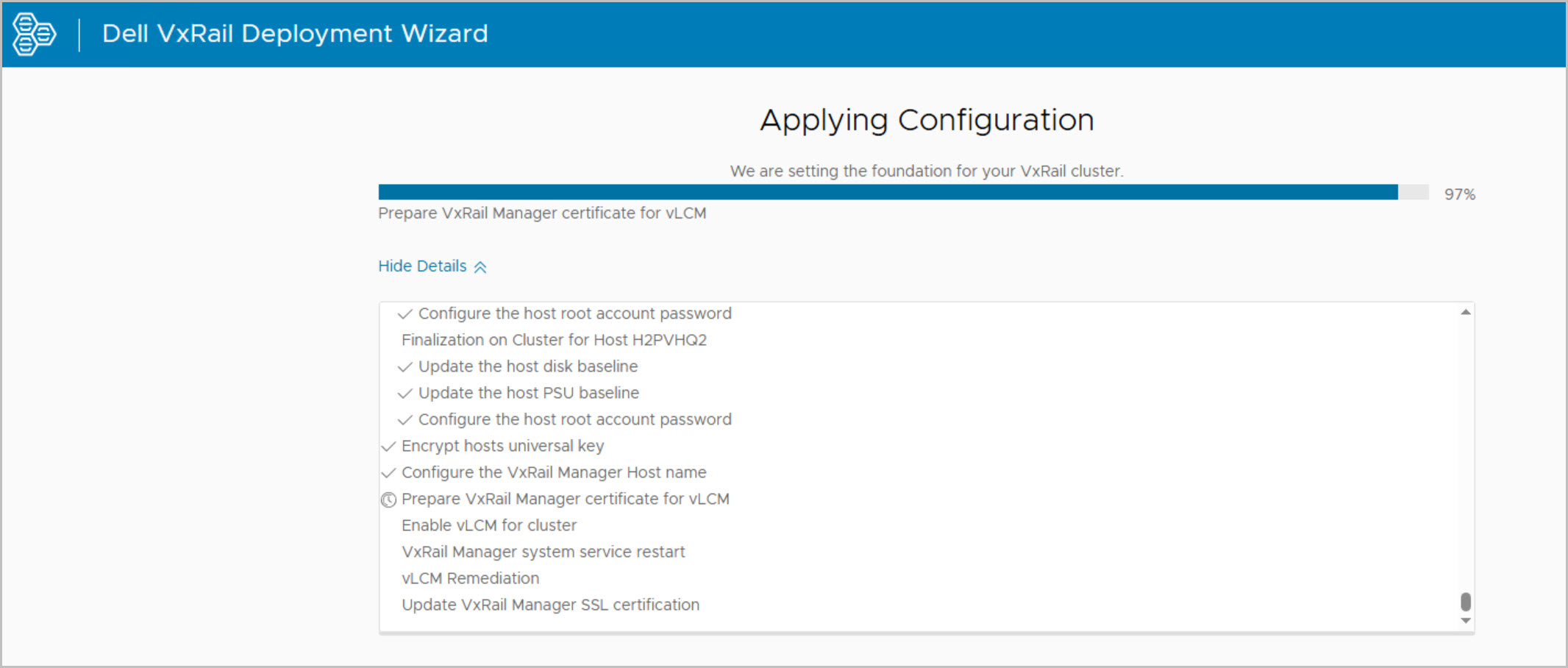
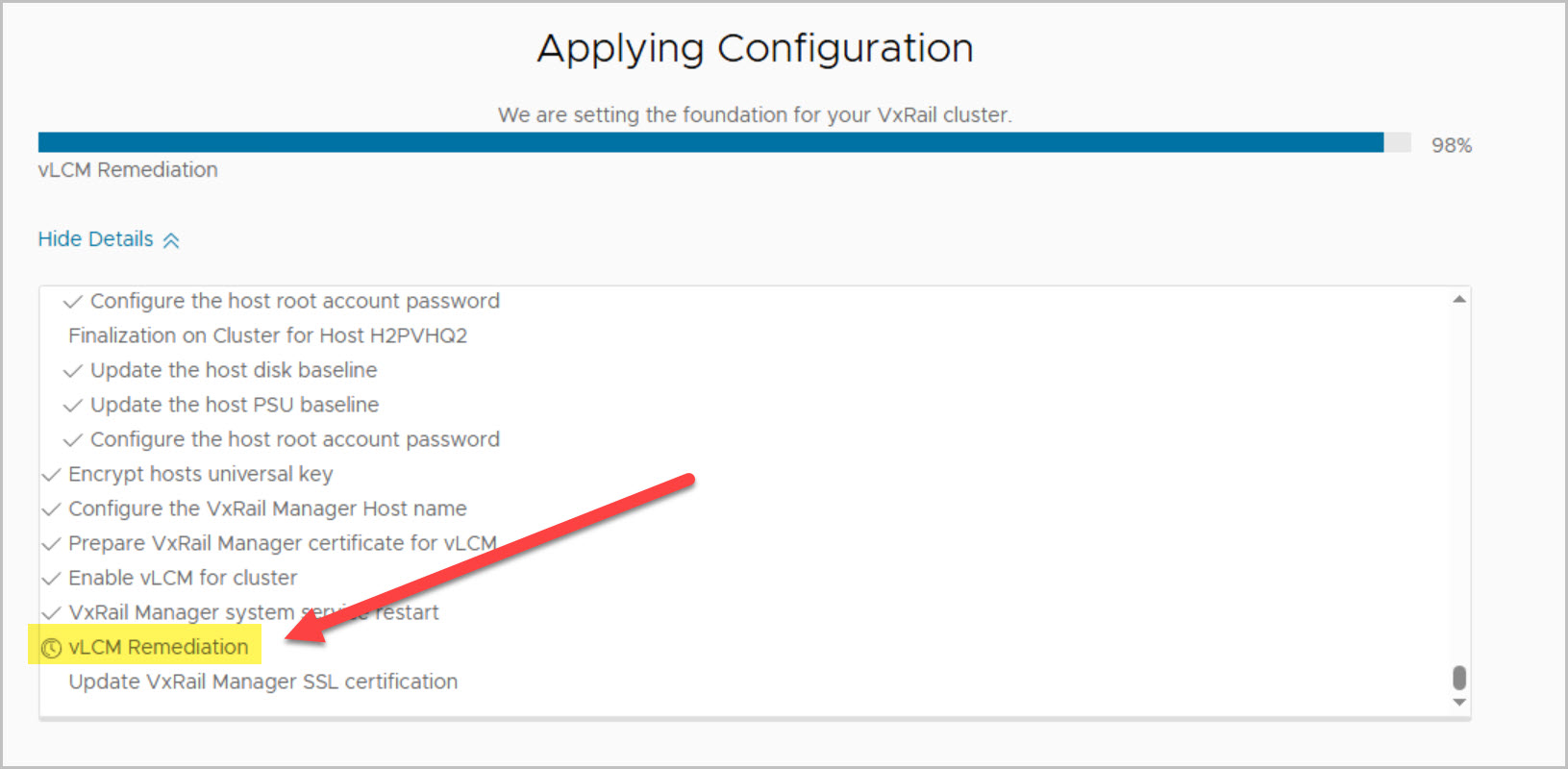
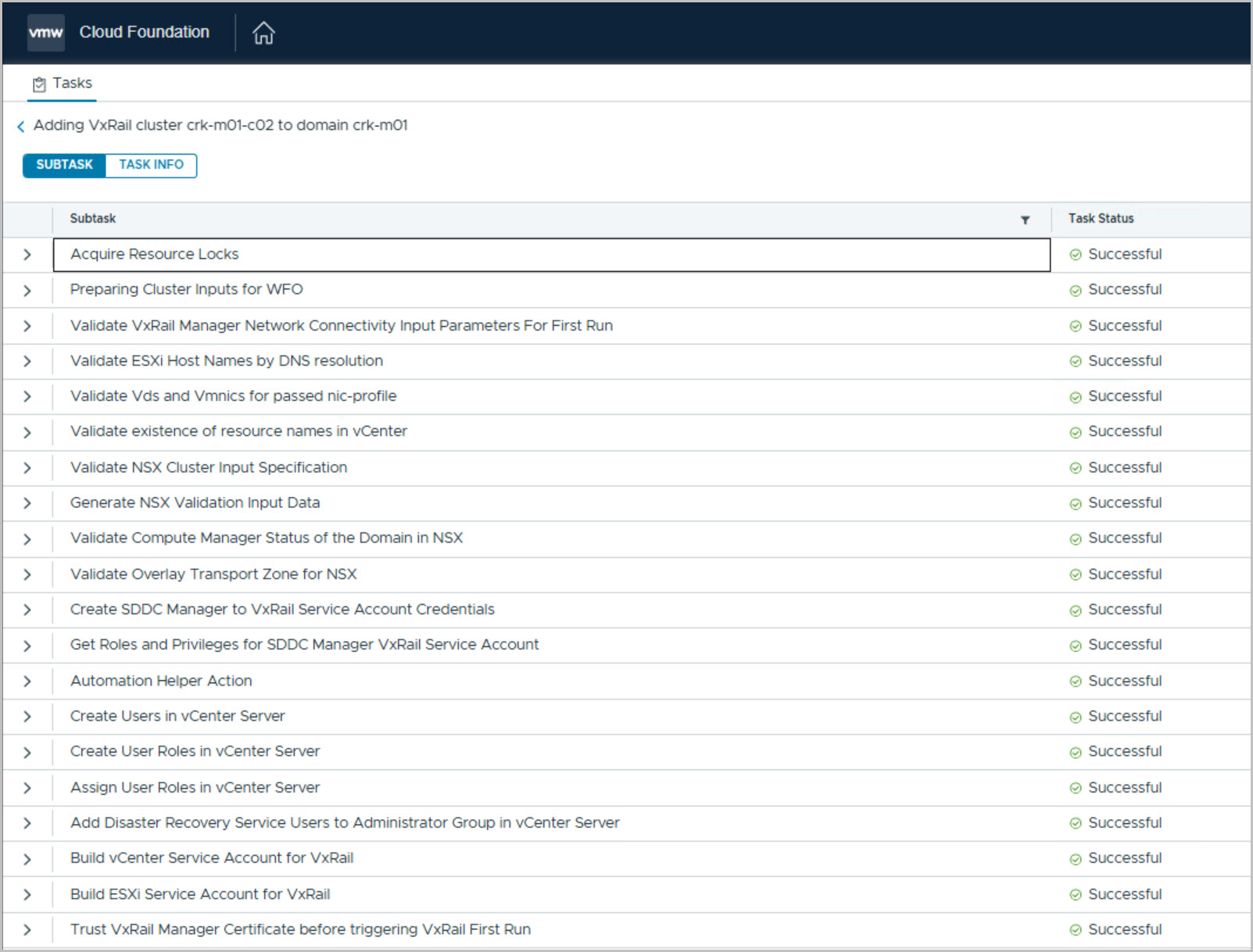
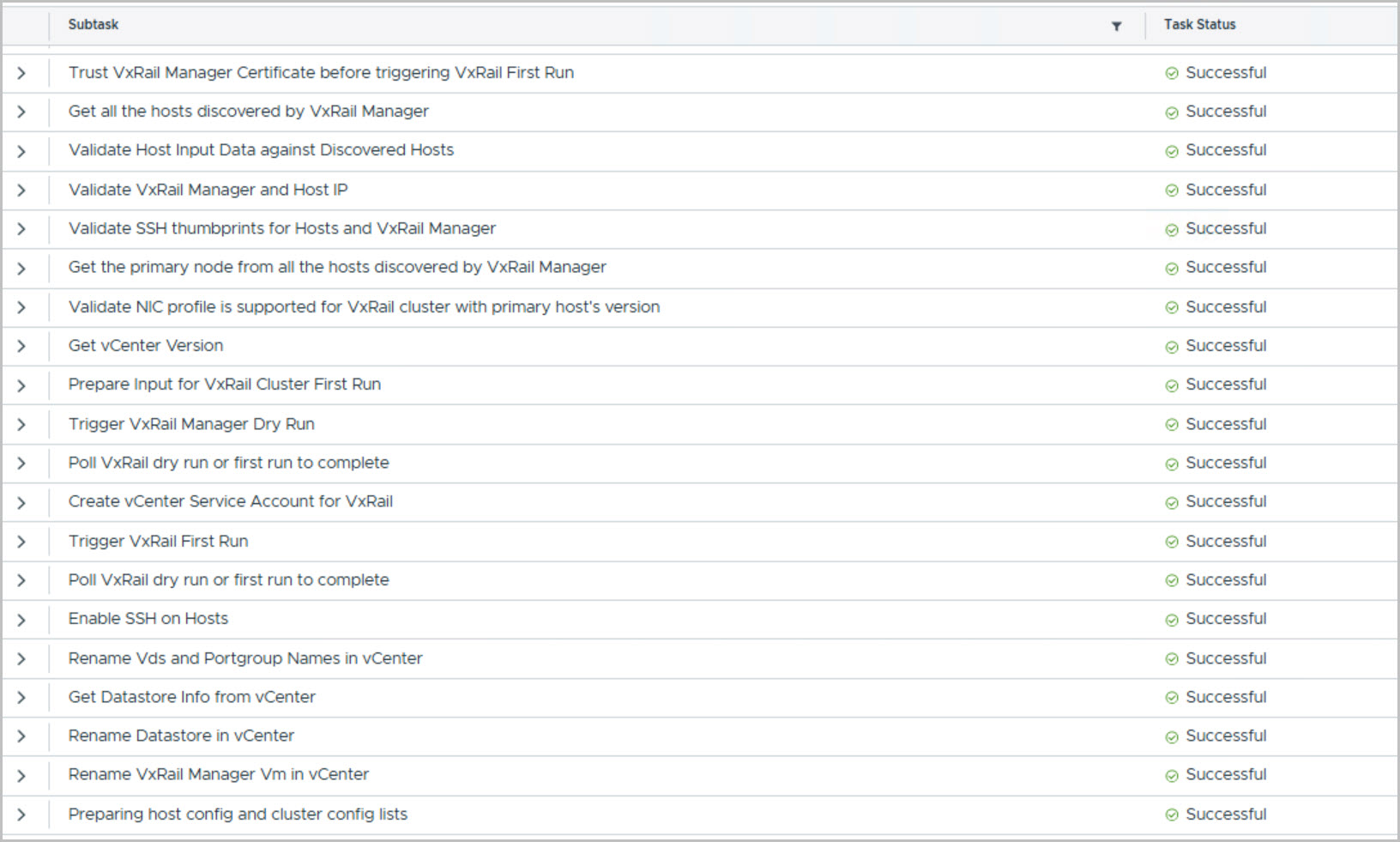
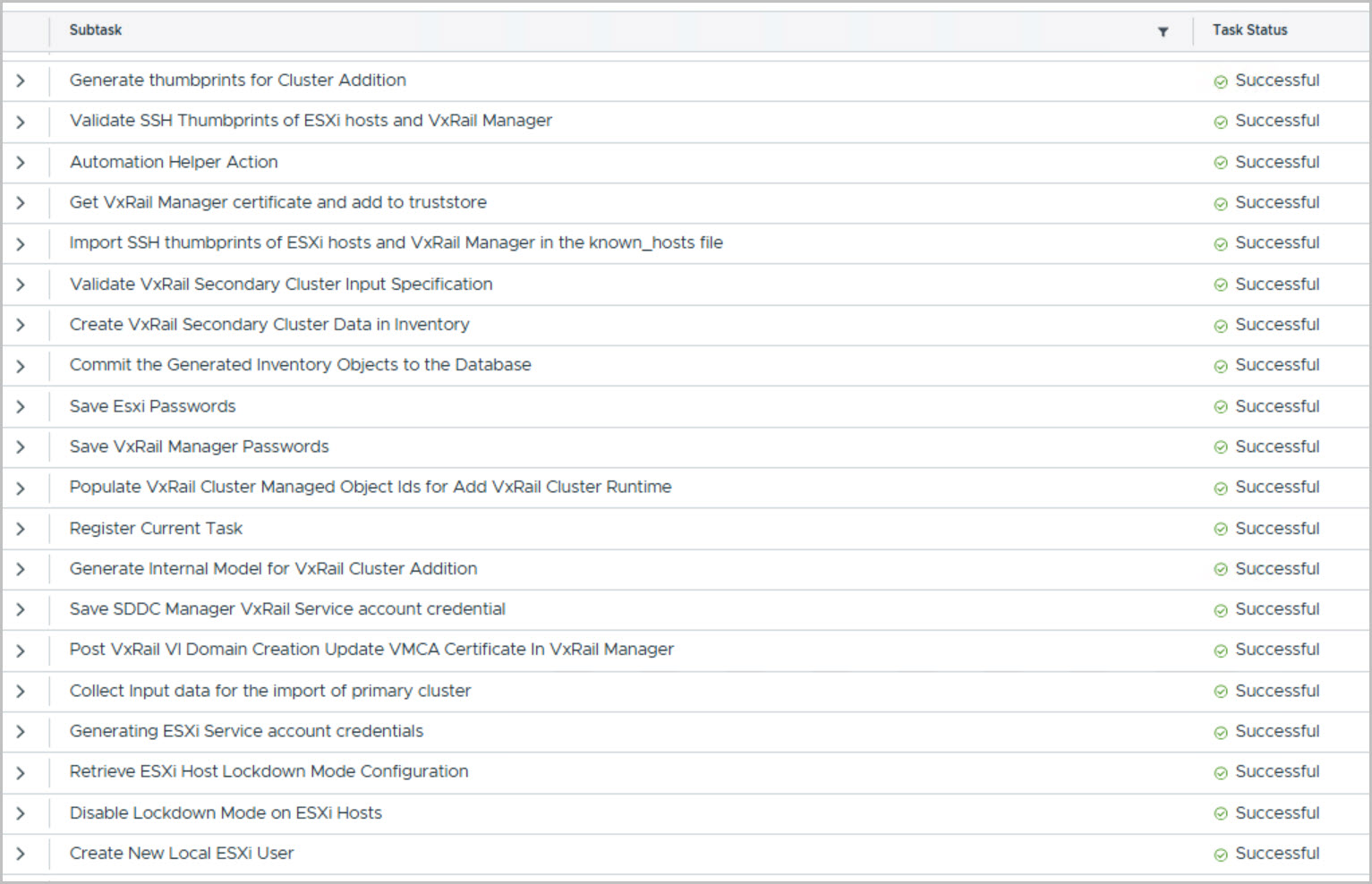
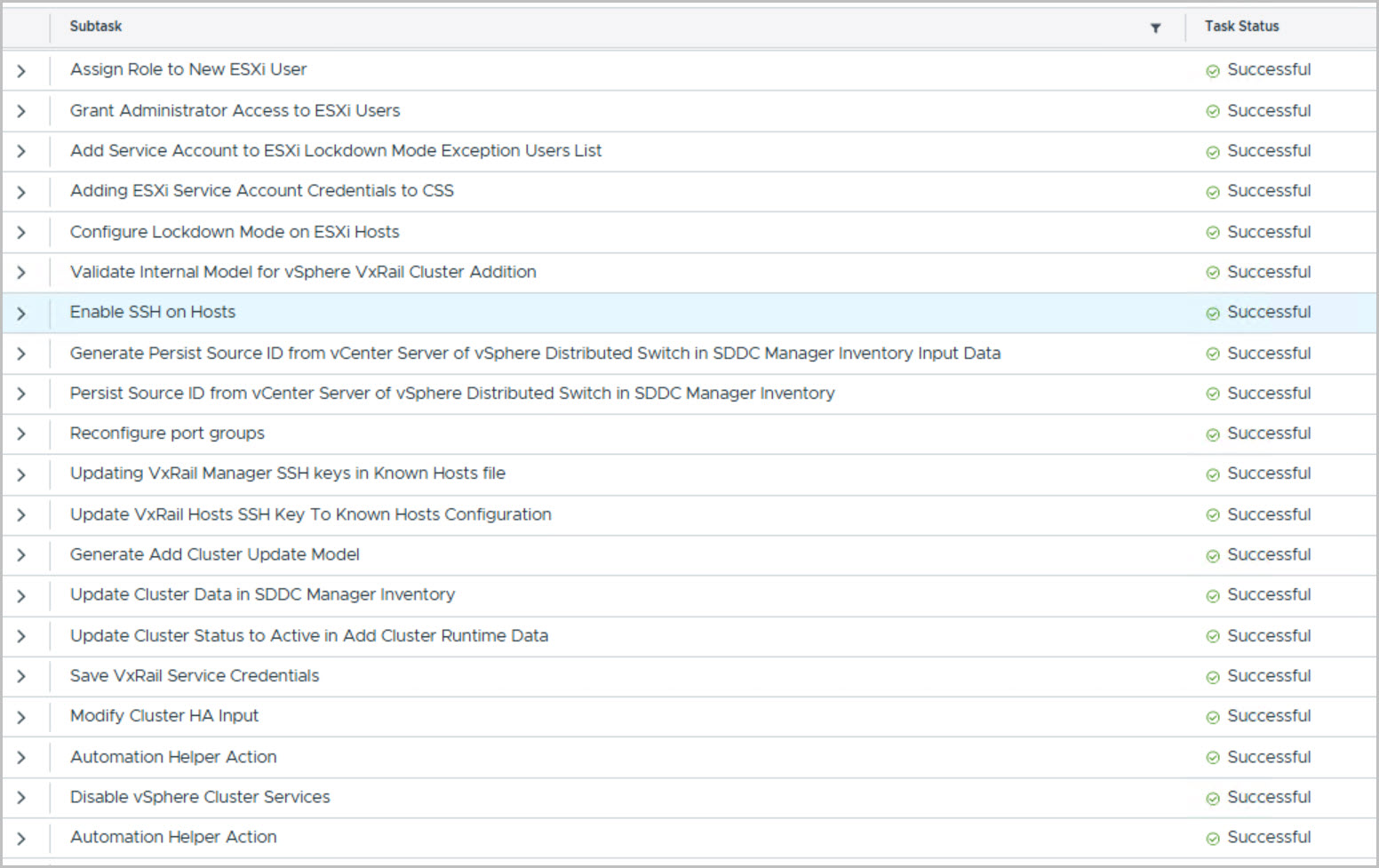
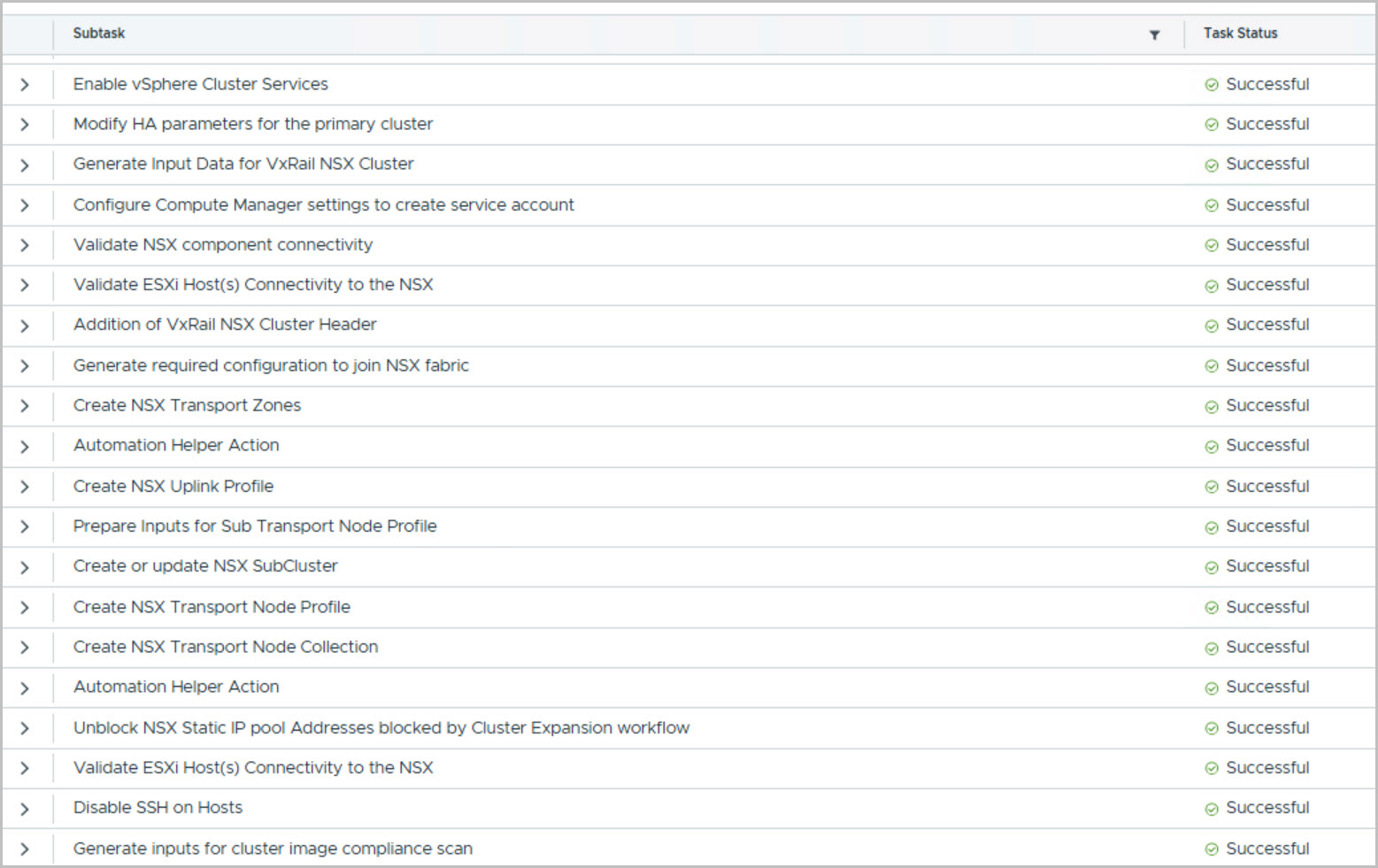
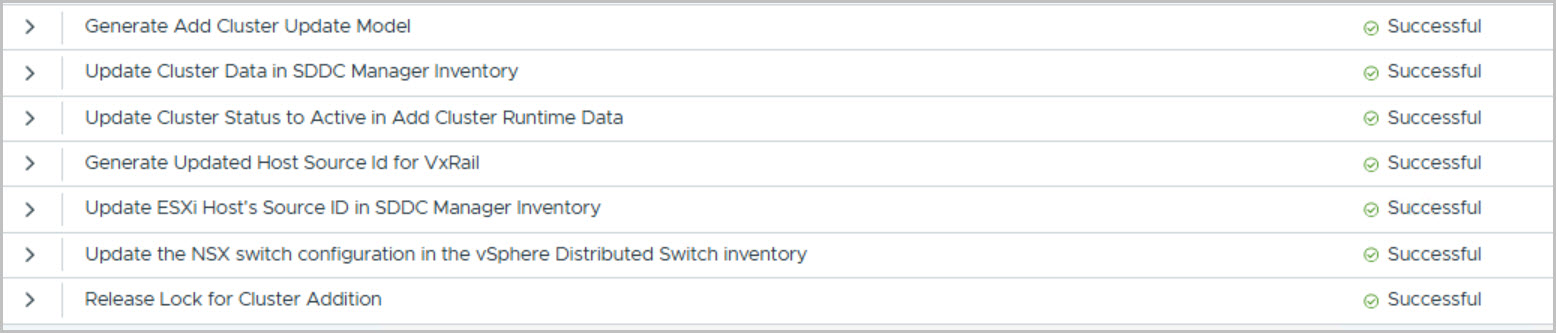
Login to SDDC Manager UI and complete the UI for WFO procedure to create a new VxRail cluster through the SDDC Manager UI as per this example. To deploy this cluster using image-based lifecycle management, select “Manage this cluster using vLCM images.” With this option enabled, all hosts in the cluster will inherit a consistent ESXi version, firmware, and driver stack from the defined vLCM image (ESXi version, VxRail HSP, and components):
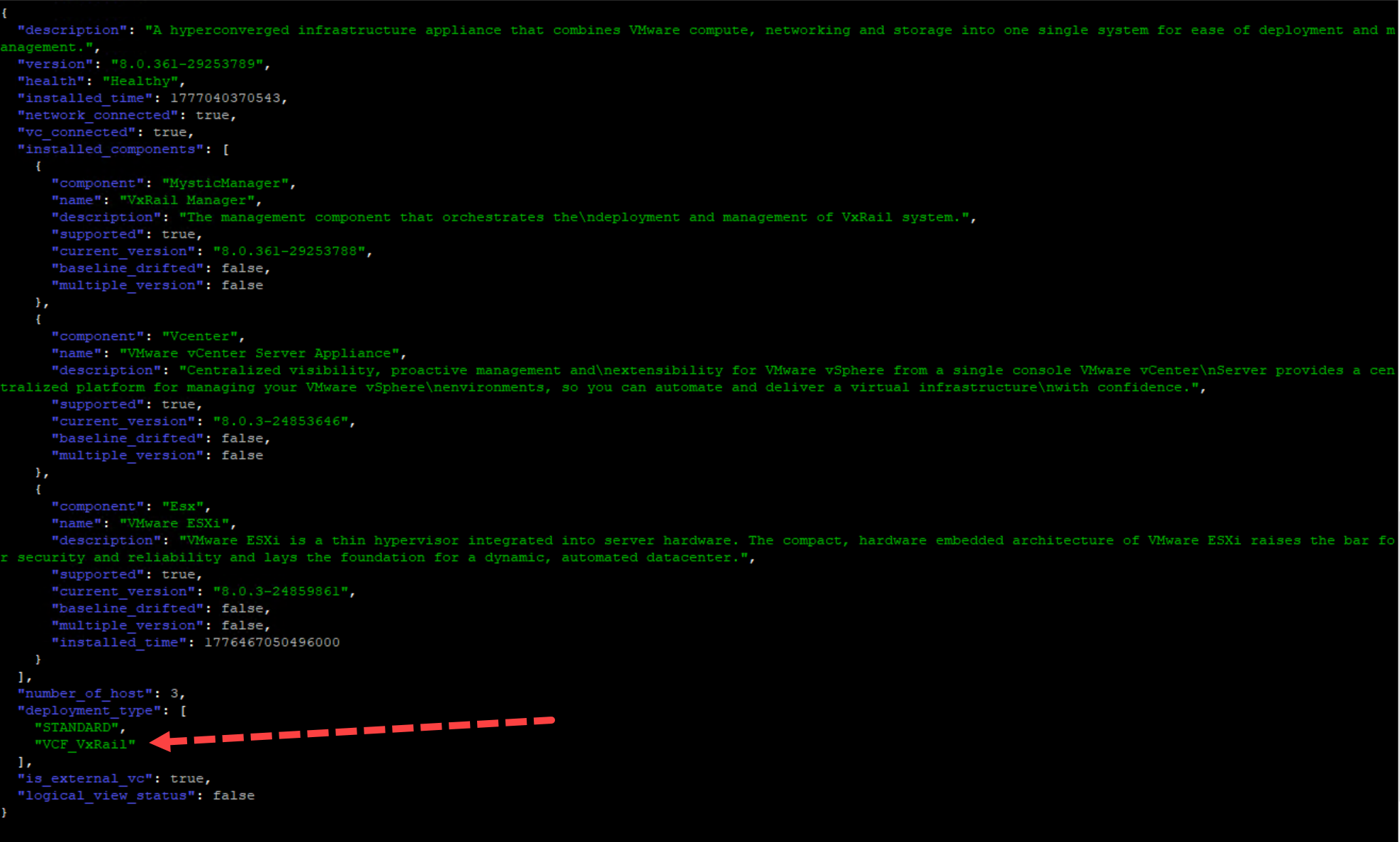
Running CuRL cmd to check VxRAIL system details:
root@crk-m01-sddcmgr [ /home/vcf ]# time curl -k -X GET --user 'administrator@vsphere.local:password' https://crk01-m01-vxrm02.crk.vcfvxrail.corp/rest/vxm/private/v1/system |jq
Note: this is an example for reference only please use the VxRail installation procedures provided by Dell.