Dell EMC
VCF on DELL Private Cloud: 9.1.0 to 9.1.1 Upgrade (Management WLD)
In this post, I will walk through an example upgrade of a VCF on DPC Management Workload Domain from VCF 9.1.0 to VCF 9.1.1. One of the key advantages of […]
Virtualization & Storage

In this post, I will walk through an example upgrade of a VCF on DPC Management Workload Domain from VCF 9.1.0 to VCF 9.1.1. One of the key advantages of […]
In this post, I will walk through an example upgrade of a VCF on DPC Management Workload Domain from VCF 9.1.0 to VCF 9.1.1.
One of the key advantages of a VCF on DPC deployment is the ability to perform lifecycle management across the entire SDDC stack through an automated and orchestrated process. This capability is delivered through SDDC Manager and the vSphere DPC Plugin UI, simplifying upgrades and ensuring component interoperability throughout the environment.
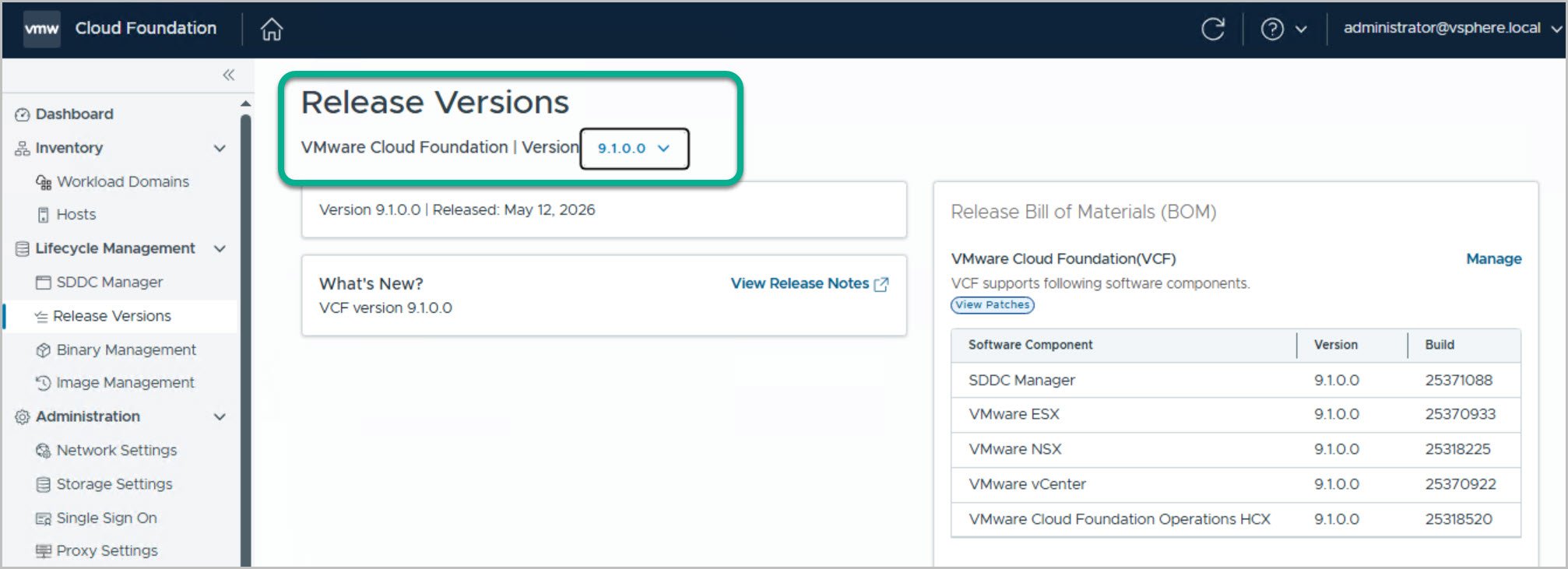
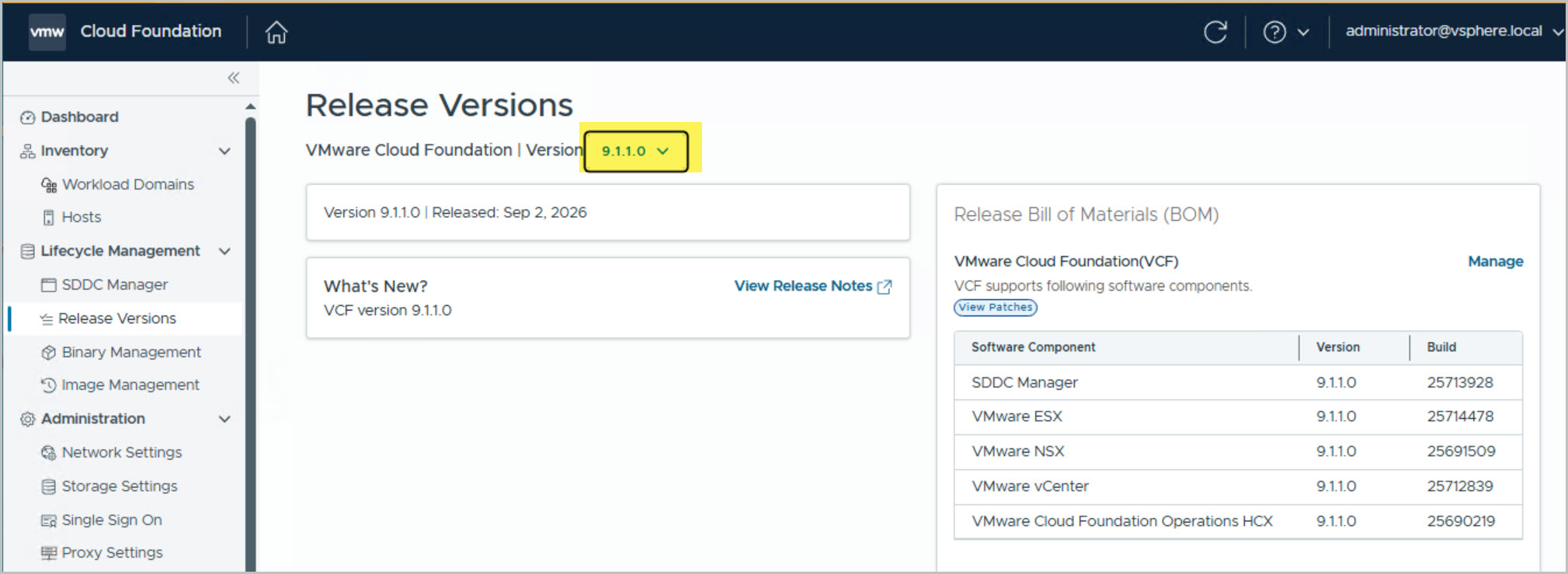
Within SDDC Manager, expanding the Lifecycle Management section provides visibility into all components deployed as part of the VCF stack, along with their currently installed software versions. Before planning any upgrade activity, it is recommended to review the relevant VMware Bill of Materials (BOM) to understand the component versions included in each VCF release. The VMware Knowledge Base article below provides a comprehensive BOM reference for each VCF version:
Correlating VMware Cloud Foundation version with the versions of its constituent products
Important: Before proceeding with the upgrade ensure to take snapshots of your management virtual machines. Do not perform any SDDC workflows such as VI WLD creation or WLD expansions during the upgrade and confirm no failed workflows or errors are displayed in SDDC manager.
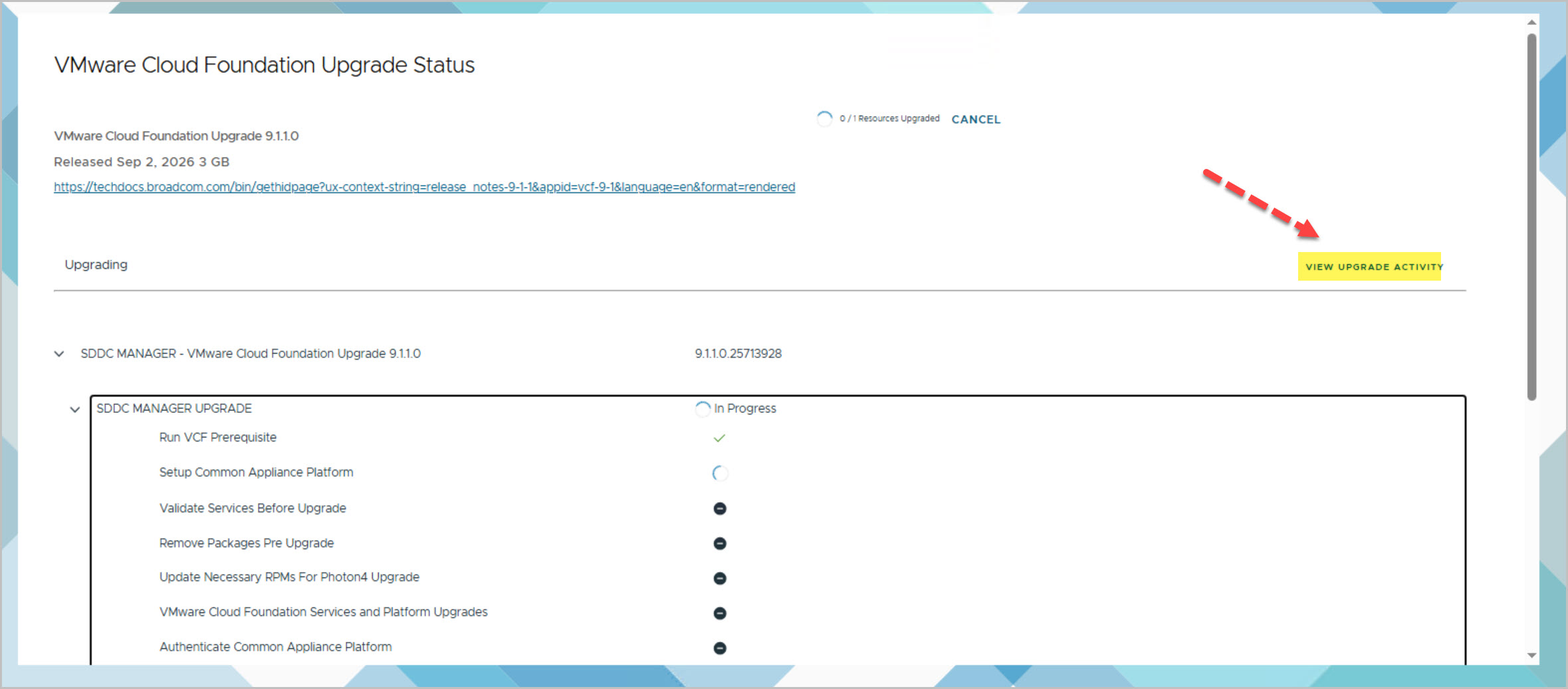
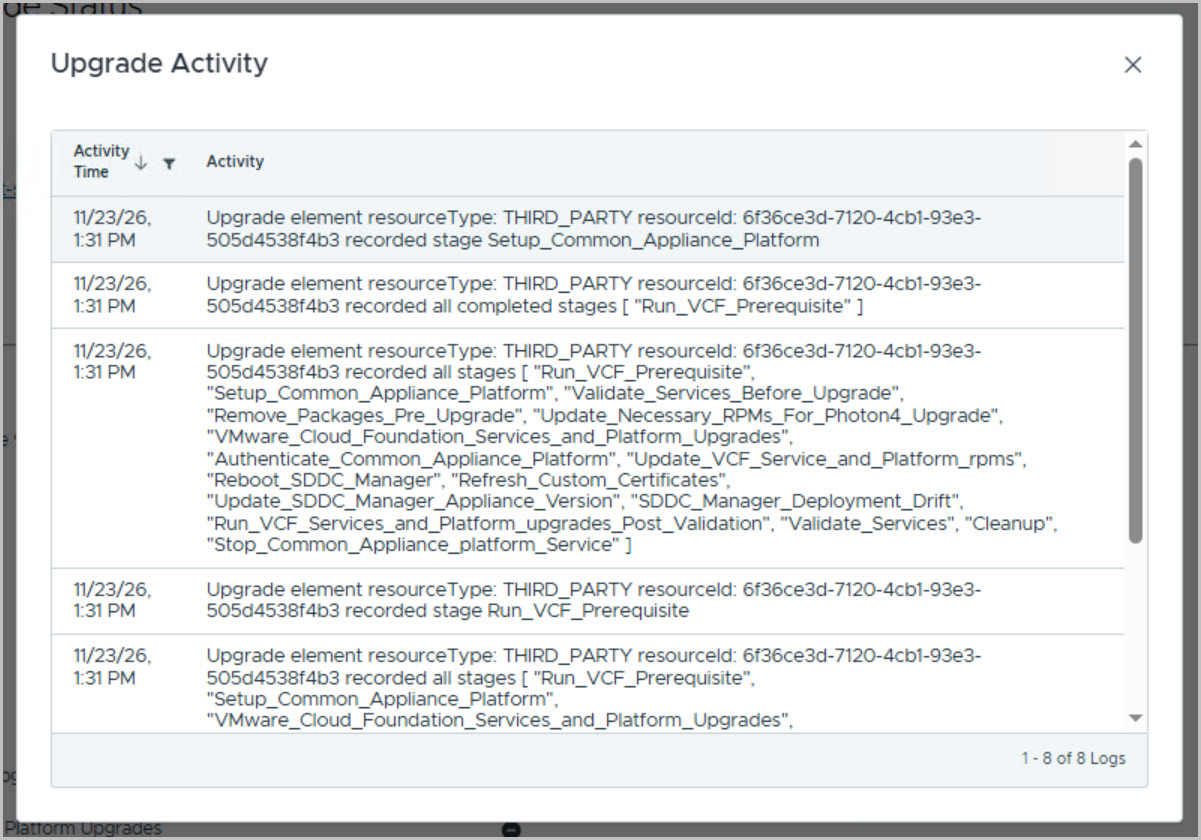
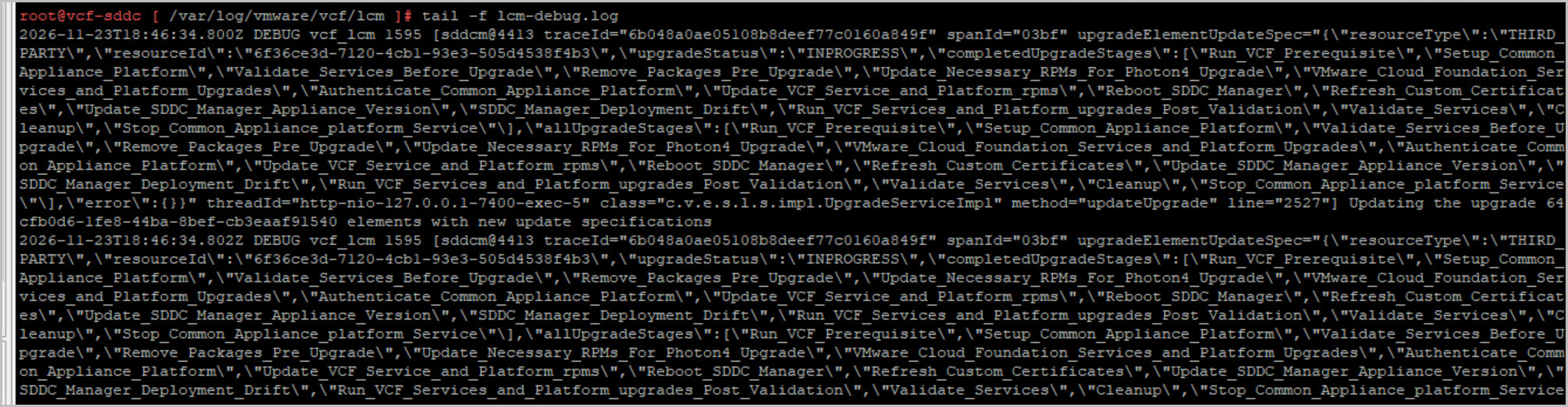
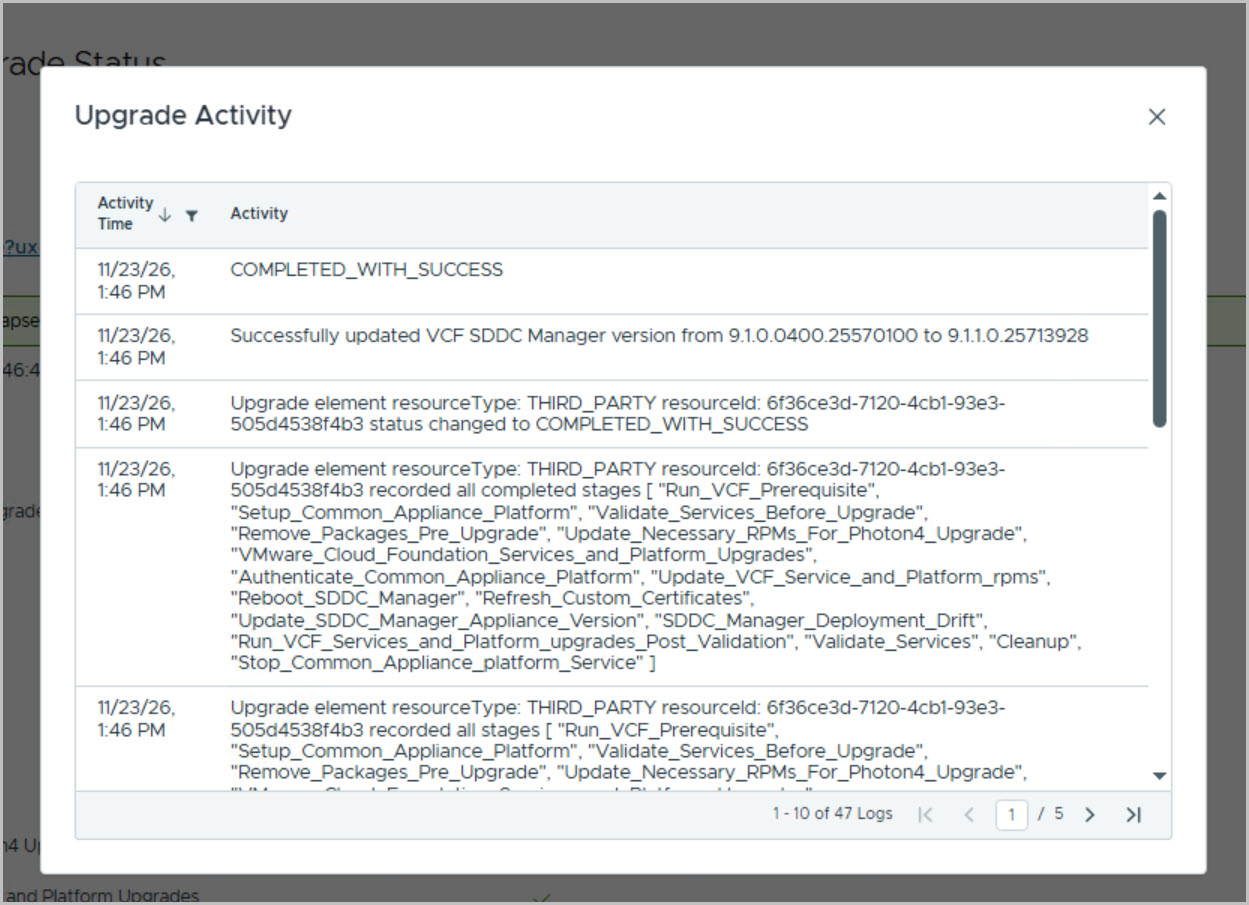
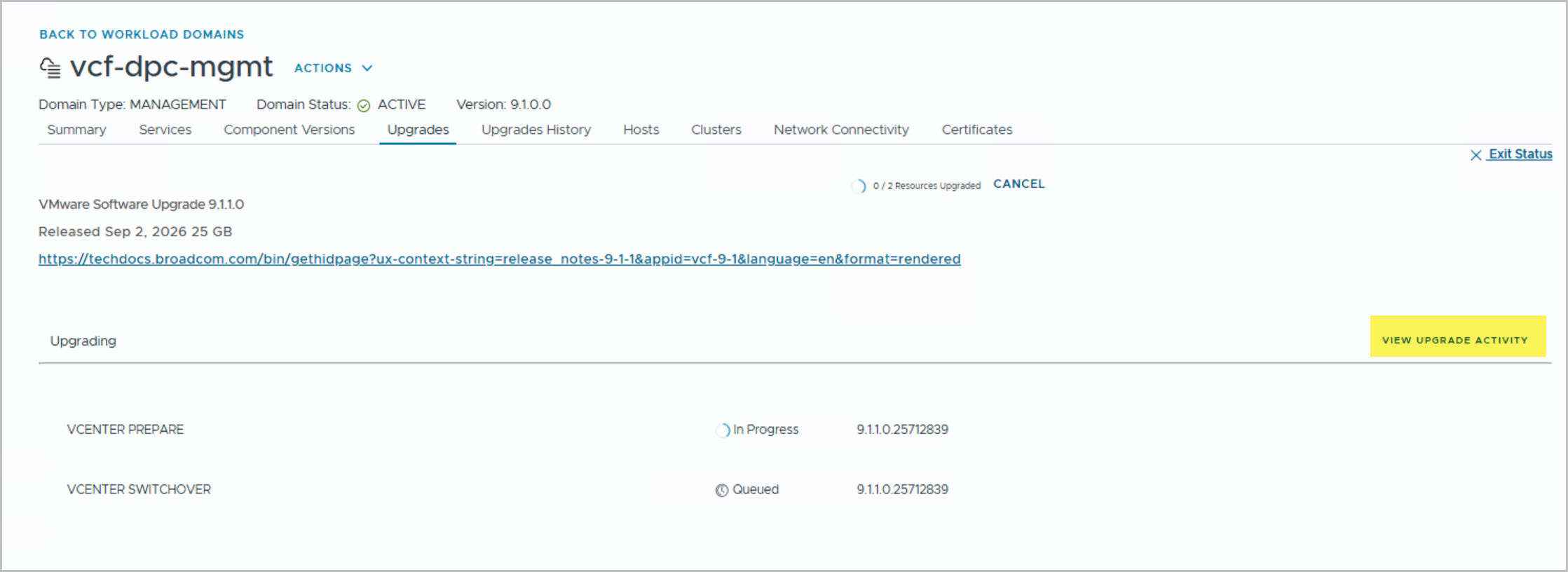
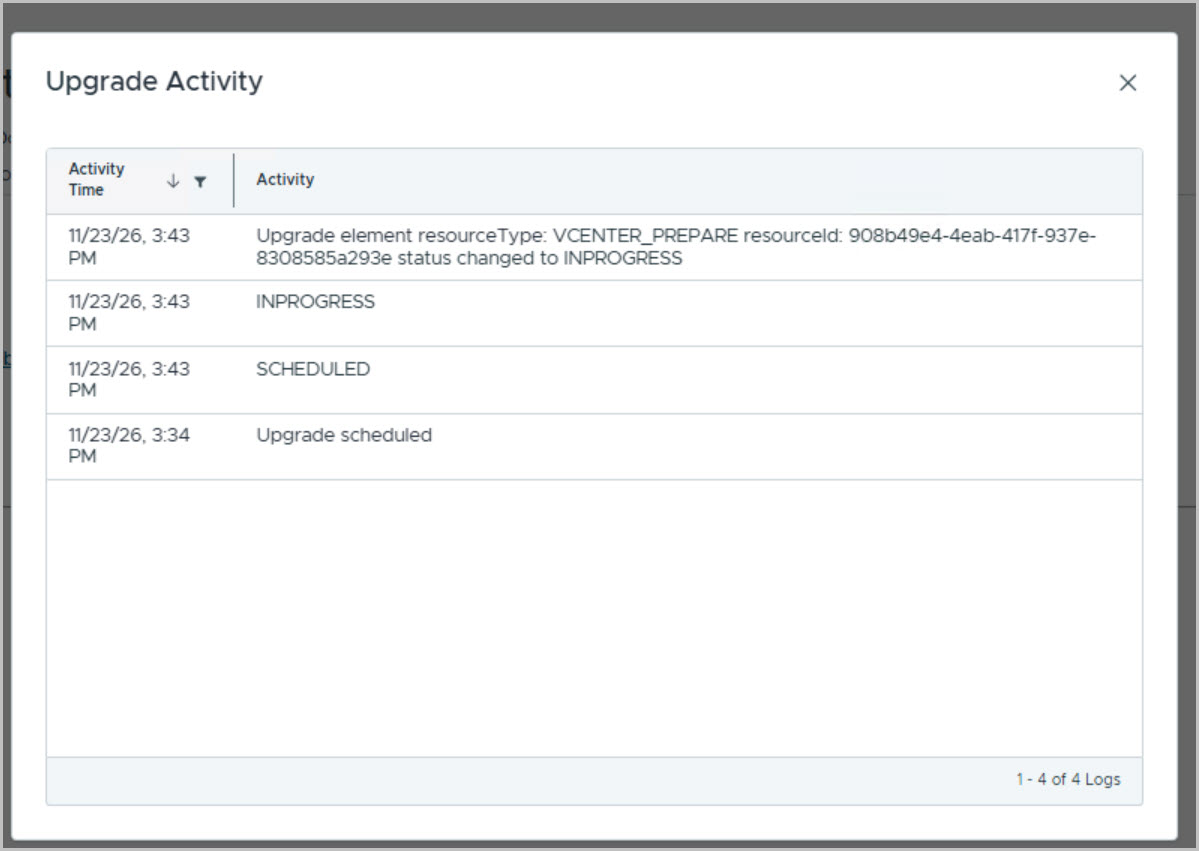
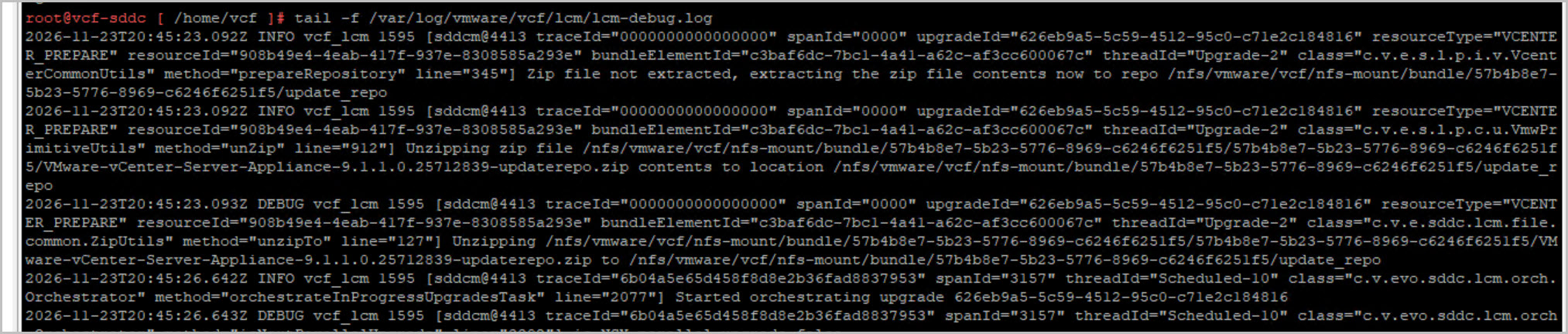
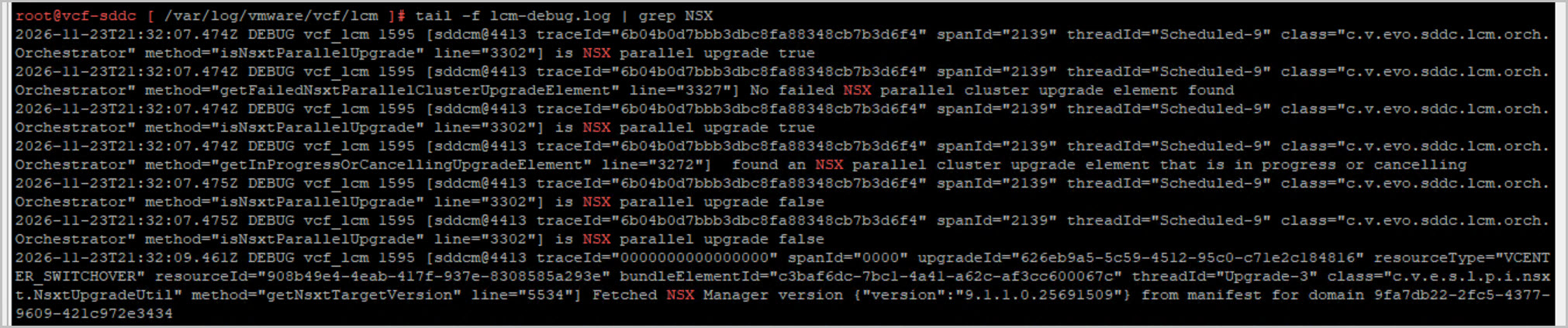
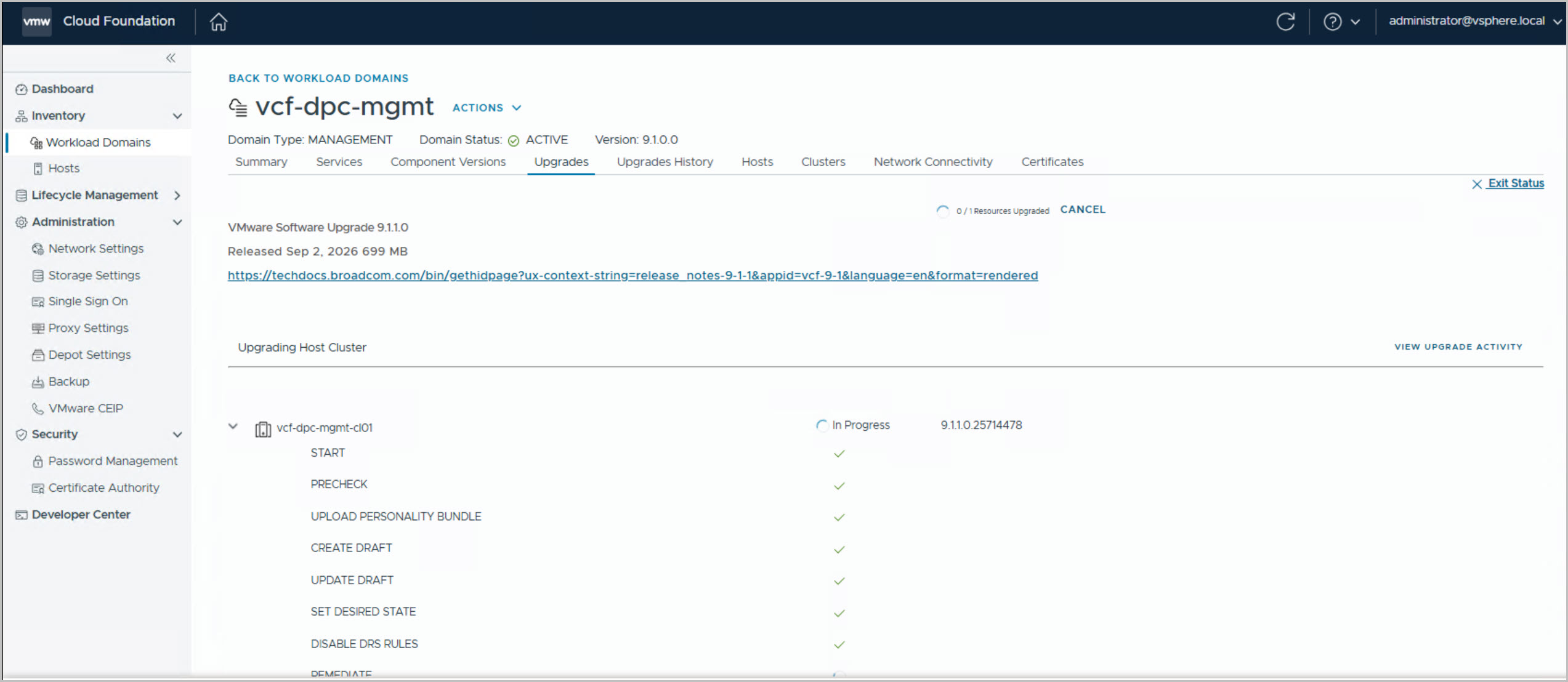
While proceeding with the updates, click on View update activity to monitor progress and track progress via the lcm log:
tail -f /var/log/vmware/vcf/lcm/lcm-debug.log
lcm-debug log file contains debug level logging information.
It is also possible to confirm a successful update via the SDDC manager ssh console:
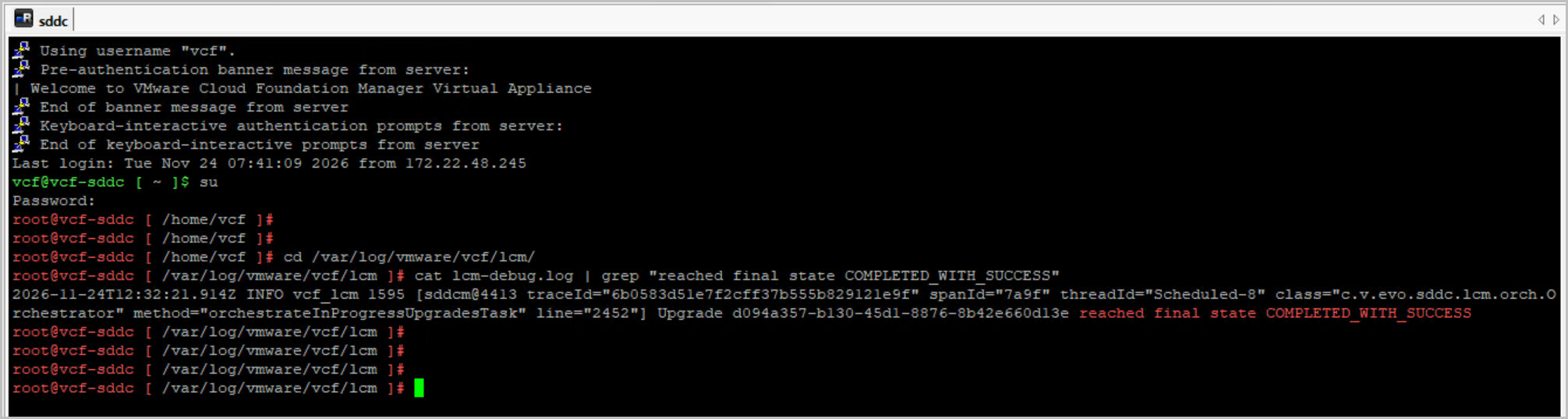
cat /var/log/vmware/vcf/lcm/lcm-debug.log | grep "reached final state COMPLETED_WITH_SUCCESS“
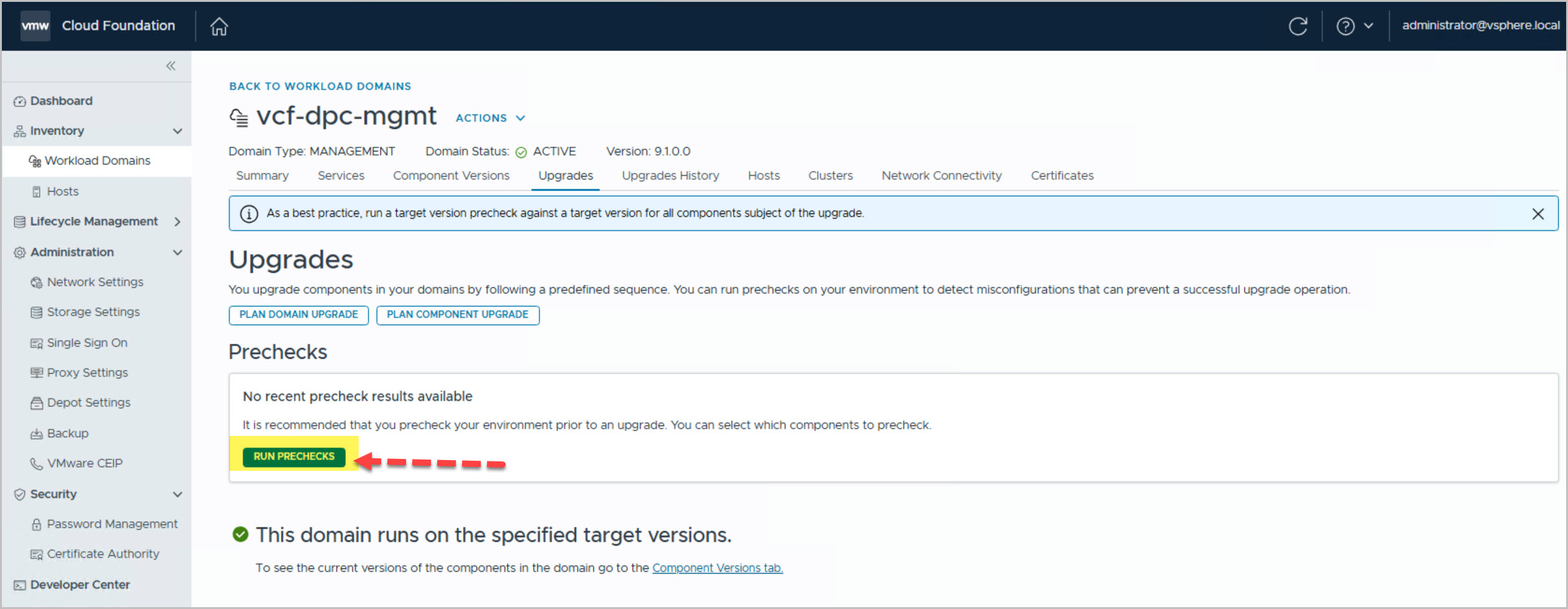
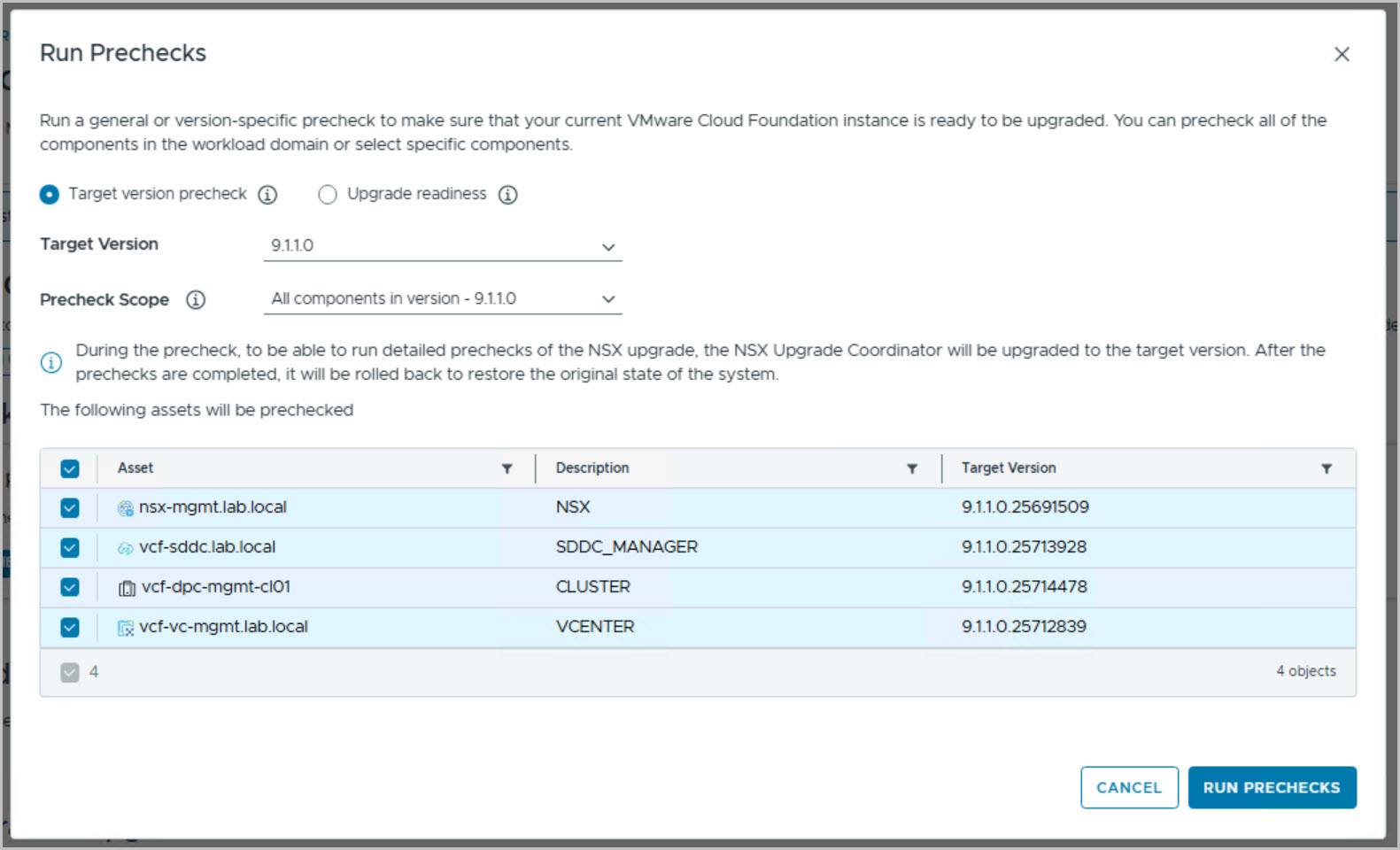
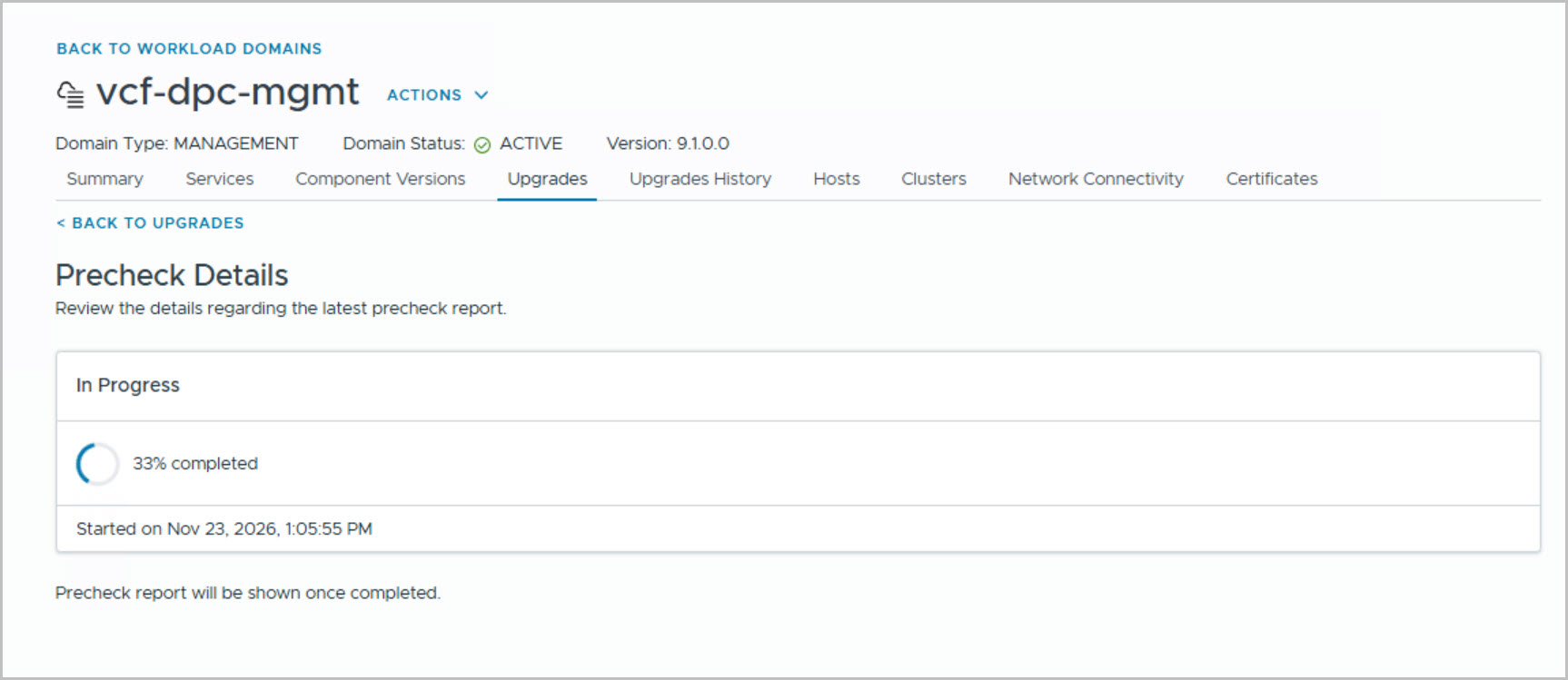
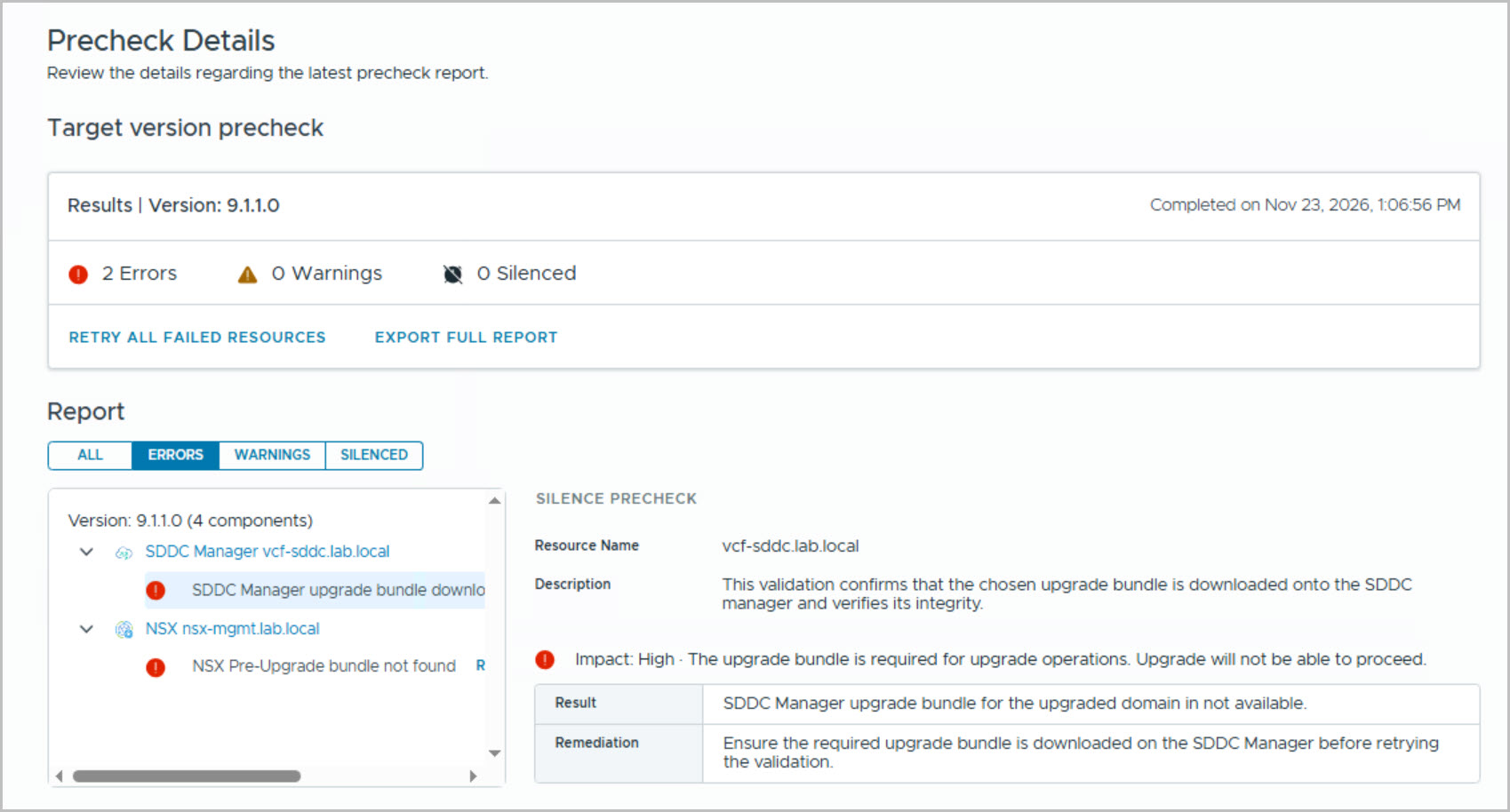
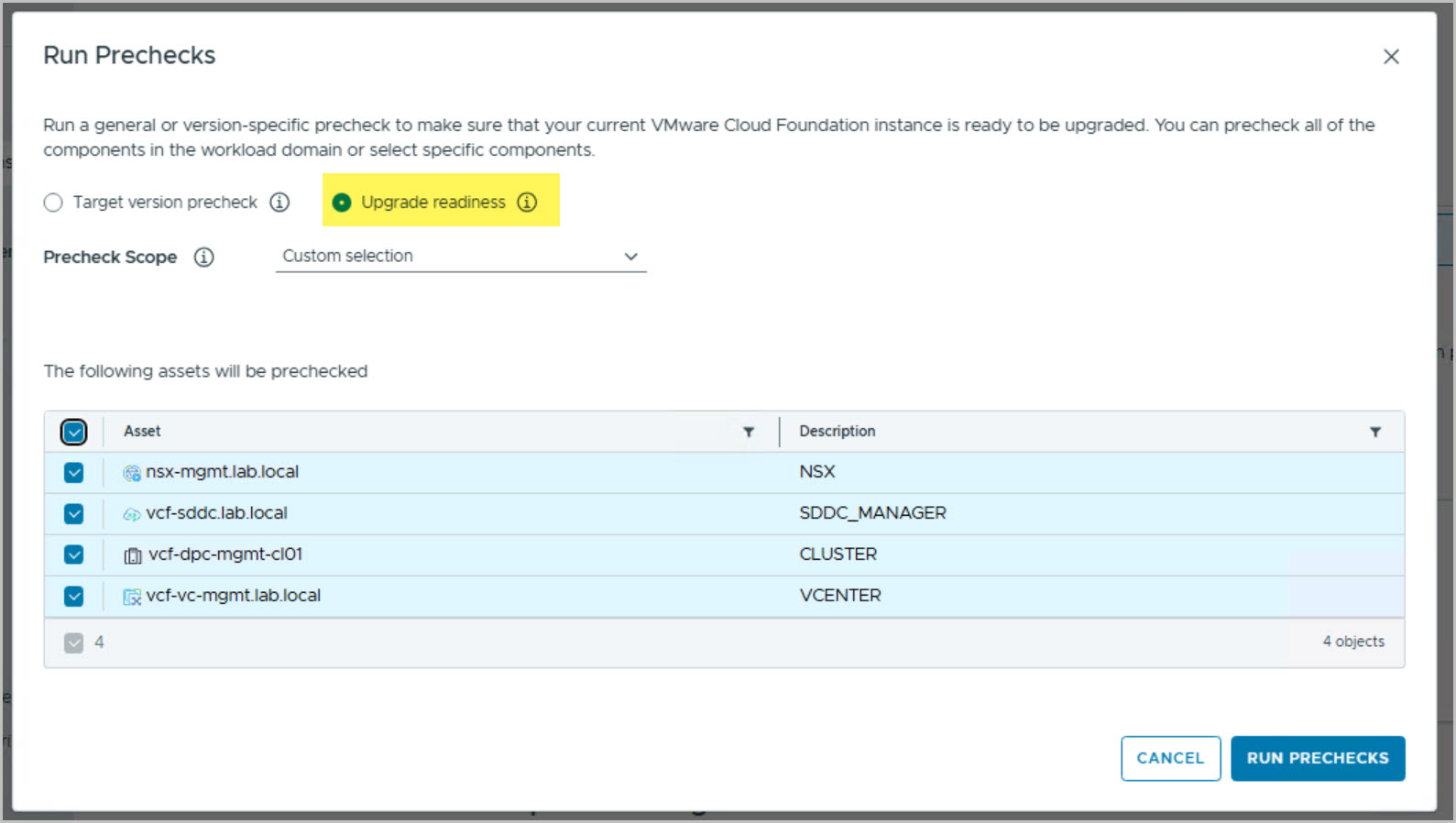
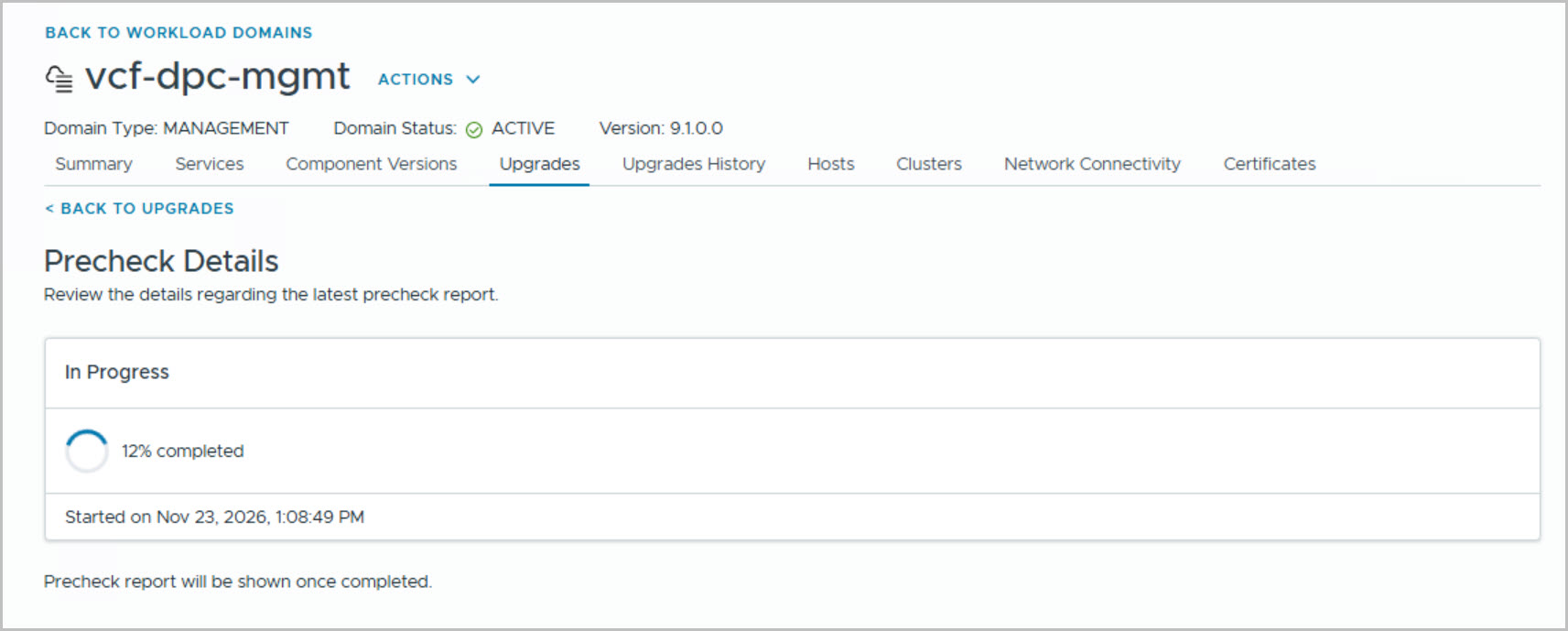
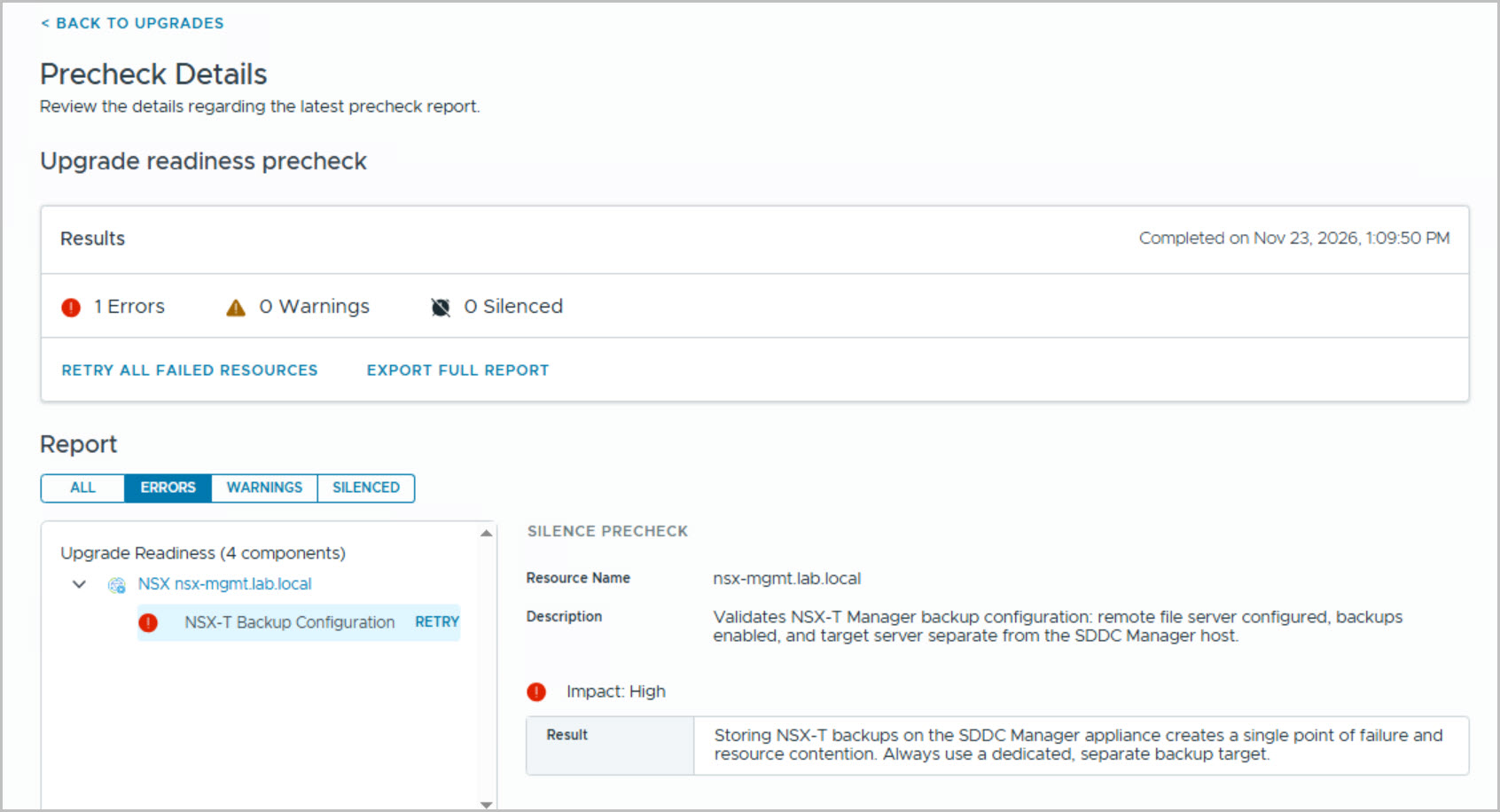
Before each upgrade, run the Precheck task in SDDC Manager to verify the environment is healthy. Review any reported issues, remediate failures, and rerun the precheck until validation passes before proceeding. For more information on prechecks, see: (More details on context level prechecks here).
Log in to SDDC Manager, select Inventory > Workload Domains, and open the Management Domain. Select the Upgrades tab, then click Run Prechecks in the Prechecks section.
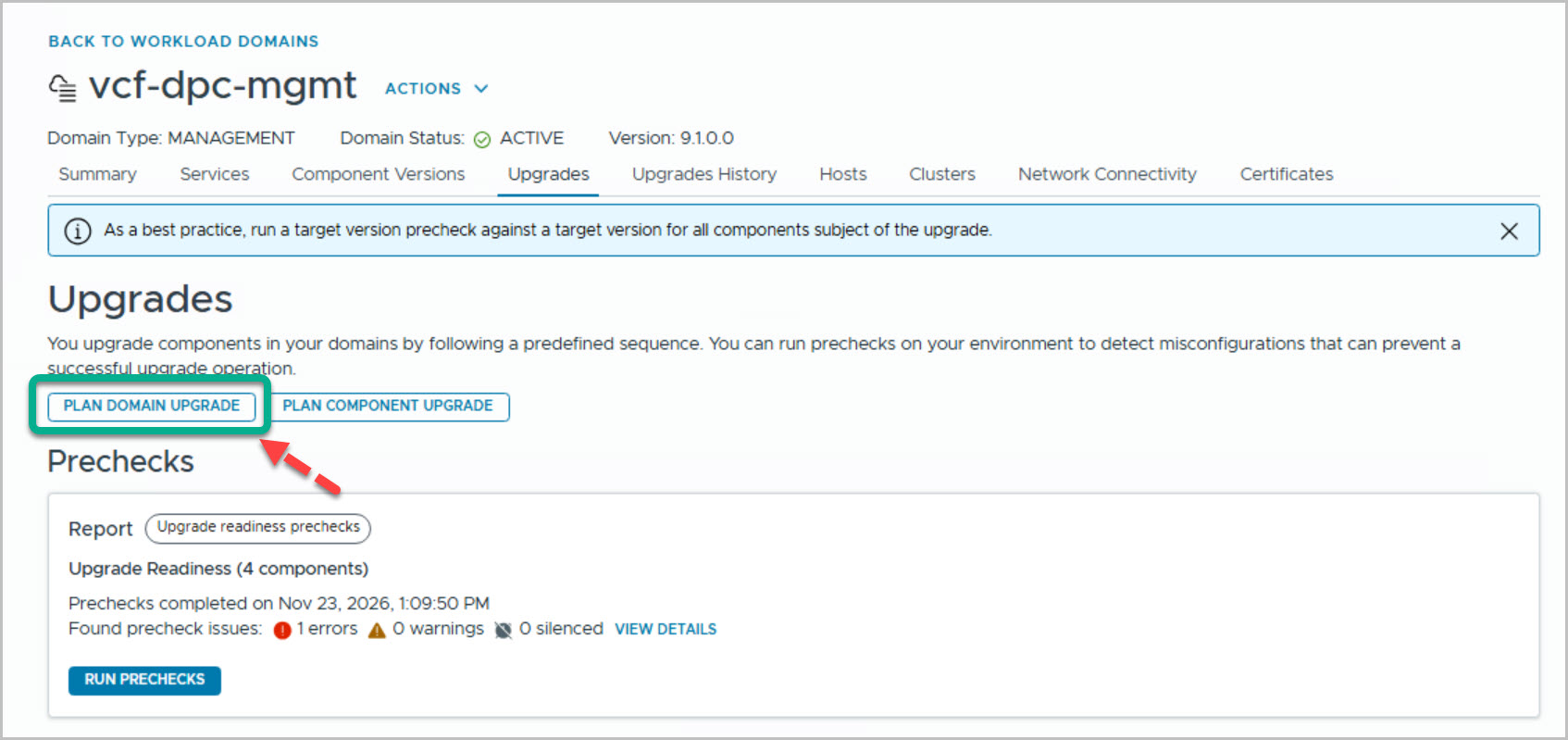
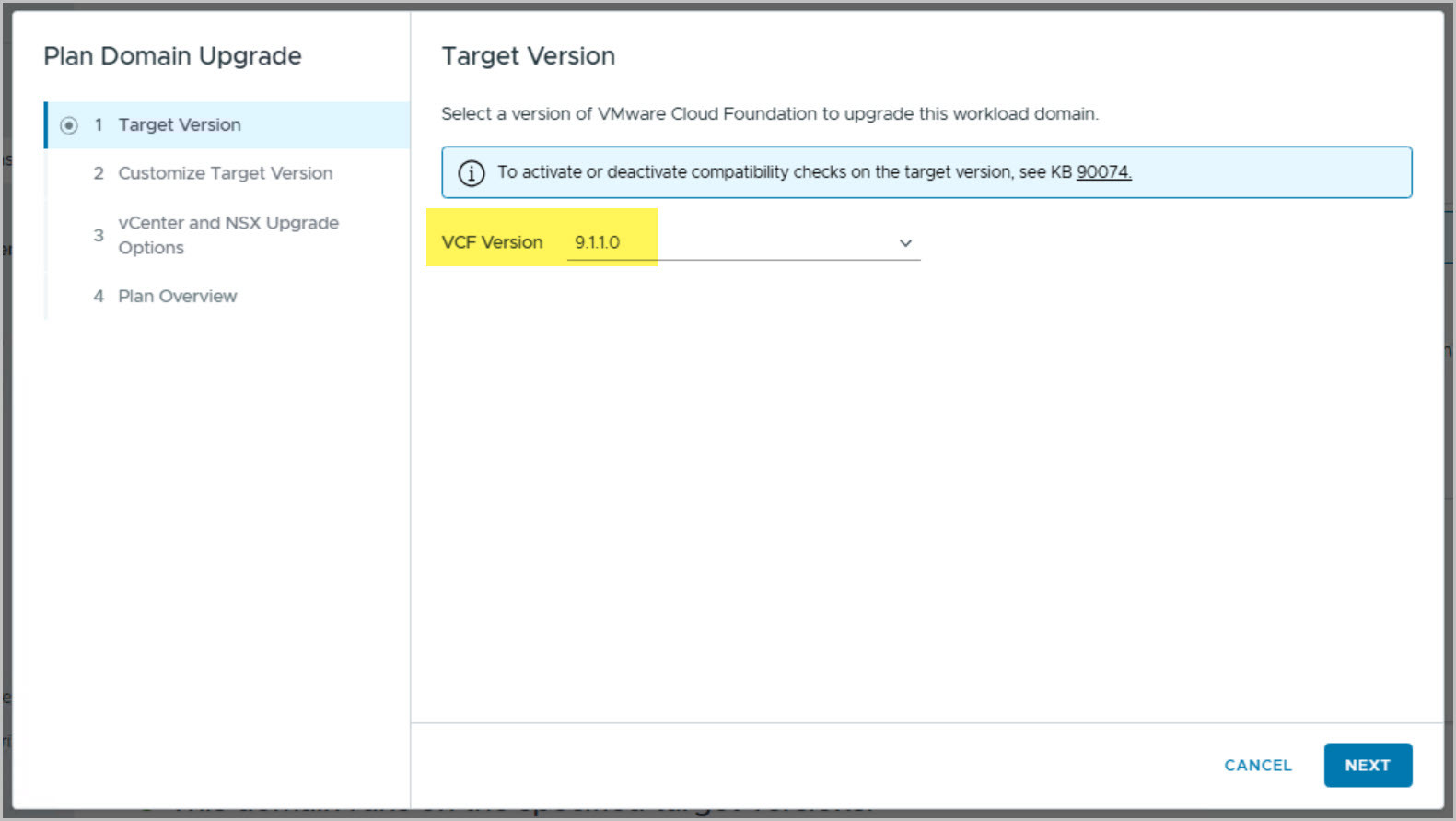
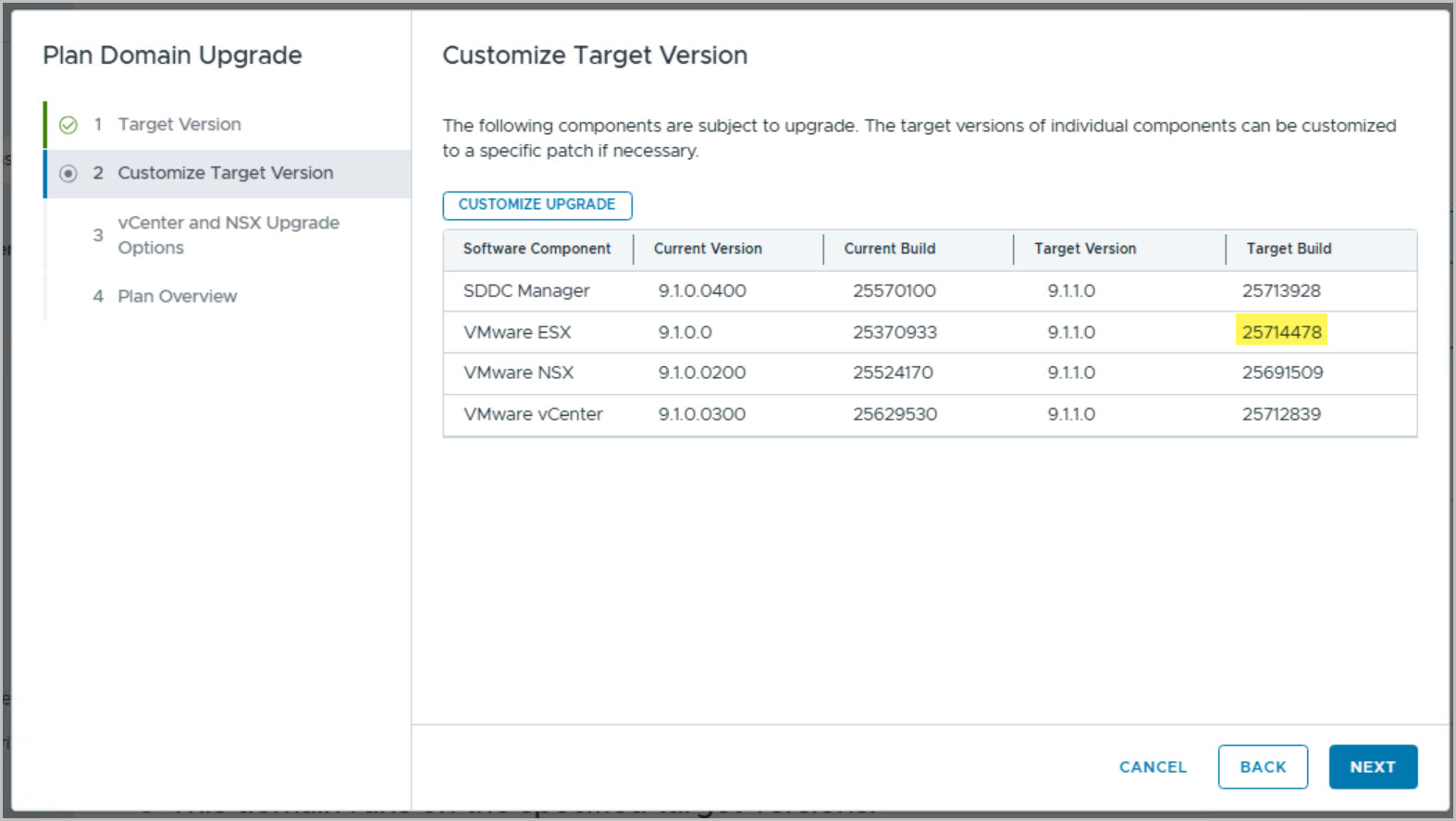
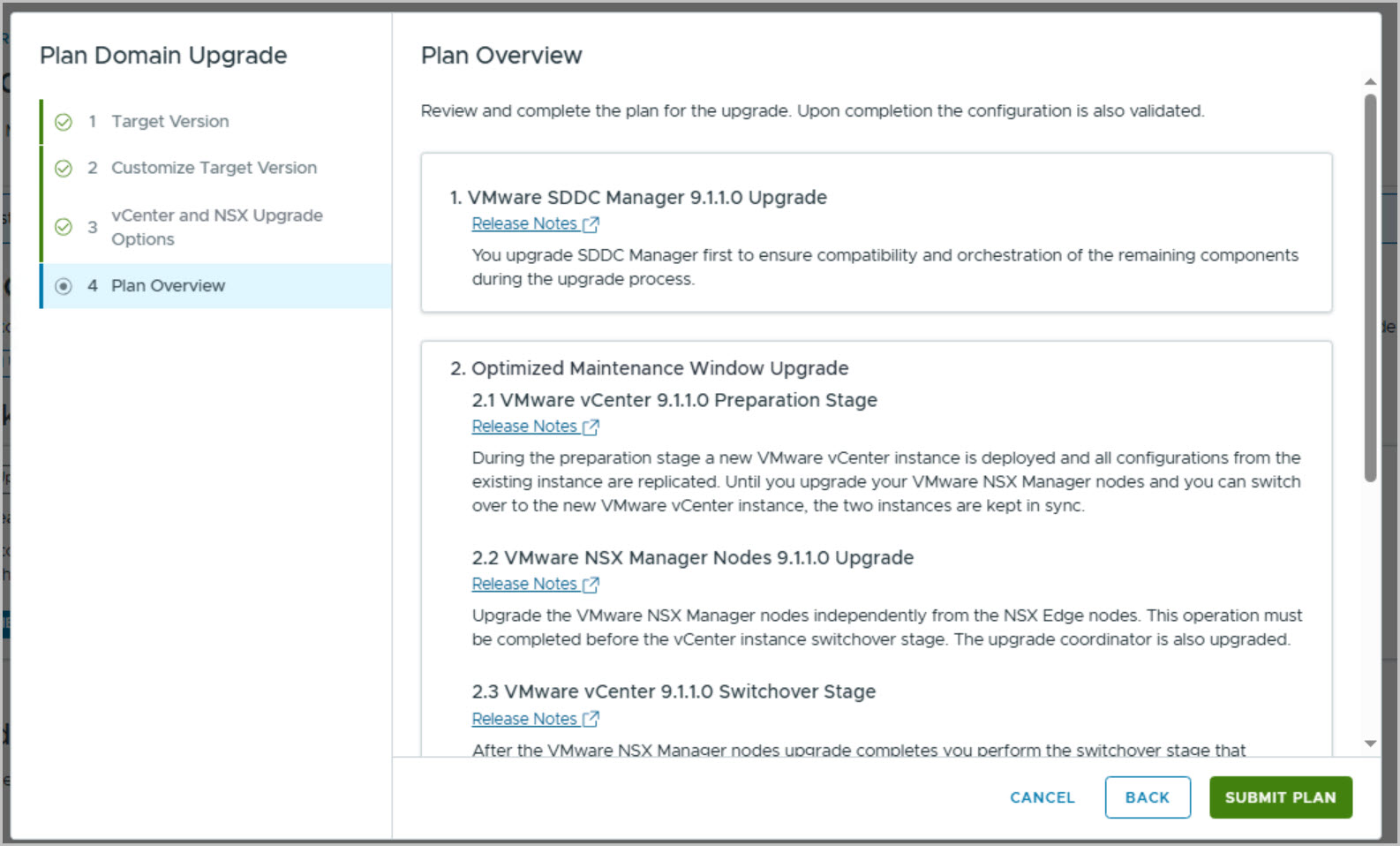
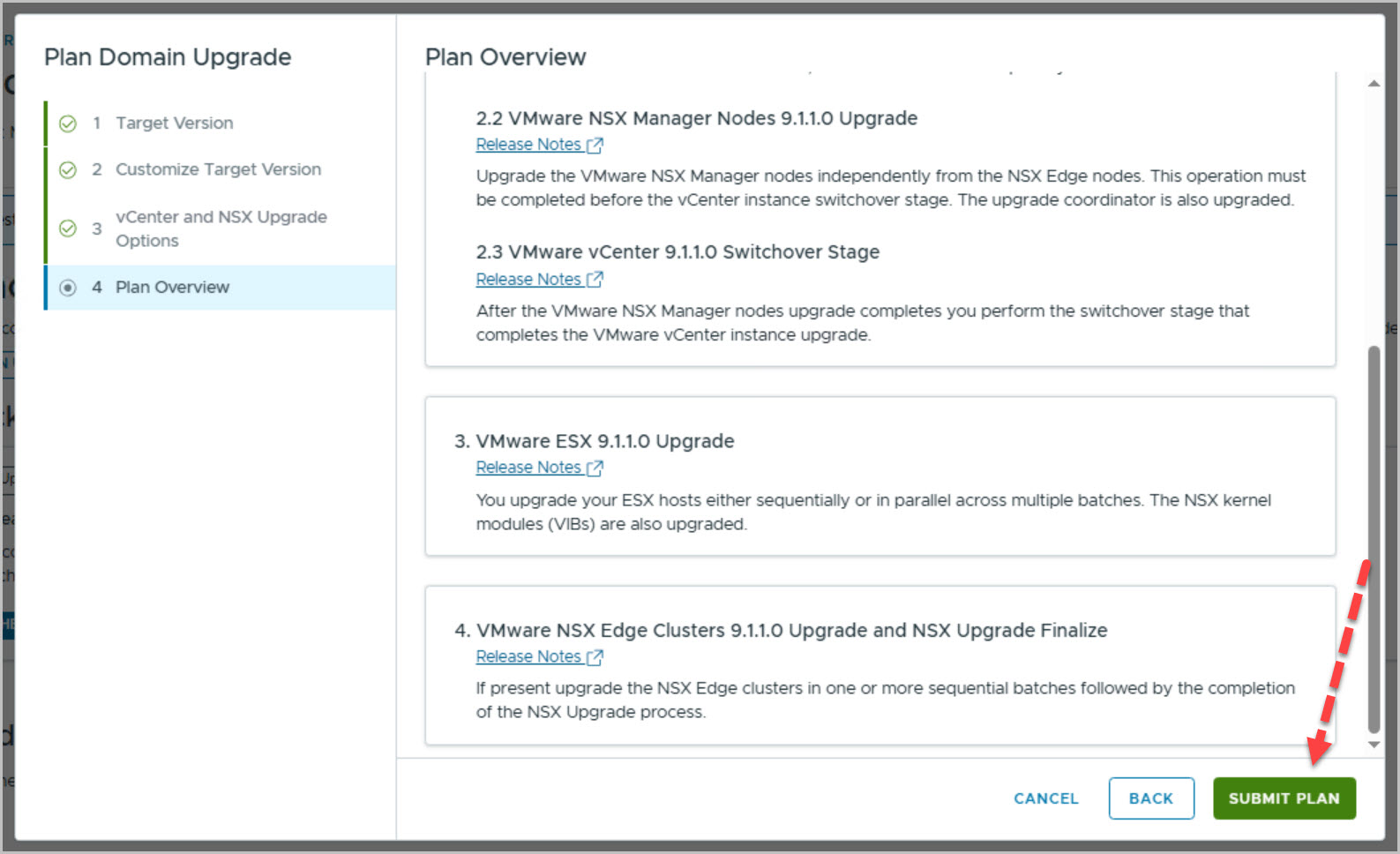
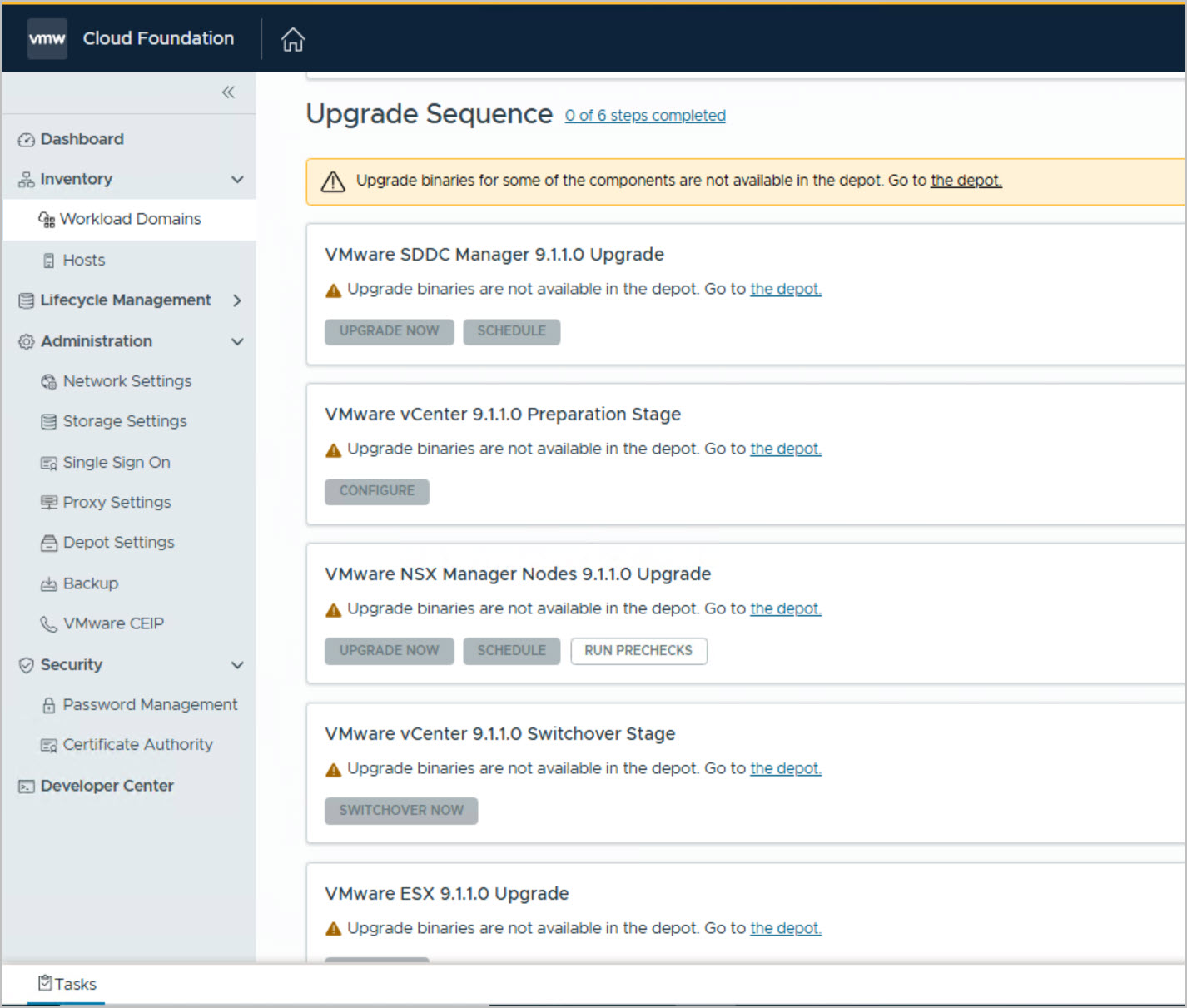
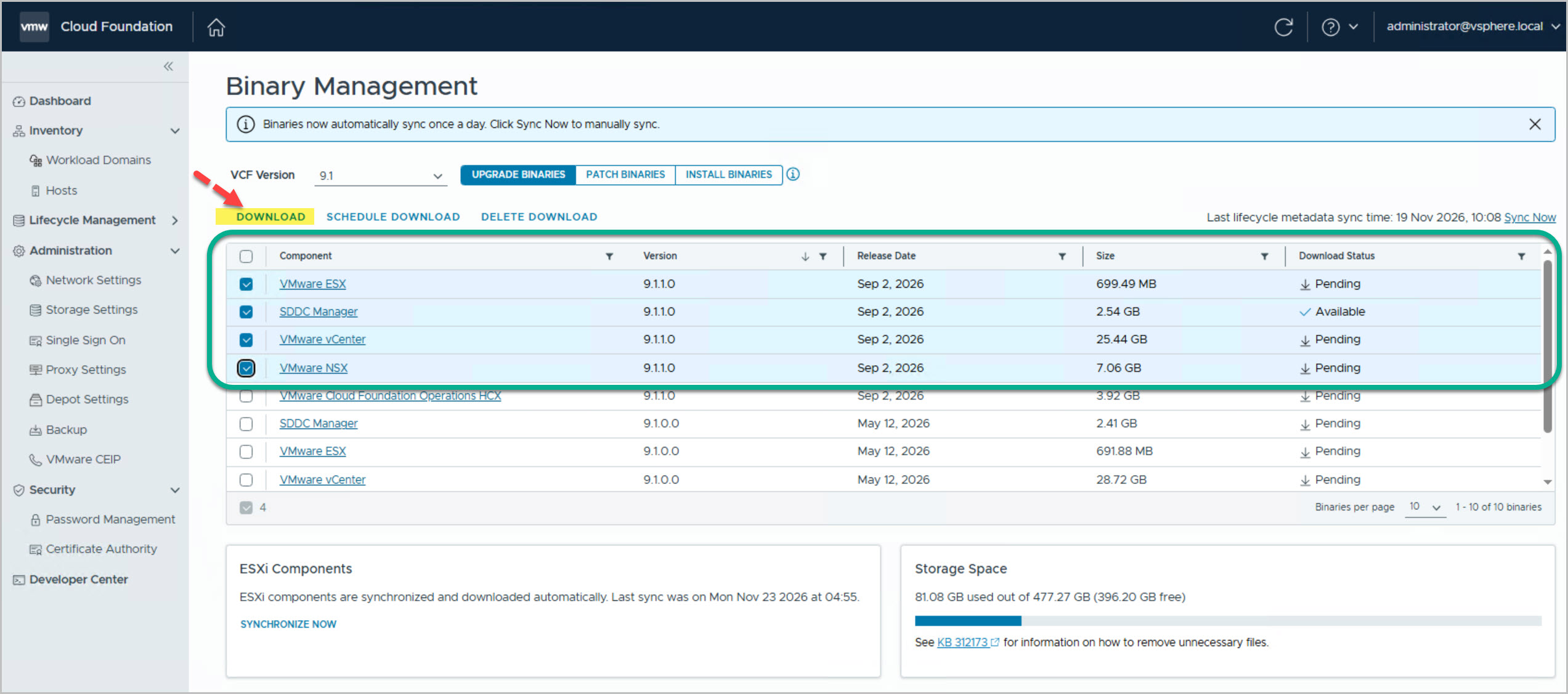
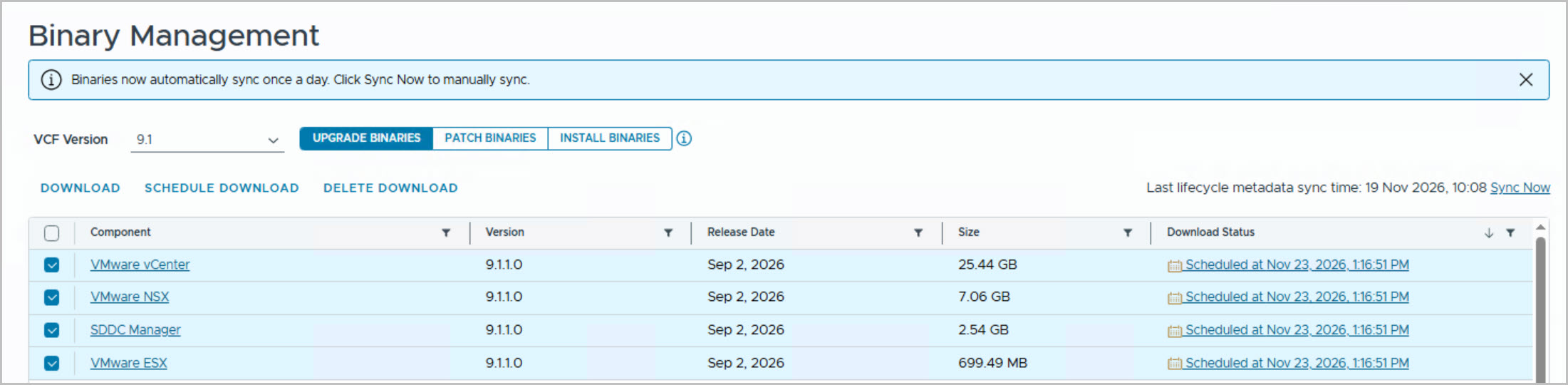
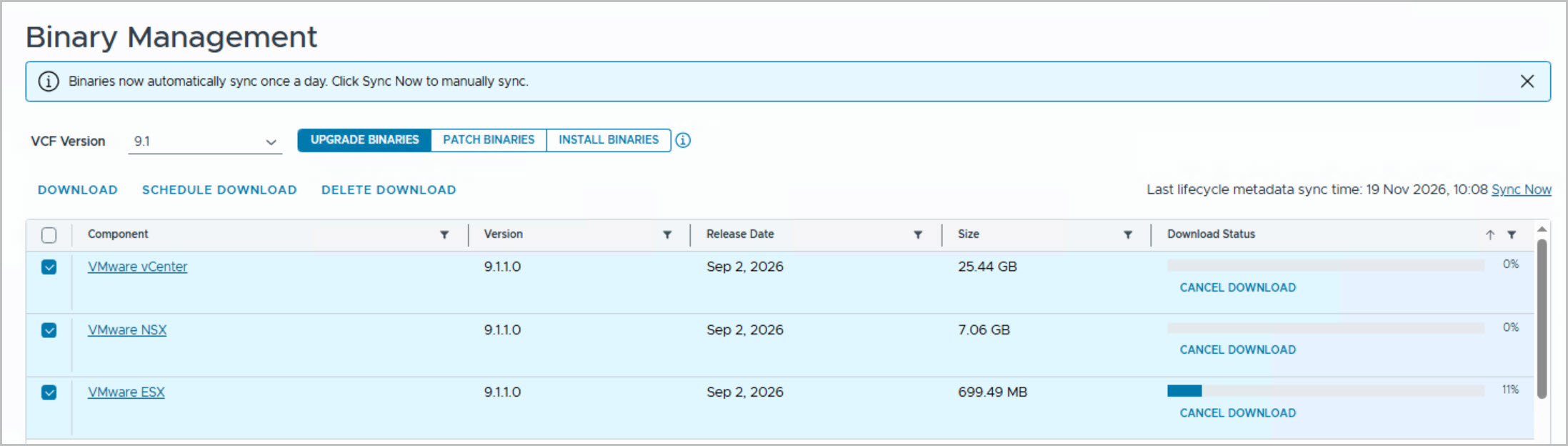
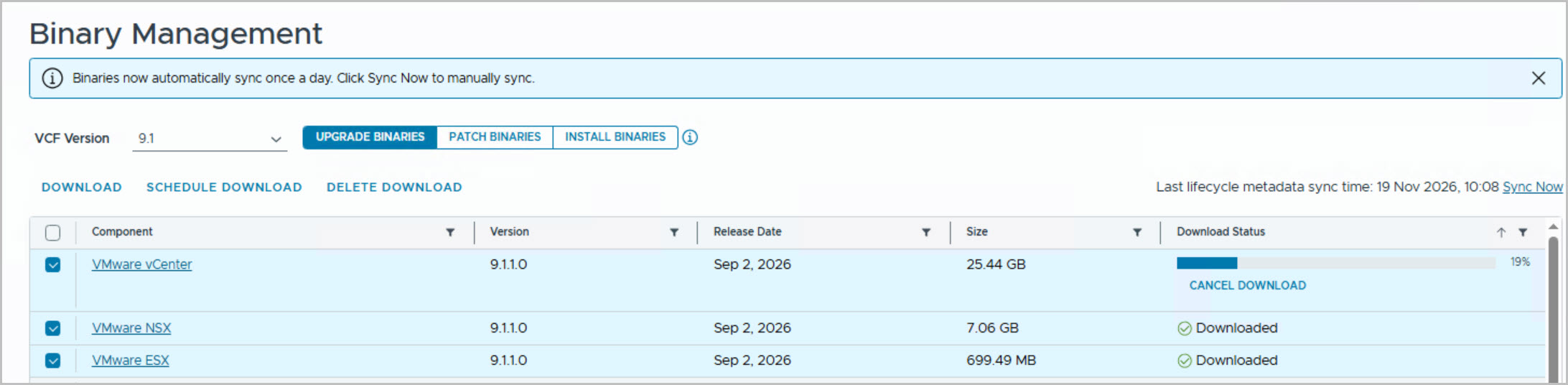
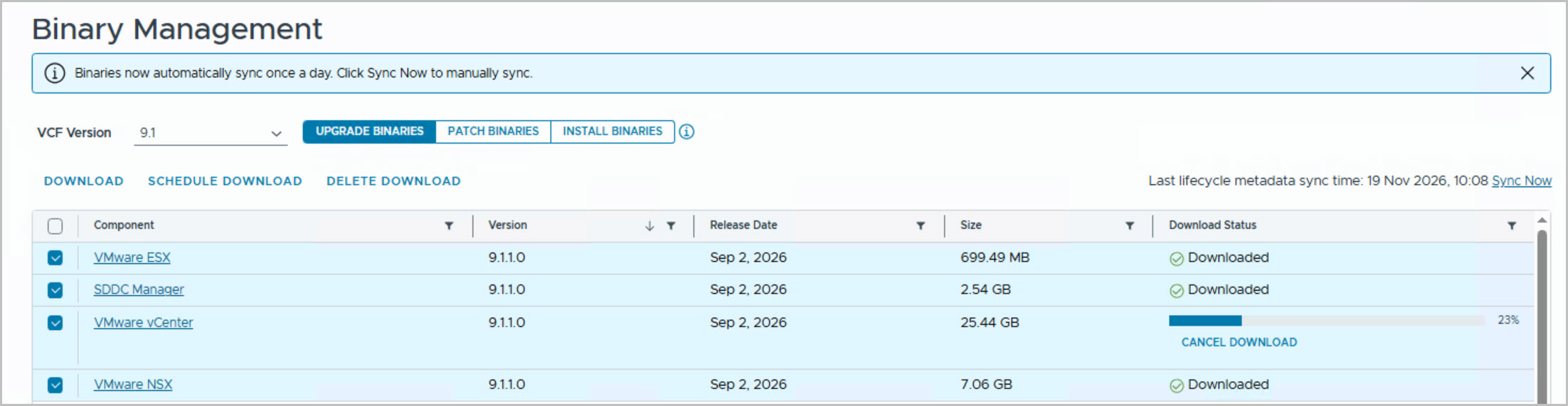
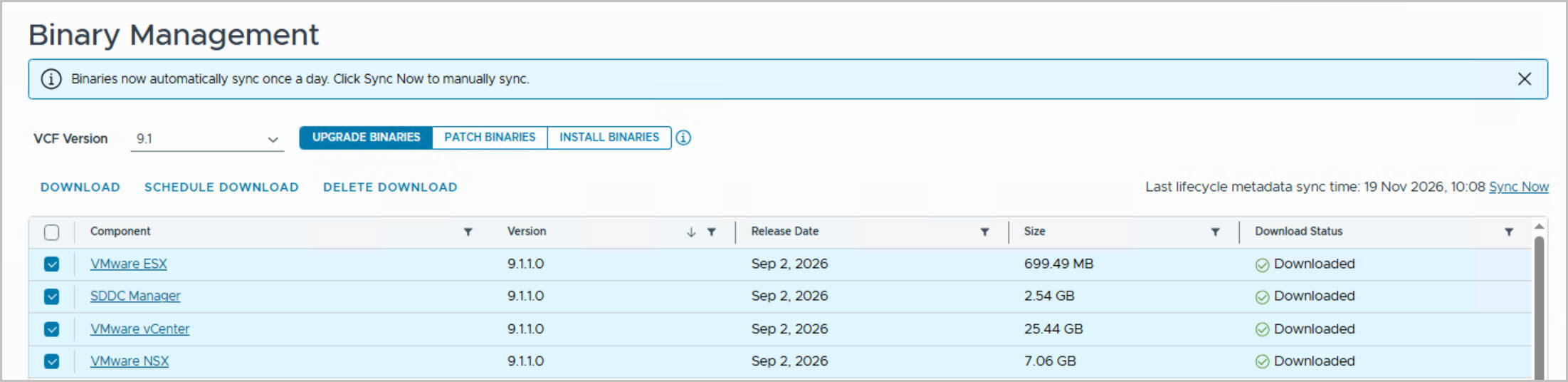
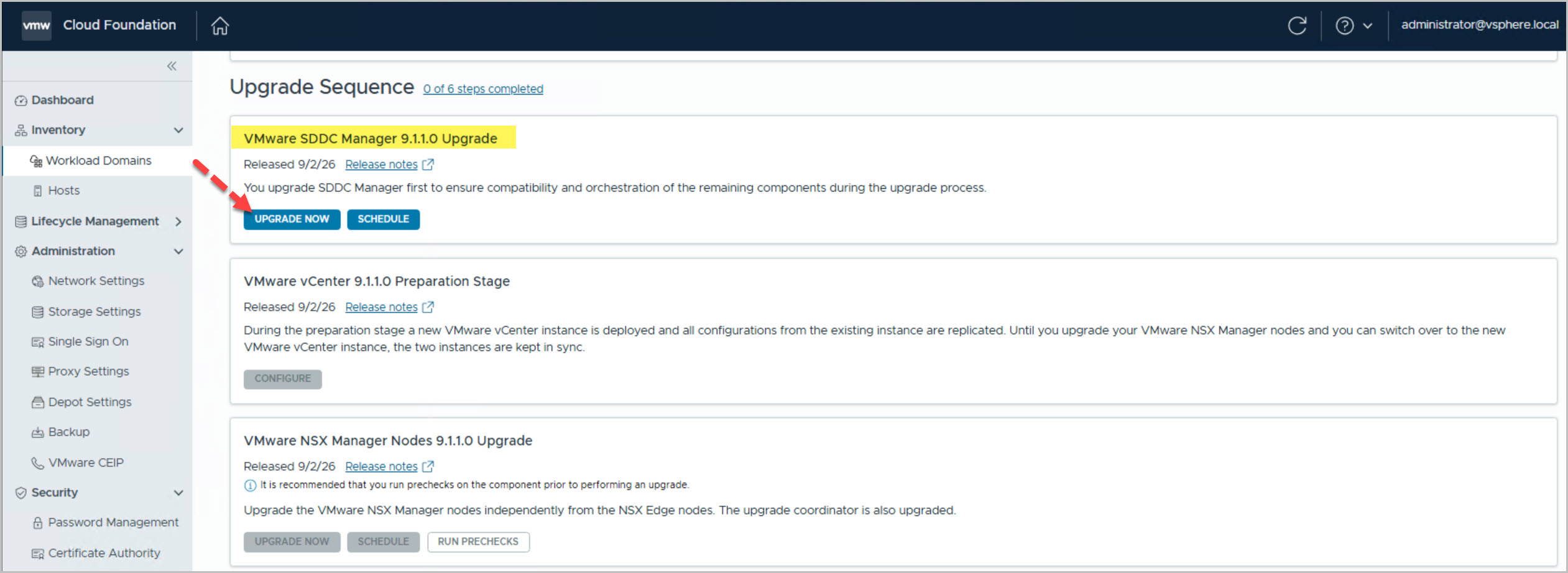
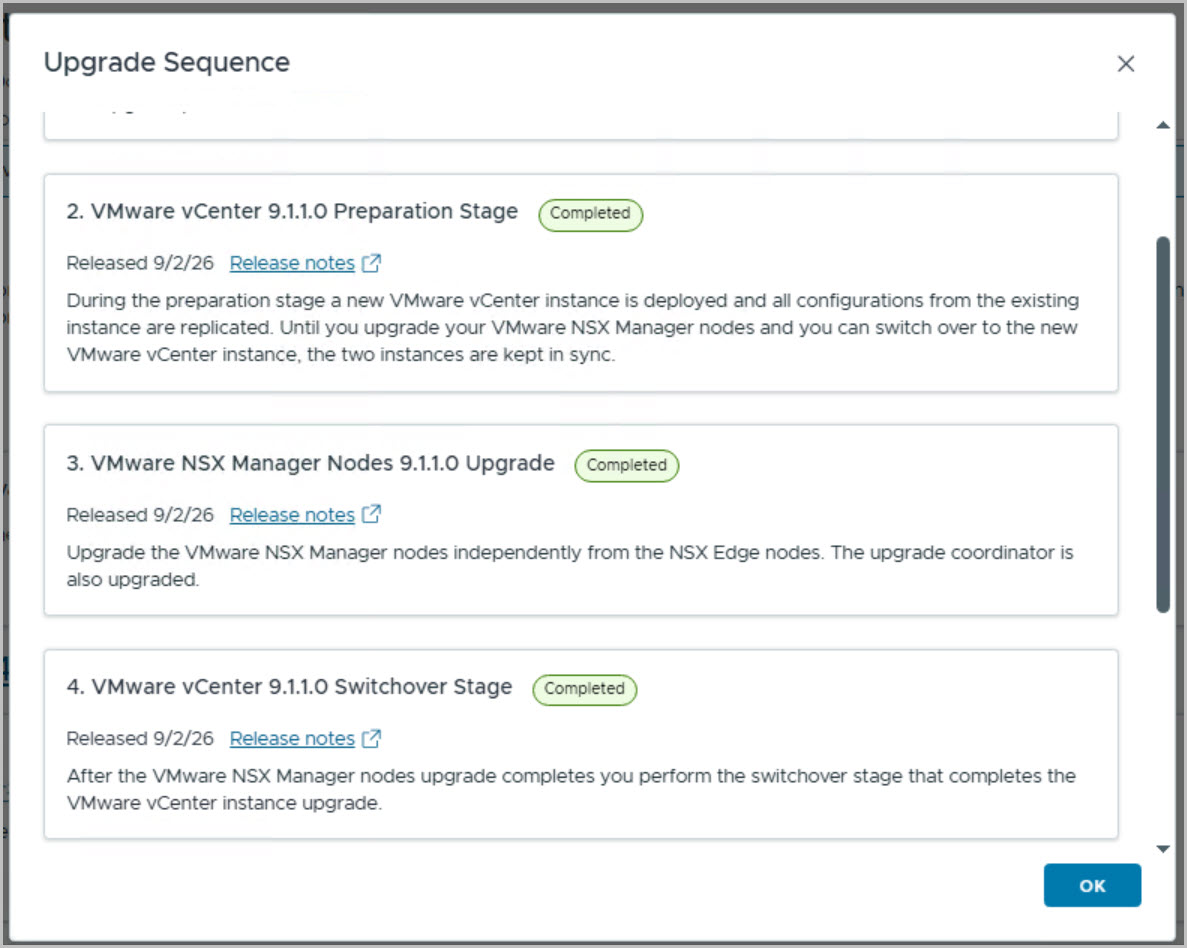
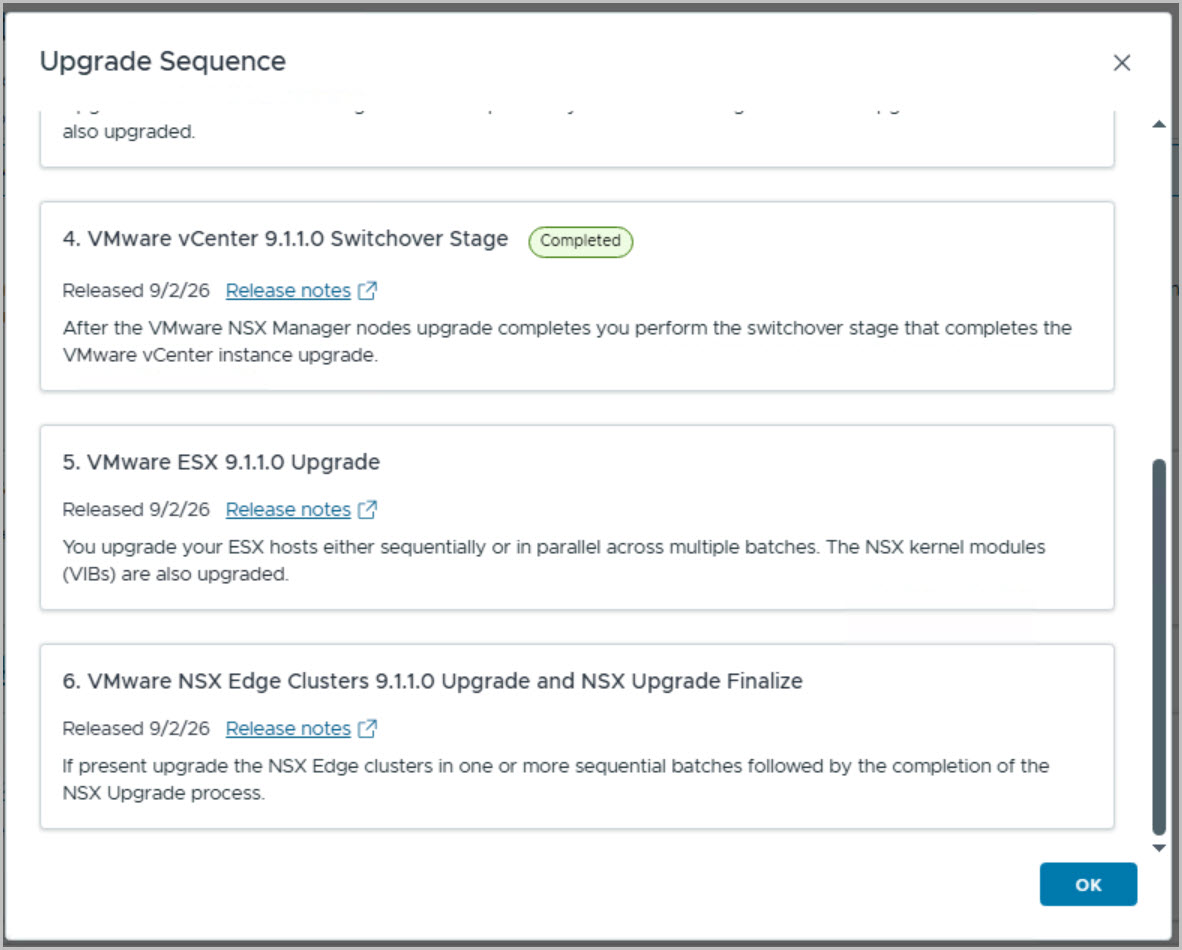
After validating the environment with upgrade prechecks, navigate to the Management Domain Upgrades tab and select Plan Domain Upgrade. SDDC Manager generates the required upgrade sequence and displays all upgrade stages in the correct order, such as SDDC Manager, vCenter, NSX, and ESXi. Before any stage can begin, the corresponding upgrade binaries must be available in the local depot. If binaries are missing, go to Lifecycle Management > Binary Management, select the target VCF release, and download the required bundles for SDDC Manager, vCenter, NSX, and ESXi. Once all packages show a status of Downloaded, return to the upgrade workflow and refresh the page. The upgrade tasks will become available, allowing the Management Domain upgrade to proceed following the sequence generated by SDDC Manager.
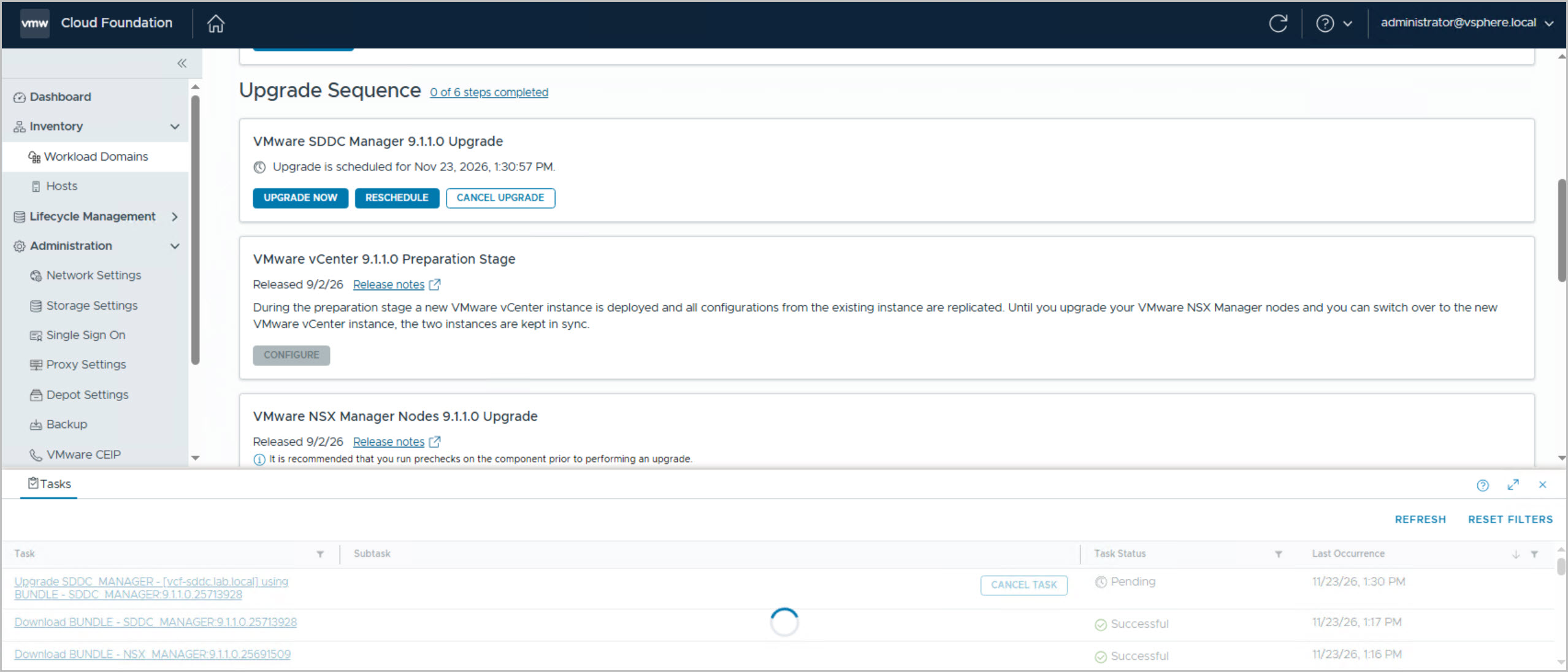
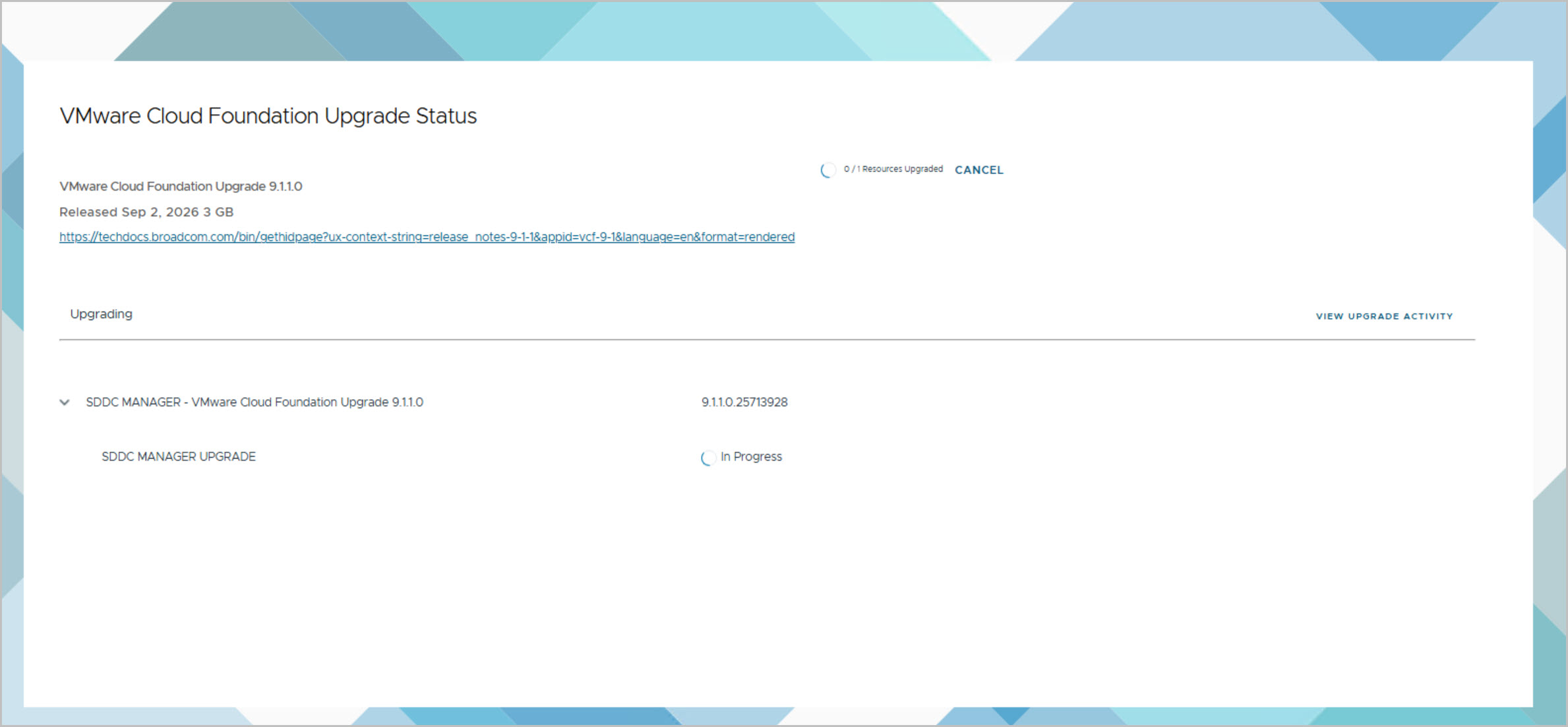
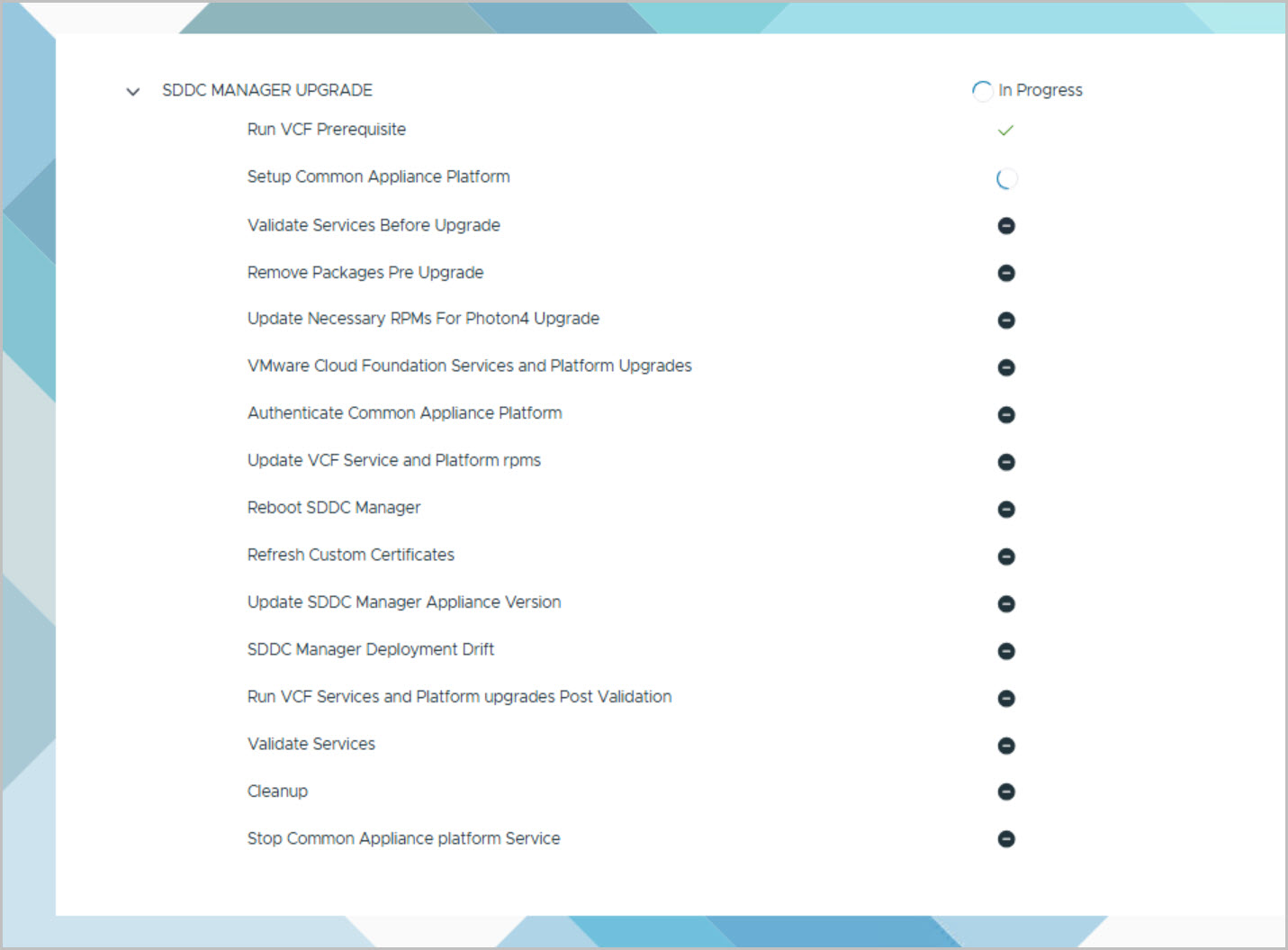
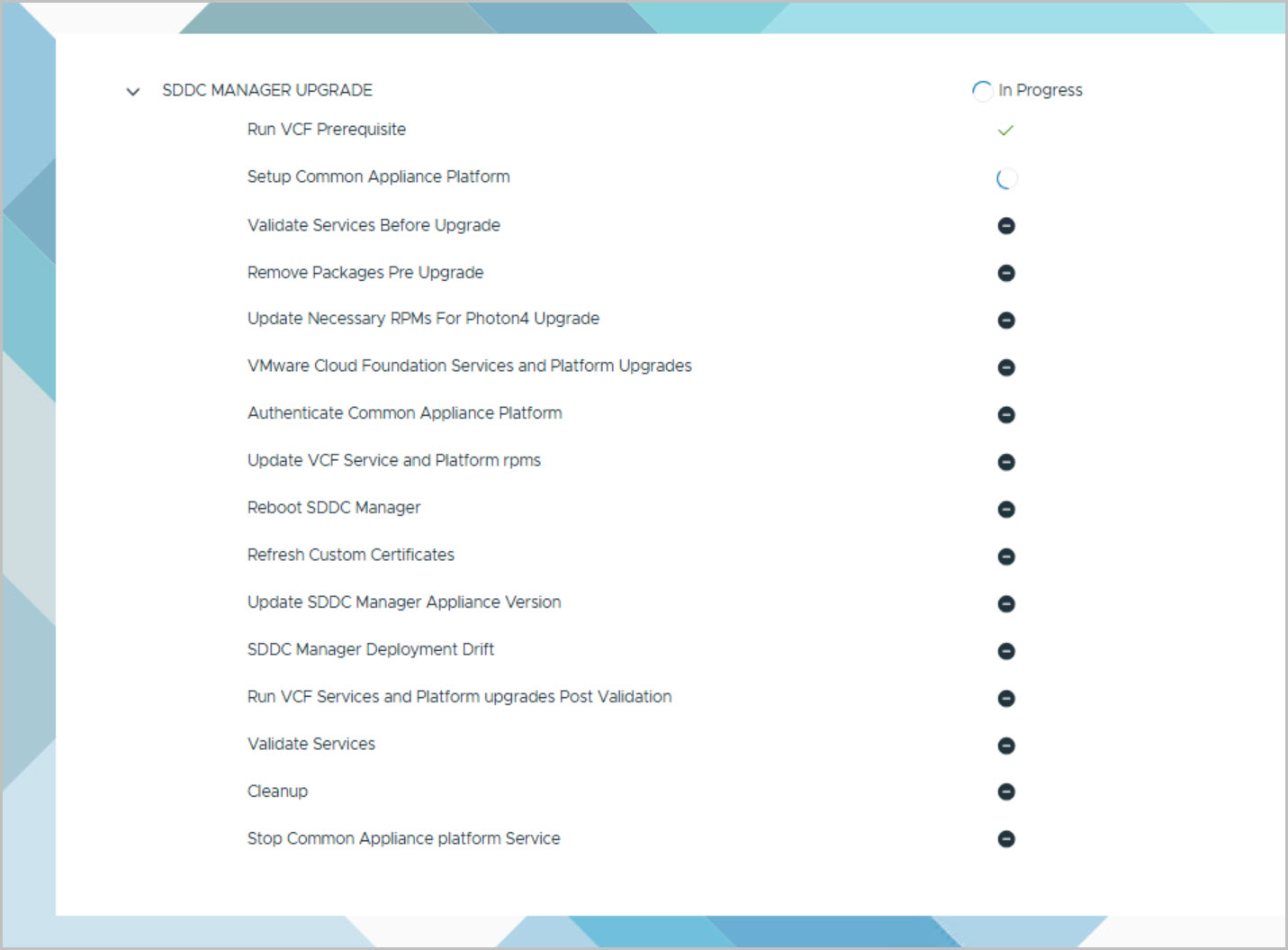
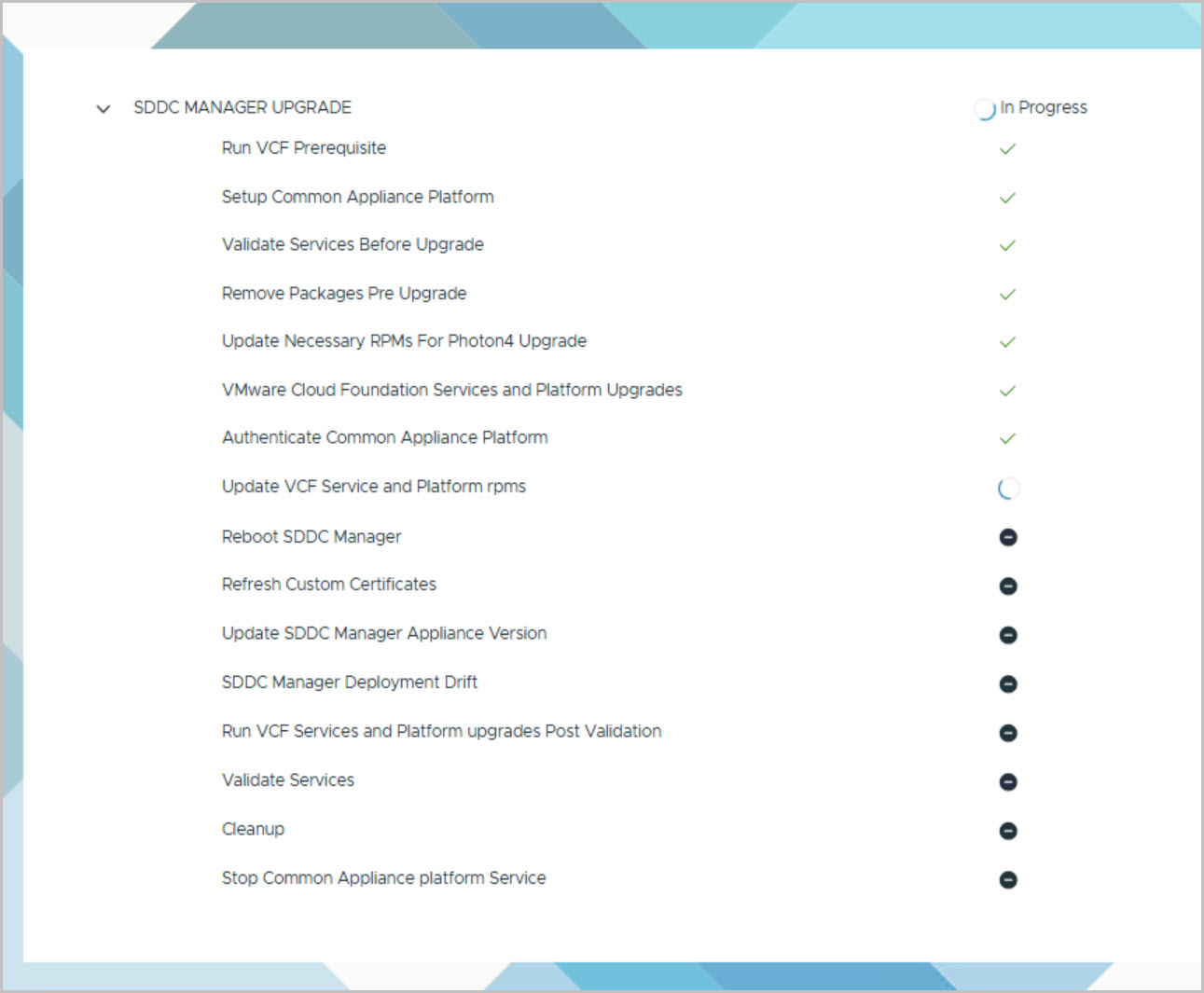
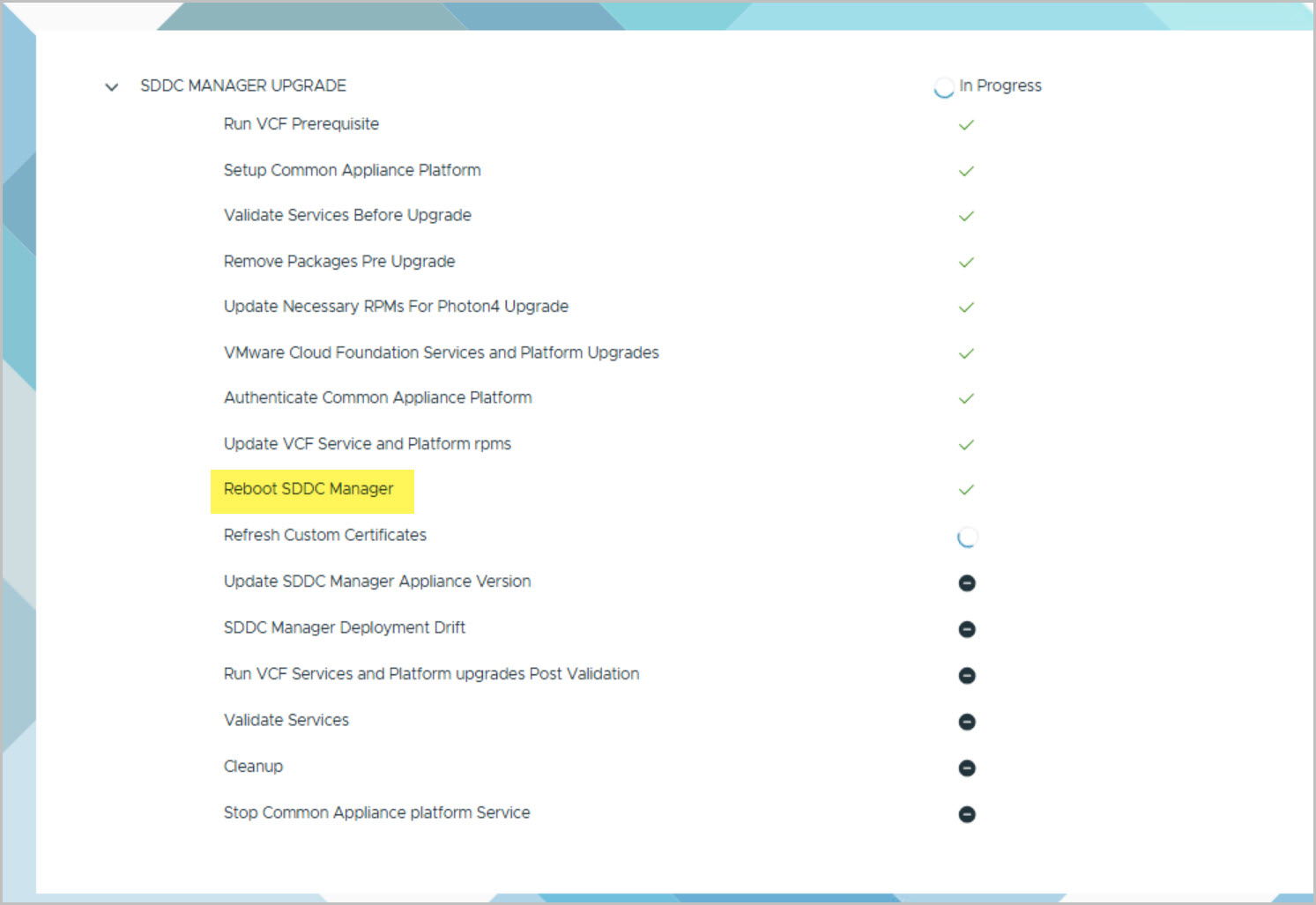
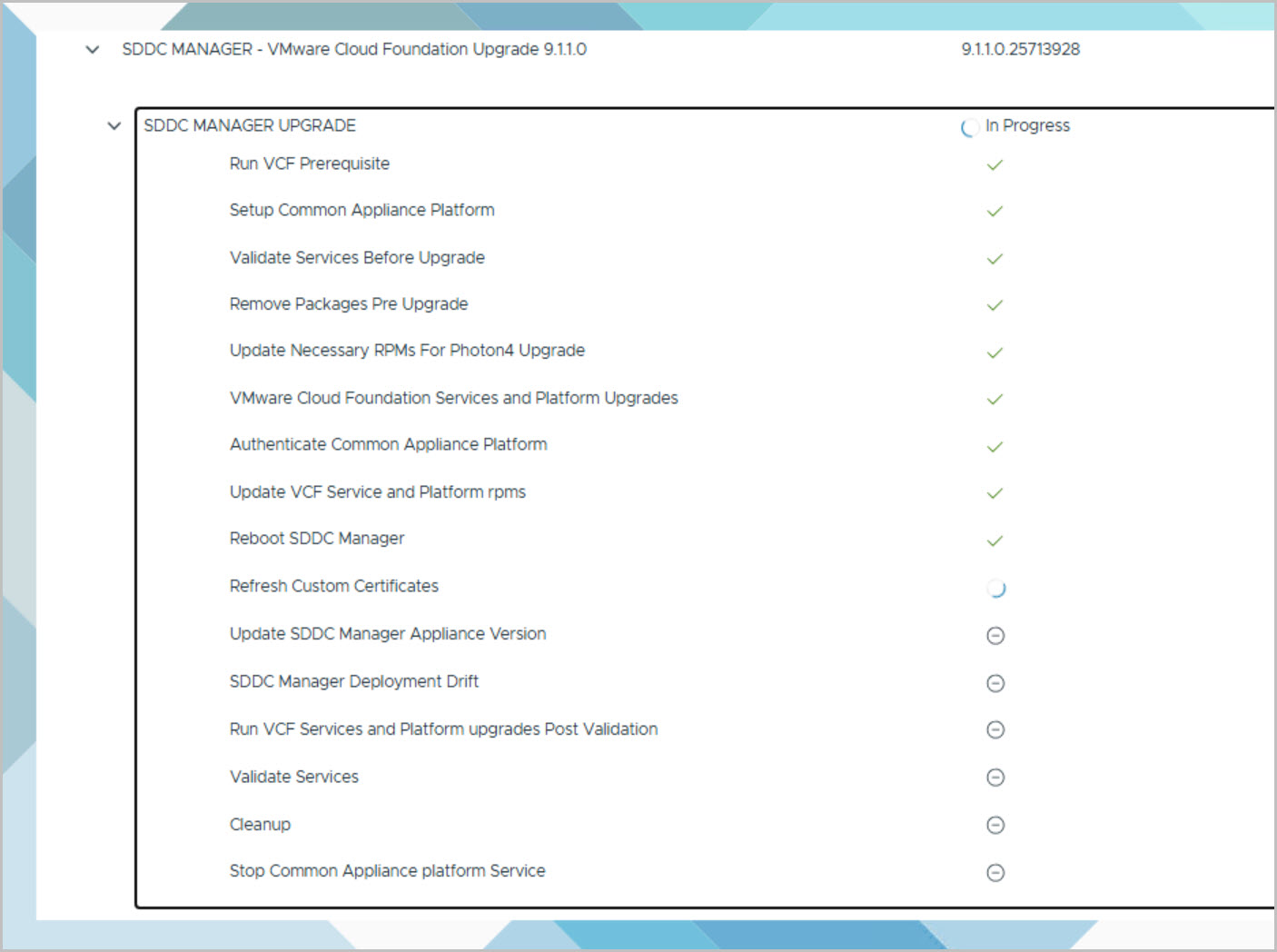
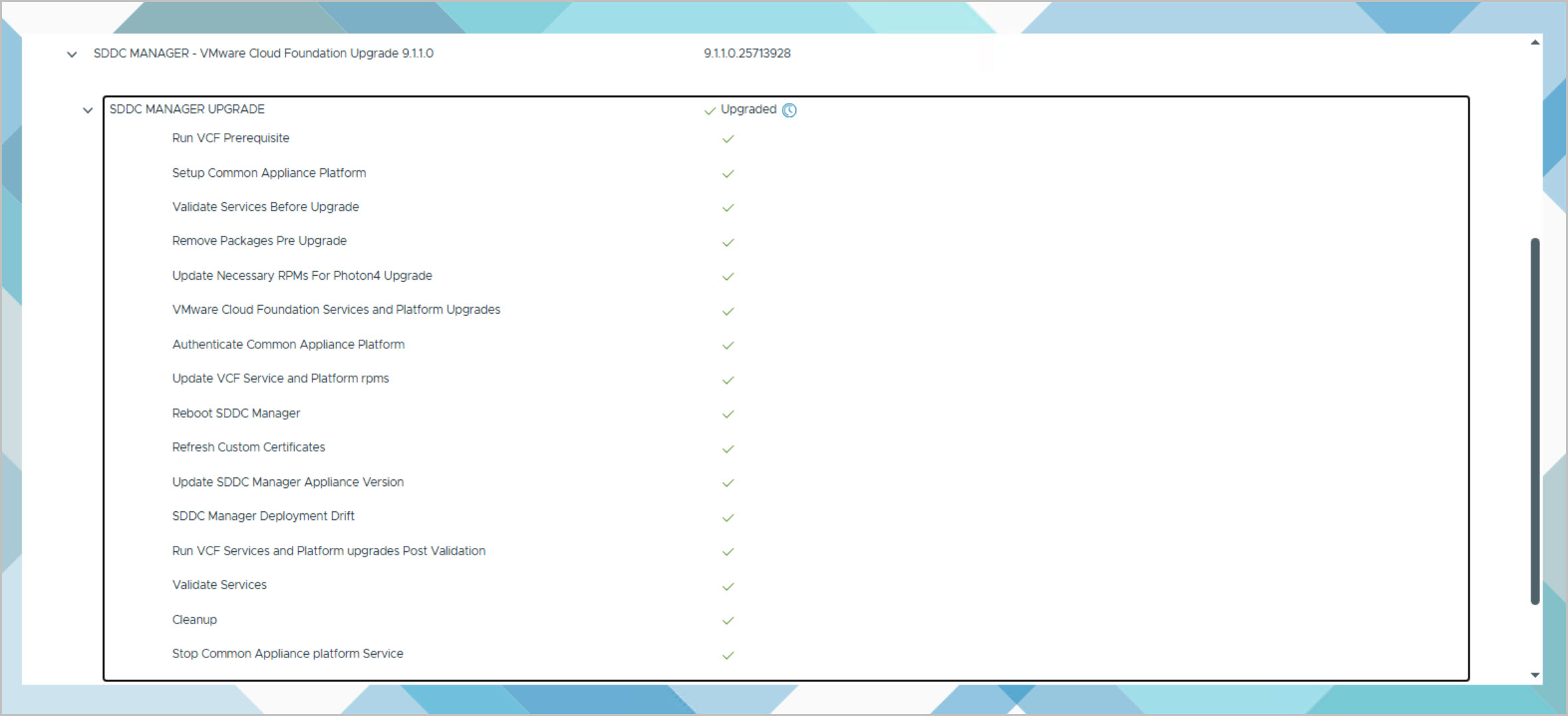
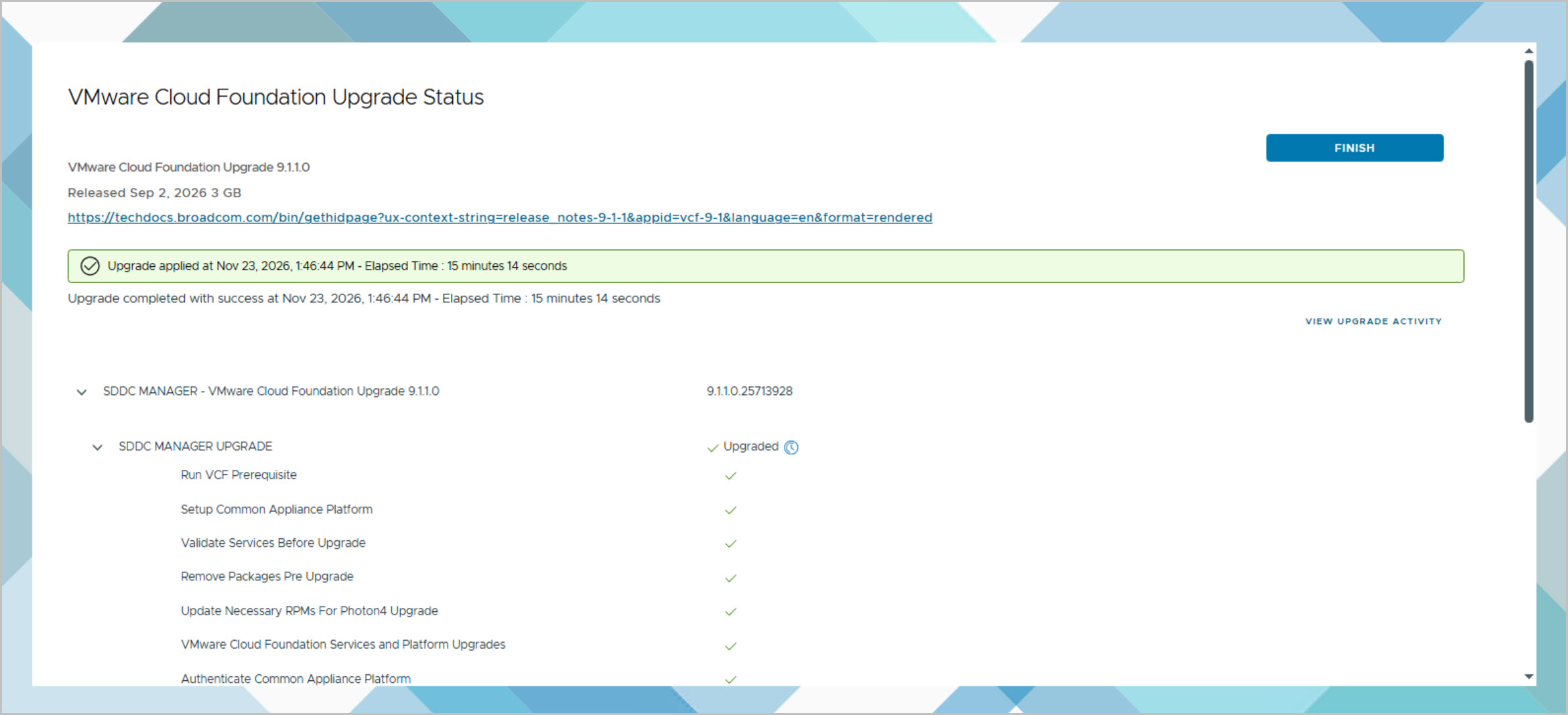
The SDDC Manager upgrade is the first executable stage in the Management Domain upgrade workflow. After selecting Upgrade Now, SDDC Manager performs a series of automated platform, service, operating system, and validation tasks before rebooting and updating itself to the target version. When all stages complete successfully and the new version is confirmed, the environment is ready to proceed to the next step in the upgrade sequence: the vCenter Preparation Stage.
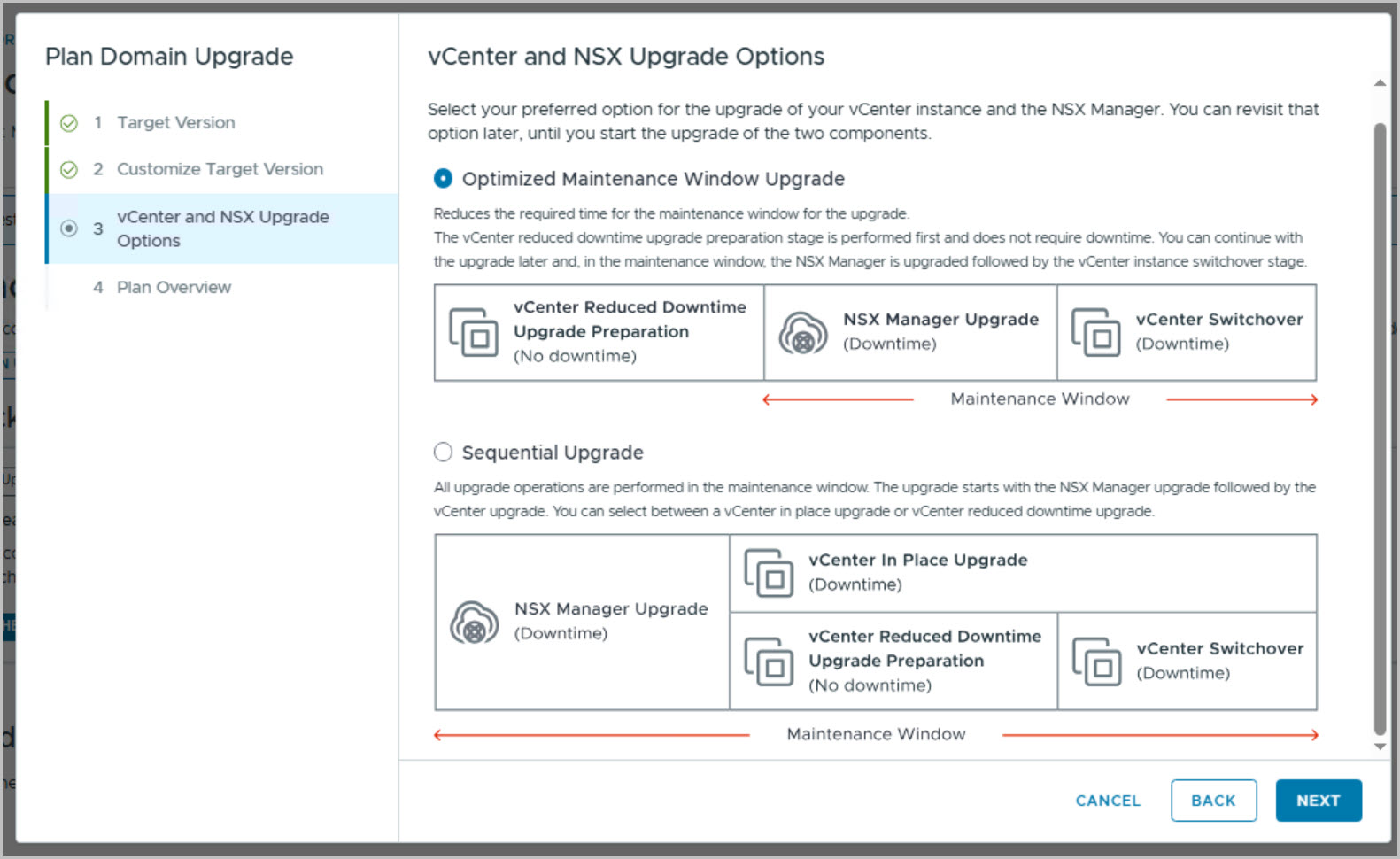
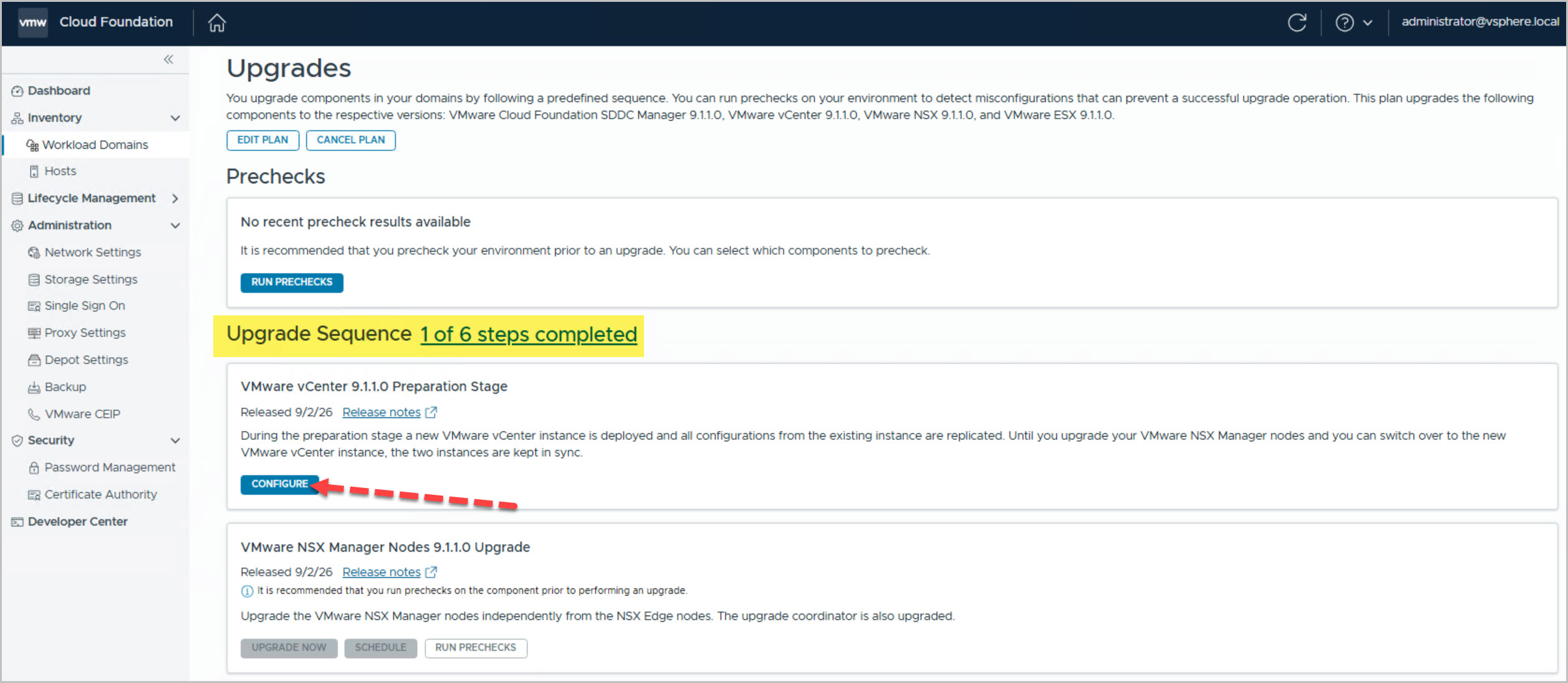
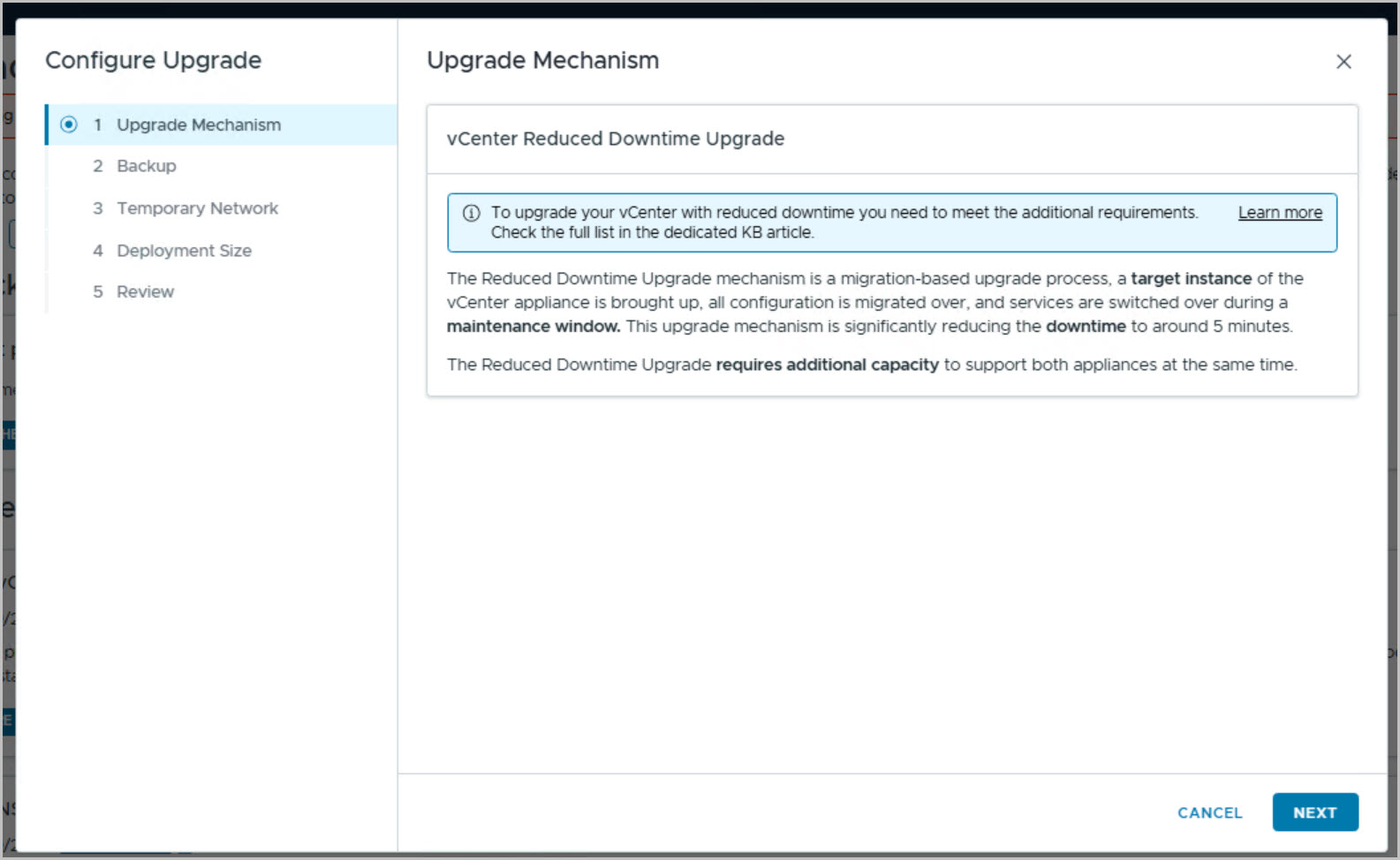
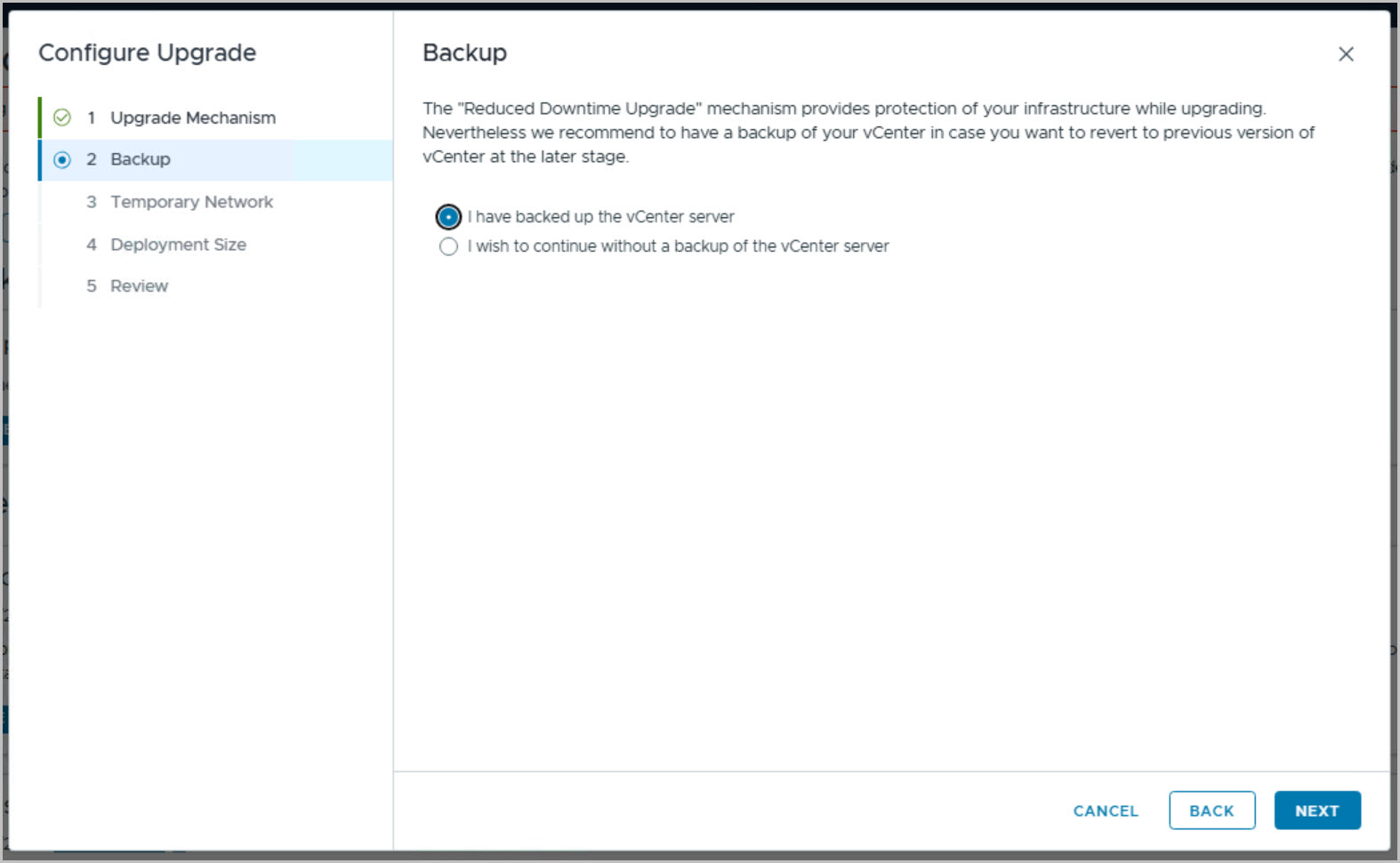
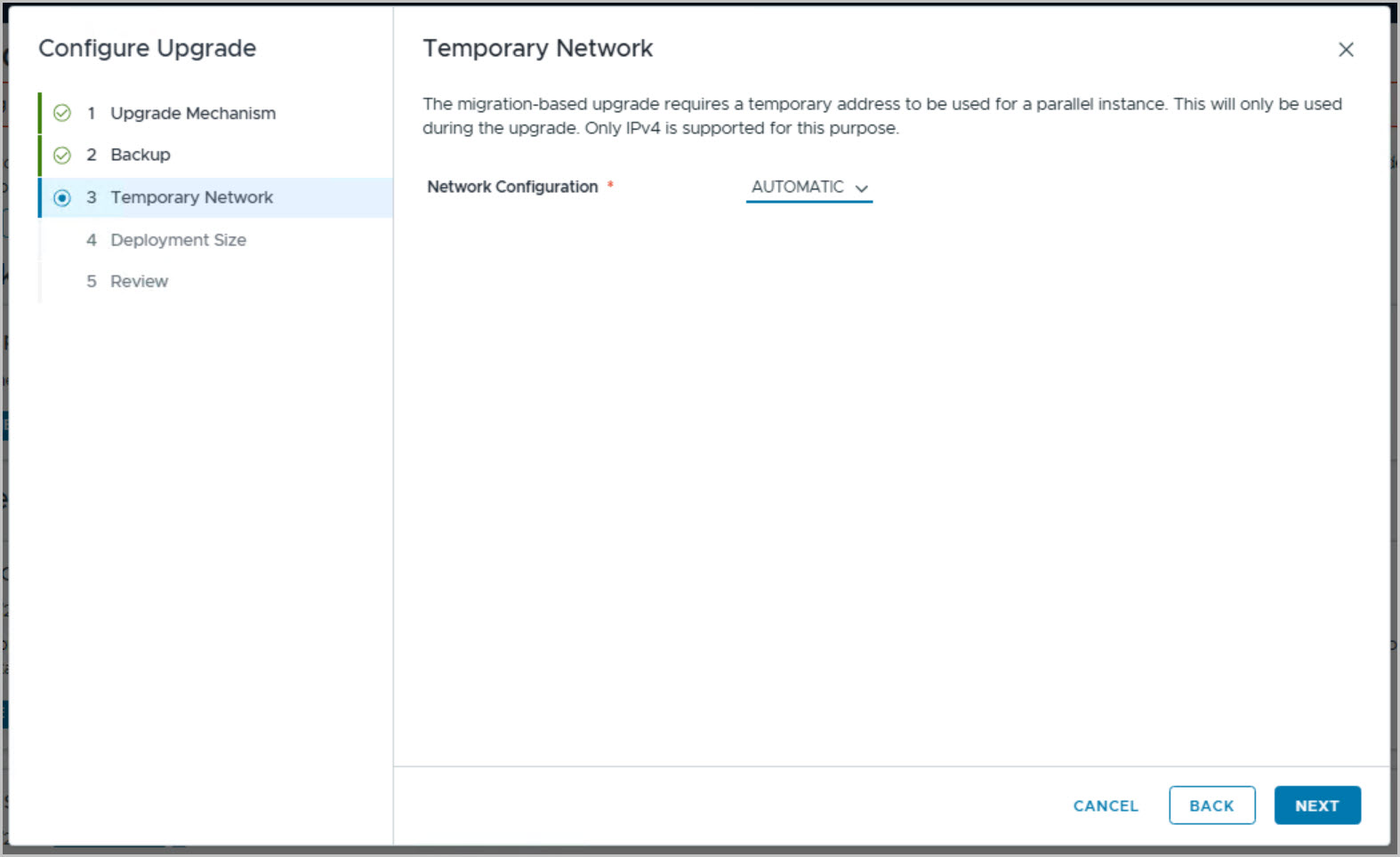
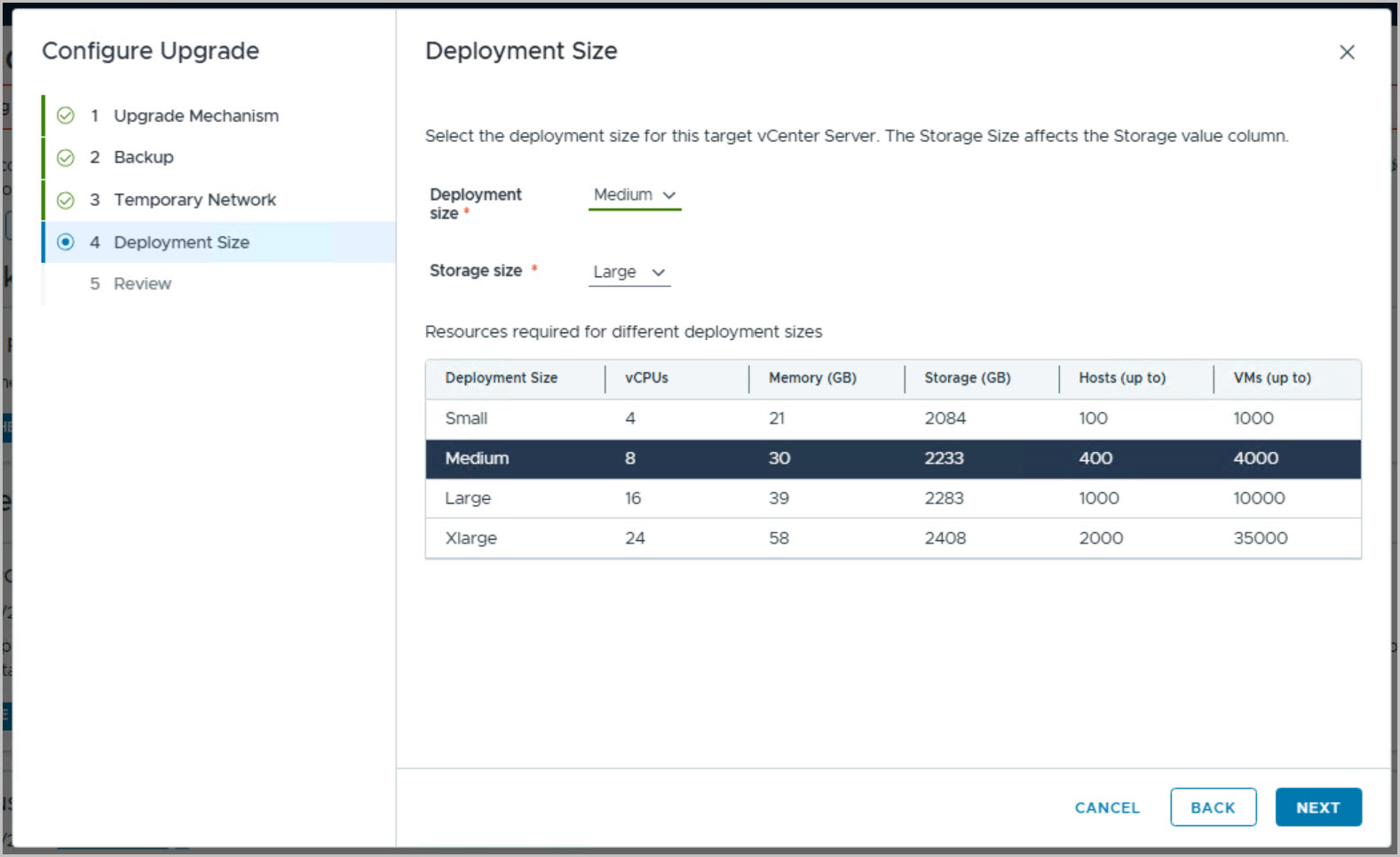
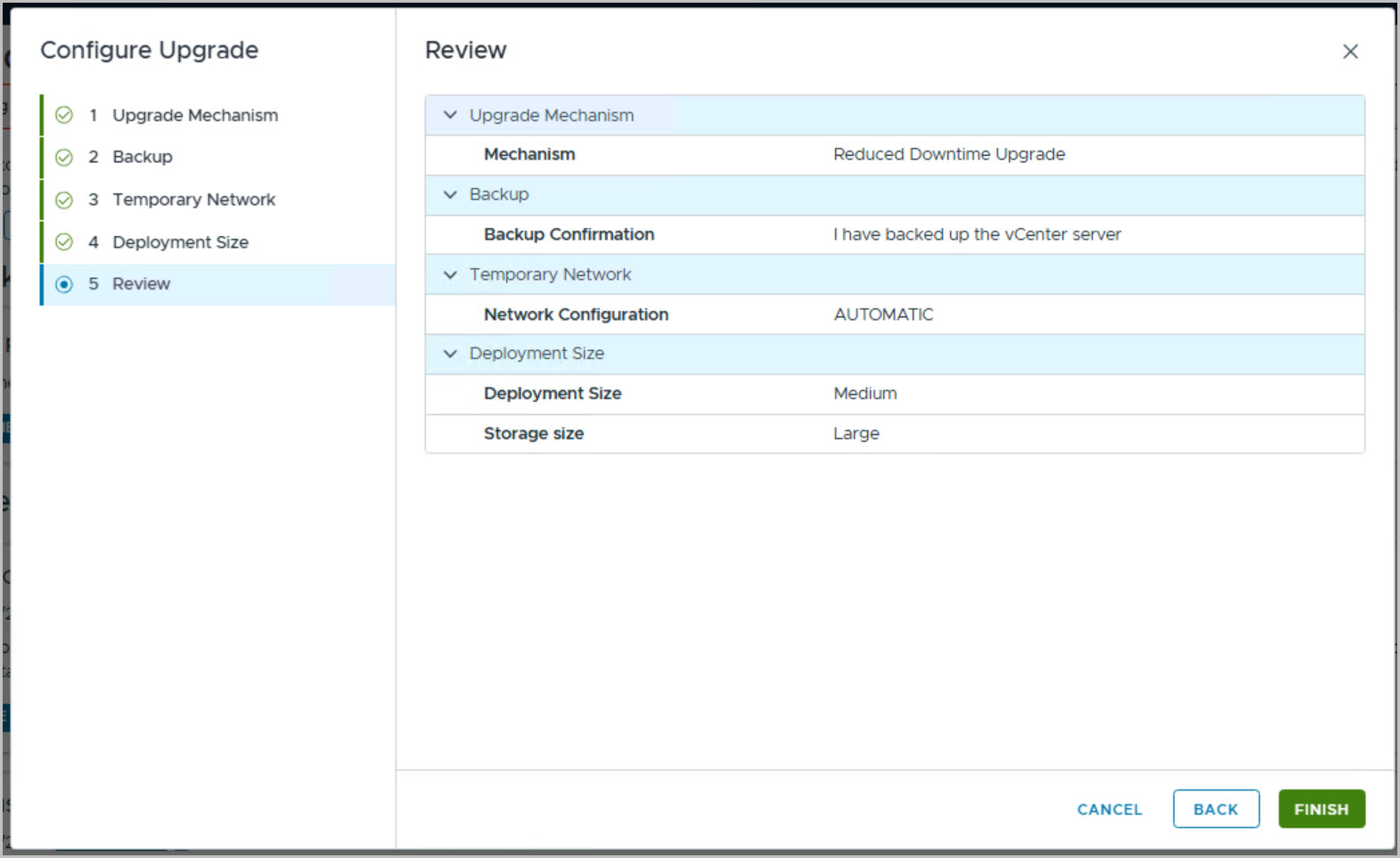
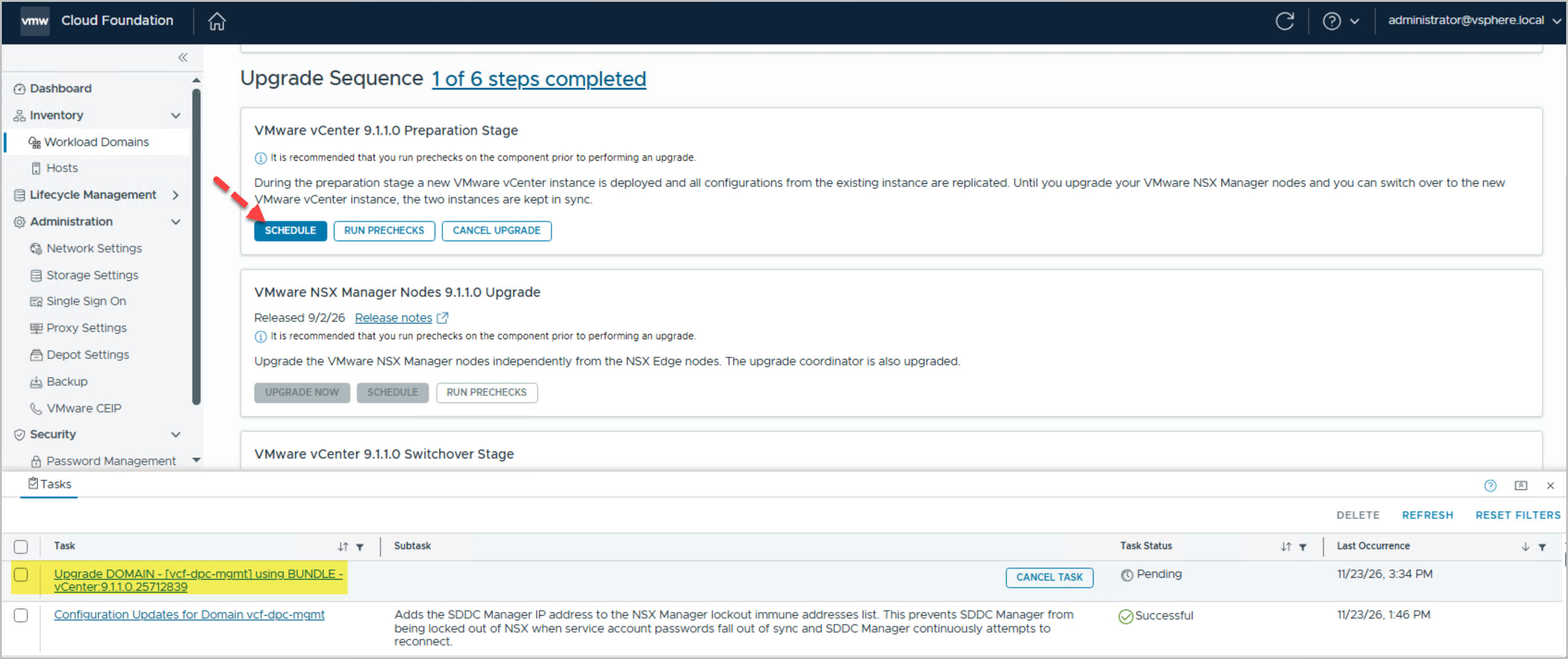
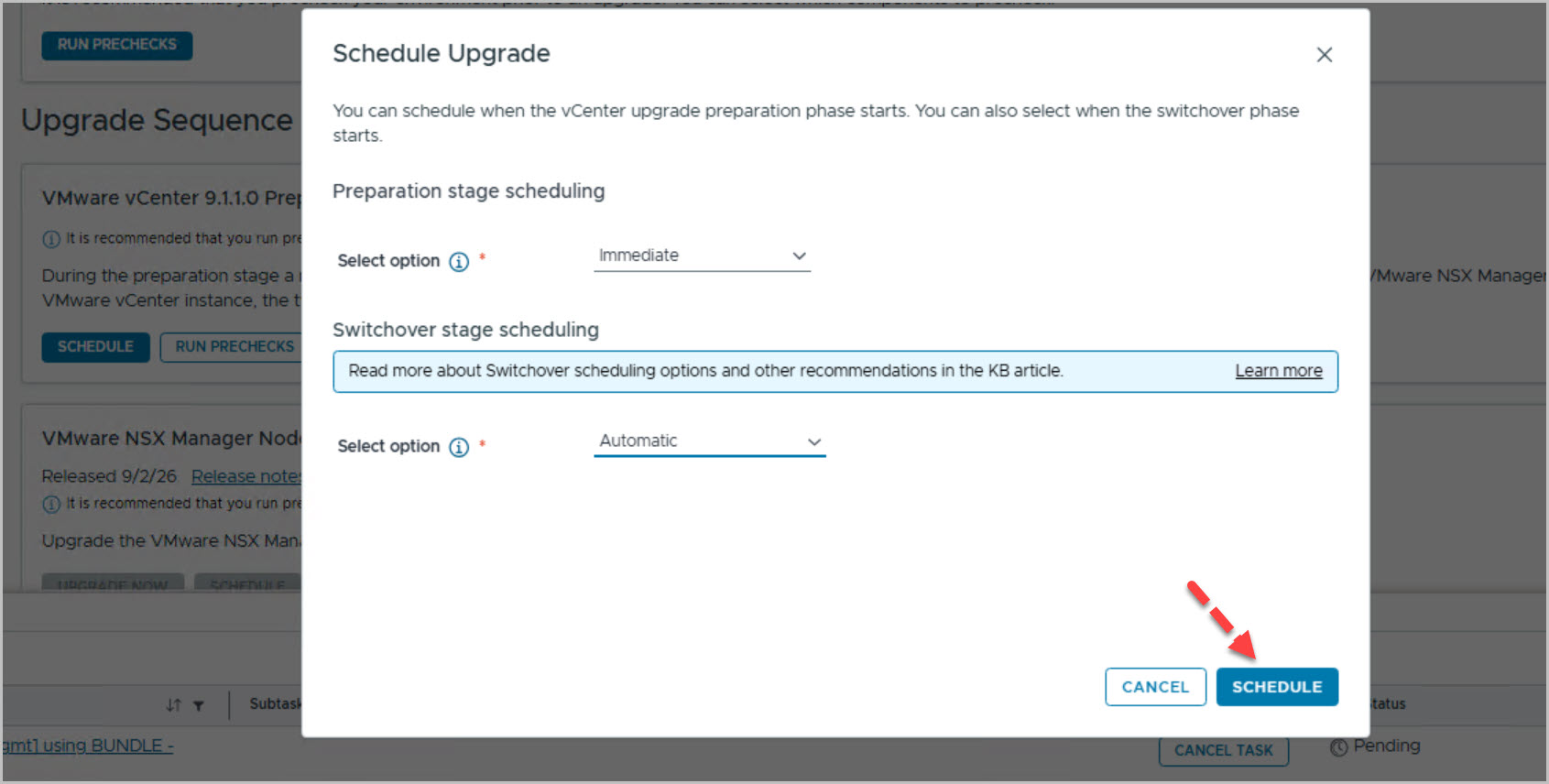
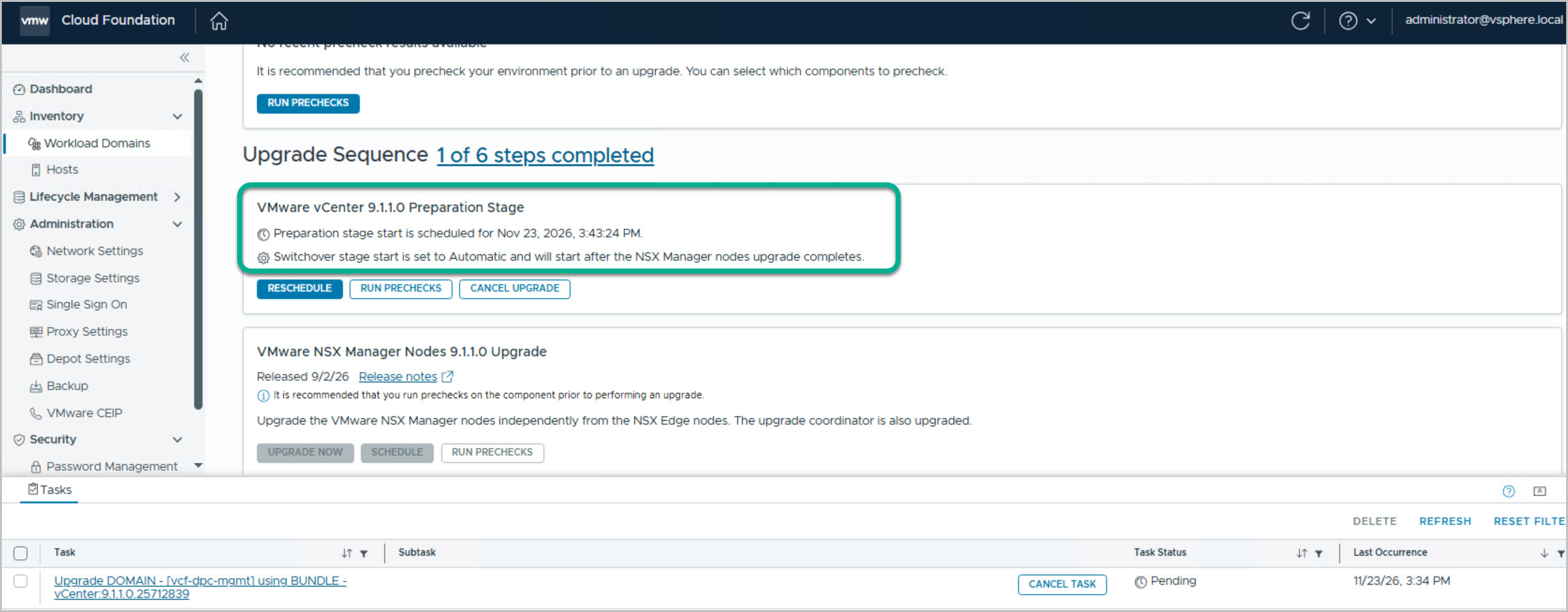
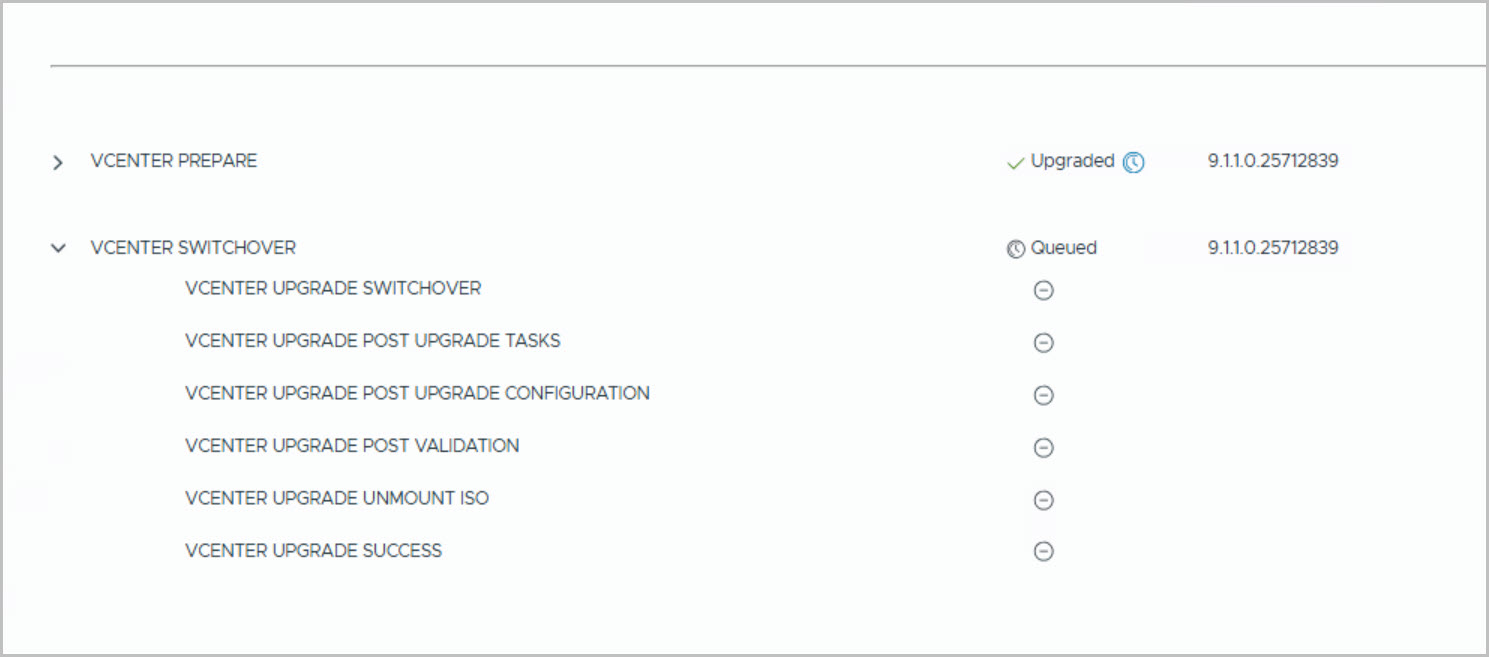
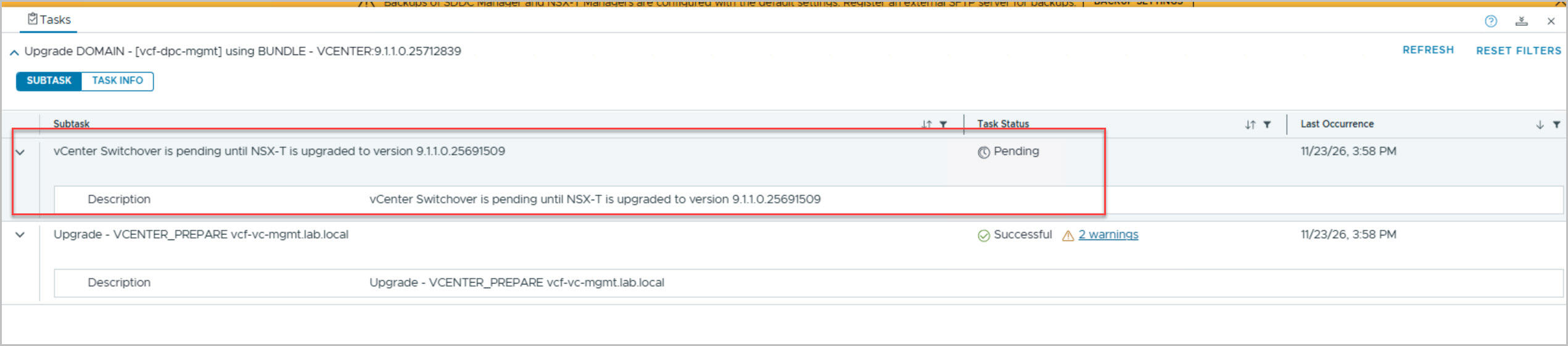
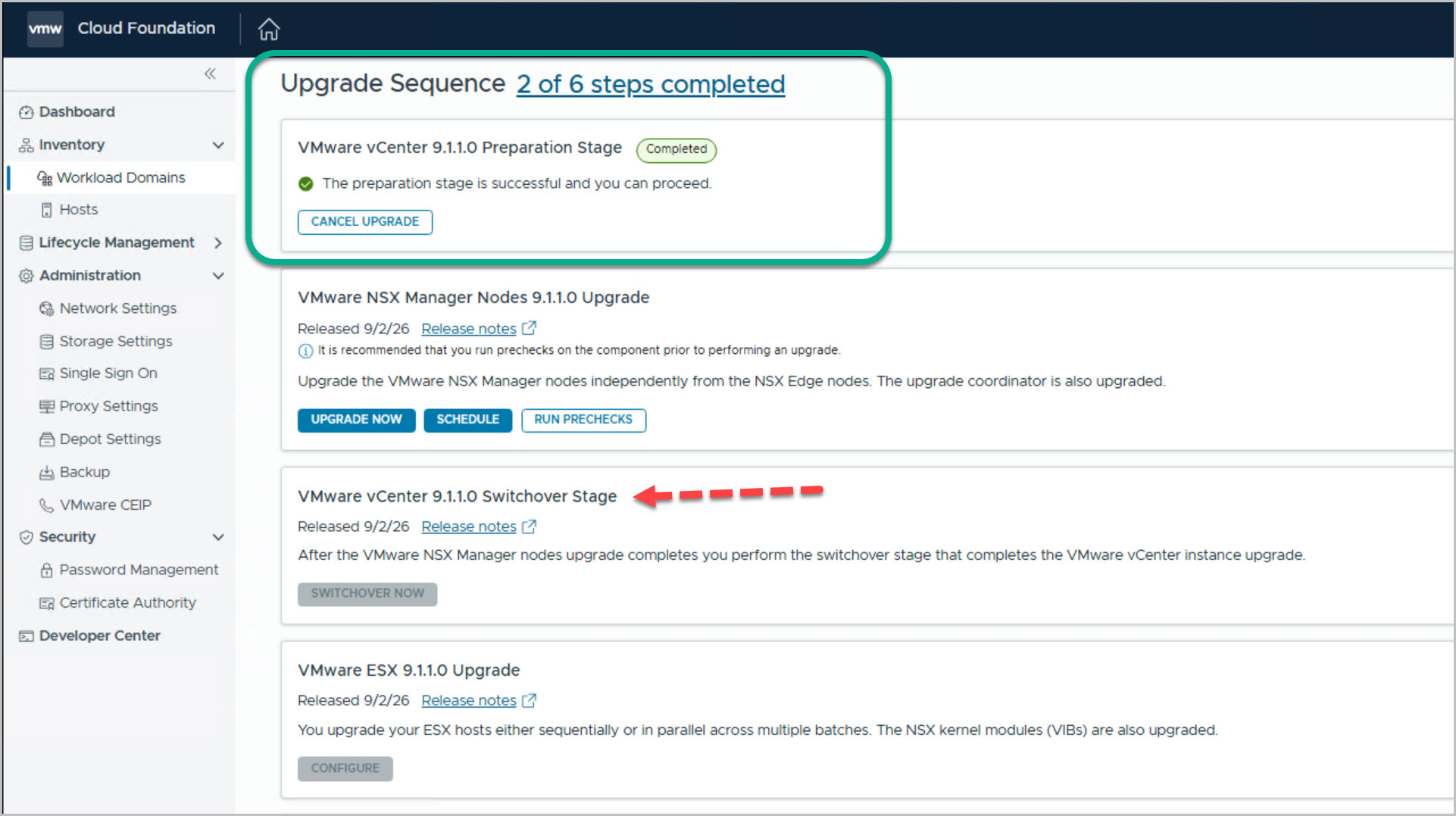
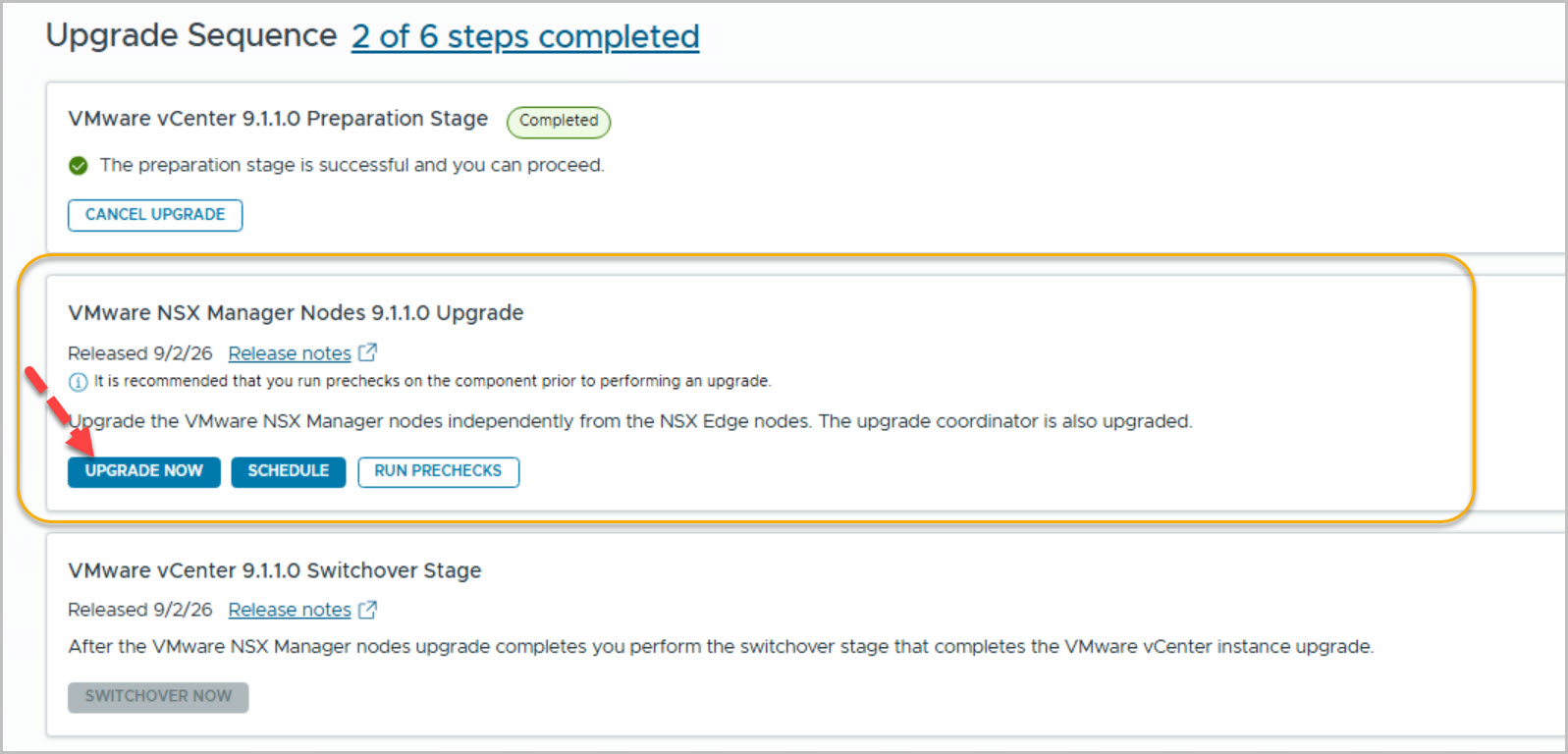
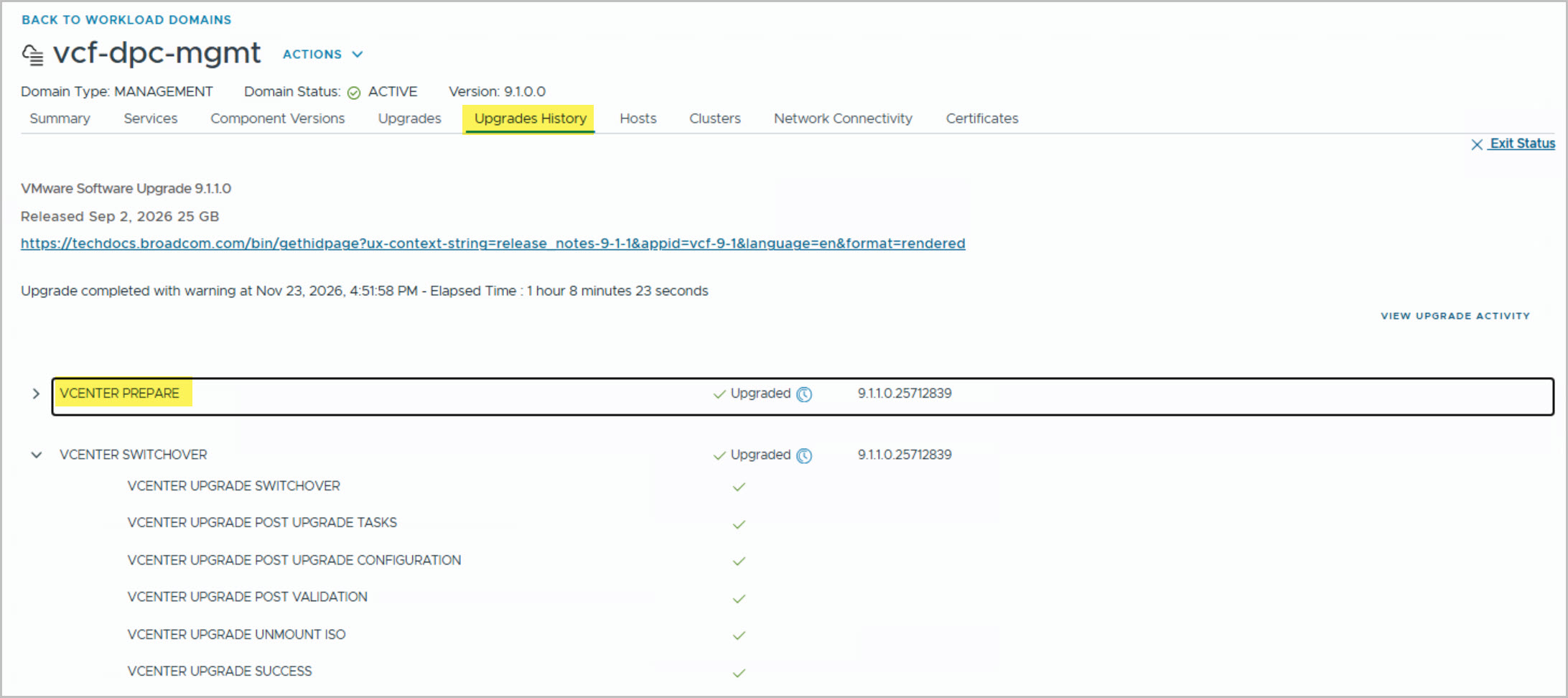
After the SDDC Manager upgrade completes, select Configure under the VMware vCenter Preparation Stage. The configuration wizard guides you through the reduced-downtime upgrade workflow, where a new vCenter appliance is deployed alongside the existing instance. During the wizard, review the upgrade mechanism, validate backups, configure the temporary network settings required for the parallel appliance, review the proposed deployment size, and verify all configuration details. Once the configuration is complete, schedule the preparation stage and monitor progress from the Tasks and Upgrade Activity views. SDDC Manager then deploys the target vCenter appliance, migrates the required configuration and inventory data, and establishes synchronization between the existing and new vCenter instances. Upon completion, the VCENTER_PREPARE task reports a successful status, the new vCenter appliance is fully synchronized, and the vCenter Switchover stage remains queued pending completion of the NSX Manager upgrade. At this point the upgrade workflow shows 2 of 6 steps completed and the environment is ready to proceed with the NSX Manager Nodes Upgrade.
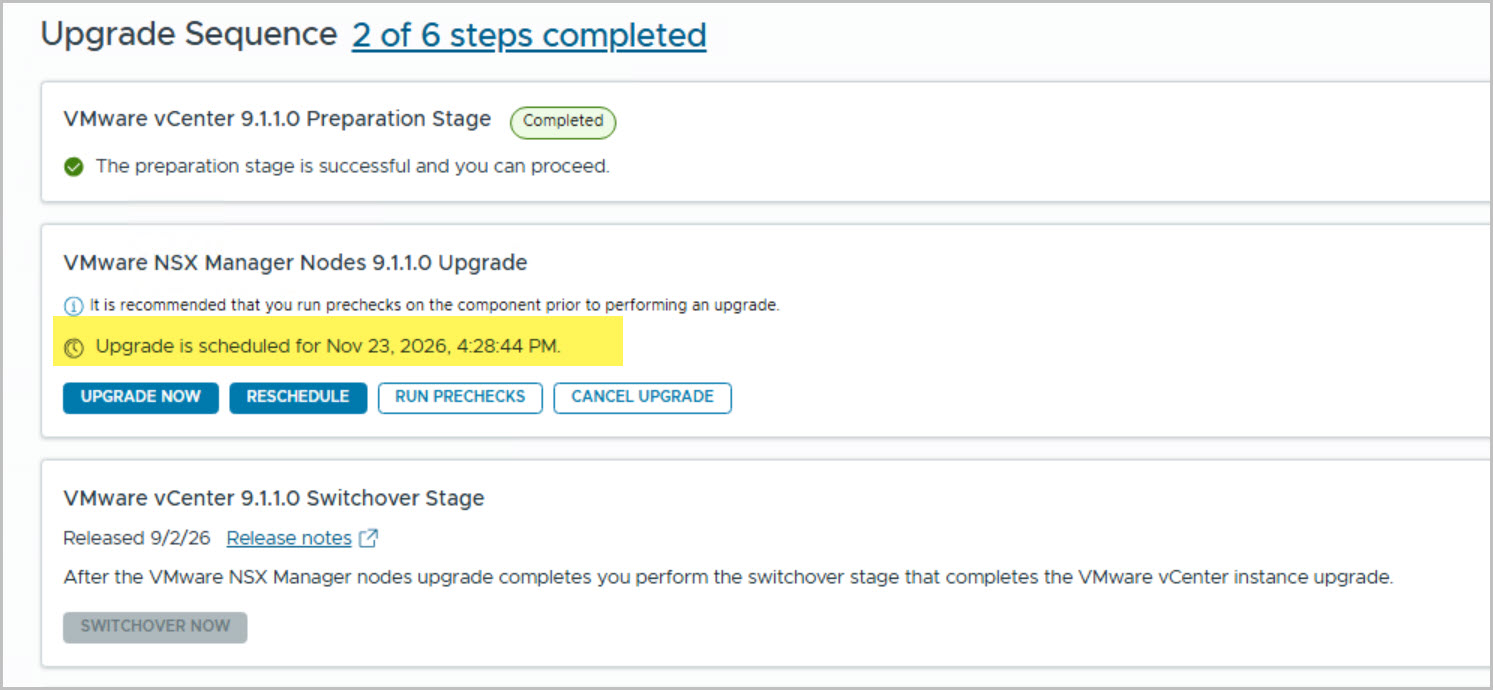
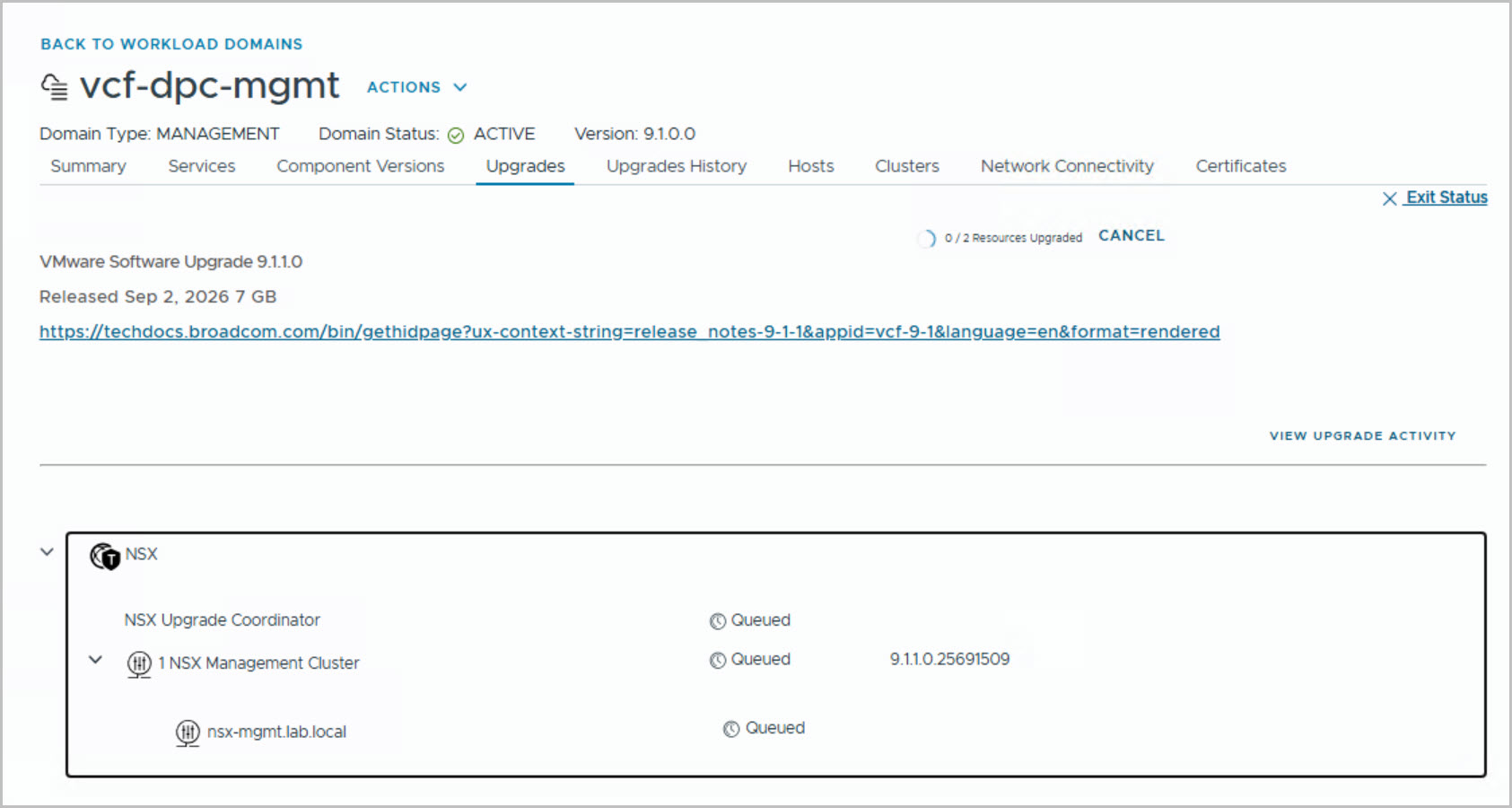
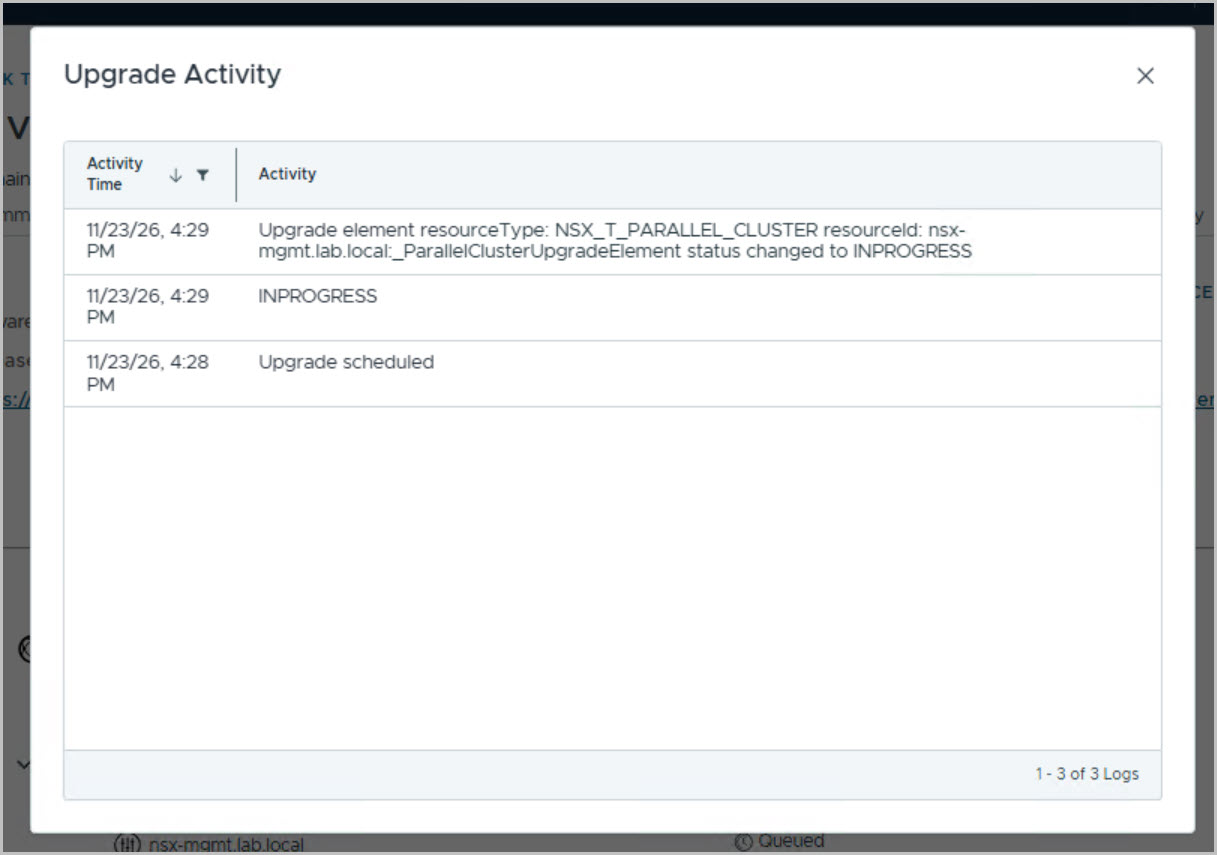
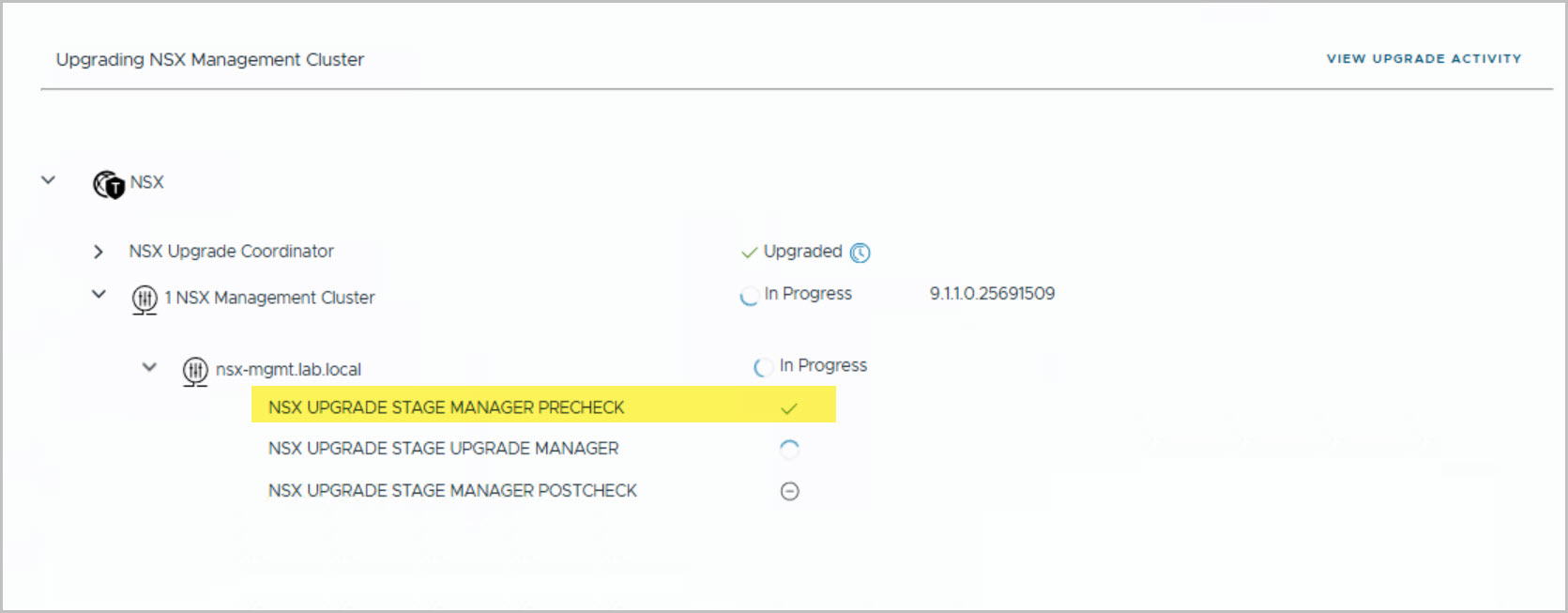
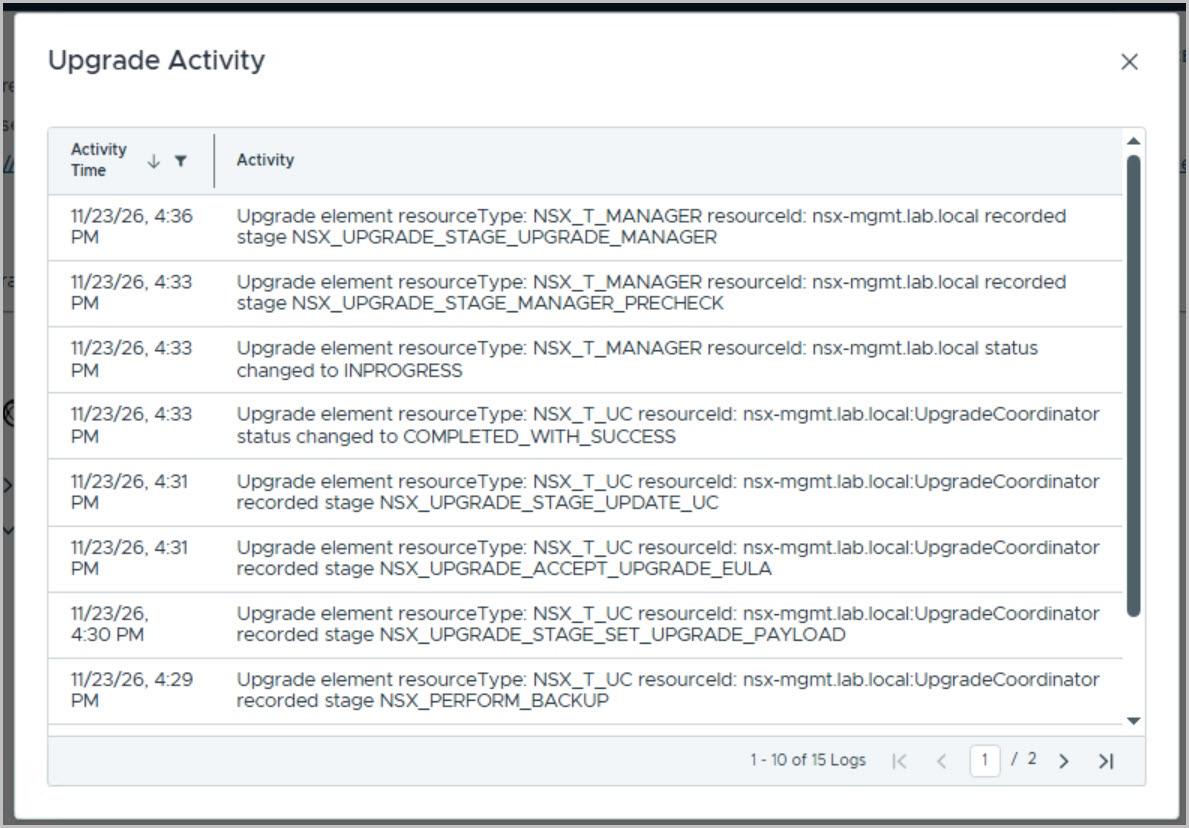
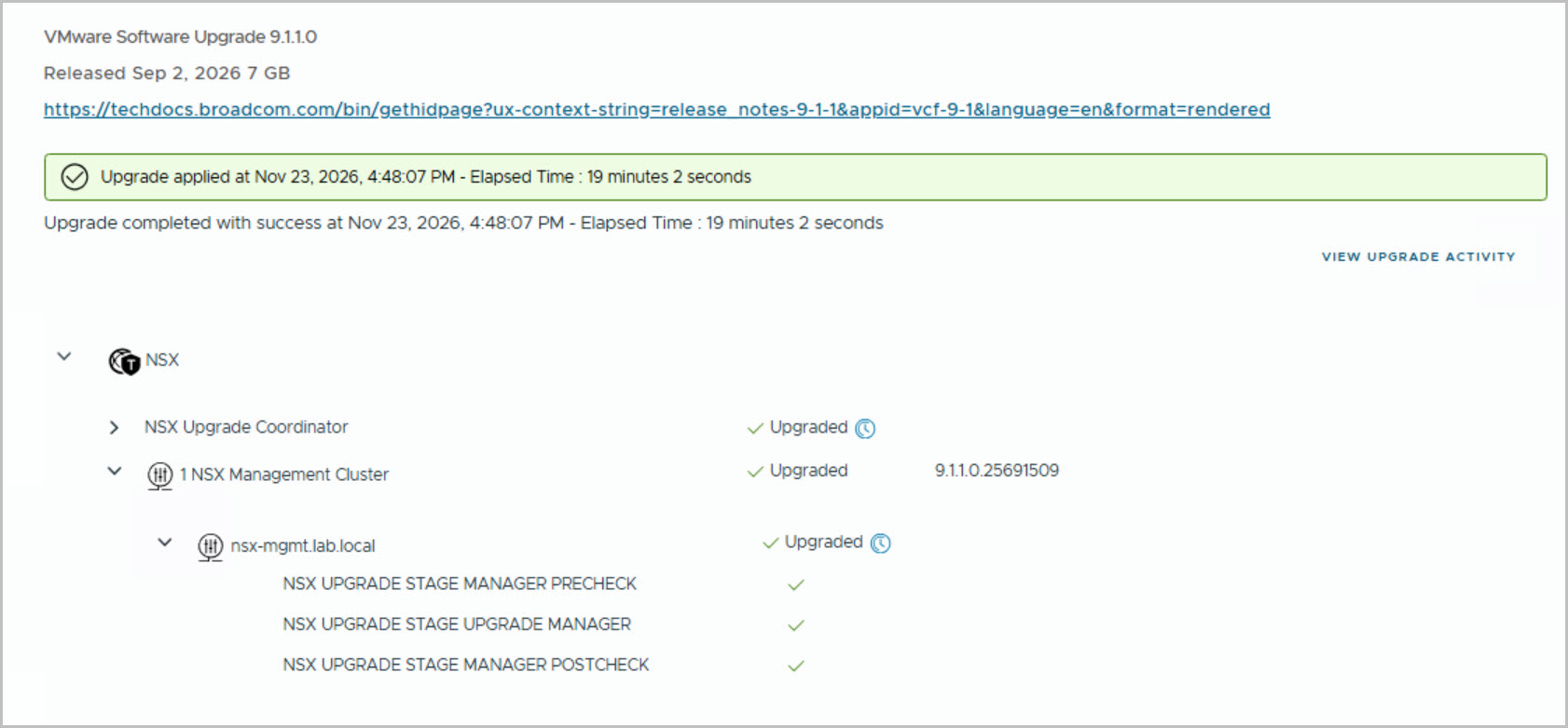
After the vCenter Preparation stage completes, the next phase of the VCF upgrade workflow is the NSX Manager Upgrade. SDDC Manager first upgrades the NSX Upgrade Coordinator before proceeding with the NSX Management Cluster. Throughout the process, upgrade activity can be monitored from the UI or through SDDC Manager lifecycle management logs. The workflow automatically performs a series of tasks including NSX prechecks, upgrade payload deployment, NSX Manager software upgrade, post-upgrade validation, and health verification. Once all NSX upgrade tasks complete successfully, the NSX Management Cluster and Upgrade Coordinator report an Upgraded status, satisfying the prerequisite required for the vCenter cutover.
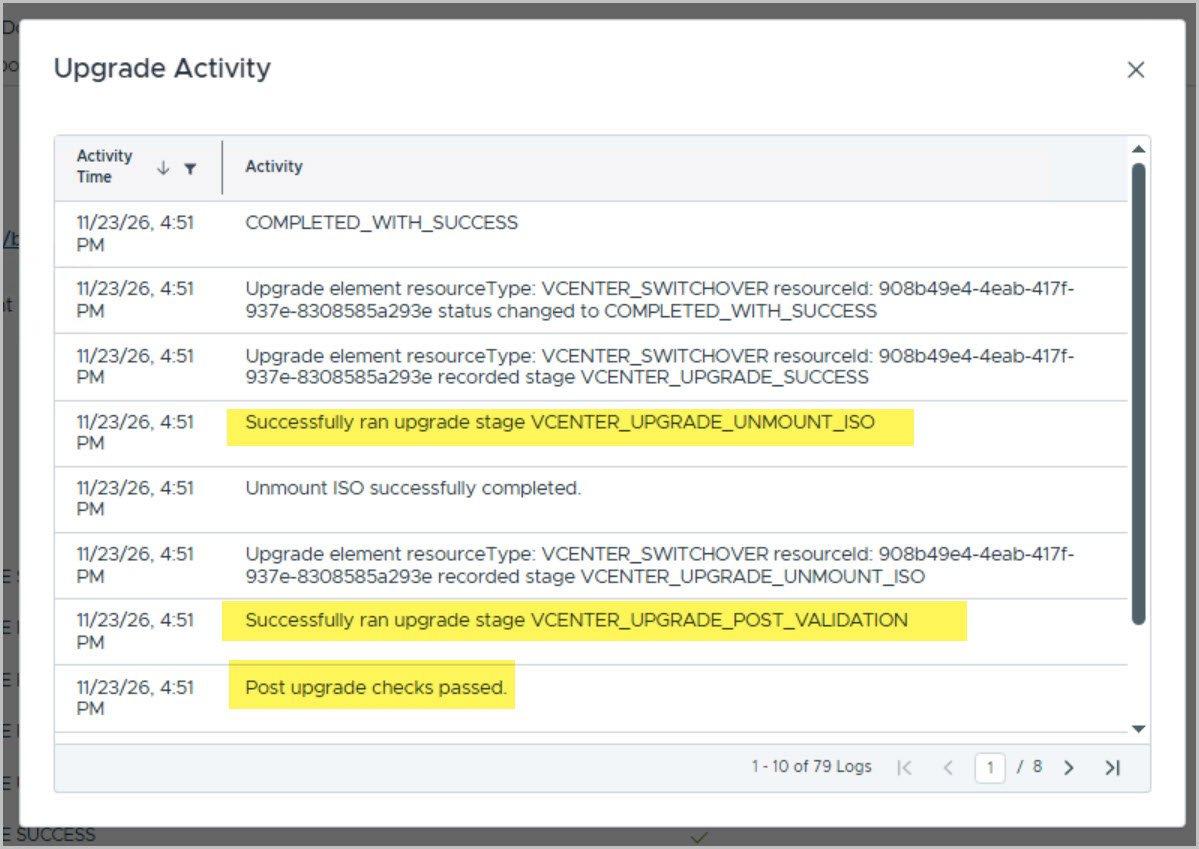
With NSX upgraded, the previously queued vCenter Switchover stage is automatically unlocked and executed. During this phase, SDDC Manager transitions management services from the original vCenter appliance to the newly deployed target vCenter created during the preparation stage. The workflow performs the switchover operation, executes post-upgrade tasks and configuration changes, validates service functionality, unmounts upgrade media, and performs final health checks. Successful completion of these tasks marks the end of the reduced-downtime vCenter upgrade process, with all management operations now running on the upgraded vCenter appliance.
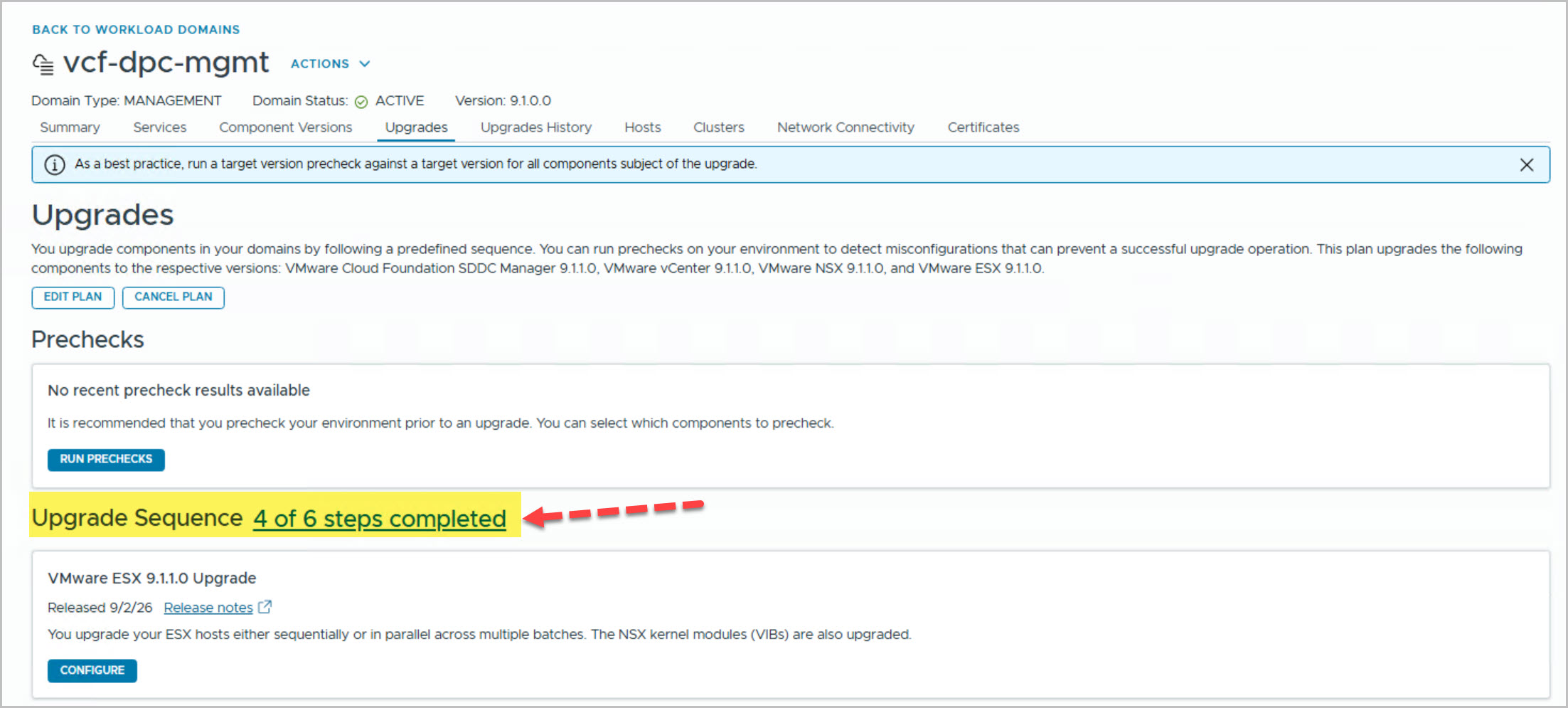
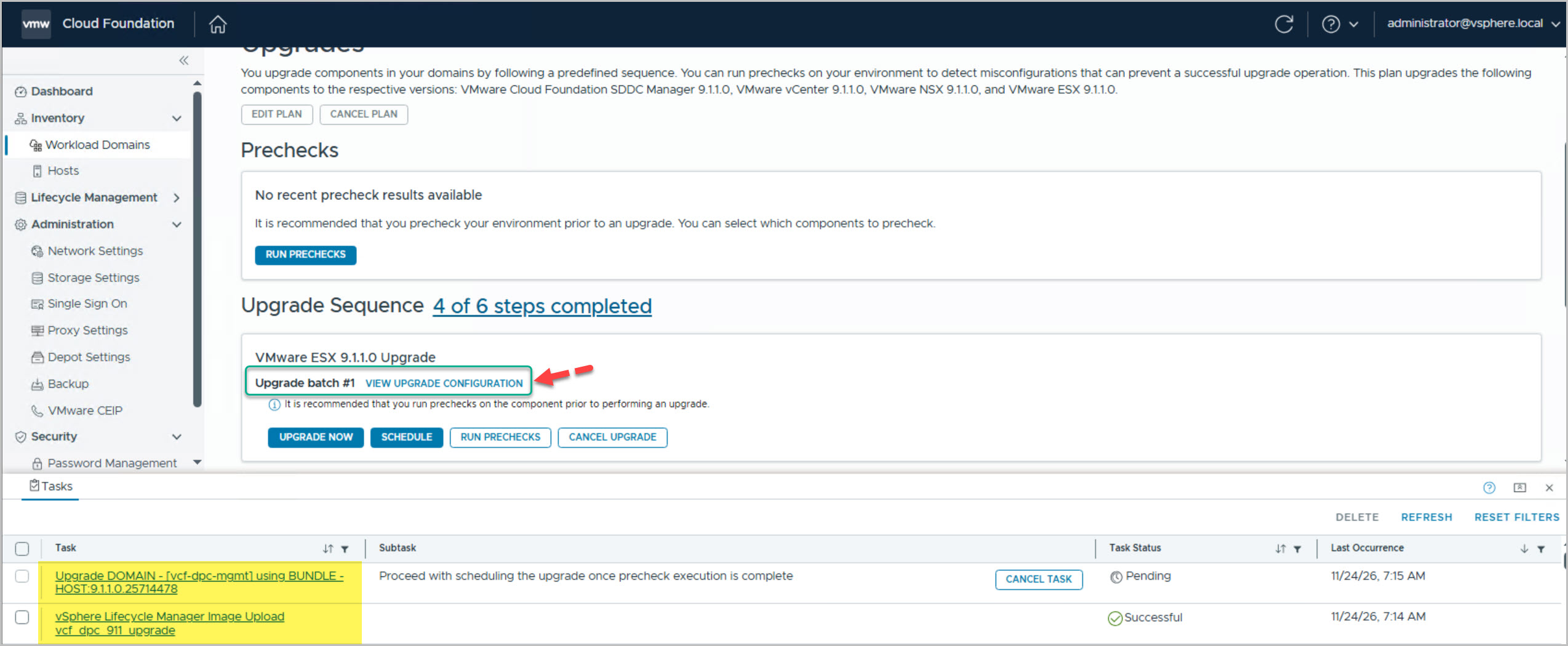
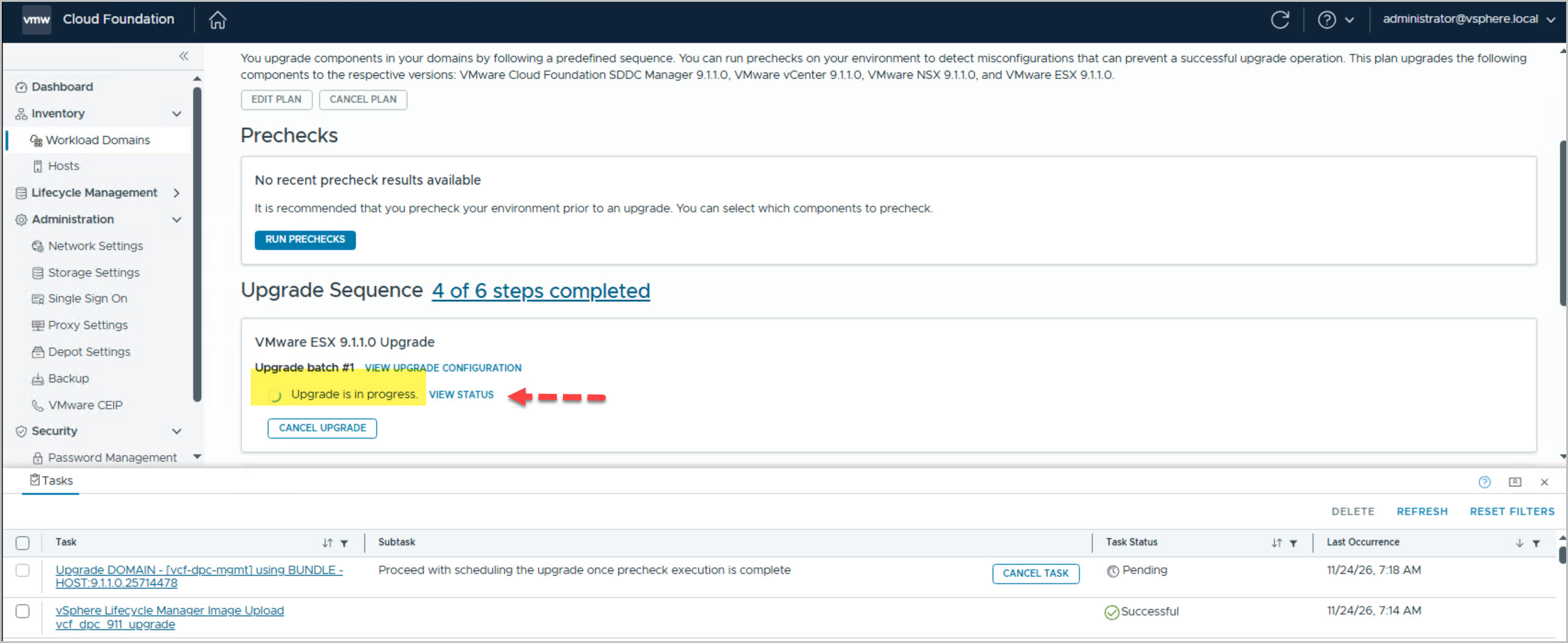
Following completion of both stages, the Management Domain upgrade workflow advances from 2 of 6 to 4 of 6 completed steps, leaving the ESXi host upgrade as the next major phase in the VCF 9.1.1 management domain lifecycle upgrade.
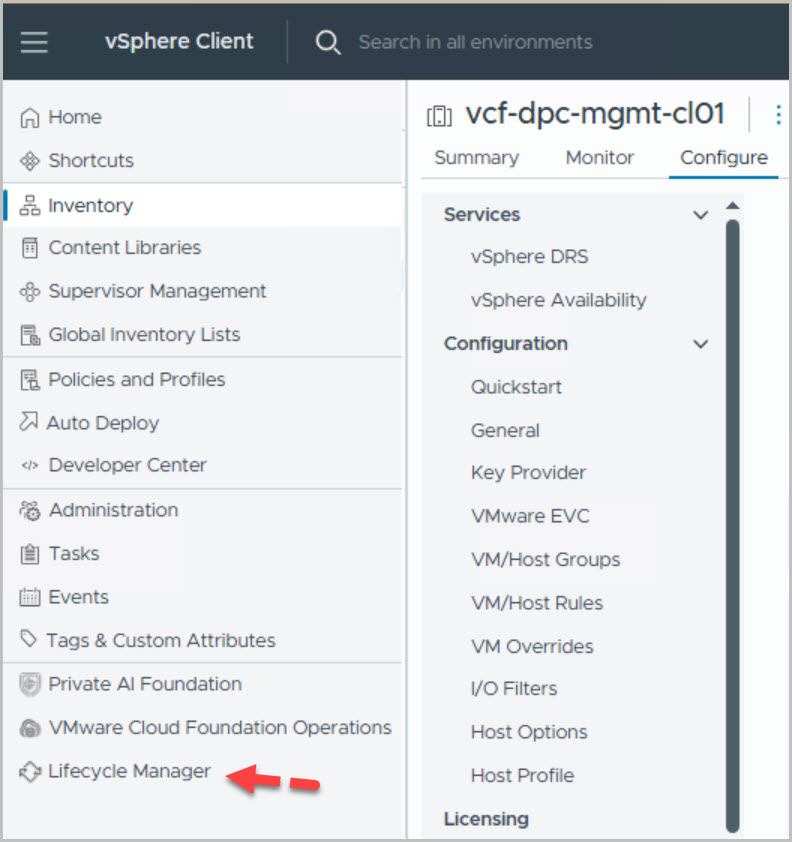
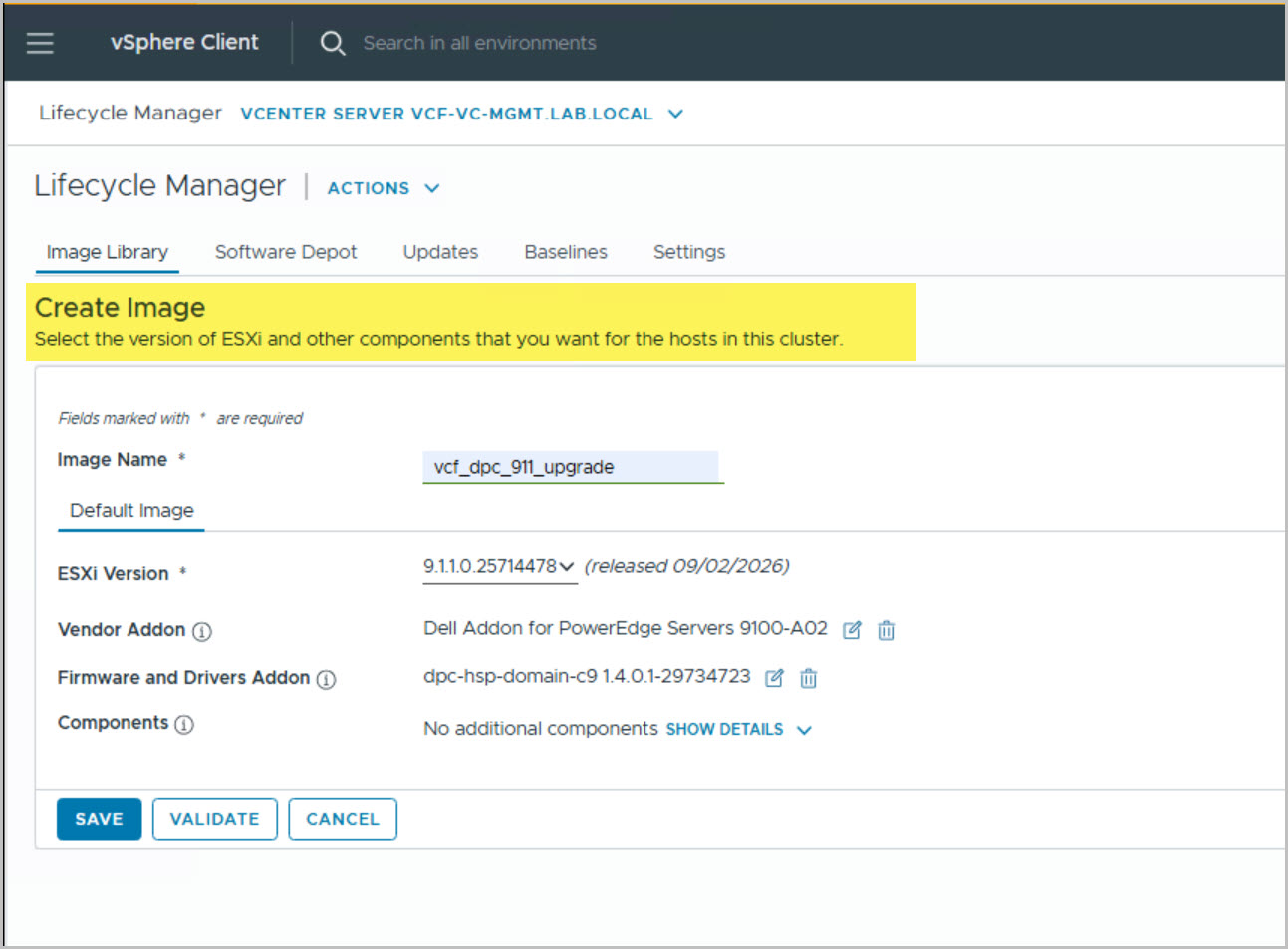
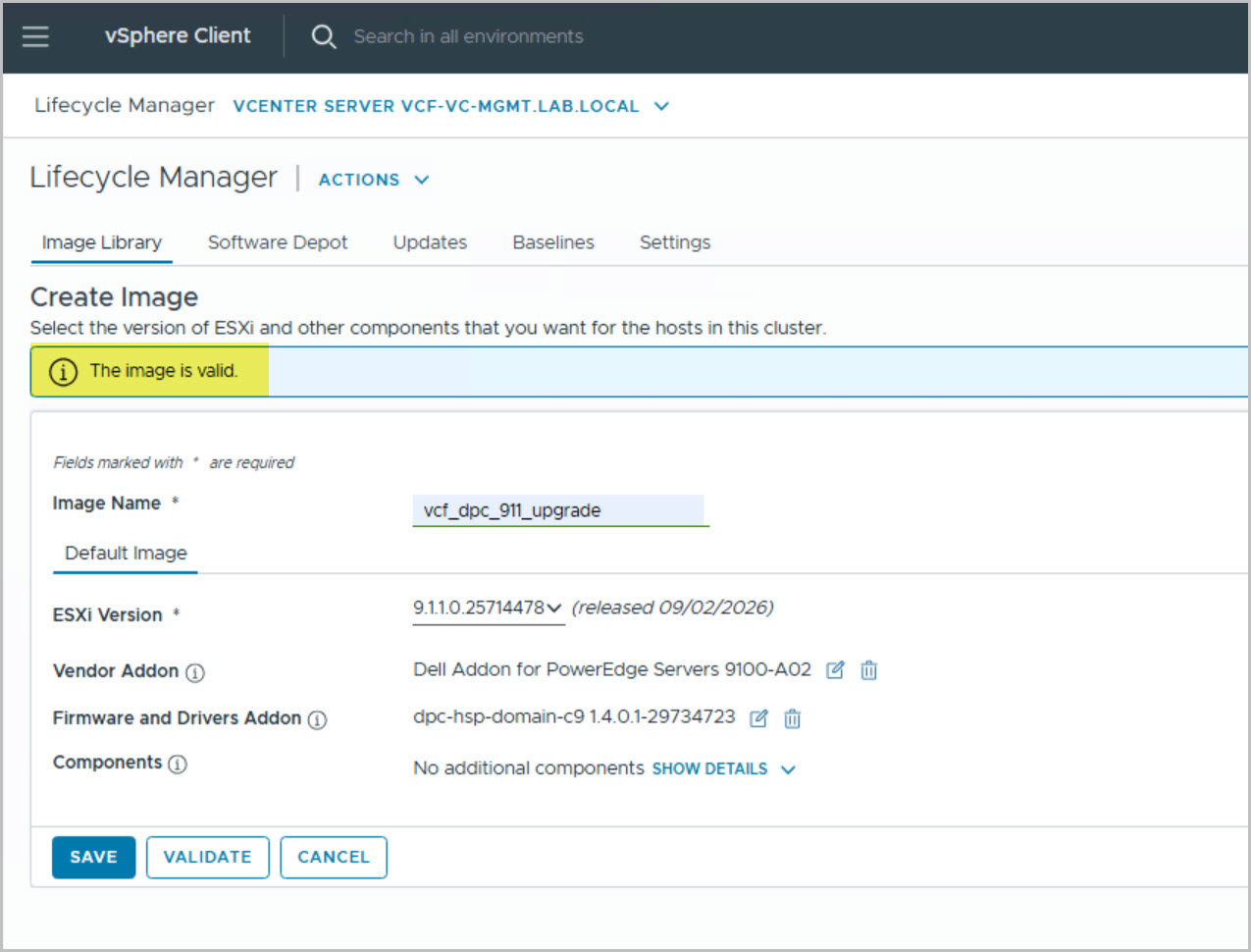
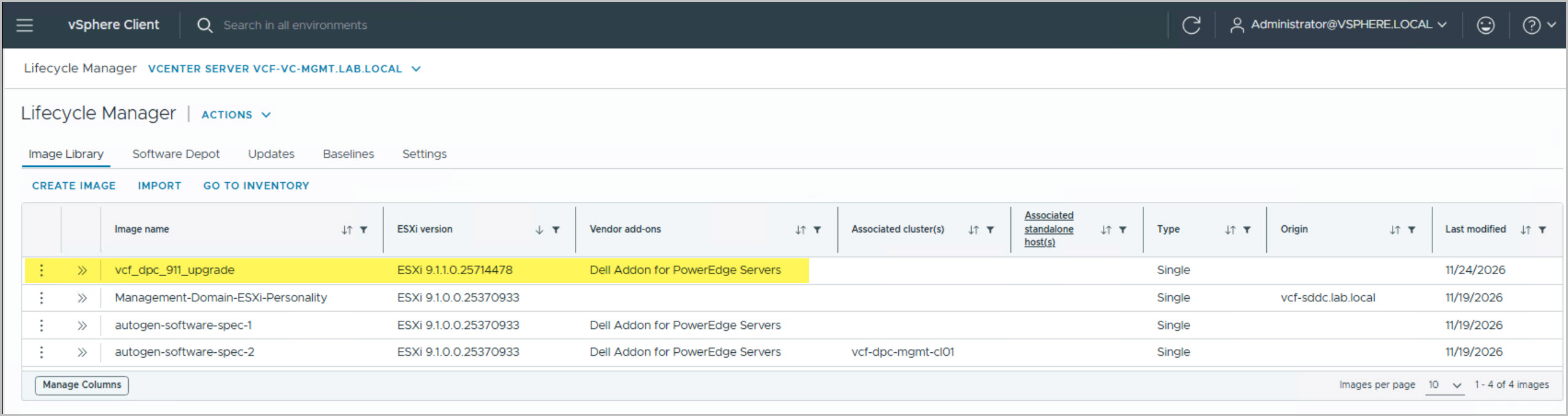
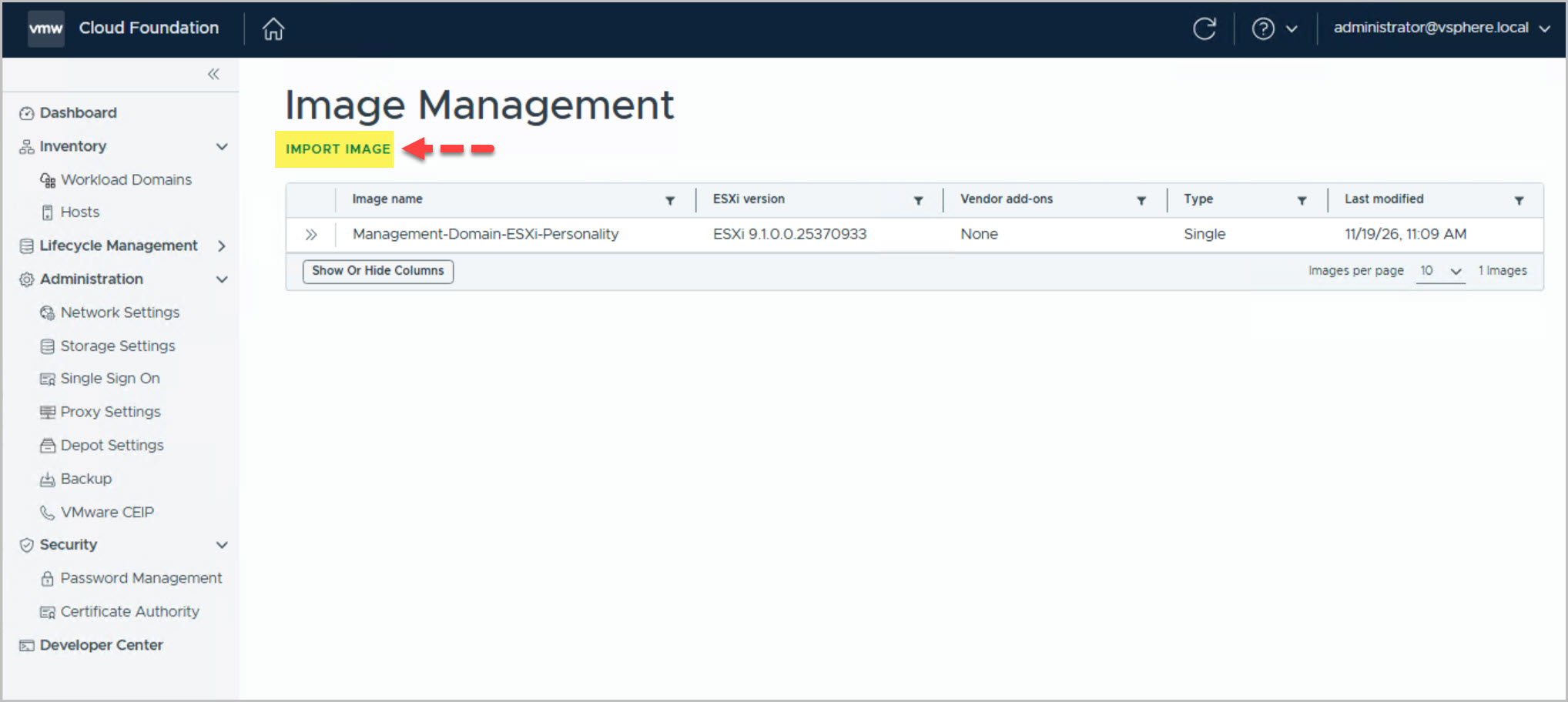
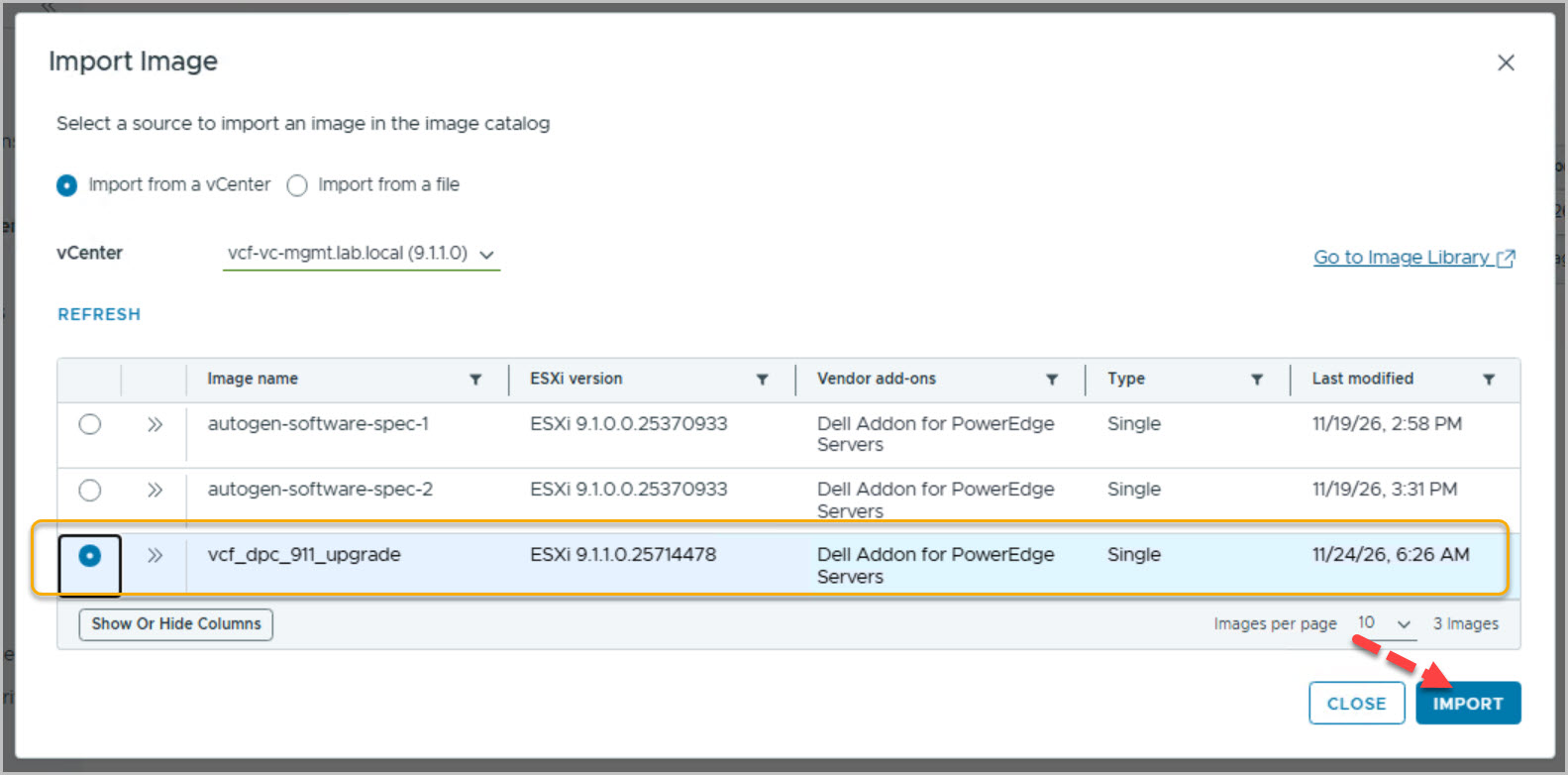
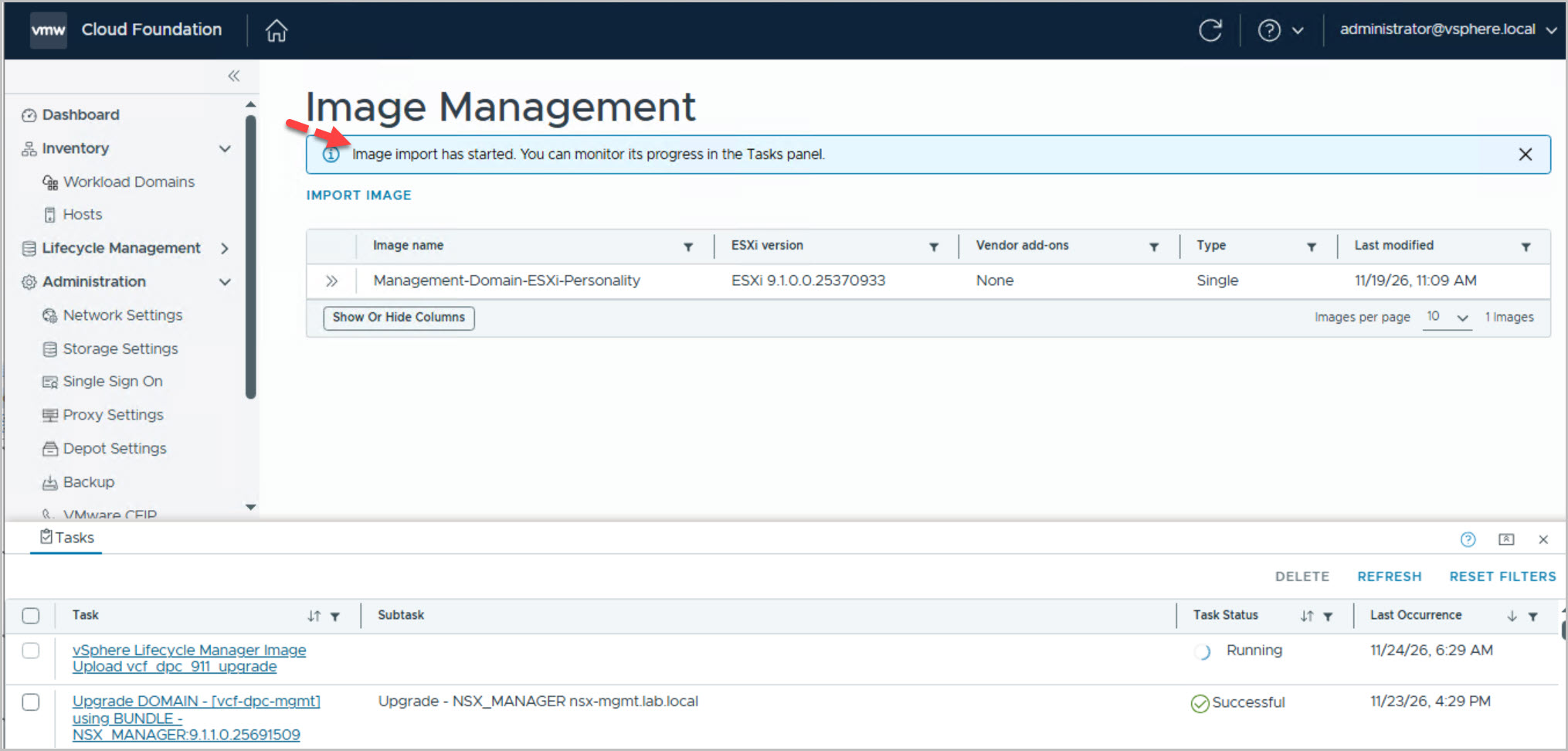
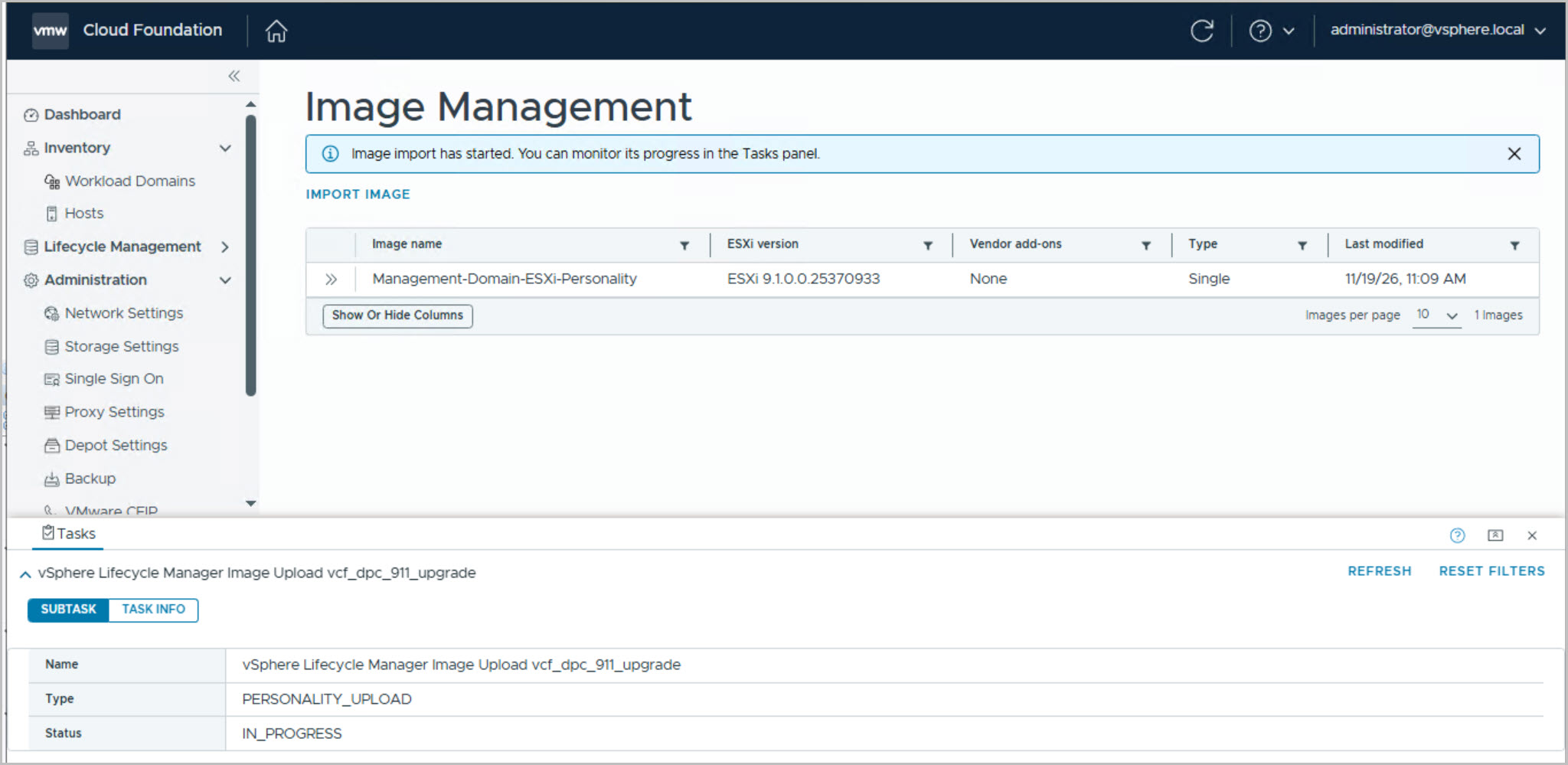
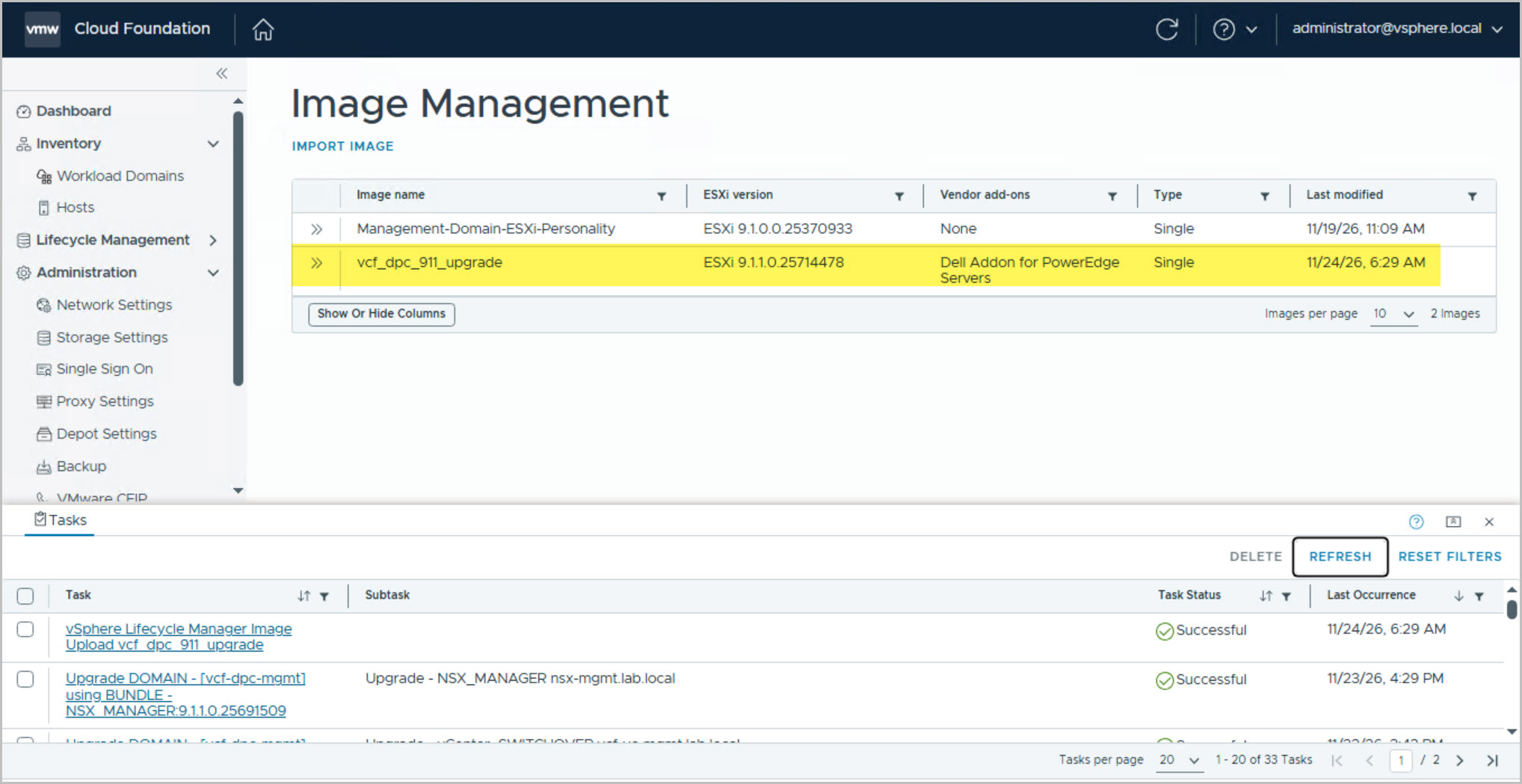
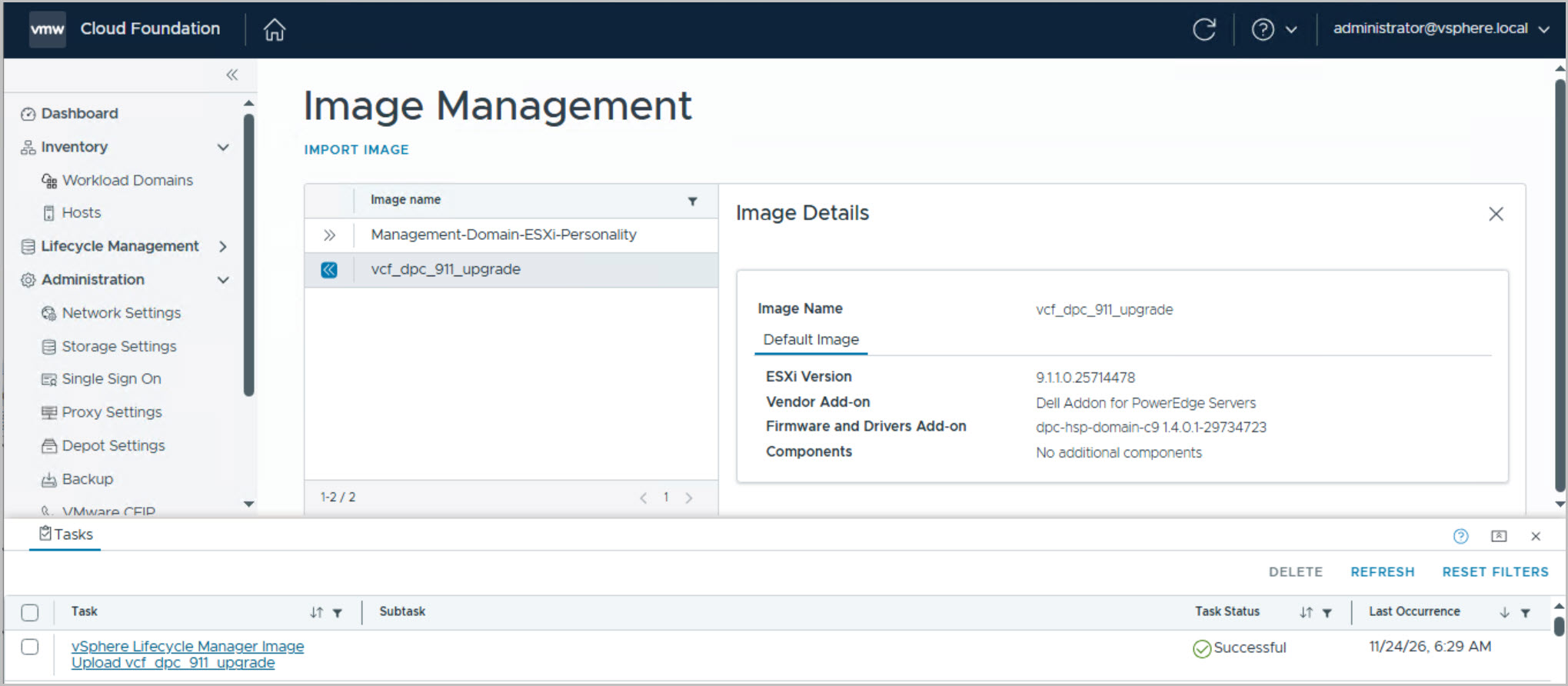
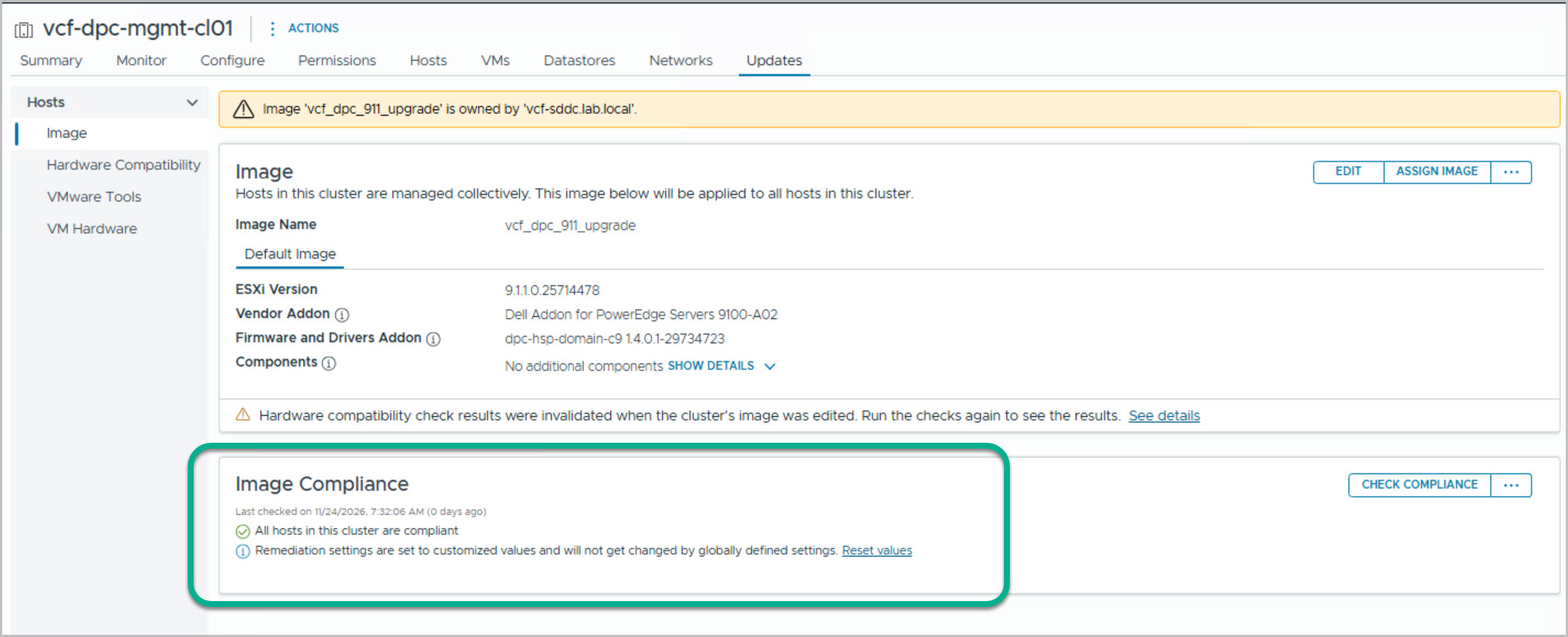
The first phase of the upgrade involves creating and staging the target cluster image using vSphere Lifecycle Manager. Within vCenter, a new image was created using the ESXi 9.1.1.0 (Build 25714478) base image, combined with the Dell Addon for PowerEdge Servers and the required Dell firmware and driver package. Once the image definition was finalized, it was imported into SDDC Manager Image Management as vcf_dpc_911_upgrade. Following a successful image upload and validation, the image became available within the SDDC Manager depot and ready for lifecycle operations. This completed the preparation stage and established the validated software, firmware, and driver baseline that would be used during subsequent ESXi host remediation and upgrade activities.
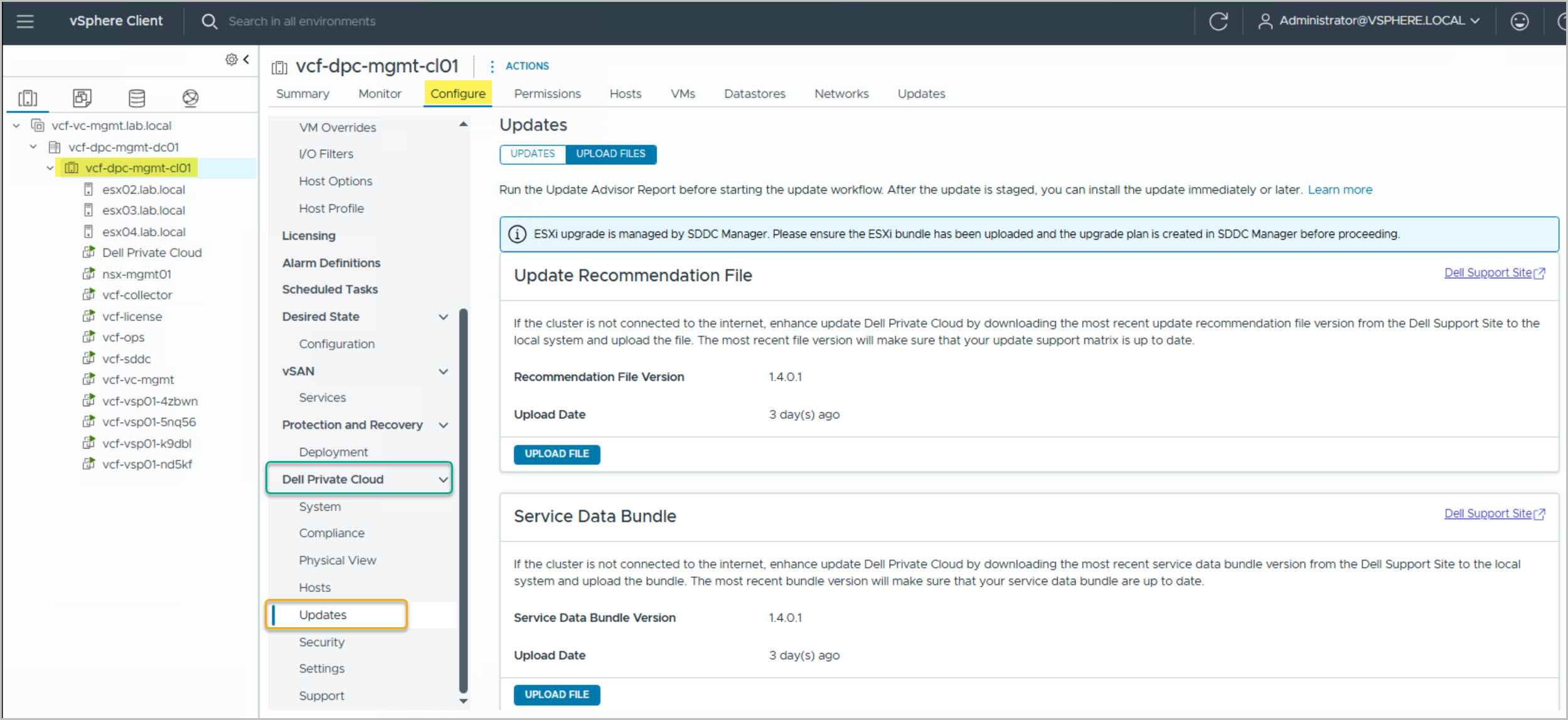
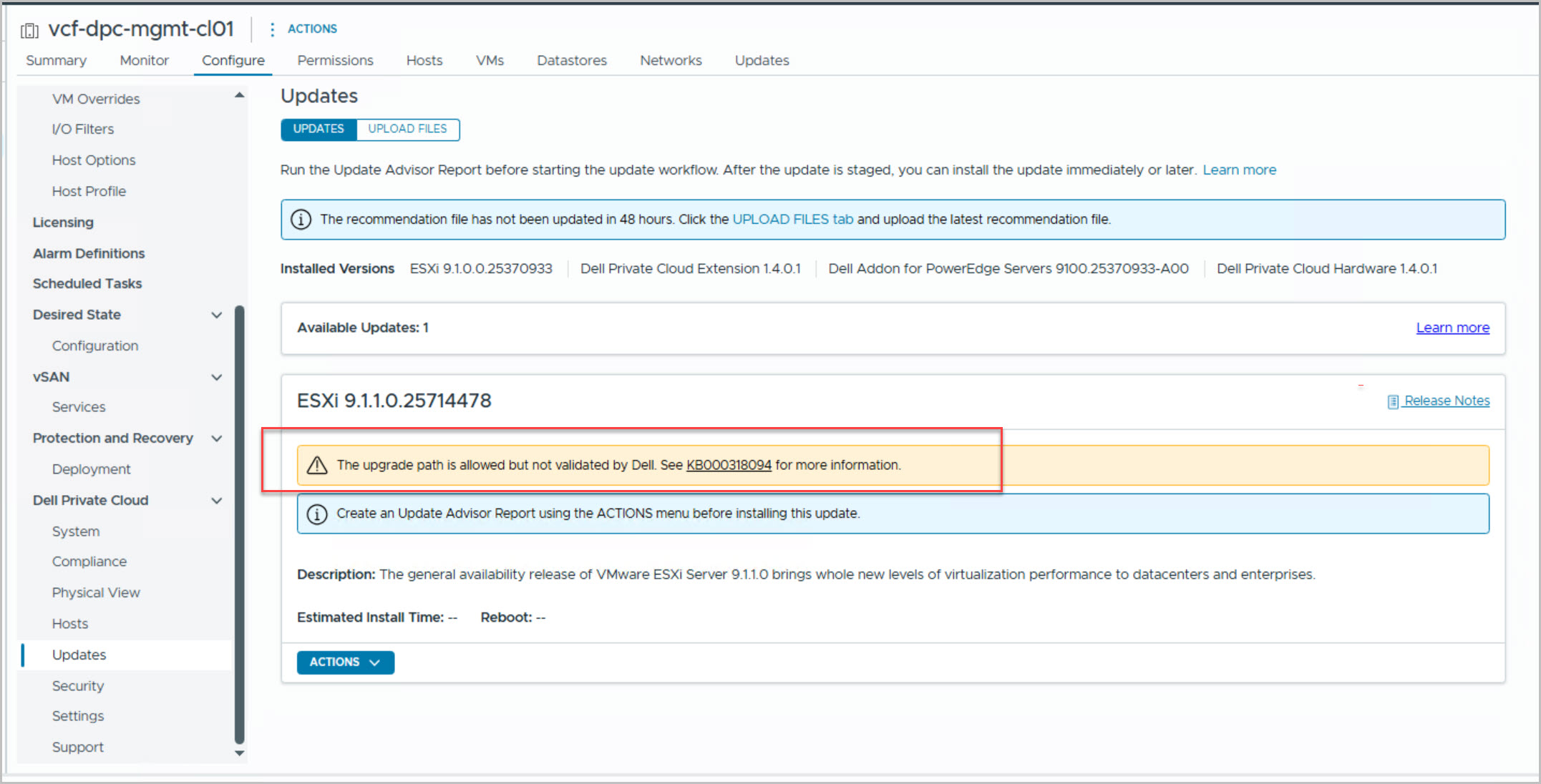
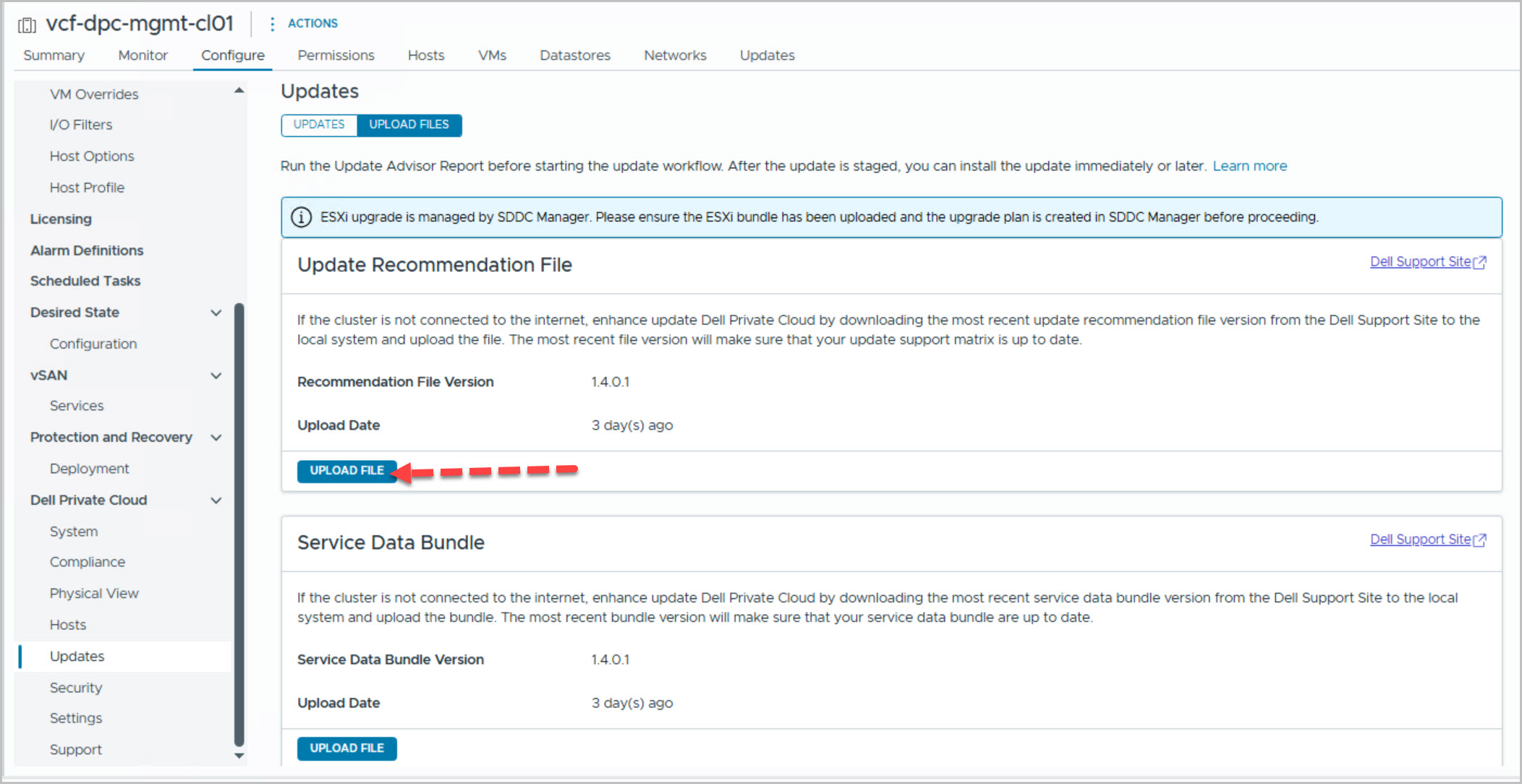
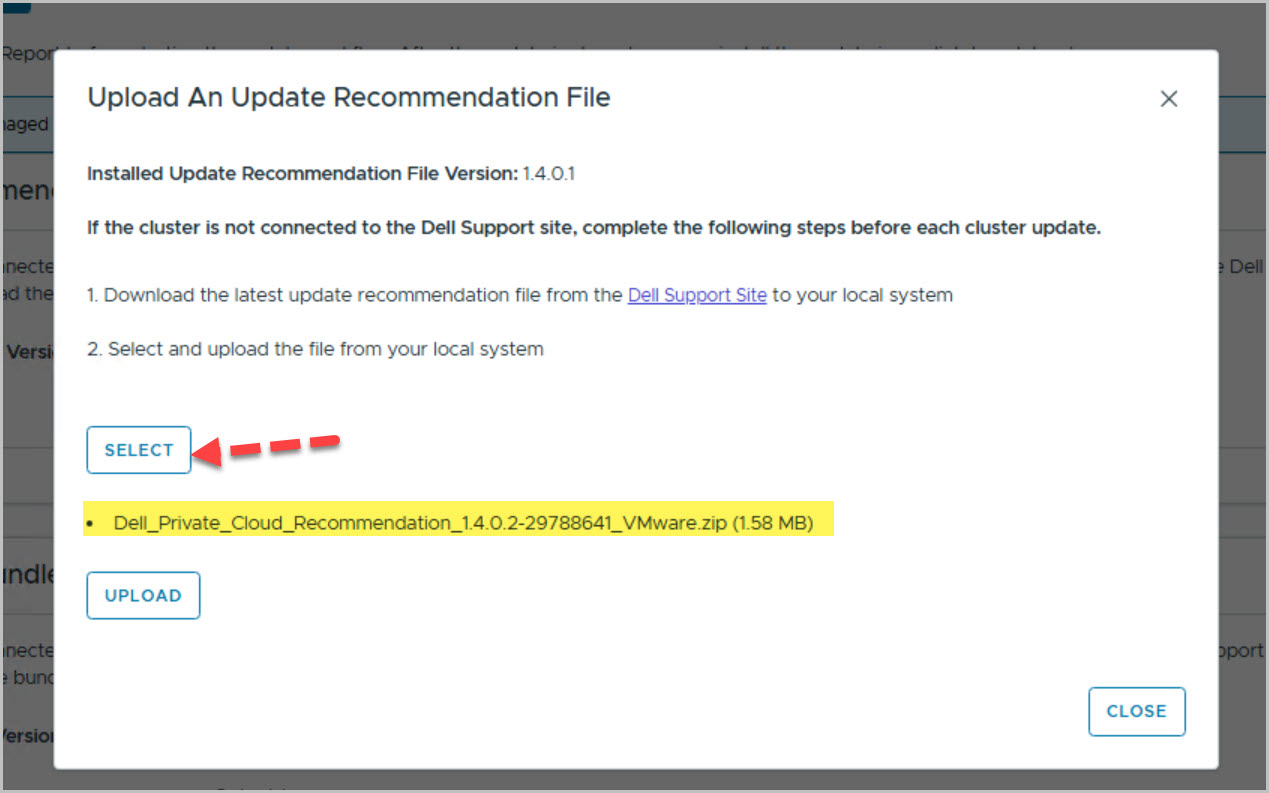
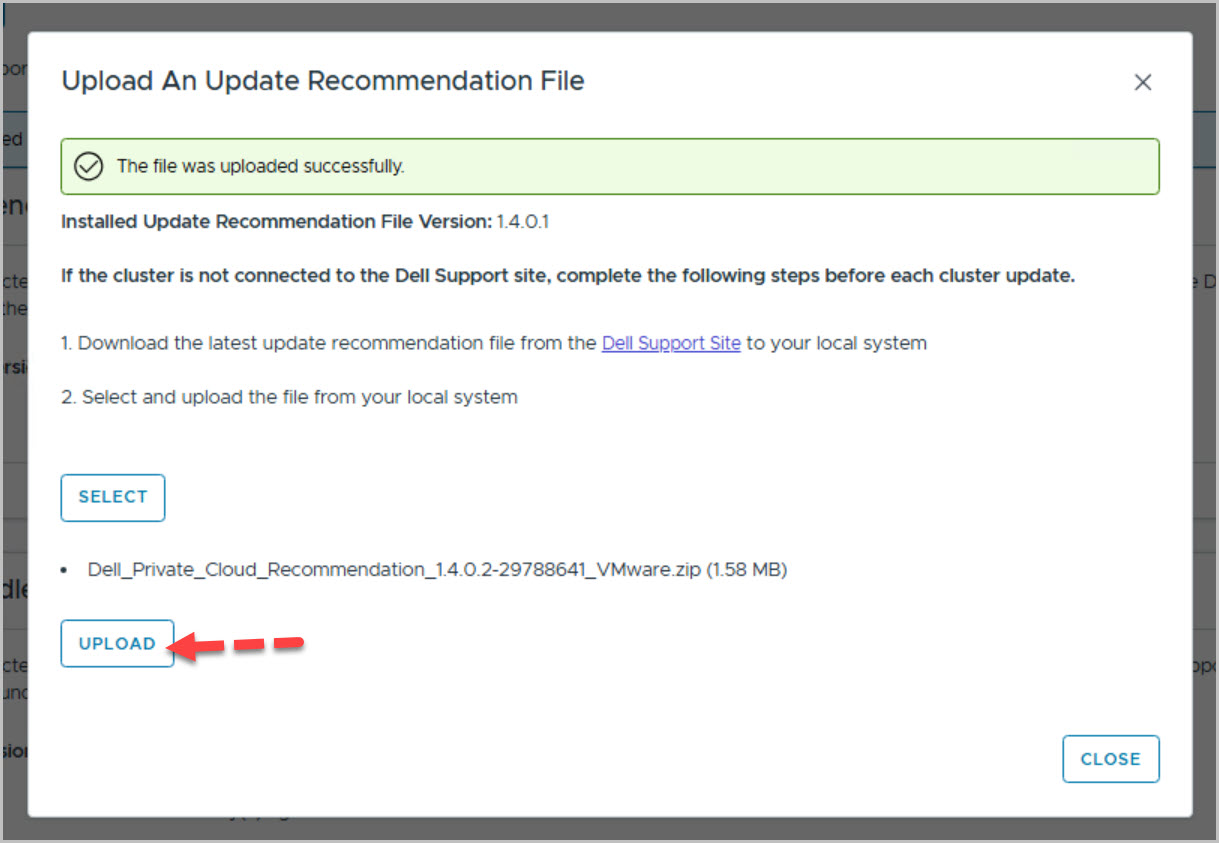
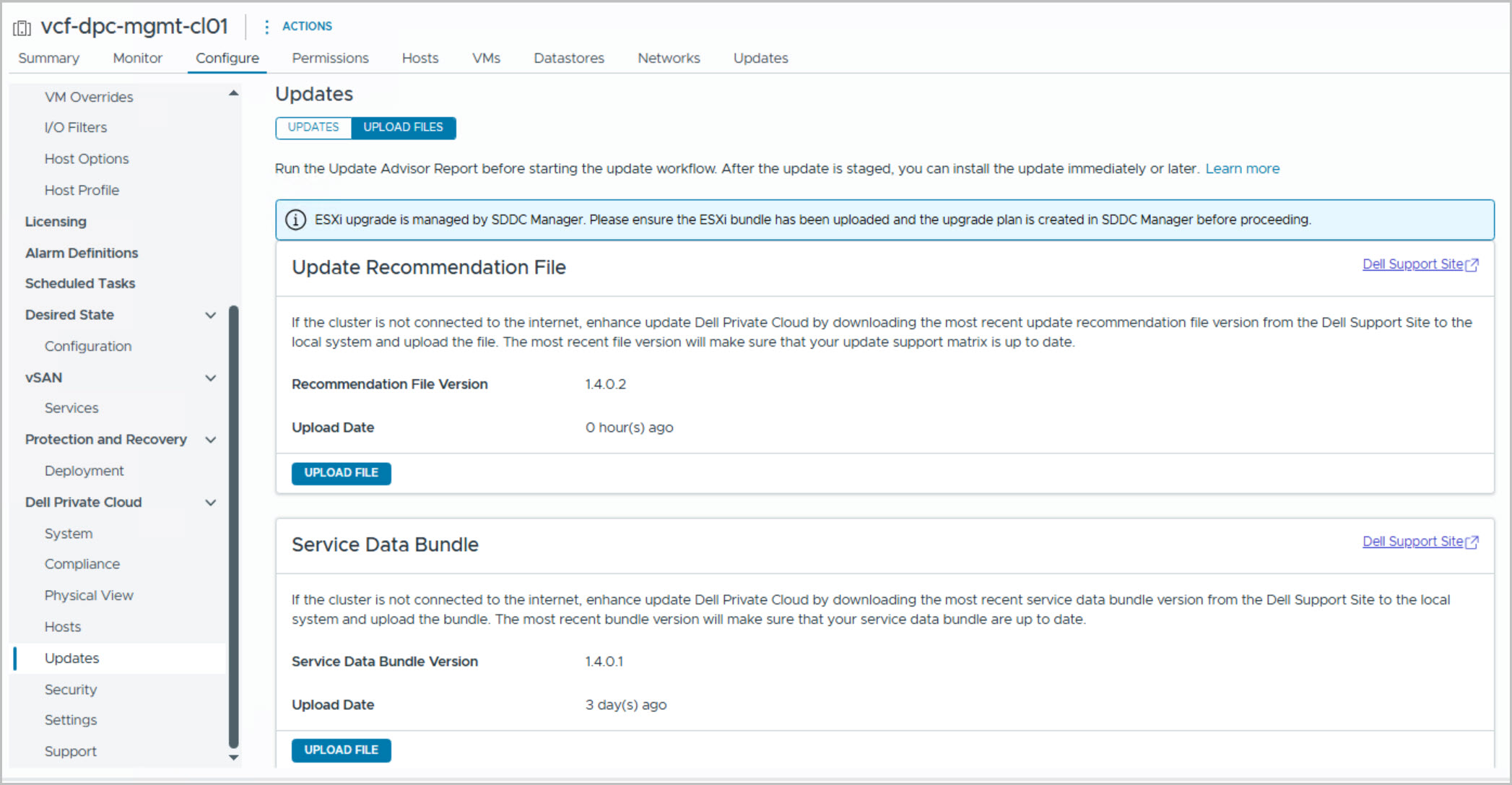
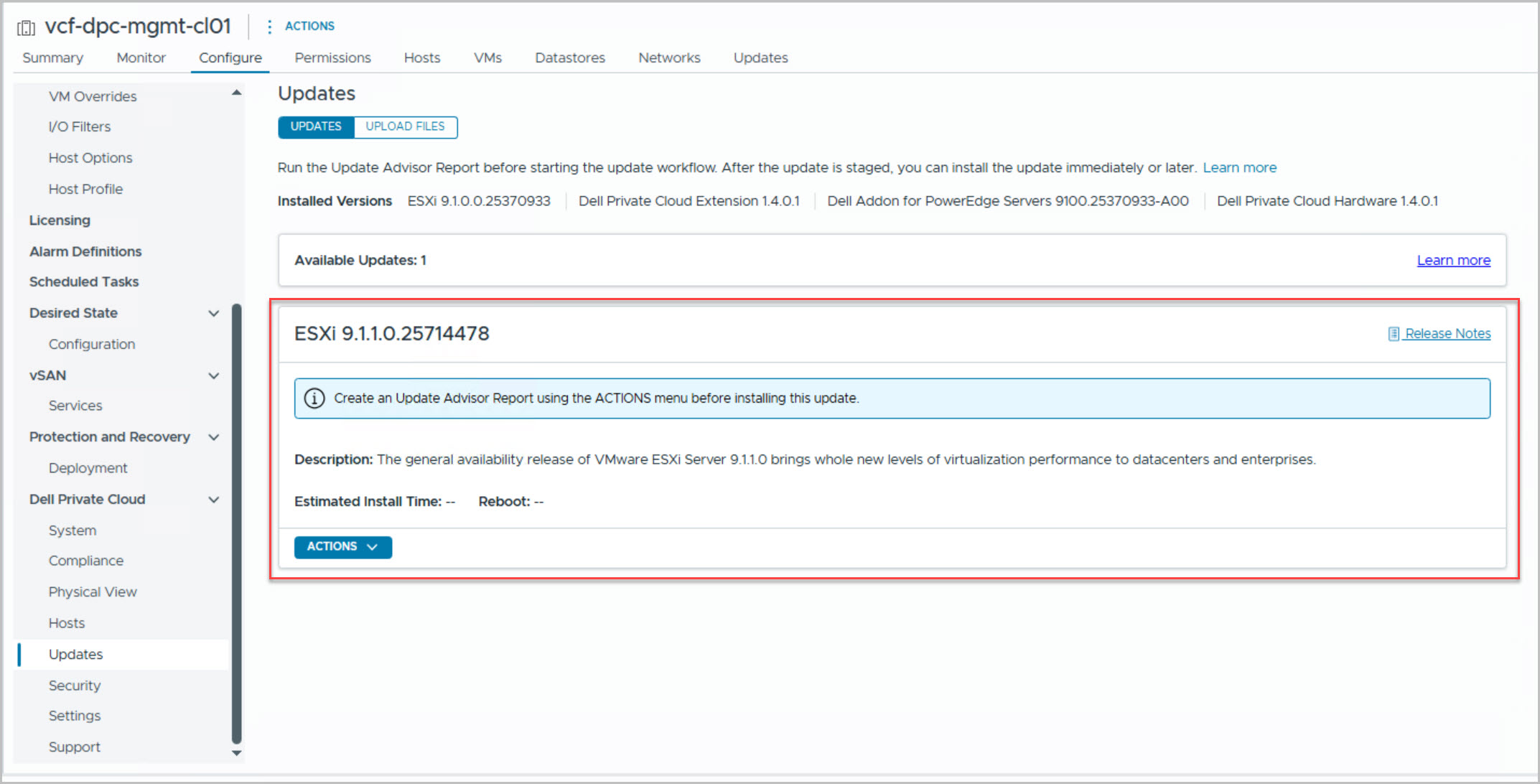
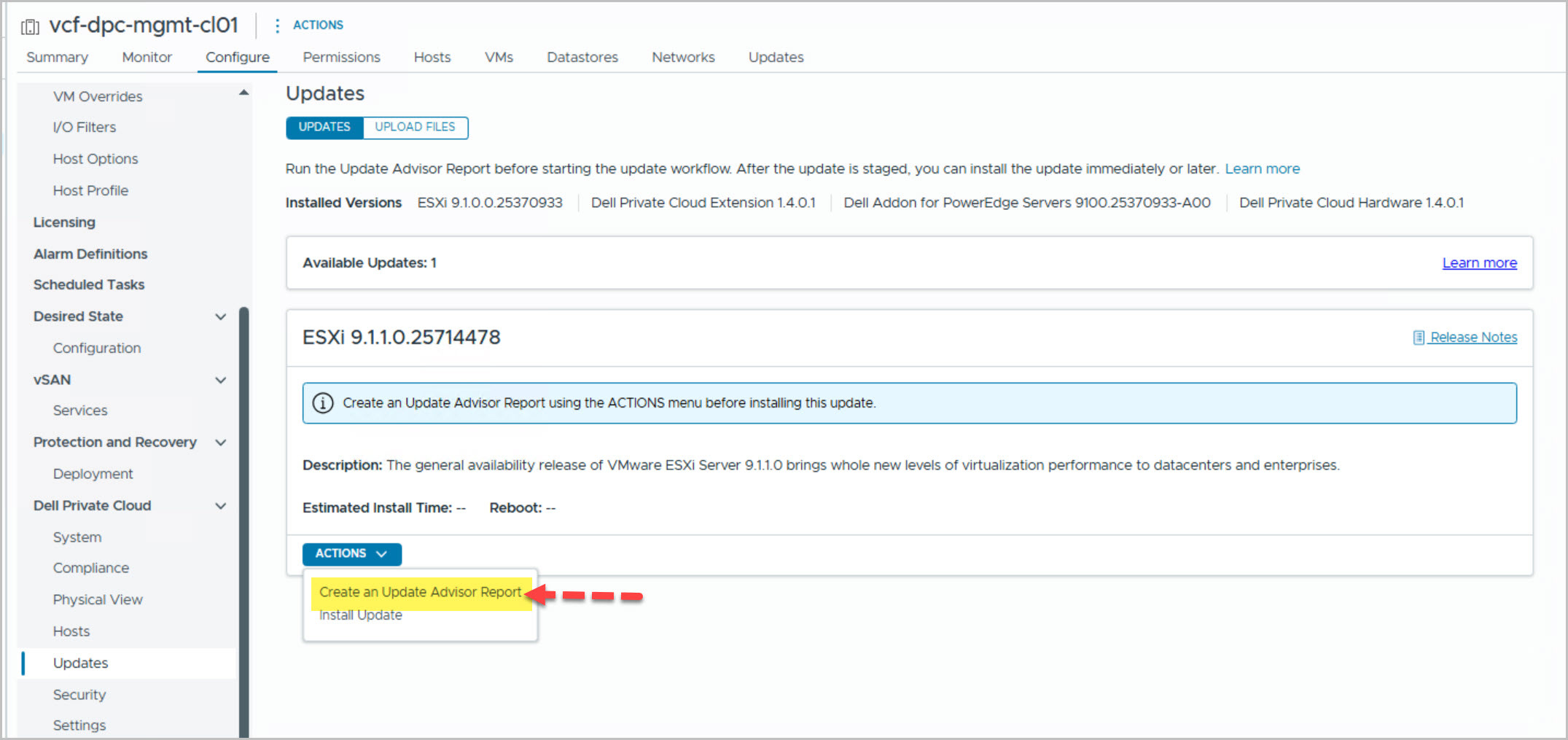
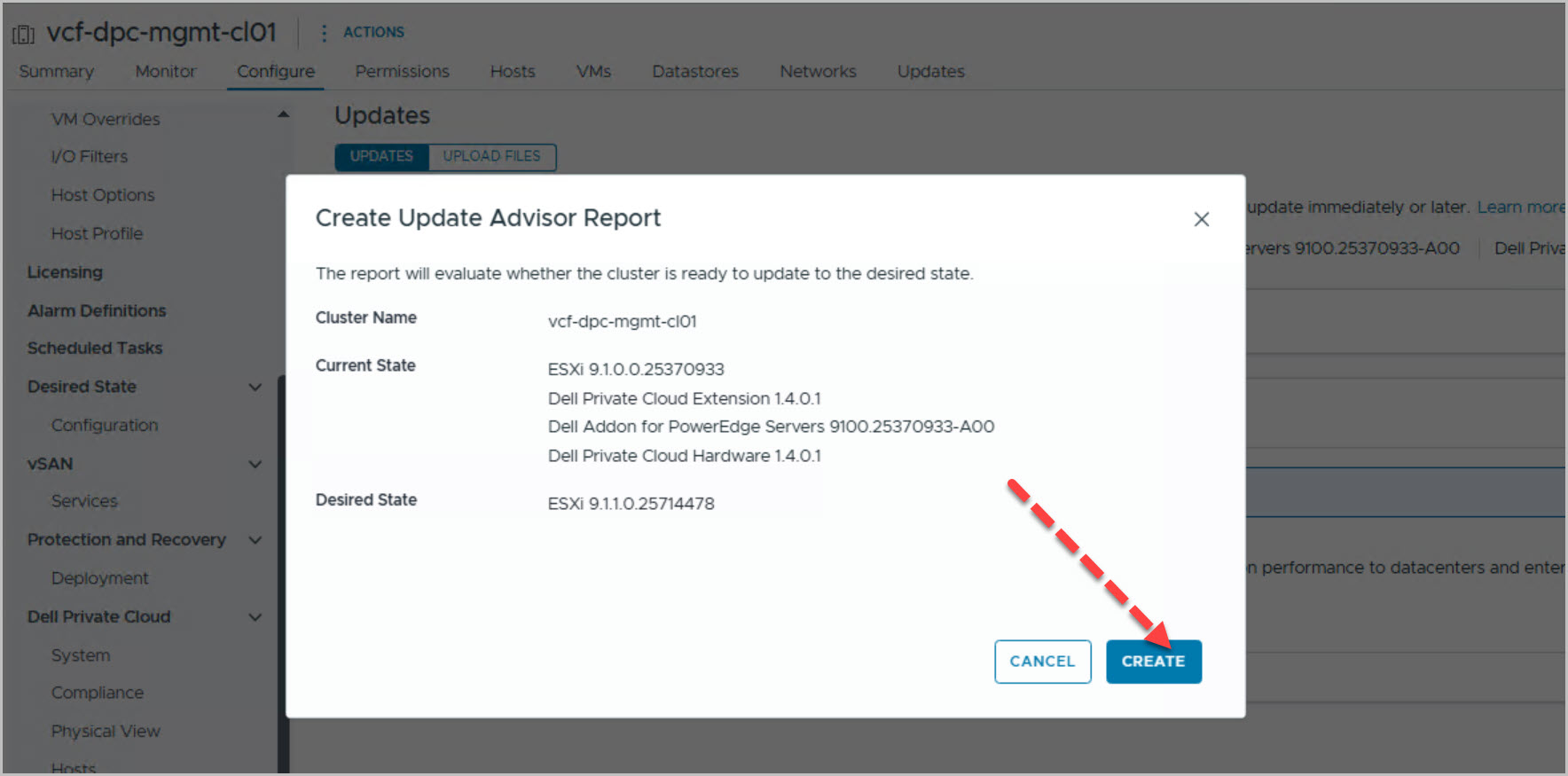
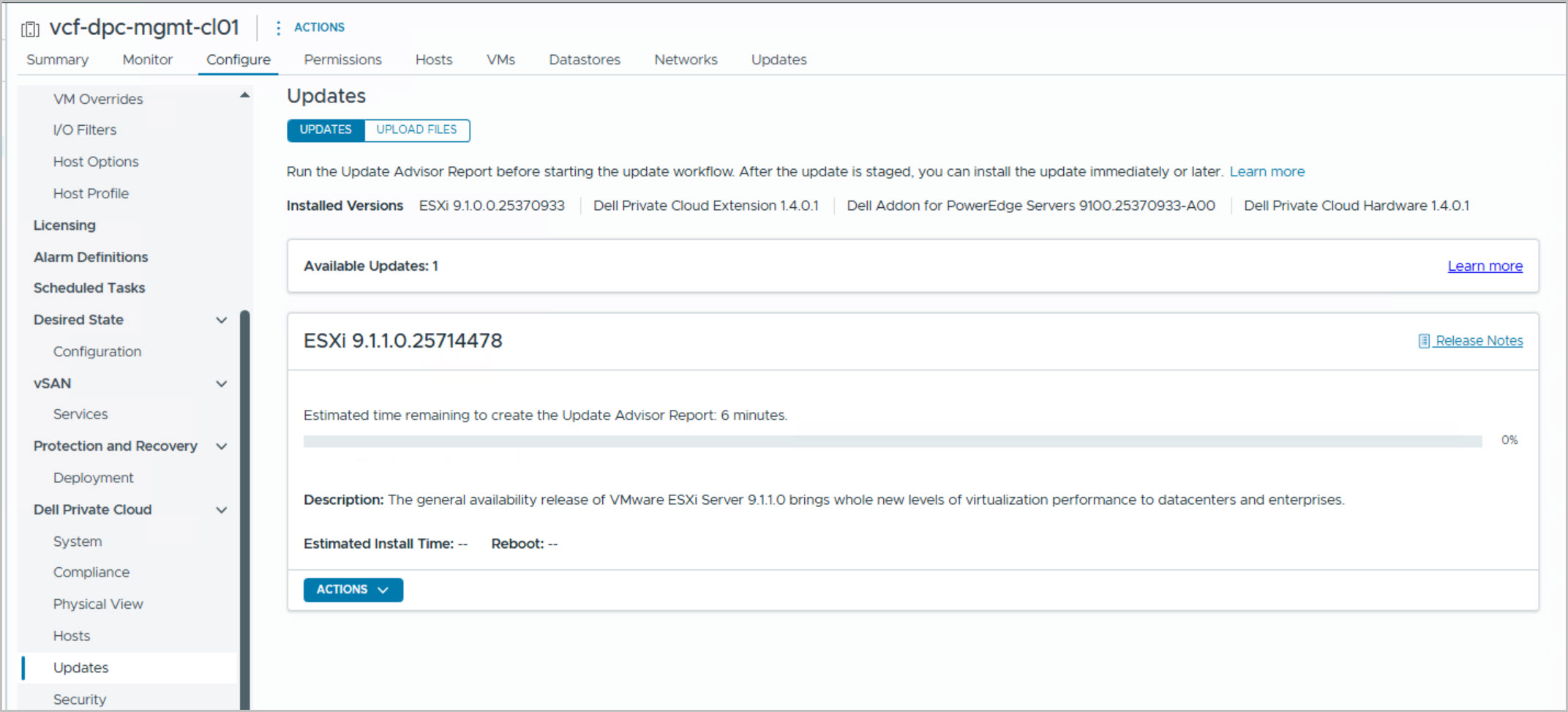
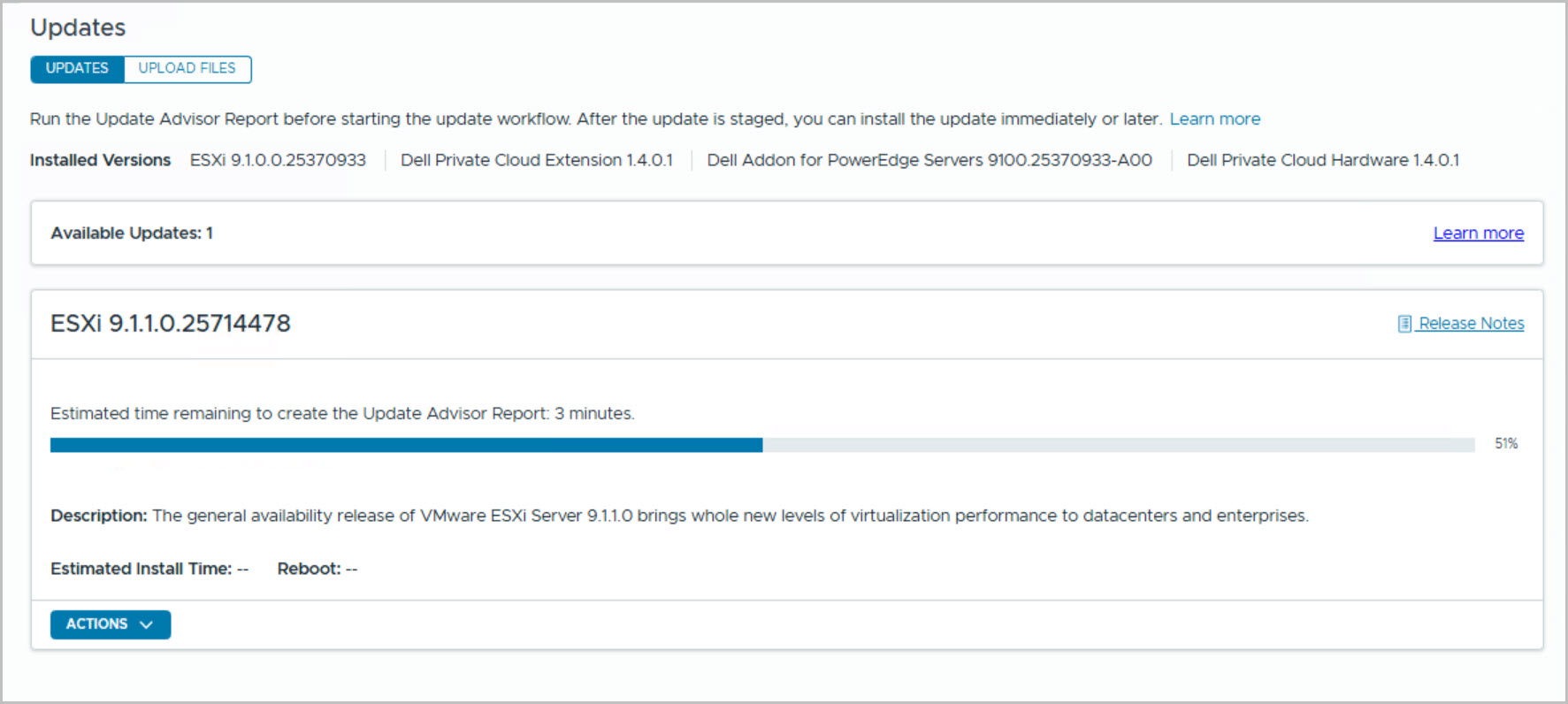
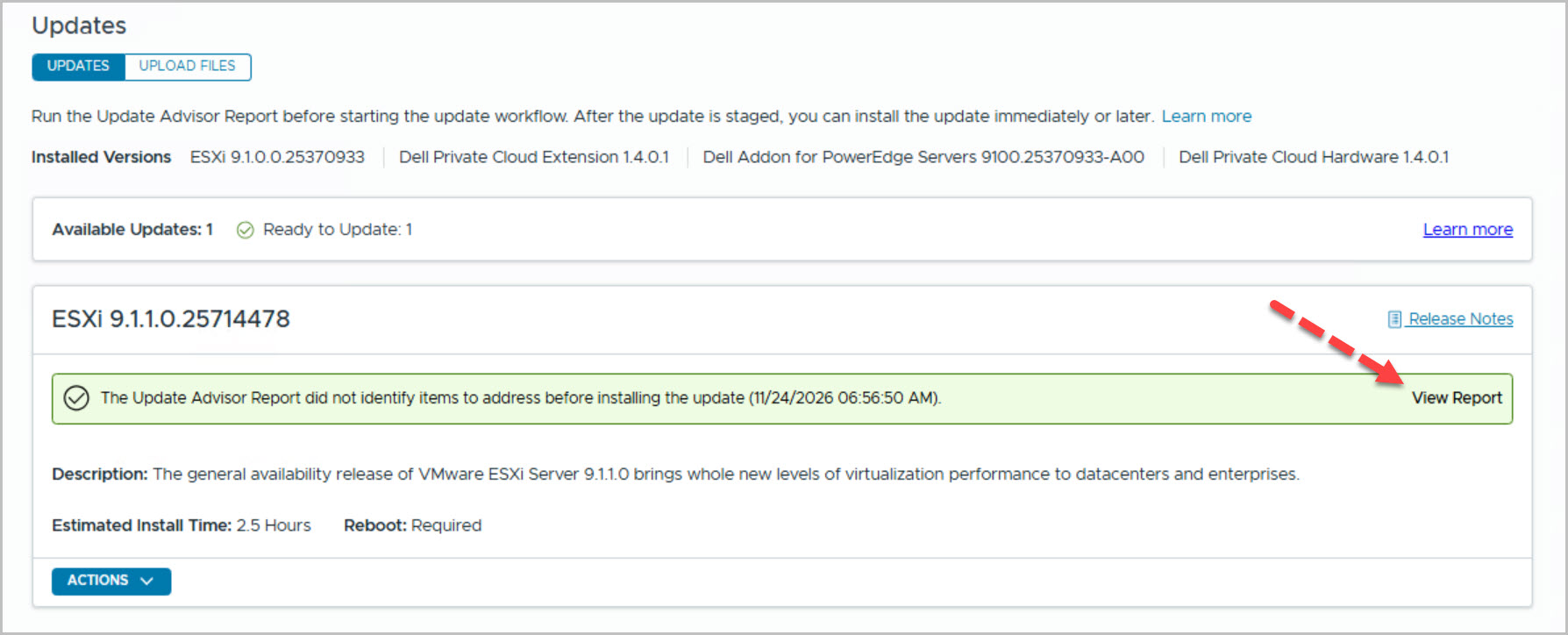
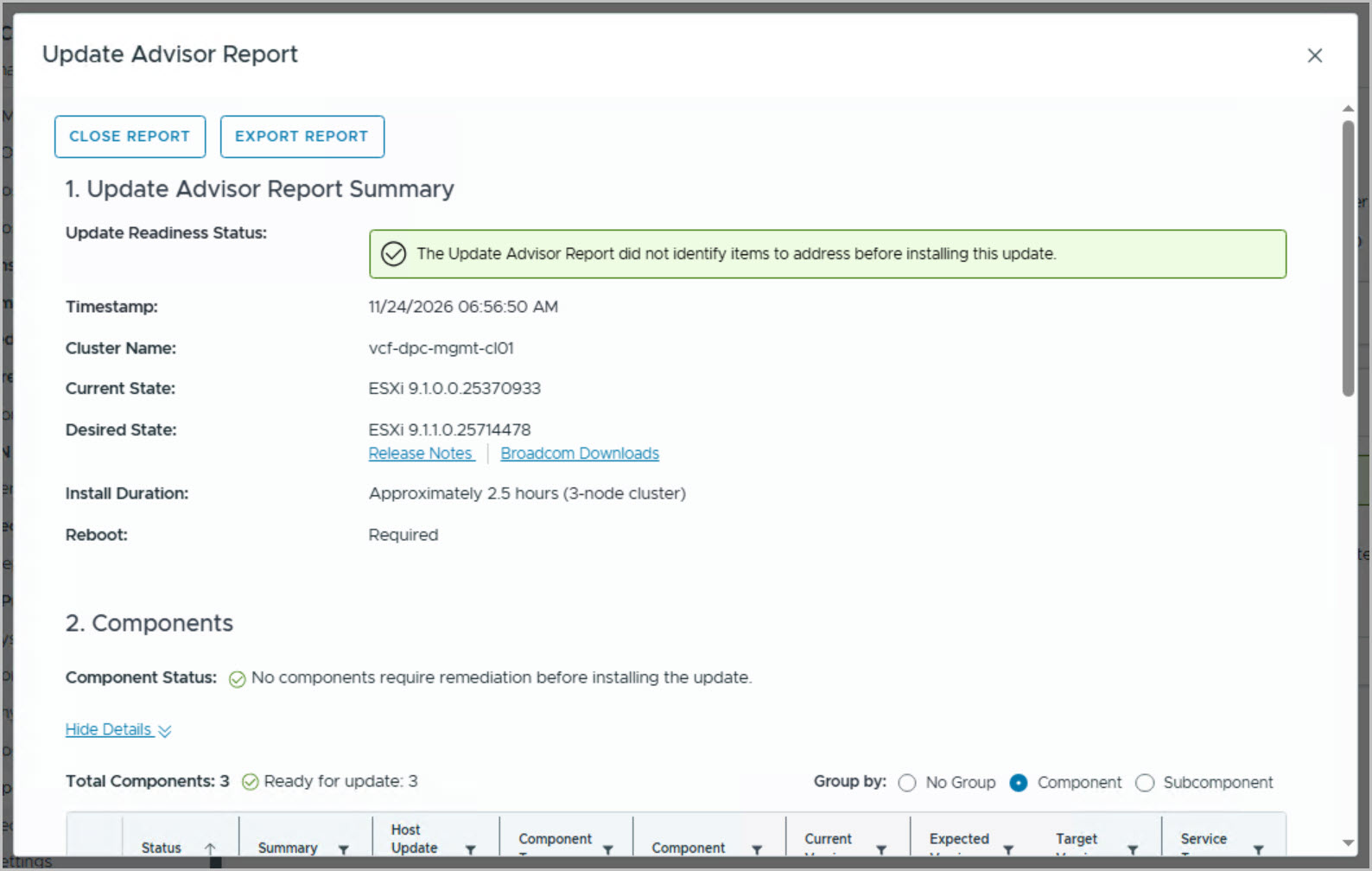
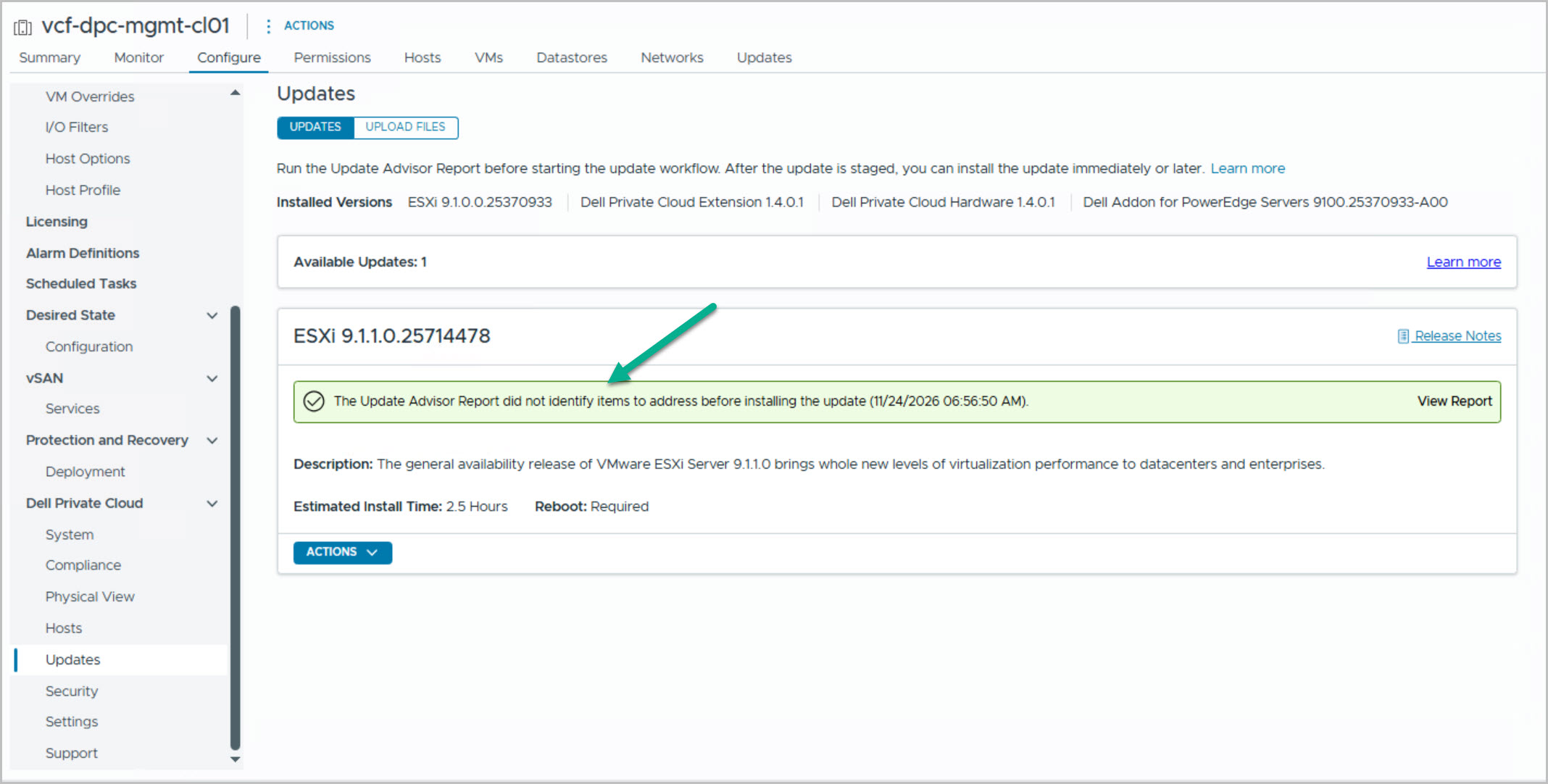
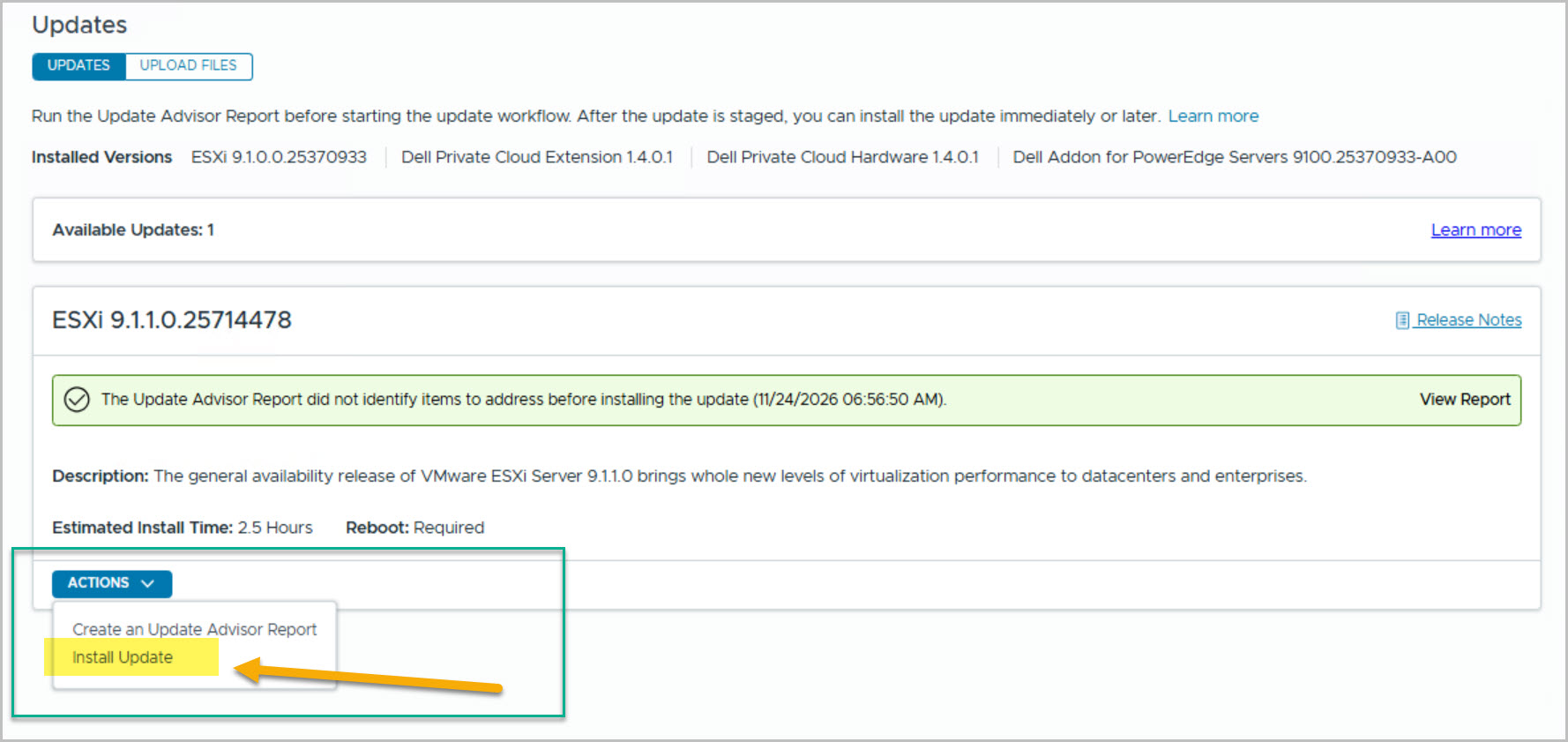
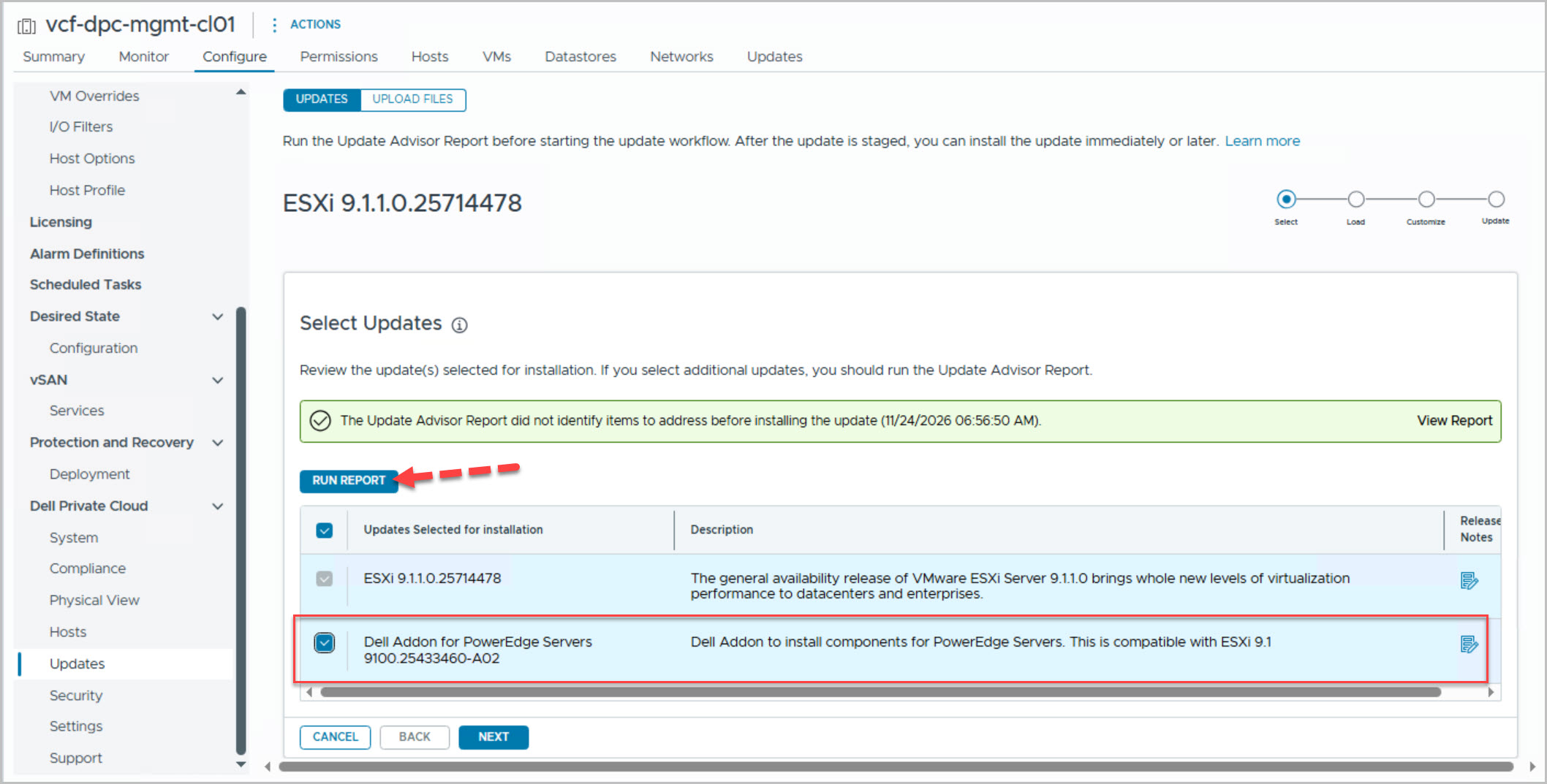
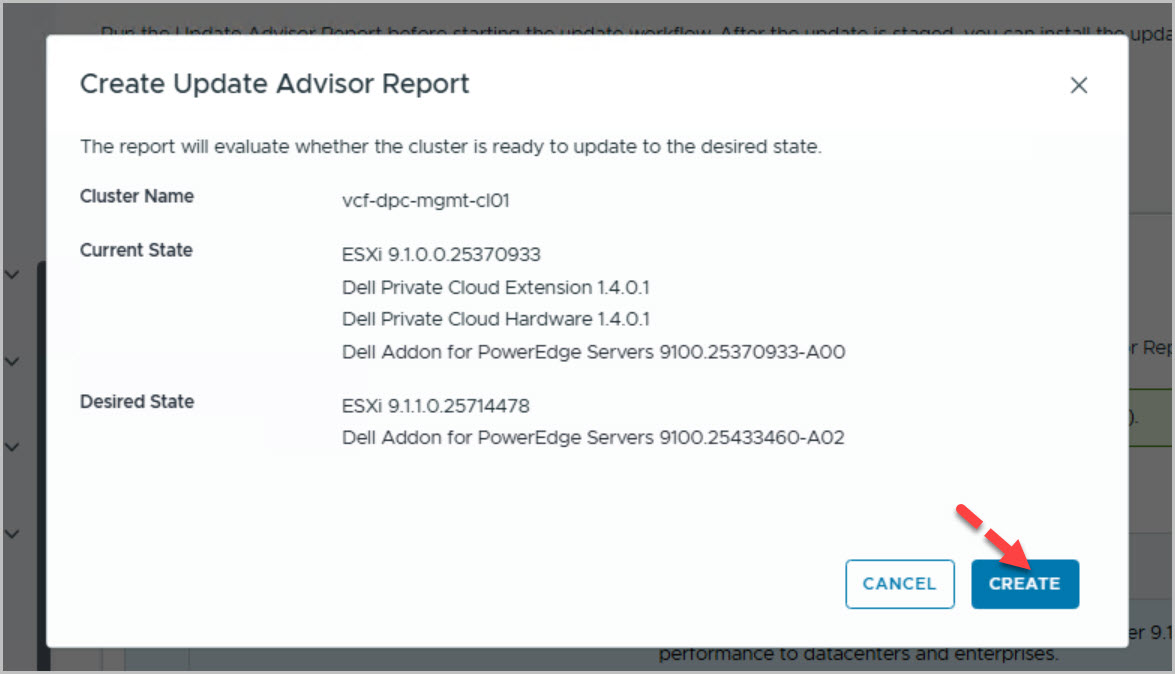
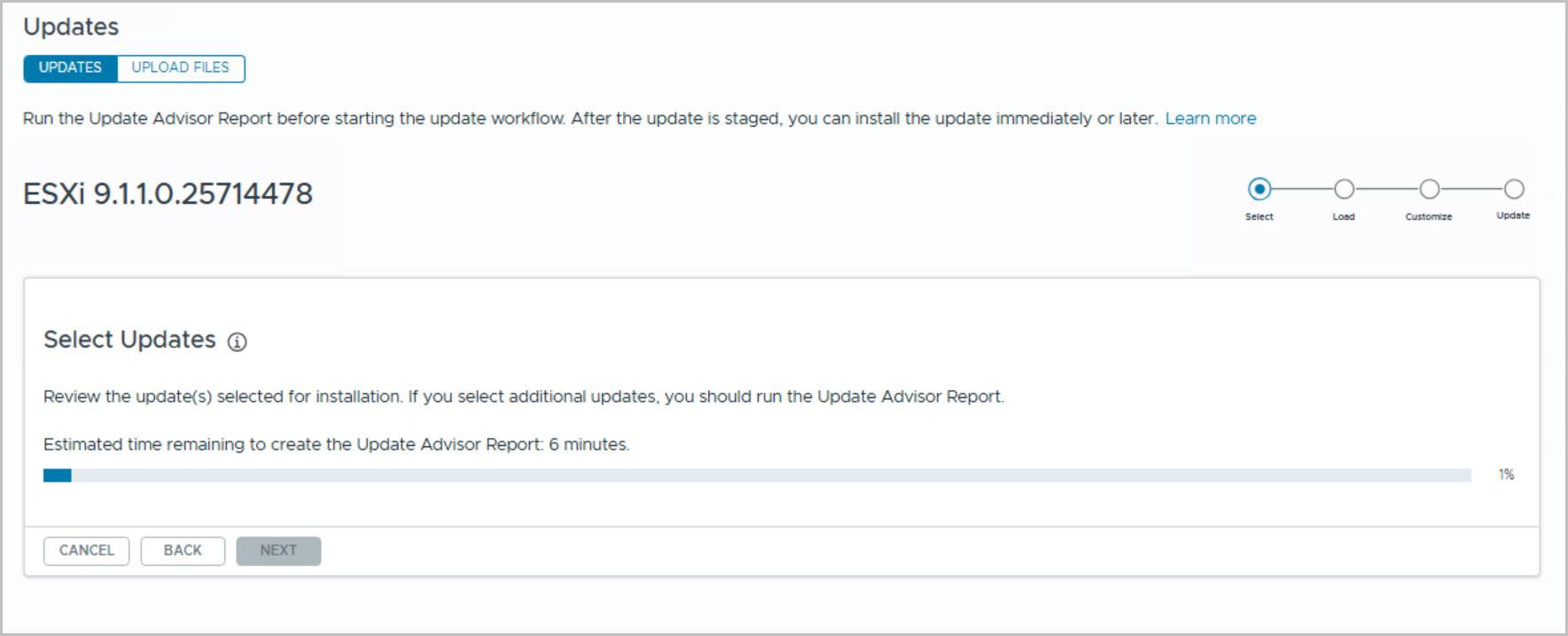
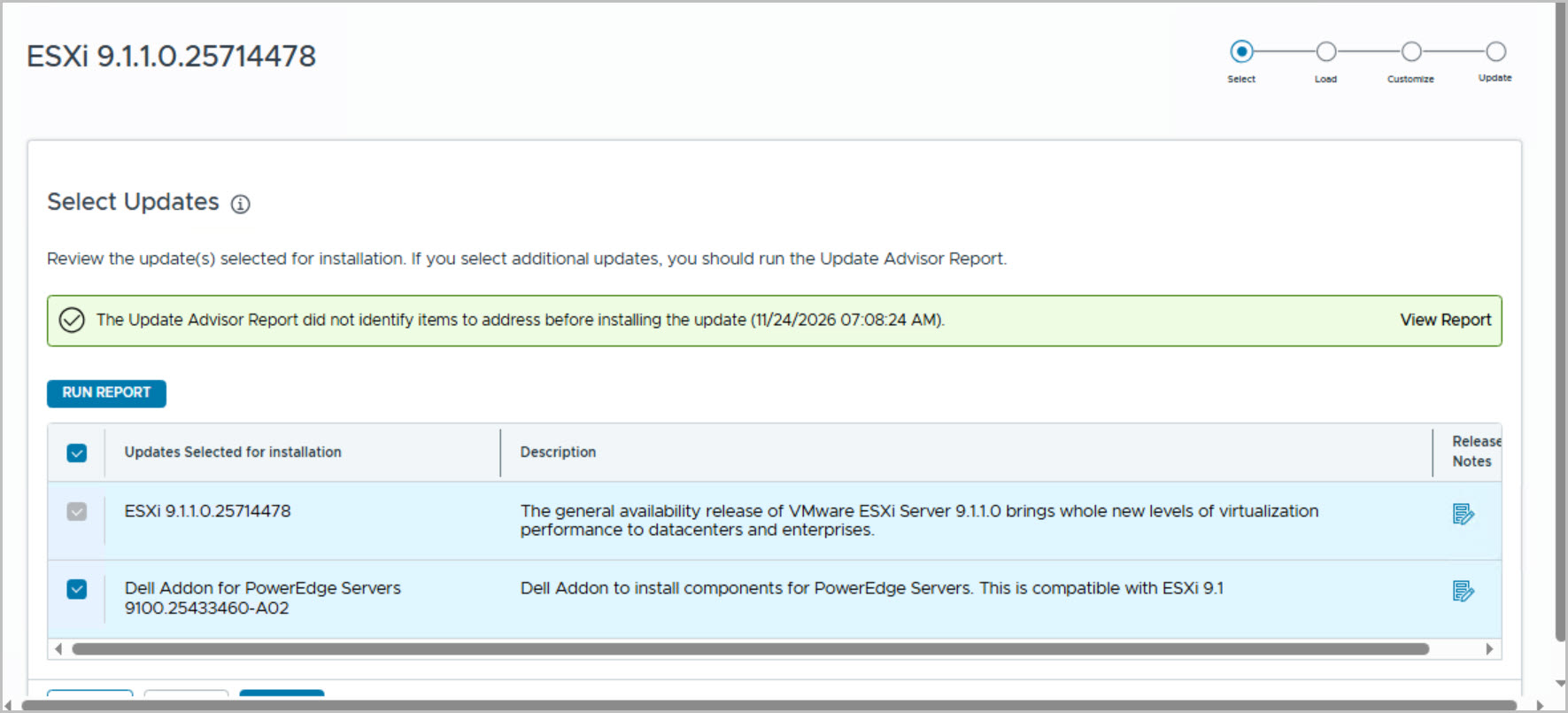
Before beginning ESXi host remediation, the latest Dell Private Cloud Recommendation File was uploaded to ensure upgrade validation was performed against the most current Dell support matrix and compatibility guidance. With the updated recommendation data in place, the management cluster detected the available ESXi 9.1.1 upgrade and an Update Advisor Report was generated to assess readiness for remediation.
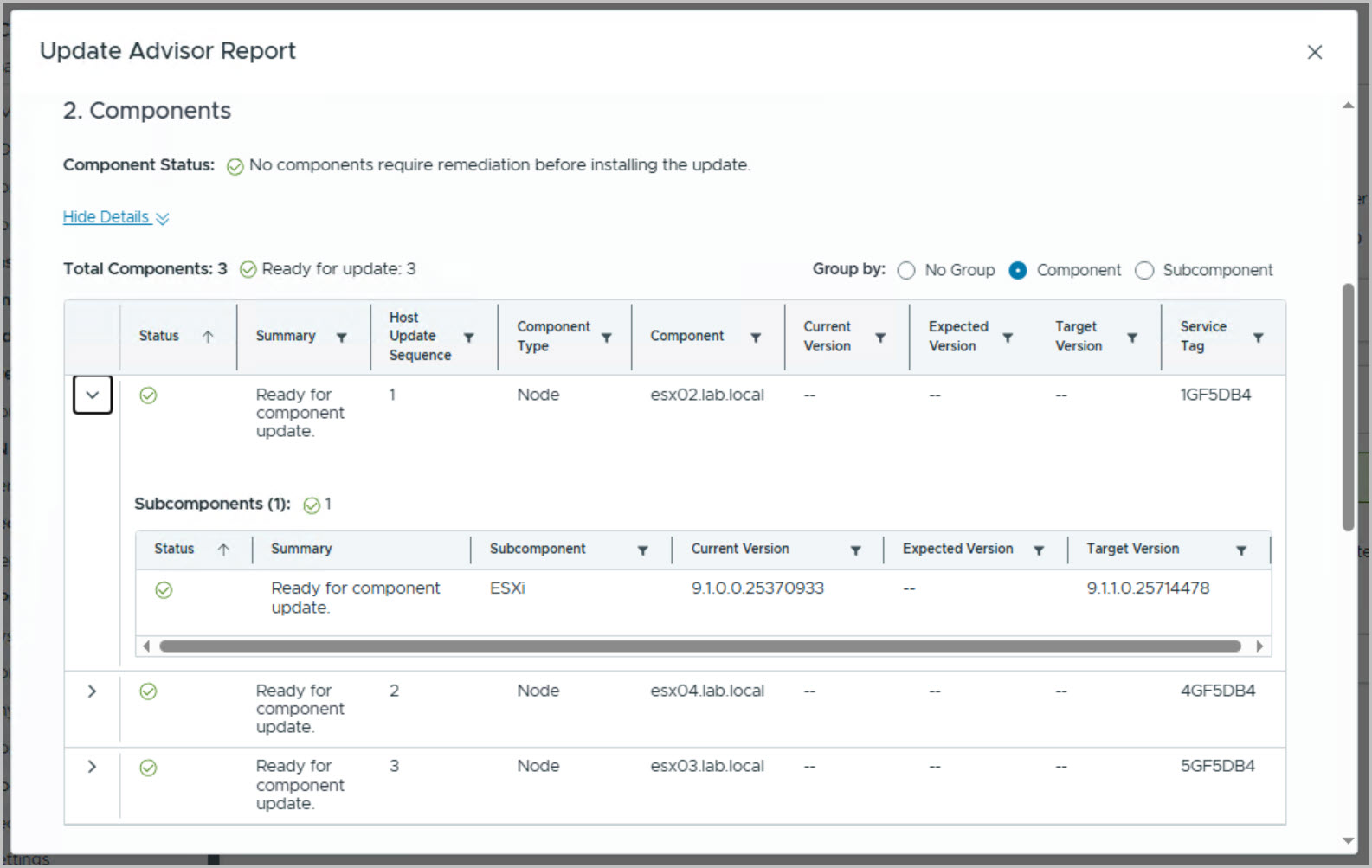
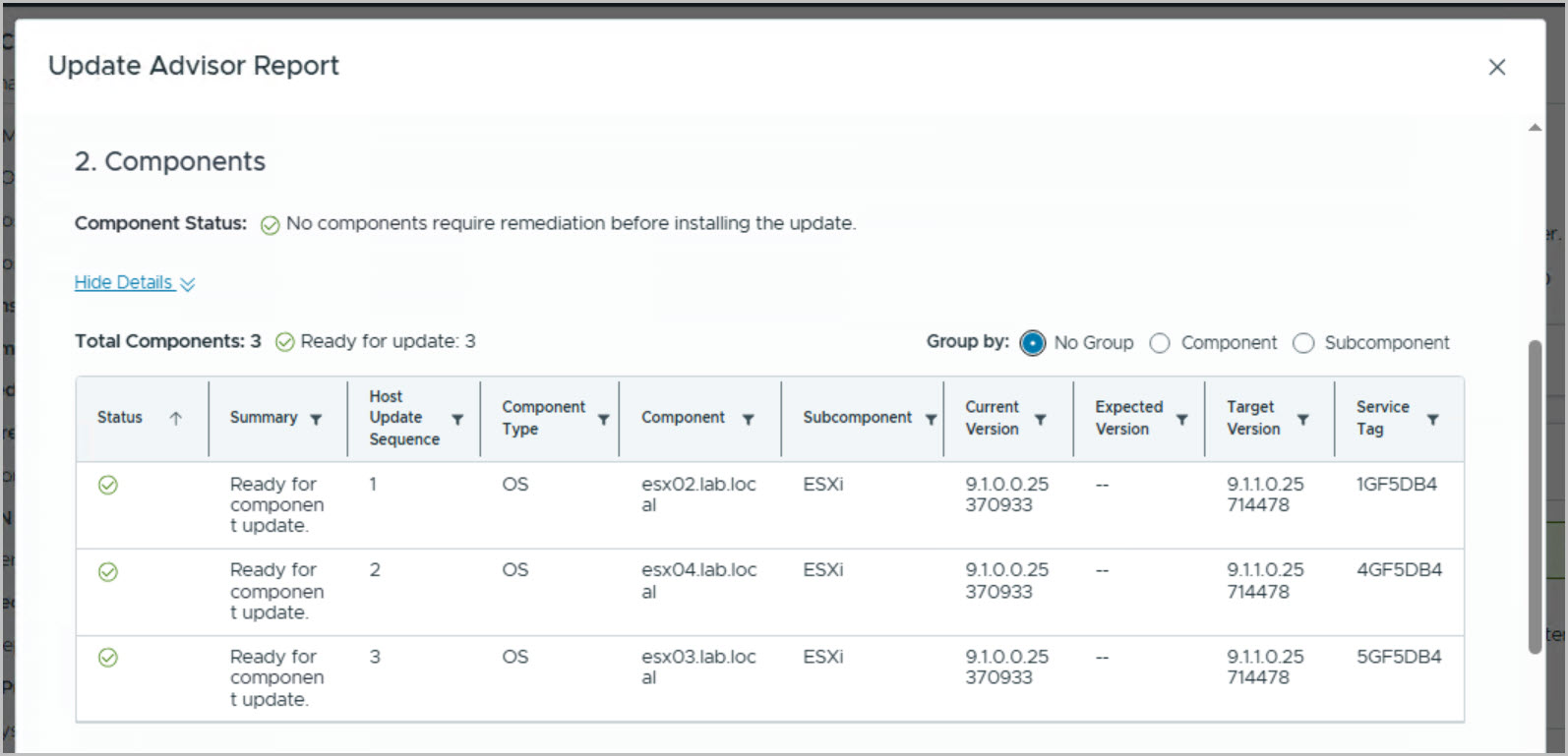
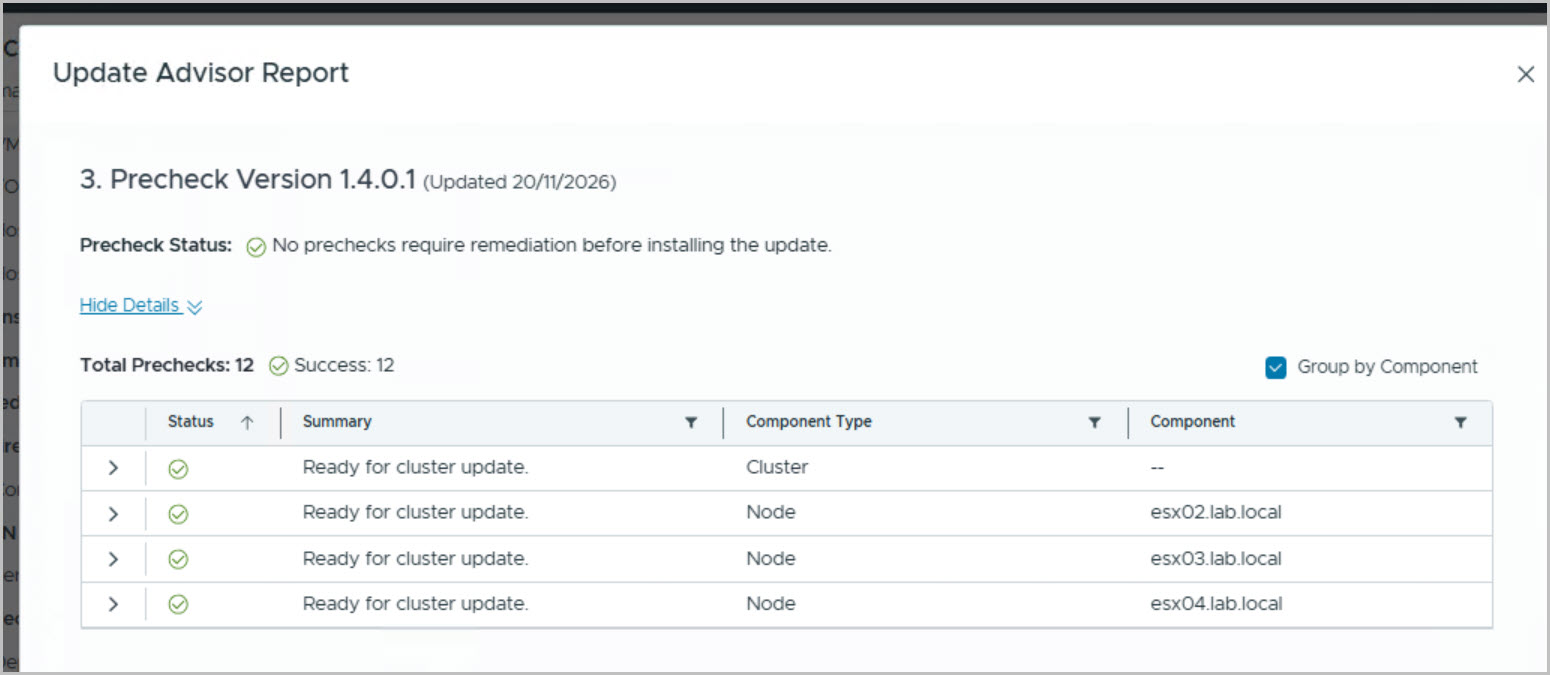
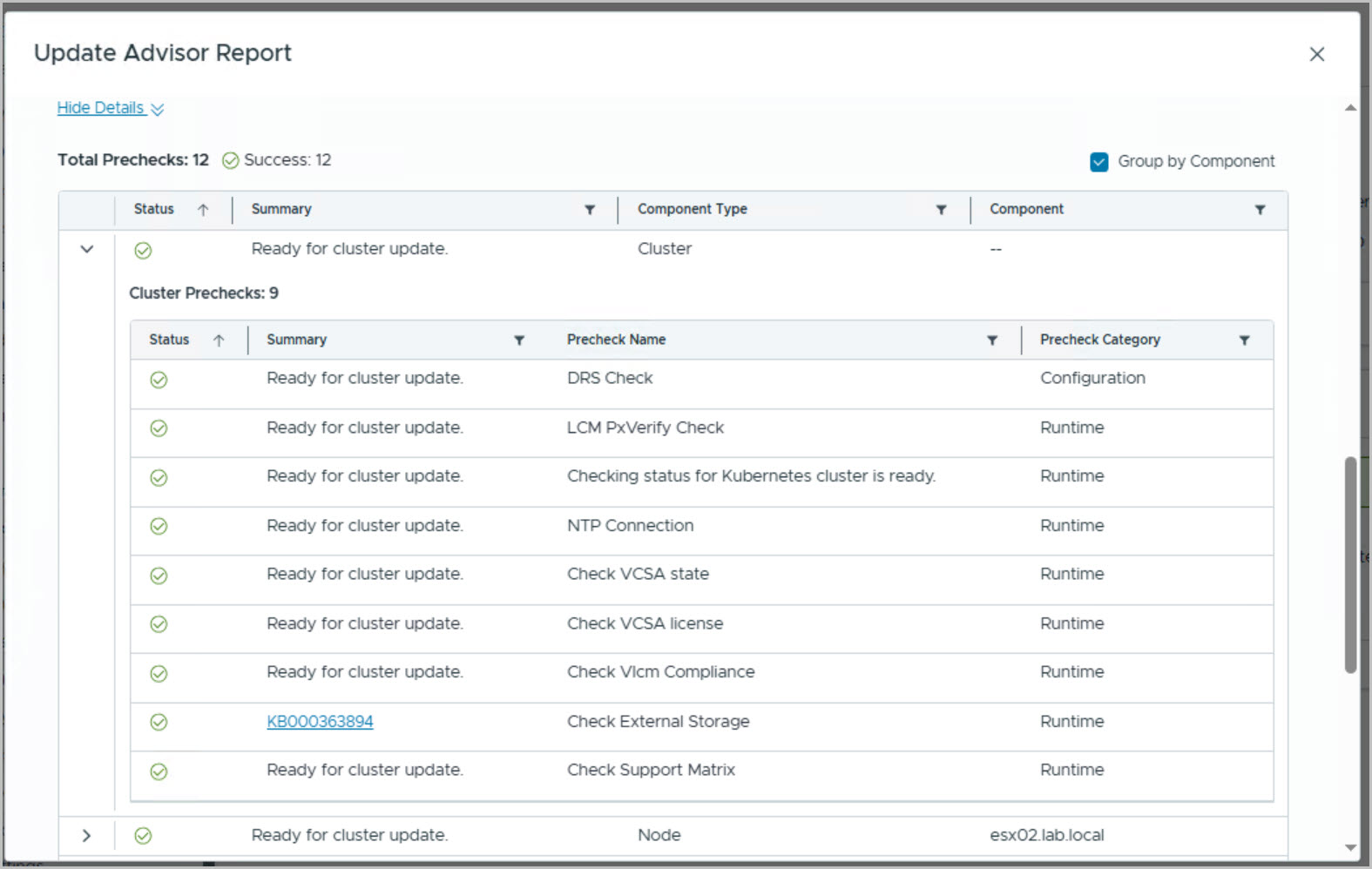
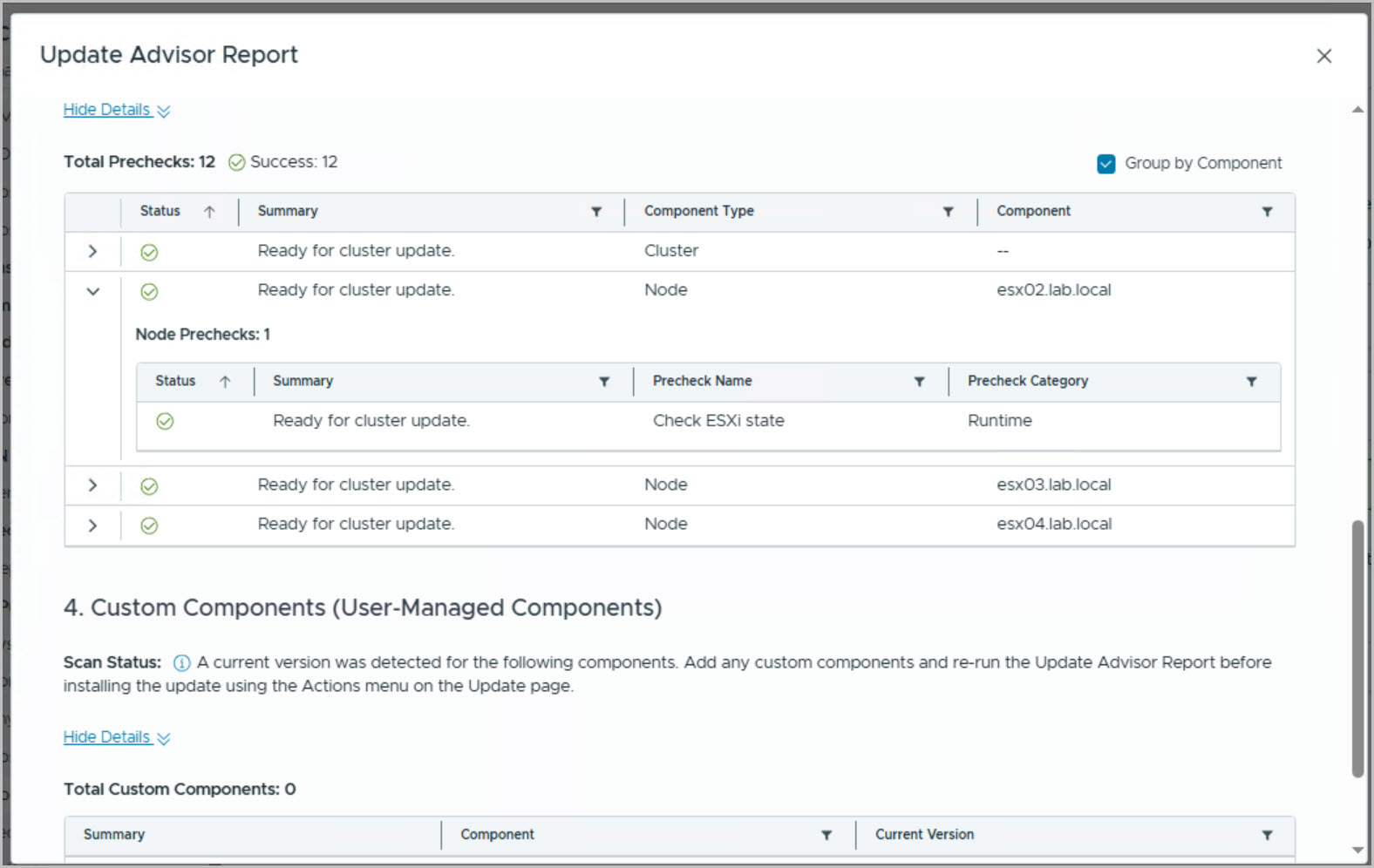
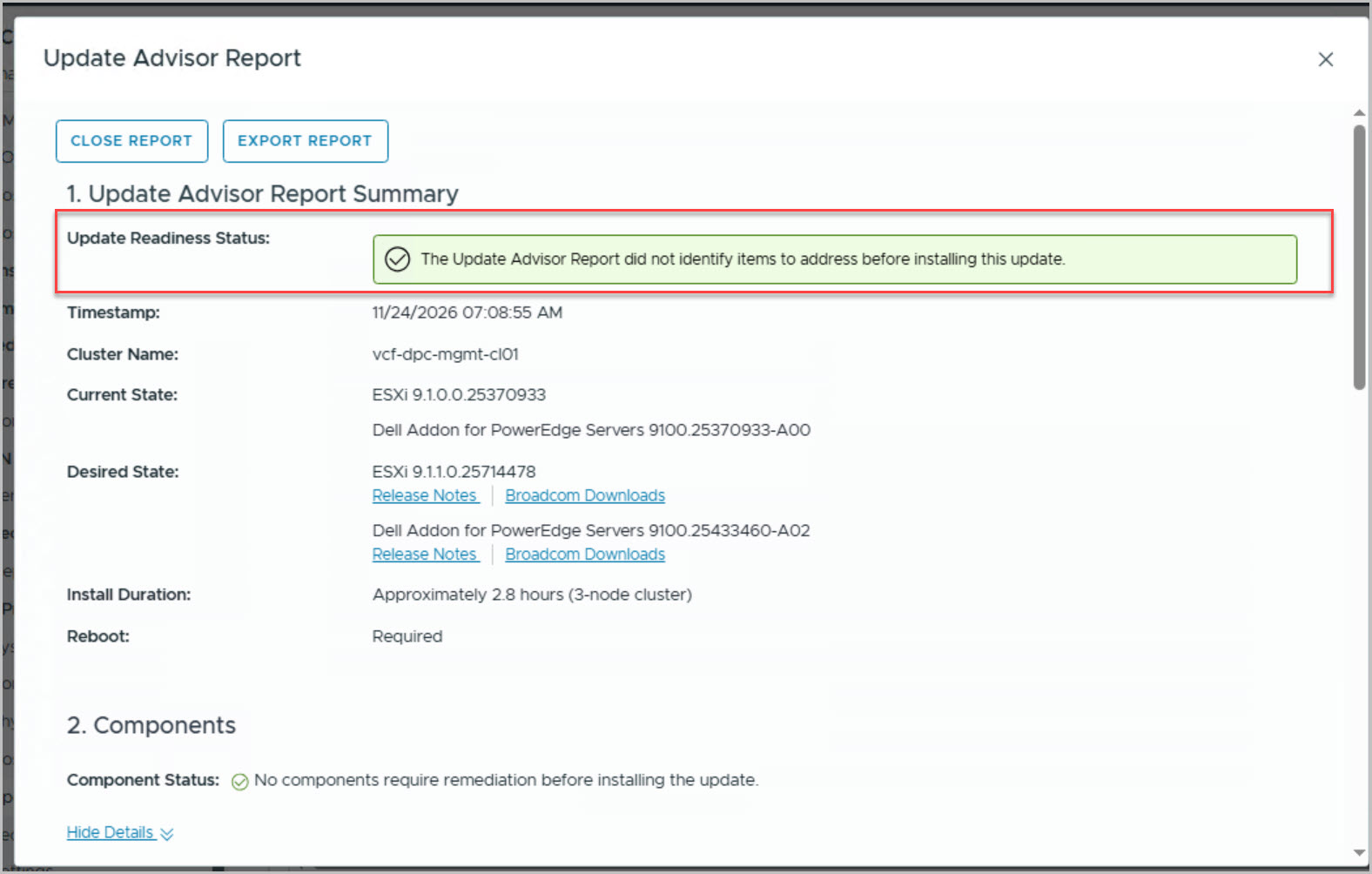
The Update Advisor performed a comprehensive validation of the environment, evaluating cluster configuration, vSphere Lifecycle Manager compliance, DRS health, NTP connectivity, vCenter state and licensing, storage accessibility, support matrix compliance, and individual host readiness. Detailed analysis confirmed that all hosts were eligible for upgrade and established the remediation sequence that would be used during the upgrade process.
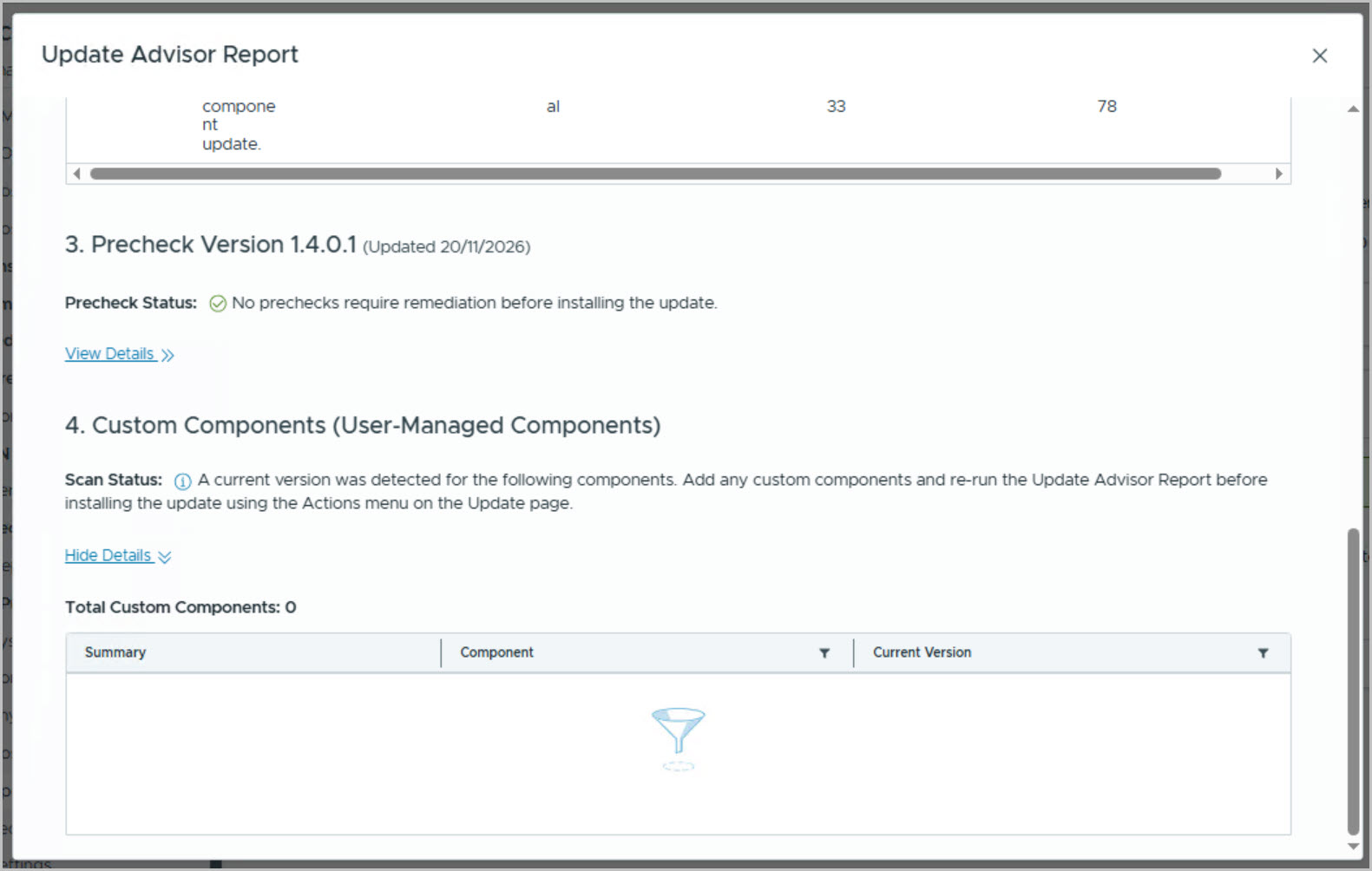
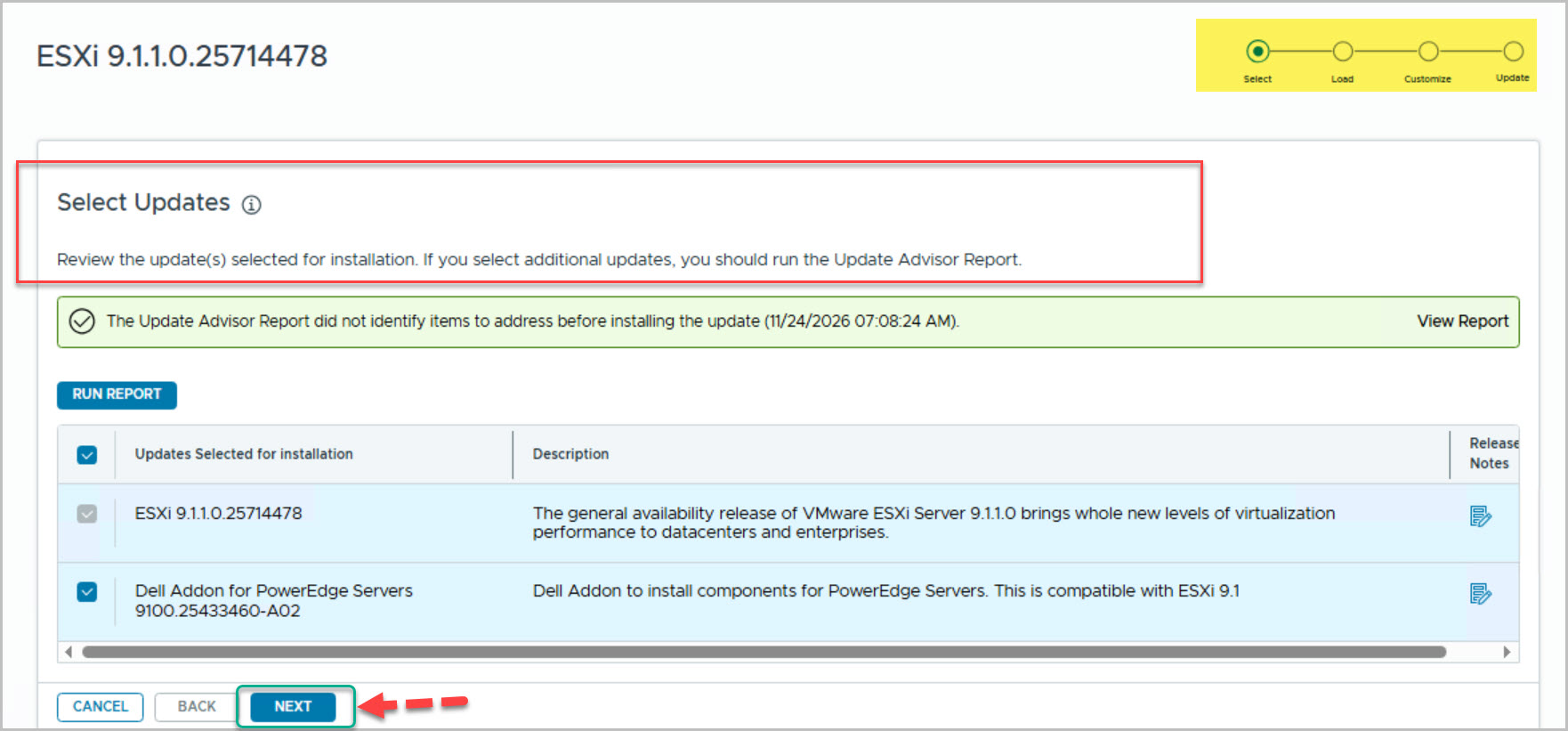
The final report showed 12 of 12 prechecks passing successfully, no custom components requiring remediation, and no issues requiring corrective action before upgrade. All management cluster hosts were marked as Ready for Update, providing confirmation that the environment was fully validated and supported for remediation. With upgrade readiness verified the environment was ready to proceed to the ESXi host remediation phase.
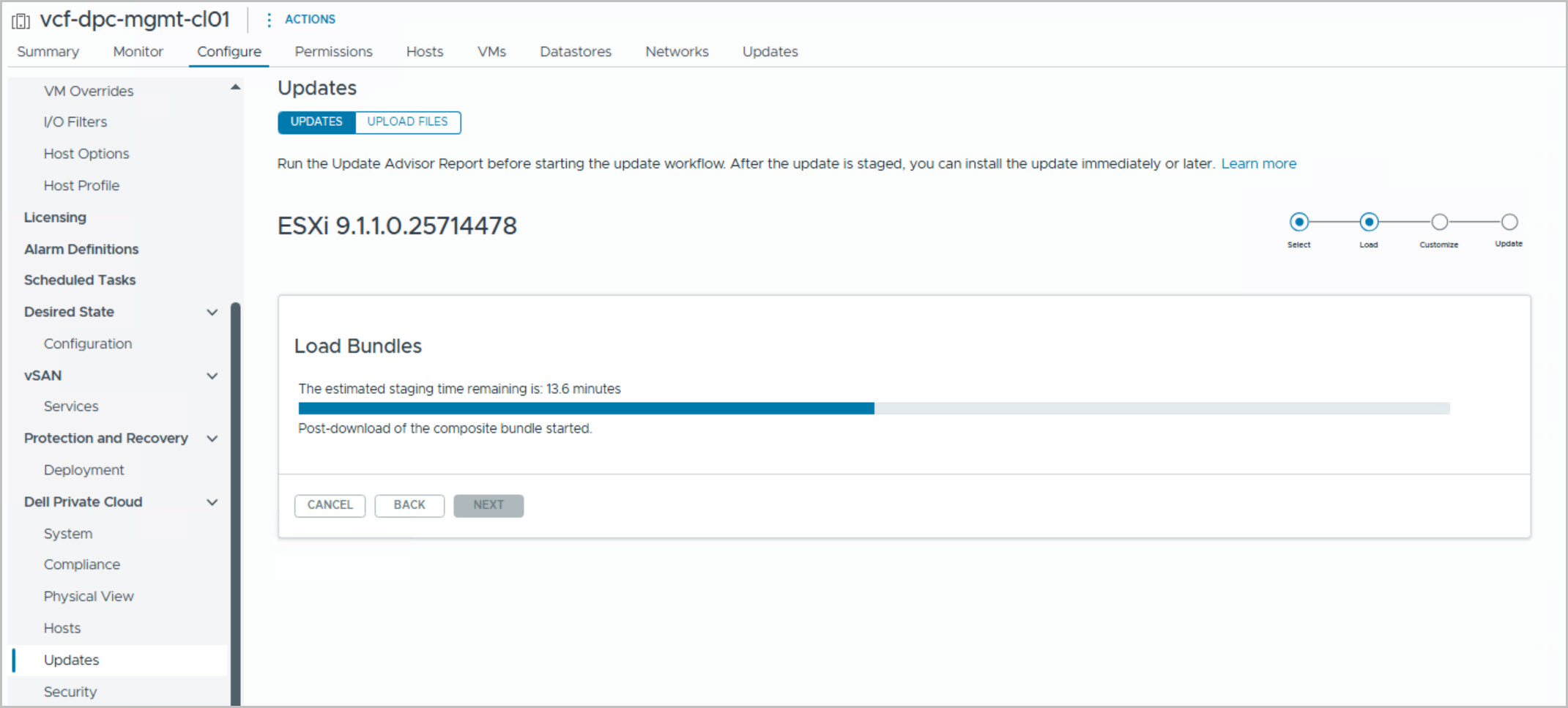
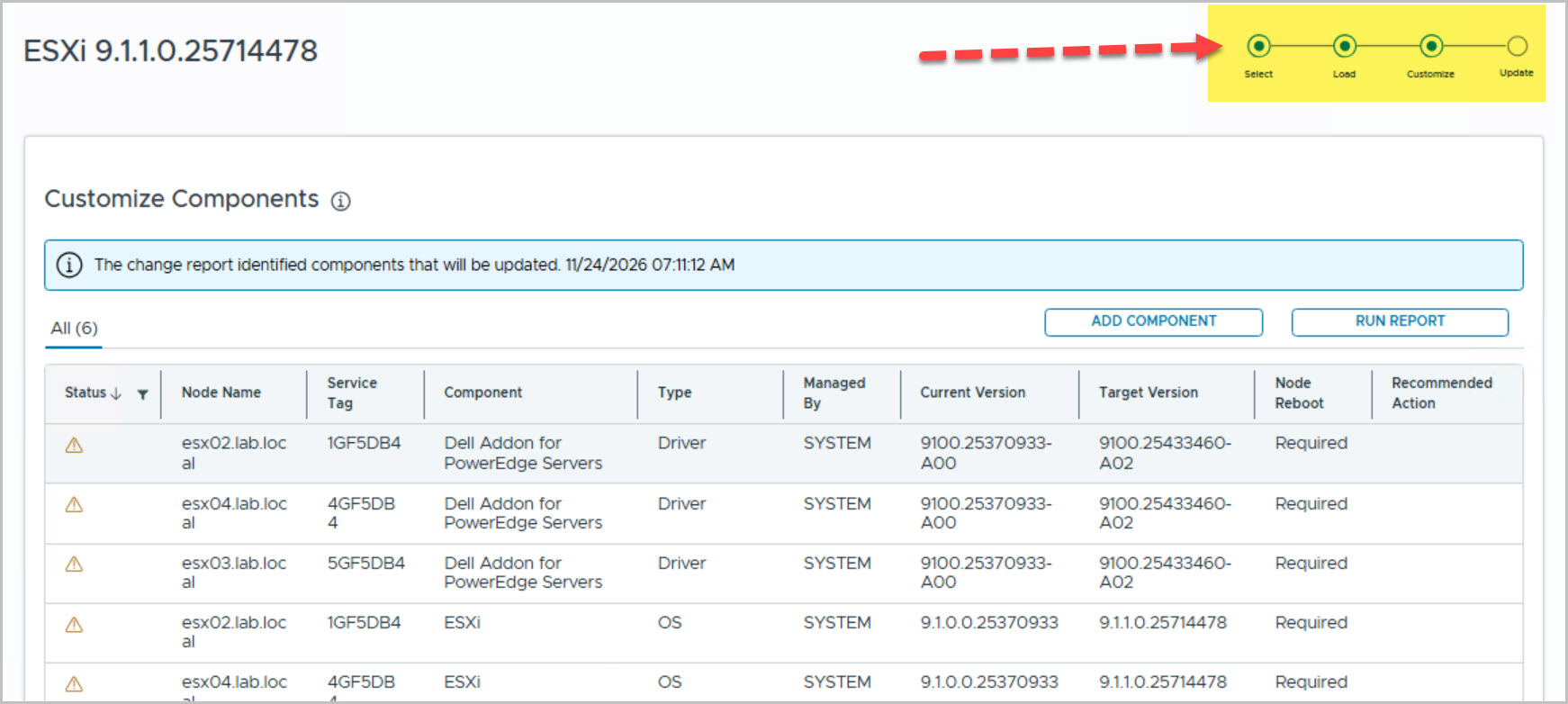
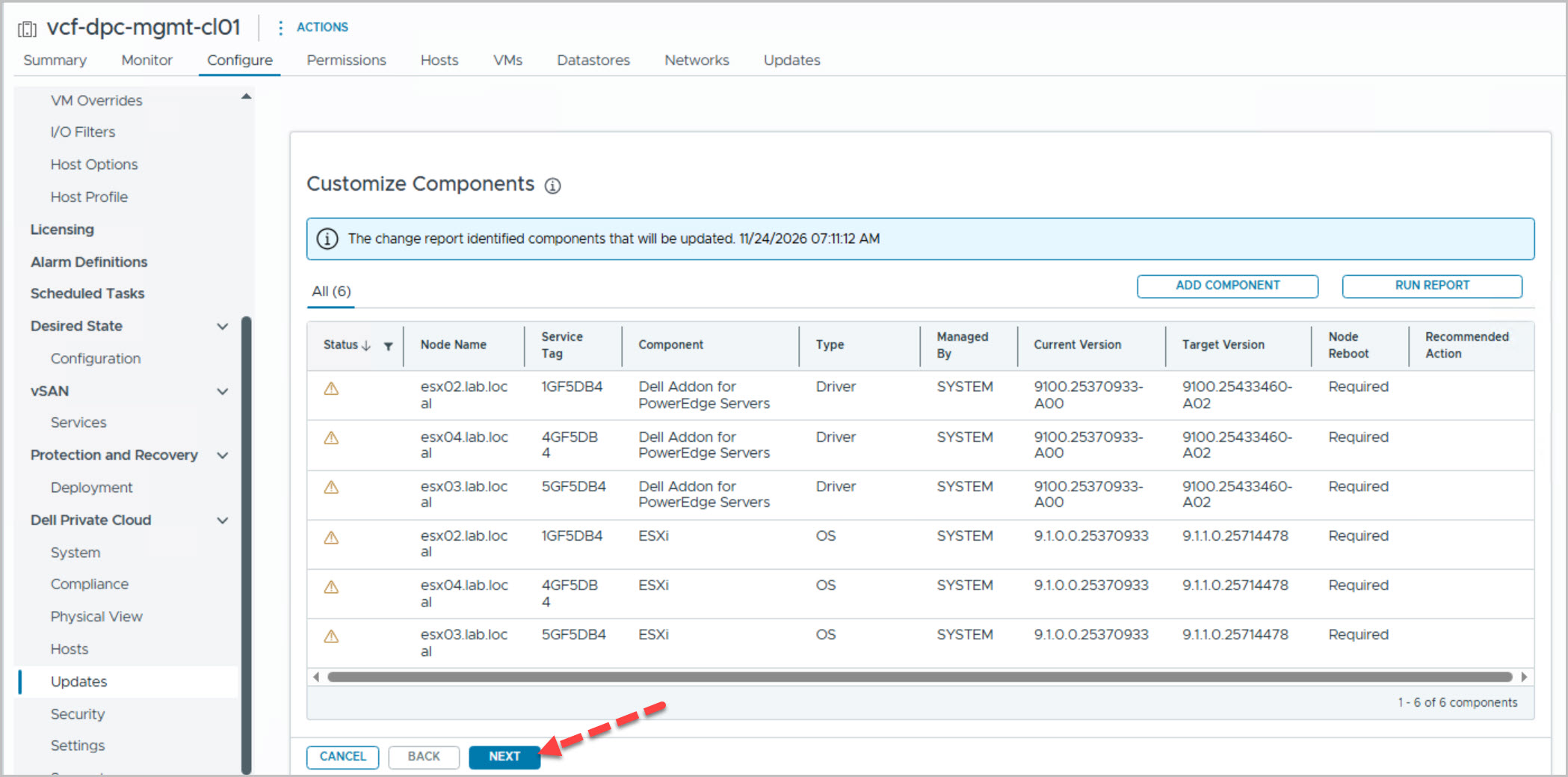
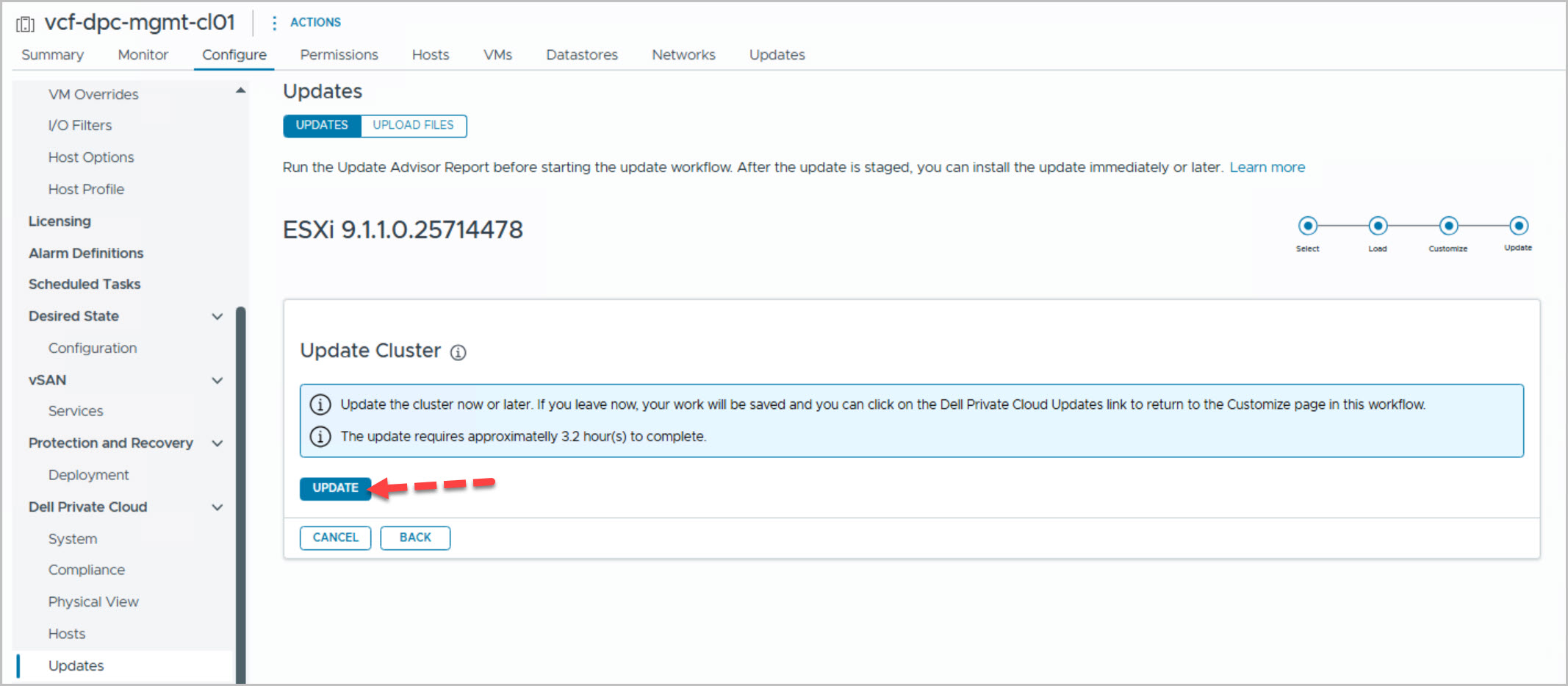
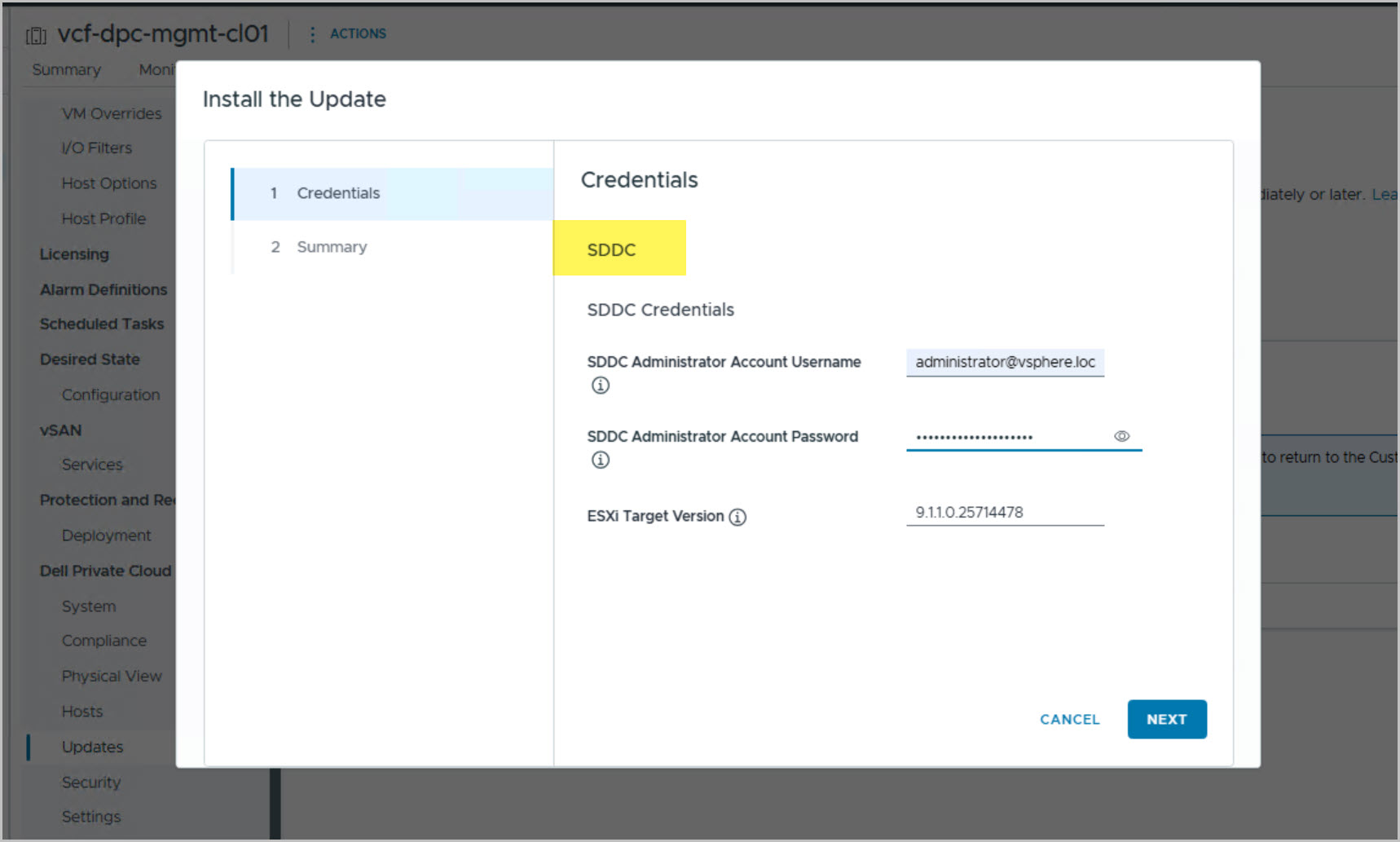
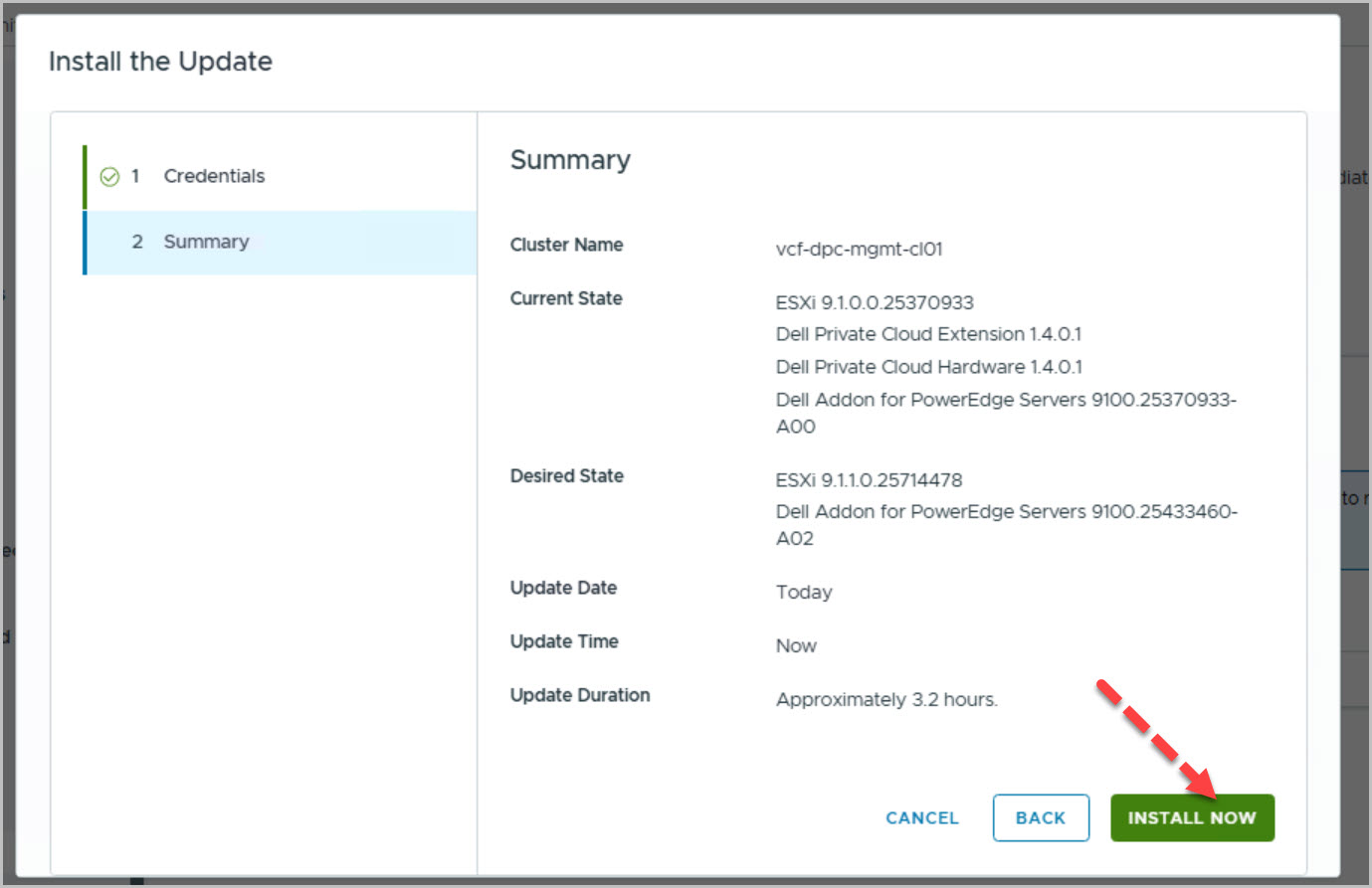
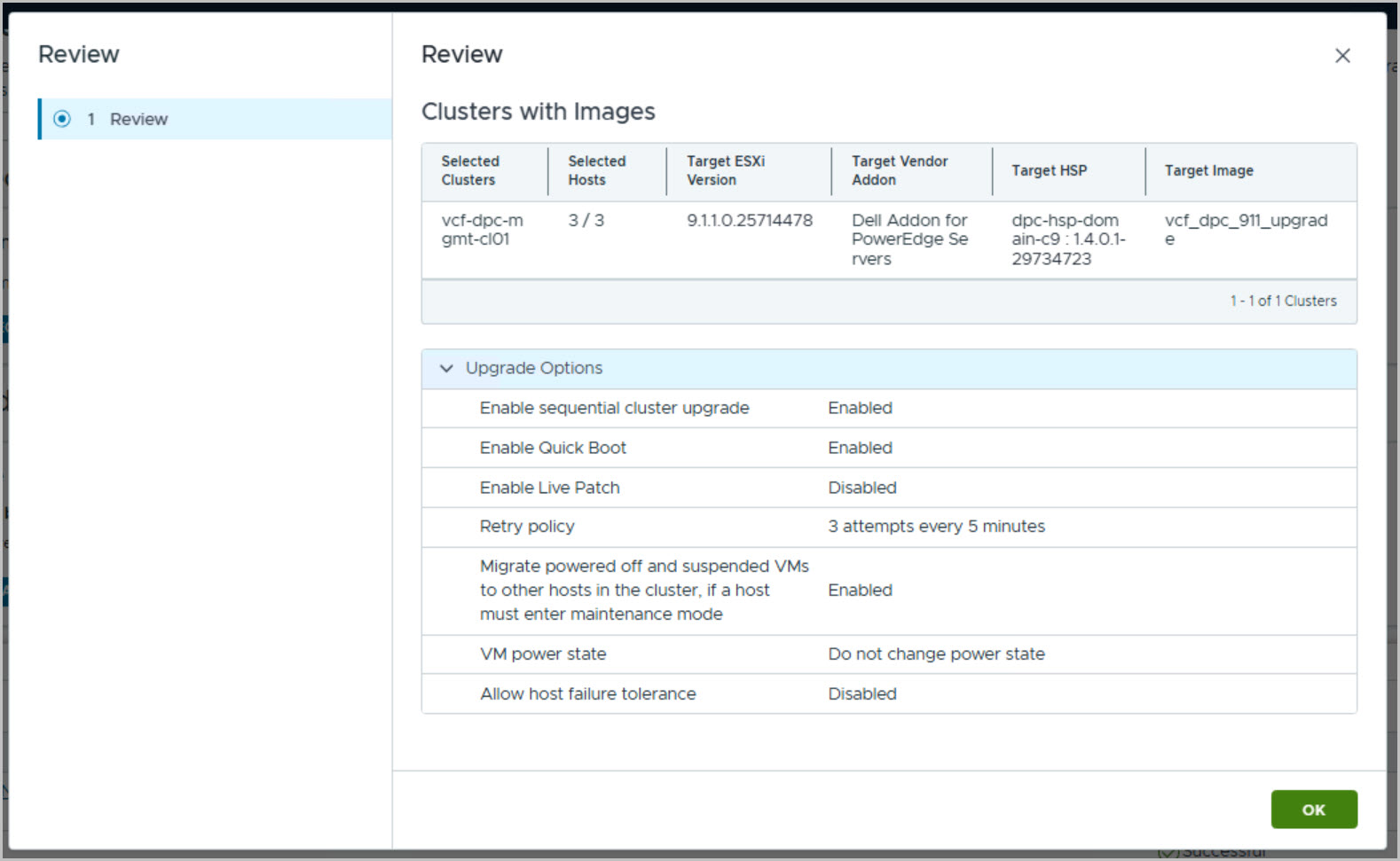
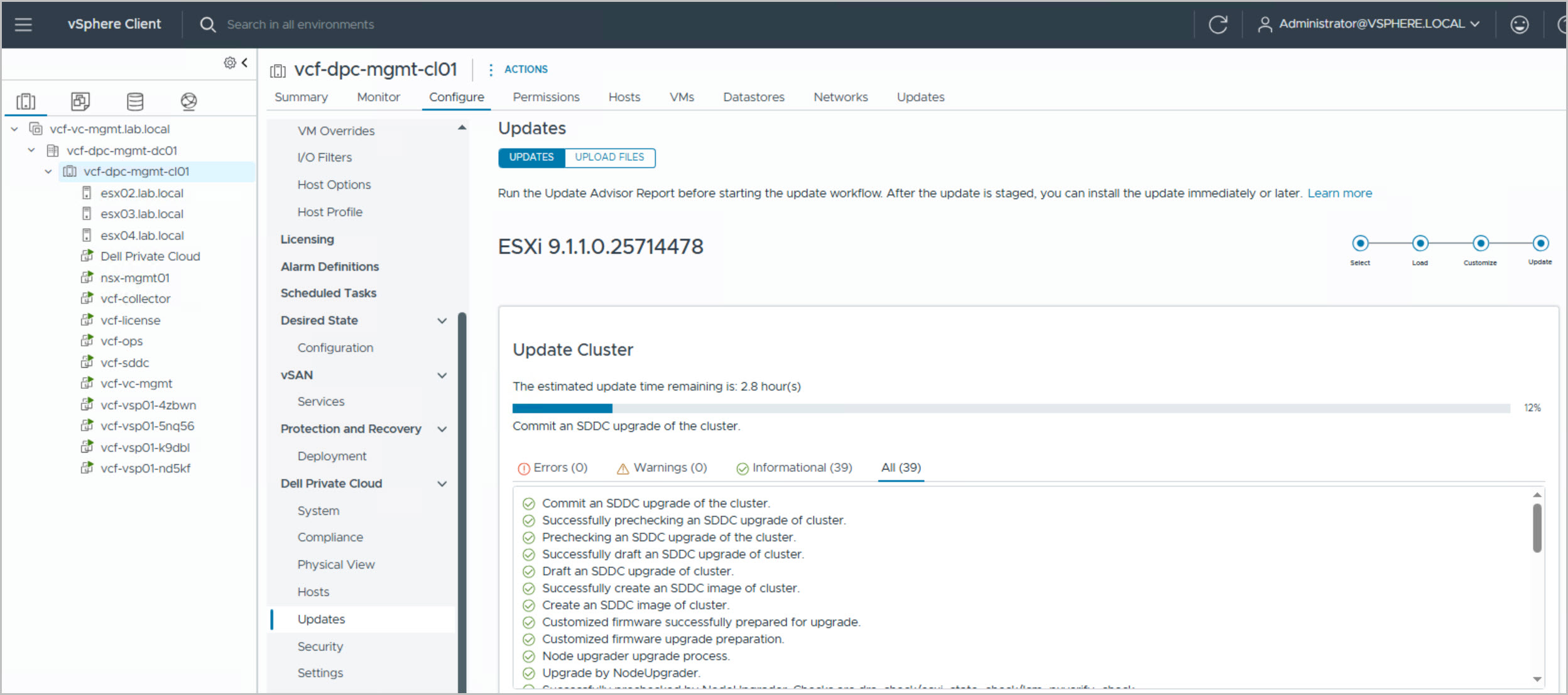
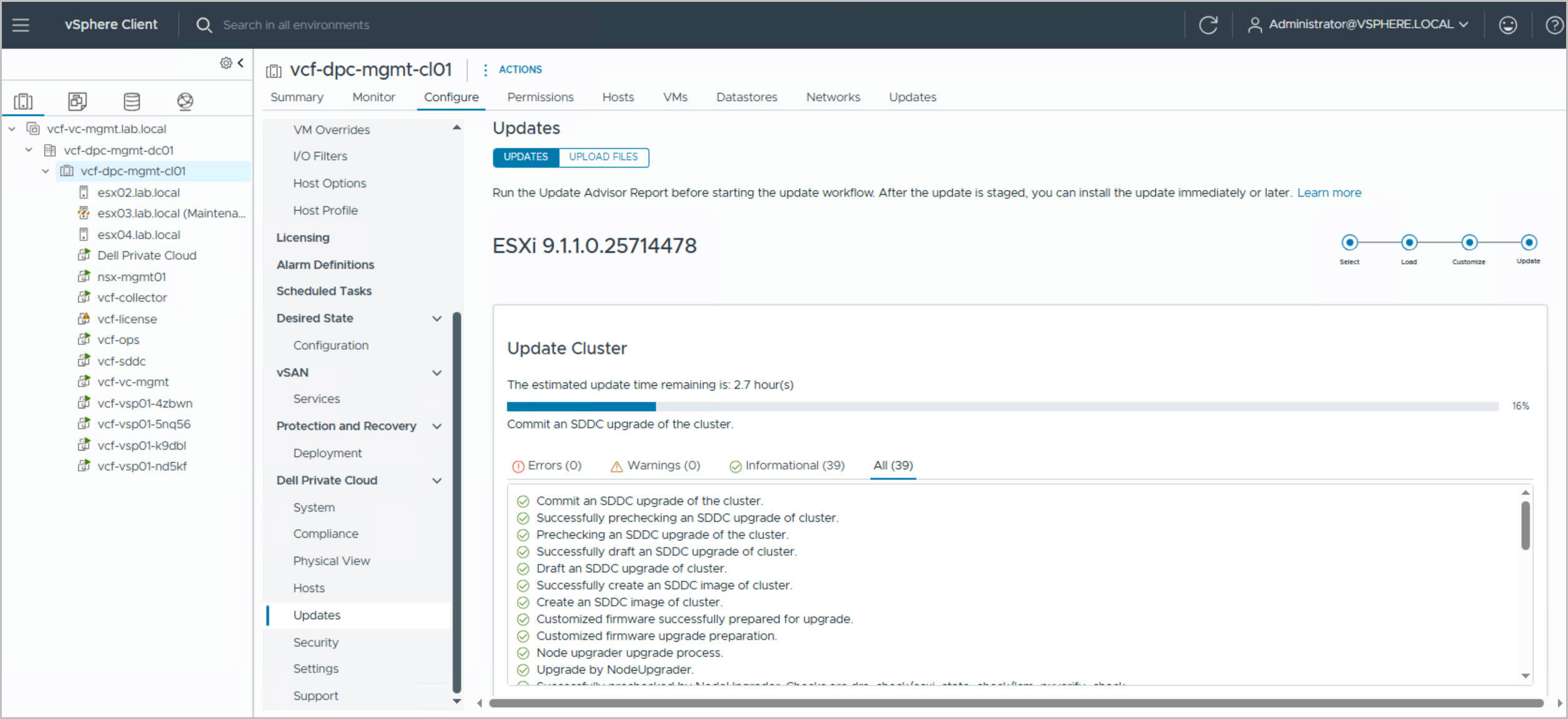
With the target image prepared and validated, the ESXi upgrade workflow was initiated from the Dell Private Cloud plug-in within the vSphere Client rather than directly from SDDC Manager. After selecting the desired upgrade image, which combined ESXi 9.1.1.0.25714478 with the appropriate Dell Addon for PowerEdge Servers, the plug-in prompted for SDDC Manager administrator credentials. These credentials were used by the Dell Private Cloud plug-in to communicate with SDDC Manager APIs and initiate the VMware Cloud Foundation host upgrade workflow.
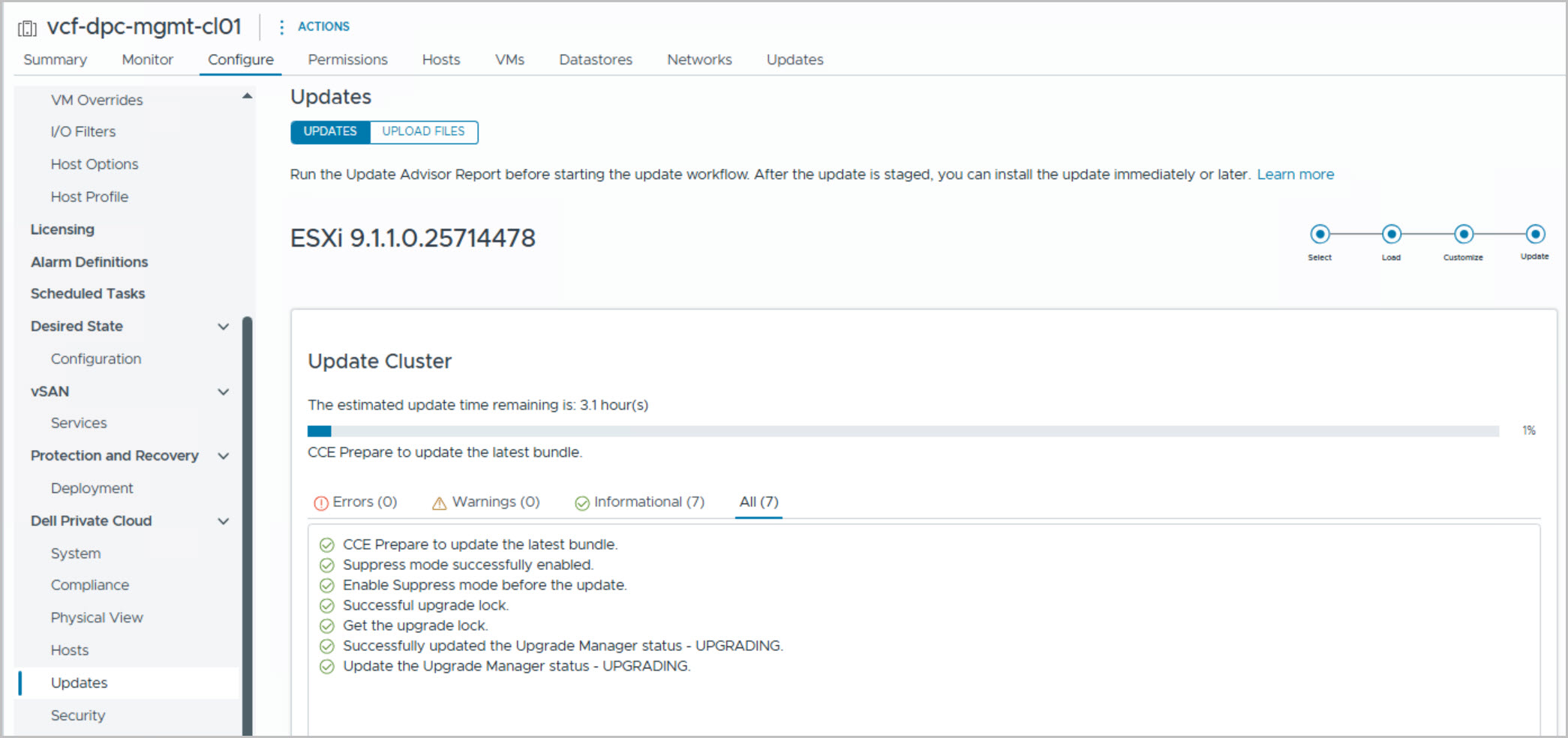
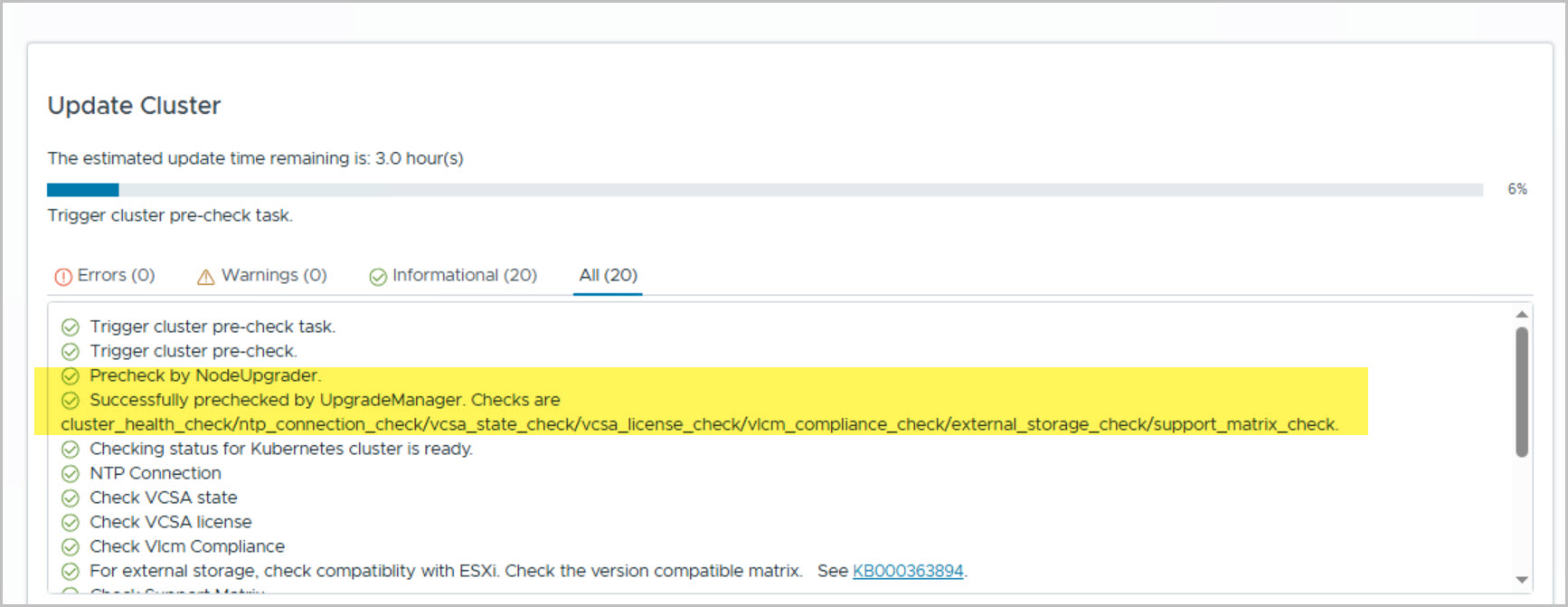
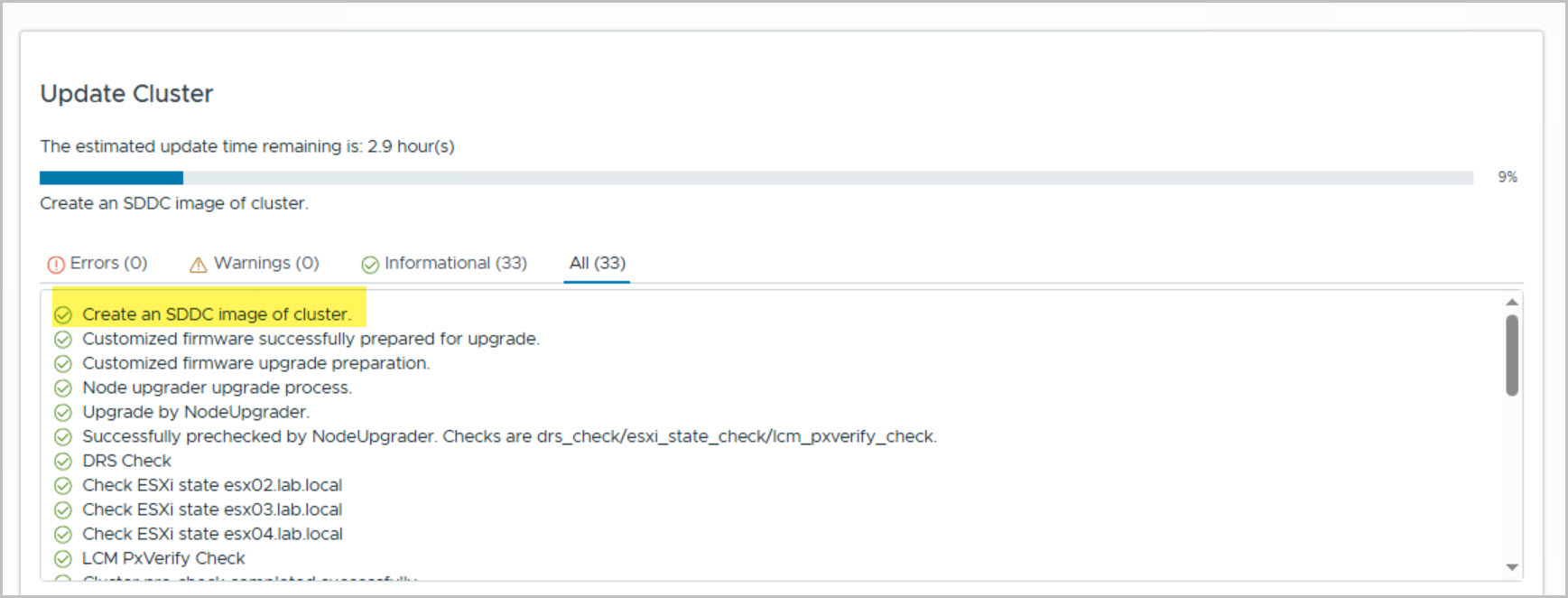
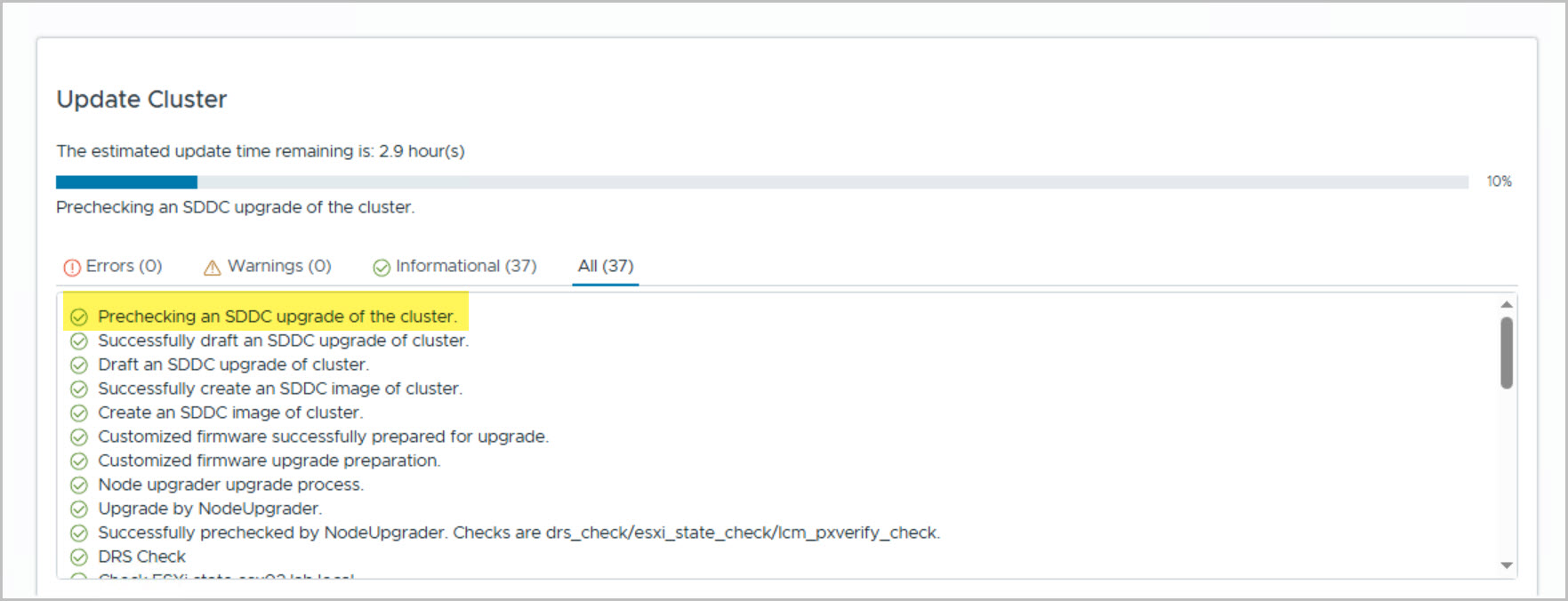
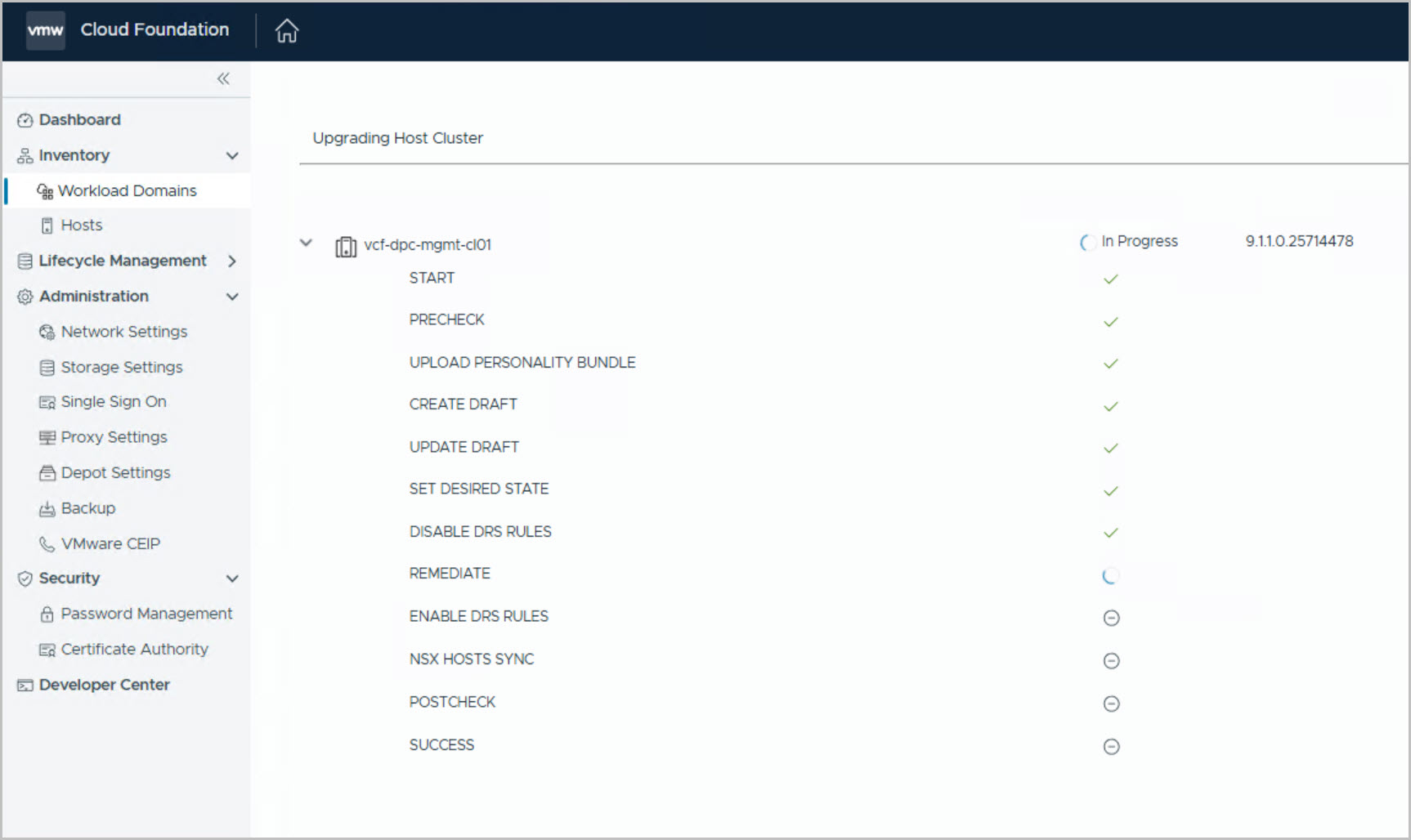
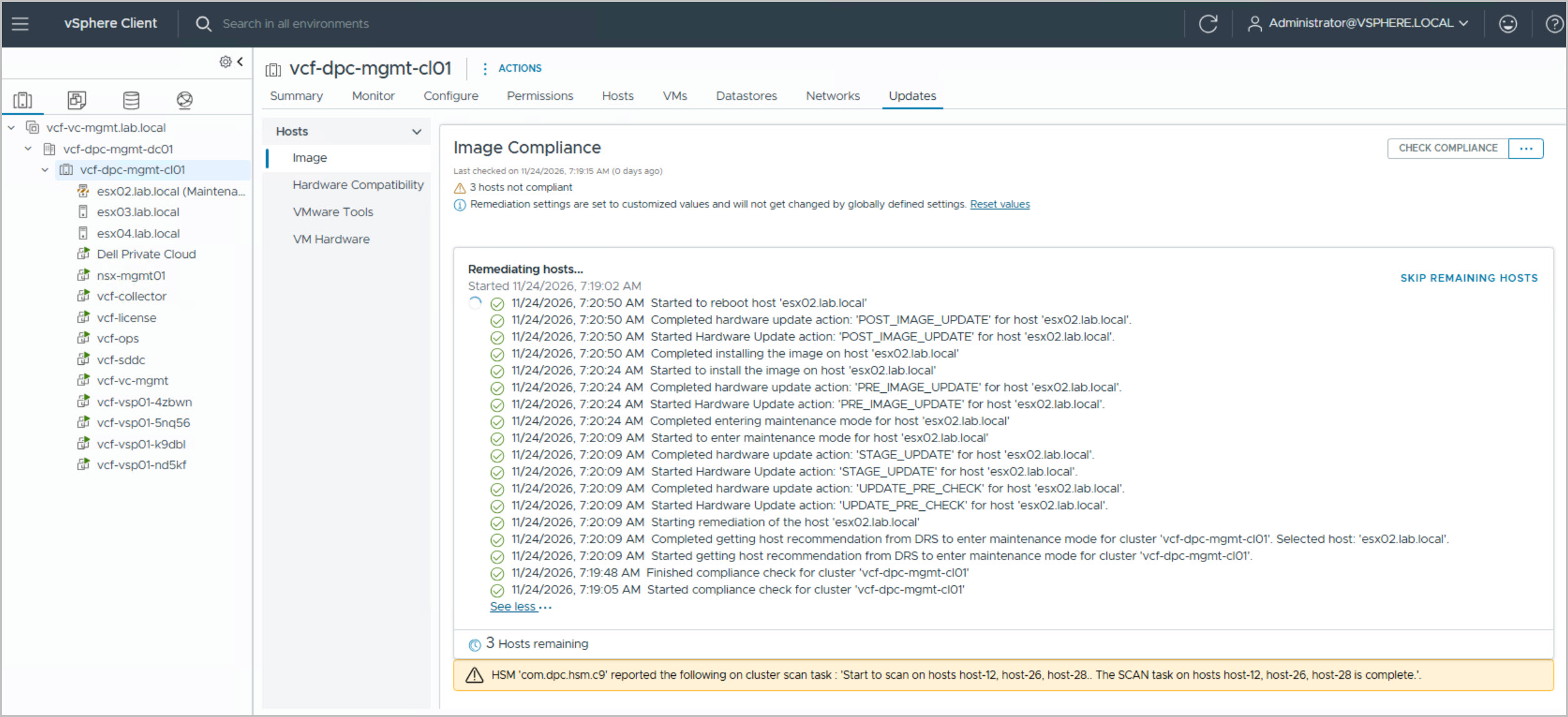
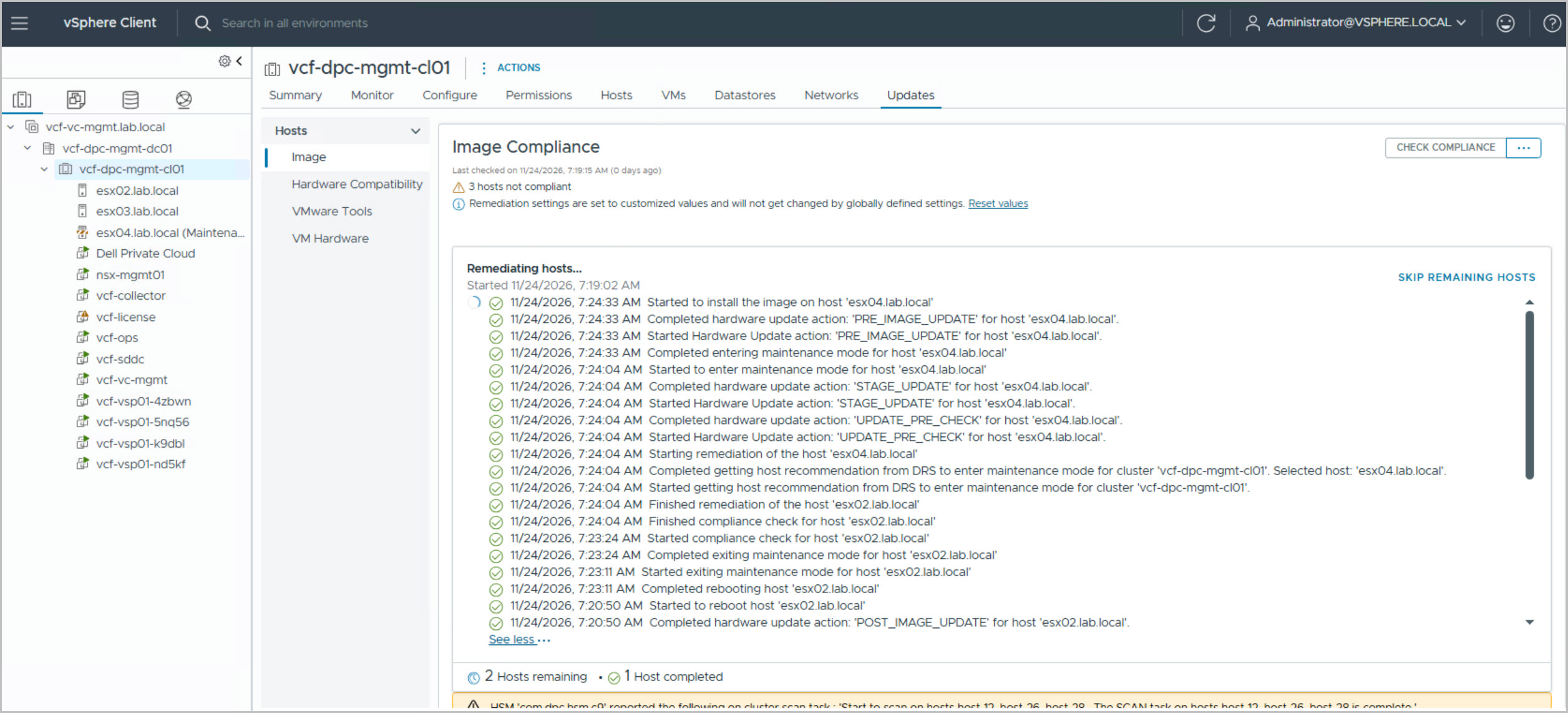
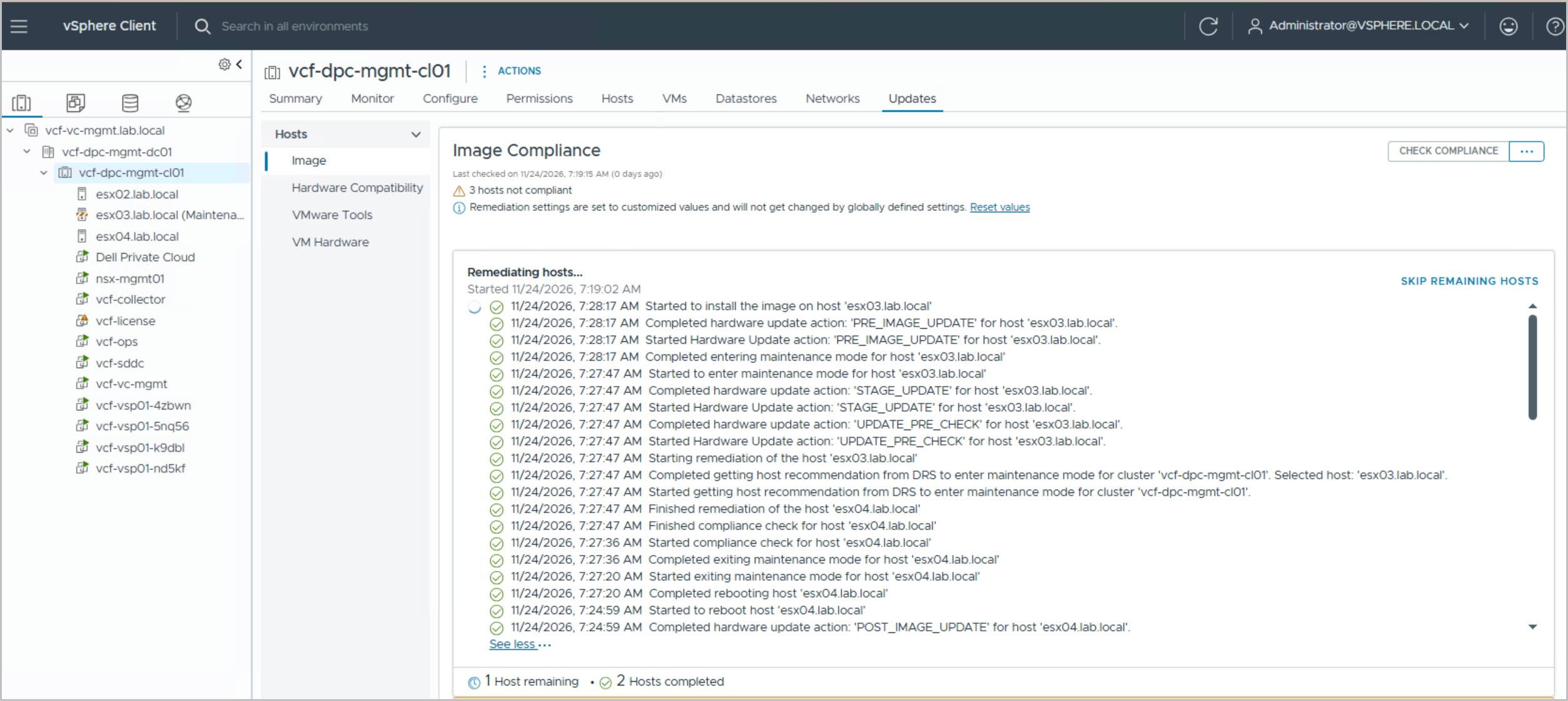
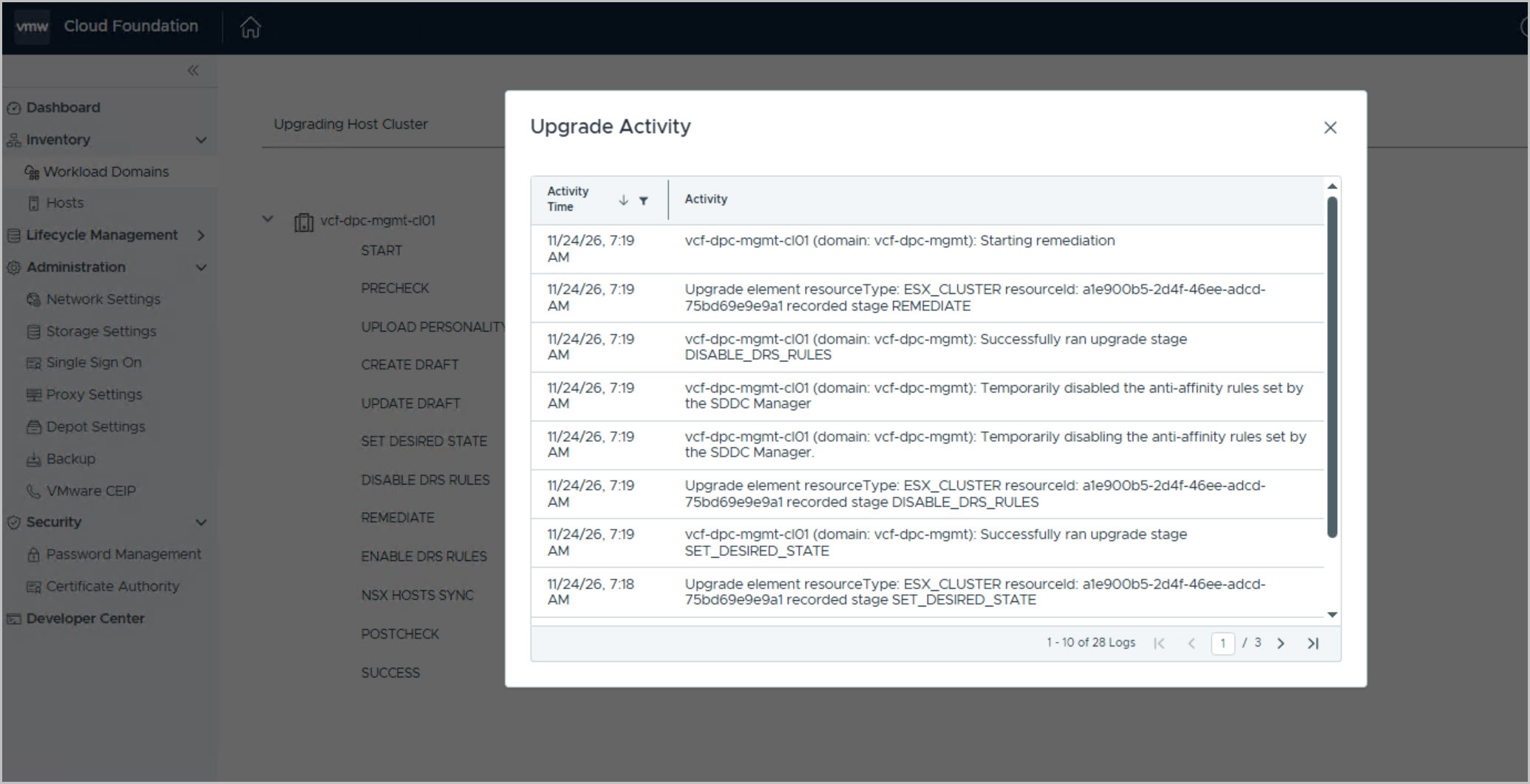
Before any hosts were upgraded, Dell Private Cloud and VMware Cloud Foundation automatically performed a final series of cluster and host prechecks, generated an SDDC cluster image, prepared firmware components, and validated lifecycle manager complianc. Once validation completed successfully, SDDC Manager orchestrated the management cluster upgrade through a structured workflow that included creating and updating the cluster draft image, setting the desired state, temporarily disabling DRS anti-affinity rules, and initiating host remediation.
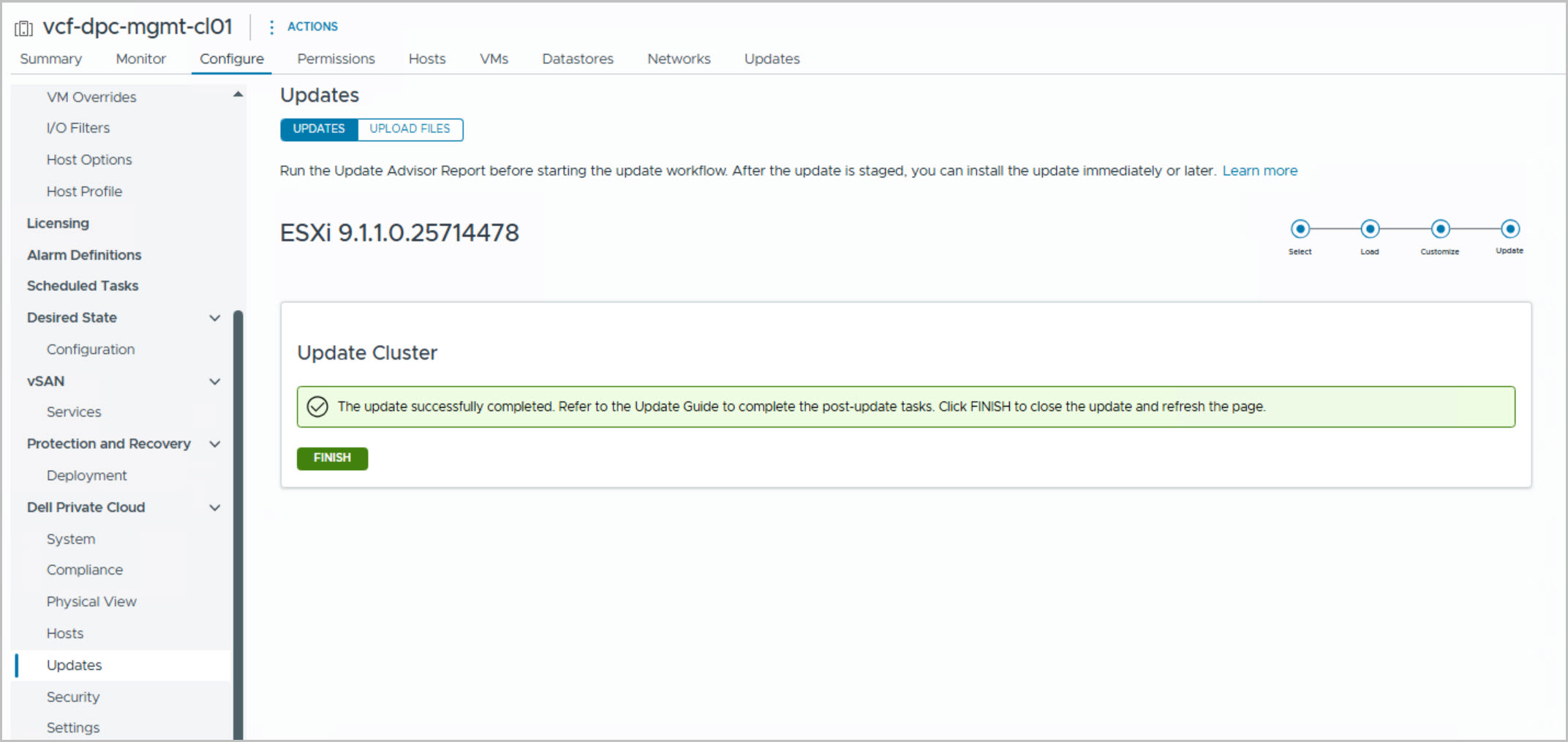
Each ESXi host was upgraded sequentially, entering maintenance mode, applying the new ESXi image and Dell add-on components, rebooting, performing compliance validation, and then returning to service before the next host was remediated. Throughout the process, upgrade status could be monitored in both the Dell Private Cloud plug-in and SDDC Manager, providing visibility into remediation progress, host compliance, and VCF lifecycle management activities.
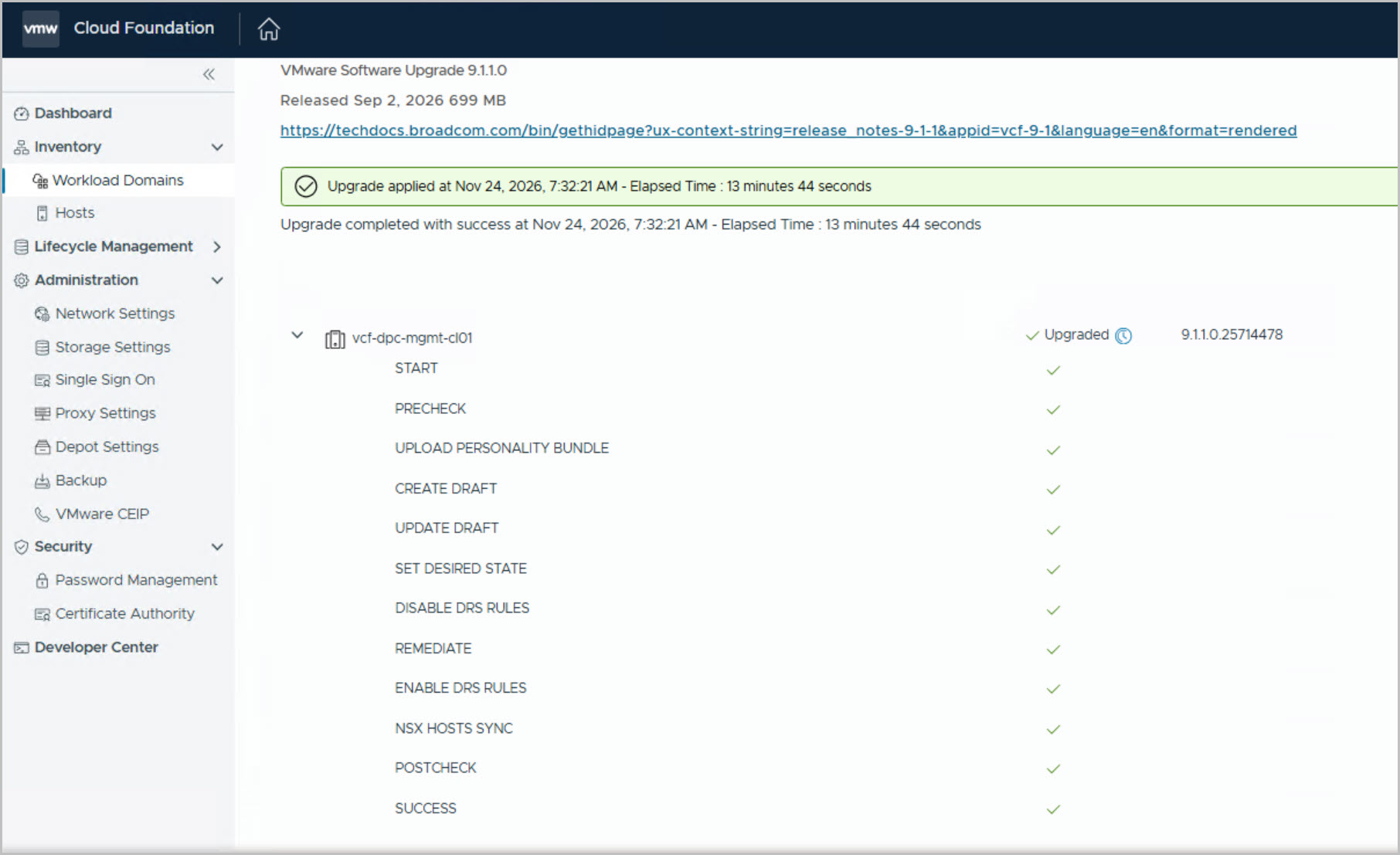
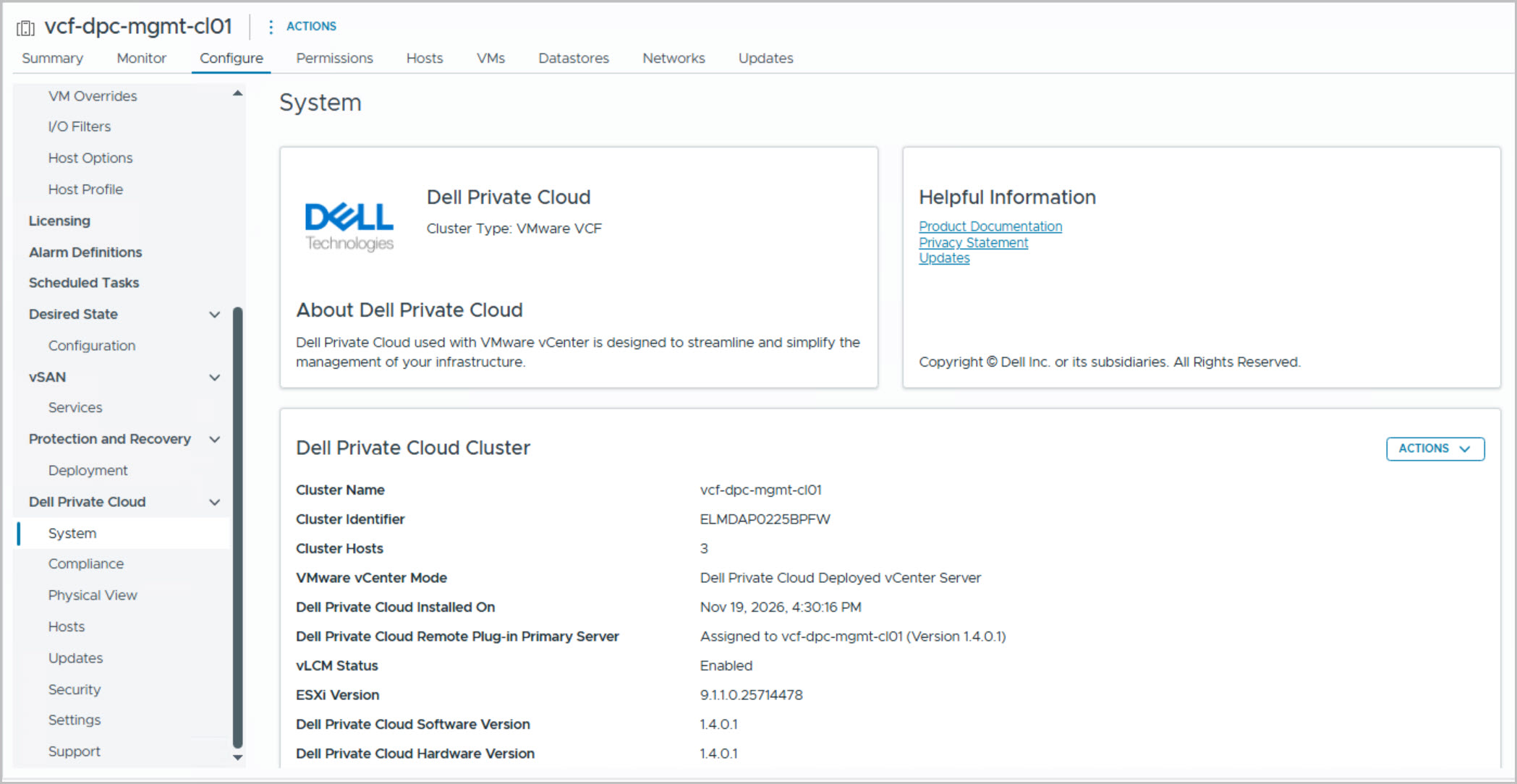
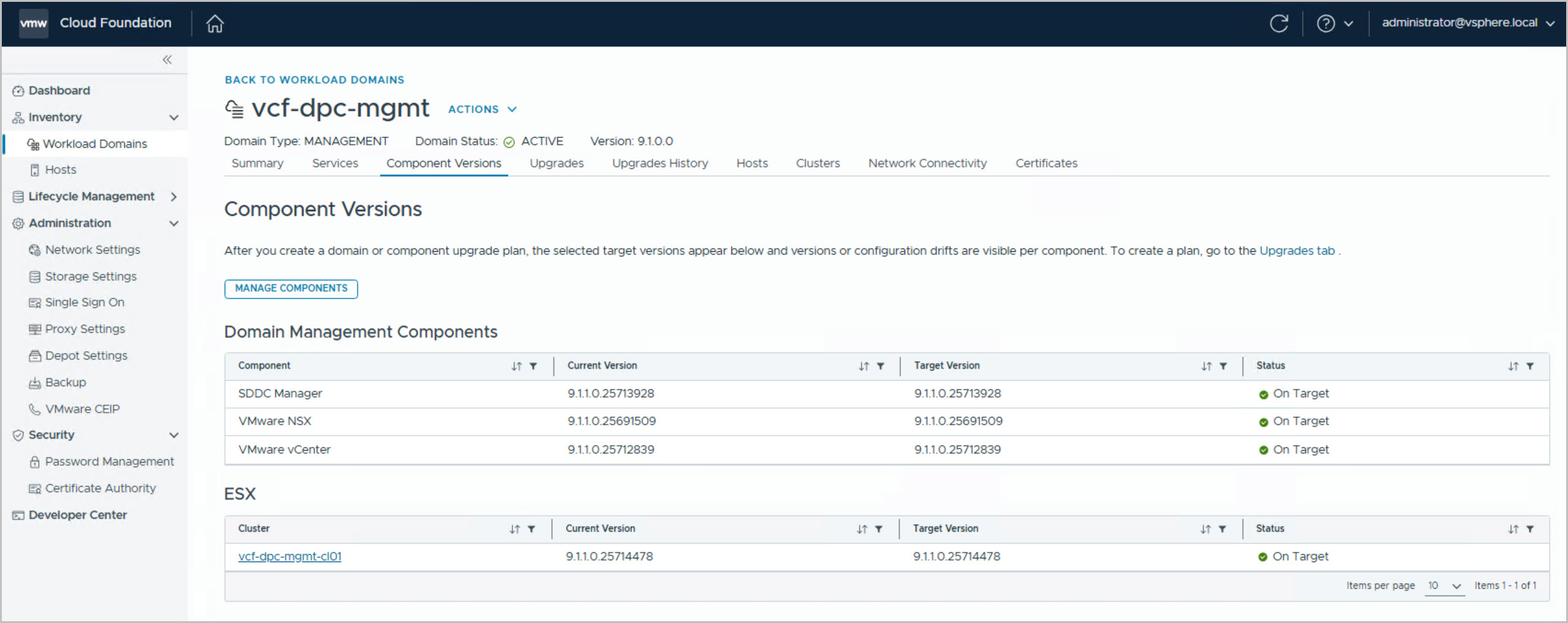
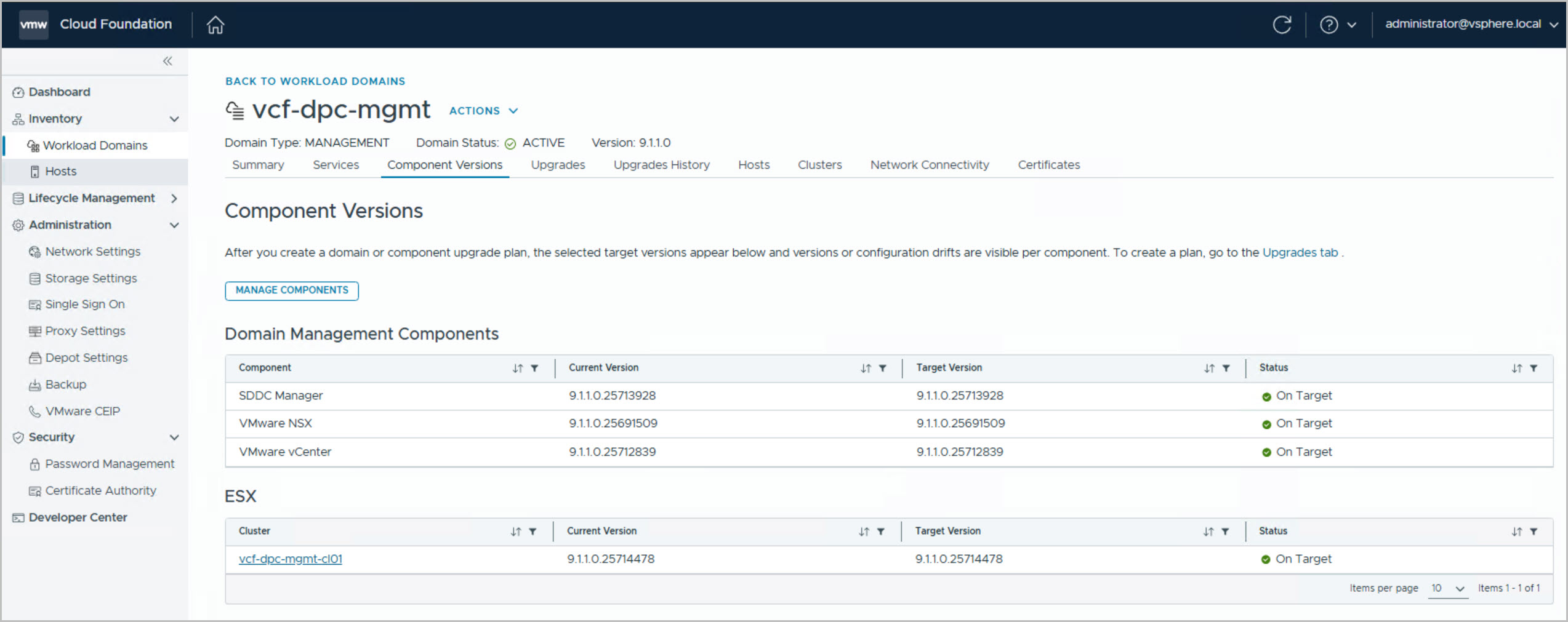
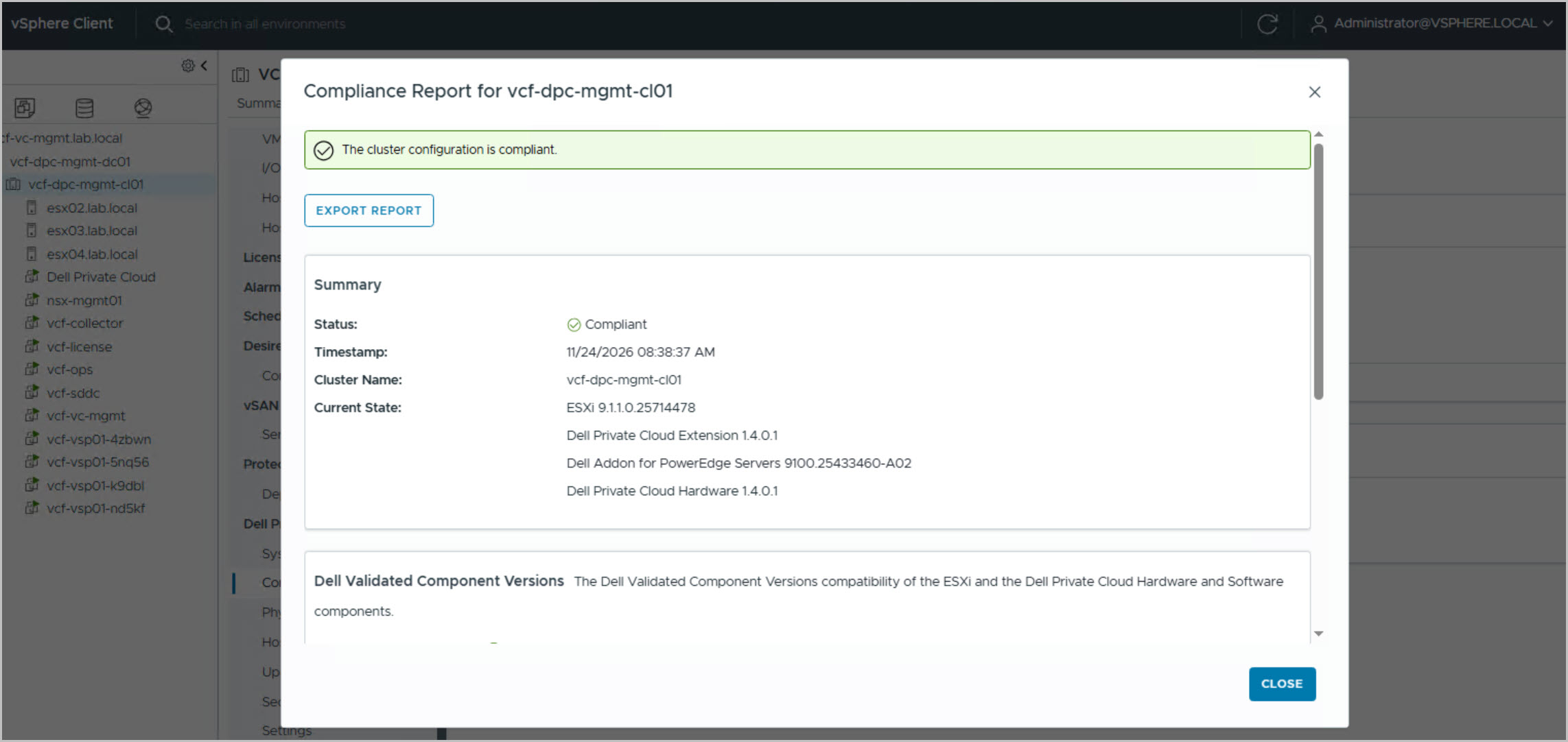
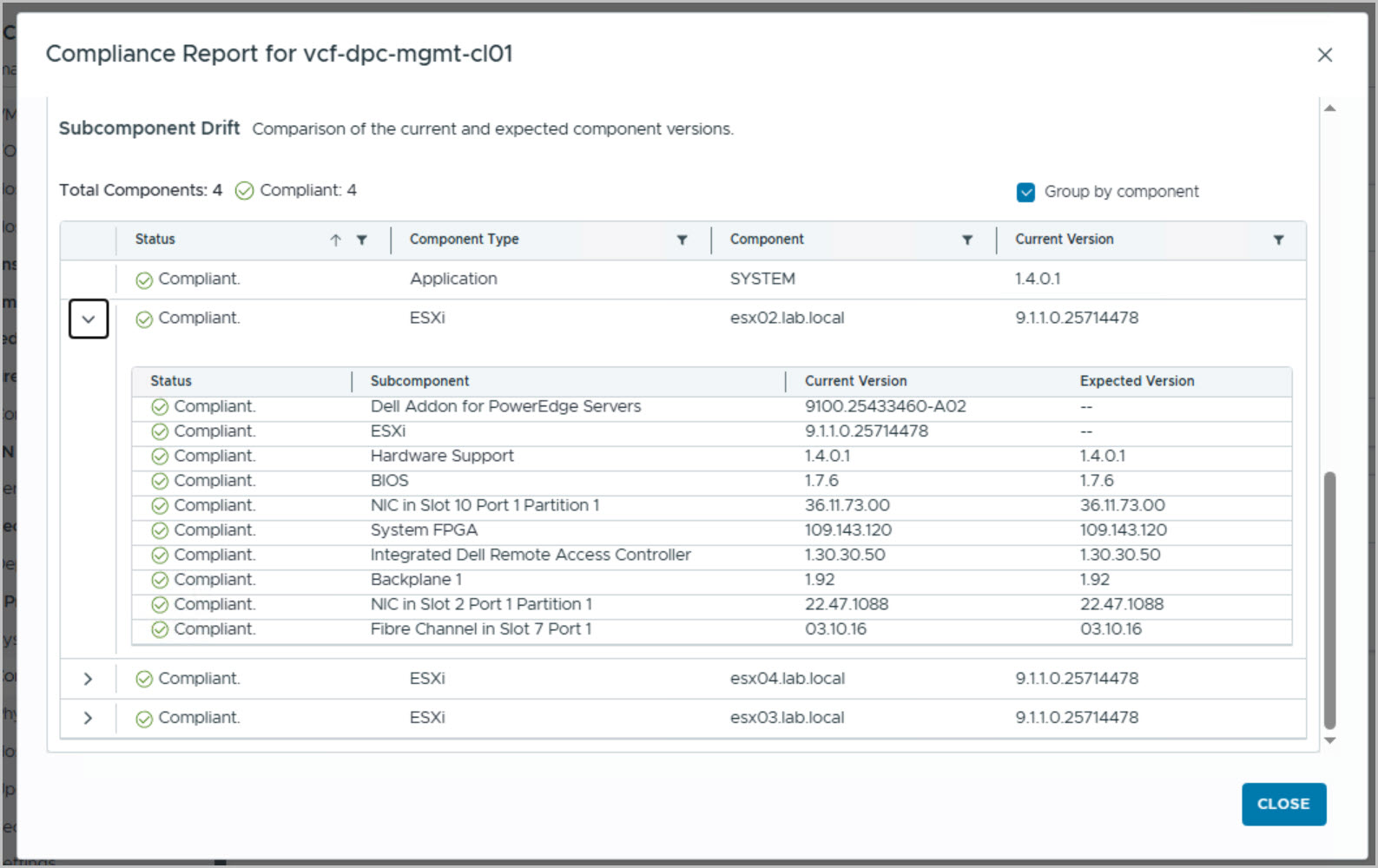
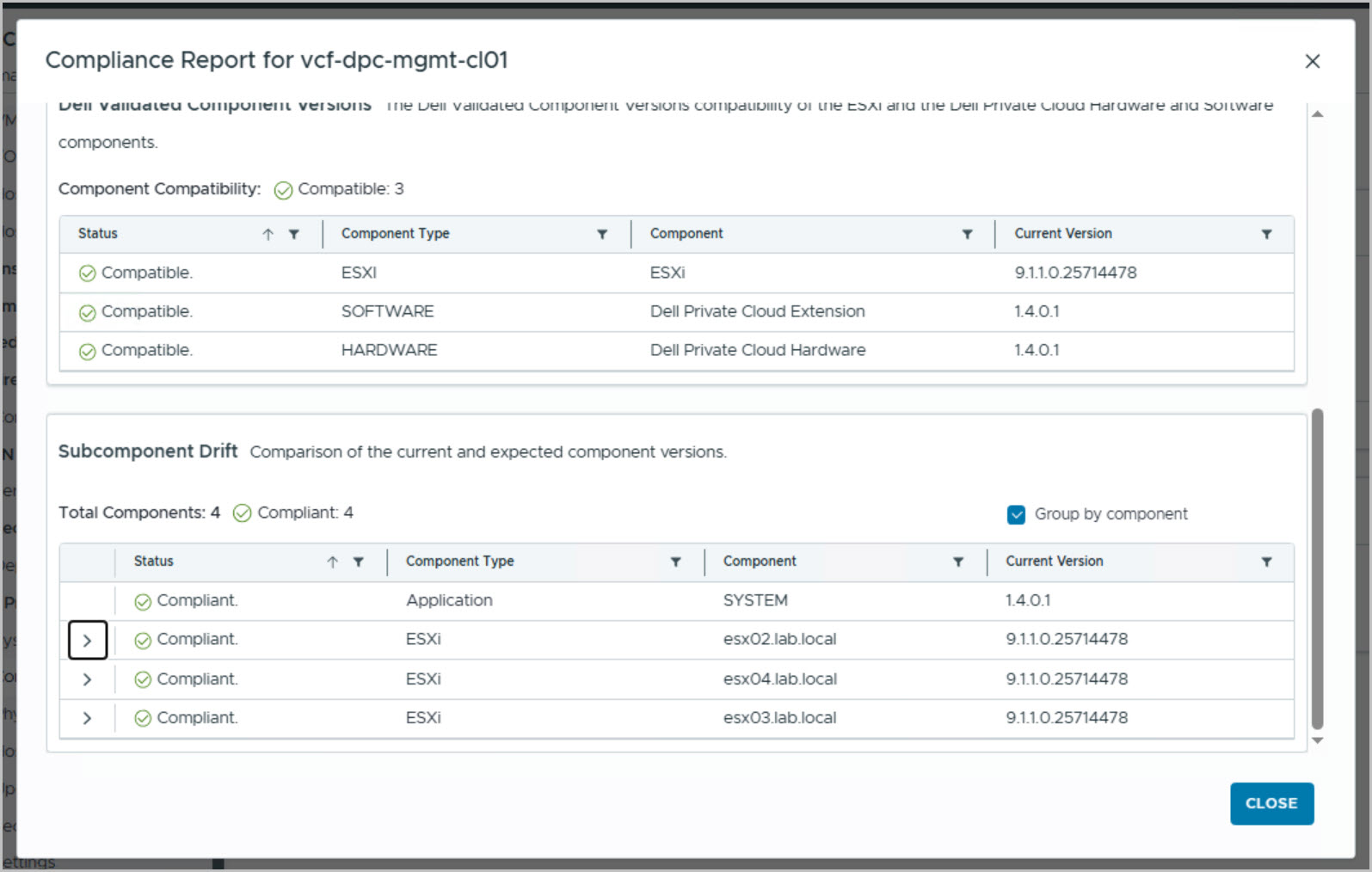
After all hosts completed remediation, SDDC Manager automatically re-enabled DRS rules, synchronized NSX host components, and executed post-upgrade validation checks. The VMware ESX upgrade workflow then reported successful completion, with every stage of the upgrade sequence completing without error. Final verification confirmed the management cluster was running ESXi 9.1.1.0.25714478, all hosts were compliant with the assigned vLCM image, the Dell PowerEdge Add-On had been successfully applied, and the SDDC Manager lifecycle logs reported a COMPLETED_WITH_SUCCESS state. This confirmed that the Management Domain ESXi upgrade had completed successfully and that the cluster was fully aligned with the desired lifecycle-managed image.
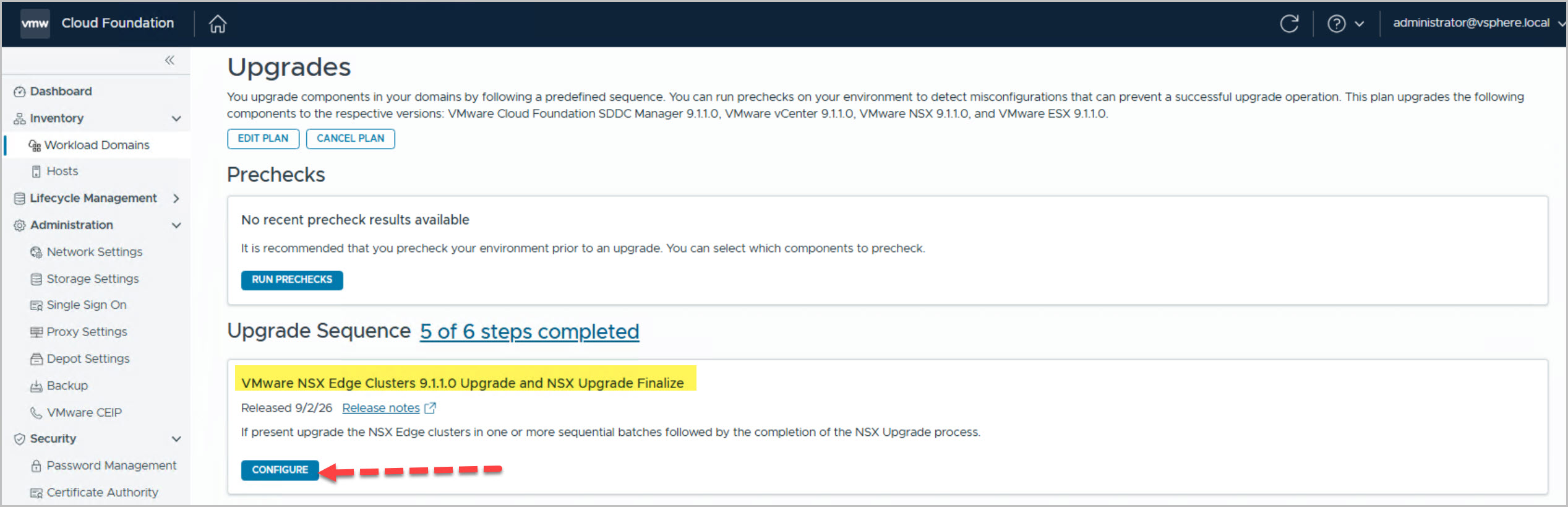
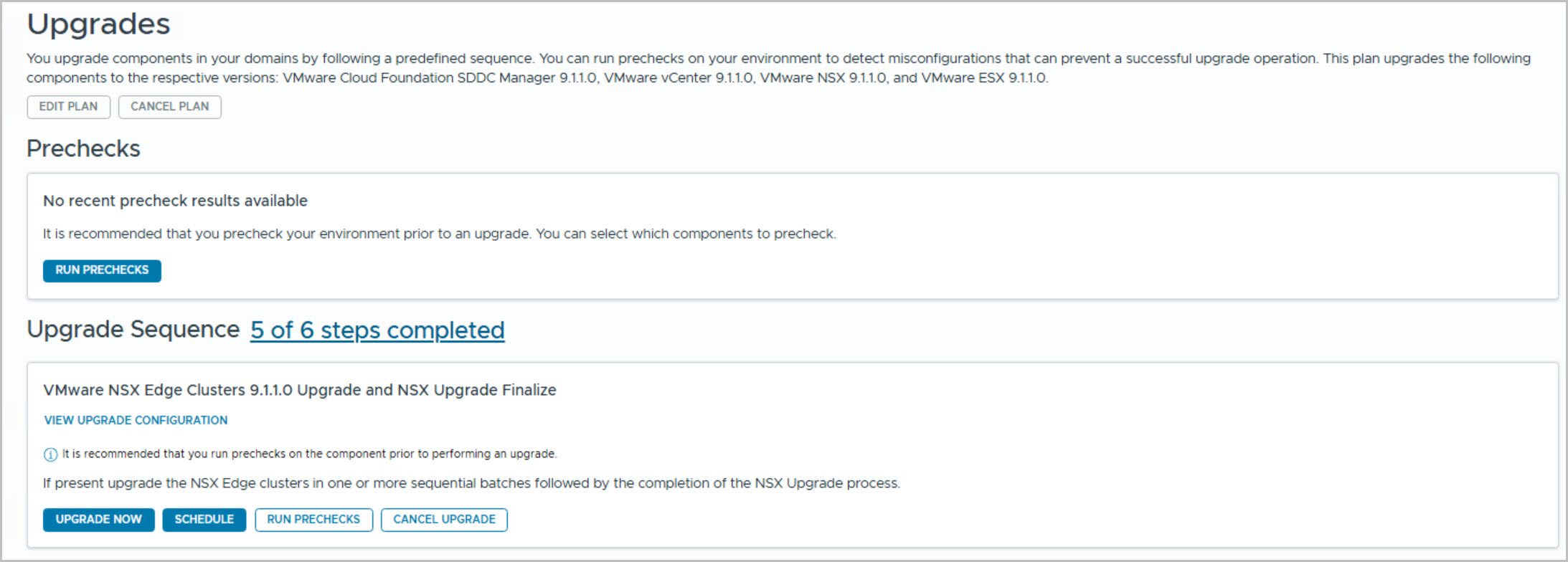
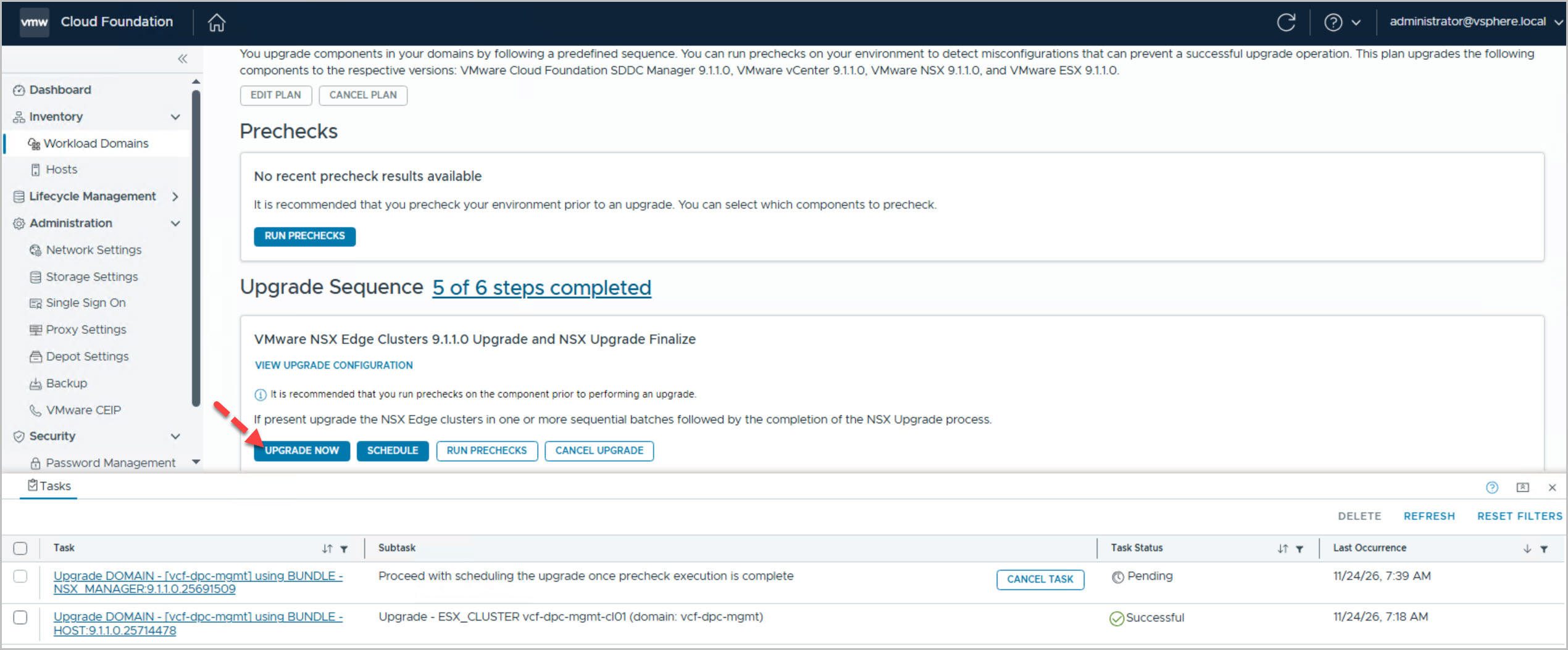
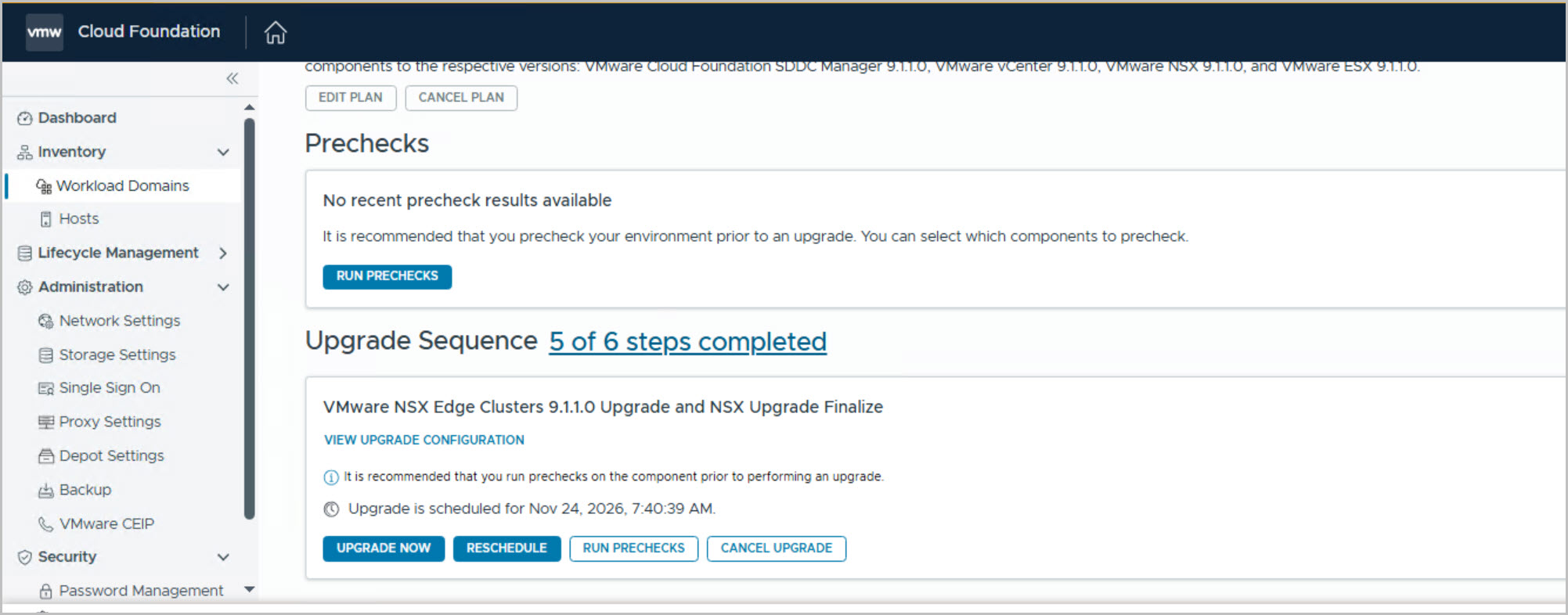
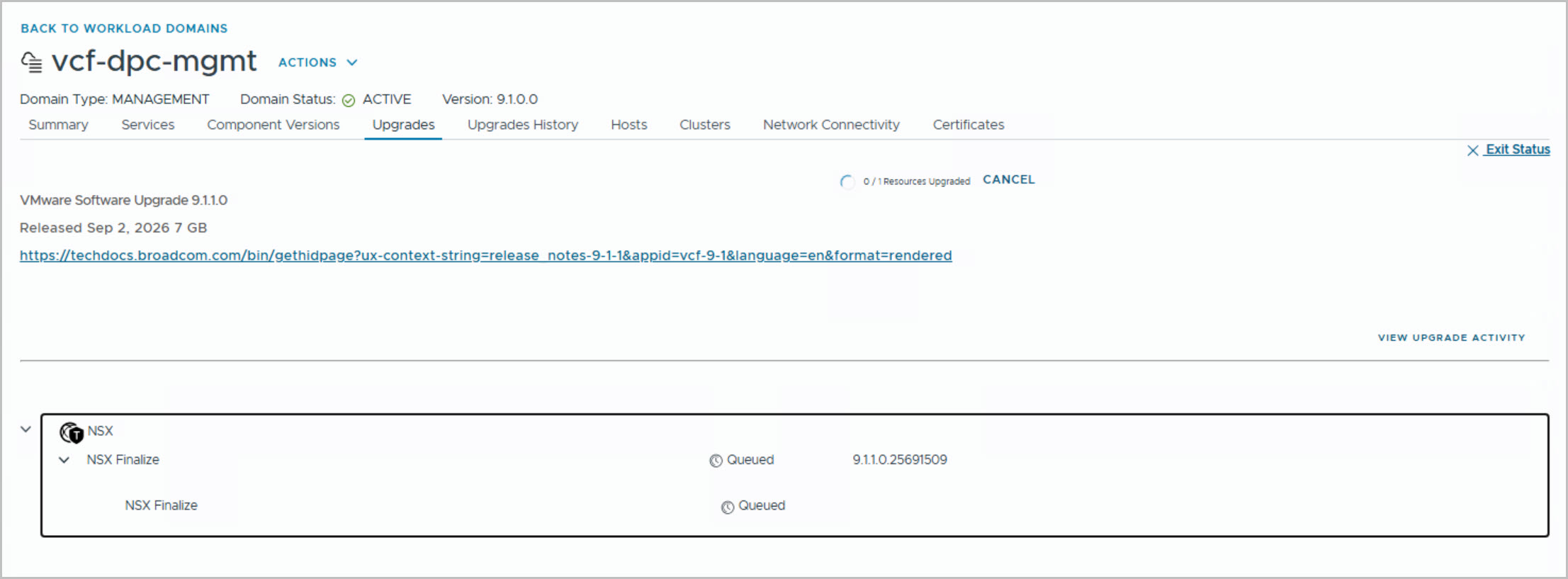
The sixth and final stage of the Management Domain upgrade workflow is VMware NSX Edge Clusters Upgrade and NSX Upgrade Finalize. After completing the SDDC Manager, vCenter, NSX Manager, vCenter Switchover, and ESXi upgrade phases, SDDC Manager advances the upgrade sequence to 5 of 6 steps completed and enables the final NSX lifecycle task.
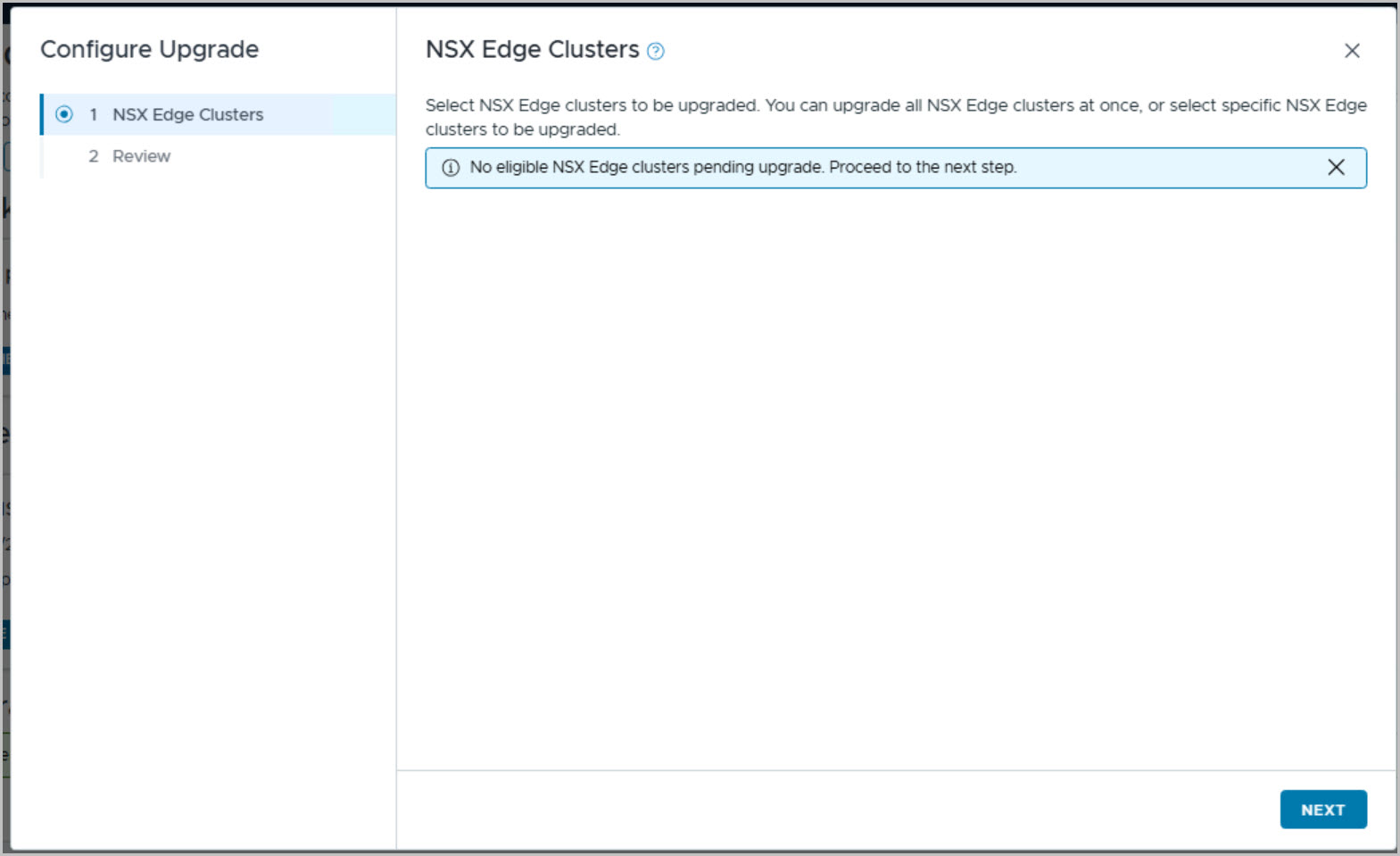
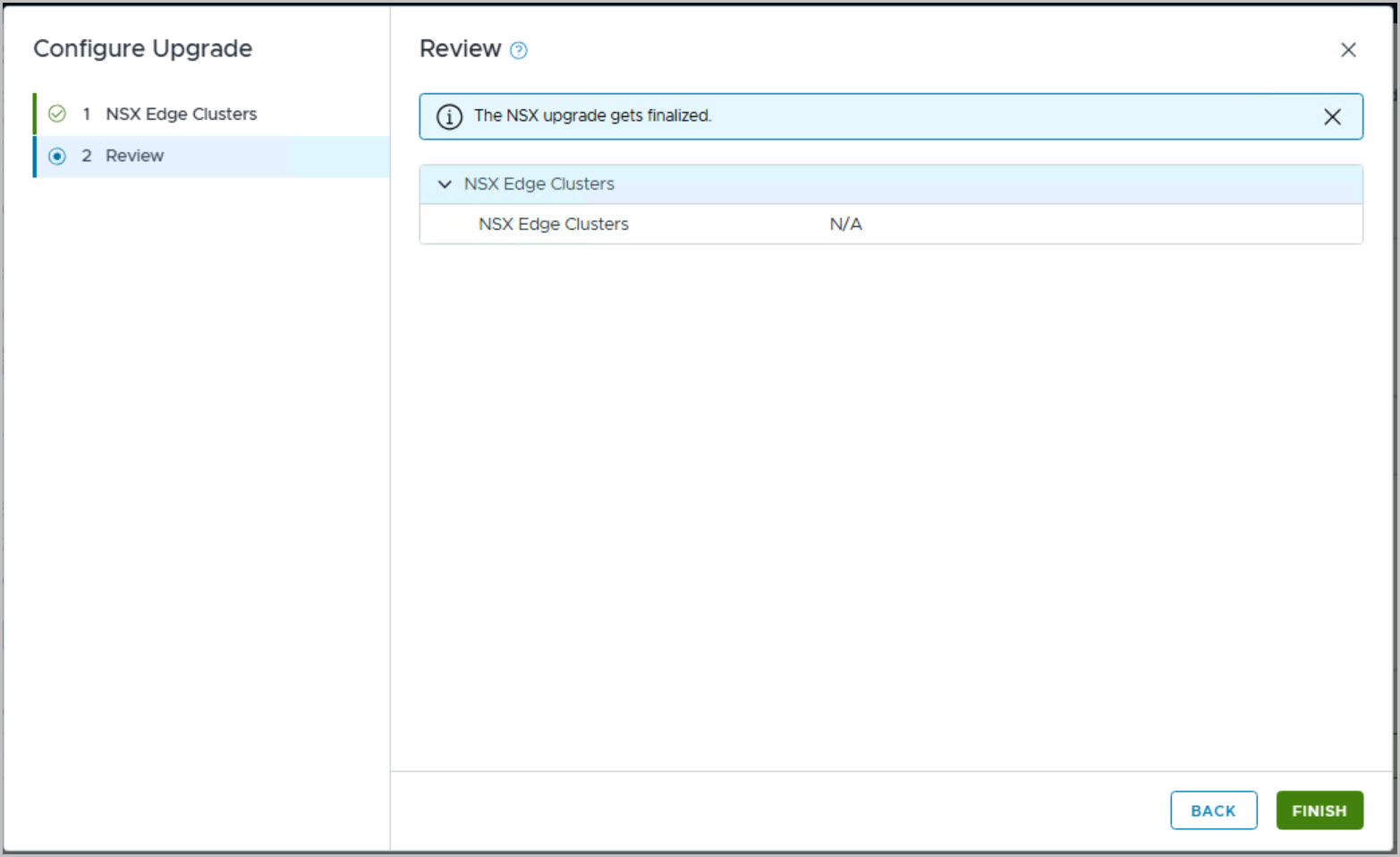
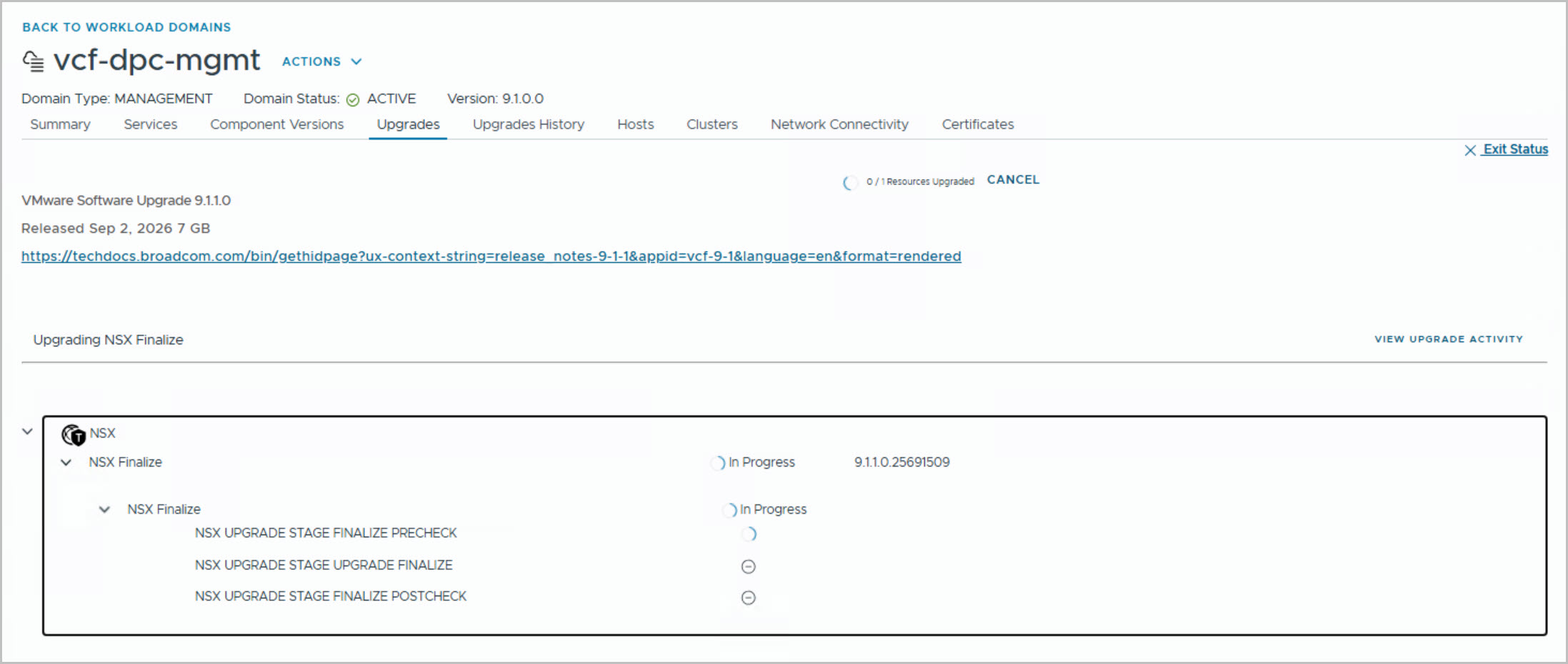
Selecting Configure launches the NSX Upgrade Finalization wizard, which first checks for any NSX Edge clusters that require upgrading. In this environment, no NSX Edge components were deployed, so no Edge cluster upgrades were required. The wizard therefore proceeded directly to the review screen, where SDDC Manager confirmed that the remaining action was to finalize the NSX upgrade process. The workflow then executed the final NSX upgrade stages, including:
These tasks perform the final validation and cleanup activities associated with the NSX upgrade lifecycle, ensuring all upgrade metadata, version states, and management components are synchronized and correctly marked as completed.
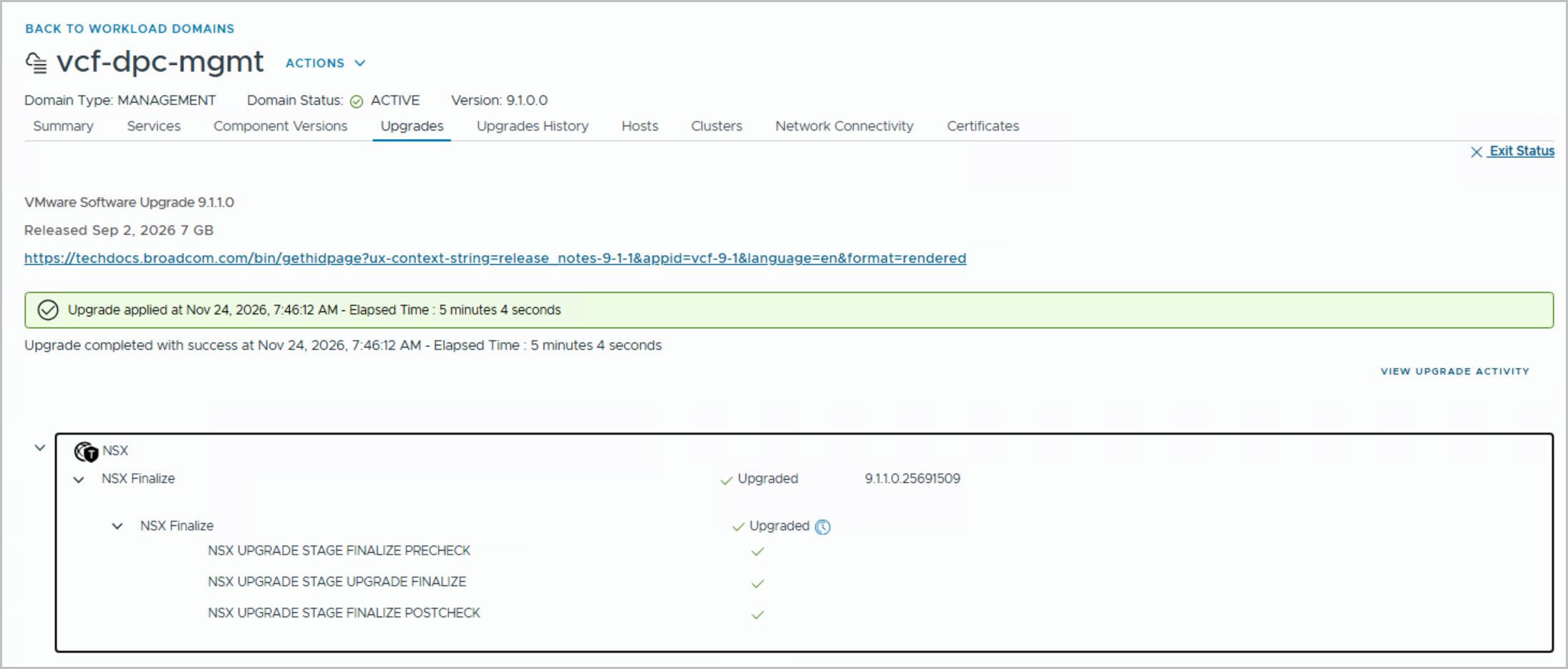
The workflow completed successfully in approximately five minutes, after which the upgrade status reported Upgraded for the NSX Finalize stage. Final verification of the SDDC Manager lifecycle logs confirmed the workflow reached a COMPLETED_WITH_SUCCESS state, indicating the entire VMware Cloud Foundation Management Domain upgrade had completed successfully.
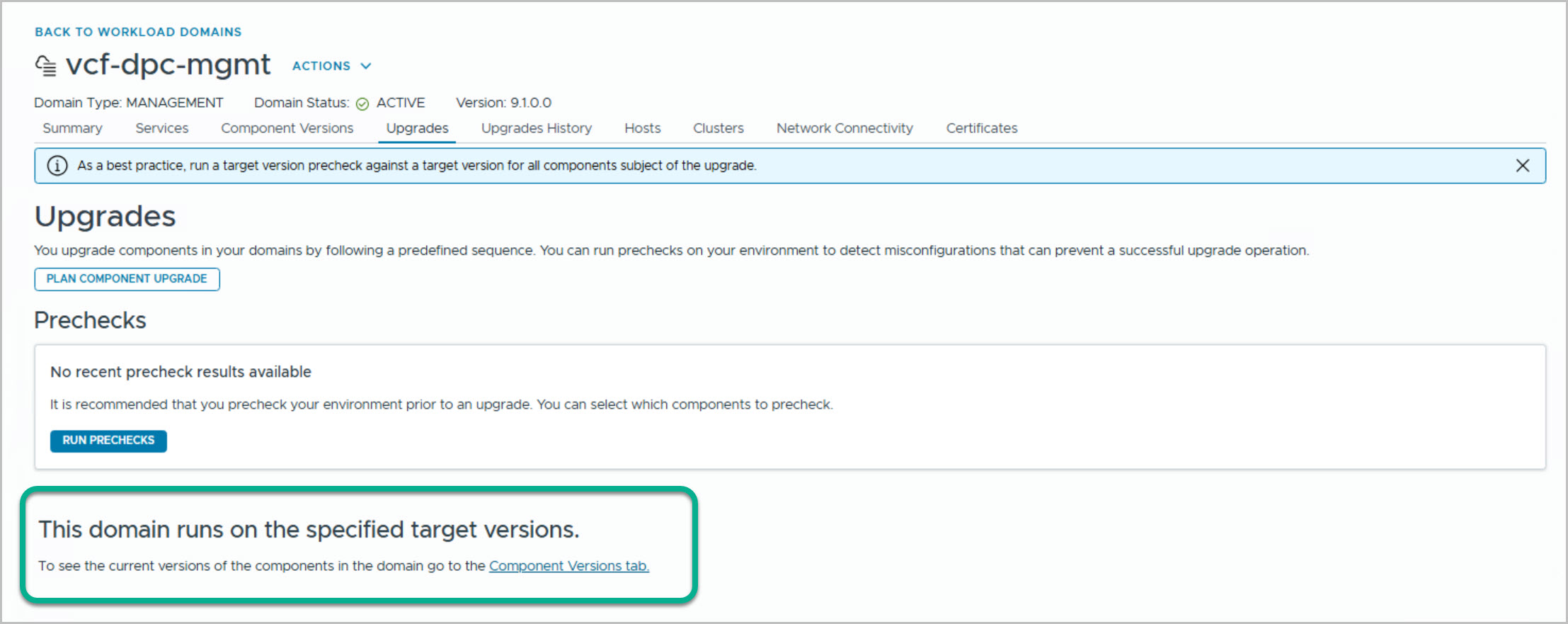
With NSX finalization complete, all six upgrade stages were successfully executed, resulting in a fully upgraded Management Domain running VMware Cloud Foundation 9.1.1 management components, vCenter Server 9.1.1, NSX 9.1.1, and ESXi 9.1.1, with all lifecycle operations completed and validated.