The following post details how to reconfigure both the CPU & Memory of a specific VM from within a vRealize Automation console.
Enable The Reconfigure Entitlement
Begin by enabling the Reconfigure Entitlement for the machine component.
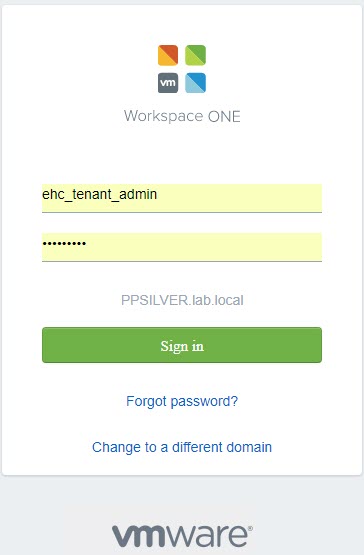
Login as a Tenant Administrator:
Click Administration > Catalog Management > Entitlements:
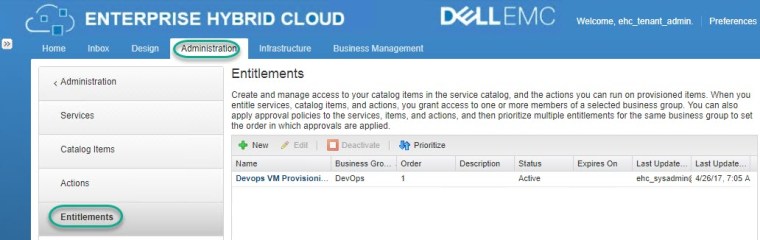
Select the entitlement and click Edit:

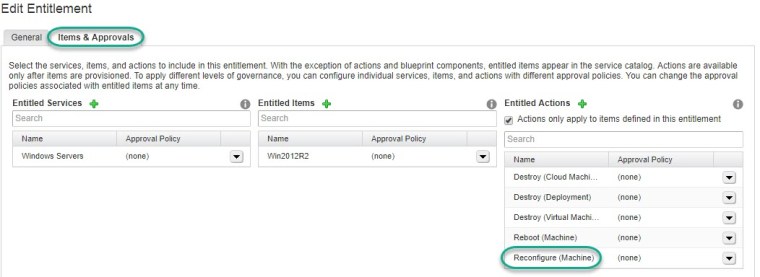
From the Items&Approvals tab navigate to the Entitled Actions section and click the green + symbol, from here chose the Reconfigure (Machine) action:
Reconfigure a Virtual Machine
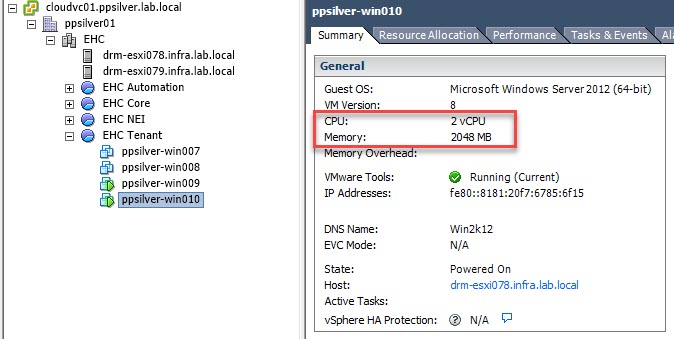
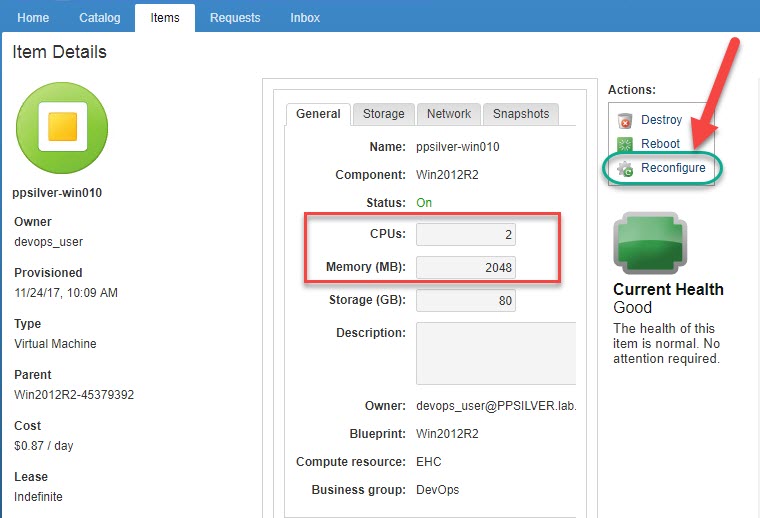
The following image captures the CPU/Memory properties of the VM in advance of running the reconfigure workflow from vRA:
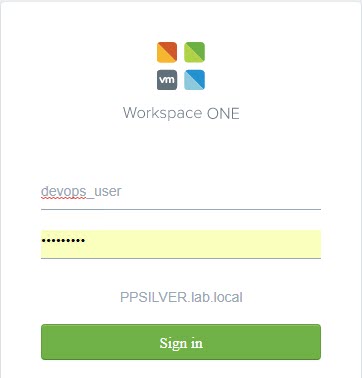
Login to vRA as the machine owner:
Select

Click on the machine and chose the option to Reconfigure:
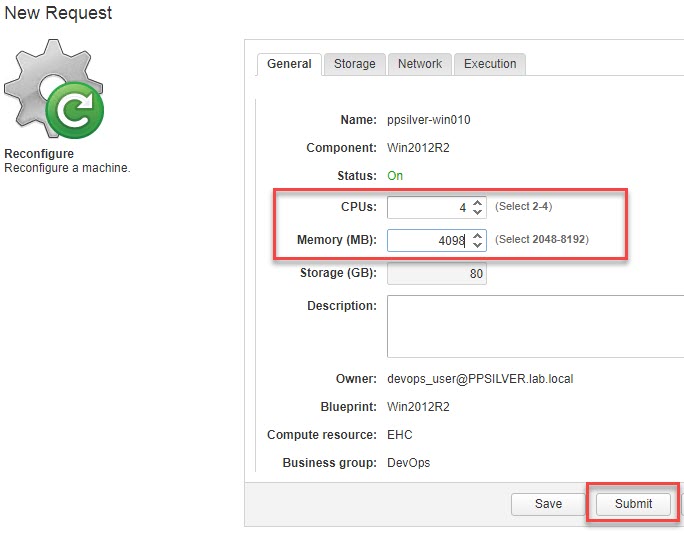
Enter the required number of CPUs and Memory in the text boxes (the allowed range based on the associated blueprint is displayed in brackets):
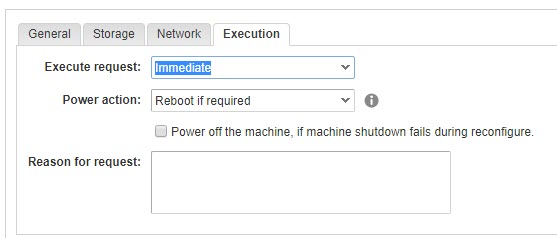
Under the execution tab you have the option to either run the reconfigure immediately or schedule for a later date, also reboot options are presented with ‘Reboot if required‘ being the default (required where the OS does not support ‘hot add’). Click Submit to proceed:
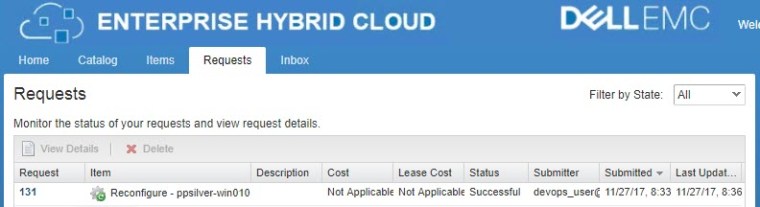
Monitoring the workflow status from vRA:

The Reconfigure workflow successfully completed:
From vCenter we can see the virtual machine CPU&Memory have been reconfigured:

We can also confirm the new properties from the machine ‘Items’ tab in vRA:





 DavidRing.ie