EMC NAS Plug-In For vSphere VAAI (VNXe Example)

The ‘EMC NAS Plug-in’ is required in order to enable VAAI (vSphere APIs for Array Integration) operations on ‘NFS Datastores’ on an ESXi 5.x host. If you are not familiar with VAAI; the purpose of enabling the VAAI API is to offload certain storage related I/O tasks to the storage array. As a result this will reduce the I/O requirement on the ESXi hosts and their associated networks. Instead of the ESXi host using resources to send I/O across the network for such tasks as Storage vMotion or cloning a VM, the hypervisor will now just send the NFS related commands that are required for the storage array to perform the necessary data movement. For block based storage arrays the VAAI primitives are available as default on the ESXi host and no plug-in is required.

Installation Of The NAS Plug-In On ESXi 5.x
1. Upload the .zip install package (EMCNasPlugin-1.0-11.zip) to the ESXi datastore.
2. Open an SSH Session to the ESXi host and change directory to the location of the install package:
# cd /vmfs/volumes/
If you need to list the name of your datastore:
/vmfs/volumes # ls -l
/vmfs/volumes # cd /vmfs/volumes/DatastoreName/
ls again to confirm the .zip package is present.
3. Ensure the NAS Plug-In is VMwareAccepted:
/vmfs/volumes/DatastoreName # esxcli software sources vib list -d file:///vmfs/volumes/DatastoreName/EMCNasPlugin-1.0-11.zip
Acceptance Level: VMwareAccepted
4. Run the installation:
/vmfs/volumes/DatastoreName # esxcli software vib install -n EMCNasPlugin -d file:///vmfs/volumes/DatastoreName/EMCNasPlugin-1.0-11.zip
Installation Result: completed successfully
Reboot Required: true
VIBs Installed: EMC_bootbank_EMCNasPlugin_1.0-11

5. Reboot the ESXi host and confirm the EMCEMCNasPlugin vib is loaded:
~ # esxcli software vib list | grep EMCNasPlugin

VAAI Example: ‘Full File Clone’ Primitive Operation With VNXe
‘Full File Clone’ is one of the VAAI NAS primitives which is used to copy or migrate data within the same physical array (Block equivalent is known as XCOPY). In this example we are using a ‘VNXe 3150’ with two NFS Datastores presented to one ESXi 5.5 host with the NAS Plug-In installed (VAAI enabled) and another ESXi 5.5 host without the NAS Plug-In installed (VAAI disabled).

NAS_VAAI0

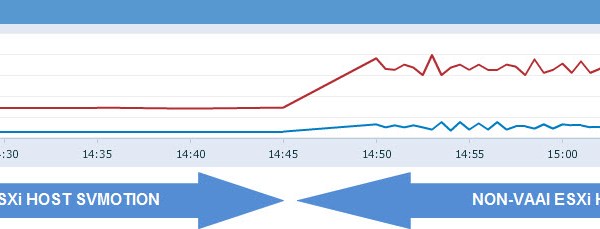
Running a Storage vMotion from the NFS01 datastore to NFS02 on the ESXi host with VAAI enabled generates zero network traffic:

NAS_VAAI1

Running a Storage vMotion from the NFS01 datastore to NFS02 on the ESXi host without VAAI enabled maxes out the 1Gig ethernet link on the Host:

NAS_VAAI2

This is a rather simple example but it displays how the primitive operates by offloading the I/O tasks to the VNXe array.

Note: If you are accessing the NFS datastore directly via the datastore browser for Copy/Paste functionality then you will not see any benefit from VAAI. This is because the datastore browser has its own API and does not use the internal VMkernel Data Mover or VAAI.

VNXe CPU performance stats during the first SVMotion with VAAI enabled displays approximately 20% Storage Processor utilization and without VAAI enabled you can see CPU % at approx 70% util:

NAS_VAAI3

VNXe Network performance stats display no network traffic with VAAI enabled and without VAAI both read and write for SPA use approx 70MB of bandwidth each:
NAS_VAAI4

Note: For the ‘Full File Clone’ primitive to perform the offload during an SVMotion the VM needs to be powered off for the duration of the SVMotion.

See also Cormac Hogan’s blog post: VAAI Comparison – Block versus NAS

EMC VMAX – Identify Failed Drive Location

In order to understand this Post fully, I would advise you read “EMC VMAX – 20/40K Back-End Connectivity” first.

Having completed a VMAX ‘Health Check’ through ‘Unisphere’ it has been highlighted that a drive has failed:
ID_Failed_Drive1

Running the command symdisk list -failed will display the details of the failed disk (-v for more detail):
ID_Failed_Drive2

You can also check if the failed disk has been spared out by issuing the command symdisk list -isspare:
ID_Failed_Drive3

Determining the Drive Location based on the information provided:
ID_Failed_Drive5

‘Ident/Symb’ = ‘9B’ identifies the Director and the MOD that the drive is connected to at the Back-End. Thus we can gather at this stage that the drive is connected to Director 9 (Engine5).
On both directors of Engine5(9&10) there are two Back-End IO modules (MOD0 & MOD1) per director, MOD0 has connections A0,A1,B0,B1 and MOD1 has connections C0,C1,D0,D1. MOD0 on both the even and odd directors connect to DAE’s 9,13,10,14 with MOD1 on both directors connecting to DAE’s 11,15,12,16. The 8 Redundant Loops on Engine5 connect up as follows:
DAE9=LOOP0 (A0)
DAE10=LOOP2 (B0)
DAE11=LOOP4 (C0)
DAE12=LOOP6 (D0)
DAE13=LOOP1 (A1)
DAE14=LOOP3 (B1)
DAE15=LOOP5 (C1)
DAE16=LOOP7 (D1)

‘Int’ = ‘C’ stands for interface, this is the port used on the MOD.
C = Port 0
D = Port 1
Thus far we can determine that the Drive is located on LOOP2 (9B 0).
ID_Failed_Drive7

‘TID’ = ‘1’ refers to the target ID, or the disk location on the Loop.

From all this information we can determine that the location of the Failed drive (‘9B 0 1’) is ‘Drive Bay-1A, DAE-10, Disk-01’:
ID_Failed_Drive4

If you have access to SymmWin then you can Toggle the disk LED:ID_Failed_Drive6

EMC VMAX – Disk Group & Pool Expansion

In order to expand a VMAX Thin Pool we must first create the additional Data Devices (TDATs) on the underlying physical Disk Group. This example outlines how to calculate and create those TDAT devices and then expand the Thin Pool with the newly created TDATs.

Scenario:
A Disk Group that consisted of 64 X 600GB disk drives has been increased to 128 X 600GB Drives. EMC will be required to create and apply an upgrade BIN in order to expand the existing DG to 128 Disks, once this has been completed we can then proceed with the TDAT configuration.
After gathering the details with respect to the existing Hyper and TDAT sizes, then we can do a quick calculation in order to determine the count and size of the TDATs required (In this case the configuration is a simple replica of the existing configuration).

Calculating the Hyper Size
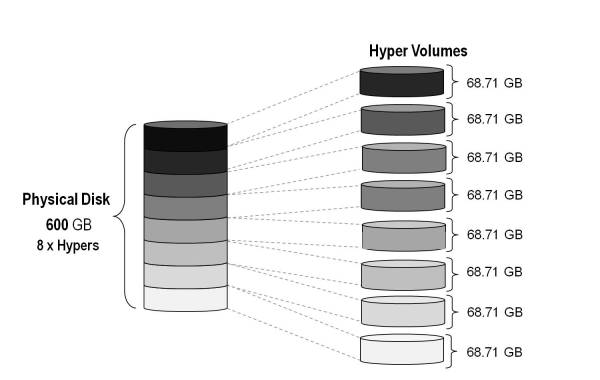
If we take the scenario above where a 64 Drive DG has been doubled to 128 Drives, with each of the first 64 drives in the DG having 8 Hypers per disk in a RAID 5 (3+1) configuration.

Listing the existing TDATs within Disk Group 1:
symdev list -disk_group 1 -datadev

From the output of this command we can see that the TDAT size is 206130MB, from this we can calculate the Hyper size used:
206130/3
=68710 MB Hyper Size
Hypers

Calculating the number of TDATs Required
TDAT
From the image above you can gather that for each set of 4 Drives (Raid5 3+1) we require a total of 8 x TDATs.
8 Hypers * 64 Disks
=512 Hypers
=512/4 (R5 3+1)
=128 TDATs

Creating the New TDATs
Creating the new 128 x TDATs required on the newly added 64 Disks:
symconfigure –sid xxx –cmd “create dev count=128, config=Raid-5, data_member_count=3, attribute=datadev, emulation=FBA, size=206130 mb, disk_group=1;” Preview -nop

symconfigure –sid xxx –cmd “create dev count=128, config=Raid-5, data_member_count=3, attribute=datadev, emulation=FBA, size=206130 mb, disk_group=1;” Commit -nop

New TDAT Range Returned = 1177:11F6

List the new TDAT range created:
symdev list -datadev -disk_group 1 -nonpooled

Adding the new TDATs to the Thin Pool
Adding and enabling the new TDATs to the existing pool and thus essentially doubling the capacity of the Pool:
symconfigure -sid xxx -cmd “add dev 1177:11F6 to pool ‘Pool-Name’ type=thin, member_state=enable;” Preview -nop

symconfigure -sid xxx -cmd “add dev 1177:11F6 to pool ‘Pool-Name’ type=thin, member_state=enable;” Commit -nop

Rebalance the Pool
This command will rebalance the allocated extents in the Thin Pool nondisruptively across all of the enabled data devices in the pool. Automated pool rebalancing should be run whenever new data devices are added to a pool.
symconfigure -sid xxx -cmd “start balancing on pool ‘Pool-Name’ type=thin;” commit -nop

Check on the rebalancing progress:
symcfg -sid xxx -pool ‘Pool-Name’ verify -poolState -balancing

Display a detailed report of the expanded Pool
symcfg show -pool ‘Pool-Name’ -thin -detail -all -mb | more

The pool now consists of 256 TDATs (or 1024 Hypers!)

EMC XtremIO Shutdown Procedure

The below steps outline how to perform a clean shutdown of an XtremIO array and thus help prevent any case of data corruption or loss. Before proceeding with the shutdown task ensure that all connected hosts are powered off. Running the ‘show-clusters-performance’ command from the XMS console will help determine that no I/O requests are being sent/received from a host. As you can see from the output below all I/O to the X-Brick’s has ceased and it is now safe to proceed:

XIOShut1

The ‘show-clusters’ command should display a status of Active and Connected:

XIOShut2

In order to shutdown the service run the stop-cluster-unorderly command. On completion the “Unorderly stopped Cluster” message appears:

XIOShut3

The ‘show-clusters’ command should now display a status of “stopped (unorderly)”:
XIOShut4

At this stage you may proceed with powering off the X-Bricks by turning off the rack’s PDU (to which the cluster is connected). The XMS can then be shutdown by running the cmd ‘shutdown-xms shutdown-type=machine’.
XIOShut5

To start the cluster:
start-cluster

EMC XtremIO – Setting Disk.SchedNumReqOutstanding On vSphere 5.5 & 6.0 (PowerCLI)

PowerCLI Download

Disk.SchedNumReqOutstanding (DSNRO) – Determines the maximum number of active storage commands (I/Os) allowed at any given time at the VMkernel. The default value is 32 and the maximum value is 256. For XtremIO storage with VMware vSphere it is recommended to set the DSNRO parameter to the maximum value of 256.

When using vSphere 5.5 the Disk.SchedNumReqOutstanding parameter needs to be set at the individual Host LUN level (Per Device Setting). Prior to vSphere 5.5 the DSNRO value was globally set for all volumes presented to the ESX host (Per Host Setting). vSphere 5.5 has made the DSNRO parameter change more granular for a good reason; rather than setting the parameter at the Host level which would affect all connected storage (regardless of array specific guidelines) you can now set the value on a per LUN basis.

Note: For this Per LUN/Device configuration (Disk.SchedNumReqOutstanding) change to be effective then it is important to align the maximum queue depth of the FC HBA with the LUN queue depth. In other words the lowest queue depth value will be the effective queue depth if there is a difference between both.

I will provide two examples of how to use PowerCLI in order to set the DSNRO parameter to the maximum value of 256 (the recommended XtremIO value). The first example changes the parameter for a single Device on a specific ESX Host. The second example details setting the DSNRO parameter for all XtremIO specific Devices presented to all ESX Hosts connected to vCenter.

Example 1: Setting the DSNRO Parameter for a Single Device on a specific ESX Host:

1. Connect to vCenter:
Connect-VIServer -Server ‘vCenter_IP’ -User ‘administrator@vsphere.local’ -Password ‘Password’

2. Retrieve Cluster name and Host name:
Get-Cluster
Get-Cluster ‘Cluster_Name’ | Get-VMHost | Select Name

3. Using your ESX Hostname you can list the presented devices in order to gather the naa.* value associated with the XtremIO LUN:
$esxcli=get-esxcli -VMHost ‘ESX_Host_Name’
$esxcli.storage.core.device.list()

DSN1

4. Set the DSNRO parameter to the max value of 256 for the XtremIO device ‘naa.514f0c58b3600023’:
$esxcli.storage.core.device.set($null, “naa.514f0c58b3600023”, $null, $null, $null, $null, $null, 256, $null)

5. List the details of the Device after the parameter change is made:
$esxcli.storage.core.device.list(“naa.514f0c58b3600023”)

DSN2

Example 2: Setting the DSNRO parameter for all XtremIO Devices presented to all ESX Hosts:
The following script changes the DSNRO parameter for all XtremIO devices on all hosts connected to vCenter Server. Thanks @CliffCahill for providing this very useful script.

1. Connect to vCenter:
Connect-VIServer -Server ‘vCenter_IP’ -User ‘administrator@vsphere.local’ -Password ‘Password’

2. Return the XtremIO Model Name as per vSphere:
$esxcli=get-esxcli -VMHost ‘ESX_Host_Name’
$esxcli.storage.core.device.list() | Select Model

DSN3

3. Change the DSNRO parameter for all XtremIO devices presented to all ESX Hosts:

Script for vSphere 5.5:
$EsxHosts = get-vmhost
foreach ($esx in $EsxHosts)
{
$esxcli = Get-EsxCli -VMHost $esx
$devices = $esxcli.storage.core.device.list()
foreach ($device in $devices)
{
if ($device.Model -like "XtremApp")
{
$esxcli.storage.core.device.set($null, $device.Device, $null, $null, $null, $null, $null, 256, $null)
}
}
}

Script for vSphere 6.0:
$EsxHosts = get-vmhost
foreach ($esx in $EsxHosts)
{
$esxcli = Get-EsxCli -VMHost $esx
$devices = $esxcli.storage.core.device.list()
foreach ($device in $devices)
{
if ($device.Model -like “XtremApp”)
{
$esxcli.storage.core.device.set($false, $null, $device.Device, $null, $null, $null, $null, $null, $null, $null, $null, ‘256’,$null,$null)
$esxcli.storage.core.device.list()
}
}
}

4. List all XtremIO devices and outputs results to ‘xio.txt’ in order to confirm the changes were made successfully:

$EsxHosts = get-vmhost
foreach ($esx in $EsxHosts)
{
$esxcli = Get-EsxCli -VMHost $esx
$esxcli.system.hostname.get() | ft Hostname | Out-file -Append -Noclobber "c:\XtremIO\xio.txt"
$esxcli.storage.core.device.list() | Where-Object {$_.Model -like "XtremApp"} | ft Vendor,Device,Size, NoofoutstandingIOswithcompetingworlds | Out-file -Append -Noclobber "c:\XtremIO\xio.txt"

}