EMC VNX – Replacing a Failed Disk and Updating Firmware

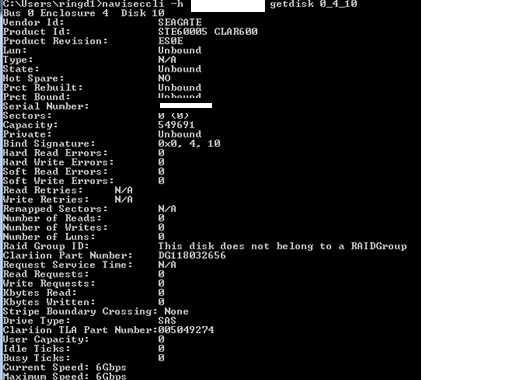
Replacing a Disk in a VNX is quite a simple task if the correct procedure is followed (Discover the failed drive BED naviseccli -h SP_IP faults -list). In this post I will guide you through the process and provide a quick insight as to what happens under the hood. Firstly I insert the replacement disk in a free slot and run the getdisk command to ensure no data resides on the disk and also verify the firmware level on the disk:

RF_01

Next I will run the zerodisk command with the getzeromark option, it returns an 8-digit number that is the address on the disk above which all the sectors are zeroed. This would be the expected initial zeromark for this disk and therefore no user data resides on this disk:

RF_02

As an example of a disk with data written, here is a disk with a zero mark of the last LUN bound:
RF_03

Unisphere Service Manager will be used to replace the drive and update the firmware.
1. Start USM
2. From the System screen, select Hardware > Hardware Replacement > Replace Faulted Disk.
3. Follow the instructions that appear.

RF_04

RF_05

RF_06

As this Disk is part of a Storage POOL we can see the rebuild occurring on the private Raid Group’s internal LUN’s:
RF_07

From the output in the image below you can get a clearer picture of the Raid Group ‘RG241’ (RAID 10) that the failed disk is part of, the disks that make up the RG and also how the internal LUNs are carved up. Here we have 16 private LUNs 8108-8123 which make up the base structure for a Private Raid Group (4+4 R10) which would be part of a larger Storage Pool:
RF_08

From Unisphere “Storage Pool” properties we can see that data is being equalized from a hot spare and is being copied onto the replacement disk:
RF_09

From the SP logs you can check the Hot spare that was in use and also view the rebuild status. Running a naviseccli getdisk –hs is another method of determining HS in use.

Firmware Upgrade
Once the rebuild has completed a F/W upgrade of the new disk can be executed.
As can be seen from getdisk –rev the new disk is one rev behind:
RF_10

You may also use Powershell to check the disk firmware revision:
naviseccli -h SP_IP getdisk 0_3_8 | select-string “Product Revision:”

Again using USM to carry out the upgrade:
RF_11

RF_14

Or using NaviCLI firmware option:
naviseccli -h SP_IP -user username -password password -scope 0 firmware filename -d B_E_D,B_E_D,……

Cisco MDS Zoning – RENAME

In this post, I’ll detail some useful commands that can be leveraged to rename Cisco zoning components:

    FCALIAS
    ZONE
    ZONESET

RENAME ALIAS FOR HOSTS (vsan id of 10):
switch(config)# fcalias rename old-AliasName new-AliasName vsan 10
RENAME ZONES:
switch(config)# zone rename old-ZoneName new-ZoneName vsan 10
RENAME ZONESETS:
switch(config)# zoneset rename old-ZoneSetName new-ZoneSetName vsan 10

Once complete Activate and Commit these changes:
zoneset activate name vsan10_zs vsan 10
zone commit vsan 10

To view the changes made:

switch# show fcalias
Displays alias mappings.

switch# show zone
Displays zone mappings.

switch# show zoneset
Displays all zone sets.

switch# show zoneset active
Displays the active zone set for each VSAN, including
which devices have logged in and are communicating.

switch# show flogi database
Displays the devices that have logged into the fabric.
Retrieve pWWNs for aliases and zoning from this
database.

Example of changing 4 Hosts on both Fabric A&B:

Fabric A
fcalias rename VMwareESX4_v0 VMwareESX5_v0 vsan 10
fcalias rename VMwareESX3_v0 VMwareESX4_v0 vsan 10
fcalias rename VMwareESX2_v0 VMwareESX3_v0 vsan 10
fcalias rename VMwareESX1_v0 VMwareESX2_v0 vsan 10

zone rename VMwareESX4_v0-VNX5400-b4 VMwareESX5_v0-VNX5400-b4 vsan 10
zone rename VMwareESX4_v0-VNX5400-a4 VMwareESX5_v0-VNX5400-a4 vsan 10
zone rename VMwareESX3_v0-VNX5400-b4 VMwareESX4_v0-VNX5400-b4 vsan 10
zone rename VMwareESX3_v0-VNX5400-a4 VMwareESX4_v0-VNX5400-a4 vsan 10
zone rename VMwareESX2_v0-VNX5400-b4 VMwareESX3_v0-VNX5400-b4 vsan 10
zone rename VMwareESX2_v0-VNX5400-a4 VMwareESX3_v0-VNX5400-a4 vsan 10
zone rename VMwareESX1_v0-VNX5400-b4 VMwareESX2_v0-VNX5400-b4 vsan 10
zone rename VMwareESX1_v0-VNX5400-a4 VMwareESX2_v0-VNX5400-a4 vsan 10

zoneset activate name vsan10_zs vsan 10
zone commit vsan 10

Fabric B
fcalias rename VMwareESX4_v1 VMwareESX5_v1 vsan 11
fcalias rename VMwareESX3_v1 VMwareESX4_v1 vsan 11
fcalias rename VMwareESX2_v1 VMwareESX3_v1 vsan 11
fcalias rename VMwareESX1_v1 VMwareESX2_v1 vsan 11

zone rename VMwareESX4_v1-VNX5400-b1 VMwareESX5_v1-VNX5400-b1 vsan 11
zone rename VMwareESX4_v1-VNX5400-a1 VMwareESX5_v1-VNX5400-a1 vsan 11
zone rename VMwareESX3_v1-VNX5400-b1 VMwareESX4_v1-VNX5400-b1 vsan 11
zone rename VMwareESX3_v1-VNX5400-a1 VMwareESX4_v1-VNX5400-a1 vsan 11
zone rename VMwareESX2_v1-VNX5400-b1 VMwareESX3_v1-VNX5400-b1 vsan 11
zone rename VMwareESX2_v1-VNX5400-a1 VMwareESX3_v1-VNX5400-a1 vsan 11
zone rename VMwareESX1_v1-VNX5400-b1 VMwareESX2_v1-VNX5400-b1 vsan 11
zone rename VMwareESX1_v1-VNX5400-a1 VMwareESX2_v1-VNX5400-a1 vsan 11

zoneset activate name vsan11_zs vsan 11
zone commit vsan 11

For additional information about all Cisco SAN-OS commands, refer to the Cisco MDS9000 Family Command Reference.

EMC RecoverPoint – Updated FC Port Labeling on RP Gen5 Server

This is one that caught us by surprise! As per previous blog Post “EMC RecoverPoint Architecture and Basic Concepts” this is the port configuration as per the initial release of GEN5:

GEN5_1

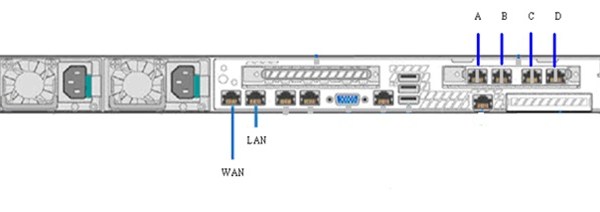
With the latest RPA’s shipping there is an Update to the port labeling on the rear of the Gen5 server (from ABCD to 3210):

GEN5_2

Note: There is no change in the FC Adapter it remains “Qlogic QLE2564 4-port 8-Gb Fibre”

EMC VNX – Managing Data Mover (Blade) Relationships

Today I had a VNX Data Mover (Blade) slic issue where the failover relationships were not as they should be. The following commands are very useful for checking the relationships between the Blades and restoring those replationships if necessary.

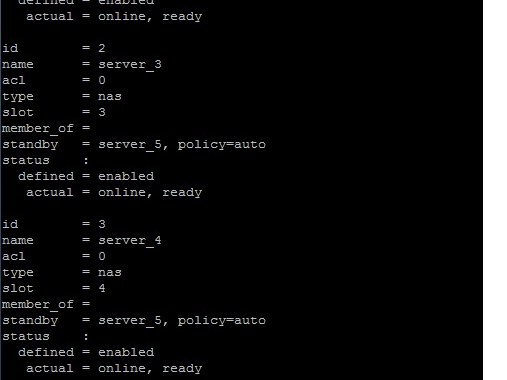
You can determine the Blade failover status through the following command:

/nas/bin/nas_server -info –all

DM2

Type field indicates whether the Blade is a Primary Blade (nas) or a standby blade (standby). The standbyfor field lists the primary Blade for which the Blade is the standby.

If the name field indicates that a primary Blade is faulted and has failed over to its standby, you need to perform a restore on that primary Blade. Enter the following command:
/nas/bin/server_standby server_4 -restore mover

If a failover relationship is not as it should be then you can delete the failover relationship as follows. For example deleting server_2 (Primary) relationship with server_4 (Standby):
/nas/bin/server_standby server_2 -delete mover=server_4
It is then possible to create a failover relationship between server_2 as (Primary) and server_5 (Standby):
/nas/bin/server_standby server_2 -c mover=server_5 -policy auto

The following commands can be used to halt and reboot the Blade:
/nasmcd/sbin/t2reset -s 5 halt
/nasmcd/sbin/t2reset reboot -s 5

Another useful command you can use in order to list the I/O modules in the Blade:
/nasmcd/sbin/t2vpd -s 5

DM1