EMC VNXe Configuration Using Unisphere CLI (Part 3)

Part 1
Part 2

This is the third part in the series on configuring the VNXe via command line. Here I will detail the Steps involved in adding VMware ESXi hosts, presenting NFS datastores to these hosts and setting access rights.

  • Add VMware ESXi Hosts
  • Add VNXe NFS Volumes to VMware ESXi Hosts
  • Setting Access Rights

Note: VMWare networking and Nexus port channels must be configured at this stage. See below for example NEXUS VPC configs.

Add VMware ESXi Hosts
Using the ESXi mgmt address to add two ESXi hosts as follows:
uemcli -d 10.0.0.1 -u Local/admin -p Password123# /virt/vmw/esx create -addr 192.168.105.10 -username root -passwd Password

uemcli -d 10.0.0.1 -u Local/admin -p Password123# /virt/vmw/esx create -addr 192.168.105.11 -username root -passwd Password

Expected Output:
ID = 1005
ID = 1007

Operation completed with partial success.
The create, refresh, or set operation has started. It will continue to add or update ESX host information in the background.

It takes approximately ~2 minutes to add each host after receiving the output above. View details of ESXi hosts connected:
uemcli -d 10.0.0.1 -u Local/admin -p Password123# /remote/host show
uemcli -d 10.0.0.1 -u Local/admin -p Password123# /virt/vmw/esx show

Output:
ESXi01 ID = 1005
Name = ESXi01
Address = 192.168.106.10,192.168.105.10,192.168.102.101
OS type = esx

ESXi02 ID = 1007
Name = ESXi02
Address = 192.168.106.11,192.168.105.11,192.168.102.102
OS type = esx

Three IP addresses are returned, in this case there is one IP address each for Mgmt, VMotion and NFS traffic. We are only concerned with applying access permissions at the NFS level. In this example the NFS addresses are 192.168.102.101&102.

Checking in the GUI we can confirm the hosts were added successfully:
VNXe_ESXi1

Add VNXe NFS Volumes to VMware ESXi Hosts & Set Access
We firstly need to gather the Network File System (NFS) ID’s:
uemcli -d 10.0.0.1 -u Local/admin -p Password123# /stor/prov/vmware/nfs show
Output:
NFS_1: ID = app_1
Name = AMP-NFS-01

NFS_2: ID = app_2
Name = AMP-NFS-02

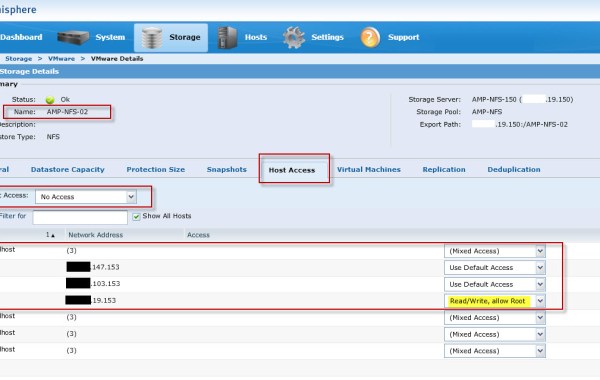
Add NFS Volumes APP_1&2 to hosts using the VNXe ID of the hosts (1005,1007) and assign root access to only the NFS Vmkernel address of the ESXi hosts:

  • ESXi01[1005] vmKernel NFS Port Group IP 192.168.102.101
  • ESXi02[1007] vmKernel NFS Port Group IP 192.168.102.102
  • uemcli -d 10.0.0.1 -u Local/admin -p Password123# /stor/prov/vmware/nfs -id app_1 set -defAccess na -rootHosts 1005[192.168.102.101],1007[192.168.102.102]
    uemcli -d 10.0.0.1 -u Local/admin -p Password123# /stor/prov/vmware/nfs -id app_2 set -defAccess na -rootHosts 1005[192.168.102.101],1007[192.168.102.102]

    Display the ESXi hosts connected to the VNXe NFS volumes and their respective access rights:
    uemcli -d 10.0.0.1 -u Local/admin -p Password123# /stor/prov/vmware/nfs show -detail
    Output:
    NFS_1: ID = app_1
    Name = AMP-NFS-01
    Server = file_server_0
    Storage pool = AMP-NFS
    Size = 2199023255552 (2.0T)
    Root hosts = 1005[192.168.102.101], 1007[192.168.102.102]

    NFS_2: ID = app_2
    Name = AMP-NFS-02
    Server = file_server_0
    Storage pool = AMP-NFS
    Size = 2199023255552 (2.0T)
    Root hosts = 1005[192.168.102.101], 1007[192.168.102.102]

    VNXe_ESXi2

    VNXe_ESXi3

    Example Cisco Nexus VPC Configs with VNXe 10Gig Interfaces

    VPC_VNXe
    NEXUS SWITCH ‘A’ VPC CONFIG :
    interface Ethernet1/25
    description VNXe3300-SPA-Port1-10Gbe
    switchport mode trunk
    switchport trunk allowed vlan 102
    spanning-tree port type edge trunk
    flowcontrol receive on
    channel-group 41 mode active

    interface Ethernet1/26
    description VNXe3300-SPB-Port1-10Gbe
    switchport mode trunk
    switchport trunk allowed vlan 102
    spanning-tree port type edge trunk
    flowcontrol receive on
    channel-group 42 mode active

    interface port-channel41
    description Port_Channel_To VNXe_SPA-10Gbe-Ports
    switchport mode trunk
    switchport trunk allowed vlan 102
    spanning-tree port type edge trunk
    flowcontrol receive on
    no negotiate auto
    vpc 41

    interface port-channel42
    description Port_Channel_To VNXe_SPB_10Gbe-Ports
    switchport mode trunk
    switchport trunk allowed vlan 102
    spanning-tree port type edge trunk
    flowcontrol receive on
    no negotiate auto
    vpc 42

    NEXUS SWITCH ‘B’ VPC CONFIG:
    interface Ethernet1/25
    description VNXe3300-SPA-Port2-10Gbe
    switchport mode trunk
    switchport trunk allowed vlan 102
    spanning-tree port type edge trunk
    flowcontrol receive on
    channel-group 41 mode active

    interface Ethernet1/26
    description VNXe3300-SPB-Port2-10Gbe
    switchport mode trunk
    switchport trunk allowed vlan 102
    spanning-tree port type edge trunk
    flowcontrol receive on
    channel-group 42 mode active

    interface port-channel41
    description Port_Channel_To VNXe_SPA_10Gbe-Ports
    switchport mode trunk
    switchport trunk allowed vlan 102
    spanning-tree port type edge trunk
    flowcontrol receive on
    no negotiate auto
    vpc 41

    interface port-channel42
    description Port_Channel_To VNXe_SPB_10Gbe-Ports
    switchport mode trunk
    switchport trunk allowed vlan 102
    spanning-tree port type edge trunk
    flowcontrol receive on
    vpc 42

    Note the VNXe NFS interface ‘if_0’ must have the corresponding VLAN id configured:
    uemcli -d 10.0.0.1 -u Local/admin -p Password123# /net/if -id if_0 set -vlanId 102
    uemcli -d 10.0.0.1 -u Local/admin -p Password#123 /net/if show

    Output:
    ID = if_0
    Port = eth10_SPA
    VLAN ID = 102
    VNXe_ESXi6

    VMAX VG2/8 – Masking View & Cisco Zoning Script

    This post will cover the Masking and Zoning scripts for a VG when using Cisco MDS fabric switches. This post will not cover the creation or rules around the Control volumes, please reference the latest EMC publications for guidelines around quantity and size of the control volumes. The following example configuration applies to ‘VNX File OE 7.1’.

    Note: Please reference EMC documentation for precise instructions as this is an example only config for deploying a ‘VNX VG’ with a VMAX.

    The following is a list of the celerra control volumes and sizes required for the NAS installation:
    • 2 x 12394 cylinders (11.62 GB)
    • 3 x 2216 cylinders (2.03 GB)
    • 1 x 69912 cylinders (64 GB)
    • 1 x 2 cylinder volume for the gatekeeper device

    VG Control Volumes and their respective HLU ID’s:
    • The two ‘11.62 GB’ control LUNs map to HLU 0 and 1.
    • The three ‘2.03 GB’ control LUNs map to HLU 2, 3, and 4.
    • The ’64 GB’ control LUN maps to HLU 5.
    • 1 x ‘2 cyl’ gatekeeper LUN maps to 0F.

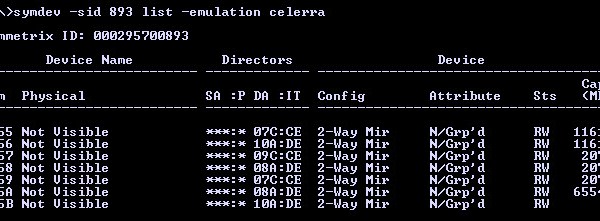
    Listing the Control Volumes in order to gather their HEX values:
    symdev -sid XXX list -emulation celerra
    VGZM1
    Add -v for a more detailed report:
    symdev list -emulation celerra -v

    In this example configuration we are using the F:1 ports on Engines 4&5:
    #### List the Celerra LUN/ACLX MAPPING TO F1 FA ports: ####
    symcfg -sid xxx -dir 7f -p 1 list -addr -avail
    symcfg -sid xxx -dir 8f -p 1 list -addr -avail
    symcfg -sid xxx -dir 9f -p 1 list -addr -avail
    symcfg -sid xxx -dir 10f -p 1 list -addr -avail

    1. MASKING VIEW CONFIG

    Create the initiator group:
    symaccess -sid XXX -name VG_IG -type initiator create -consistent_lun
    If you have identified the Xblade WWPN’s from the fabric switches then you may add now, else you can wait until they are displayed by the Control Station during the NAS install:
    symaccess -sid XXX -name VG_IG -type initiator -wwn 50060160…… add
    symaccess -sid XXX -name VG_IG -type initiator -wwn 50060160…… add
    symaccess -sid XXX -name VG_IG -type initiator -wwn 50060160…… add
    symaccess -sid XXX -name VG_IG -type initiator -wwn 50060160…… add

    Create the port group using the VMAX FA Ports 7f:1,8f:1,9f:1,10f:1:
    symaccess -sid XXX -name VG_PG -type port create
    symaccess -sid XXX -name VG_PG -type port -dirport 7f:1,8f:1,9f:1,10f:1 add

    Note: Ensure the ACLX volume is mapped to these FA ports 7f:1,8f:1,9f:1,10f:1 as 0E.
    symdev -sid XXX list -aclx -v provides detailed information for the ACLX volume.
    See here for further ACLX details: EMC VMAX – Access Control Logix (ACLX) Gatekeeper Mapping

    Create the Storage Group:
    Add the Control Devices as listed above (Do not add the gatekeeper volume at this stage to the SG).
    symaccess -sid XXX -name VG_SG -type storage create
    symaccess -sid XXX -name VG_SG -type storage add devs 0055-005A

    Create Masking View:
    symaccess -sid XXX create view -name VG_MV -sg VG_SG -pg VG_PG -ig VG_IG -celerra
    symaccess -sid XXX show view VG_MV

    Now add 1 x 2 cyl Gatekeeper with a HLU value of 0F:
    symaccess -sid XXX -name VG_SG -type storage add devs 005B -lun 0f -celerra

    Verify the configuration:
    symaccess -sid XXX show view VG_MV
    symaccess -sid XXX list logins

    2. Cisco MDS Zoning

    It is good practice to isolate the file traffic on its own dedicated VSAN. In this example VSAN’s 20-Fabric-‘A’ and 21-Fabric-‘B’ are used specifically for the NAS traffic between the VG & VMAX. Traditional single initiator single target zones applied using standard cisco sequence: Create facalias | Create Zone | Add Members to Zone | Create Zoneset | Add Zones to Zoneset | Activate Zoneset | Save Config.

    This example uses pWWN for the FCALIAS (you can also use FCID or fabric port WWN (fWWN)).

    Fabric A Zoning

    ## Collect Interface details: ##
    show interface description | grep VMAX40K
    fc2/15 VMAX40K_7f1
    fc3/19 VMAX40K_9f1
    show interface description | grep XBlade
    fc1/17 XBlade 2-00/00
    fc4/29 XBlade 3-00/00

    ## VMAX WWNs: ##
    show flogi database interface fc 2/15
    7f1: 50:00:09:75:00:xx:xx:59
    show flogi database interface fc 3/19
    9f1: 50:00:09:75:00:xx:xx:61

    ## XBLADE WWNs: ##
    show flogi database interface fc 1/17
    XBlade 2: 50:06:01:60:xx:xx:xx:xx
    show flogi database interface fc 4/29
    XBlade 3: 50:06:01:68:xx:xx:xx:xx

    ## Configure: ##
    conf t
    interface fc2/15, fc3/19, fc1/17, fc4/29
    no shut

    vsan database
    vsan 20 name NAS_WORKLOAD_VSAN_A
    vsan 20 interface fc2/15, fc3/19, fc1/17, fc4/29


    fcdomain domain 1 static vsan 20
    fcdomain priority 2 vsan 20
    fcdomain restart vsan 20

    fcalias name XBlade2-00-00 vsan 20
    member pwwn 50:06:01:60:xx:xx:xx:xx

    fcalias name XBlade3-00-00 vsan 20
    member pwwn 50:06:01:68:xx:xx:xx:xx

    fcalias name VMAX40K_7f1 vsan 20
    member pwwn 50:00:09:75:00:xx:xx:59

    fcalias name VMAX40K_9f1 vsan 20
    member pwwn 50:00:09:75:00:xx:xx:61

    zone name XBlade2-00-00_to_VMAX-7f-1 vsan 20
    member fcalias VMAX40K_7f1
    member fcalias XBlade2-00-00

    zone name XBlade3-00-00_to_VMAX-9f-1 vsan 20
    member fcalias XBlade3-00-00
    member fcalias VMAX40K_9f1

    zoneset name zs_vsan20 vsan 20
    zone name XBlade2-00-00_to_VMAX-7f-1
    zone name XBlade3-00-00_to_VMAX-9f-1

    zoneset activate name zs_vsan20 vsan 20
    zone commit vsan 20

    Copy Run Start
    show zoneset active vsan 20

    Fabric B Zoning

    show interface description | grep VMAX40K
    fc2/15 VMAX40K_10f1
    fc3/19 VMAX40K_8f1
    show interface description | grep XBlade
    fc1/17 XBlade 2-00/00
    fc4/29 XBlade 3-00/00

    ## VMAX WWNs: ##
    show flogi database interface fc 2/15
    10f1: 50:00:09:75:00:xx:xx:65
    show flogi database interface fc 3/19
    8f1: 50:00:09:75:00:xx:xx:5d

    ## XBLADE WWNs: ##
    show flogi database interface fc 1/17
    XBlade 2: 50:06:01:61:xx:xx:xx:xx
    show flogi database interface fc 4/29
    XBlade 3: 50:06:01:69:xx:xx:xx:xx

    ## Configure: ##
    conf t
    interface fc2/15, fc3/19, fc1/17, fc4/29
    no shut

    conf t
    vsan database
    vsan 21 name NAS_WORKLOAD_VSAN_B
    vsan 21 interface fc2/15, fc3/19, fc1/17, fc4/29

    fcdomain domain 2 static vsan 21
    fcdomain priority 2 vsan 21
    fcdomain restart vsan 21

    fcalias name XBlade2-00-01 vsan 21
    member pwwn 50:06:01:61:xx:xx:xx:xx

    fcalias name XBlade3-00-01 vsan 21
    member pwwn 50:06:01:69:xx:xx:xx:xx

    fcalias name VMAX40K_10f1 vsan 21
    member pwwn 50:00:09:75:00:xx:xx:65

    fcalias name VMAX40K_8f1 vsan 21
    member pwwn 50:00:09:75:00:xx:xx:5d

    zone name XBlade2-00-01_to_VMAX-10f-1 vsan 21
    member fcalias XBlade2-00-01
    member fcalias VMAX40K_10f1

    zone name XBlade3-00-01_to_VMAX-8f-1 vsan 21
    member fcalias XBlade3-00-01
    member fcalias VMAX40K_8f1

    zoneset name zs_vsan21 vsan 21
    zone name XBlade2-00-01_to_VMAX-10f-1
    zone name XBlade3-00-01_to_VMAX-8f-1

    zoneset activate name zs_vsan21 vsan 21
    zone commit vsan 21

    copy run start
    show zoneset active vsan 21

    NEXT: INSTALL NAS ON CONTROL STATION 0
    ====================================SUMMARY===================================
    Congratulations!! Install for VNX software to release 7.1.76-4 succeeded.

    Status: Success
    Actual Time Spent: 40 minutes
    Total Number of attempts: 1
    Log File: /nas/log/install.7.1.76-4.Dec-02-11:54.log
    =====================================END=======================================

    3. Perform Checks

    Verify NAS Services are running:
    Login to the Control Station as ‘nasadmin’ and issue the cmd /nas/sbin/getreason from the CS console. The reason code output should be as follows (see detailed list of Reason Codes below):
    10 - slot_0 primary control station
    11 - slot_1 secondary control station
    5 - slot_2 contacted
    5 - slot_3 contacted

    Check the status of the DATA Movers and view which slot is active:
    nas_server -info -all

    Confirm the VMAX is connected to the VG:
    nas_storage -check -all
    nas_storage -list

    List detailed information of the config:
    /nas/bin/nas_storage –info –all

    Code Levels:
    List the datamovers: nas_server -list
    Check the DART code installed on the Data Movers: server_version ALL
    Check the NAS code installed on the Control Station: nas_version

    Network Configuration:
    Control Station: /sbin/ifconfig (eth3 is the mgmt interface)
    Data Movers: server_ifconfig server_2 -all

    Date & Time:
    Control Station: date
    Data Movers: server_date ALL

    List the disk table to ensure all of the Control Volumes have been presented to both Data Movers:
    nas_disk -list

    Check the File Systems:
    df -h

    Confirm the EMC NAS version installed and the model name:
    /nasmcd/bin/nas_version
    /nas/sbin/model

    Check IP & DNS info on the CS:
    nas_cs -info

    Log Files:
    Log file location: /var/log/messages
    Example of NAS services starting successfully:
    grep -A10 “Starting NAS services” /var/log/messages*
    Output:
    Dec 8 19:07:27 emcnas_i0 S95nas: Starting NAS services
    Dec 8 19:07:46 emcnas_i0 EMCServer: nas_mcd: MCD will monitor CS IPMI connection.
    Dec 8 19:08:46 emcnas_i0 EMCServer: nas_mcd: slot 0 missed 10 heartbeats from slot 1.
    Dec 8 19:08:50 emcnas_i0 EMCServer: nas_mcd: Install Manager is running on slot 0, skipping slot 1 reboot
    Dec 8 19:08:50 emcnas_i0 EMCServer: nas_mcd: Slot 0 becomes primary due to timeout
    Dec 8 19:08:52 emcnas_i0 mcd_helper: All NBS devices are up
    Dec 8 19:09:08 emcnas_i0 kernel: kjournald starting. Commit interval 5 seconds

    Check the Data Mover Logs:
    server_log server_2

    Complete a Health Check:
    /nas/bin/nas_checkup

    Failing over a Control Station:
    Failover:
    /nas/sbin/./cs_standby -failover
    Takeover:
    /nasmcd/sbin/./cs_standby -takeover
    Or reboot:
    nas_cs –reboot

    Determine the failover status of the Blades (Datamovers):
    /nas/bin/nas_server -info –all

    Initiate a manual failover of server_2 to the standby Datamover:
    server_standby server_2 -activate mover

    List the status of the Datamover’s:
    nas_server -list

    Review the information for server_2:
    nas_server -info server_2

    Shutdown Datamover (blade):
    /nas/bin/server_cpu server_2 -halt now

    Power on the Datamover (blade):
    /nasmcd/sbin/t2reset pwron -s 2

    Restore the original primary Datamover:
    server_standby server_2 -restore mover

    VG Shutdown:
    Shutdown Control Stations and DATA Movers:
    /nasmcd/sbin/nas_halt -f now

    List of Reason Codes:
    0 – Reset (or unknown state)
    1 – DOS boot phase, BIOS check, boot sequence
    2 – SIB POST failures (that is, hardware failures)
    3 – DART is loaded on Data Mover, DOS boot and execution of boot.bat, boot.cfg.
    4 – DART is ready on Data Mover, running, and MAC threads started.
    5 – DART is in contact with Control Station box monitor.
    6 – Control Station is ready, but is not running NAS service.
    7 – DART is in panic state.
    9 – DART reboot is pending or in halted state.
    10 – Primary Control Station reason code
    11 – Secondary Control Station reason code
    13 – DART panicked and completed memory dump (single Data Mover configurations only, same as code 7, but done with dump)
    14 – This reason code can be set for the Blade for any of the following:
    • Data Mover enclosure-ID was not found at boot time
    • Data Mover’s local network interface MAC address is different from MAC address in configuration file
    • Data Mover’s serial number is different from serial number in configuration file
    • Data Mover was PXE booted with install configuration
    • SLIC IO Module configuration mismatch (Foxglove systems)
    15 – Data Mover is flashing firmware. DART is flashing BIOS and/or POST firmware. Data Mover cannot be reset.
    17 – Data Mover Hardware fault detected
    18 – DM Memory Test Failure. BIOS detected memory error
    19 – DM POST Test Failure. General POST error
    20 – DM POST NVRAM test failure. Invalid NVRAM content error (checksum, WWN, etc.)
    21 – DM POST invalid peer Data Mover type
    22 – DM POST invalid Data Mover part number
    23 – DM POST Fibre Channel test failure. Error in blade Fibre connection (controller, Fibre discovery, etc.)
    24 – DM POST network test failure. Error in Ethernet controller
    25 – DM T2NET Error. Unable to get blade reason code due to management switch problems.