VMware: Enable Crisp Mouse Control on WIN2K8R2 & WIN7

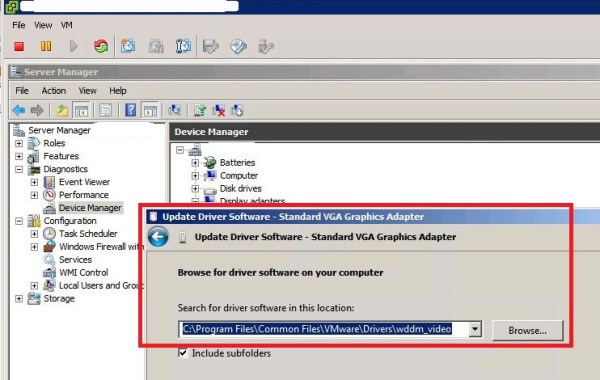
If you feel like the mouse movement within the direct console of a Window 2008R2 or Windows7 Vitual machine is sluggish then the chances are you are using the SVGA video driver supplied by VMware Tools and not the smoother performing WDDM video driver. In order to establish if you are running on the “Standard VGA Graphics Adapter” you can take a look in device manager:

SVGA0

To update the display adapter driver to the VMware WDDM driver browse to the following location and load the WDDM Video Driver:

C:\Program Files\Common Files\VMware\Drivers\wddm_video

WDDM1

Please note that a reboot of the virtual machine is required to enable the new video driver.

WDDM2

EMC VNX Control Station – Dart Install Error: A valid partition exists on lun 0

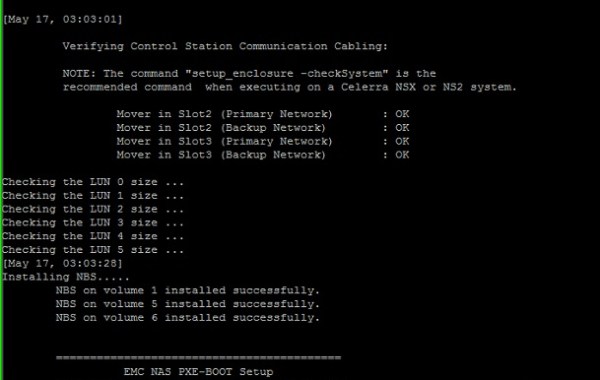
Encountered the following error while completing a Fresh Install of Inyo File (Dart) on a VNX VG8 with code level 7.1 (Also experienced the same issue with another system running Rockies File 8.1):

VG_LUN0_Format

Task [12/61] "install_nbs_for_cs0" has failed.
1. Type 'no' to the retry this task, and the upgrade stops.
2. Fix the problem from this console.
3. Rerun the 'install_mgr' command to restart the upgrade at this task.
- Escalate this issue through your support organization if you require
assistance with directions or resolving the problem, and provide the
following information:
* This task output, output from following directions, and the upgrade log.
Do you wish to retry this task [yes or no]? no

=====================================SUMMARY==================================
Install is still in progress. When you are ready, rerun install_mgr to resume
the operation.
Status: Failure
Actual Time Spent: 201 minutes
Total Number of attempts: 2
Log File: /var/log/nas_install.log
=====================================END=======================================
Operation failed. Please press Enter to acknowledge this message.
You may login again as required, to correct the reported problem.
You may then type /bin/install_mgr to retry the failed operation.
Would you like to retry install_mgr? [yes or no]: no

Resolution:
Choosing ‘no’ for the previous two options allows the user to breakout of the installation at this point and resolve the issue by zeroing LUN 0. Firstly; proceed to check if the NAS services are started:
[root@ControlStation0 ~]# /nasmcd/sbin/getreason
6 - slot_0 control station ready
4 - slot_2 configured
4 - slot_3 configured

Reason Code 6 – Indicates the Control Station is ready, but is not running NAS services.
Restart the NAS Services using the command /sbin/service nas start

Zero out Control LUN 0
Use the following command from the Control Station in order to Zero Control LUN 0:
dd if=/dev/zero of=/dev/nda bs=1MB count=134

[root@ControlStation0 ~]# dd if=/dev/zero of=/dev/nda bs=1MB count=134
134+0 records in
134+0 records out
134000000 bytes (134 MB) copied, 1.27847 seconds, 105 MB/s

Resume Installation:
[root@ControlStation0 ~]# install_mgr
Starting install_mgr -verbose -mode install -file /tmp/ksnas.cfg...

=====================================Tasks=====================================

5:44:12 [ 12/61 ] install_nbs_for_cs0 22 minutes

Problem Resolved and installation completes successfully:

====================================SUMMARY===================================
Congratulations!! Install for VNX software to release 7.1.74-5 succeeded.
Status: Success
Actual Time Spent: 227 minutes
Total Number of attempts: 3
Log File: /nas/log/install.7.1.74-5.May-17-01:56.log
=====================================END=======================================

[root@ControlStation0 nasadmin]# /nas/sbin/getreason
10 - slot_0 primary control station
5 - slot_2 contacted
5 - slot_3 contacted

EMC VMAX – SE7600 Bug: Not enough pool space to allocate the thin device(s)

There is a known bug with Solutions Enabler 7.6.0 which returns an error while attempting to create 2048GB TDEV Meta Volumes using SYMCLI on a SYMMETRIX VMAX 40K running Enginuity 5876. As you can see below sufficient space was available in the thin pool, however, when I attempted to create new devices of 2048 GB with ALL tracks to be persistently allocated, I received an error that there is not enough space to allocate the thin device:


C:\Windows\system32>symconfigure -sid 773 -cmd "create dev count=72, size=2048 GB, emulation=fba, config=tdev, meta_member_size=128GB, meta_config=striped, preallocate size=ALL, allocate_type=persistent, binding to pool=xxxx;" -v preview -nop

A Configuration Change operation is in progress. Please wait...

Establishing a configuration change session...............Established.

Error occurred while Defining change number 1:
Not enough pool space to allocate the thin device(s)
Terminating the configuration change session..............Done.

The configuration change session has failed.
Calculation of MAX achievable 2048GB TDEVs for the requested Pool:
Pool Enabled Capacity = 165088
Leave 10% Overhead for FAST VP Functions = 165088/100*90= 148579.2
Calculate MAX no. of 2048 TDEVS achievable as Per Customer Request = 148579.2/2048 = 72.55 = 72TDEVs
2048 / 16 = 128GIG Meta Member Size
16 X 72 = 1152 Meta members (1152 Is Calulated by script Above; just showing here for reference)

As you can see from Unisphere the Pool is 0% Subscribed and free capacity to satisfy the 72 TDEVs should not be an issue:
SE_Bug

BUG is Fixed in 7.6.1

C:\>symcli
Symmetrix Command Line Interface (SYMCLI) Version V7.6.1.0 (Edit Level: 1755)
built with SYMAPI Version V7.6.1.0 (Edit Level: 1755)

C:\>symconfigure -sid 773 -cmd "create dev count=72, size=2048 GB, emulation=fba
, config=tdev, meta_member_size=128GB, meta_config=striped, preallocate size=ALL
, allocate_type=persistent, binding to pool=xxxx;" -v preview -nop

A Configuration Change operation is in progress. Please wait...

Establishing a configuration change session...............Established.
Processing symmetrix 000295700xxx
{
create dev count=72, size=2236963 cyl, emulation=FBA, config=TDEV,
mvs_ssid=0, bind to pool xxxx, preallocate size=all cyl
allocate_type = persistent, meta_member_size=139811,
meta_config=Striped;
}

Performing Access checks..................................Allowed.
Checking Device Reservations..............................Allowed.
Validating configuration changes..........................Validated.

SE_Bug2

EMC VNX – MCx Hot Sparing Considerations

MCx has brought changes to the way Hot Sparing works in a VNX Array. Permanent Sparing is now the method used when a drive fails. How Permanent Sparing works: when a drive fails in a Raid Group (Traditional RG or Pool internal private RG) the RG rebuilds to a suitable spare drive in the VNX, this used Spare drive now becomes a permanent member of the RG. When the failed drive gets replaced then it becomes a Spare for eligible drives within the entire VNX Array. This new method of sparing eliminates the previous method used by Flare where the Hot Spare would equalize back to the original drive location (B_E_D) once the drive had been replaced.
Note: The rebuild does not initiate until 5 minutes after the drive has been detected as failed.
If you still prefer to keep the original physical Raid Group drive layout intact after the failed drive has been replaced then you can do a manual CopyToDisk from the original spare (which is now a member of the Raid Group) to the replaced drive by issuing the following navi command:
naviseccli –h SPA -user user -password password -scope 0 copytodisk sourcedisk destinationdisk
♦Source and Destination Disk = B_E_D format
For example to complete a manual CopyToDisk from source drive 2_0_14 to 2_0_0 then the following command would need to be run:
naviseccli –h SPA -user user -password password -scope 0 copytodisk 2_0_14 2_0_0
In addition to the CopyToDisk approach to keeping your original physical Raid Group B_E_D structures in place there is also another new MCx feature called Drive Mobility that allows you to swap the failed drive with the Spare that has been used as its replacement. For example you may have a failed drive in 2_0_0 which is part of a Raid_5(4+1) 2_0_0 – 2_0_4
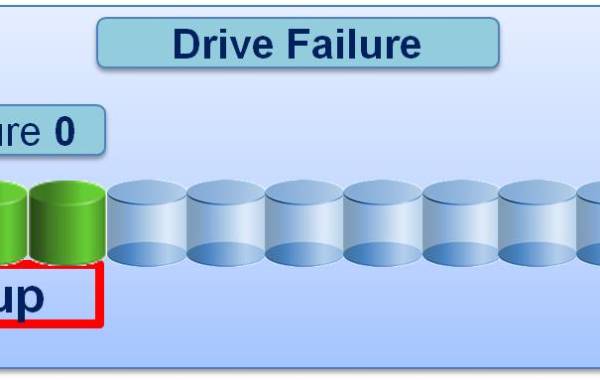
Drive_Mob1
After the 5 min timer 2_0_0 gets automatically replaced by a suitable spare drive in slot 2_0_14 and the Raid Group is rebuilt:
Drive_Mob2
Once the rebuild is complete you may physically remove the drive in 2_0_14 and place it in 2_0_0 in order to restore your original Raid Group B_E_D structure (Once the drive is pulled from 2_0_14 then it must be relocated within 5 Minutes to slot 2_0_0 else a spare will be engaged to replace 2_0_14) Navicli can be used to ensure that the rebuild has 100% completed:
navicli -h SPA getdisk 2_0_14 -rb
Drive_Mob3

Spare location 2_0_14 is then replaced with a new drive:
Drive_Mob4

You may wonder how this Drive Mobility is possible: With MCx when a Raid Group is created the drives within the Raid Group get recorded using the drives serial numbers rather than using the drives physical B_E_D location which was the FLARE approach. This new MCx approach of using the drives serial number is known as VD (Virtual Drive) and allows the drive to be moved to any slot within the VNX as the drive is not mapped to a specific physical B_E_D location but instead is recorded based on the drives serial number. Note: Vault drives 0_0_0 – 0_0_3 are excluded from any Drive Mobility and in fact if the Vault drives are 300 Gig in size then no spare is required, but if larger than 300G is used and user luns are present on the Vault then a spare is required in this case (To avoid alerts in Unisphere for not having the required spare drives available in relation to VAULT drives change the hot spare policy to custom and set the keep unused to 0).

While all un-configured drives in the VNX Array will be available to be used as a HS, a specific set of rules are used to determine the most suitable drive to use as a replacement for a failed drive:

1.Drive Type: All suitable drive types are gathered. (See matrix below)
2.Bus: Which of the suitable drives are contained within the same bus as the failing drive.
3.Size: Following on from the Bus query MCx will then select a drive of the same size or if none available then a larger drive will be chosen.
4.Enclosure: This is another new feature where MCx will analyse the results of the previous steps to check if the Enclosure that contains the actual Failing drive has a suitable replacement within the DAE itself.

Hot Spare Drive Matrix:
MCx_HS_Matrix
Here is a pdf download of the Matrix.

Best practice is to ensure 1 spare is available per 30 of each drive type. There is known bug with MCx Revision: 05.33.000.5.051 where recommended is displayed as 1/60 as you can see below, this is due to be fixed with the next release to reflect the 1/30 ratio. The three policy options are Recommended, Custom or NO Hot Spare. If the ‘No Hot Spare’ option is chosen this does not necessarily mean that no HS will be used, the system will spare to a drive in the system if a suitable match is found; this option just allows the user to configure all available drives of this type for use within Raid Groups. You can either use CLI or Unsphere to analyse the Policies defined on the array:

Rec_60_Cli

Rec_60_Uni

Also see Jon Klaus Post “VNX2 Hot Spare and Drive Mobility Hands-On”