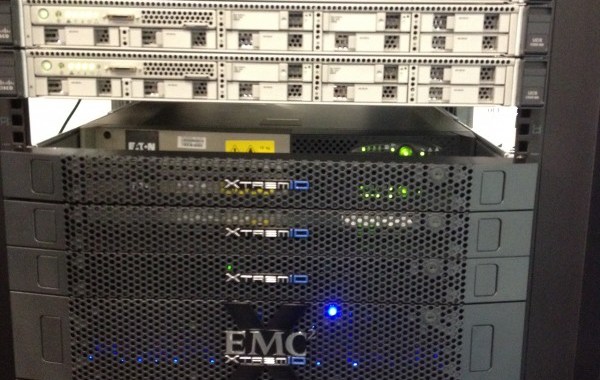
EMC XtremIO – Welcome to Vblock

Vblock Specialized System for Extreme Applications

This Vblock as the name suggests is VCE’s solution targeted at Extreme Applications such as VDI and High performance database applications. Using the XtremIO all-flash enterprise storage array this Vblock delivers outstanding performance with consistent sub-millisecond response times and excellent real-time inline deduplication providing the ability to remove redundant information and thus lowering the amount of capacity required. If your workload has a requirement for low latency, a high number of IOPs and is random in nature then this is an optimal solution for your application.

There are two flavors of the Specialized Vblock: a single-cabinet system and a dual-cabinet system. The single-cab configuration contains a single XtremIO X-Brick while the dual-cab offering presents a two X-Brick configuration.
XTVblockComponents

The Cisco C220 servers and the VNXe are used for application management workloads, while the UCS Servers and XtremIO array will drive the production workloads. VMware vSphere 5.x provides the virtualization layer bringing great benefits from VMware VAAI Integration allowing for the offload of provisioning tasks such as instant cloning of VMs. Vblock Specialized System for Extreme Applications includes a pair of Nexus 3064-T switches to support the management connectivity for all components of the Vblock and the Cisco Nexus 5548UP switches configured as a VPC pair will provide 10 GbE and Fibre Channel over Ethernet (FCoE) connectivity for the production workload. For the Dual-Cabinet Vblock 2 X-Brick system, the backend is boosted by two 18xPort infiniband switches enabling high speed Remote Direct Memory Access (RDMA) communication between the four X-Brick nodes in the cluster. The EMC VNXe3150 for the single-cabinet solution or VNXe3300 for the dual-cabinet are used to house the storage requirements of the management VMs. The Vblock Specialized System as you can gather from the components included is a no single point of failure fully redundant and extremely performant platform.

XIO Table

Some Figures
Vblock Specialized System for Extreme Applications Single/Dual cabinet Vblocks can support the following VDI environments:

XTVblockVDI

Single Rack system
♦ The Single Rack system can host approximately 3500 virtual desktops with one X-Brick, providing 7.5TB of usable storage / 37.5TB(5:1 Deduplication).
♦ 1x xbrick= 150K fully random 4K IOPS @ 50% read/50% write (250K IOPS @ 100% read) Latency <1ms

1RXAPP

Two Rack system
♦ The Dual Rack system can host approximately 7000 virtual desktops with two X-Bricks, providing 15TB of usable storage / 75TB(5:1 Deduplication).
♦ 2x xbrick= 300K fully random 4K IOPS @ 50% read/50% write (500K IOPS @ 100% read) Latency <1ms

2RXAPP

Summary
The Vblock Specialized System for Extreme Applications is a pre-configured, pre-tested all Flash system which can meet extremely high levels of performance, particularly for random I/O workloads that require low latency.

Thanks to Shree Das and Pankesh Mehta for providing content.

Useful Links
http://xtremio.com/vblock
http://www.vce.com/products/specialized/extreme-apps
http://virtualgeek.typepad.com/virtual_geek/2013/11/xtremio-taking-the-time-to-do-it-right.html
http://www.thulinaround.com/2013/11/14/peeling-back-the-layers-of-xtremio-what-is-an-x-brick/

XT1

Cisco UCS – How to Query UCS for WWN’s Associated with Blades

These are very useful trick’s in order to obtain a list of WWN’s associated with the blades in a UCS environment. Instead of trawling through the GUI you can easily connect to UCS via the Cisco UCS PowerTool or SSH to the Fabric Interconnect and quickly retrieve the WWN information for each/All Host/blade’s in UCS.

UCS PowerTool
You can download the latest version of Cisco UCS PowerTool from:
UCS PowerTool Download

Firstly launch the UCS PowerTool and Connect to the UCS system by issuing the cmd:
PS C:\> Connect-Ucs
Enter your fabric interconnect IP address hitting the return key and then inputting your creds.

Once you have connected enter the following cmd to bring up a list of all the blades (service profiles) and their associated vHBA WWN’s:
PS C:\> Get-UcsServiceProfile -type instance | Get-UcsVhba | Select Dn,Addr,NodeAddr

UCS_WWN1

If you want to reduce the list to only WWPN‘s, then use the following:
PS C:\> Get-UcsServiceProfile -type instance | Get-UcsVhba | Select Dn,Addr

UCS_WWN2

Filter by “vHBA-0”:
Get-UcsServiceProfile -type instance |Get-UcsVhba | select DN,Name,Addr| where {$_.Name -eq “vHBA-0”} | sort DN

Filter by “vHBA-1”:
Get-UcsServiceProfile -type instance |Get-UcsVhba | select DN,Name,Addr| where {$_.Name -eq “vHBA-1”} | sort DN

In order to display the associated VSAN details:
PS C:\> Get-UcsServiceProfile -type instance | Get-UcsVhba | Get-UcsVhbaInterface | select Dn,Initiator,Vnet

UCS_WWN3

Get all service profile instances in UCS:
PS C:\> Get-UcsServiceProfile –Type instance

List Boot Policy assigned to each blade:
C:\> Get-UcsServiceProfile -type instance | select Name,BootPolicyName

Fabric Interconnect CLI
Another option is to connect directly to the fabric interconnect. Using the cmd “fi01-A# show server adapter identity” will return a detailed list all of the UCS blades WWN details:
UCS_WWN4

For a brief list of all WWN’s assigned to each host use this simple cmd:
sh identity wwn

• To list an individual server WWPN details:
fiA-31-A# scope chassis 1
fiA-31-A /chassis # scope server 1
fiA-31-A /chassis/server # scope adapter 1
fiA-31-A /chassis/server/adapter # show host-fc-if

FC Interface:
Id Wwn Model Name Operability
———- ———————– ———- ———- ———–
1 20:00:00:25:B5:25:A0:6F UCSB-MLOM-40G-01
vHBA-0 Operable
2 20:00:00:25:B5:25:B1:6F UCSB-MLOM-40G-01
vHBA-1 Operable

• From the scope server is is also possible to learn the DN(Distinguished Name):
fiA-31-A /chassis/server # show server adapter vnics
FC Interface:

Adapter Interface Vnic Dn Dynamic WWPN Type
——- ——— ———- ———— —-
1 1 org-root/ls-xap-esx001/fc-vHBA-0 20:00:00:25:B5:25:A0:6F Fc
1 2 org-root/ls-xap-esx001/fc-vHBA-1 20:00:00:25:B5:25:B1:6F Fc

• Check which vHBA is assigned to fabric A/B:
fiA-31-A# scope service-profile server 1/1
fiA-31-A /org/service-profile # show vhba

vHBA:
Name Fabric ID Dynamic WWPN
———- ——— ————
vHBA-0 A 20:00:00:25:B5:25:A0:6F
vHBA-1 B 20:00:00:25:B5:25:B1:6F

• Get a full List of all WWPN’s based on Fabric A/B:
fiA-31-A# scope org
fiA-31-A /org # show wwn-pool

WWN Pool:
Name Purpose Size Assigned
——————– —————————- ———- ——–
Global-WWNN-Pool Node WWN Assignment 128 9
vHBA-0-Fabric-A Port WWN Assignment 128 9
vHBA-1-Fabric-B Port WWN Assignment 128 9

• List all Fabric-A WWPN and DN information:
fiA-31-A# scope org
fiA-31-A /org # scope wwn-pool vHBA-0-Fabric-A
fiA-31-A /org/wwn-pool # show initiator
WWN Initiator:
Id Name Assigned Assigned To Dn
———————– ———- ——– ————–
20:00:00:25:B5:25:A0:6F Yes org-root/ls-xap-esx001/fc-vHBA-0

• List all Fabric-B WWPN and DN information:
fiA-31-A# scope org
fiA-31-A /org # scope wwn-pool vHBA-1-Fabric-B
fiA-31-A /org/wwn-pool # show initiator

WWN Initiator:
Id Name Assigned Assigned To Dn
———————– ———- ——– ————–
20:00:00:25:B5:25:B1:6F Yes org-root/ls-xap-esx001/fc-vHBA-1

Thank you ‘Brendan Lucey’ for your assistance.