EMC VMAX – Build Location and Model Type

The VMAX Serial Numbers are generated based on build location and model type of the VMAX. If your S/N begins with ‘HK19’ the VMAX was manufactured in Hopkinton, begins with ‘CK29’ then it was manufactured in Cork and ‘CN49’ means it was manufactured in China.

Serial3

The next two numbers of the S/N identify the VMAX Model:
Serial2

These Serial Numbers are visible from a dog tag on the System Bay. You can also issue an Inline command on the service processor to view the S/N (E7,CF):

Serial1

Other ways to view the S/N are using cli options syminq -v or symcfg list:

Serial4

Note: DO NOT change your serial number as all FA WWN’s are generated based on the serial number assigned to the VMAX.

EMC VNX – New Shutdown Options

Note: Please ensure to reference official EMC documentation before proceeding and ensure your system health checks are passed before completing a shutdown.

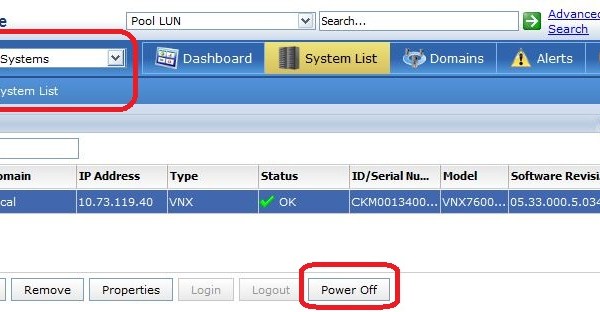
A new feature with the release of VNX Rockies(Block OE 5.33 & File OE 8.1) was the ability to Shutdown the Entire Array using either a single command or via the ‘Power Off’ button in the Unisphere GUI. This feature is also available for first generation VNX storage system’s, from VNX OE code release 05.32.000.5.209 & 7.1.74.5 onwards.
These options are supported on Unified, Block and File systems.

Power Off via CLI
The new CLI option extends the nas_halt command to include a new switch to power down the entire system :
nas_halt –f –sp now
This will power off Control Stations, Data Movers and the Storage Processors.
usage: nas_halt [-f] [-sp] now
Perform a controlled halt of the Control Station(s) and Data Mover(s)
-f Force shutting down without prompt
-sp Shut down Storage Processors on unified platforms

nas_halt can only be executed by root users and must be run from the /nas/sbin directory

Power Off via Unisphere
From Unisphere GUI navigate to the System List page:
SHUT1

Once you hit the ‘Power Off’ button a dialog box appears and from here you enter the array serial number in order to confirm shutdown:
SHUT2

Final Confirmation:
SHUT3

Note:
DAEs are not powered off.
Log entries are available from the CS: /var/log/messages and SP: cimomlog.txt

EMC VNX – Changing Storage Processor IP & NAME

This is a guideline on how to change the VNX Storage Processor IP and Name via Navicli. Navicli does not require a reboot of the SP after changing the SP IP address but does require a restart of the Management Server. Please note that a change of SP Name will require a reboot of the SP.

Note: if you are using the Setup Page (http:// SP_IP /setup/) to change either the SP IP or Name then a reboot of the SP will be required.

Ensure you address the following points before proceeding:
1. If the array to be changed is part of a storage domain, you must remove it from the domain before proceeding. If the array to be changed is the domain master, assign another array to that role before continuing. This can be done via Unisphere VNX Client.
2. If this is the only array in a storage domain, destroy the domain prior to changing the IP address. (Management server restart required)
3. Check that all hosts have dual-Fibre connectivity and that failover software is working correctly.

First before making a change take a look at the existing SP details:
naviseccli -h 192.168.101.40 networkadmin -get -sp a –ipv4
SP_IP0

naviseccli -h 192.168.101.41 networkadmin -get -sp b –ipv4
SP_IP1

Change SP_A IP:
naviseccli -h 192.168.101.40 -user sysadmin -password sysadmin -scope 0 networkadmin -set -ipv4 -address 10.236.66.71 -subnetmask 255.255.255.0 -gateway 10.236.66.1
SP_IP2

Change SP_B IP:
naviseccli -h 192.168.101.41 -user sysadmin -password sysadmin -scope 0 networkadmin -set -ipv4 -address 10.236.66.72 -subnetmask 255.255.255.0 -gateway 10.236.66.1
SP_IP3

Change DNS IP and Domain Entries:
Running this command on one SP is sufficient as it will sync the changes automatically with it’s peer SP.
naviseccli -h 10.236.66.71 -user sysadmin -password sysadmin -scope 0 networkadmin -dns -set -domain corp.local -nameserver 10.10.10.20 10.10.10.30
List DNS:
naviseccli -h 10.236.66.71 -user sysadmin -password sysadmin -scope 0 networkadmin -dns -list

Now if we retrieve the IP details for both SP’s we can see the changes made:
SP_A:
naviseccli -h 192.168.101.40 networkadmin -get -sp a –ipv4
SP_IP6

SP_B
naviseccli -h 192.168.101.41 networkadmin -get -sp b –ipv4
SP_IP7

Next to change the Network name. Again please note this change will cause the SP to reboot:
Change SP_A Name:
naviseccli -h 10.236.66.71 -user sysadmin -password sysadmin -scope 0 networkadmin -set -name NewNameSPA
SP_IP4
Change SP_B Name:
naviseccli -h 10.236.66.72 -user sysadmin -password sysadmin -scope 0 networkadmin -set -name NewNameSPB
SP_IP5

Note:
Please refer to the VNX Procedure Generator for a detailed list of specific guidelines for completing this task.

EMC VMAX – Avoid Corruption of Unisphere Performance Database by AV Scans

Just a note of caution on how to prevent Anti Virus Scans from causing a possible corruption of the Unisphere for VMAX Performance Database.

If using the Unisphere for VMAX Performance feature then please exclude the following directories by editing your Anti Virus scan settings:

  1. The data directory and all its subdirectories (<InstallDirectory>\EMC\SMAS\jboss\standalone\data\msq\data)
  2. The temp directory (<InstallDirectory>\EMC\SMAS\jboss\standalone\data\msq\temp)


Note From EMC:

Failing to follow this advice may lead to corruption in the Performance database.


EMC VMAX – Setting Auto Meta Attributes

This post provides instructions and information around the Symmetrix Auto Meta feature. The Auto Meta feature is a configurable option during the Bin File configuration or the setting can be enabled and configured via Unisphere or using Solutions Enabler (symcli).

Auto-meta Symmetrix Settings
So what does each setting mean:

auto_meta: Parameter must be enabled to use the auto meta device functionality. Auto_meta can be enabled only if the other auto meta parameters min_auto_meta_size, auto_meta_config and auto_meta_member_size are set to valid values.
auto_ meta_config: this parameter must be set to either striped or concatenated.
auto_meta_member_size: This is the default meta member size used when the auto_meta feature is triggered. This value as specified in cylinders (CYL) and needs to be less than or equal to 262668 cylinders. The min_auto_meta_size cannot be set less than the auto_meta_member_size.
min_auto_meta_size: this value is set by the user. This is the largest volume size that can be created before the Auto_Meta feature comes into play. When a user attempts to create a volume or volumes larger than the min_auto_meta_size and with auto_meta set to enabled what will result is the creation of a meta device. Thus the min_auto_meta_size is the size threshold that will trigger an Auto_Meta volume creation and any devices larger will automatically be a meta device. min_auto_meta_size needs to be less than or equal to the maximum defined value of 262669 cylinders (240GB) – these figures are for Enginuity Version 5874 and above.

A common mistake that has been encountered while provisioning via UIM is when a meta is requested that is not an exact multiple of the meta member size. The result is that a larger volume than was requested gets created with a multiple of the meta member size. For eaxmple if you resuest a size of 2TB and the auto_meta_member_size is set at 240Gig then the result would be a meta device with a size of 2160Gig.

Example with Auto_Meta Disabled:
As you can see from the image below the Auto Meta details have not been completed during the BIN File configuration and the default is Auto Meta disabled:
Auto_Meta1

The result of not having Auto_Meta configured is that we are unable to provision volumes larger than the defined Meta Size from a Thin Pool as is the case in this example:
Auto_Meta2

Procedures For Setting Auto_Meta Attributes
Via Solutions Enabler:
1.Run the following command to verify if Auto_Meta is disabled: symcfg list -sid xxx -v
2.If Auto_Meta is not enabled, create a file auto_meta.txt with the following configuration:
set Symmetrix auto_meta=enable, min_auto_meta_size=262669, auto_meta_member_size=262668, auto_meta_config=striped;
3.Run the following command: symconfigure -sid xxx -f auto_meta.txt commit -nop

This configuration specifies that any attempt to create a volume larger than 262669 cylinders will exceed the minimum auto meta size threshold and will therefore trigger an Auto_Meta device creation.

Via Unisphere:
Go to the Unisphere For VMAX Interface
1. Select the Symmetrix system.
2. Select System > Settings > Symmetrix Attributes to open the Symmetrix Attributes page.
3. Select to enable “Enable Auto Meta”.
4. Set the following properties:
◆ Minimum Meta Capacity — Type the minimum volume size that will trigger the creation of a meta volume.
Setting a value of 262669 cylinders.
◆ Member Capacity — Type the size of the meta members to use when creating meta volumes.
Setting a value of 262668 cylinders.
◆ Configuration —meta configuration as Striped when creating meta volumes.
When enabled and attempting to create a volume larger than the value specified in the Minimum Meta Capacity field, or larger than 240 GB, it automatically triggers the creation of a meta volume according to the values specified in the Member Capacity and Configuration fields.
Auto_Meta3

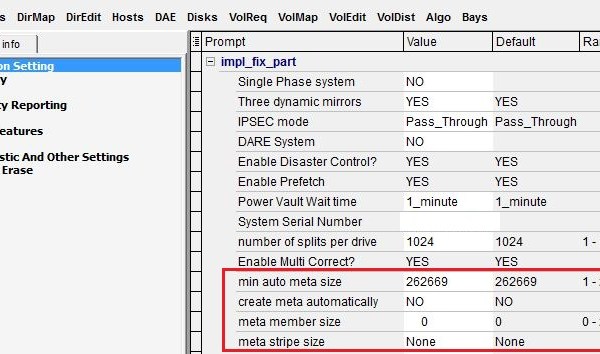
Now if we take a look in SymmWin we can see that Auto Meta is enabled and configured:
Auto_Meta4

Now the creation of the volumes that had failed in the example above will succeed as a result of configuration changes made:
Auto_Meta5

Note that it is possible using Symcli to manually configure meta volumes that ignore the Auto_Meta setting. Example creating a 4 way meta using volumes 100 – 103:
Creta TDEVs and BInd to Pool:
create dev count=4, size=5120MB, emulation=fba, config=TDEV;
bind tdev 0100:0103 to pool Pool_Name preallocate size=ALL;

Create Meta Device:
“form meta from dev 100 config=striped; add dev 101:103 to meta 100;”

Note: You can check the status using command symcfg list -v
Auto_Meta6