In this post I will give a guideline on how to calculate the required drive count for a VNX Pool based on Throughput performance (IOPS). This is only a Rough-Order-of Magnitude (ROM) which will give an approximation to the required drive count. Please consult EMC/VCE/Partner Technical sales as they will have access to the latest sizing tools in order to calculate the exact drive count for your worload.
Firstly we need to consider the impact the different RAID types will have on the drive calculation (Choosing your RAID type is for another discussion).The main difference between the RAID types is the random write performance. The performance of Read IOPS is much the same across all these RAID types. RAID 1/0 requires two disk operations for each host write, RAID 5 requires four operations per host write and RAID 6 requires six operations per host write. To summarise here is how the back-end RAID penalties differ:
– Mirrored RAID 1/0: 1 Host Write = 2 Writes
– Parity RAID 5: 1 Host Write = 2 Reads + 2 Writes
– Parity RAID 6: 1 Host Write = 3 Reads + 3 Writes
So taking the above implications that Host writes have on the backend RAID types here are the calculations that can be used to determine the required Drive IOPS (Back-end):
Parity RAID 5: Drive IOPS = Read IOPS + 4*Write IOPS
Parity RAID 6: Drive IOPS = Read IOPS + 6*Write IOPS
Mirrored RAID 1/0: Drive IOPS = Read IOPS + 2*Write IOPS
Example RAID_5 IOPS Calculation
HOST WORKLOAD: 20,000 Random IOPS, 80 % Reads, 20% Writes
Using RAID_5 as an example with an I/O ratio of 80/20 with a total Host IOPS requirement of 20,000 we can calculate the Drive IOPS:
Drive IOPS = (0.8 * 20,000 + 4 * (0.2 * 20,000))
Drive IOPS = 32,000
Determine your disk count Based on IOPS:
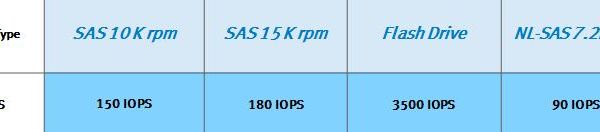
Using the provided table we can do a quick calculation to estimate the required drive count for the Pool. These examples and the estimated IOPS count is based on Small-block random I/O similar to the I/O’s of database systems (16KB or Less). The drive IOPS figures listed here are used as a starting point for 16KB or less for any I/0 larger than 16KB there will be a reduction in the IOP figures listed below.
Take it that we want to use all “SAS 15K” drives in a heterogeneous pool as a first example:
Given the requirement for 32,000 IOPS we can do a quick calculation to get the required drive count to service this workload:
32,000 IOPS / 180 IOPS PER DISK = 177.8 Disks
As this is a RAID_5 based pool the private Raid groups will be using 4+1 thus rounding the drive count to 180 will give us 36 x RAID_5 4+1 private raid groups.
Now as a second example assume that a two-tiered FAST VP Homogenous Pool is the preferred option using Flash and SAS drives in a two tiered approach. Using 5 Flash Drives in a FAST VP Pool configuration then we would vastly reduce the count of SAS drives as follows:
5 X 3500IOPS (Flash Drives) = 17,500 IOPS serviced by the 5 Flash Drives
This leaves us with 18,500IOPS that will need to be serviced by “SAS 15K” drives which would have a total drive count requirement of :
18,500/180 = 102.7
Again using a RAID_5 4+1 configuration we would have a total drive count of 105 for SAS.
Thus giving a reduction of 70 (180-110) drives compared to the previous example of using a Heterogeneous VP Pool of all SAS 15K drives. The power of FLASH!
NOTE: The first four drives in a VNX are the system (Vault) drives and cannot be used in a pool.