In this post, I’ll walk through how to manually upgrade Dell iDRAC9 firmware using the iDRAC web interface, upgrading from version 7.20.30.50 to 7.20.80.50. We’ll go step by step through the entire process from downloading and extracting the firmware to uploading and installing it via the web UI.
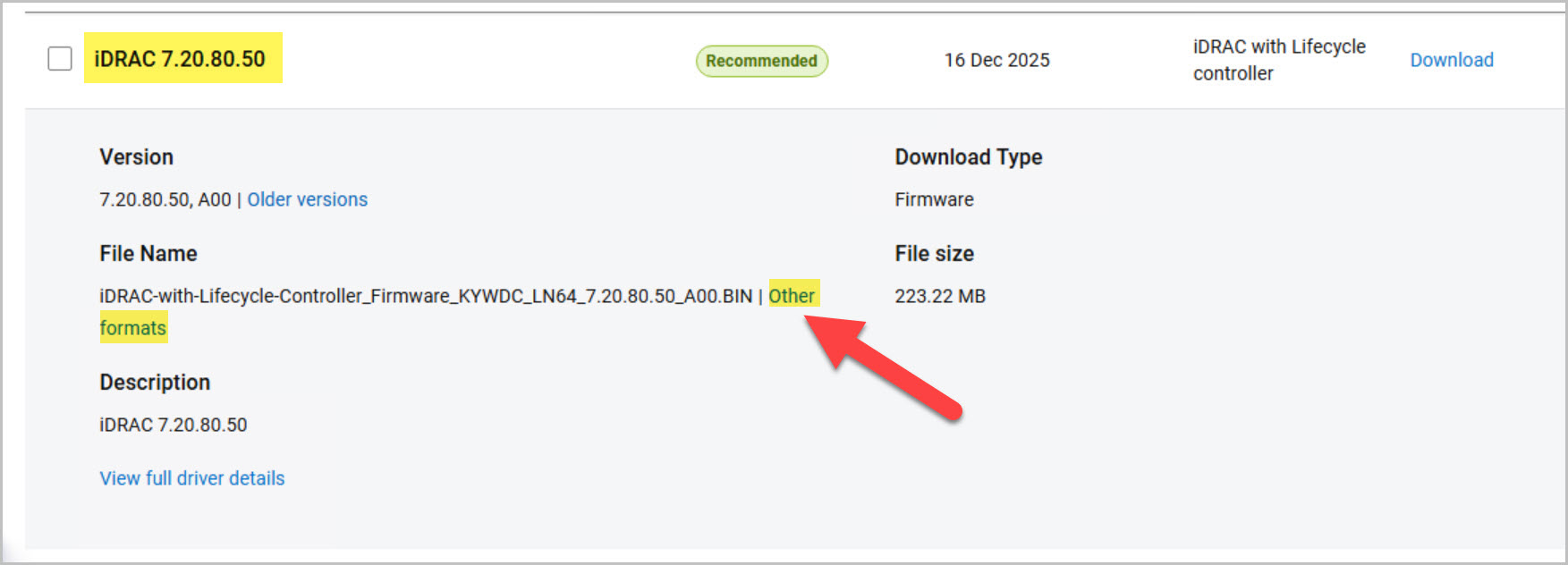
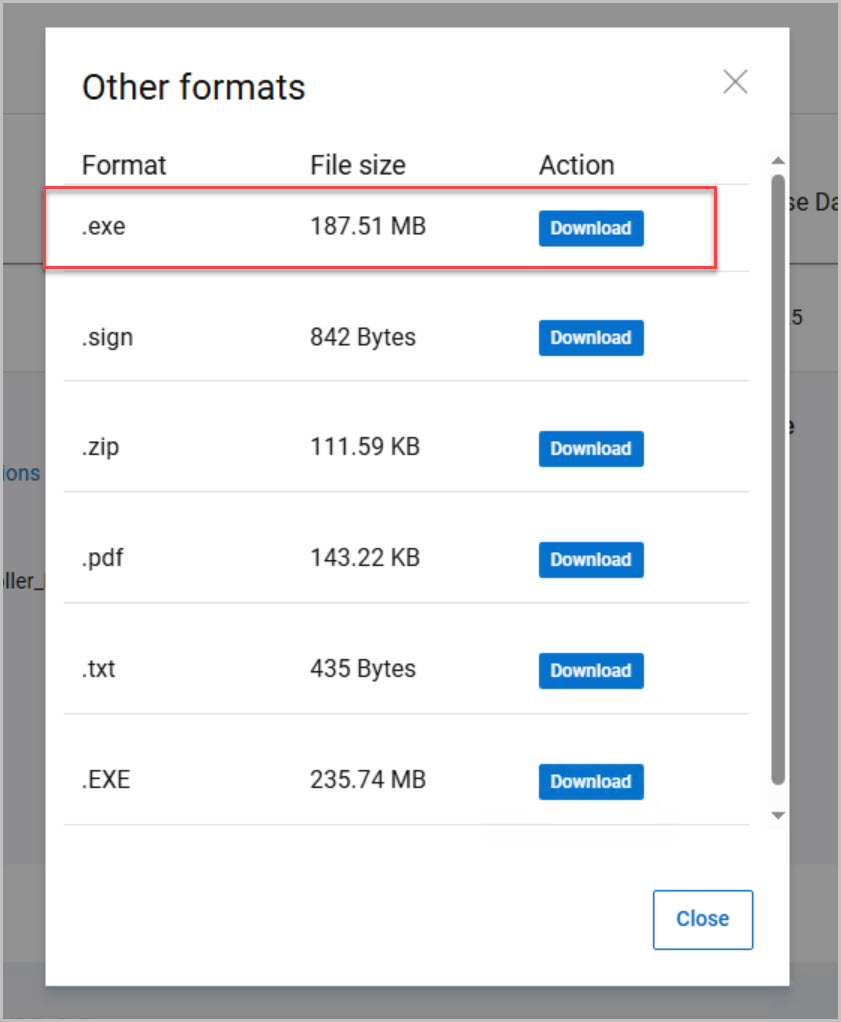
Step 1: Download the Firmware from Dell support site:
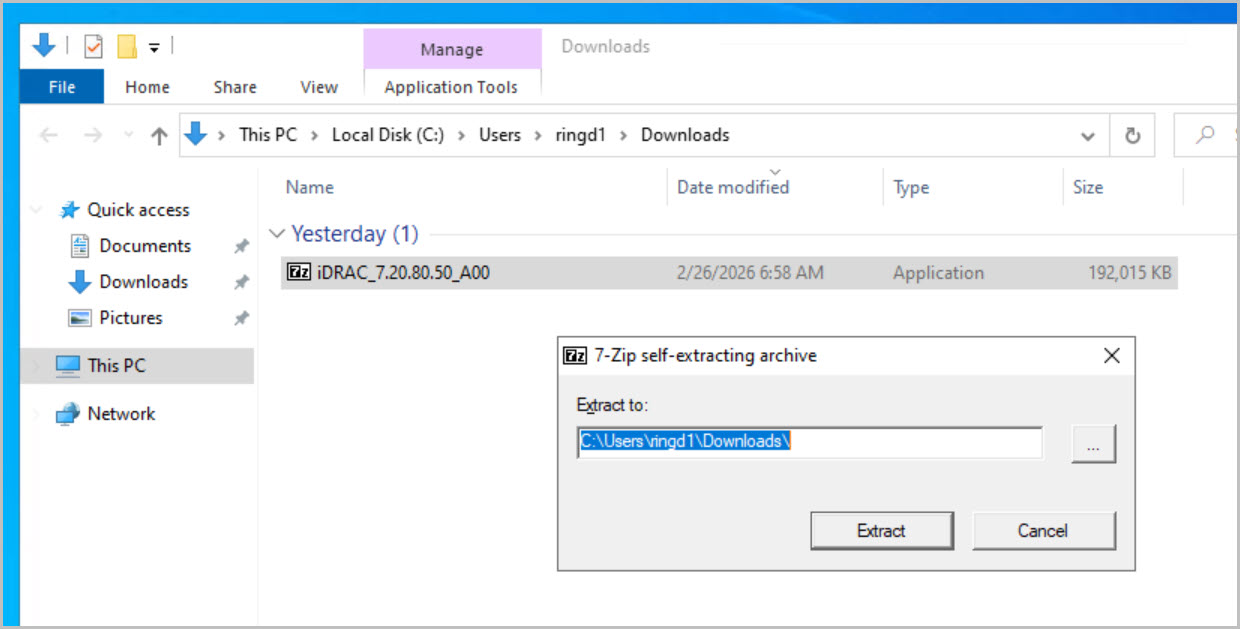
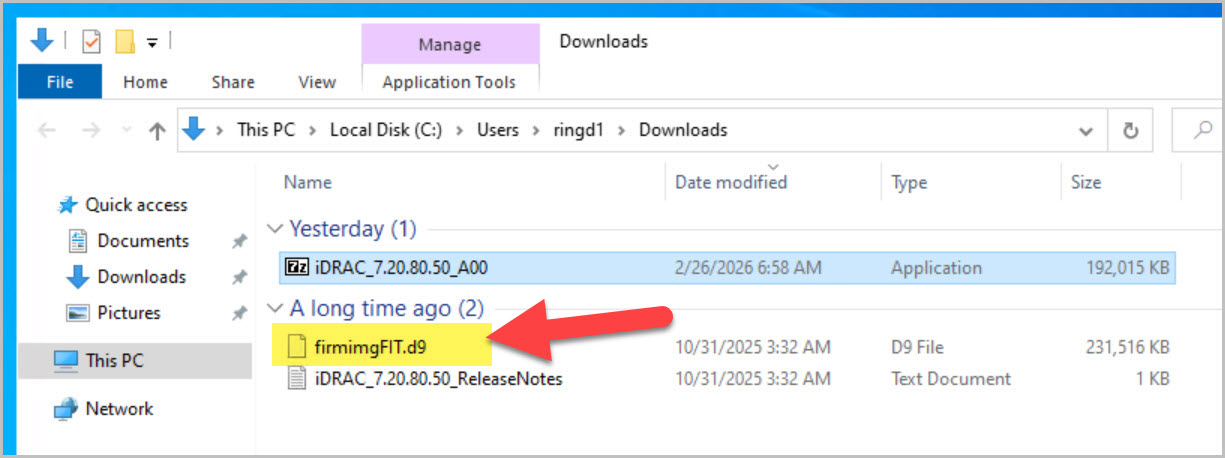
Step 2: Extract the Firmware (.d9 File)
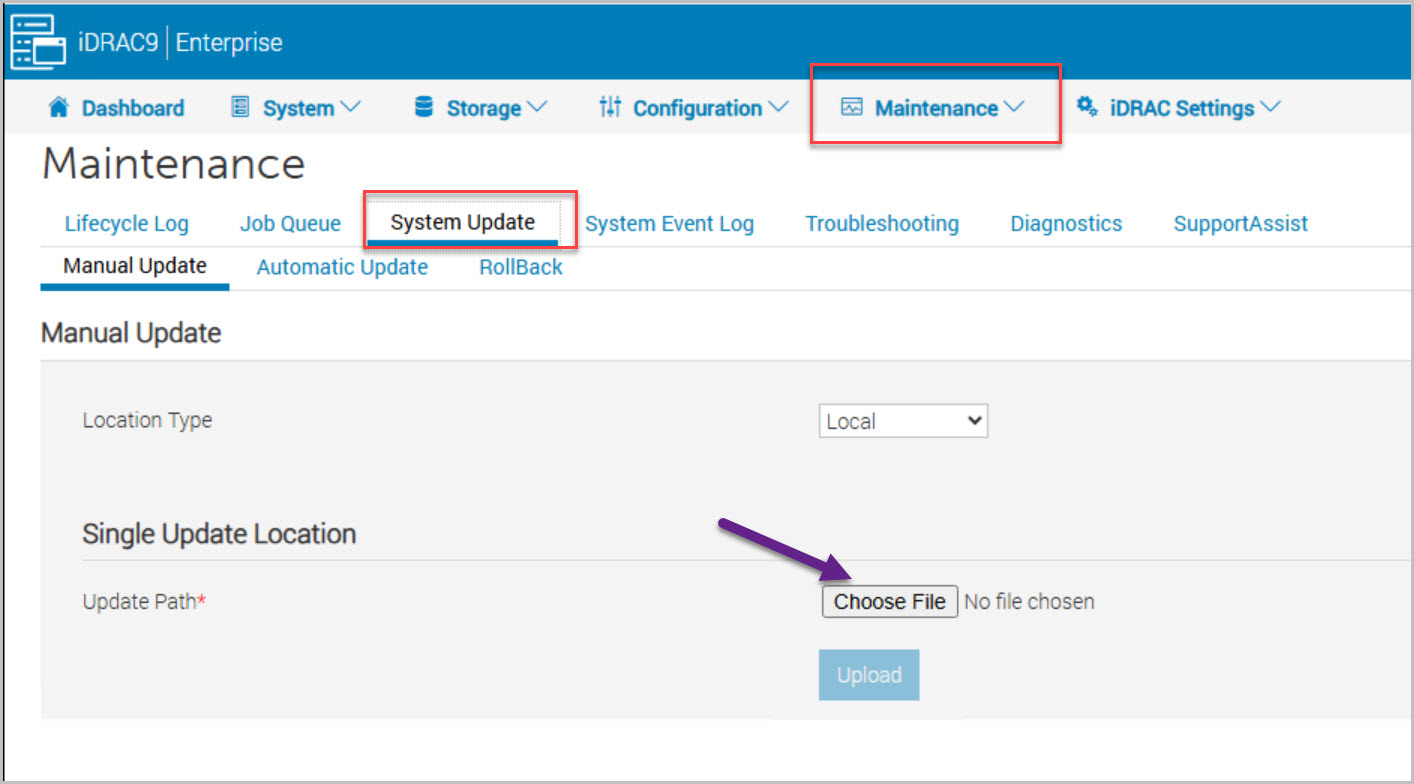
Step 3: Log in to iDRAC9 and Open the iDRAC Firmware Update Page
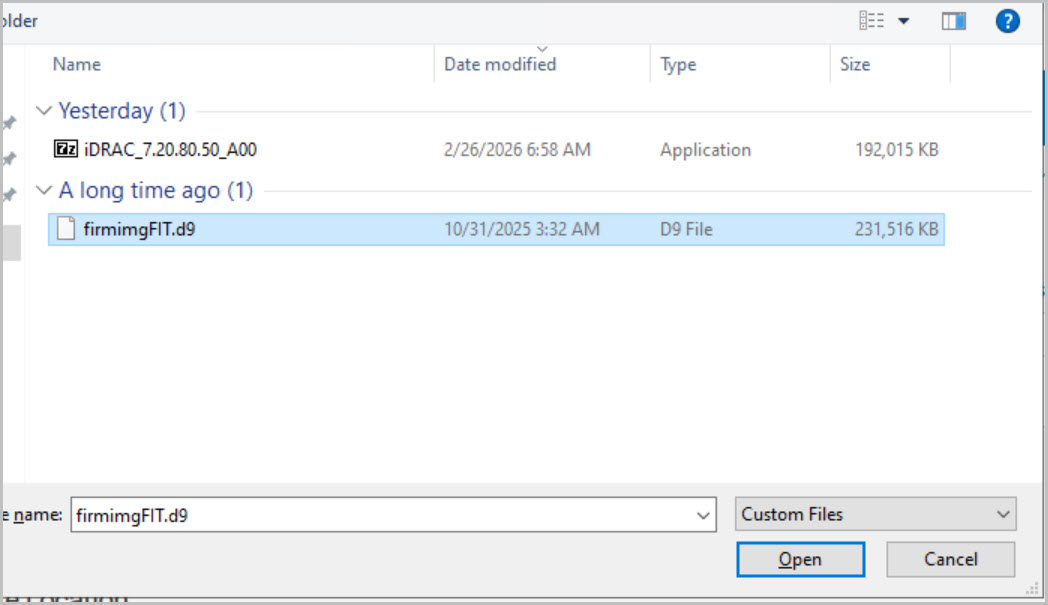
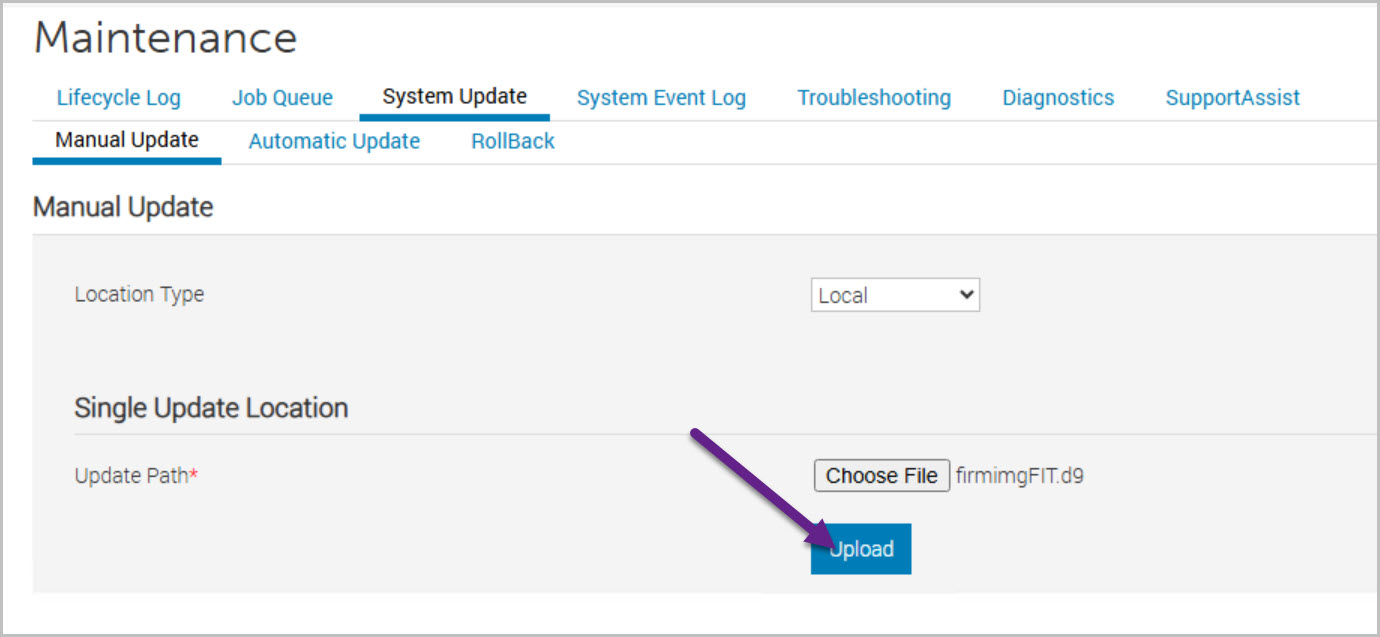
Step 4: Upload the Firmware File
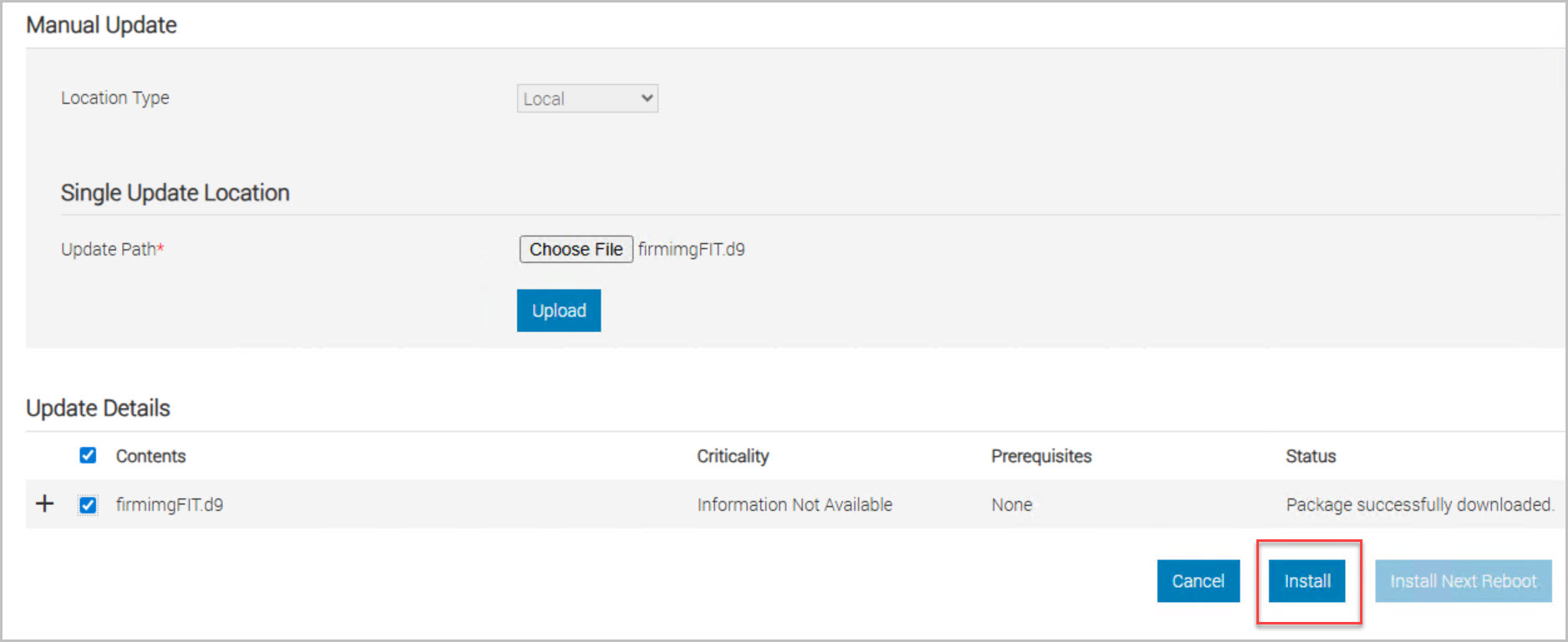
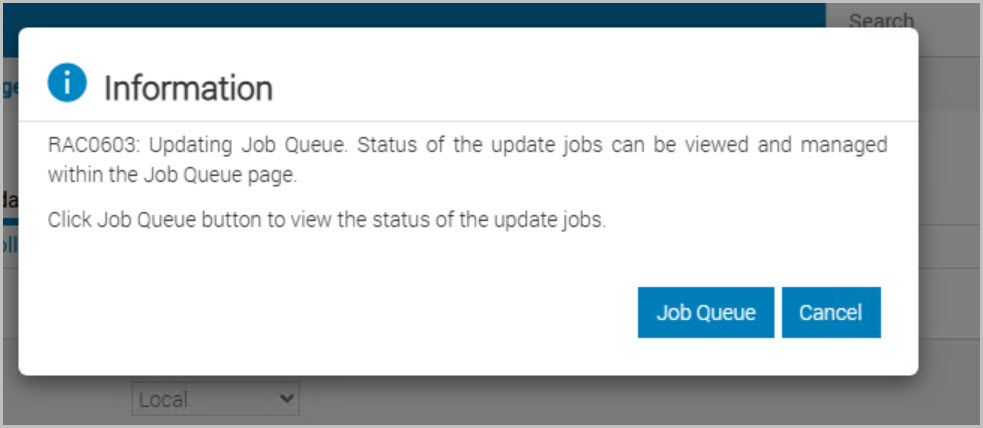
Step 5: Install the Firmware
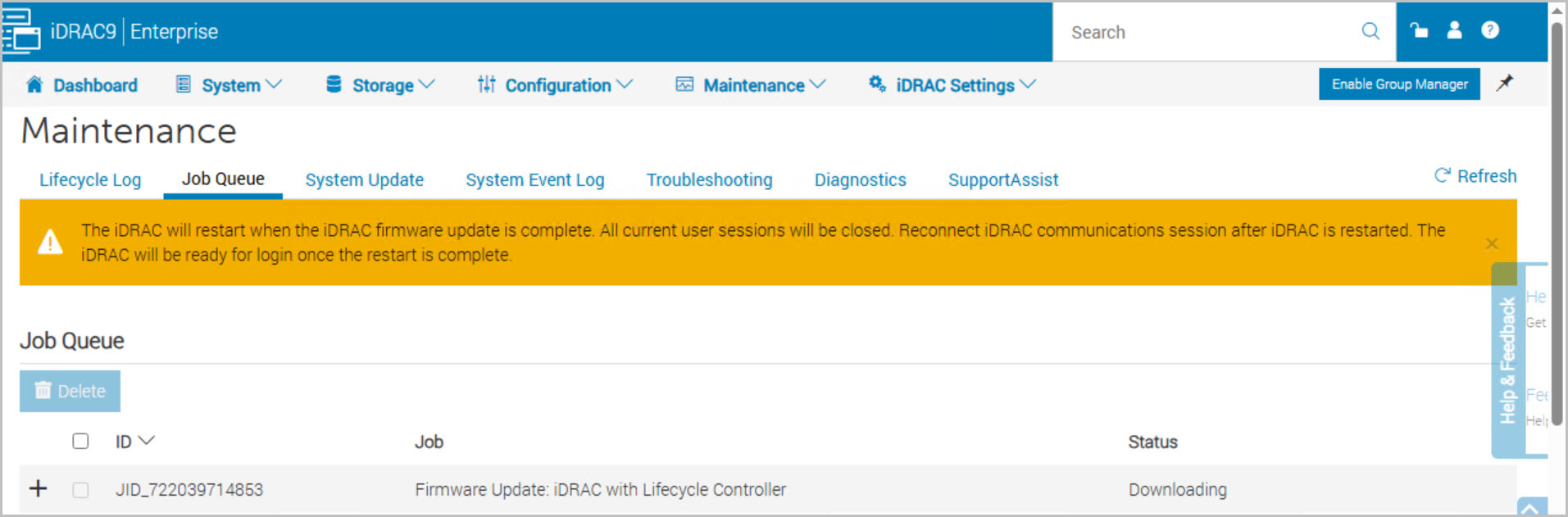
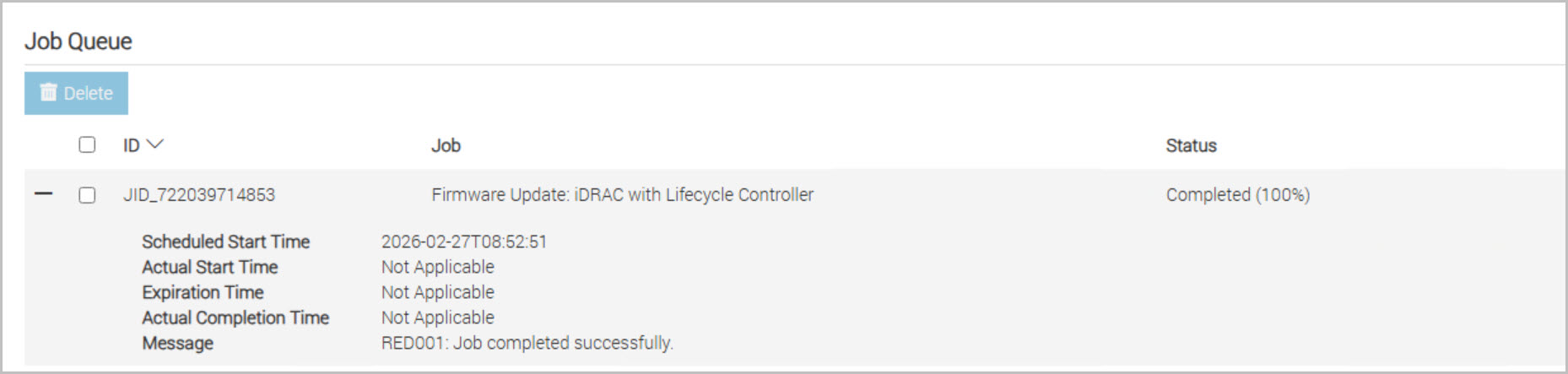
Step 6: Monitor the Job Queue
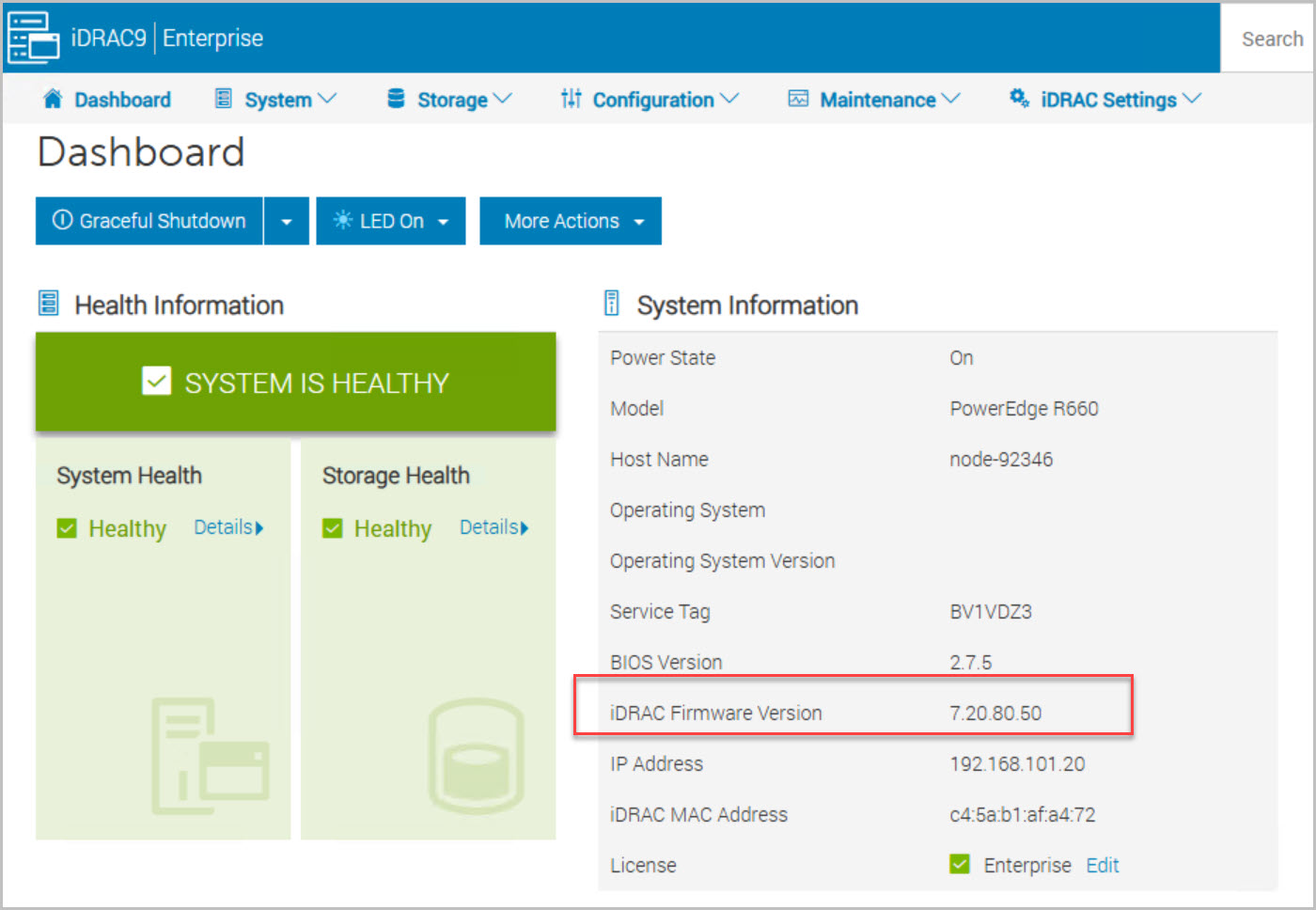
Step 7: Verify the Upgrade





 DavidRing.ie