VCF
VCF 5.1.1 On VxRAIL: Async Patch To VxRAIL 8.0.212
Upgrade from VCF 5.1.1 on VxRail 8.0.210 to VCF 5.1.1 on VxRail 8.0.212, using the VMware Async Patch (AP) tool v1.1.0.2. For a detailed overview of the AP Tool please […]
Virtualization & Storage

Upgrade from VCF 5.1.1 on VxRail 8.0.210 to VCF 5.1.1 on VxRail 8.0.212, using the VMware Async Patch (AP) tool v1.1.0.2. For a detailed overview of the AP Tool please […]
Upgrade from VCF 5.1.1 on VxRail 8.0.210 to VCF 5.1.1 on VxRail 8.0.212, using the VMware Async Patch (AP) tool v1.1.0.2.
For a detailed overview of the AP Tool please read this excellent post by Daniel: VCF on VxRail: Async Patch Tool
This post details how to apply the VxRail upgrade in a VCF On VxRail system using the AP Tool Online Mode. The content provides a detailed walkthrough on how to apply the VxRail upgrade in a VCF On VxRail system. It includes necessary links and images to guide the readers. Details of the VxRail 8.0.212 version can be found in the VCF On VxRAIL Release Notes.
Async VxRAIL patches for VCF On VxRail 5.x and 4.x deployments have been made available. Please see VMware KB88287 for more information:
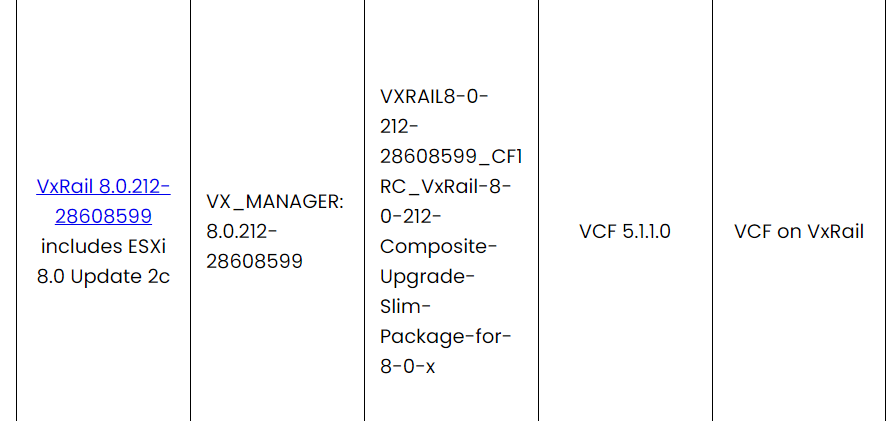
Important APT Links:
To apply the aync patch online your SDDC Manager appliance requires a connection to the internet, you can run the Async Patch Tool from the SDDC Manager appliance to download and enable an async patch. Once the patch is successfully enabled, you can use the SDDC Manager UI to apply the patch to all workload domains.
If an existing or older version of the Async Patch Tool exists in the directory, you will need to remove these files before downloading the latest version of the Async Patch Tool.
rm -r /home/vcf/asyncPatchTool
rm -r /home/vcf/apToolBundles
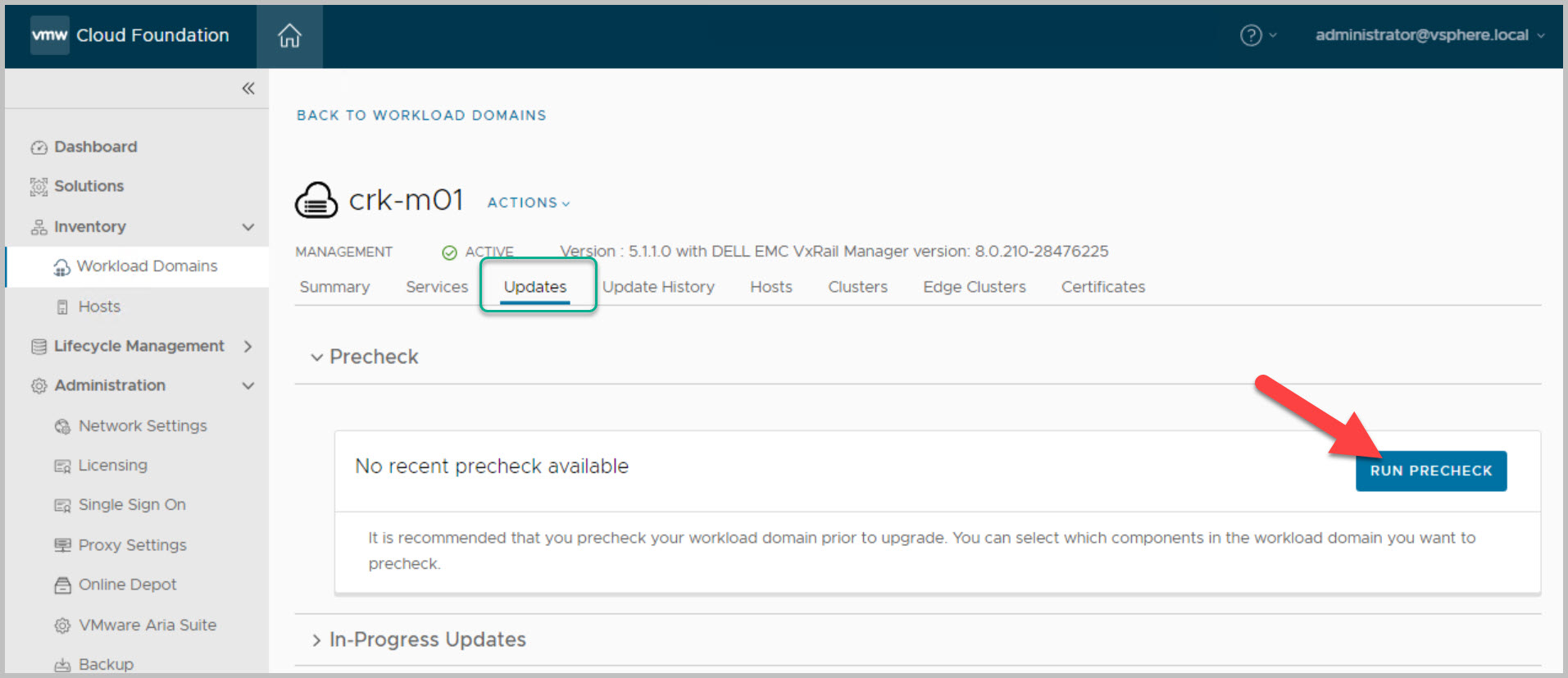
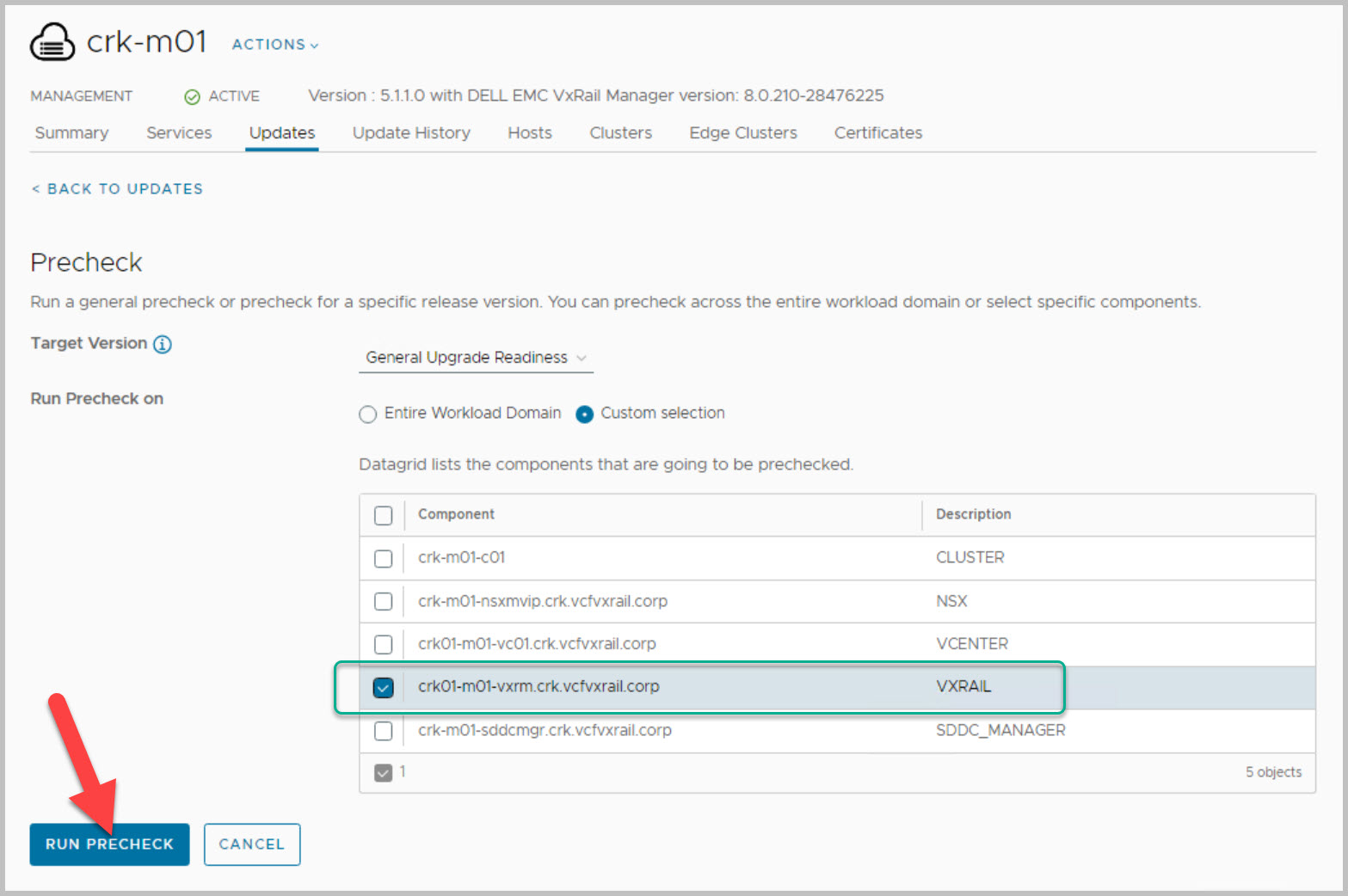
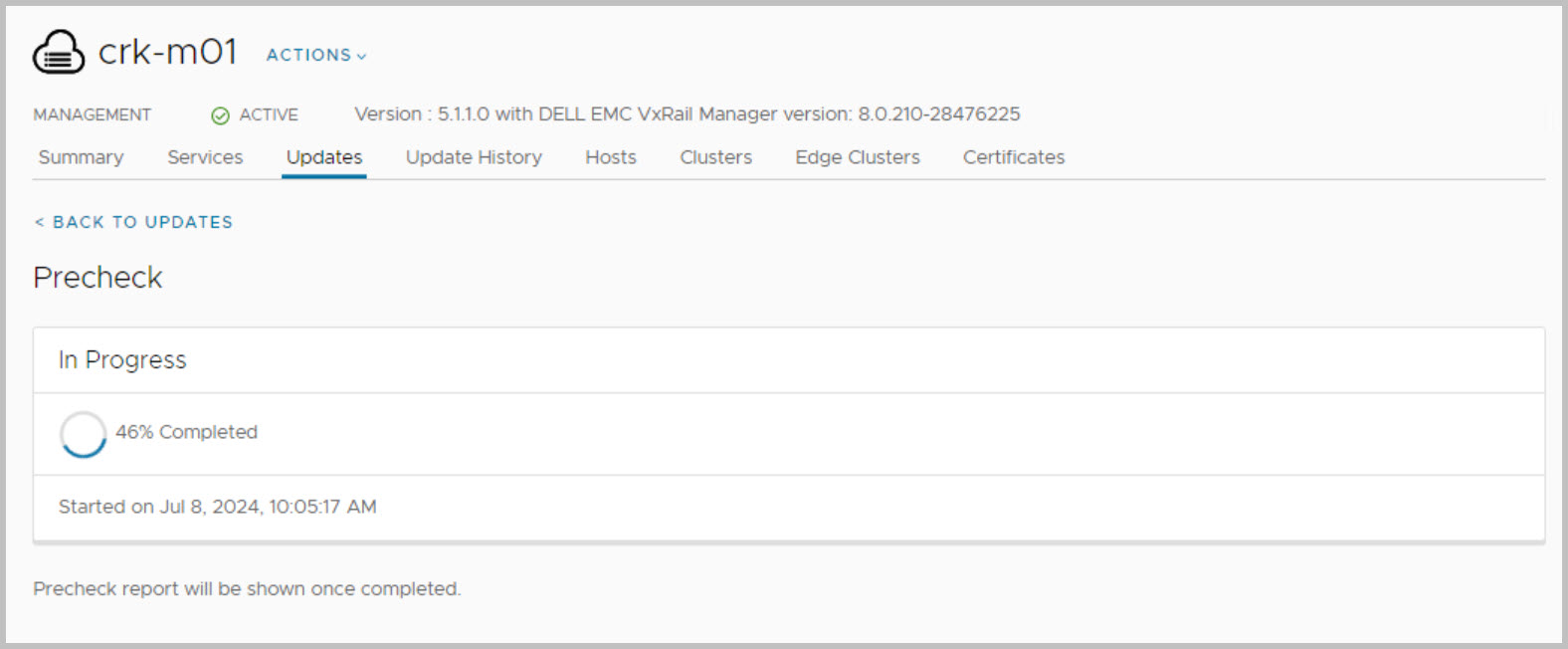
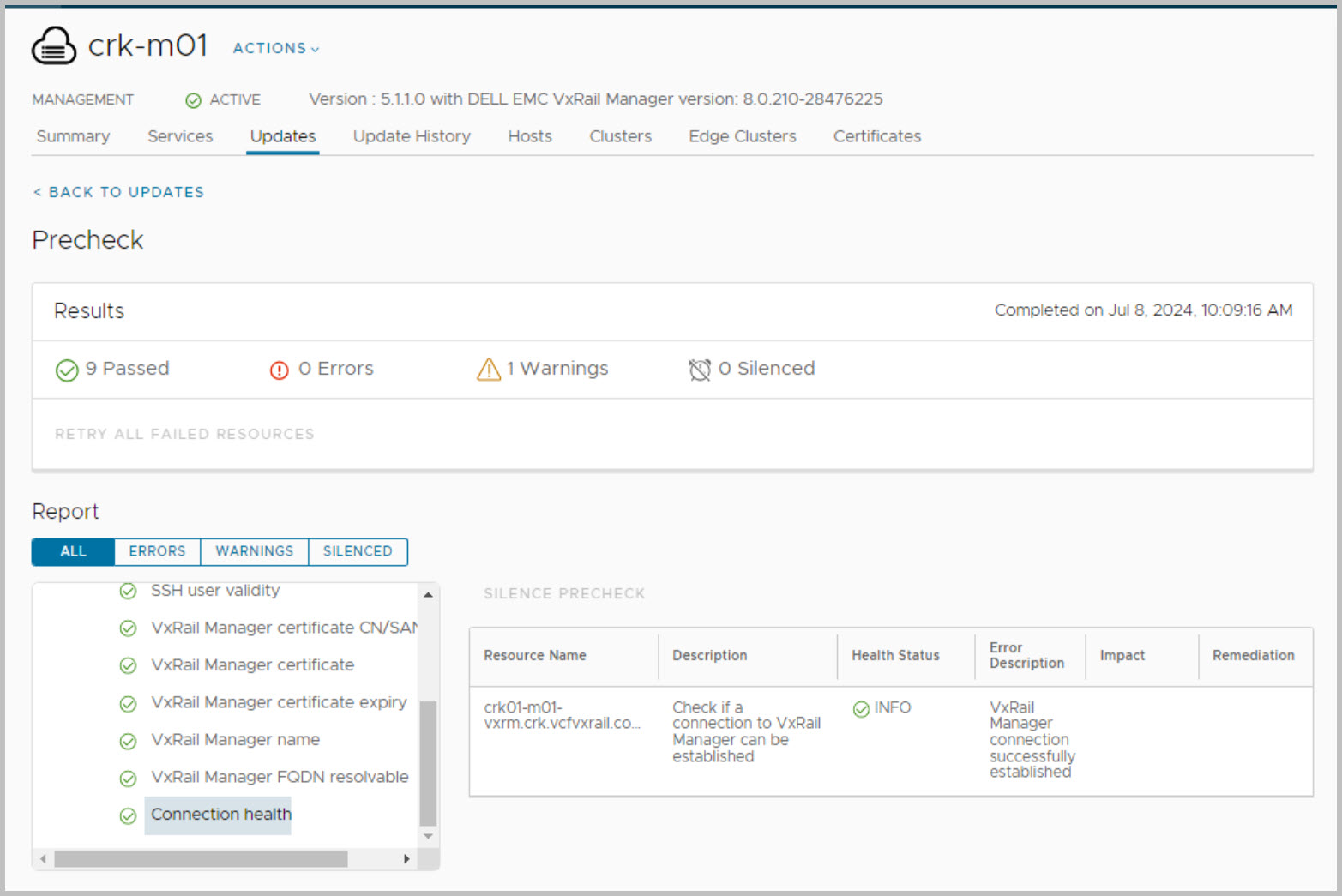
Before proceeding it is advisable to run health pre-checks of your system including VxVerify. This example showcases the context level pre-check for VxRail (More details on context level prechecks here):
This example walks through the VxRAIL Async Patch prcedure in a VCF 5.1.1 On VxRail system:
Begin by downloading the latest Async Patch Tool 1.1.0.2 to a computer with access to the SDDC Manager appliance (Direct Download Link – AP Tool download):
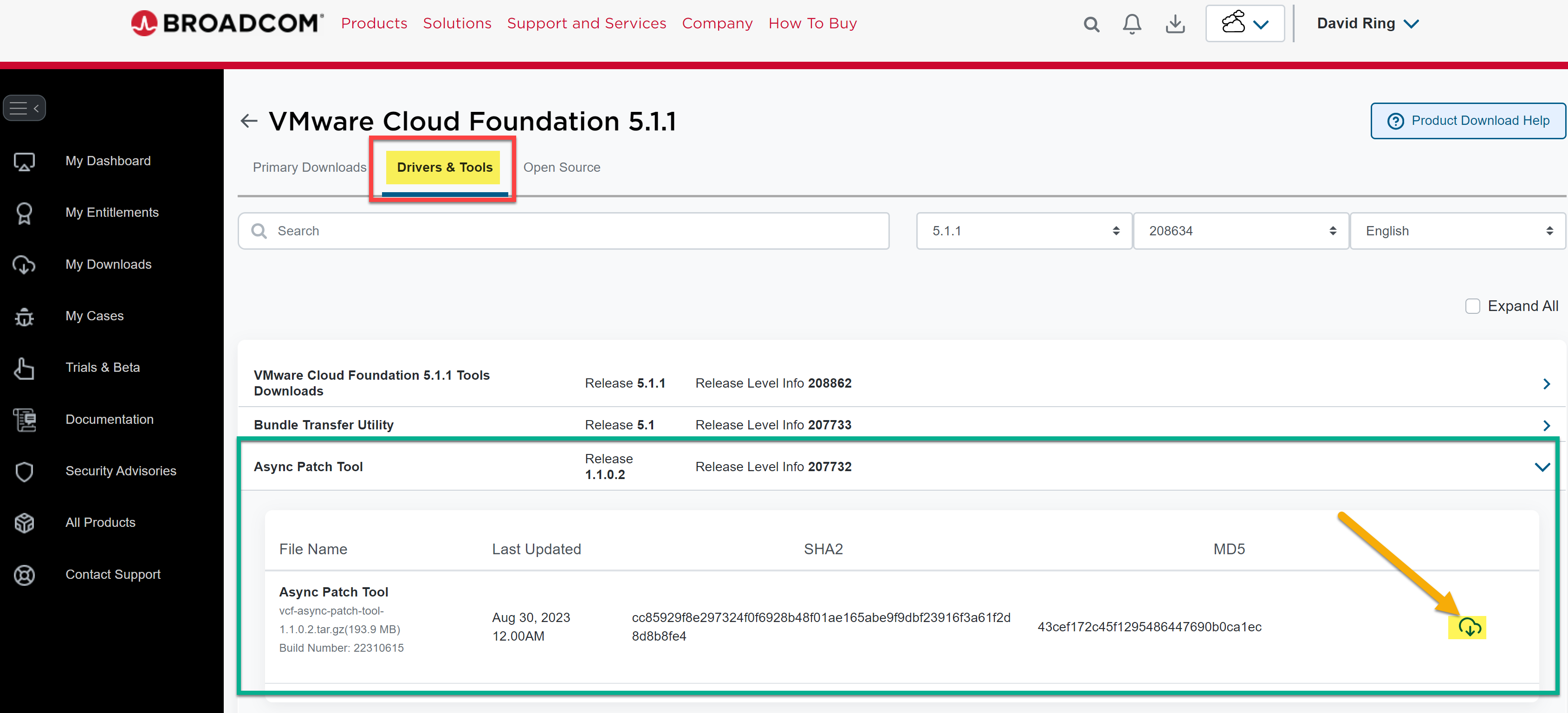
Note: The entire operation must be run with the vcf user.
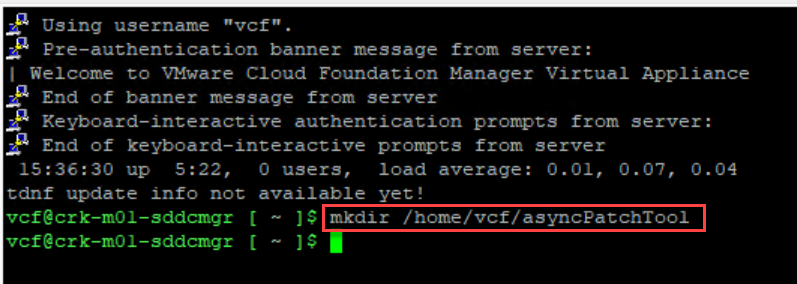
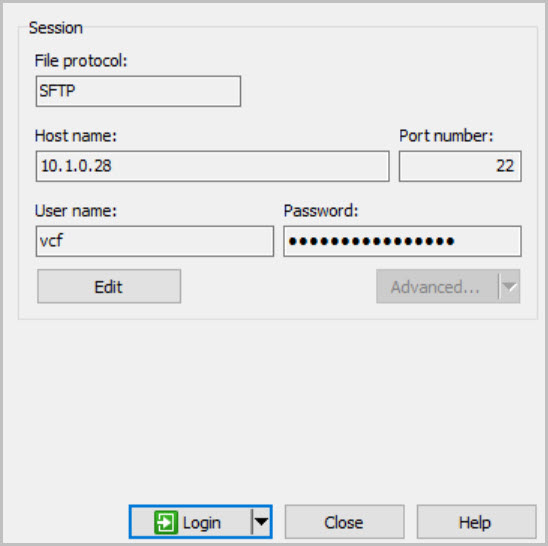
SSH into the SDDC Manager appliance using the vcf user account & create the asyncPatchTool directory:
mkdir /home/vcf/asyncPatchTool
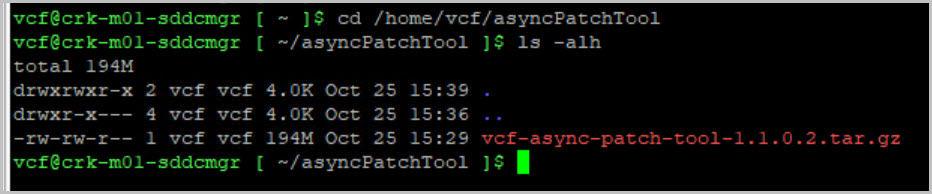
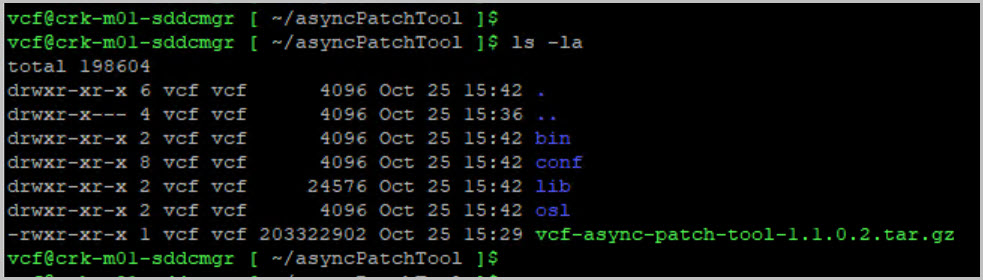
Copy the Async Patch Tool file to the /home/vcf/asyncPatchTool directory. Navigate to /home/vcf/asyncPatchTool and extract the contents of vcf-async-patch-tool. Set the permissions for the asyncPatchTool directory:
cd /home/vcf/asyncPatchToolls -alhtar -xvf vcf-async-patch-tool-1.1.0.2.tar.gzchmod -R 755 /home/vcf/asyncPatchToolchown -R vcf:vcf /home/vcf/asyncPatchToolls -laNext navigate to the /bin directory where the APT is located and list the available patches to gather the required details for enabling the vCenter patch:
cd /home/vcf/asyncPatchTool/bin/./vcf-async-patch-tool -l --depotUser depotusername --depotPassword password --sku VCF_ON_VXRAIL --productType VX_MANAGER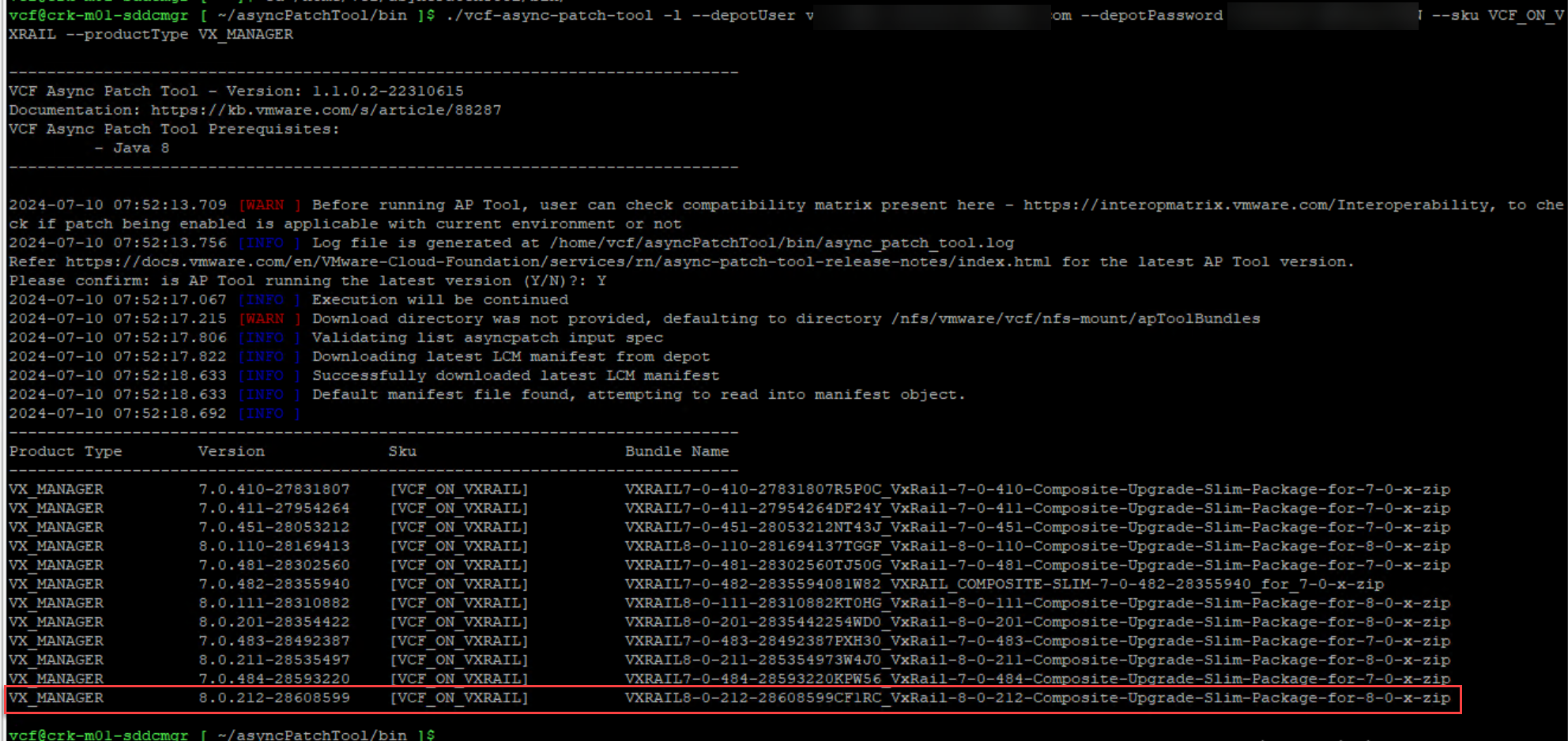
Copy the VxRail async patch-specific partner bundle metadata file using KB 91830.
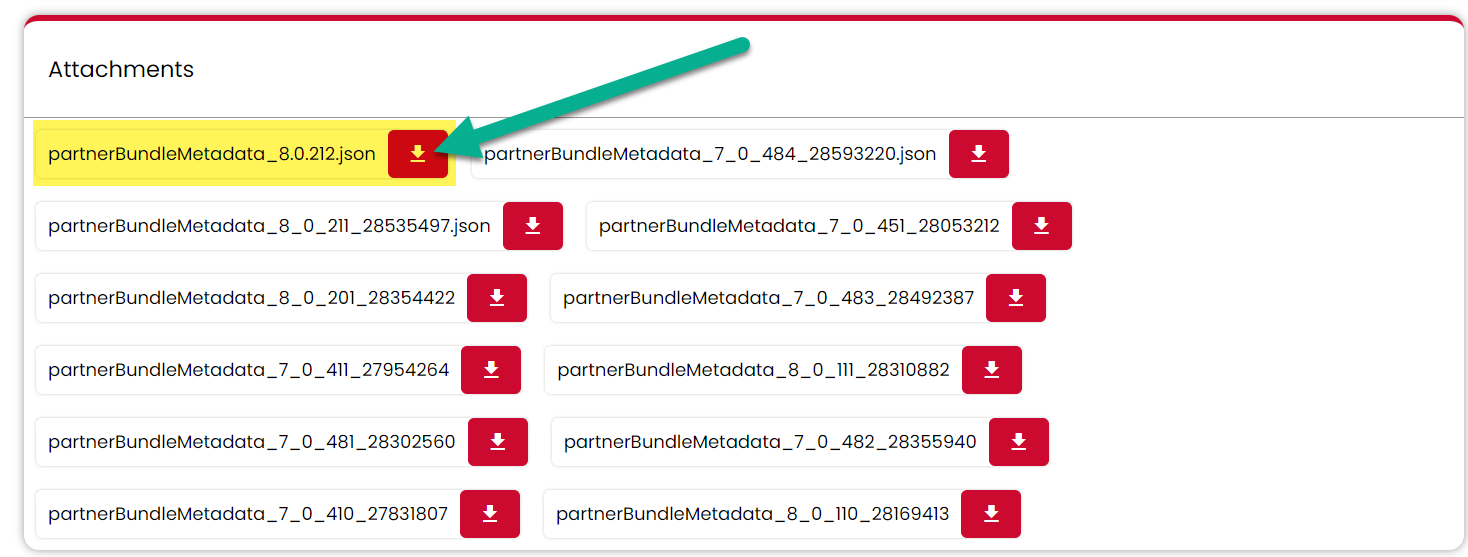
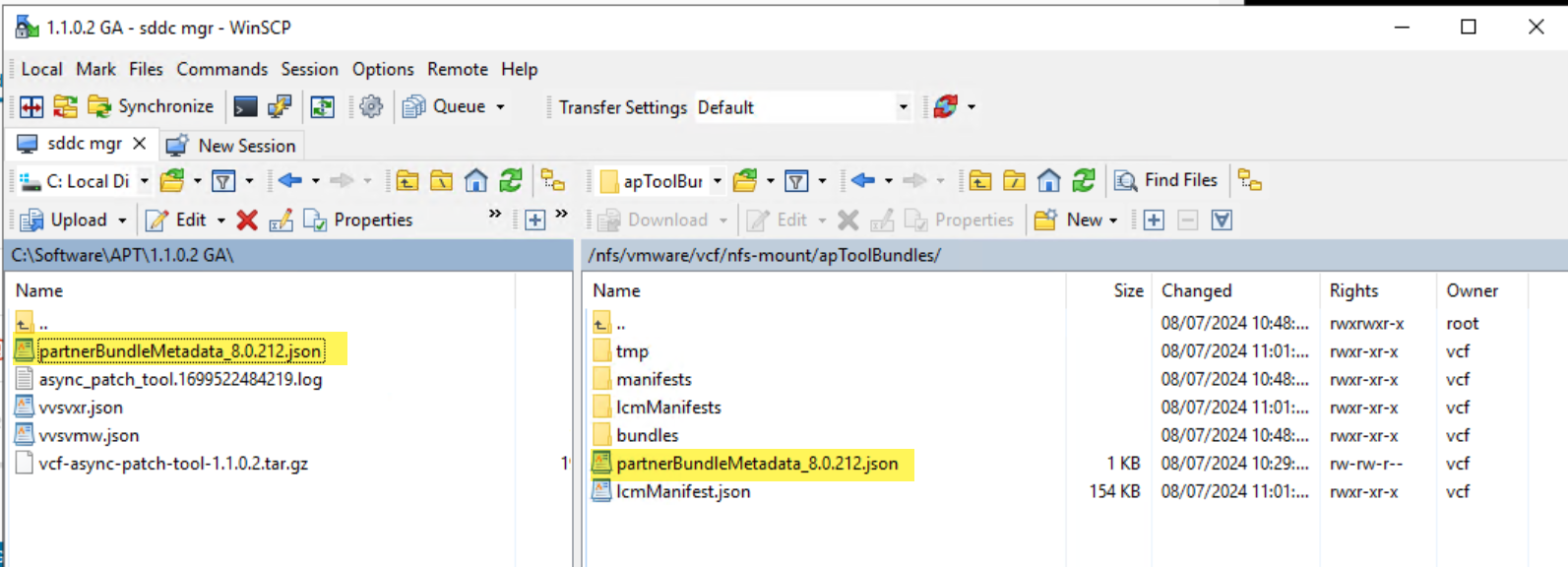
Note: At this point take a snapshot of SDDC Manager VM.
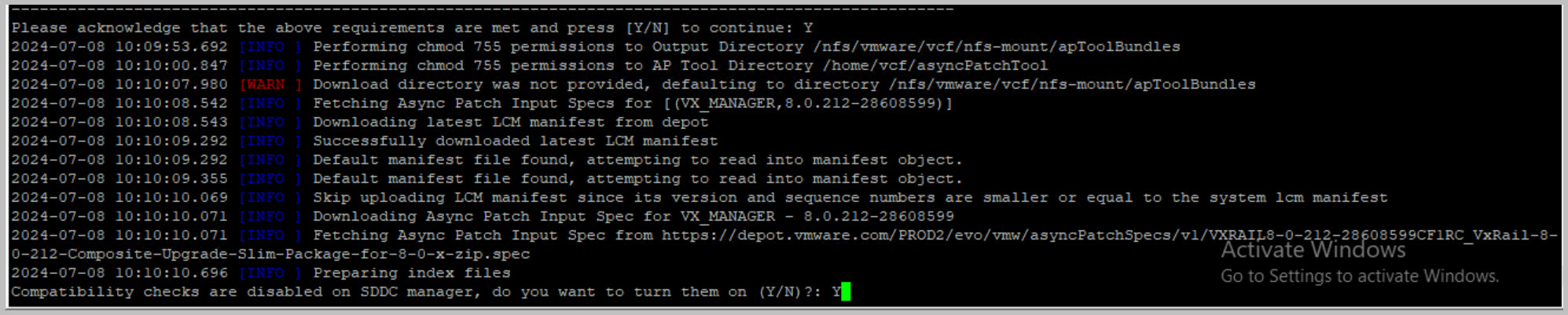
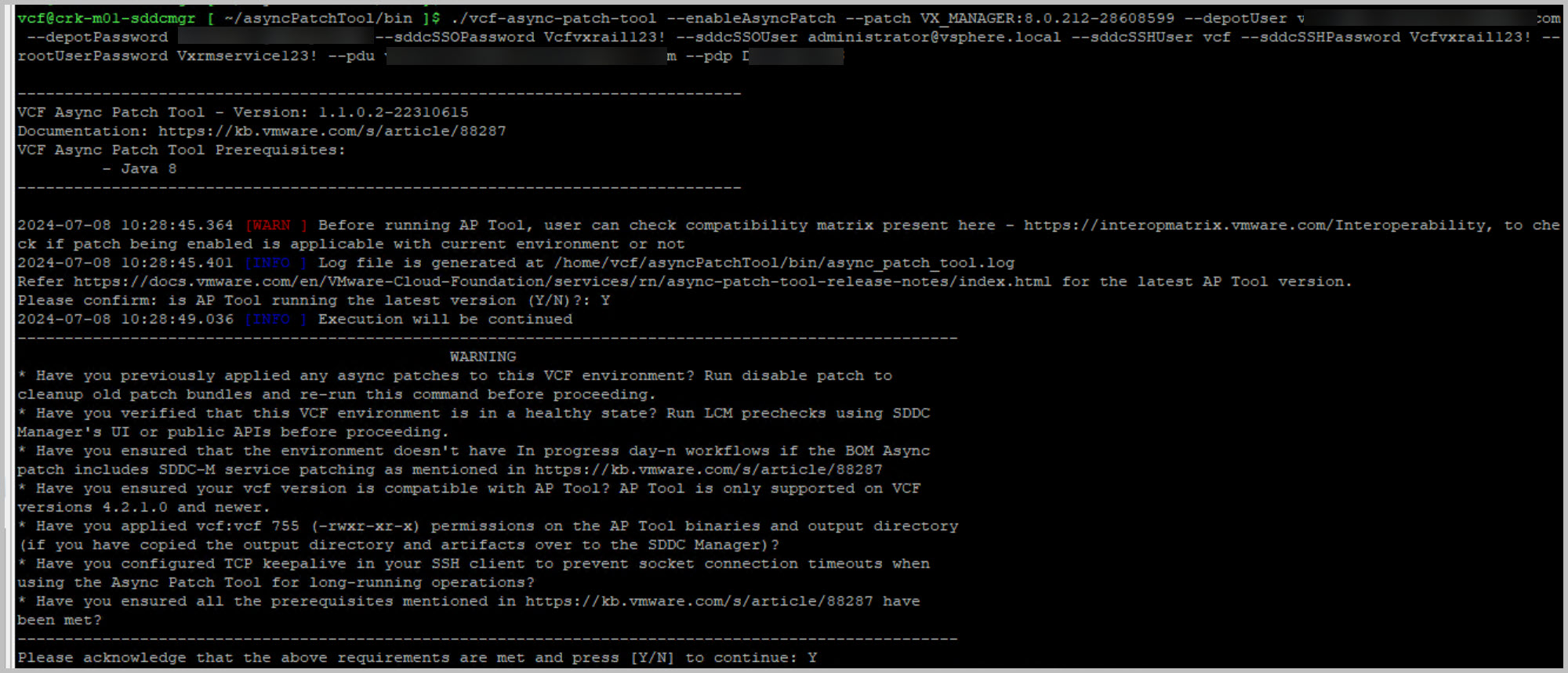
Then run the commands to precheck & enable the patch and follow the prompts to enter credentials including the DELL Depot u/n & p/w:
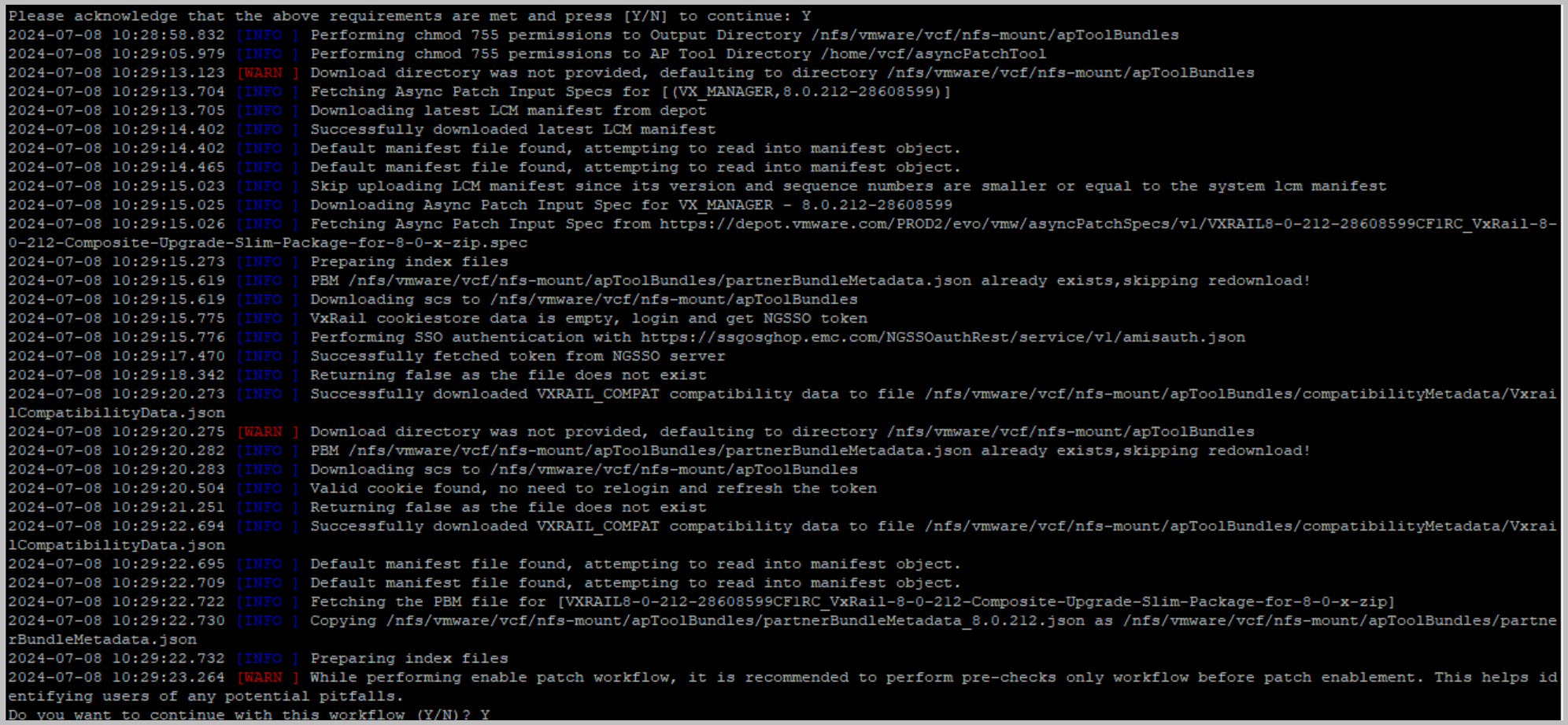
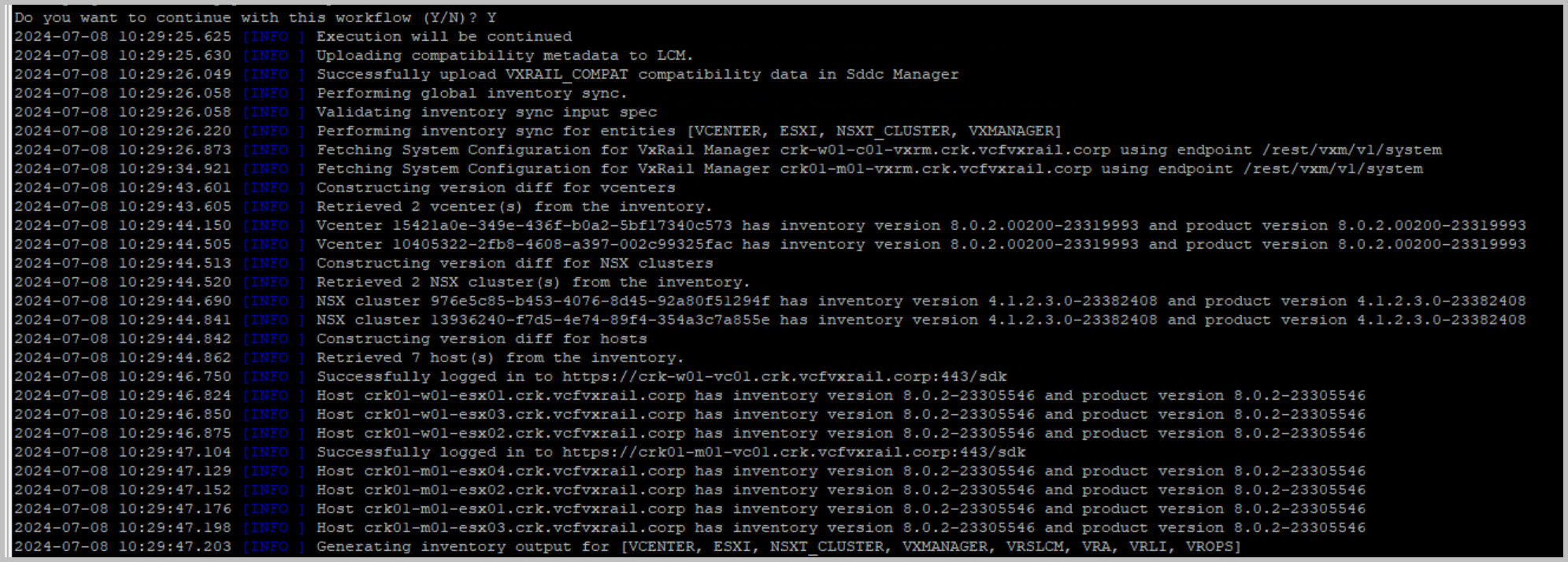
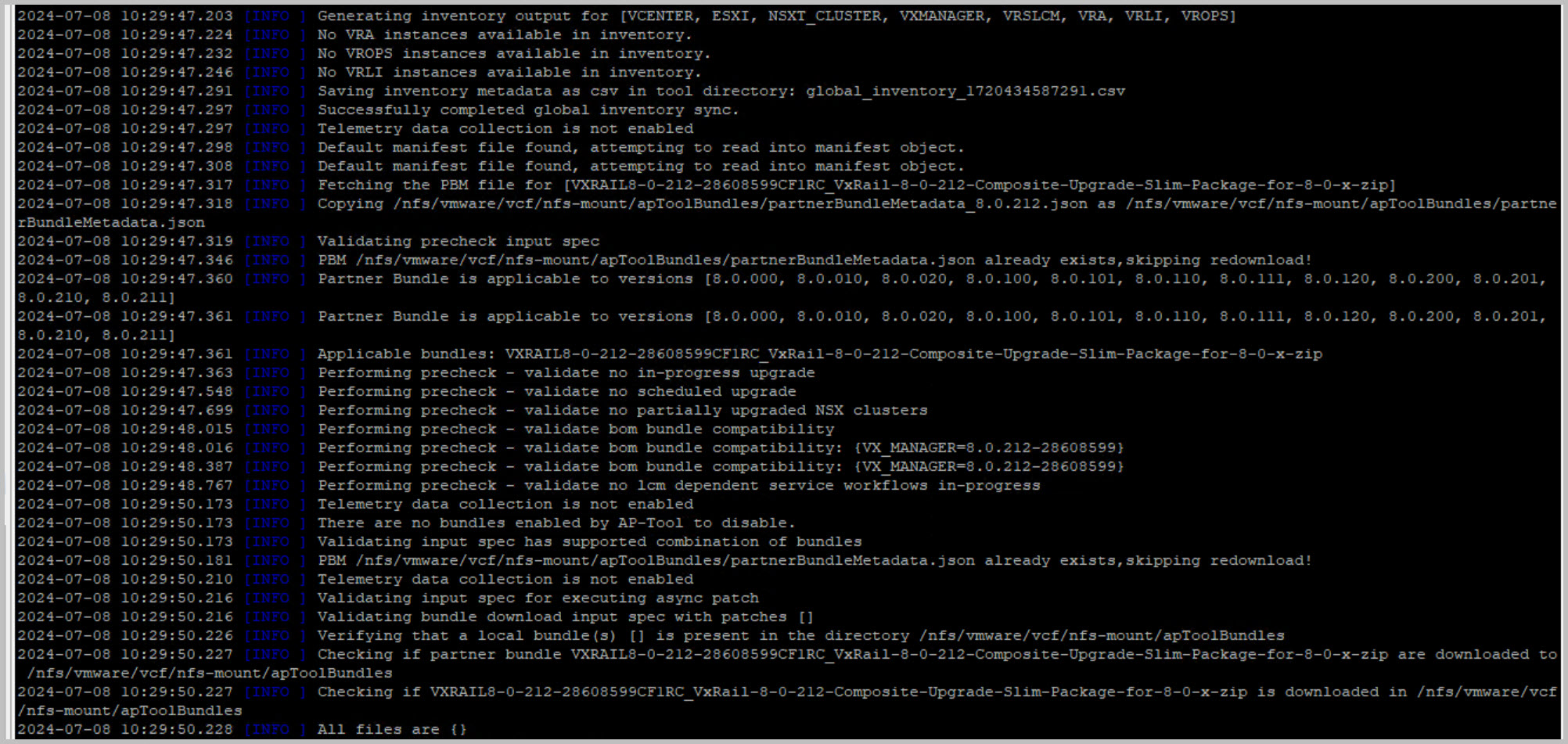
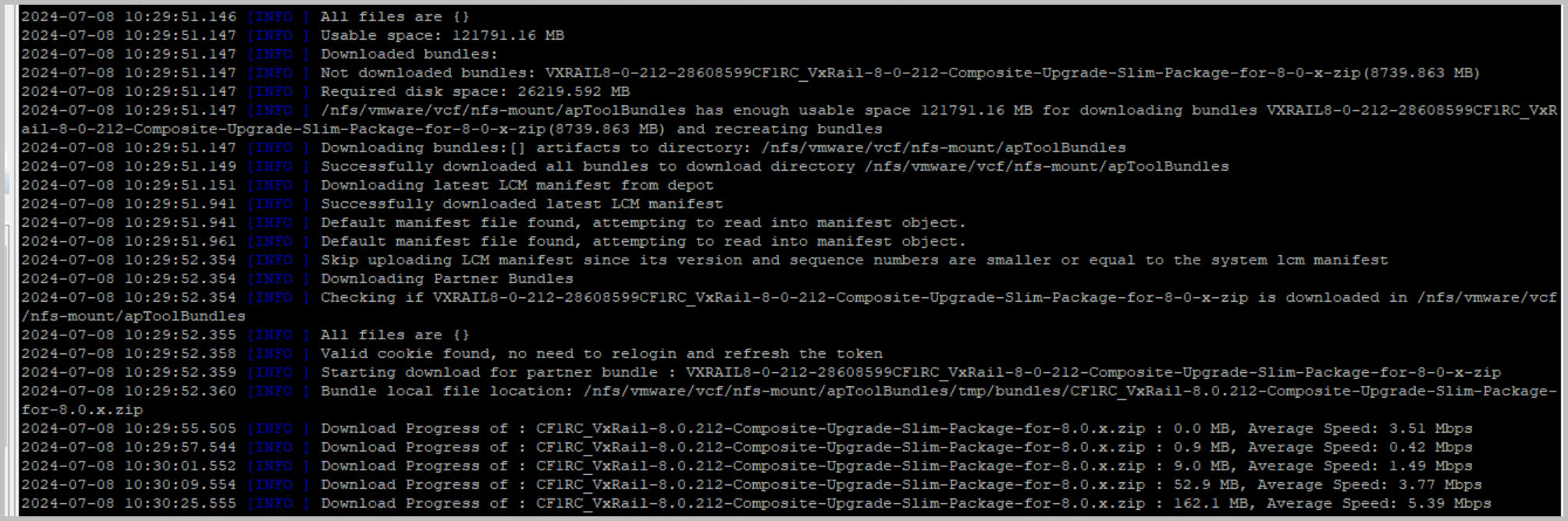
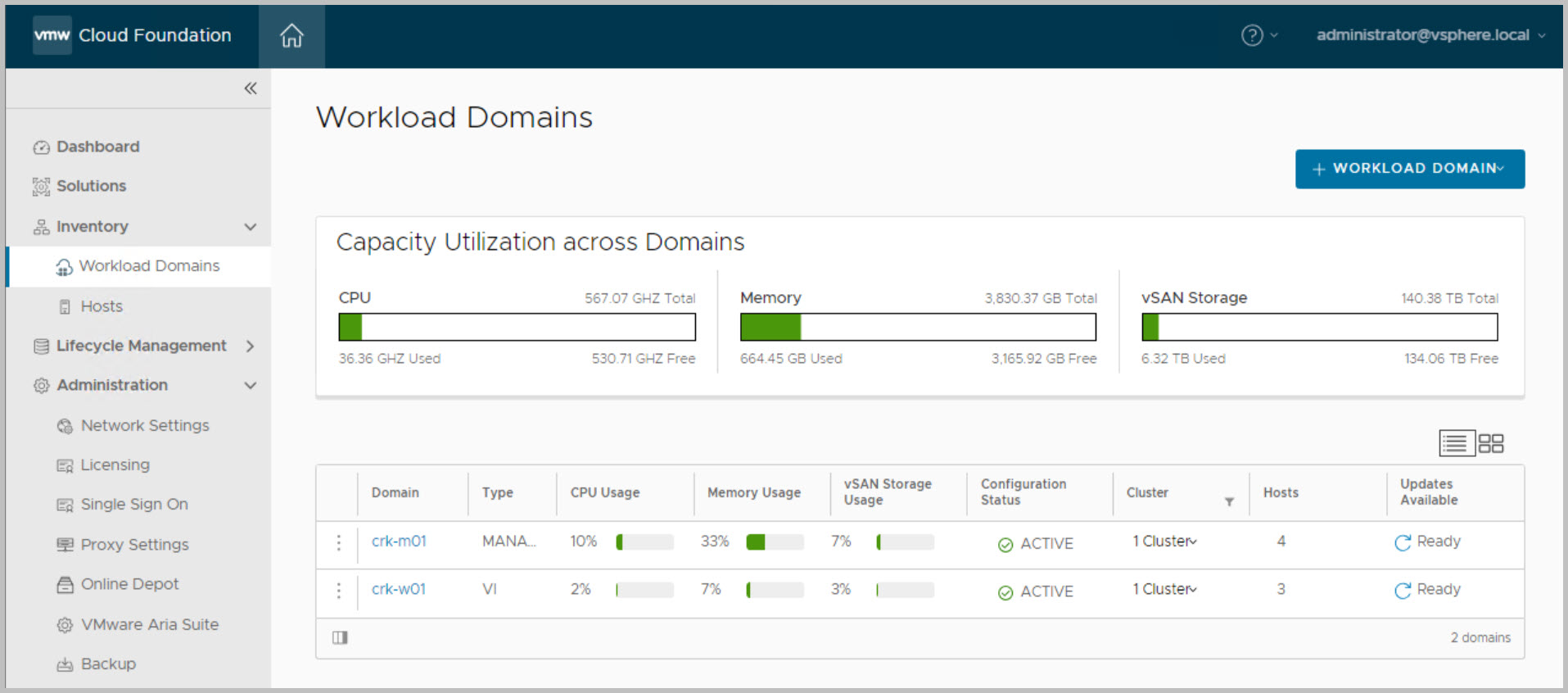
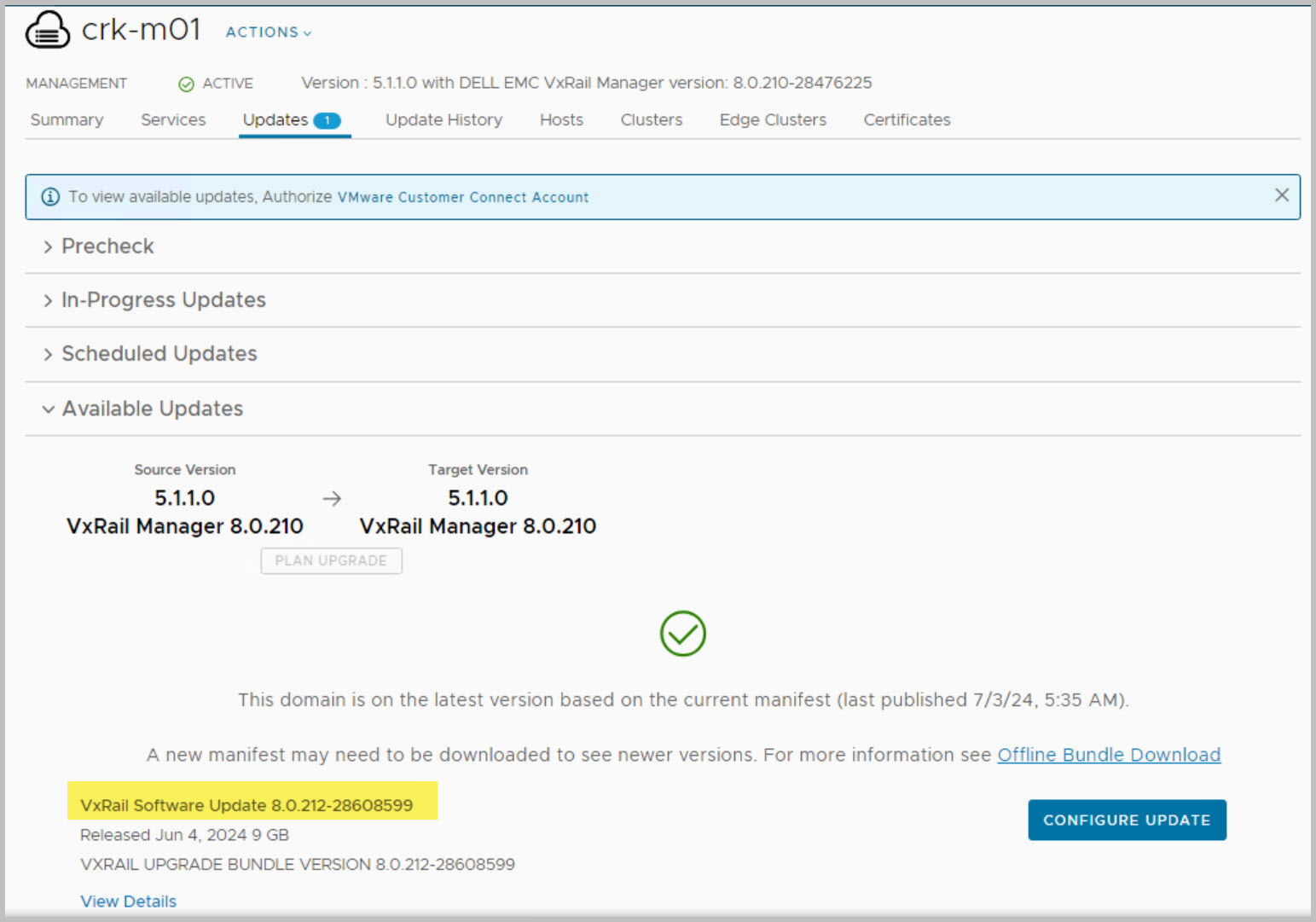
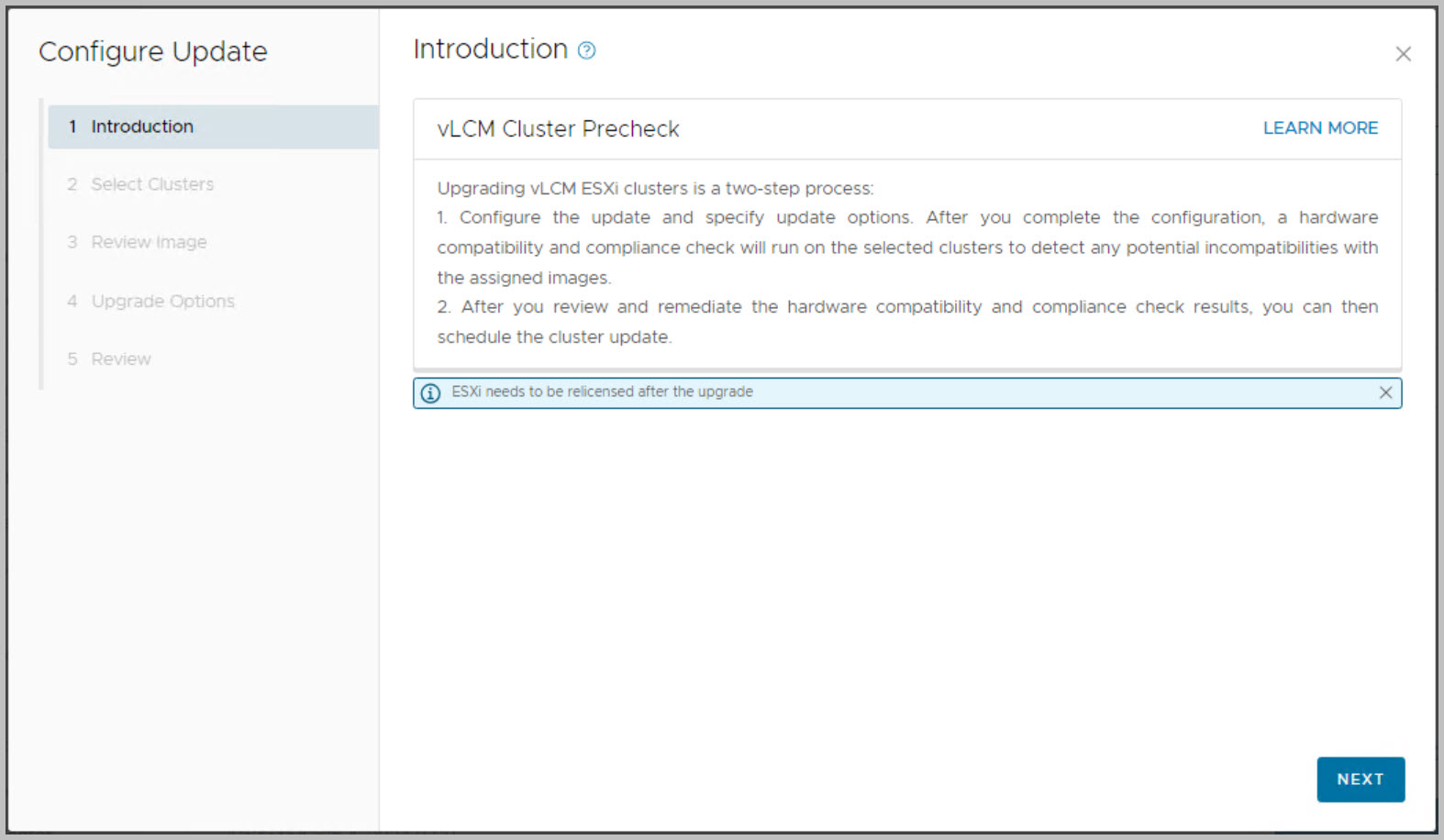
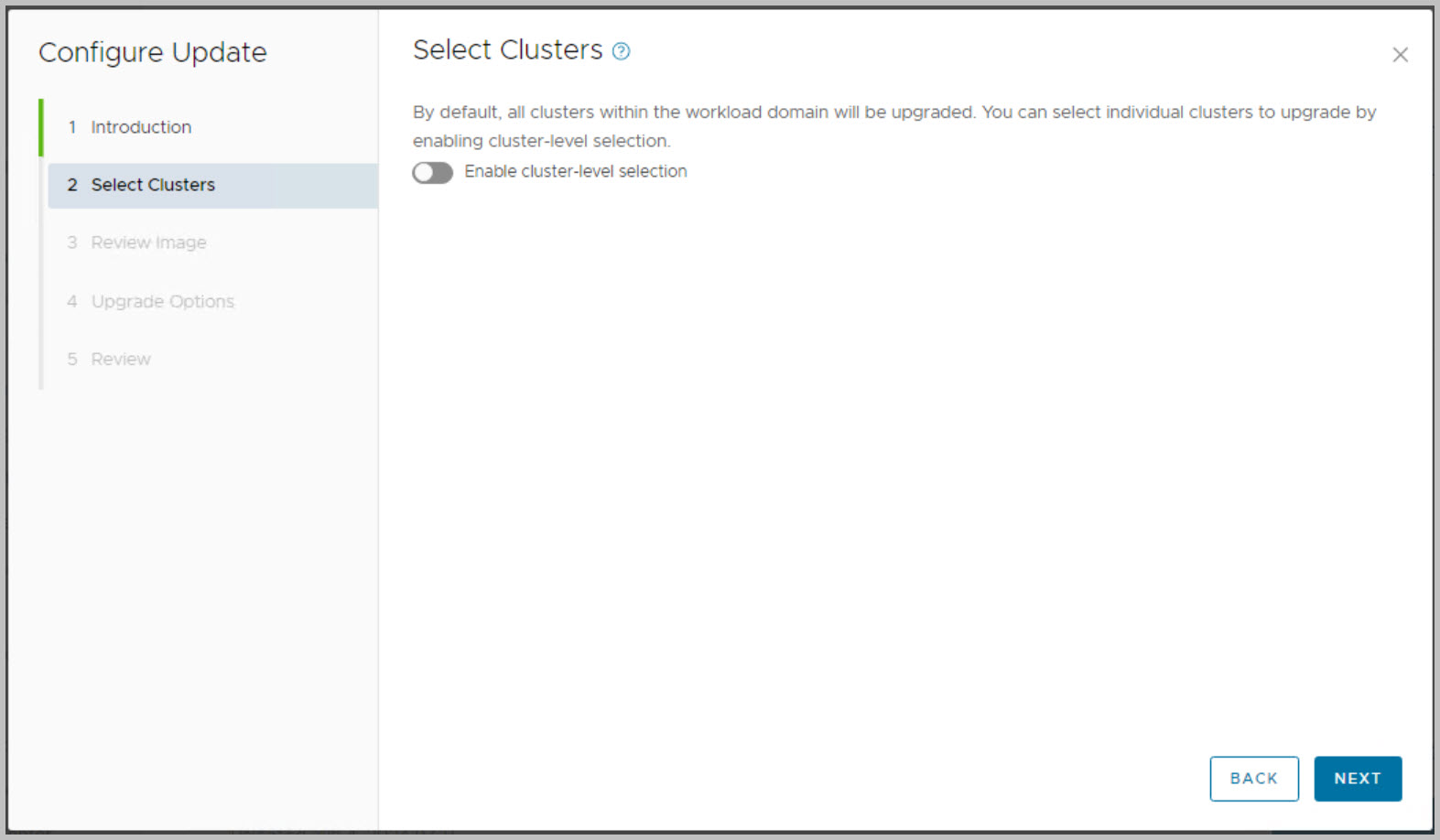
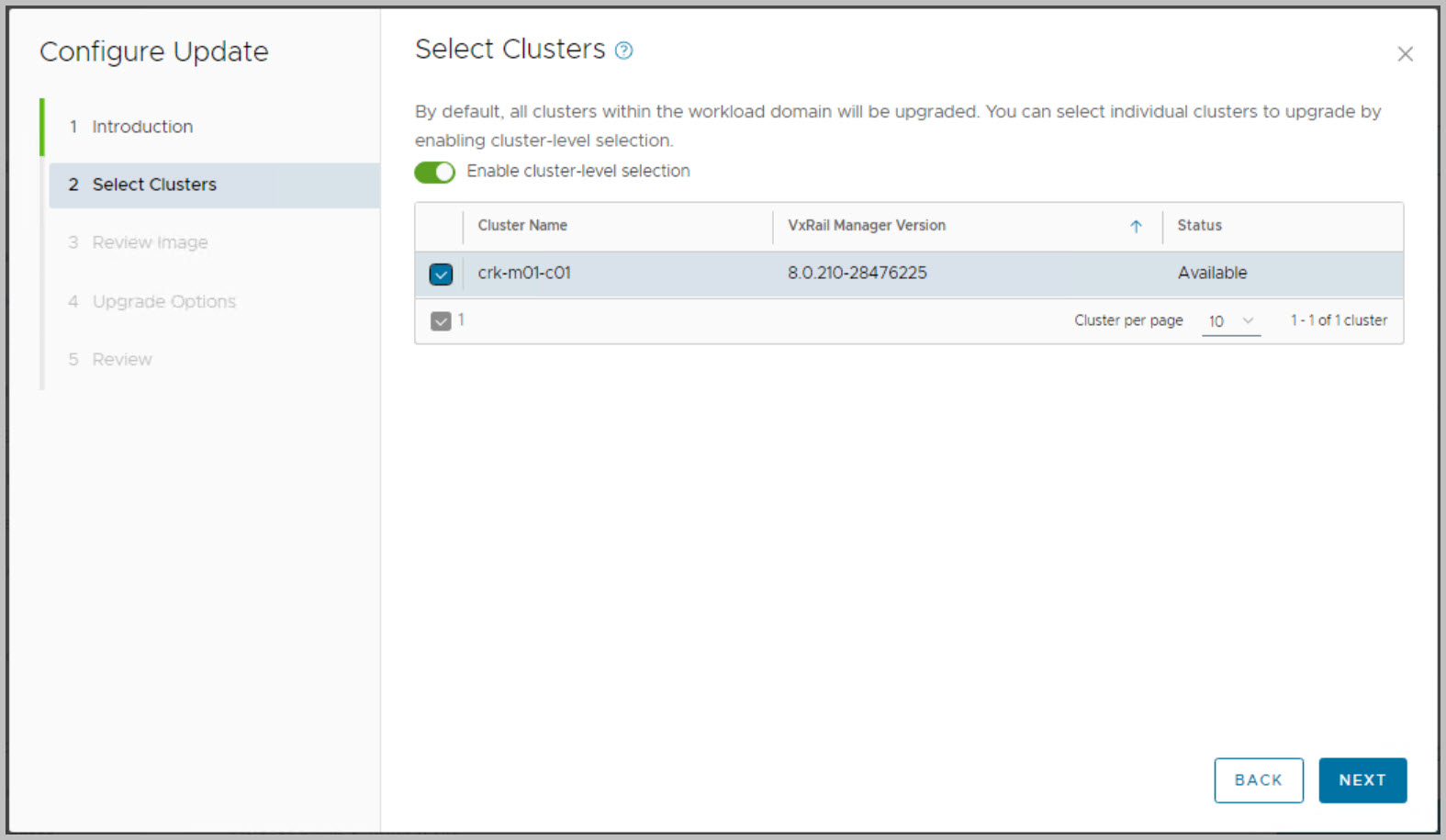
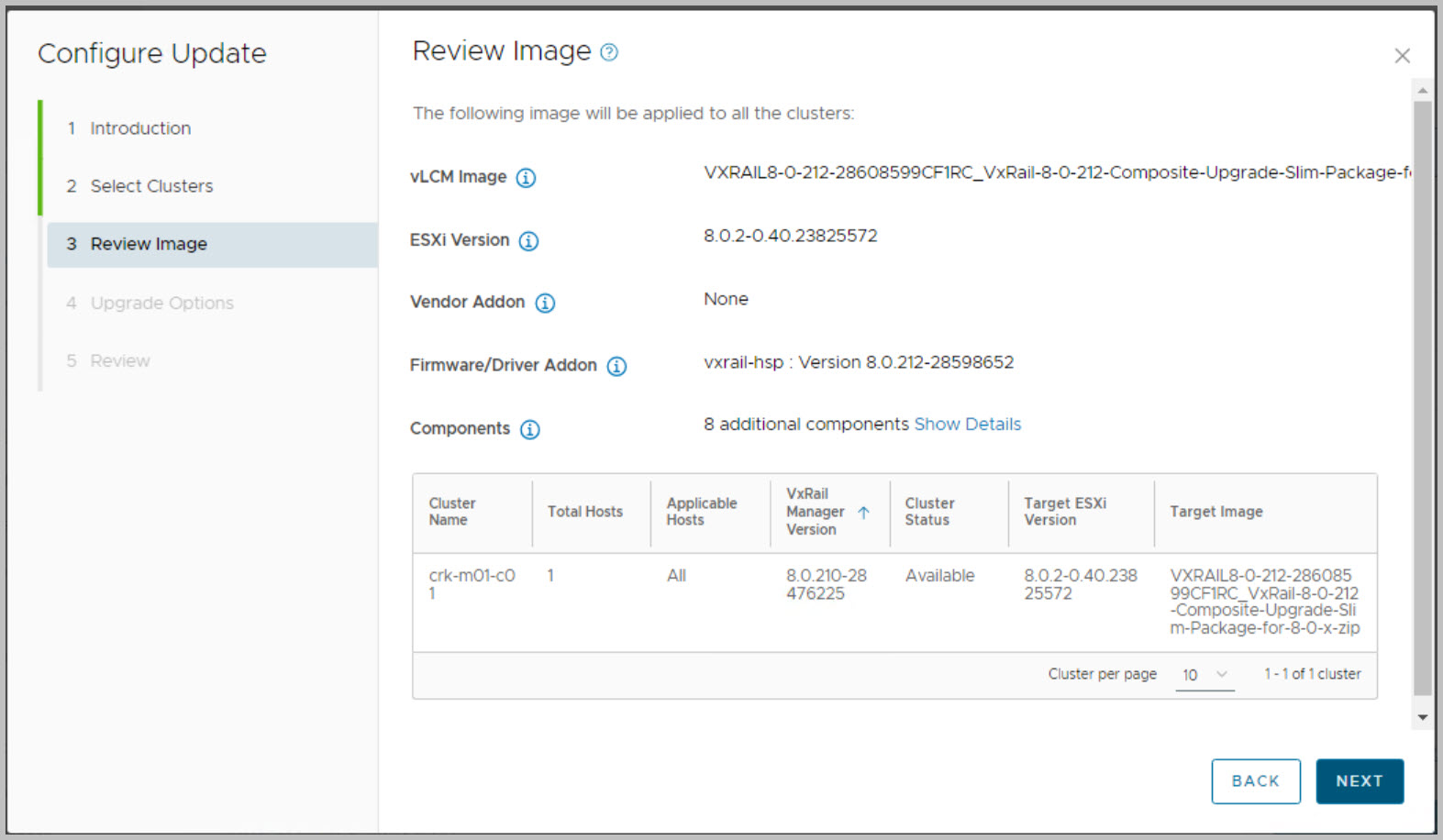
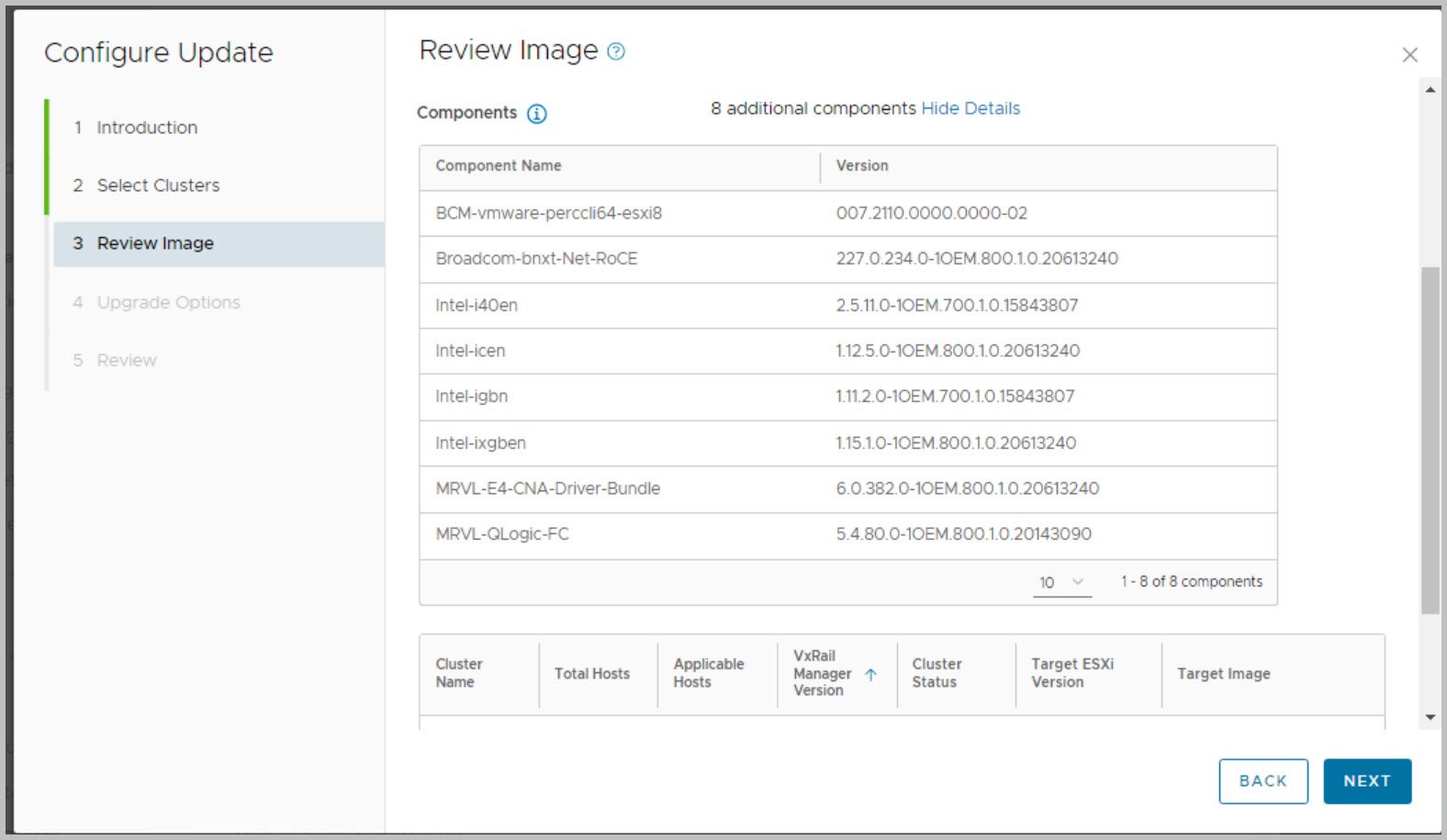
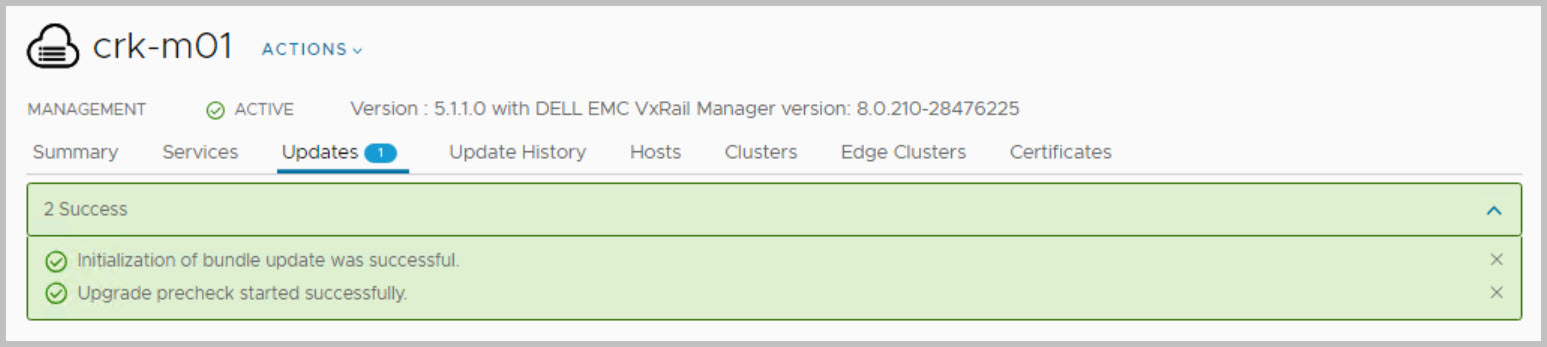
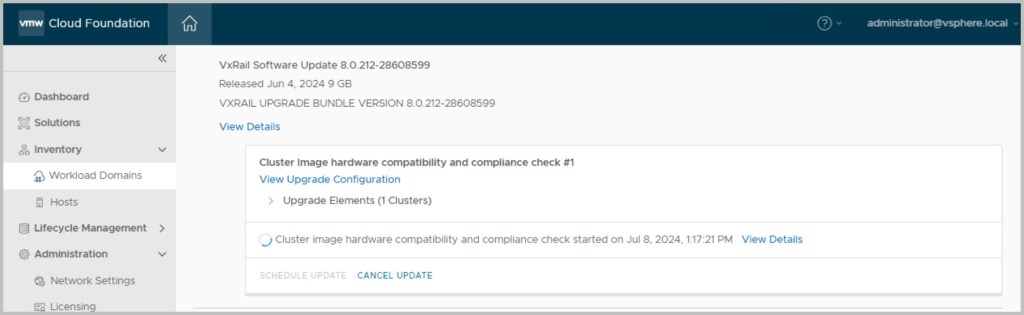
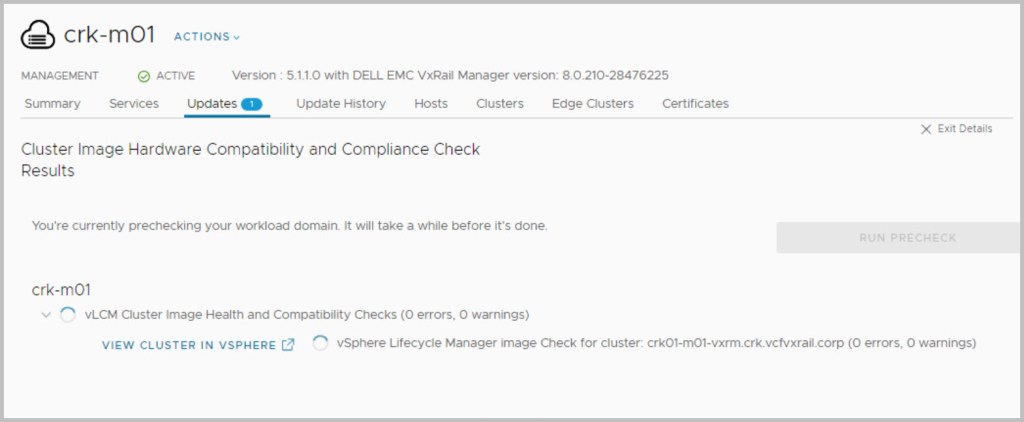
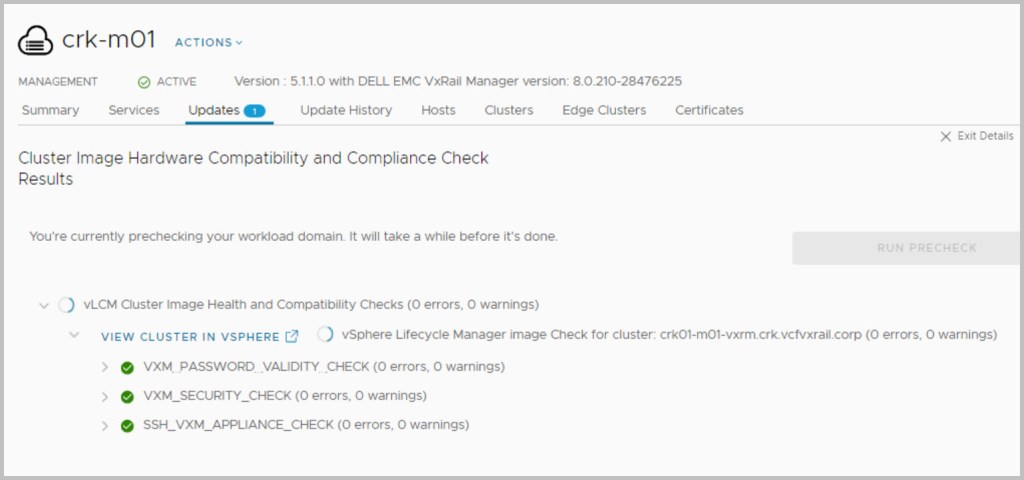
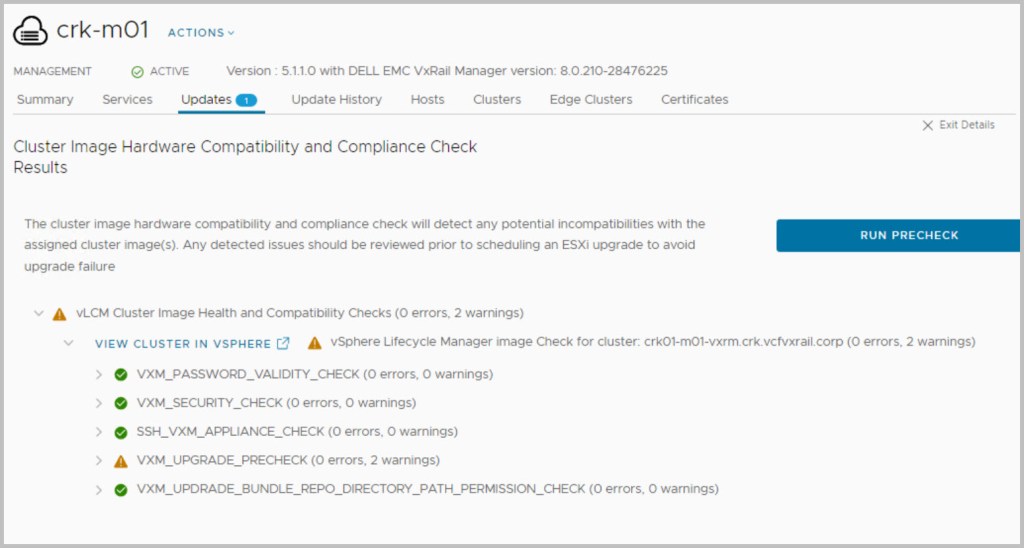
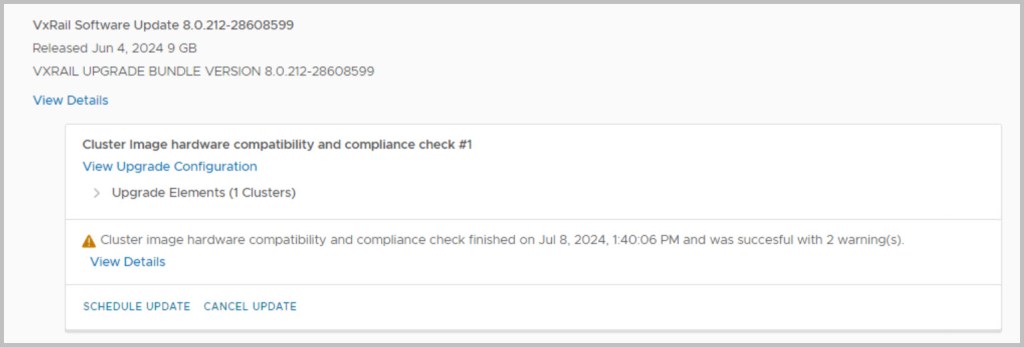
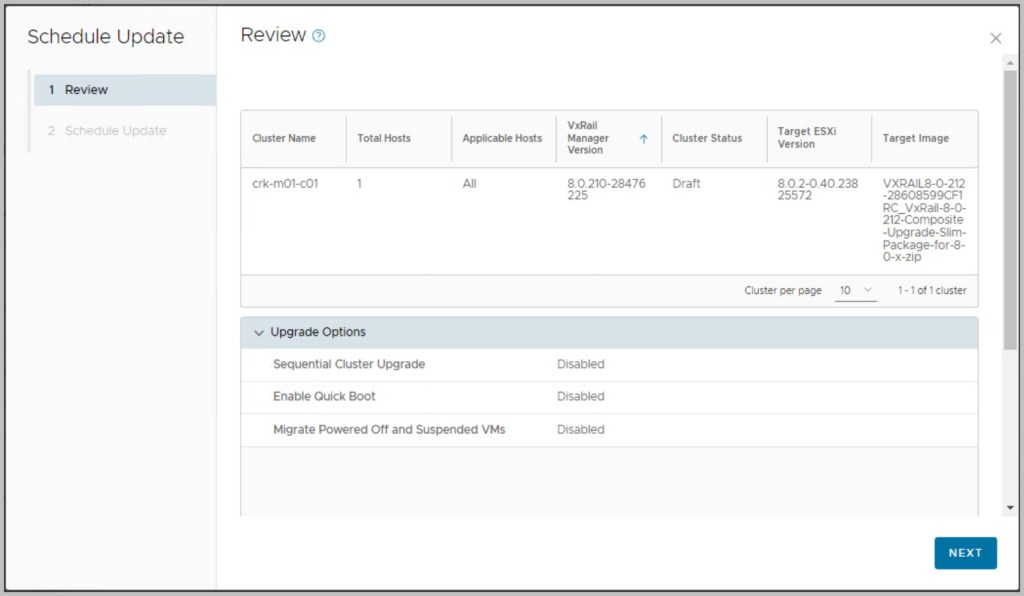
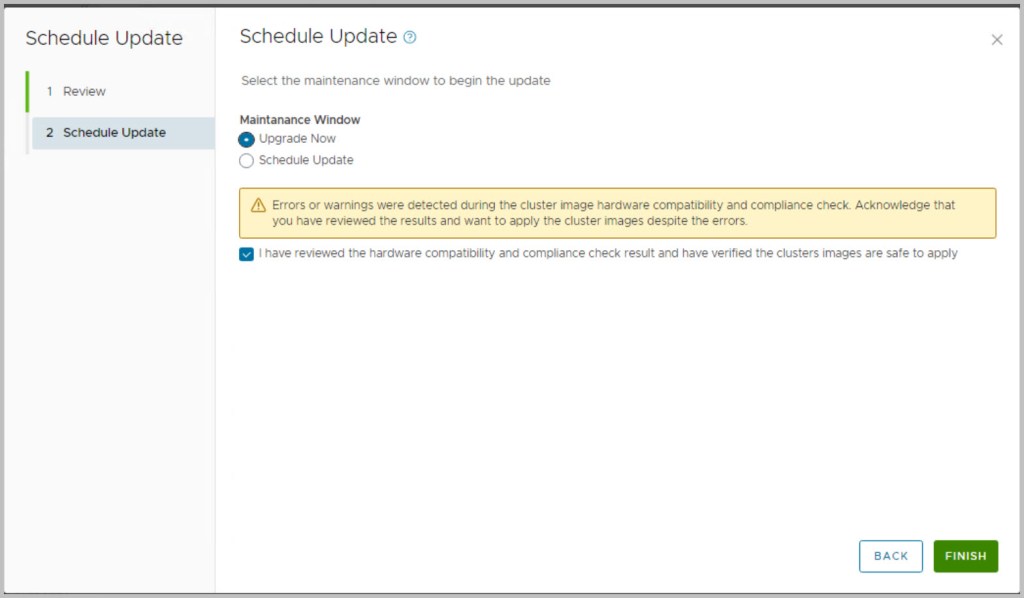
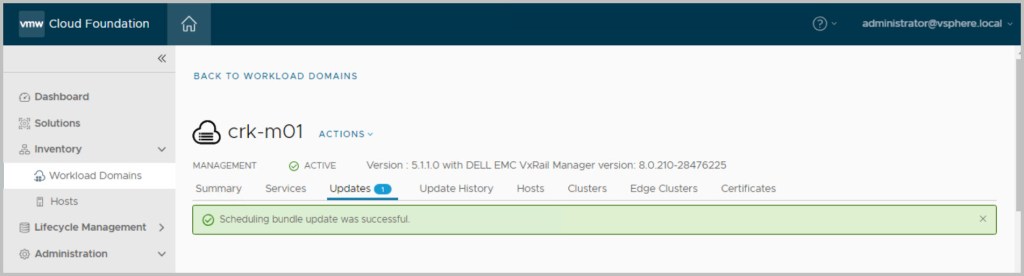
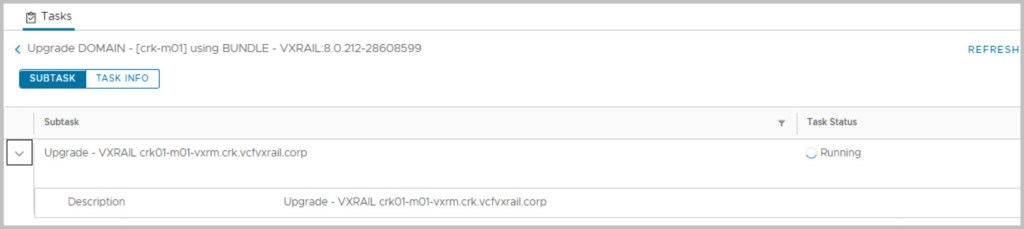
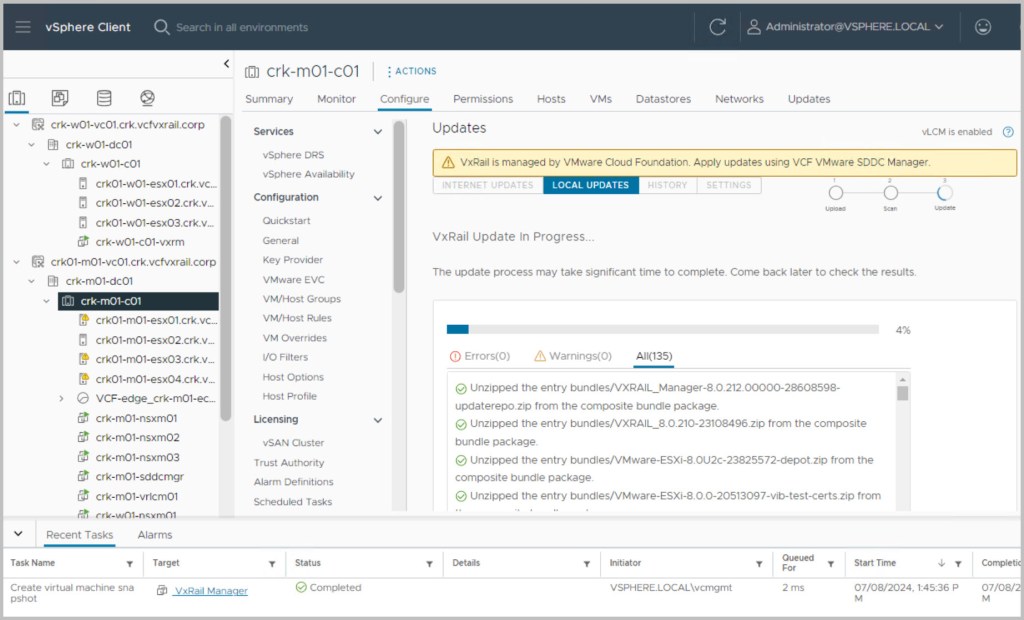
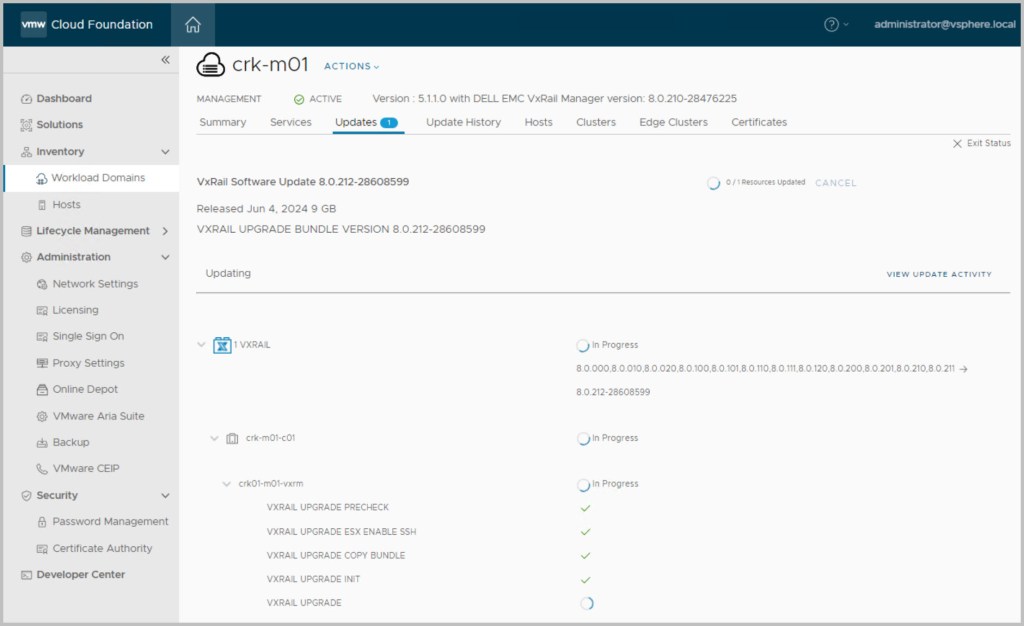
./vcf-async-patch-tool --enableAsyncPatch --precheck --patch VX_MANAGER:8.0.212-28608599 --depotUser --depotPassword --sddcSSOPassword --sddcSSOUser administrator@vsphere.local --sddcSSHUser vcf --sddcSSHPassword --rootUserPassword --pdu --pdp ./vcf-async-patch-tool --enableAsyncPatch --patch VX_MANAGER:8.0.212-28608599 --depotUser --depotPassword --sddcSSOPassword --sddcSSOUser administrator@vsphere.local --sddcSSHUser vcf --sddcSSHPassword --rootUserPassword --pdu --pdp tail -f async_patch_tool.logcat async_patch_tool.log | grep 'Successfully completed downloading bundle'When enable patch completes successfully then you can log in to the SDDC Manager UI and apply the async patch to all workload domains. Ensure a valid backup of the vCenter before applying the upgrade from SDDC UI. In this example we apply the patch to the Managment WLD:
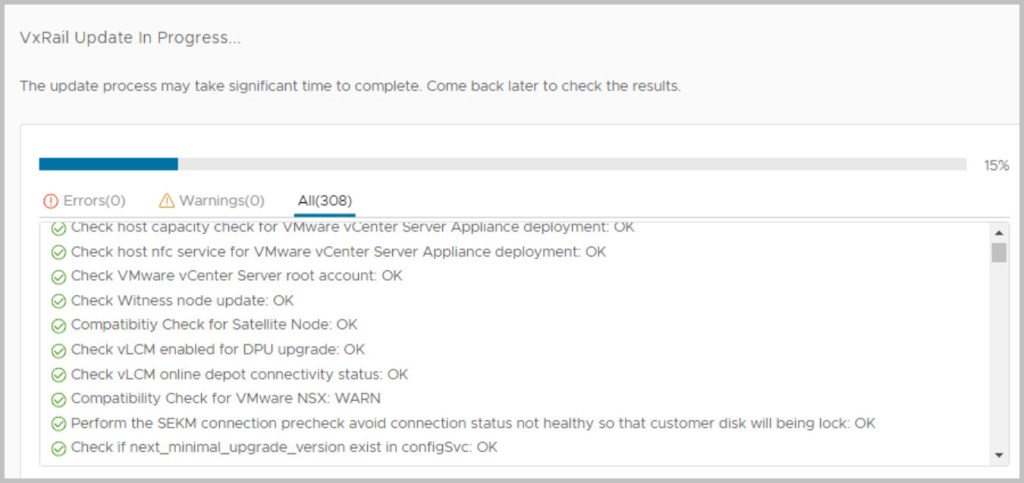
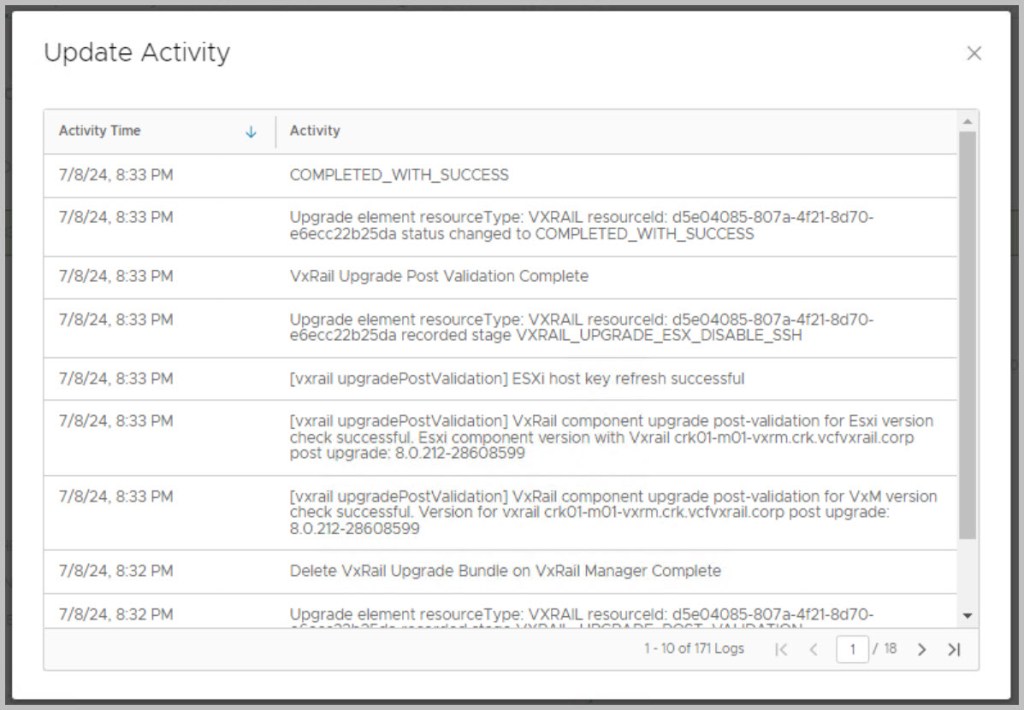
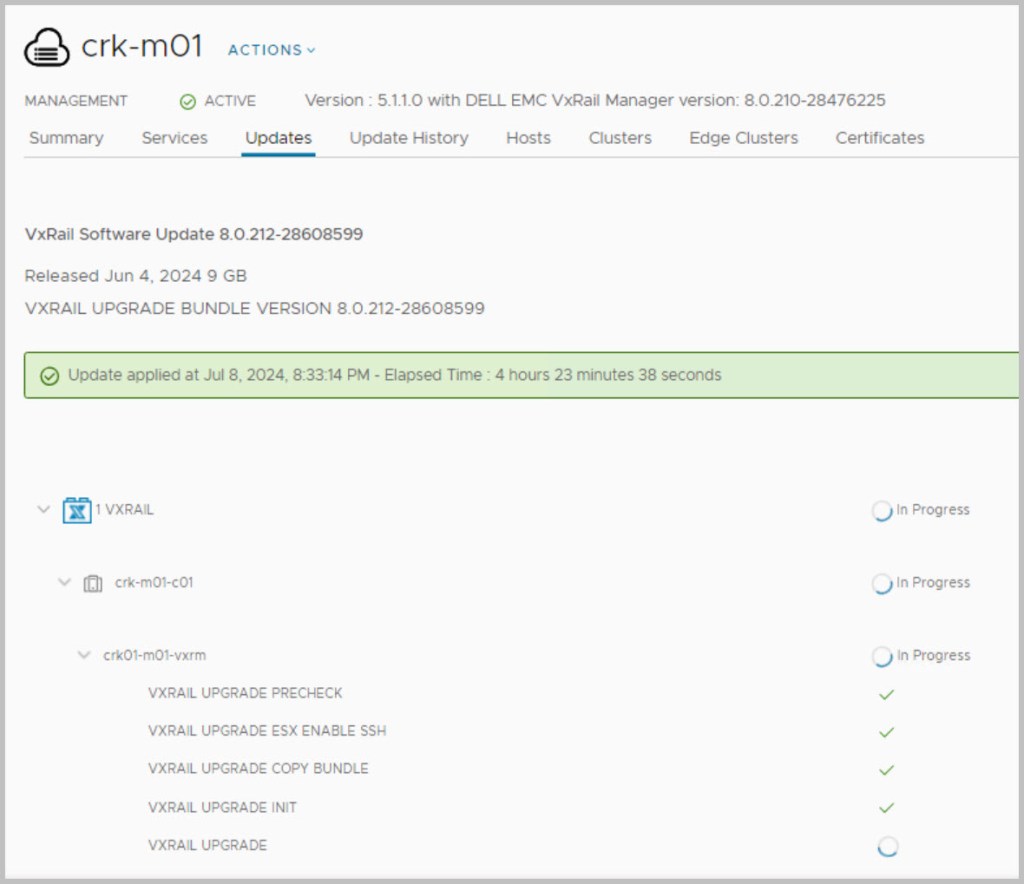
Monitoring progress to completion:
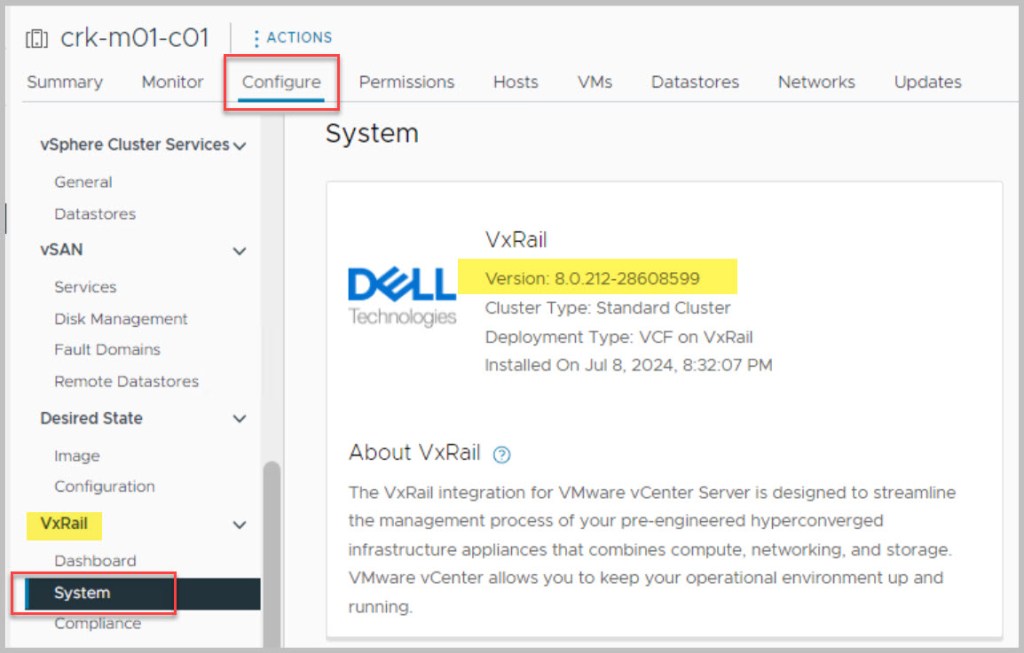
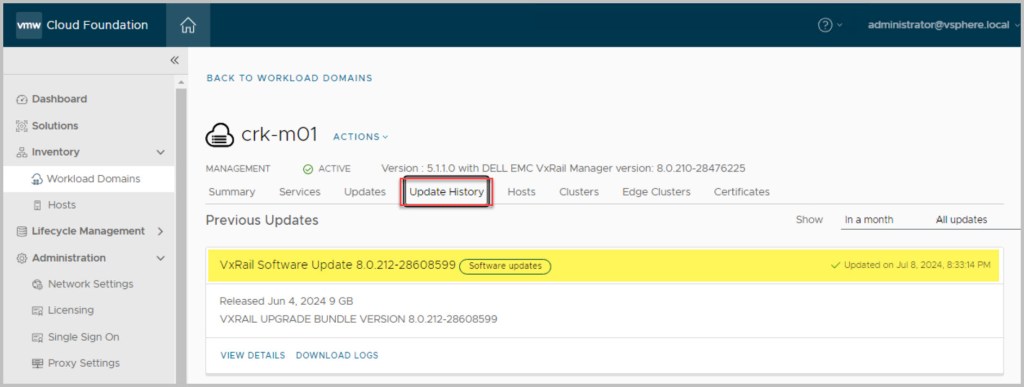
tail -f /var/log/vmware/vcf/lcm/lcm.logcat /var/log/vmware/vcf/lcm/lcm.log | grep "reached final state COMPLETED_WITH_SUCCESS"Upgrade of VxRAIL COMPLETED SUCCESSFULLY!
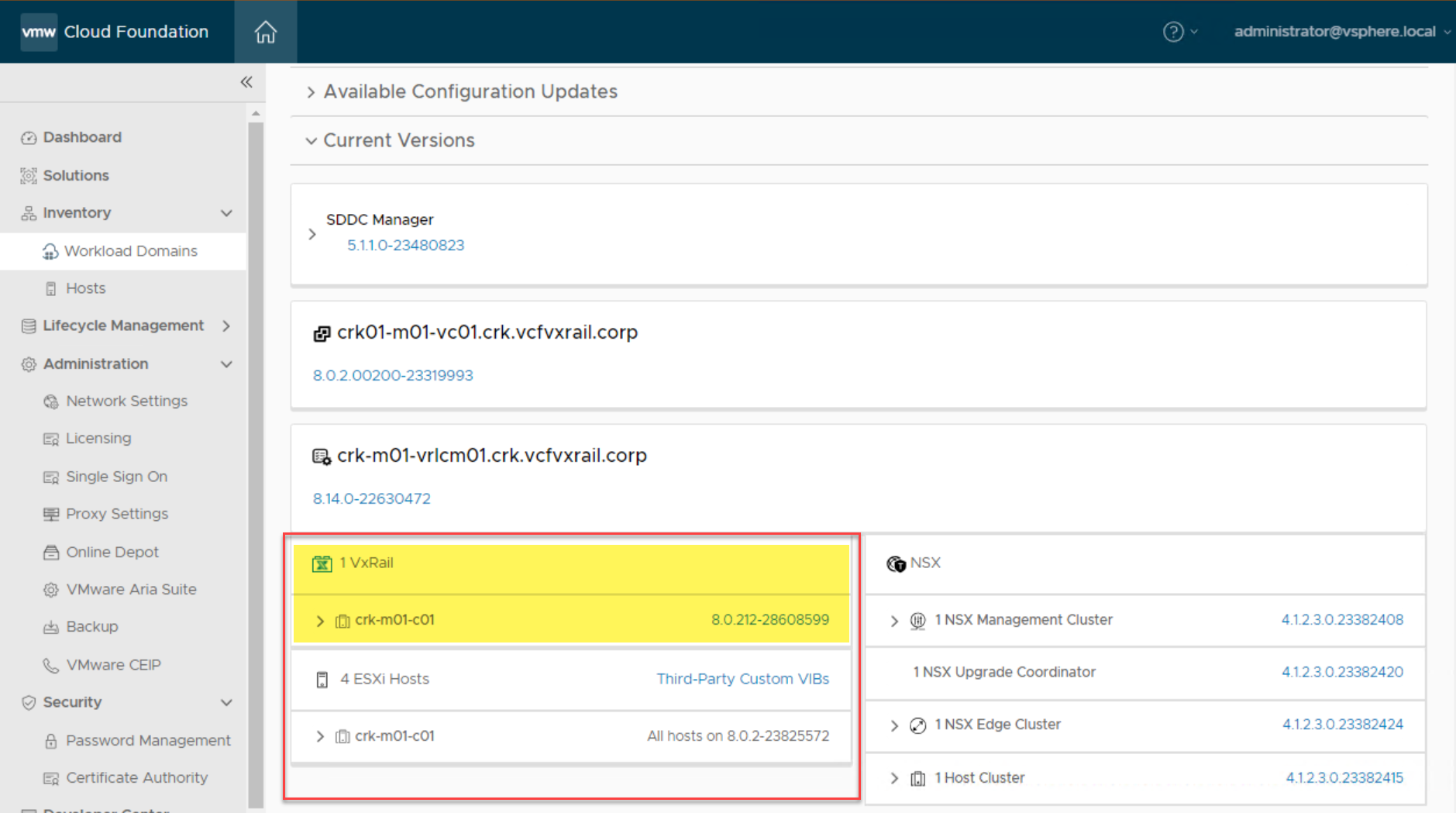
Repeat the SDDC UI upgrade for the remaining WLDs:

After the async patch is successfully applied to all WLDs, use the Async Patch Tool to deactivate the patch by running the following command:
./vcf-async-patch-tool --disableAllPatches --sddcSSOUser administrator@vsphere.local --sddcSSOPassword password --sddcSSHUser vcf --sddcSSHPassword password
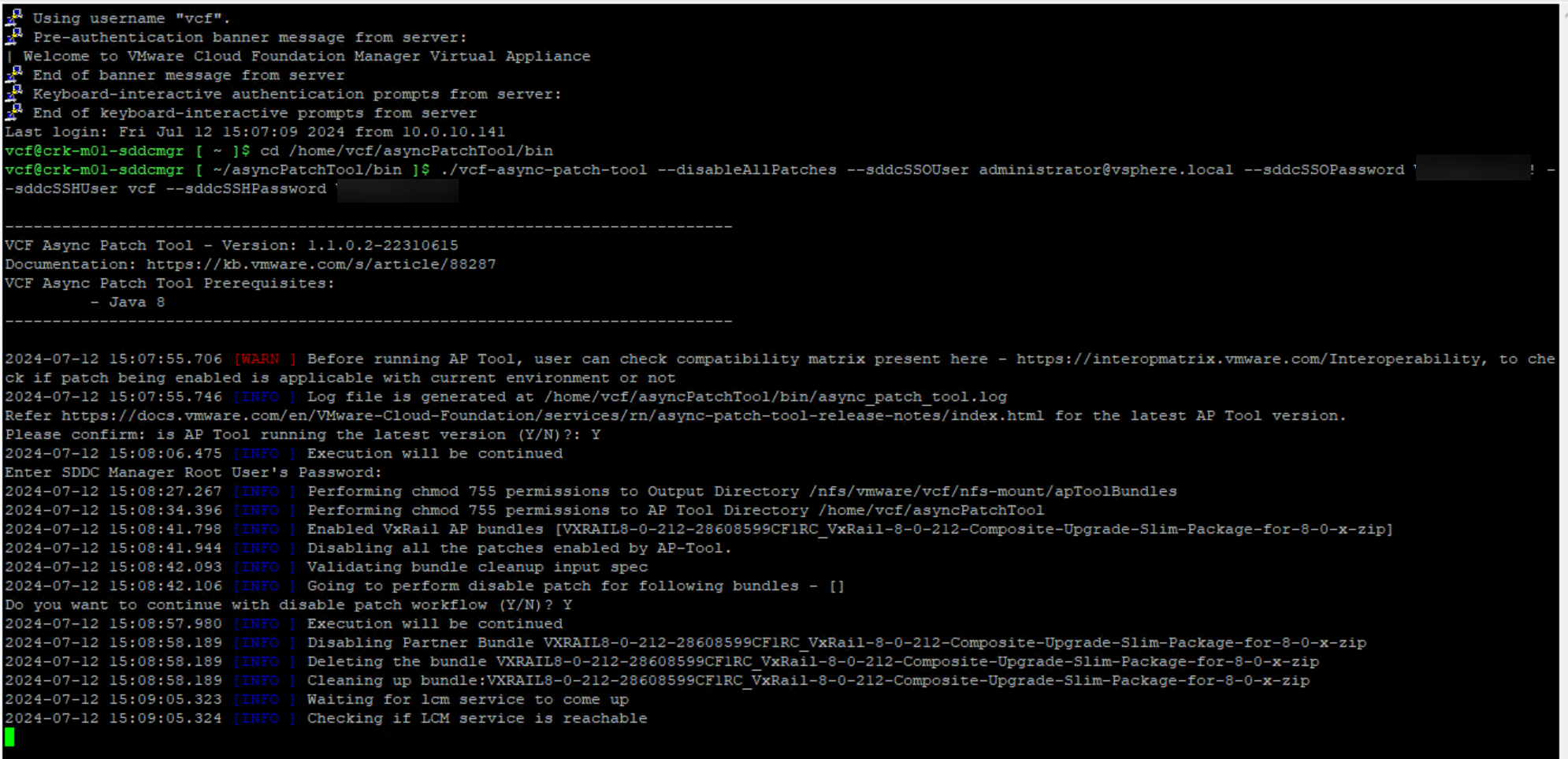
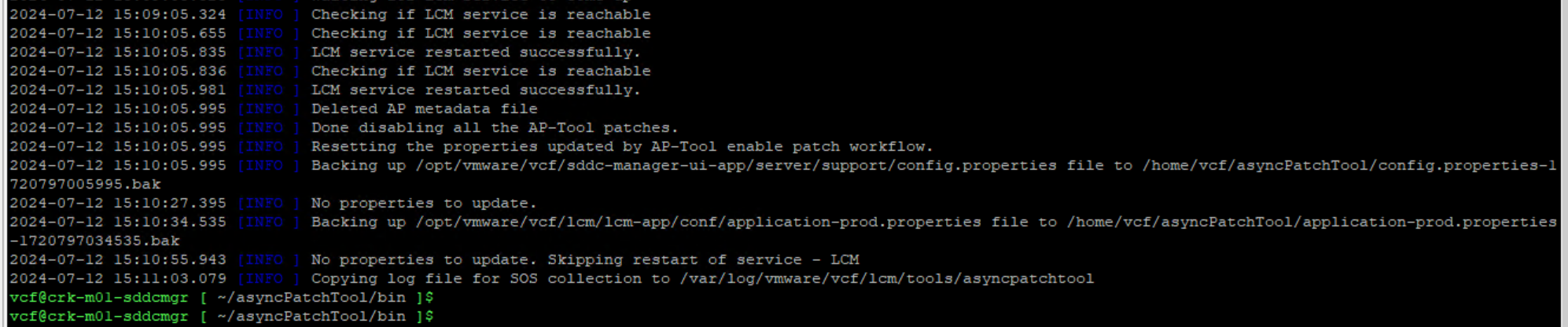
Final step is to run an an inventory sync which updates the SDDC Manager inventory with the accurate information about the versions of vCenter Server, NSX, and ESXi that are now running in your VMware Cloud Foundation instance post APT upgrades.
./vcf-async-patch-tool --sync --sddcSSOUser administrator@vsphere.local --sddcSSHUser vcf
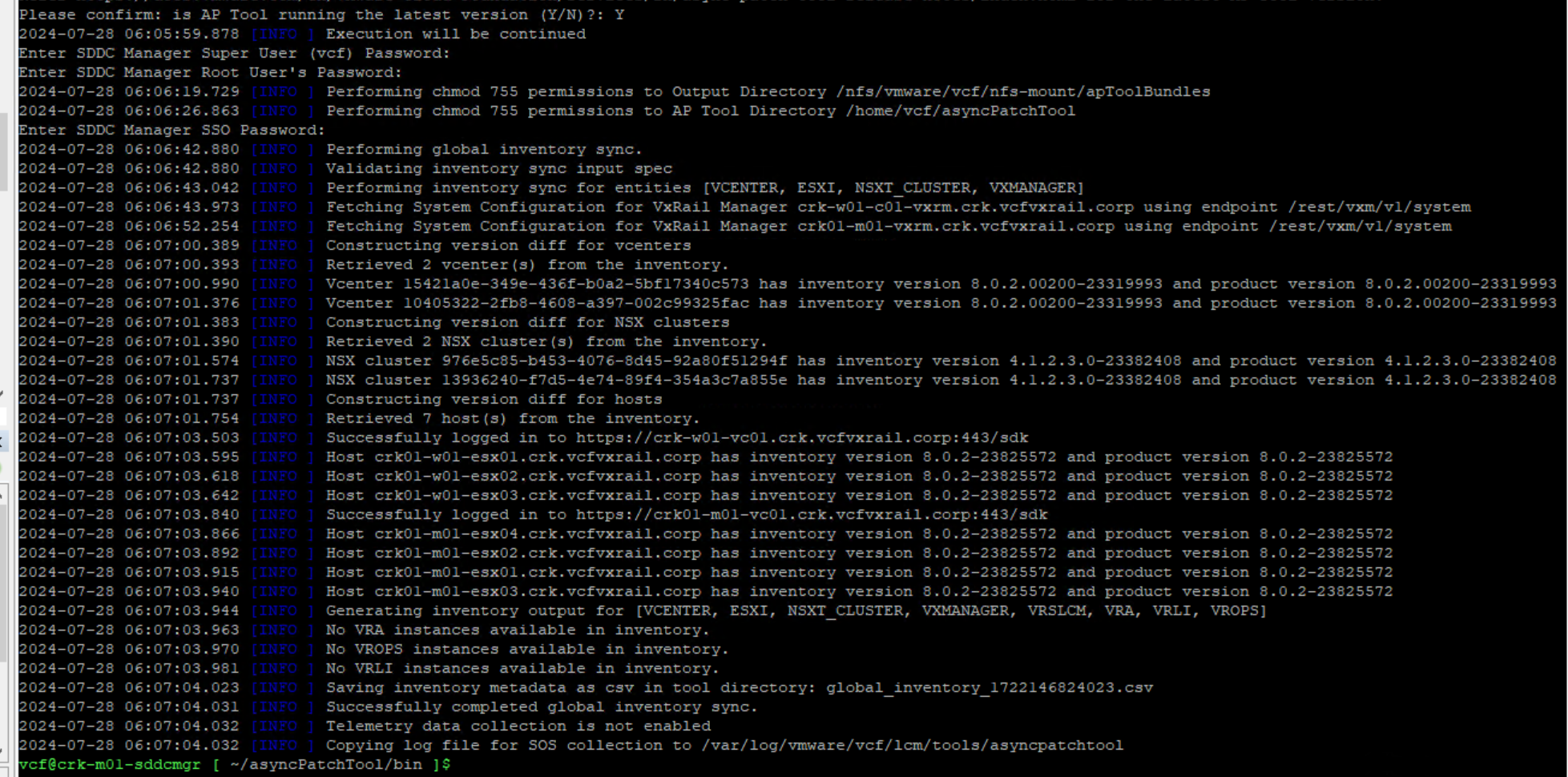
Inventory sync output file is located here:
/home/vcf/asyncPatchTool/bin

Note: reconnect SDDC Manager to the VMware & DELL Depots.
Hope that helped! Please leave a comment!
Thanks for reading!













 DavidRing.ie