VxVerify – Pre-upgrade Health Check Tool
A previous edition of this post demonstrated a VxRail system running code version 7.0.100 using VxVerify 3.x which can be found here. In this revision, I will showcase the use of VxVerify 4.x on a VxRail system with code version 8.0.210.
VxVerify is an incredibly useful tool for anyone working with VxRail. Complementary to the native VxRail Manager checks, VxVerify performs a comprehensive health check analysis on a VxRail cluster. It is highly recommended to run VxVerify before upgrades, expansions, or general maintenance operations.
When executed on VxRail Manager, VxVerify deploys what are referred to as ‘Minions’—small Python programs—sent to each of the VxRail nodes in the cluster. These minions perform host checks on each node. Besides ESXi host-specific tests, VxVerify also conducts checks on VxRail Manager, VMs, vCenter Server Appliance (vCSA), and at the cluster level.
Here are some of the areas that VxVerify tests:
- Maintenance mode status
- Check hostd service
- IPMI tool for VxRail hardware
- NTP status and time delta
- Secure Boot status
- vSAN Health
- Service Datastore available capacity
- ESXi version consistency
- vSAN Health
- Free space
- Password for unsupported characters
- Check free space in root and /tmp
- Host Lockdown Mode
- Reboot required for ESXi host
- Check for RecoverPoint
- Check for external vCenter
- vMotion compatibility
- Mounted ISO on VM
- VM-to-host affinity rules
- Docker Servers Running
- VCF installation type, if present
- Check time difference between VxRM & VC
- Checks cluster for any vSAN witness
- Check Nameservers and reverse DNS lookup
It is highly recommended that you run the VxVerify tool before proceeding with a VxRail upgrade; more details on how to download and run VxVerify can be found here:
https://www.dell.com/support/kbdoc/en-ie/000021527/vxrail-how-to-run-vxverify
There is a VxVerify download available for each of the following VxRail versions:
- VxVerify 2.xx.xxx is for VxRail 4.5, 4.7 & 7.0.000 (which uses Python 2.7)
- VxVerify 3.xx.xxx is for VxRail 7.0.010+ (which use Python 3.6)
- VxVerify 4.xx.xxx is for VxRail 8.0.210 and later (which use Python 3.11)
Note: Always download the very latest edition as new checks are being added regularly. In addition each version of VxVerify is timelimited to prevent outdated versions.
Running VxVerify
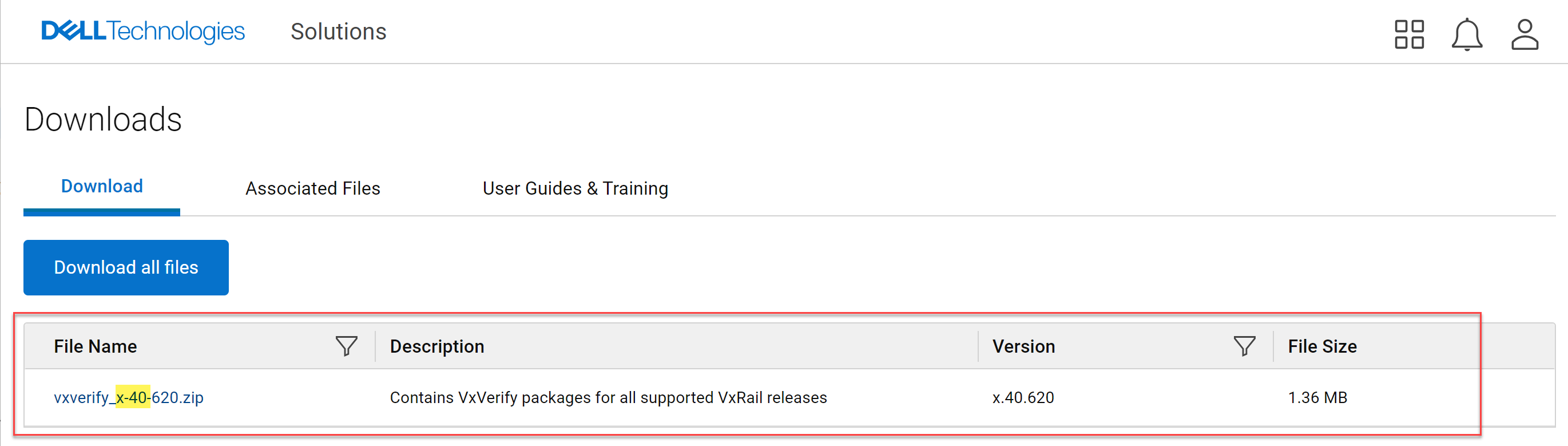
The VxVerify .zip bundles, numbered x-40 and later, include packages for all supported VxRail releases. When you run VxVerify using VxVerify.sh, it automatically selects the correct .pyc file to match the Python version running on VxRM.
Begin by downloading the latest available VxVerify_x-40 edition:
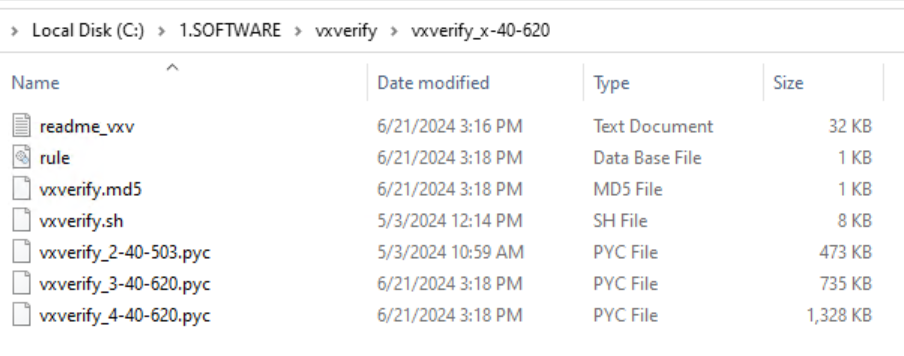
Once download completes extract the .zip and review the readme.txt to review all the recent updates:
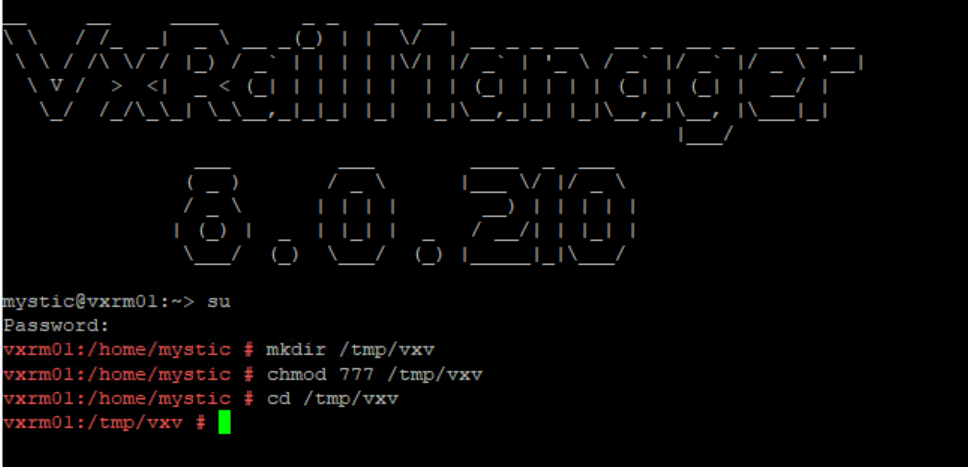
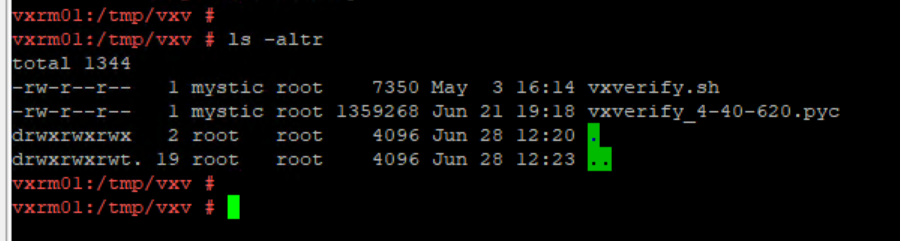
Before uploading VxVerify to VxRail Manager we need to create a directory with the required permission set. Login to VxRail manager via SSH elevating to root user and execute the following set of commands to create a ‘vxv’ dir in /tmp and set the permissions:
#mkdir /tmp/vxv
#chmod 777 /tmp/vxv
#cd /tmp/vxv
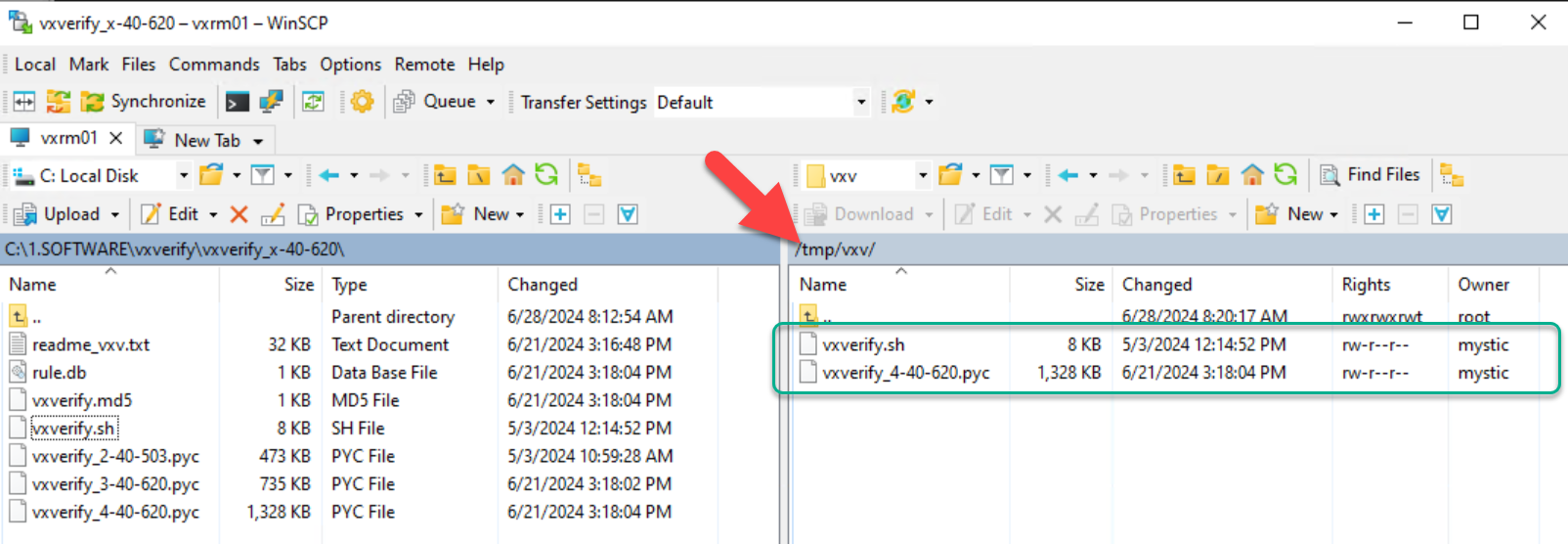
Upload the vxverify_4 ‘.pyc’ file & vxverify.sh to the newly created directory (in this example I am leveraging ‘winscp’ to perform the upload to VxRail manager):
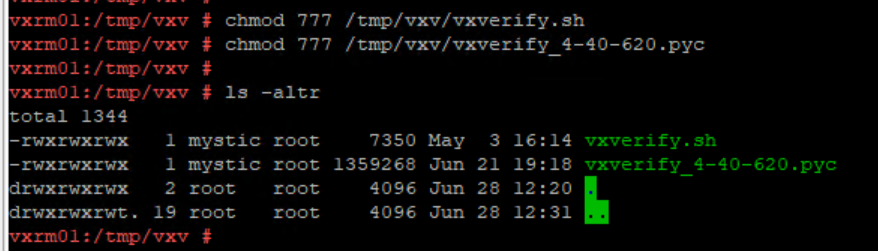
Setting permissions to run scripts:
chmod 777 /tmp/vxv/vxverify.sh
chmod 777 /tmp/vxv/vxverify_4-40-620.pyc
ls -altr
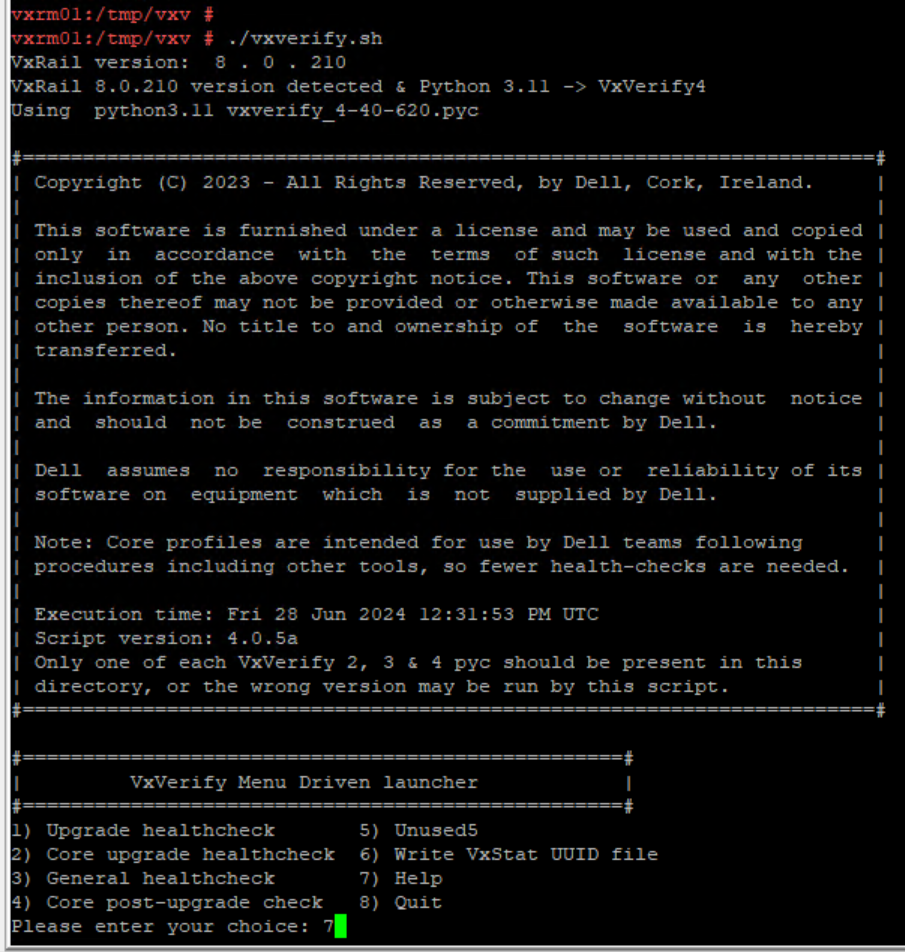
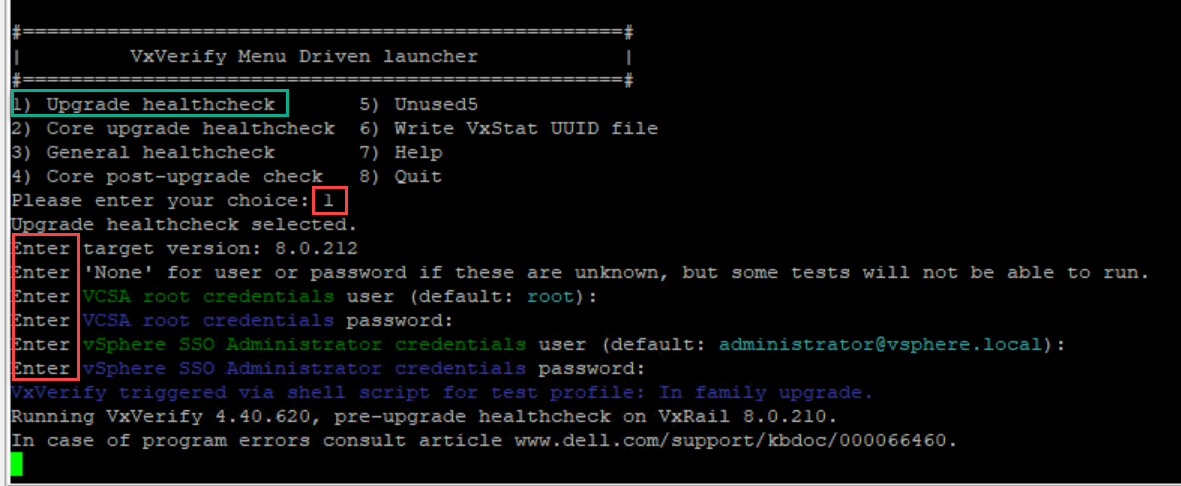
Simply running the ./vxverify.sh script as root will kick off VxVerify4:
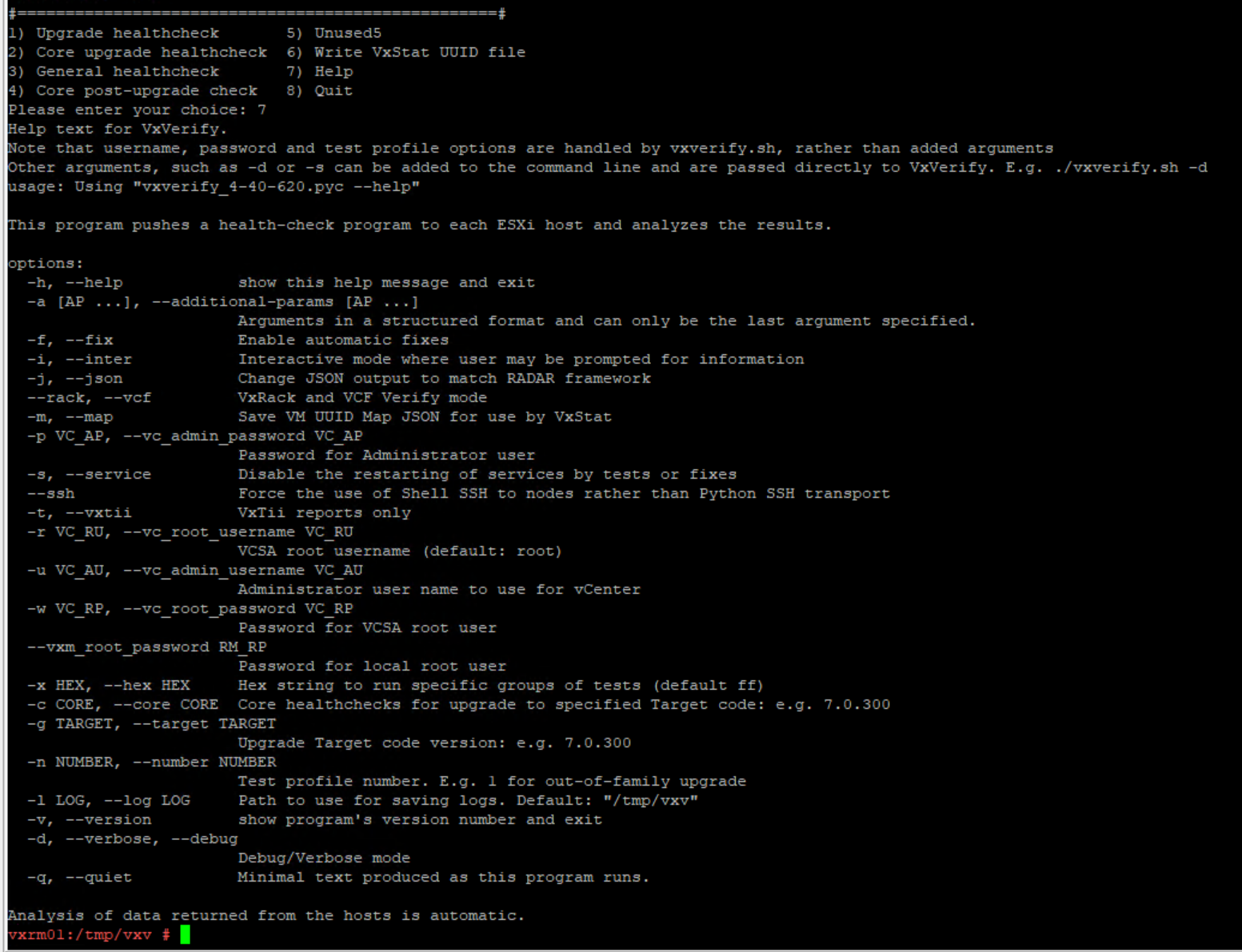
Entering option ‘7’ discloses all the available parameters:
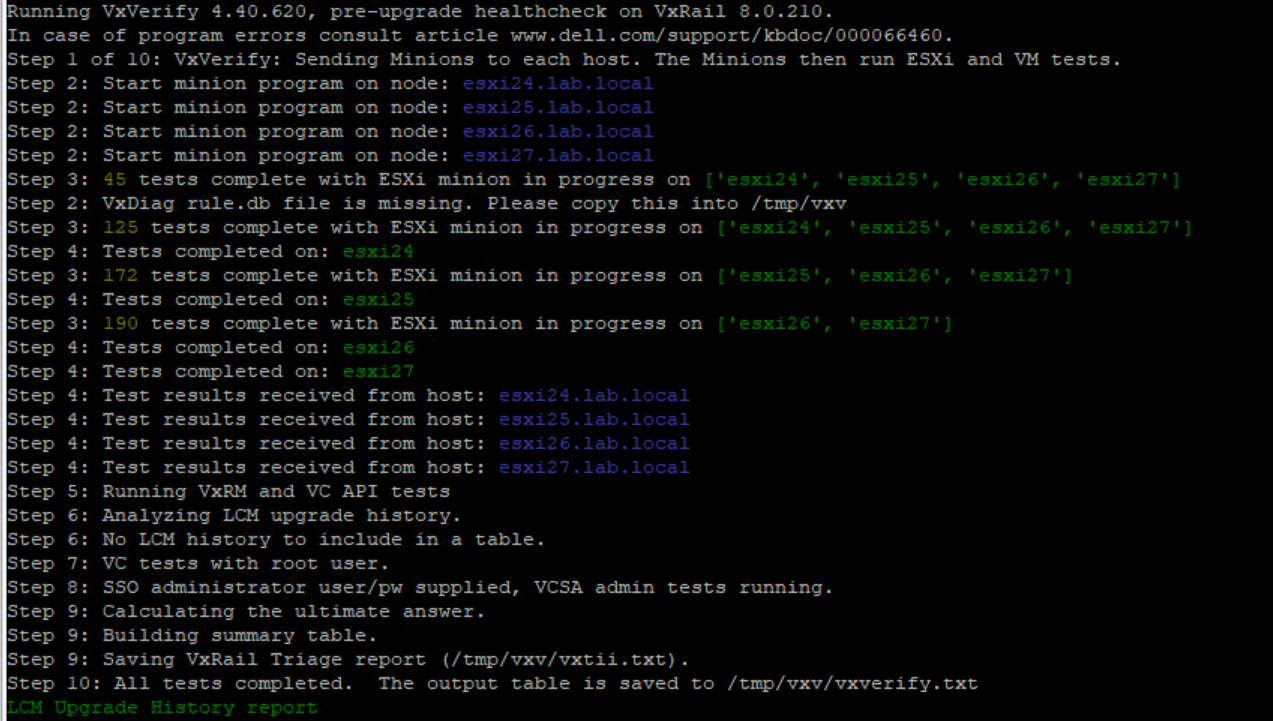
From the VxVerify.sh menu options entering option 1 to perform an Upgrade Healthcheck. VxVerify.sh prompts the user to provide the vCenter root and administrator SSO users and passwords to allow all tests to run fully (VxRail-managed vCenter in this example):
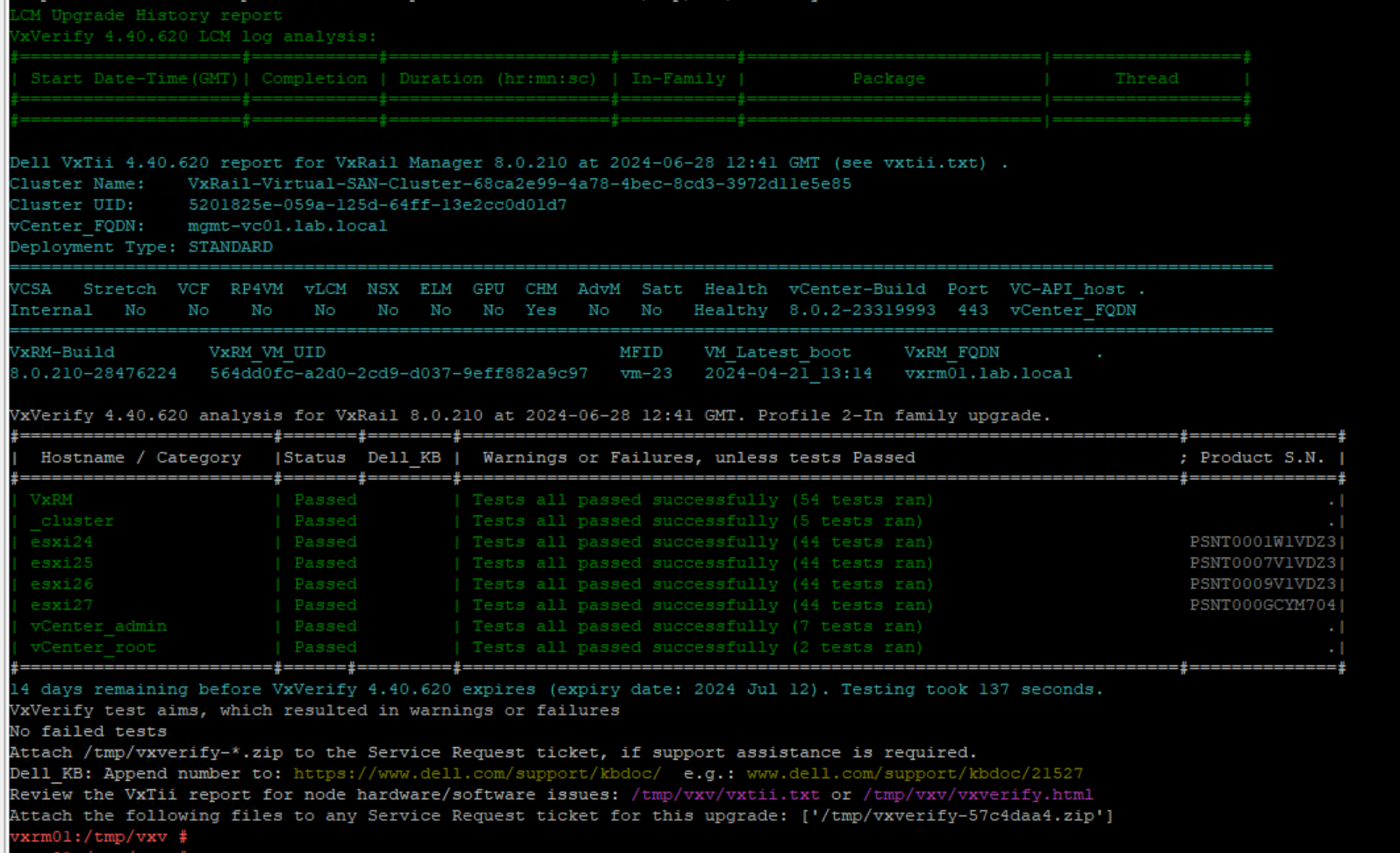
As can be seen from the results table below; all hosts and cluster tests completed successfully:
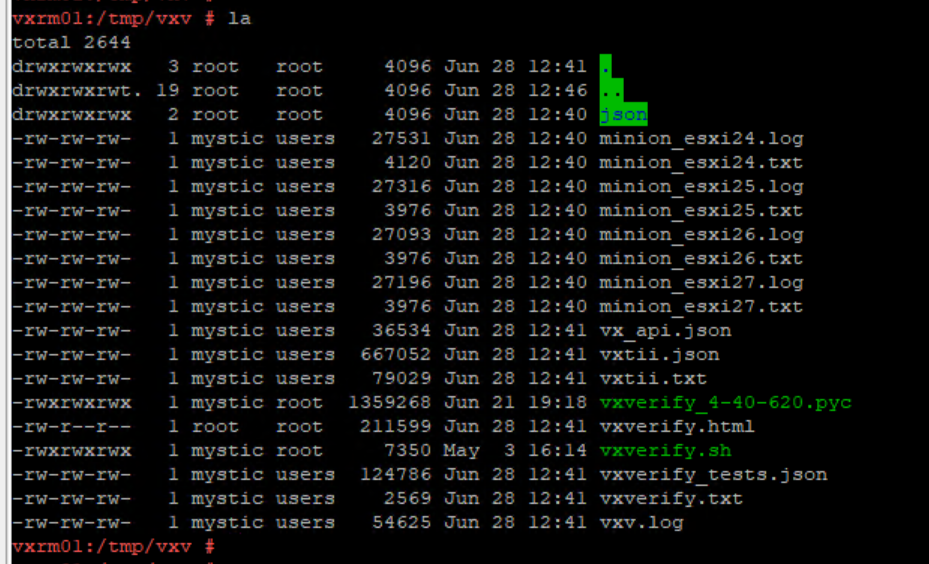
VxVerify creates a number of files in ‘/tmp/vxv/’ these include .log files which can be used for troubleshooting purposes etc. also the summary report seen on the previous screen can be recalled by viewing the ‘/tmp/vxv/vxverify.txt’ file:
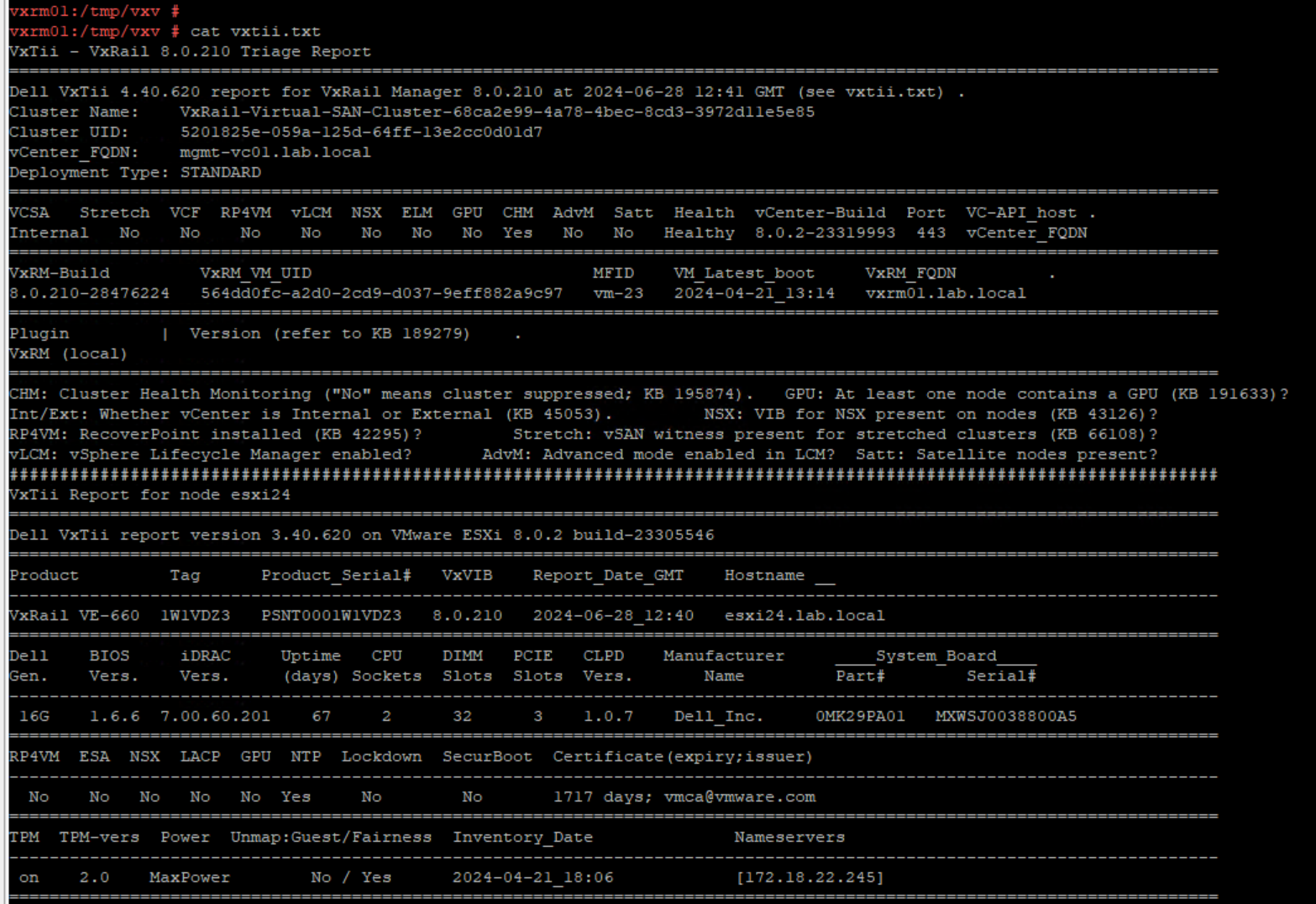
Another really useful output here is the ‘vxtii.txt’ file which includes detailed information on each ESXi host in the VxRail cluster providing a nice overview of the hardware:
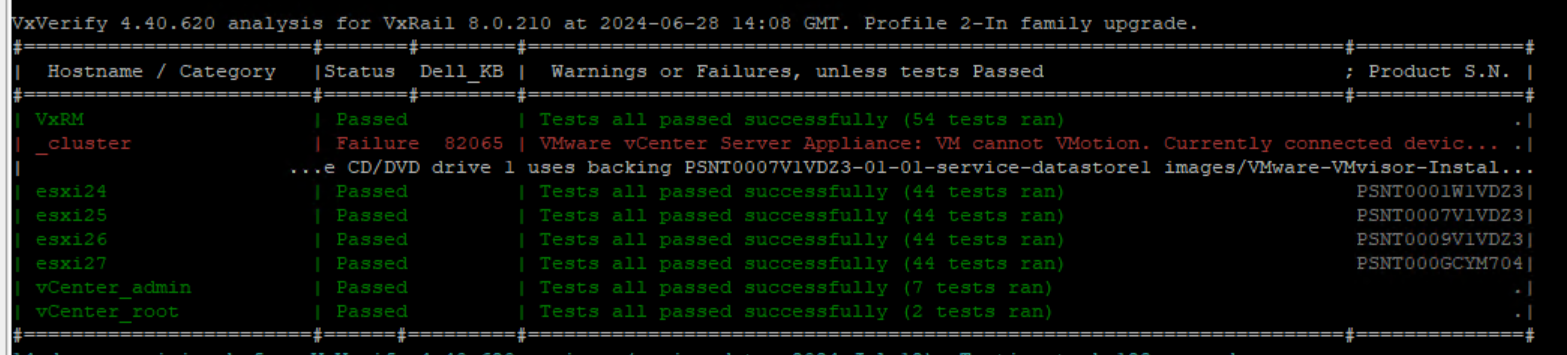
Creating a dummy failure by attaching an .iso to the vCenter VM using local storage results in the following failure scenario. You will note for each warning or failure there is an associated support.dell.com KB referenced in the results table which will assist with resolving any issue highlighted by VxVerify (do not attempt an upgrade until these yellow or red event codes are investigated):
Special mention to our Escalation Engineering team for maintaining such a valuable tool! Thank you!





 DavidRing.ie
Hello David,
Great article. I have been using this tool for years. Still on VxRail 7 but I note that the LCM includes precheck and there are references to VXV.
I guess my question is – does the GUI local/internet update process now include VXV? Is there value in doing this still?
I can’t find much information on this.
Thanks
Hi Darren, thank you for the feedback. Yes there is still value since the independent tool will always have the latest advancements included. Hope that helps.