VCF
VCF on VxRail: 5.1 to 5.1.1 Upgrade (Part 1: Management WLD)
In this 2 part series I will provide an example walk-thru upgrade of: VCF 5.1 (VxRail 8.0.200) -> 5.1.1 upgrade (VxRail 8.0.210) One of the great advantages of a VCF On […]
Virtualization & Storage

In this 2 part series I will provide an example walk-thru upgrade of: VCF 5.1 (VxRail 8.0.200) -> 5.1.1 upgrade (VxRail 8.0.210) One of the great advantages of a VCF On […]
In this 2 part series I will provide an example walk-thru upgrade of:
VCF 5.1 (VxRail 8.0.200) -> 5.1.1 upgrade (VxRail 8.0.210)
One of the great advantages of a VCF On VxRail solution is the ability to LCM your entire SDDC stack in an automated fashion driven through a single user interface (SDDC Manager). The following post details how you step through this LCM process.
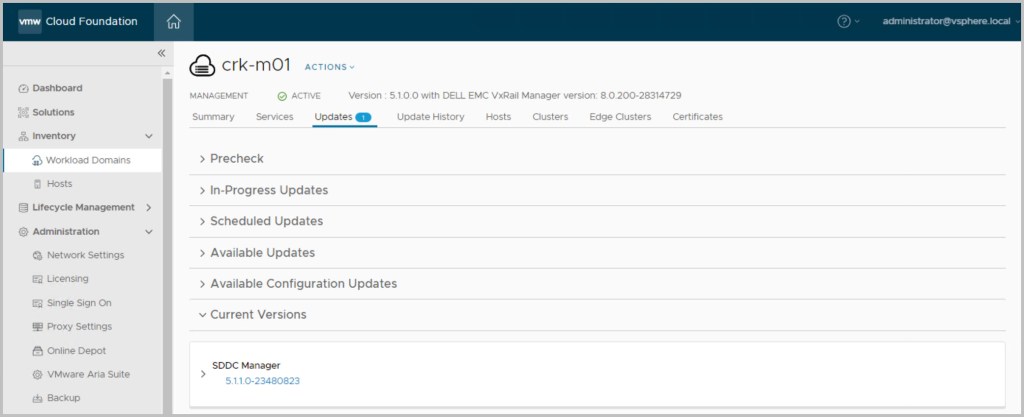
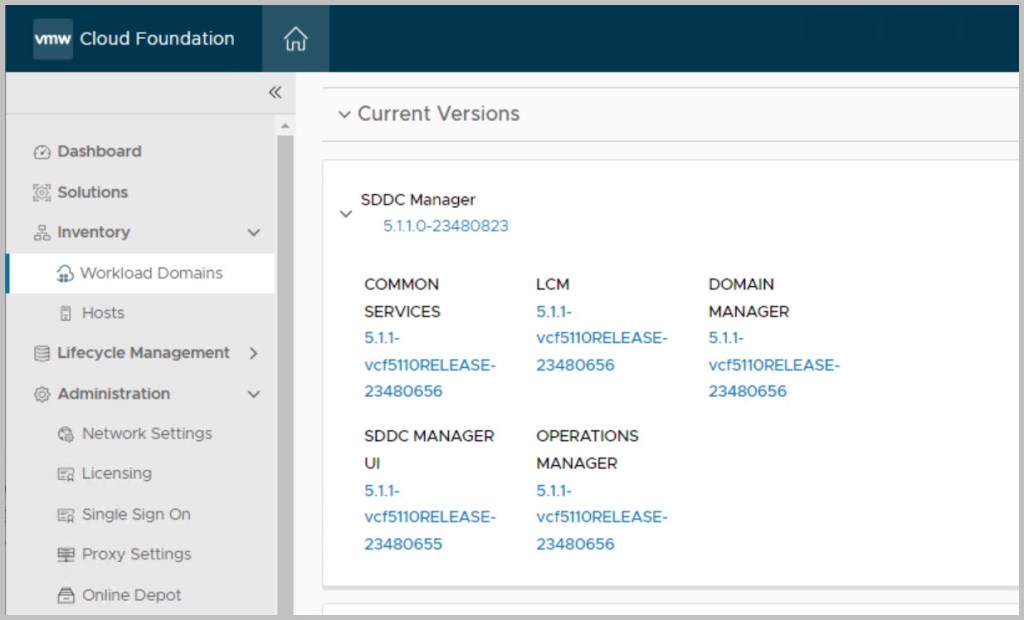
By expanding the Lifecycle Management tab within SDDC manager it is possible to view the full list of components deployed as part of VCF and their respective current running code versions. The following is a very useful VMware kb article detailing the BOM for each VCF release:
Correlating VMware Cloud Foundation version with the versions of its constituent products
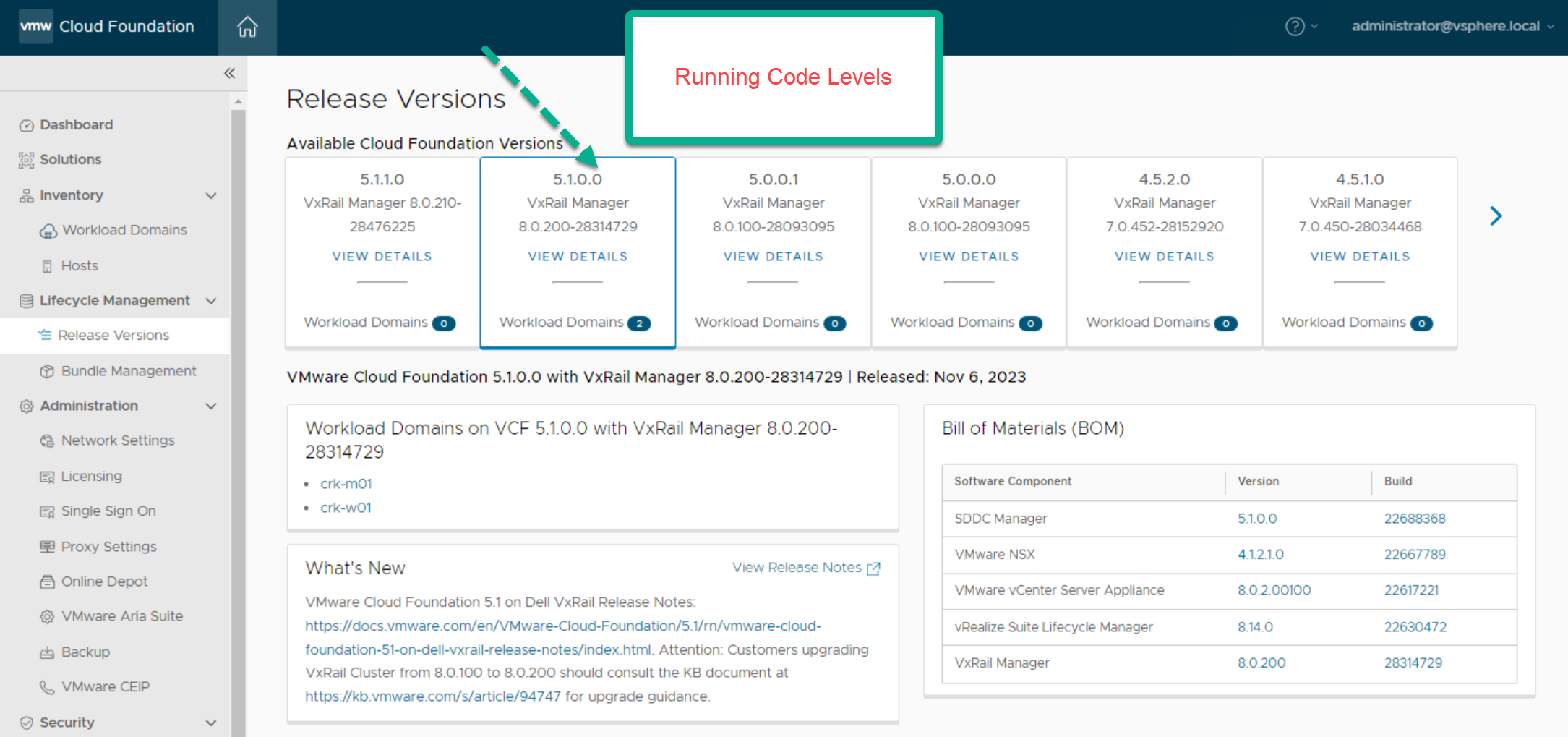
It is also advisable to read the release notes of the target version prior to performing the upgrade.
Release Notes: the bill-of-materials below can be officially referenced in the following Release Notes links :
DELL: VCF 5.1.1 on VxRail Release Notes
VMware: VCF 5.1.1 on VxRail Release Notes
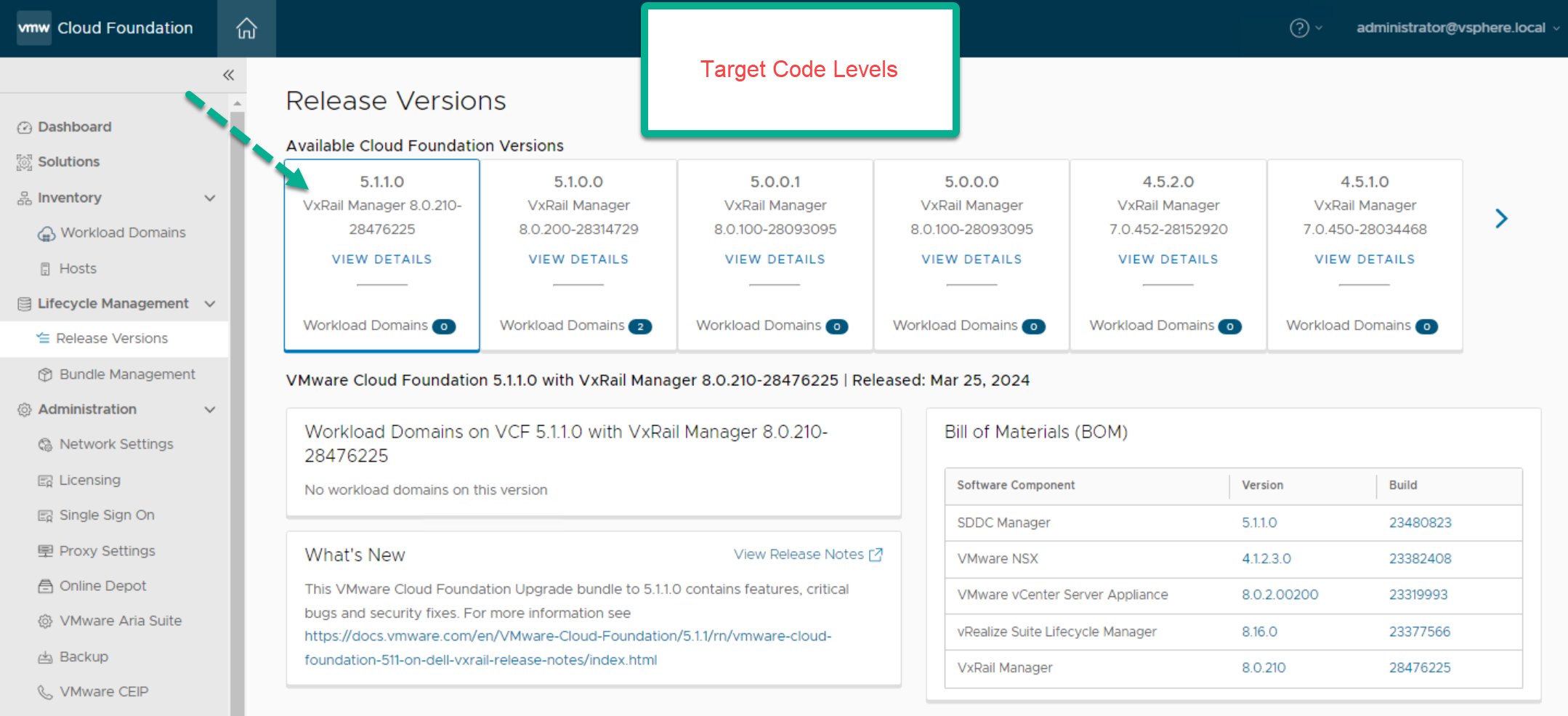
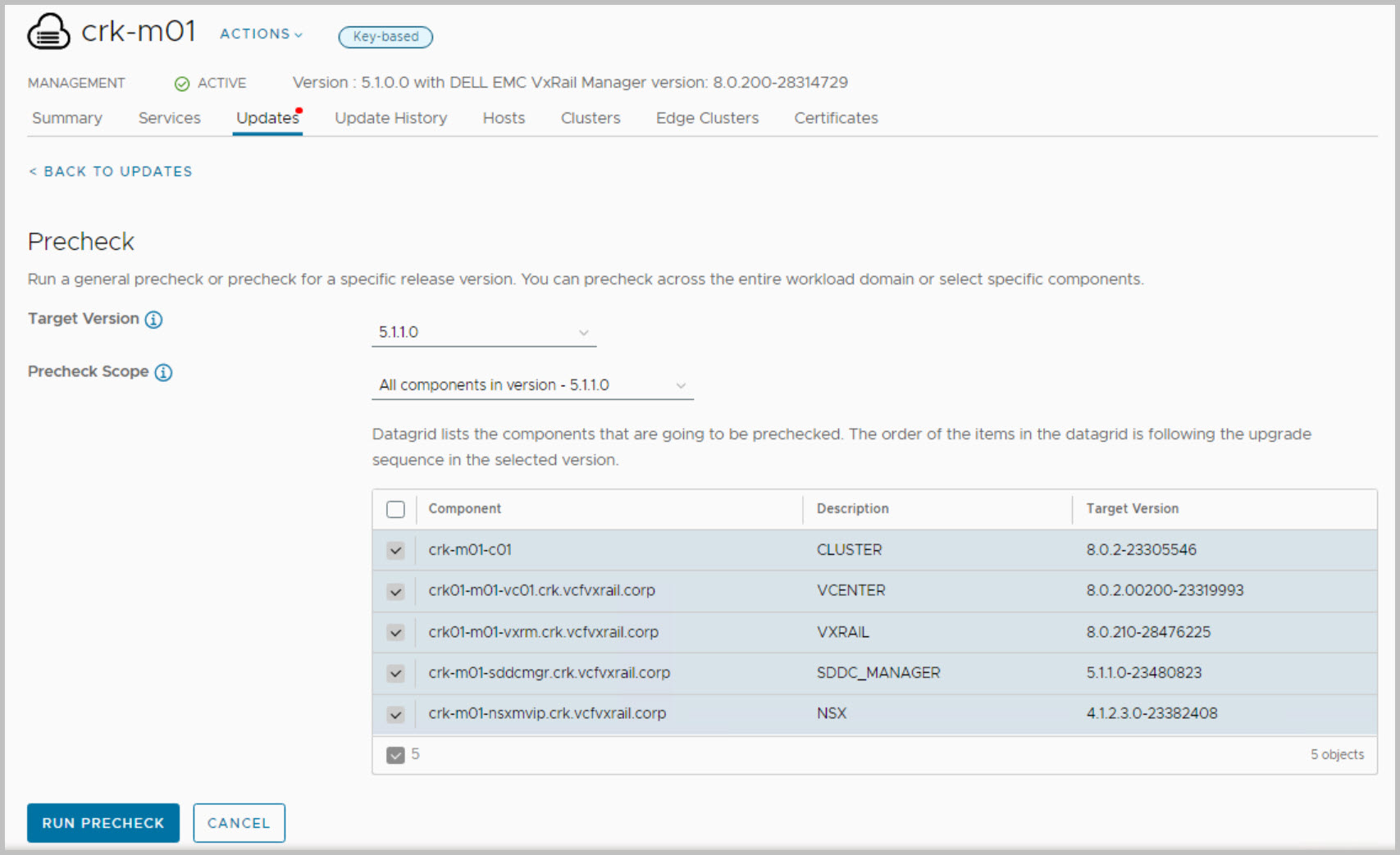
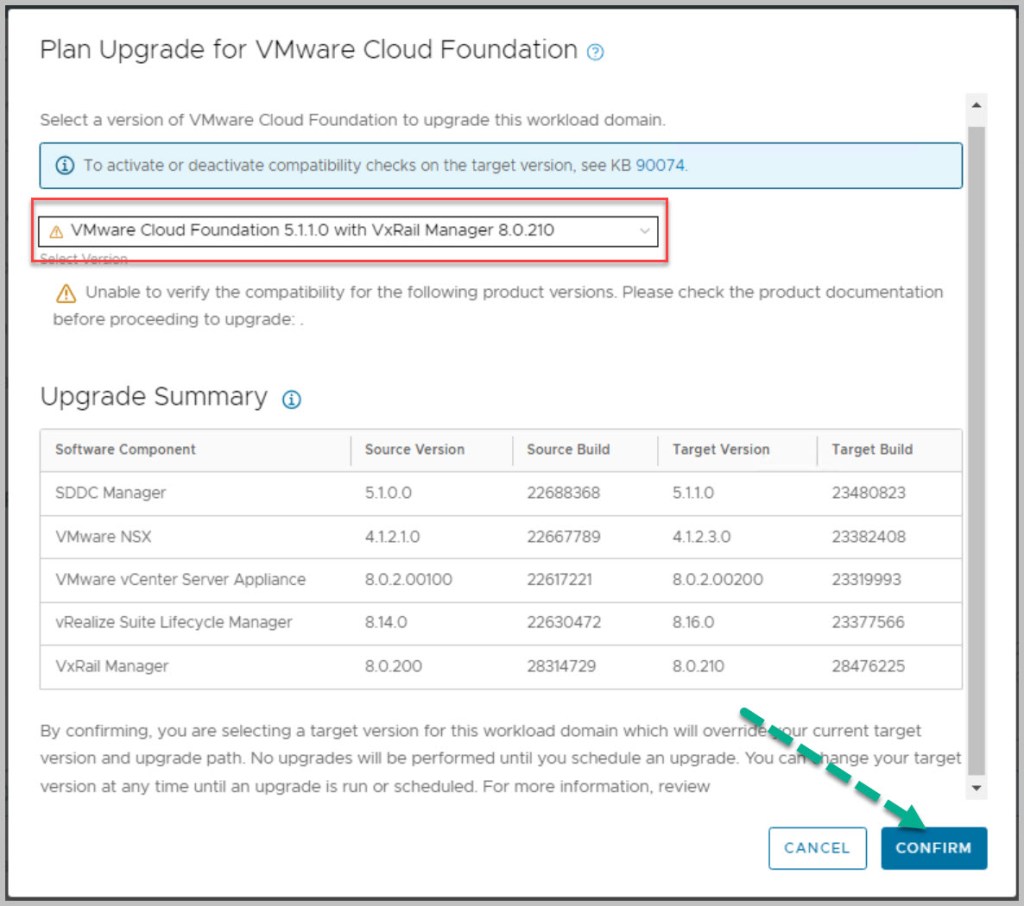
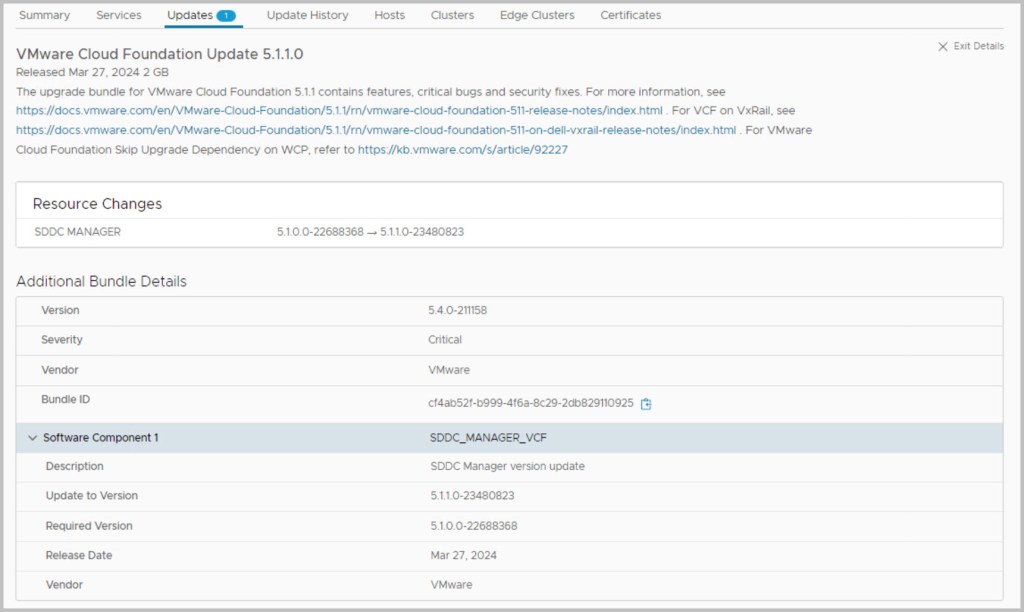
In relation to this particular example upgrade of VCF 5.1 -> 5.1.1 we can again view from the ‘Release Versions’ in SDDC Manager the components being upgraded and their code versions & build numbers.
You can perform a sequential or skip-level upgrade to VMware Cloud Foundation 5.1.1 on Dell VxRail from VMware Cloud Foundation 4.4 or later. If your environment is at a version earlier than 4.4, you must upgrade the management domain and all VI workload domains to VMware Cloud Foundation 4.4 or later and then upgrade to VMware Cloud Foundation 5.1.1.
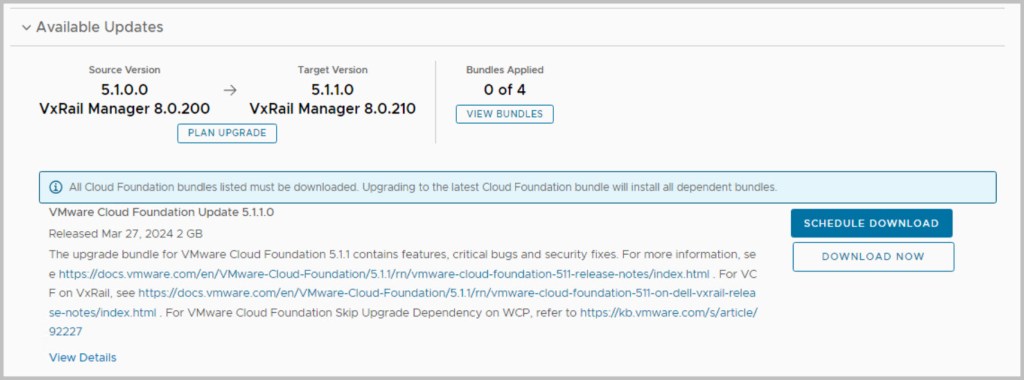
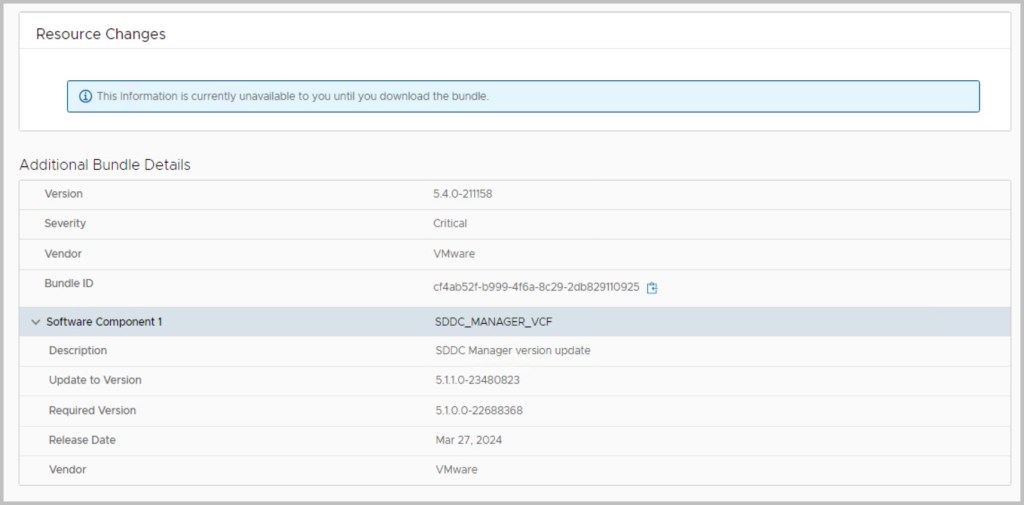
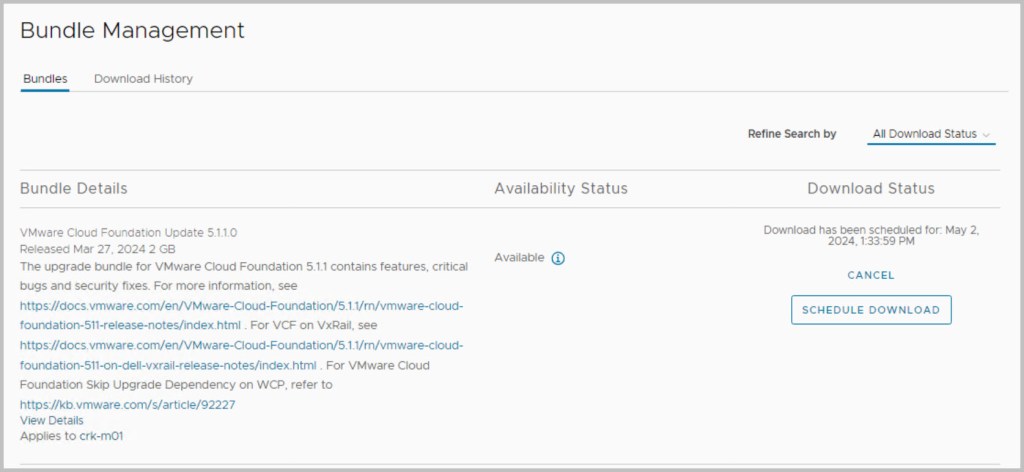
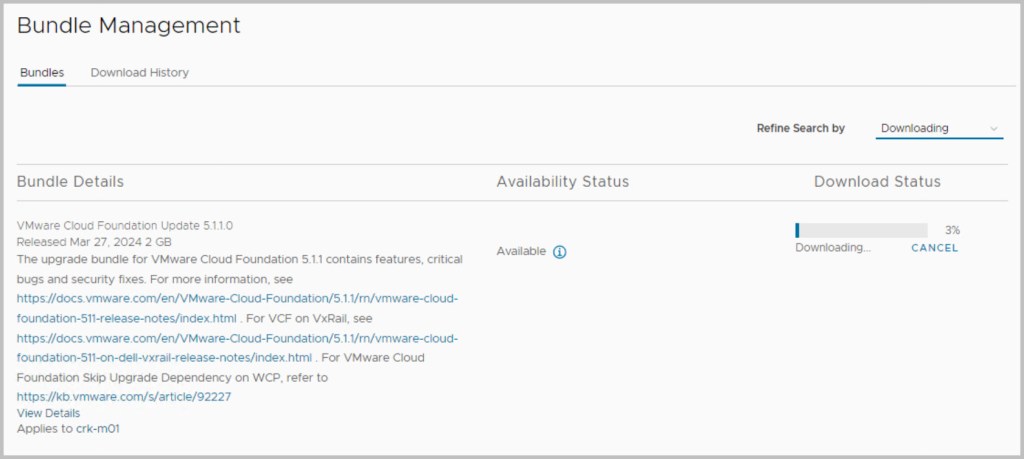
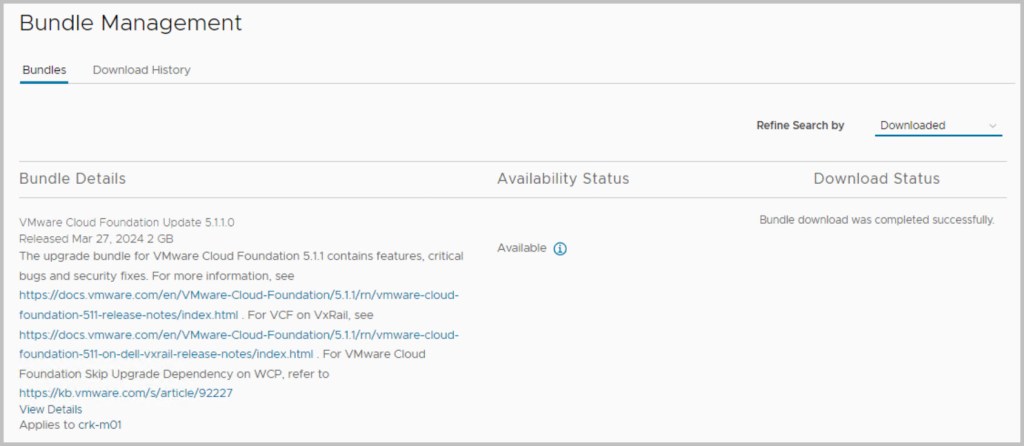
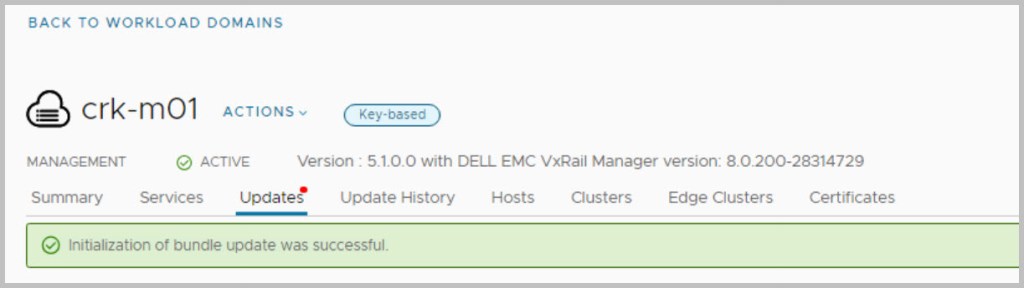
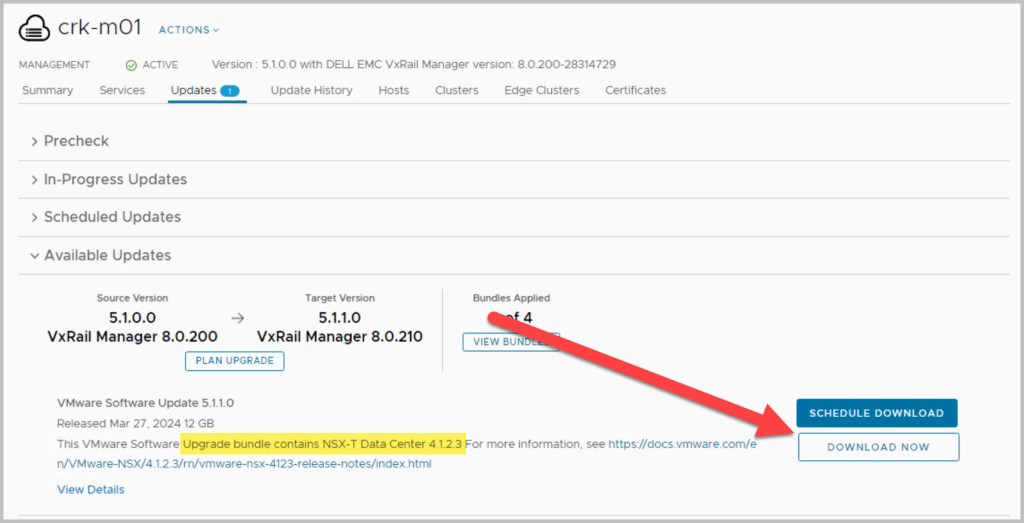
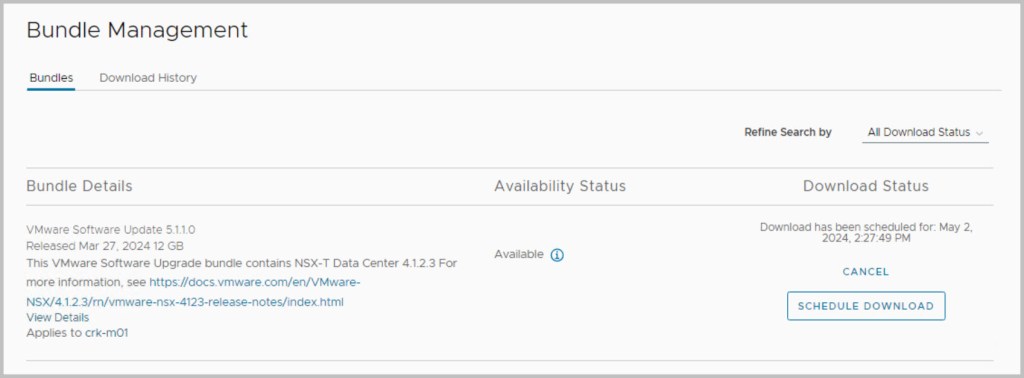
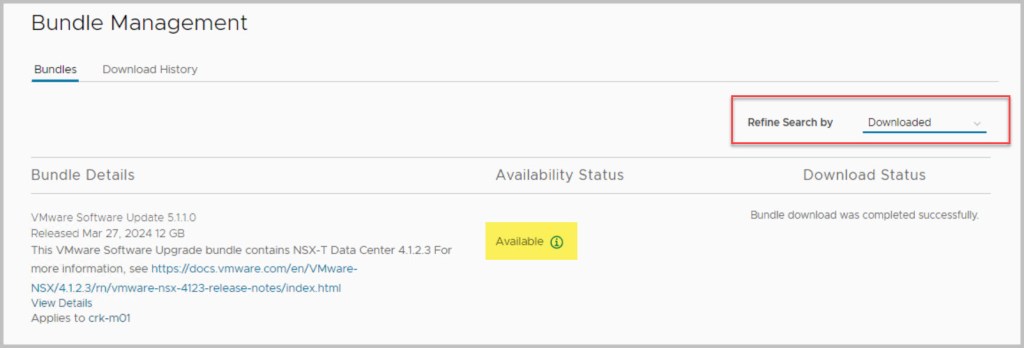
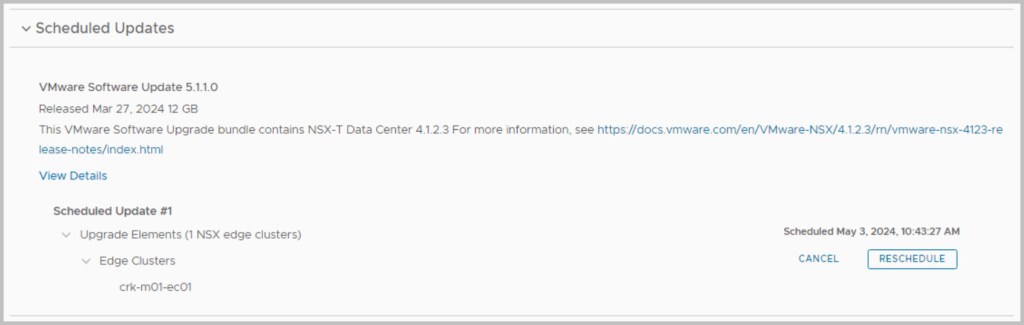
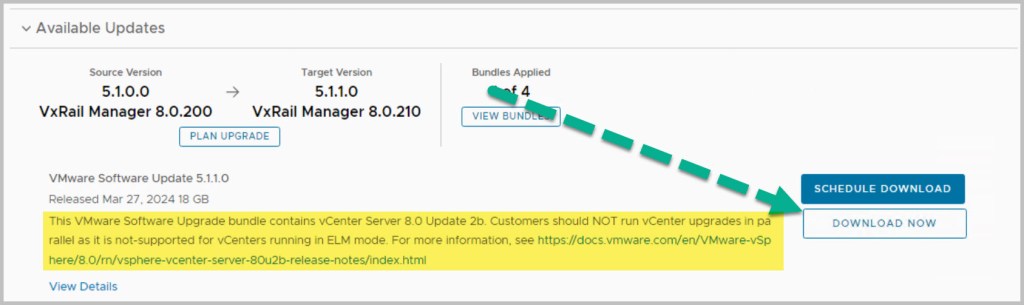
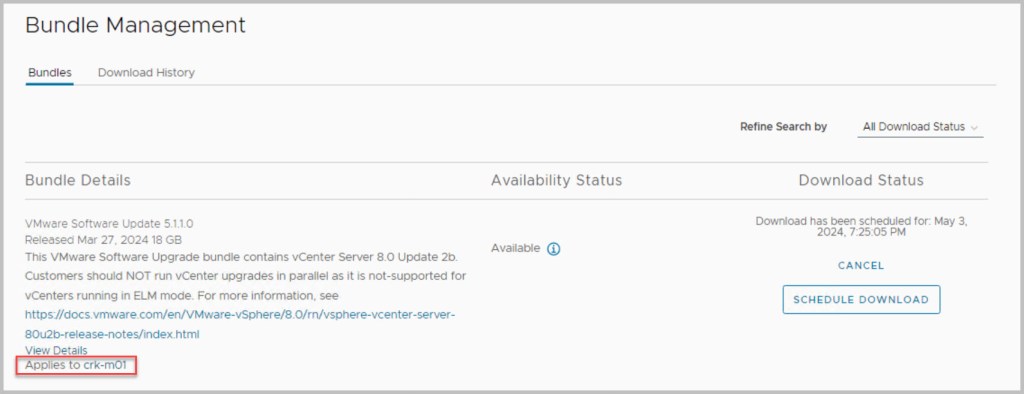
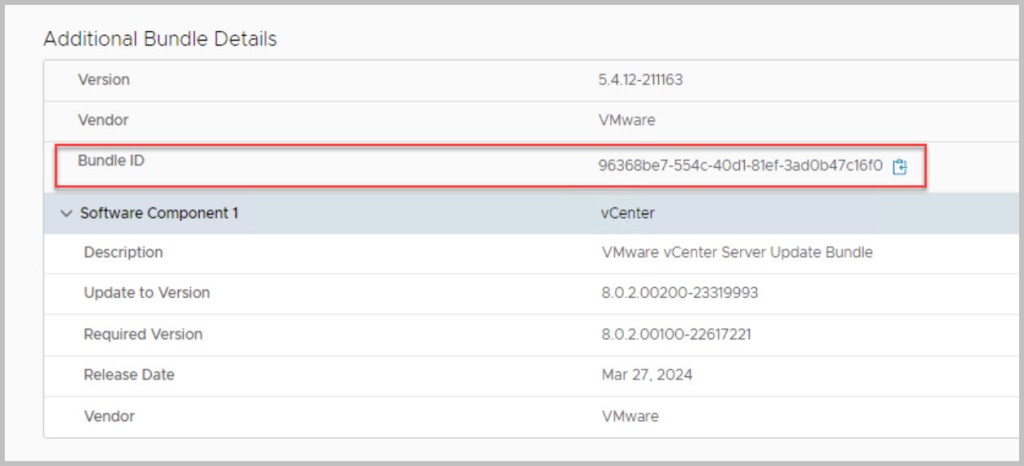
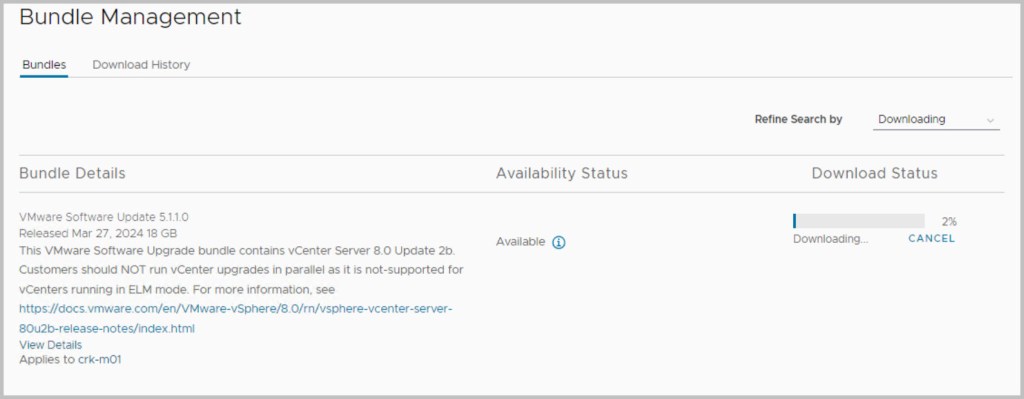
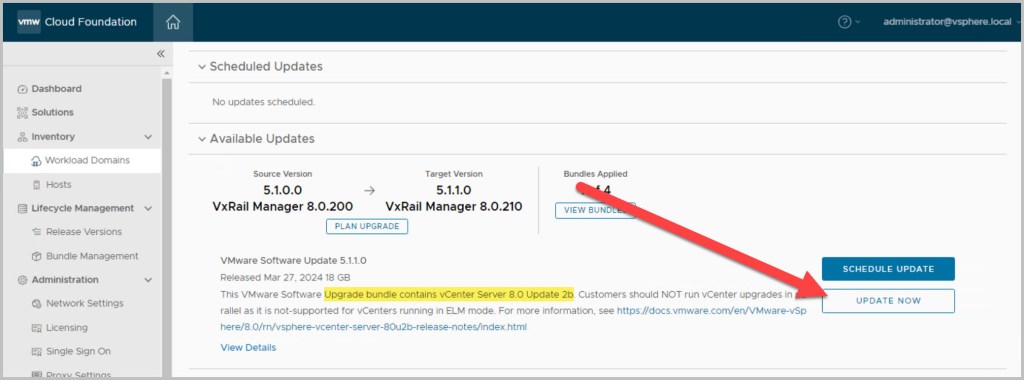
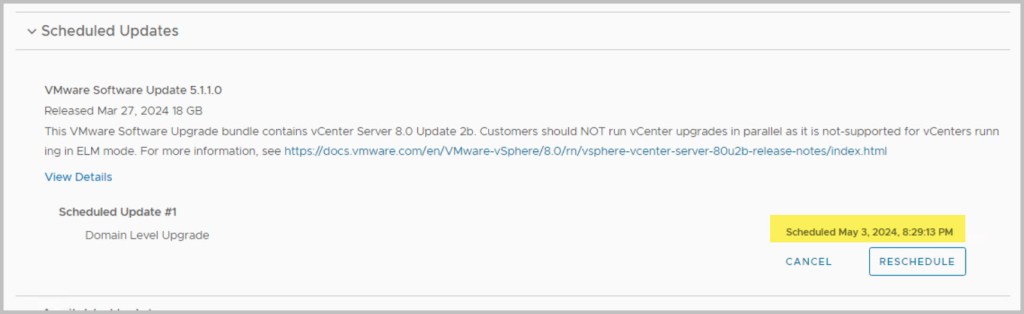
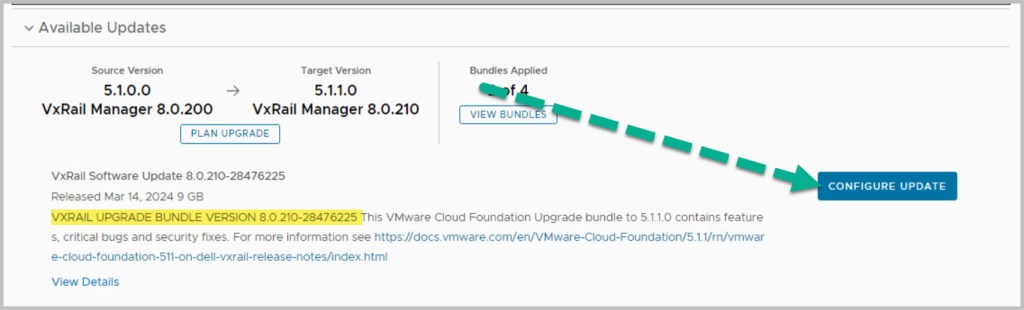
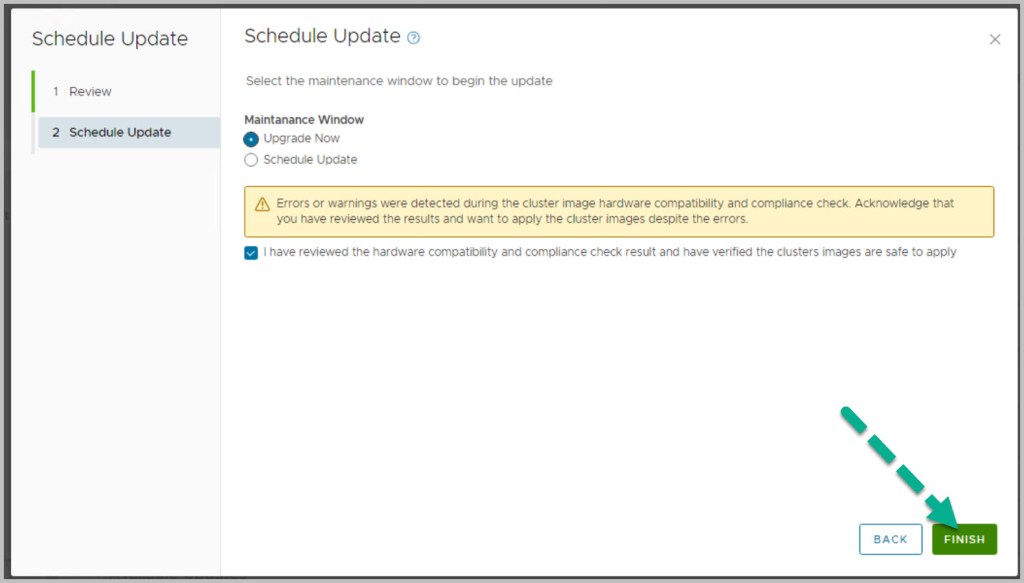
The sequence of the upgrade is defined within SDDC Manager itself. SDDC Manager presents the next available upgrade bundle throughout the procedure which makes the overall procedure quite easy and seamless to the end user performing the upgrade. In an effort to incrementally speed up the process of upgrading it is advisable to download all the required bundles in advance (bundles marked as available/future apply), as some of the bundles can be quite large in size for example the NSX bundle is 12GB. After each of the bundles have been downloaded click View Details, which details the version changes that will be applied as part of the bundle upgrade. The update bundles can be applied manually or scheduled for a preferred time window.
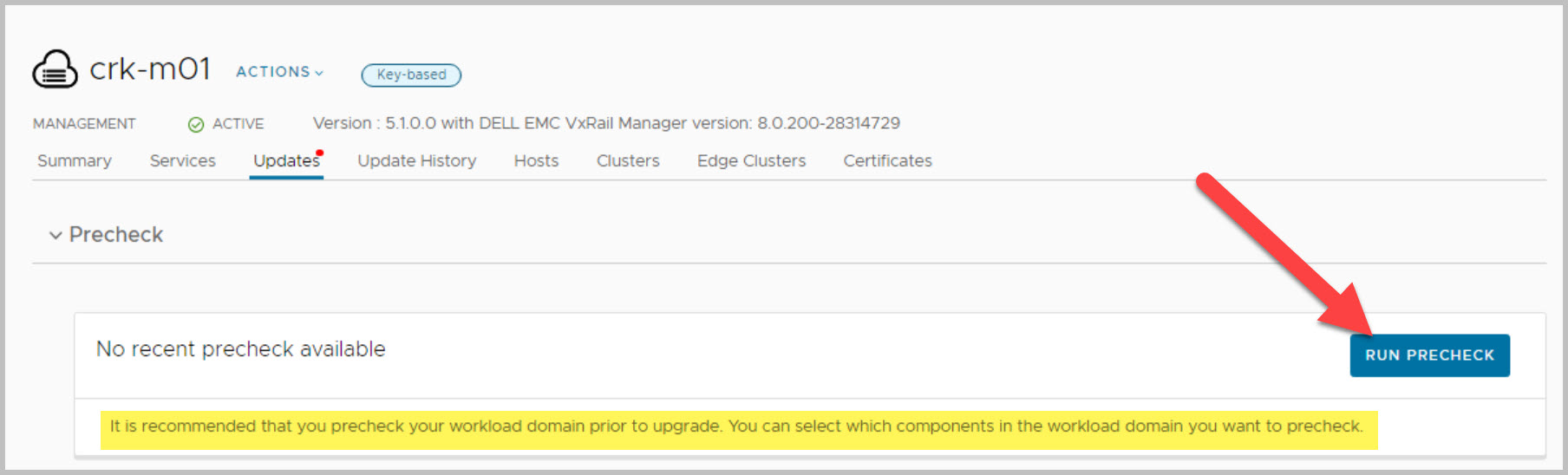
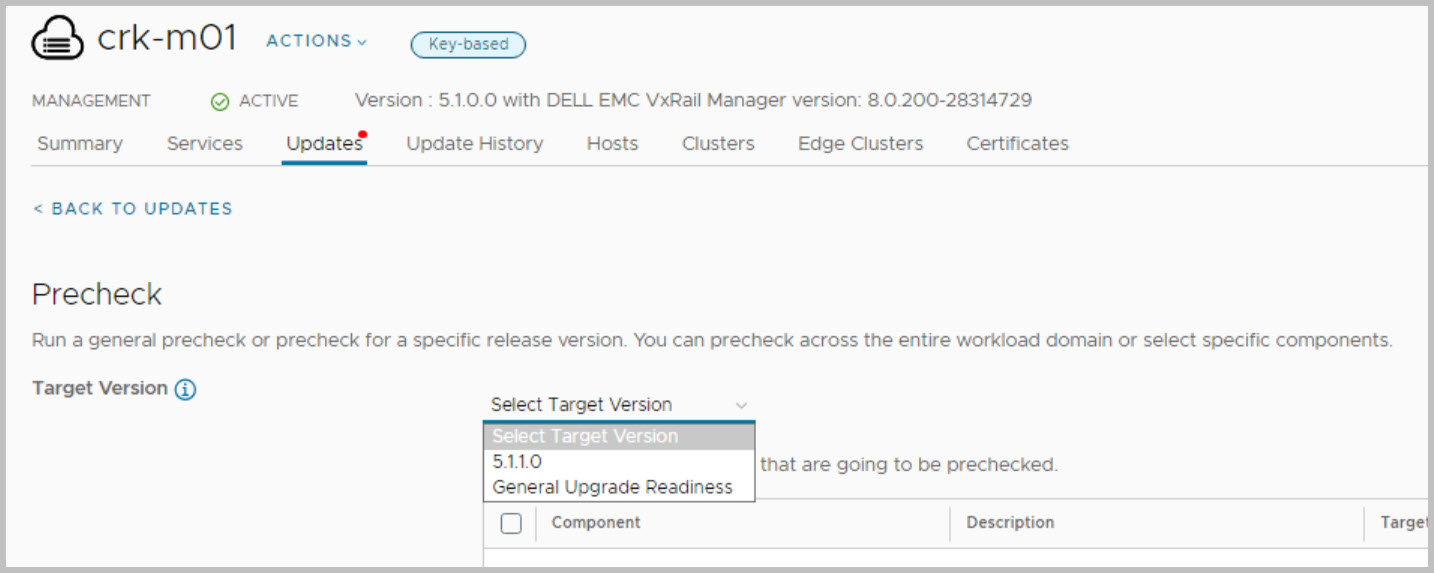
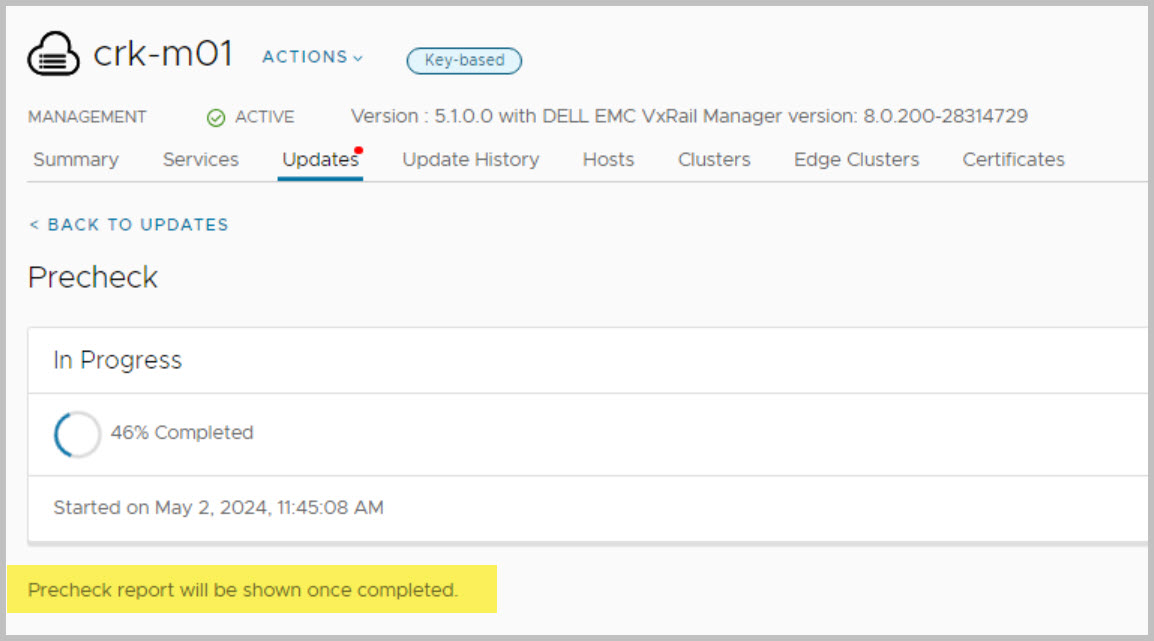
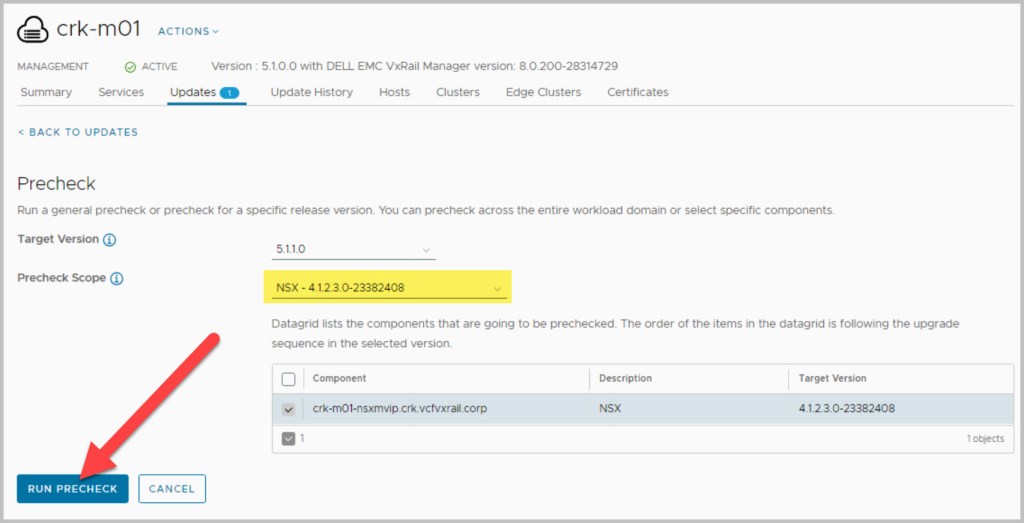
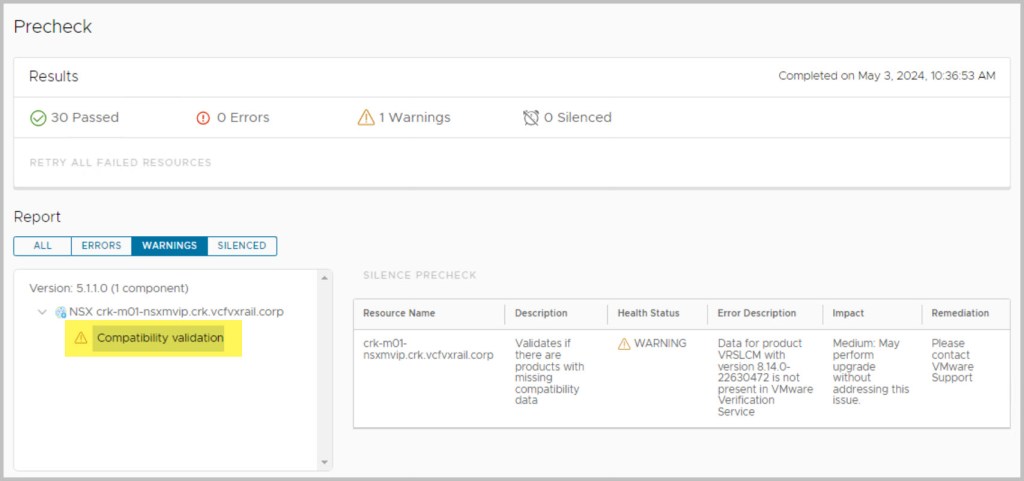
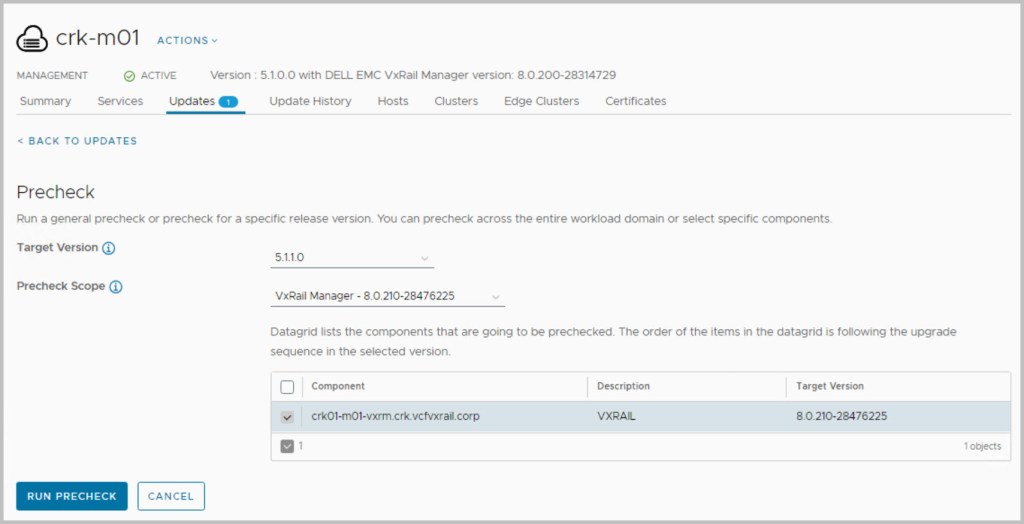
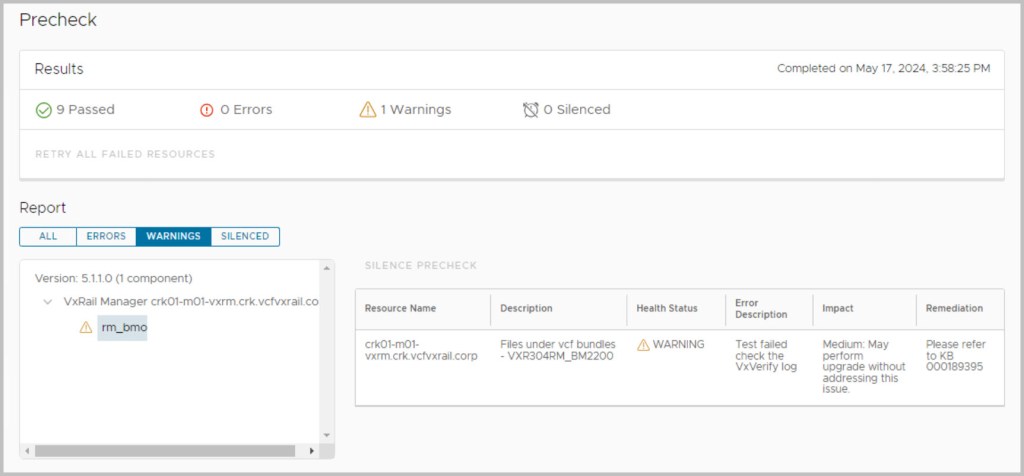
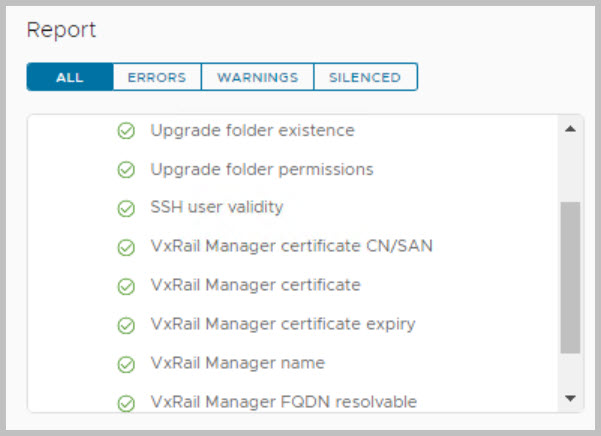
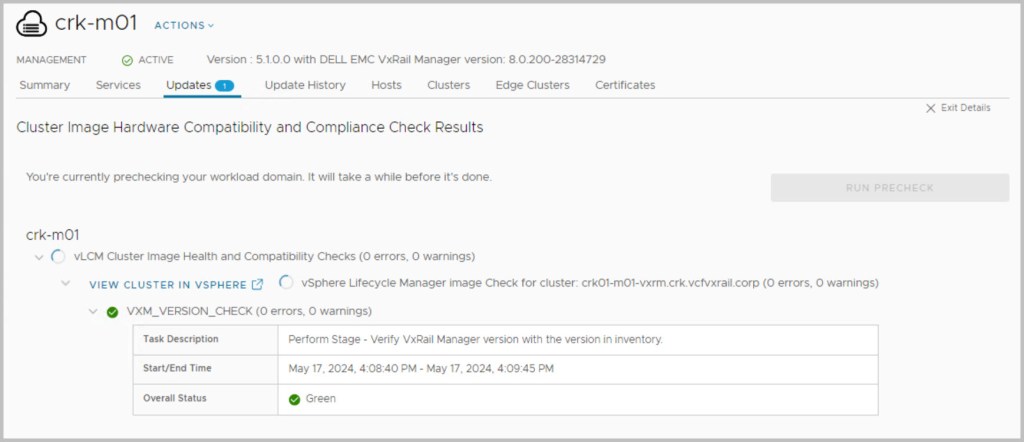
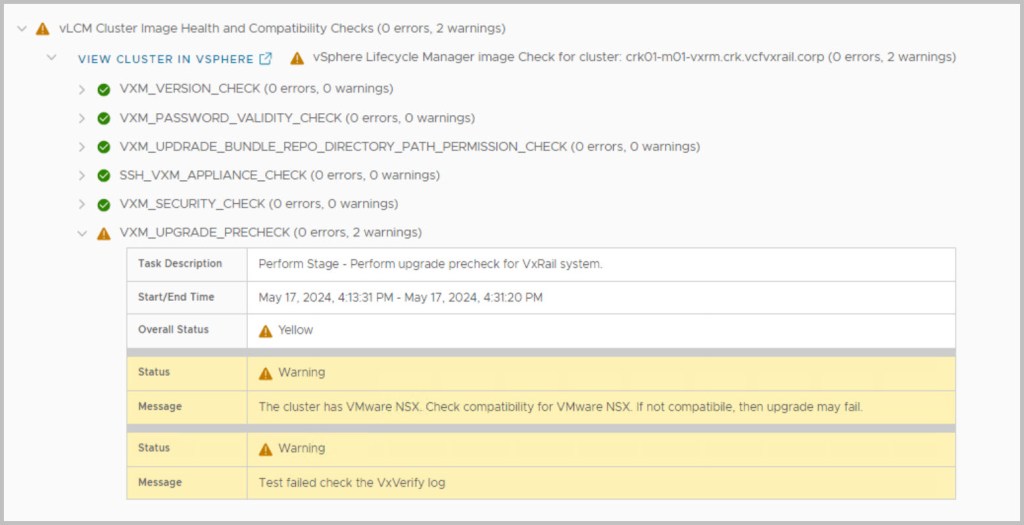
Ensure to run the upgrade Precheck tasks from within SDDC Manager in order to validate VCF is in a healthy state before proceeding with each of the upgrades and view the health status of each component by expanding their respective results. If the precheck has failed, fix the issue and then retry the precheck task to repeat the validation process. (More details on context level prechecks here). It is also advisable to run VxVerify – Pre-upgrade Health Check Tool.
If your VCF instnace has been upgrade using the AP tool ensure to update SDDC-M inventory with accurate product versions by using “–sync” option from VCF Async Patch Tool Options.
SDDC MANAGER PRECHECK
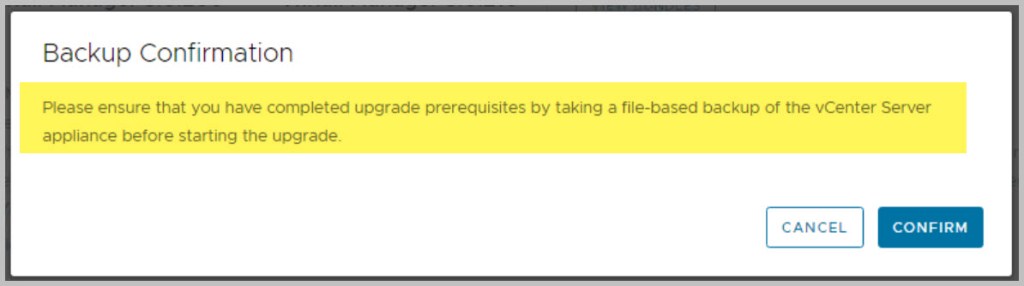
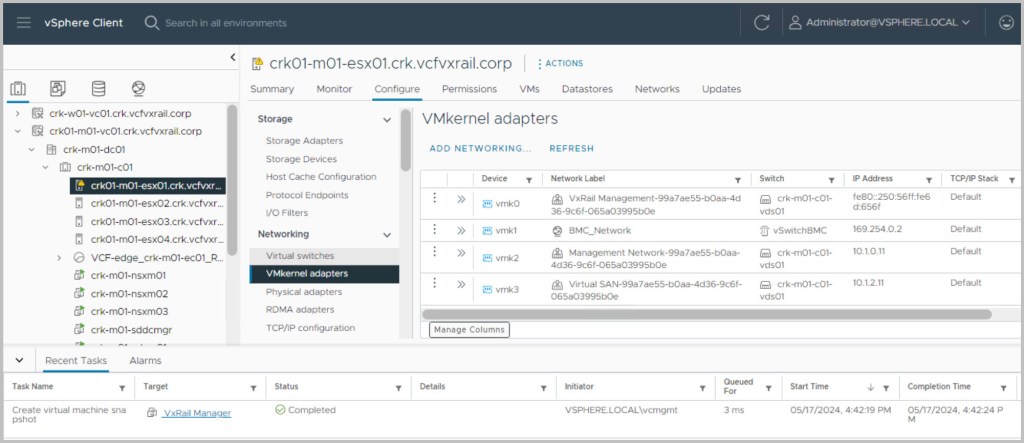
Important: Before proceeding with the upgrade ensure to take snapshots of your management virtual machines. Do not perform any SDDC workflows such as VI WLD creation or WLD expansions during the upgrade and confirm no failed workflows or errors are displayed in SDDC manager.
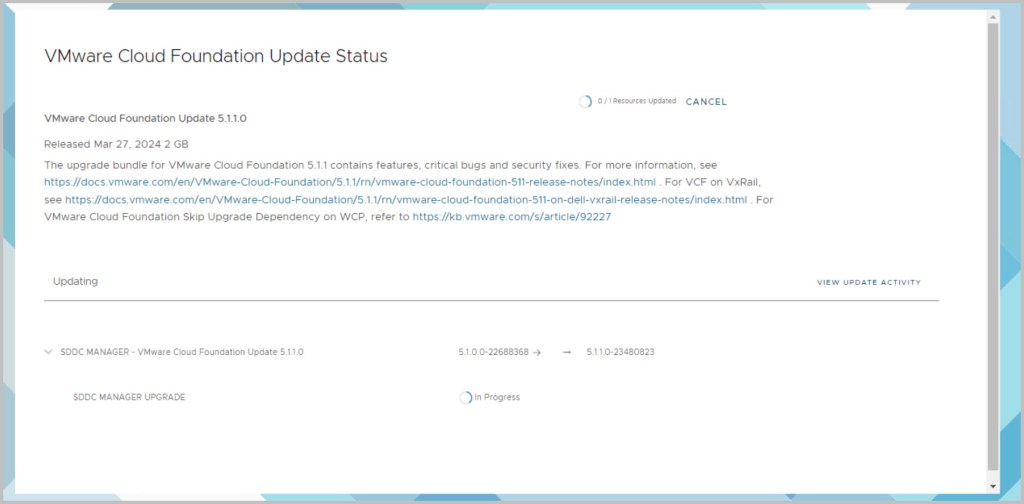
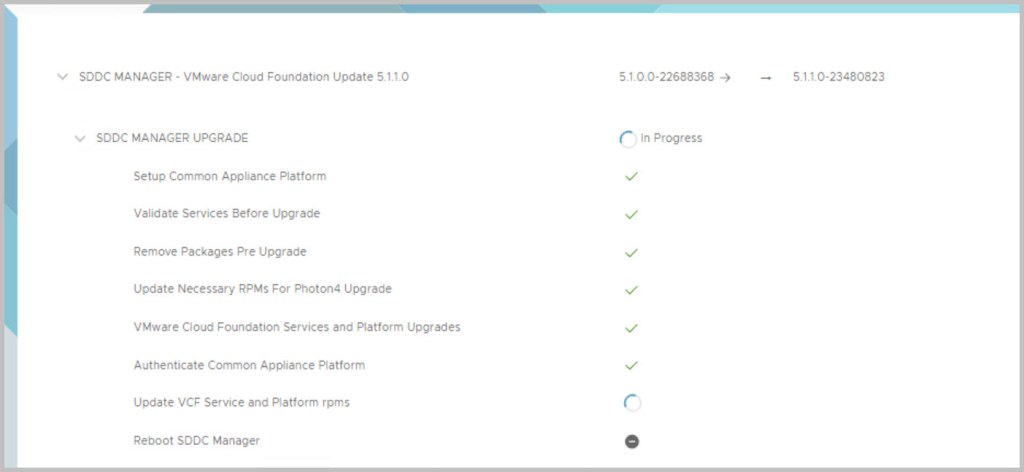
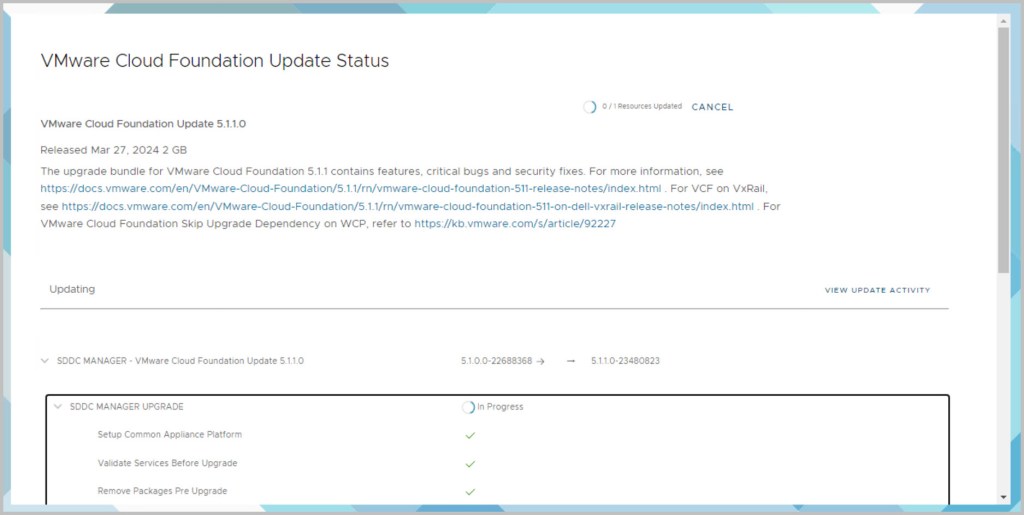
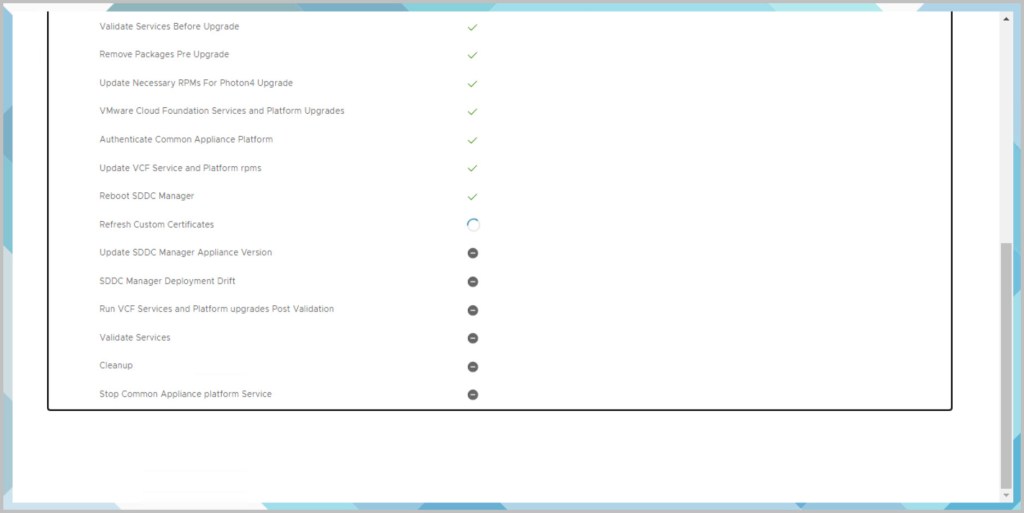
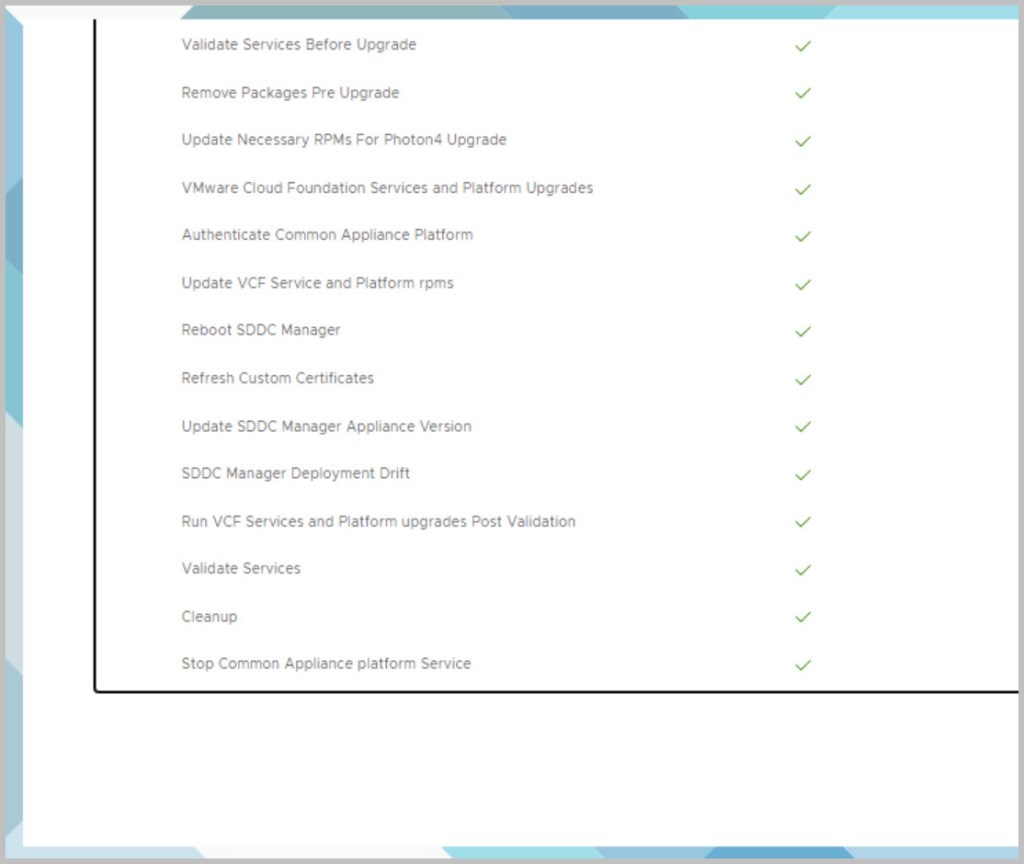
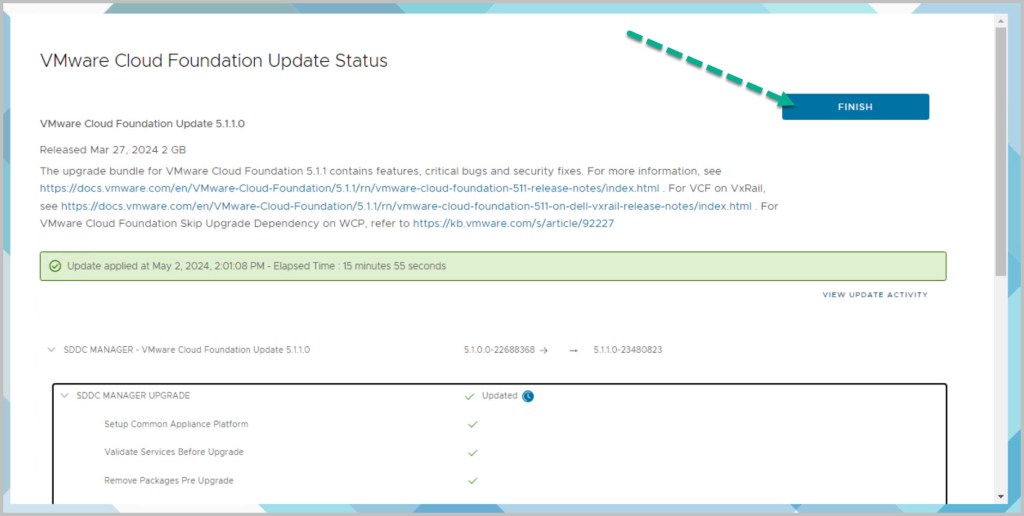
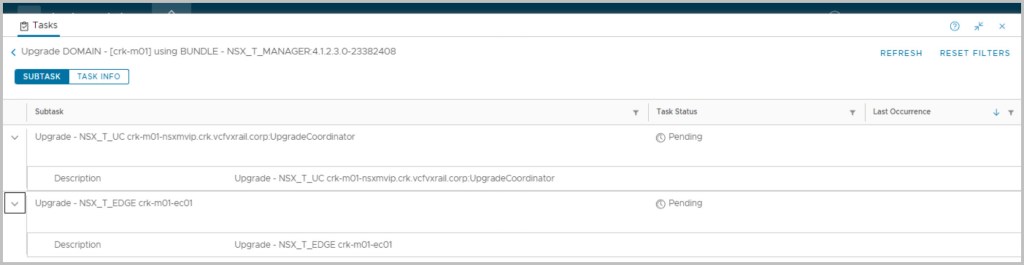
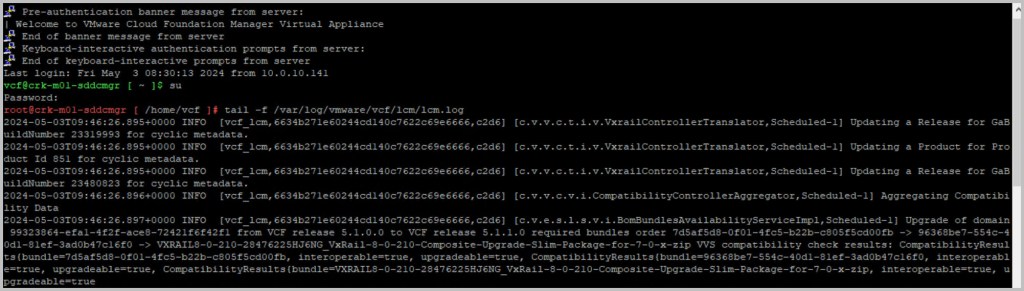
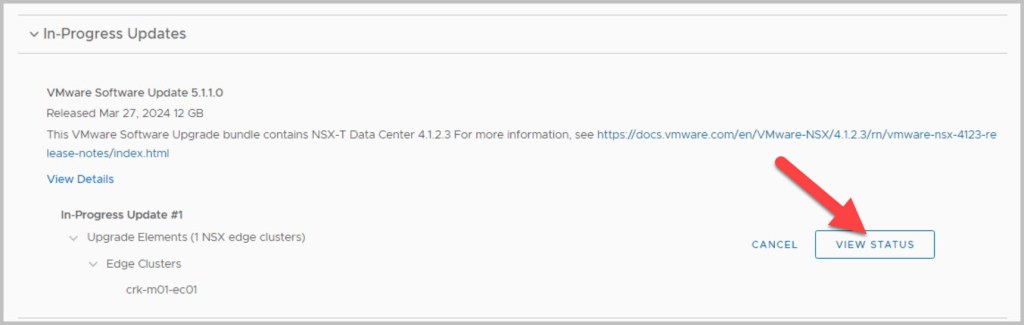
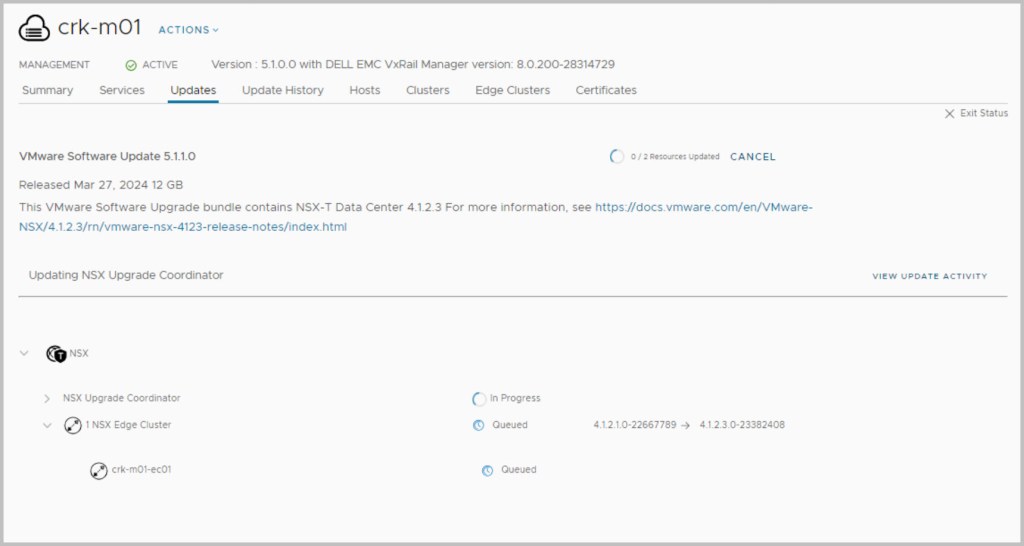
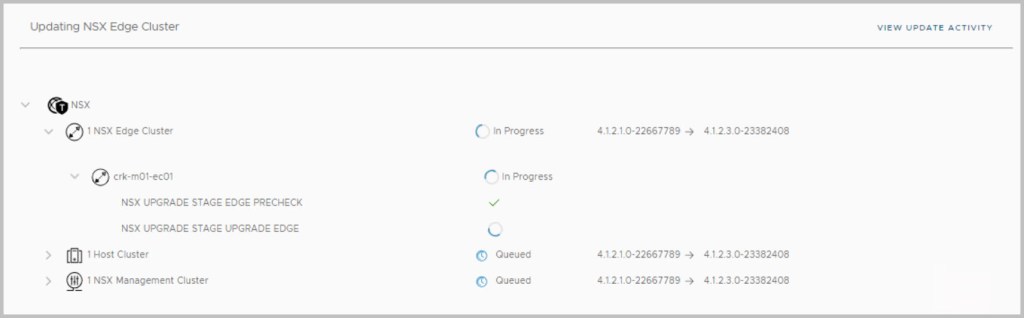
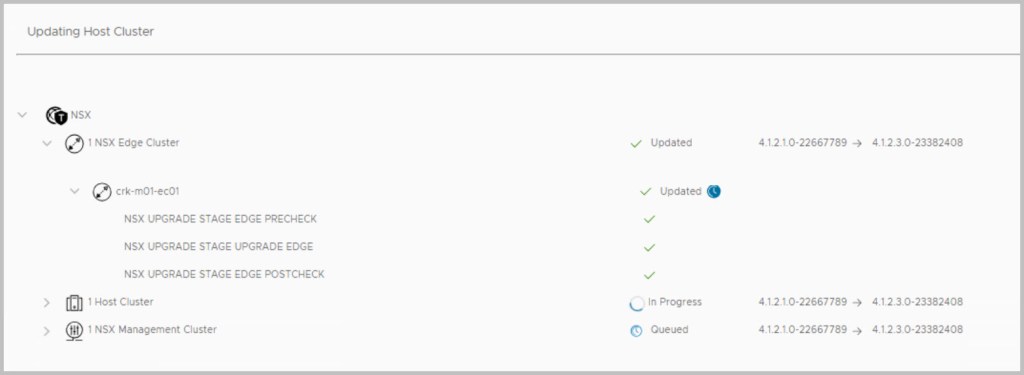
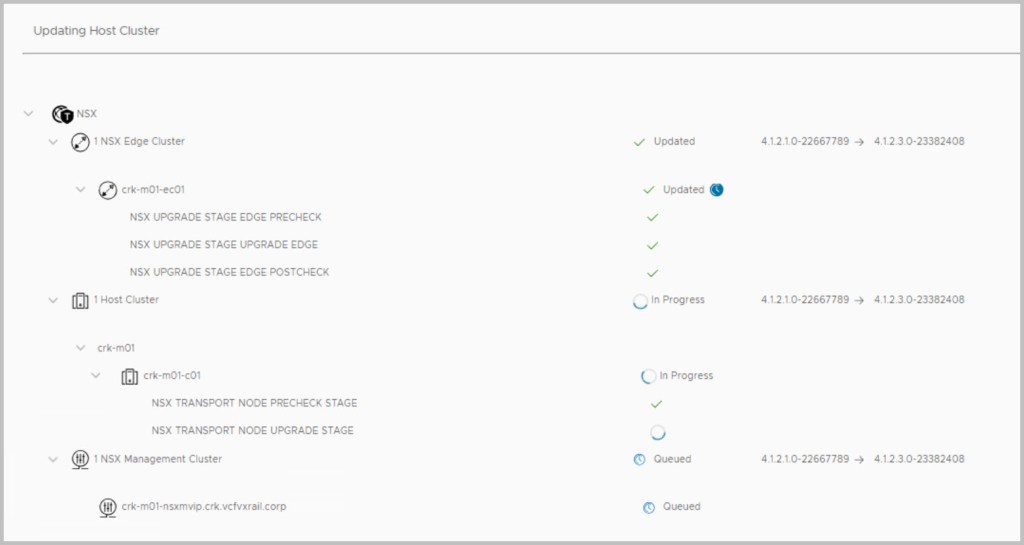
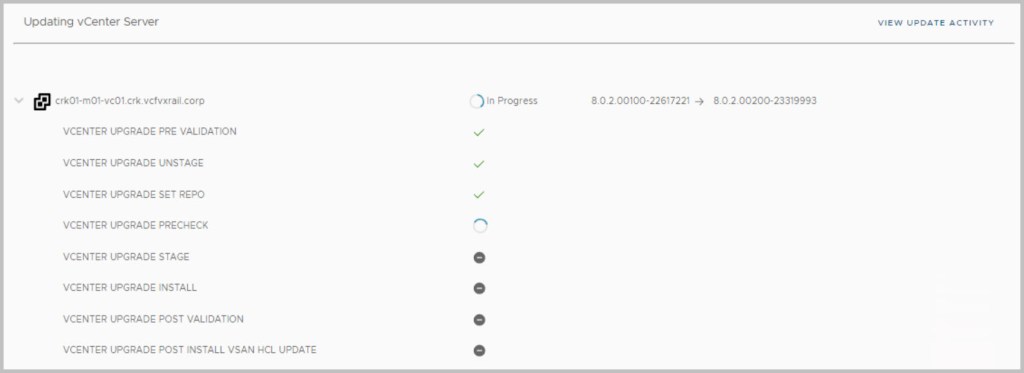
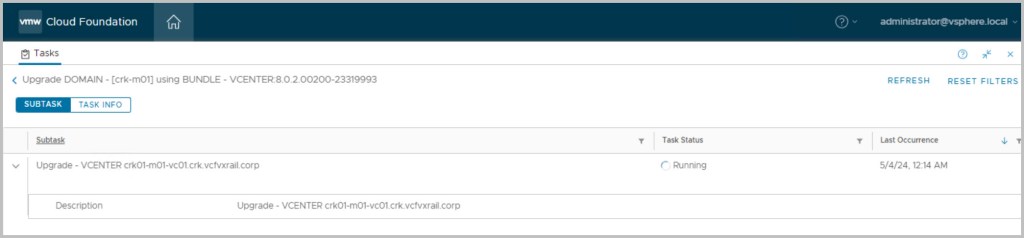
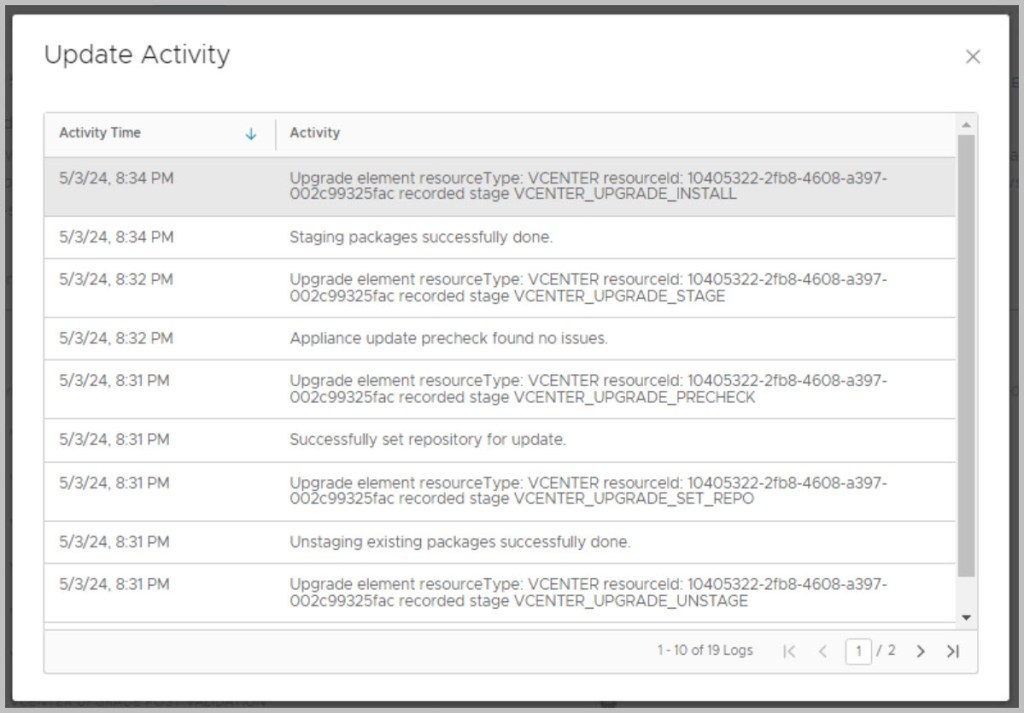
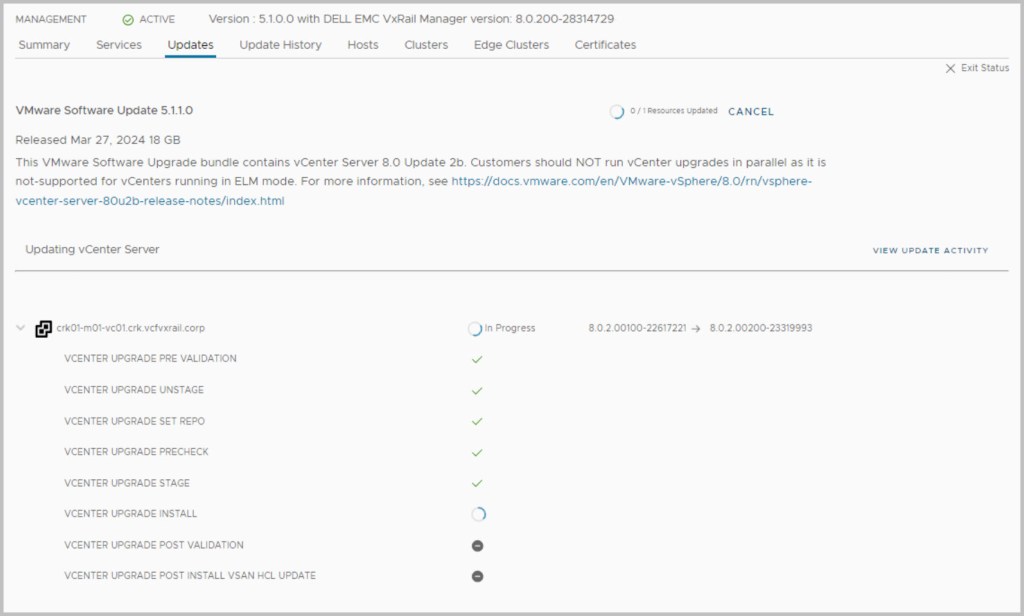
While proceeding with the updates, click on View update activity to monitor progress and track progress via the lcm log:
tail -f /var/log/vmware/vcf/lcm/lcm.log
lcm-debug log file contains debug level logging information.
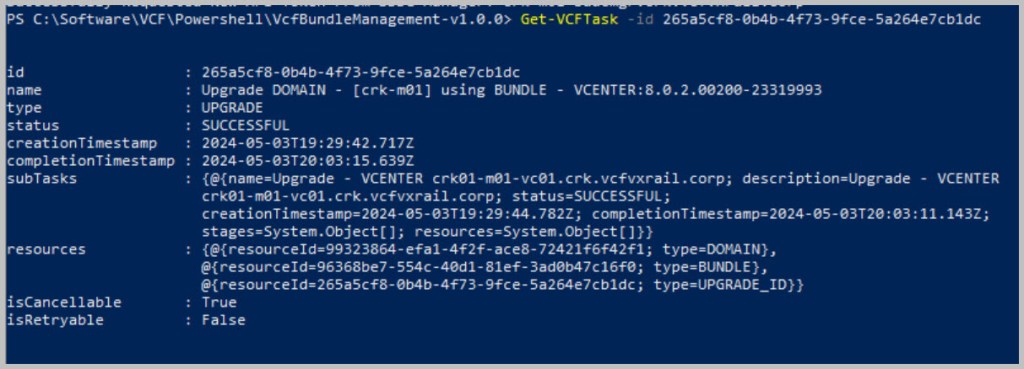
It is also possible to confirm a successful update via the SDDC manager ssh console:
cat /var/log/vmware/vcf/lcm/lcm.log | grep “reached final state COMPLETED_WITH_SUCCESS”
Radar log used for any VxRail precheck validations:
/var/log/msytic/radar.log
All of the above steps/guidelines are displayed as part of the walk-thru series detailed for each of the upgrades below.
NOTE: In advance of completing the VxRail upgrade users are advised to follow the steps outlined in this KB article before initiating the upgrade process to ensure a smooth transition from VCF on VxRail 5.x to 5.y, and to avoid encountering the described error:
https://knowledge.broadcom.com/external/article?legacyId=94747
Stepping through each of the upgrade bundles:
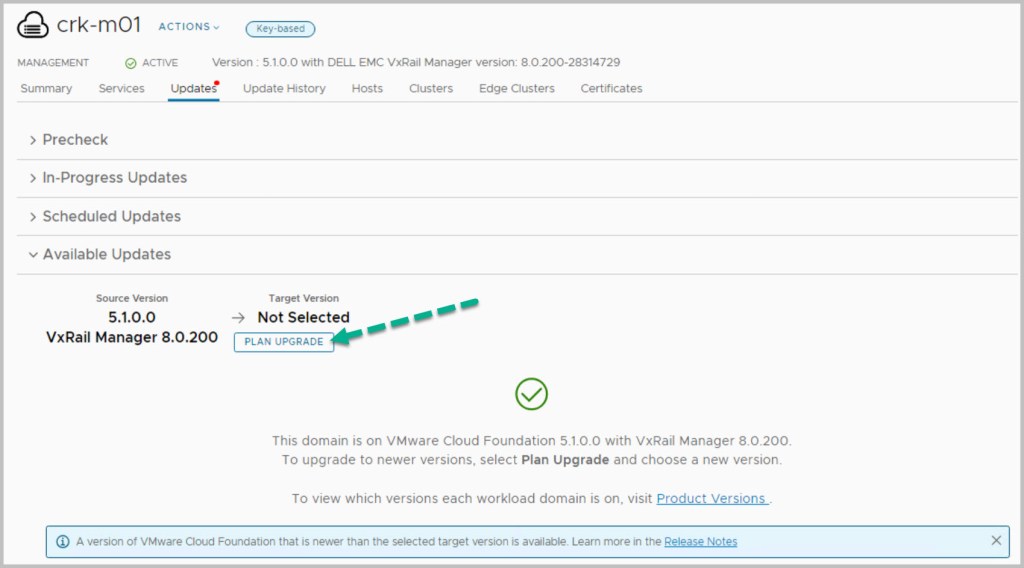
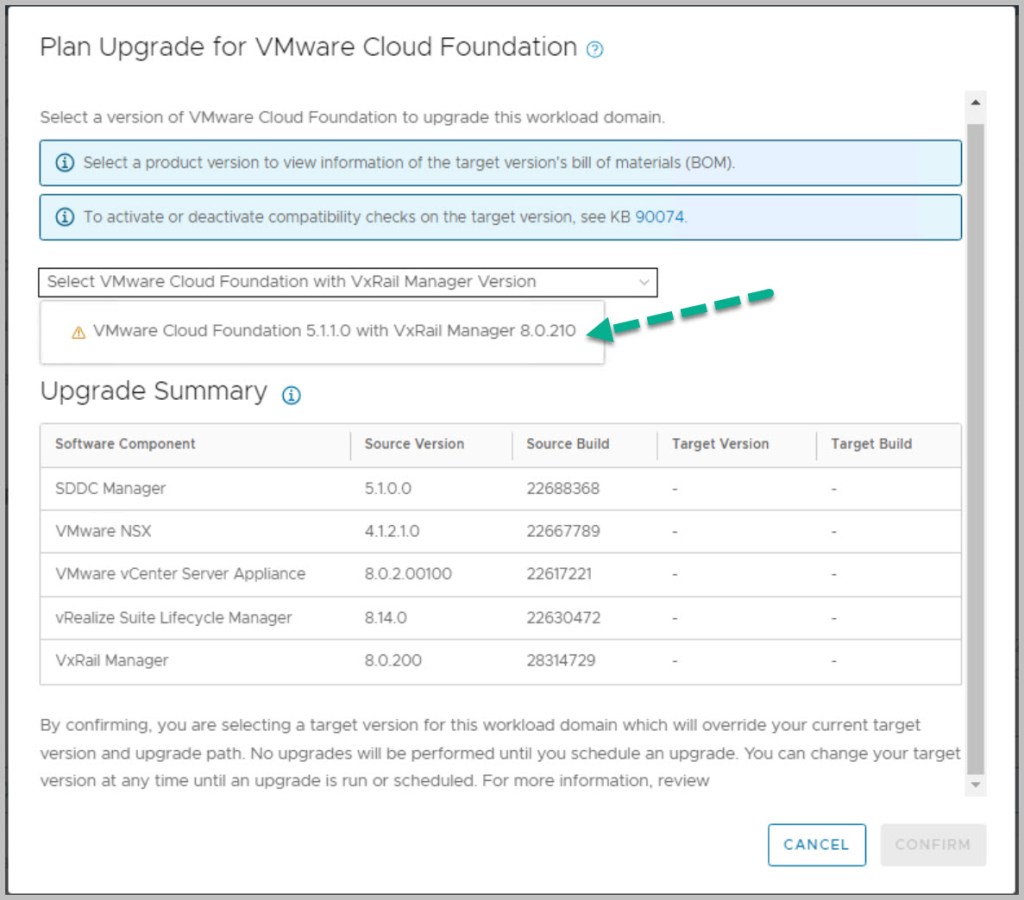
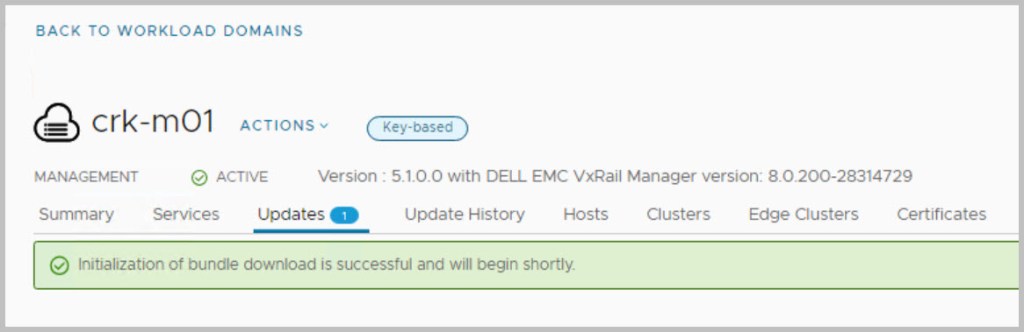
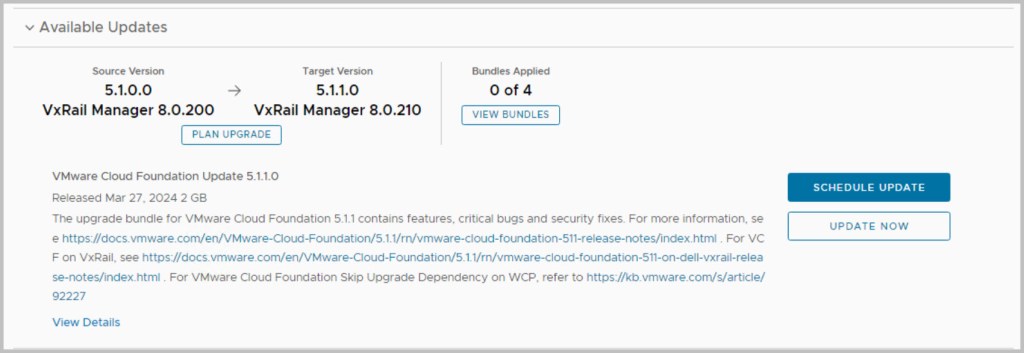
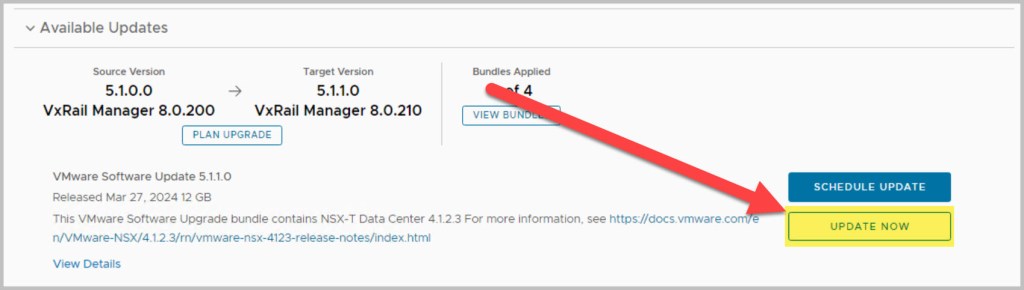
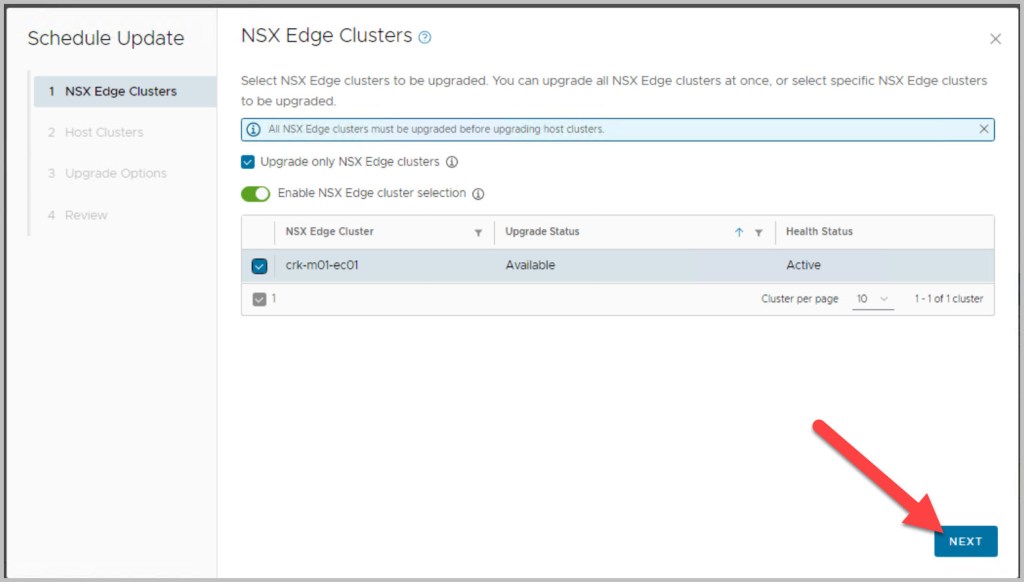
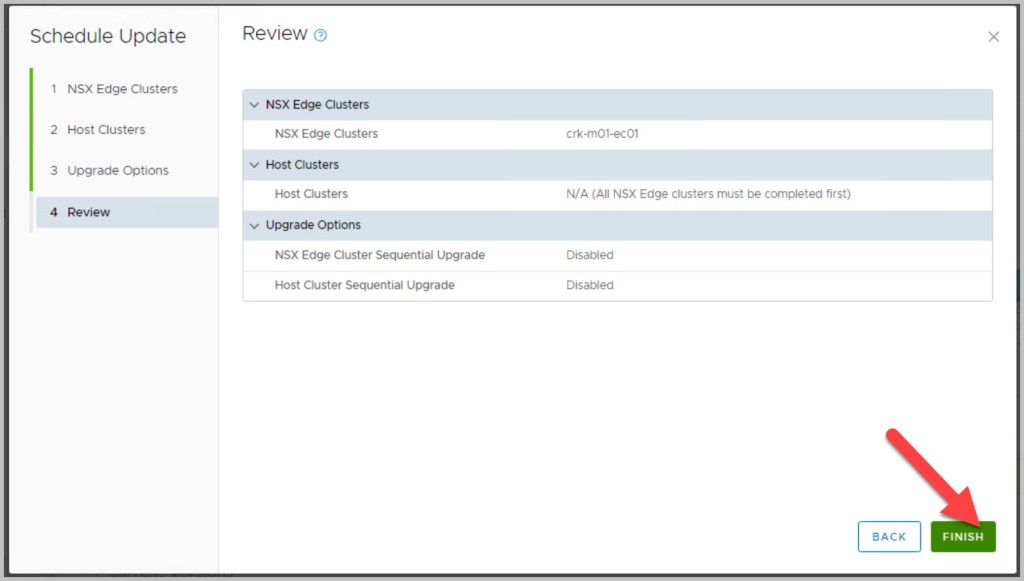
In order to check the availability of Update/Patches from within the SDDC manager console navigate to Inventory->WLD->Updates and begin the ‘PLAN UPGRADE’ process. In this example we see that VCF 5.1.1.0 update is the first available bundle to be applied:
VCF Upgrade to 5.1.1 VMware KB94271: SDDC Manager bundle pre-check failure when upgrading to VCF 5.1 and later. From VCF 5.1 onwards we are deprecating the config drift bundle. However, the previously released VCF versions (4.3 – 5.0) expect that a config drift bundle will be applied as part of a target release and hence indicates this as a pre-check failure. This pre-check failure can be ignored for VCF 5.1+. It is safe to proceed with the upgrade despite this bundle pre-check failure. Reference VMware KB https://kb.vmware.com/s/article/94271
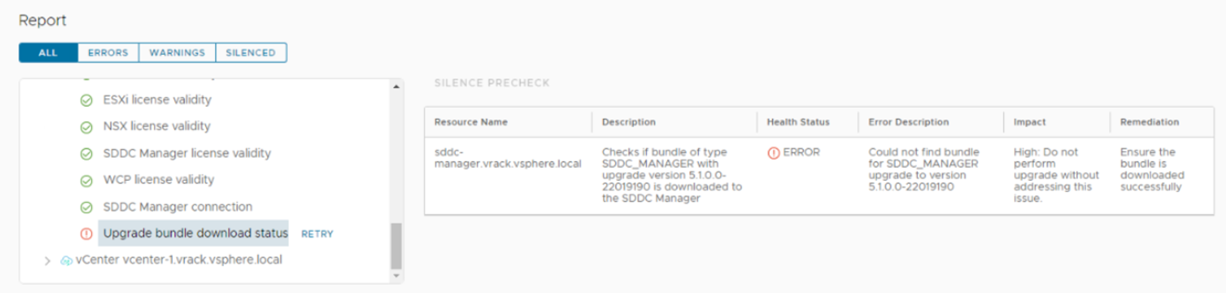
NOTE: In advance of completing the VxRail upgrade users are advised to follow the steps outlined in this KB article before initiating the upgrade process to ensure a smooth transition from VCF on VxRail 5.0.x to 5.1.x & 5.1.0 to 5.1.1 and to avoid encountering the described error:
https://knowledge.broadcom.com/external/article?legacyId=94747
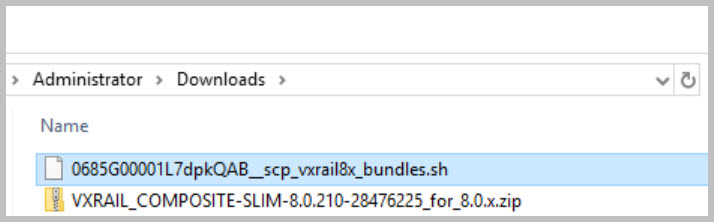
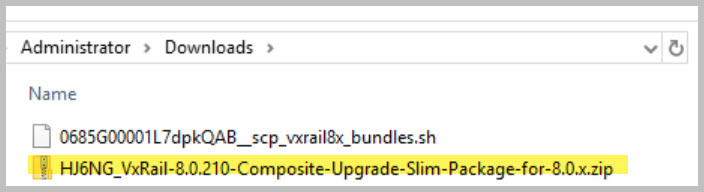
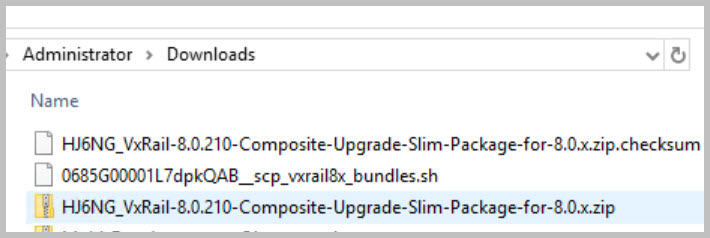
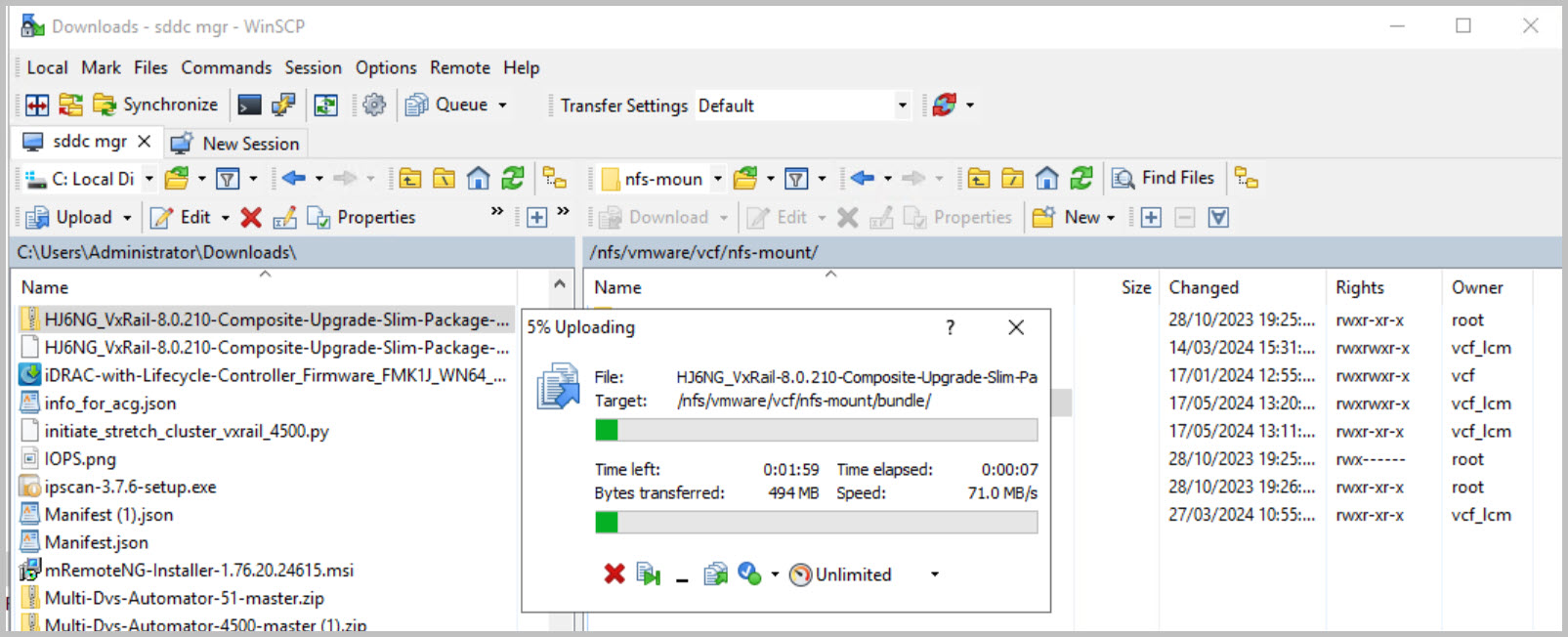
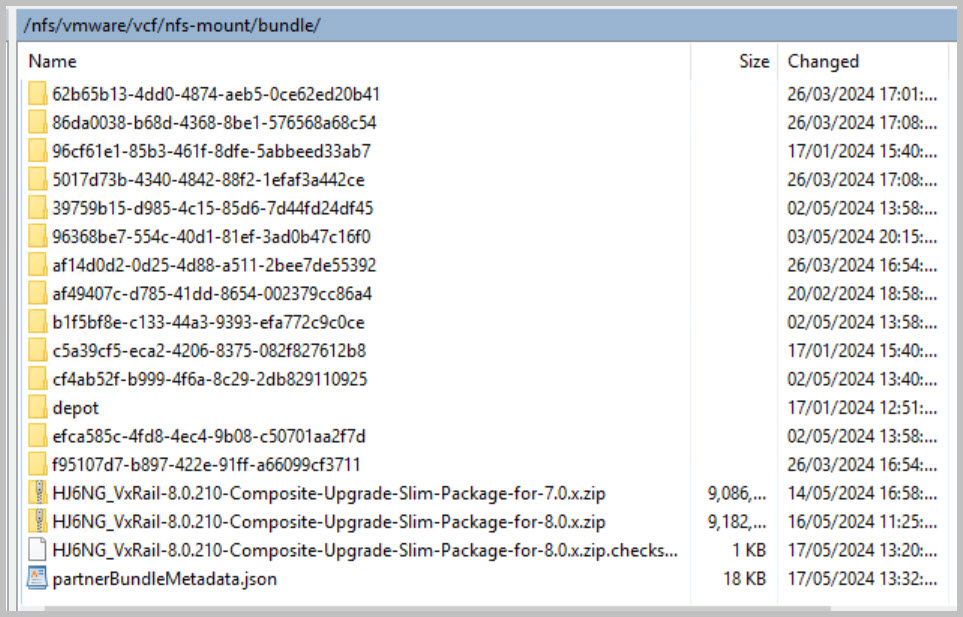
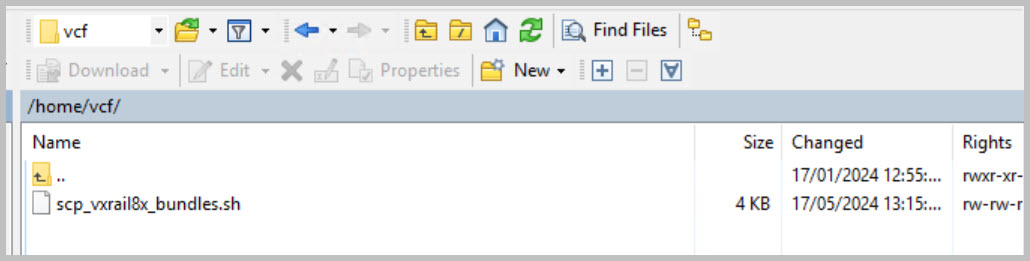
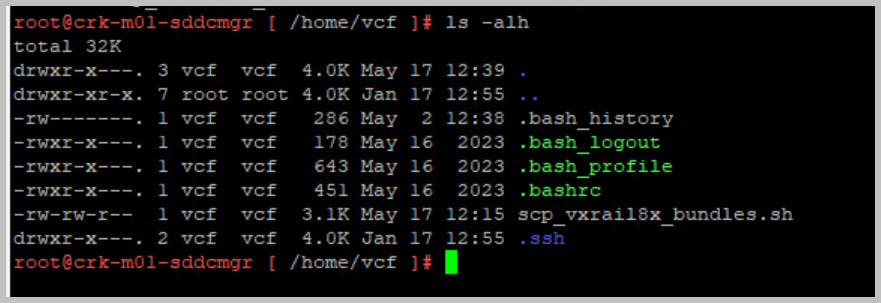
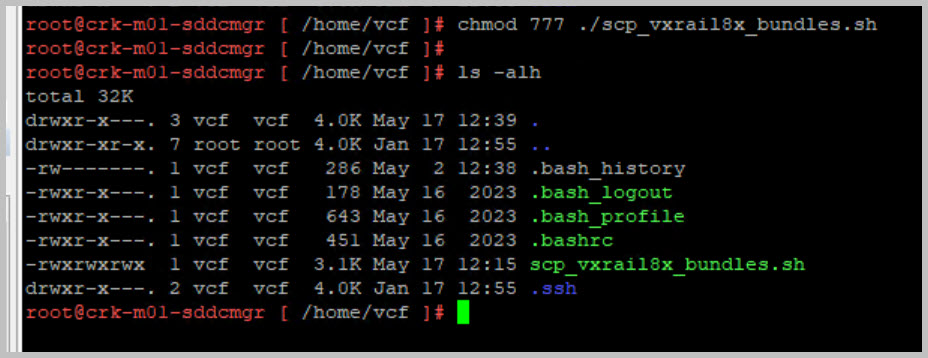
Example Steps for KB:
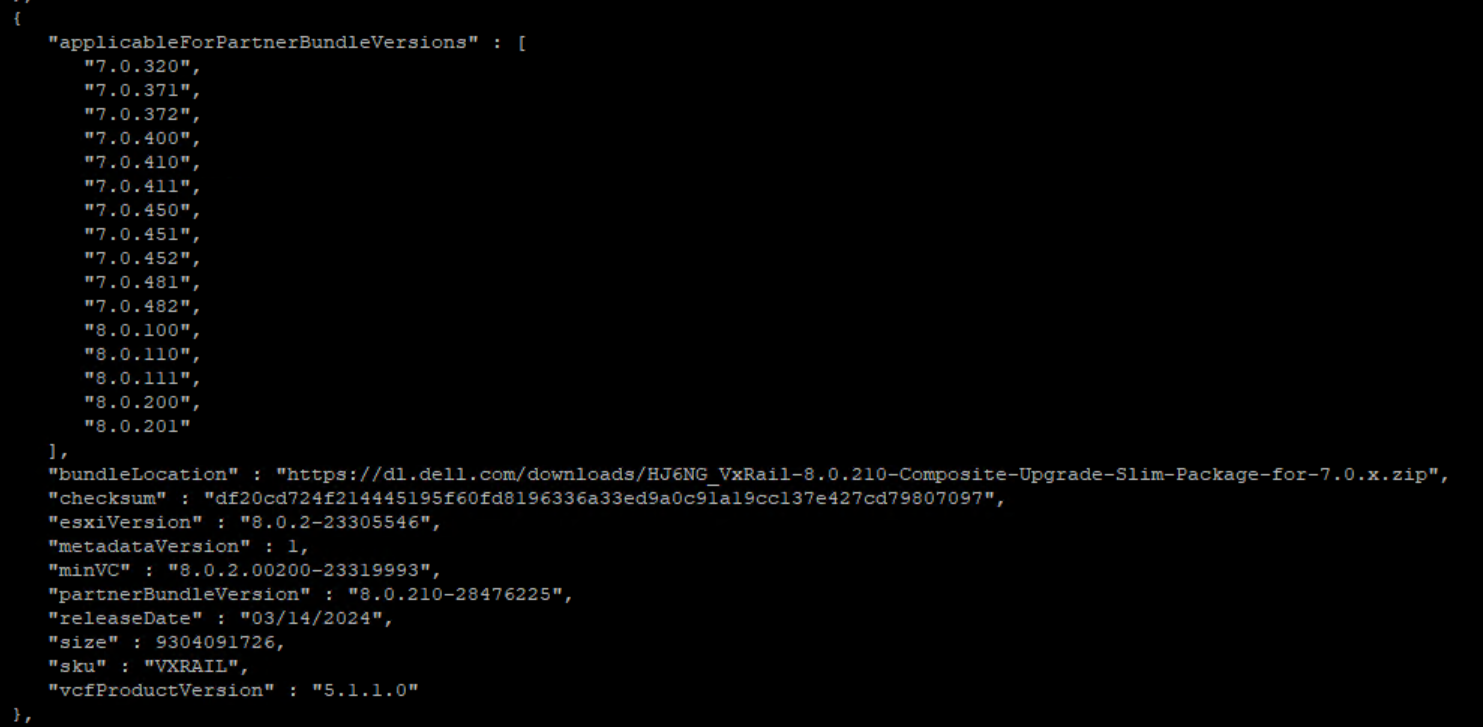
View the Partner bundle metadata file details in SDDC Manager:
cd /nfs/vmware/vcf/nfs-mount/bundle/
cat partnerBundleMetadata.json | json_pp
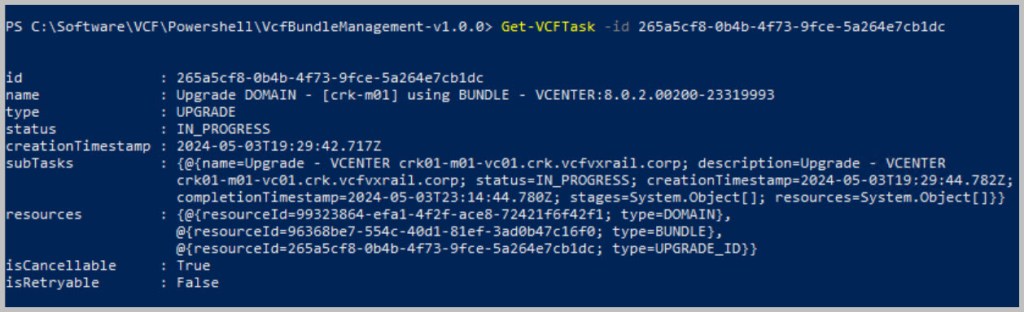
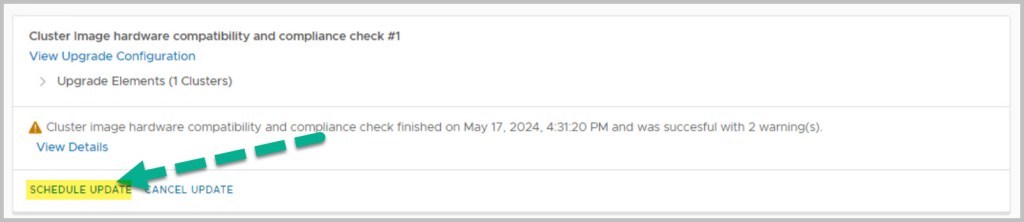
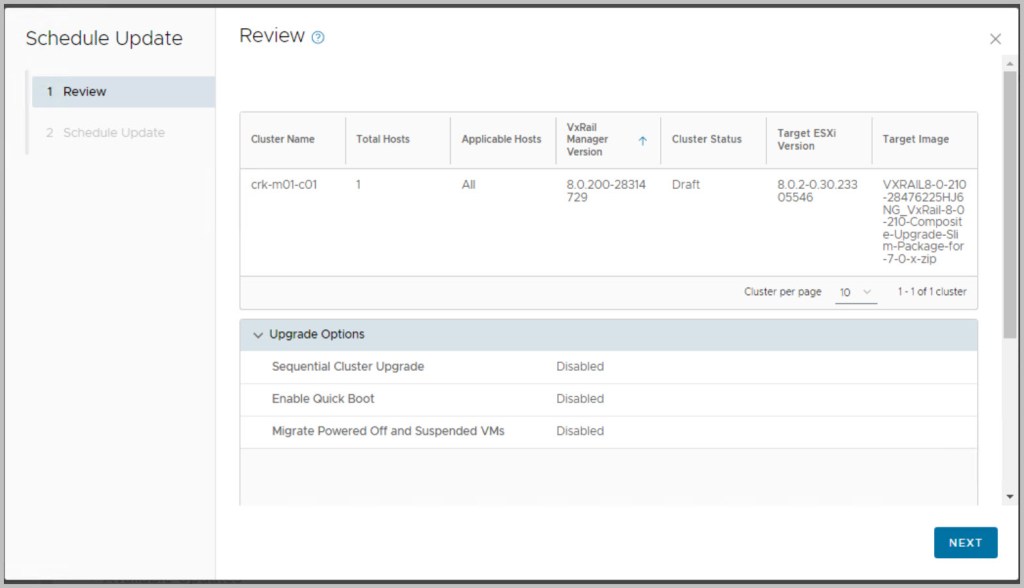
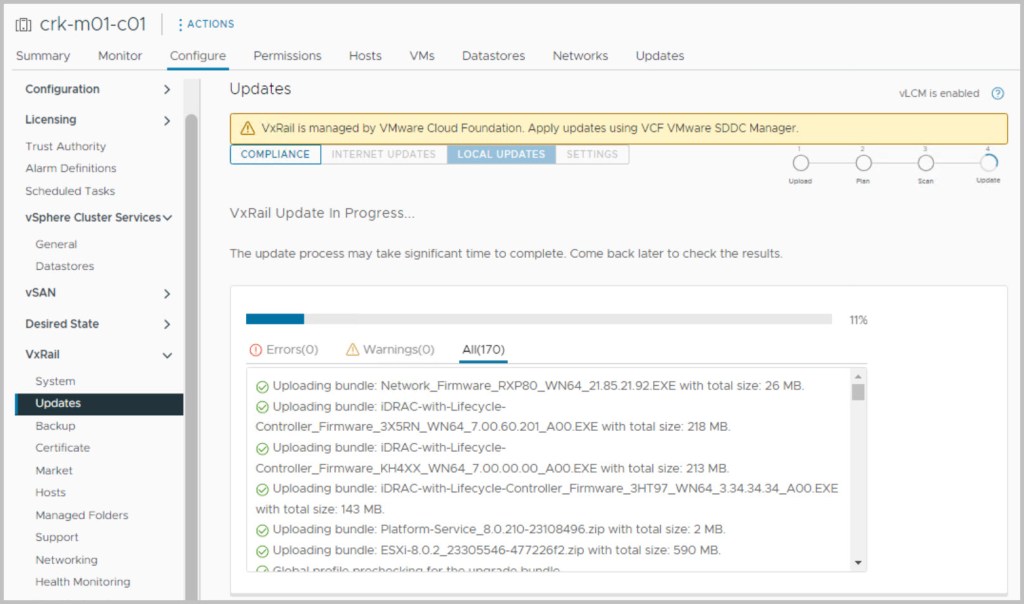
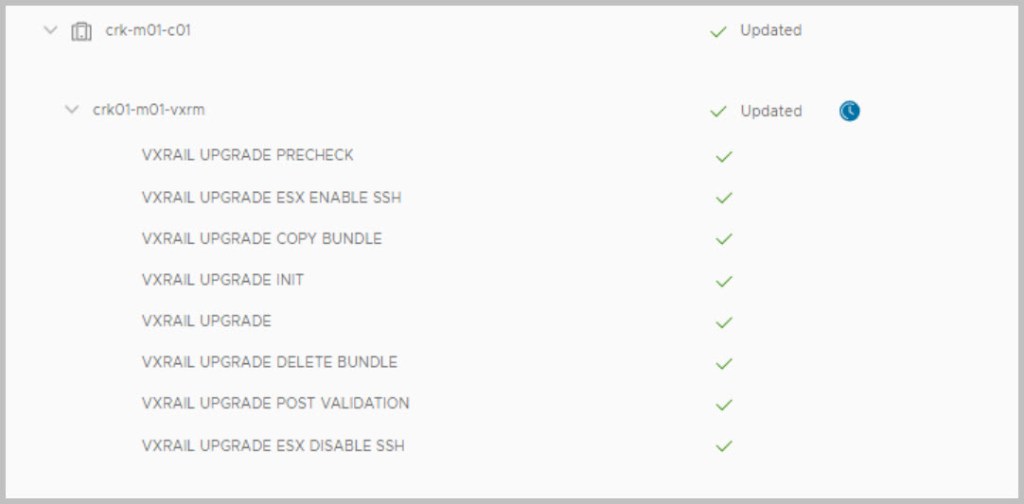
VxRail Upgrade sequence of steps:
psql -U postgres vxrail -c "select id,state,owner from system.operation_status where owner='LcmBundleDeployAndUpgrade';"

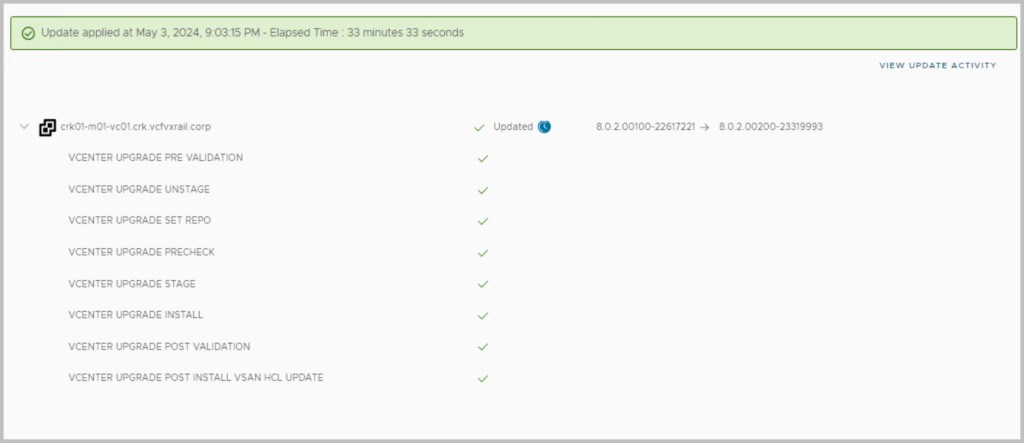
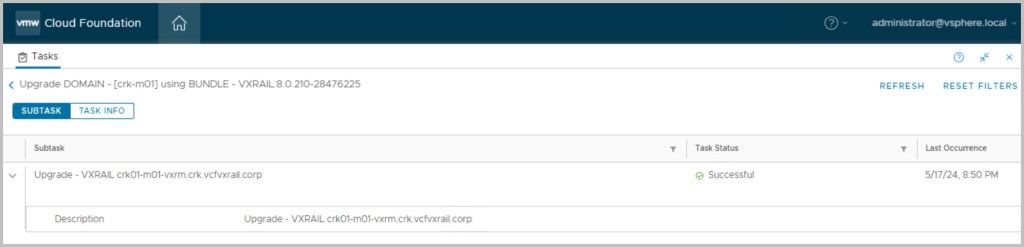
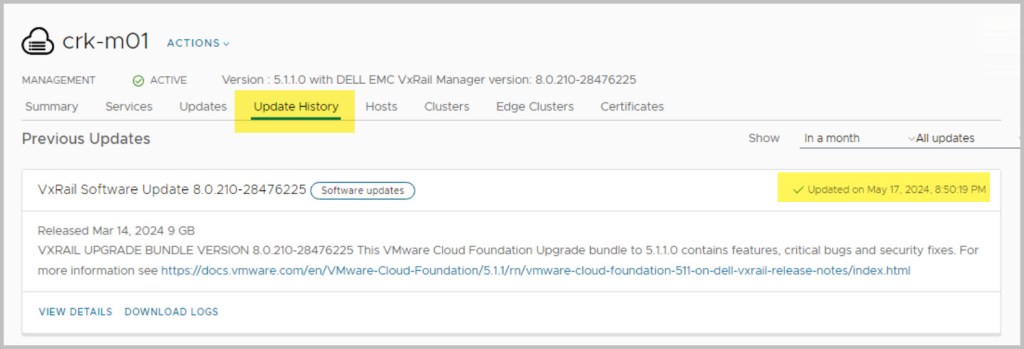
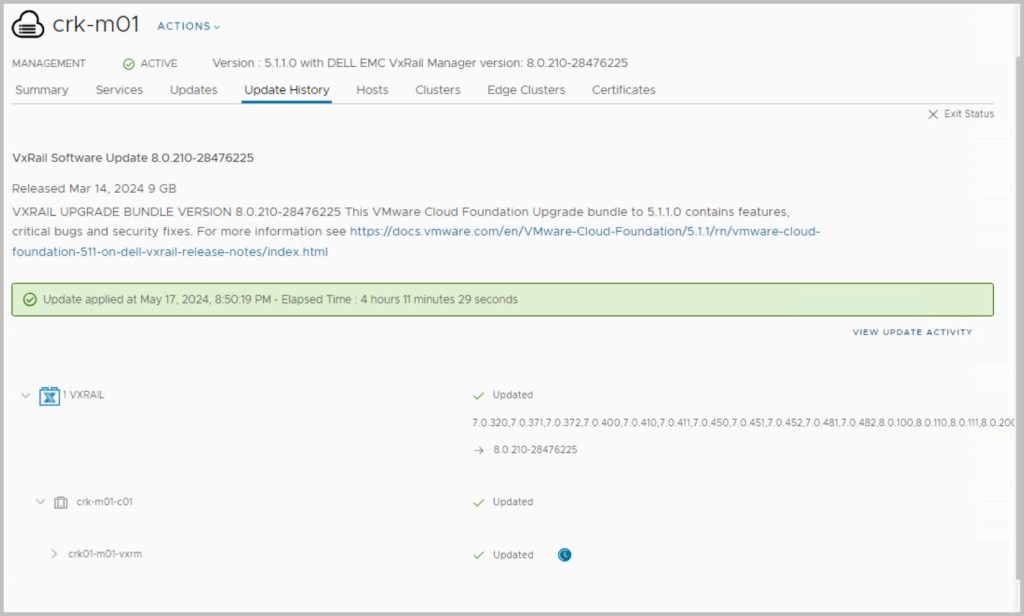
Upgrade Completed:
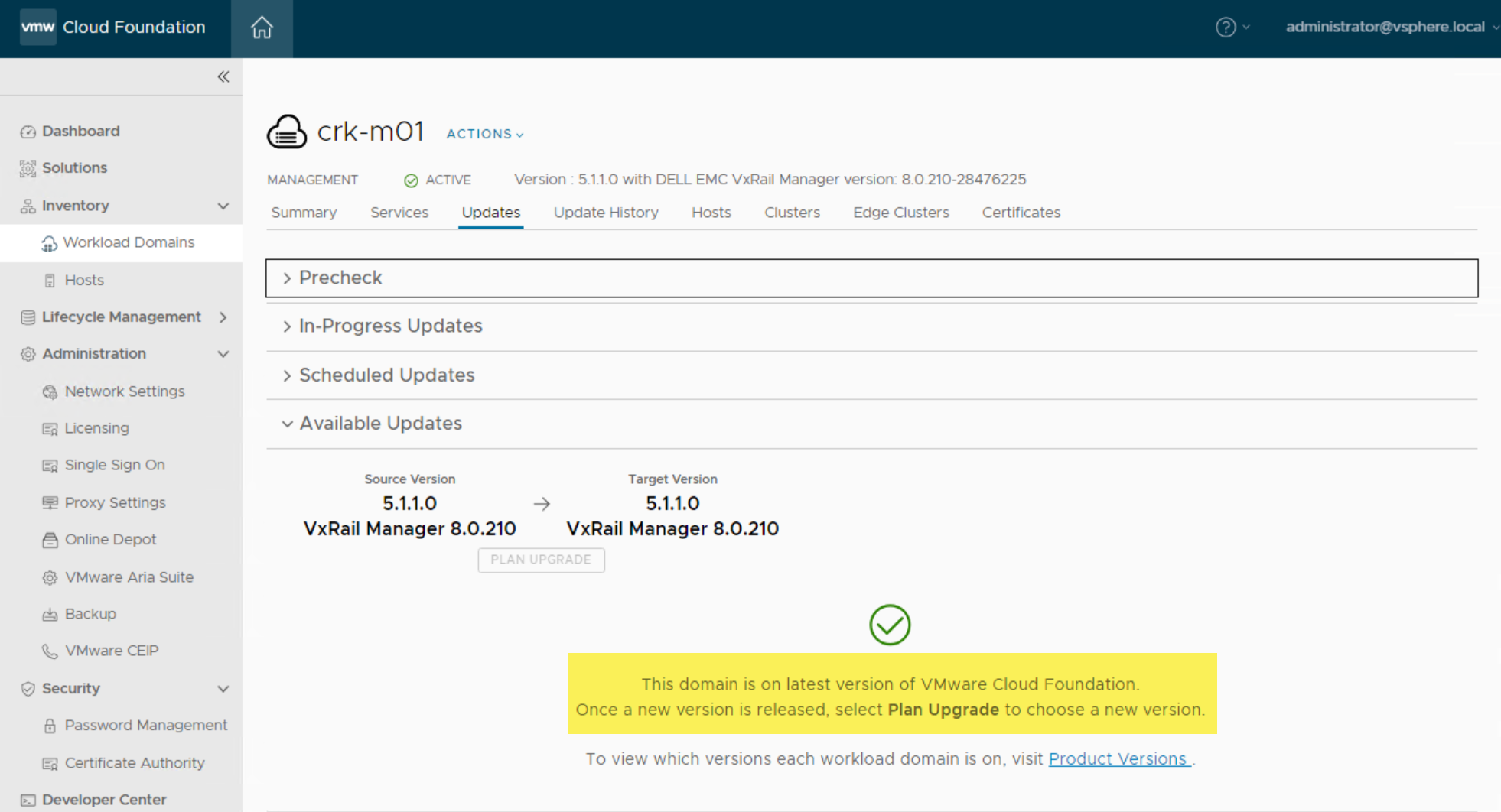
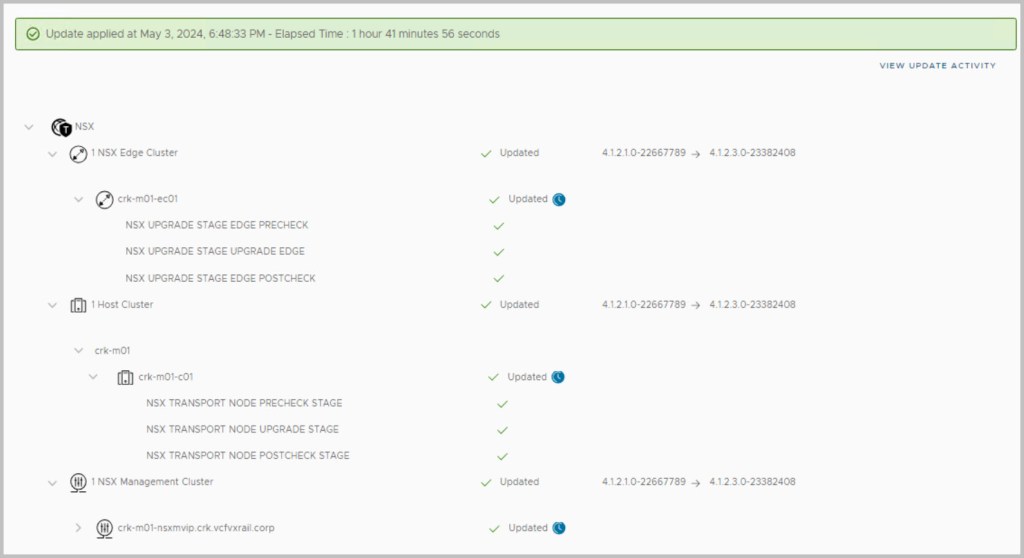
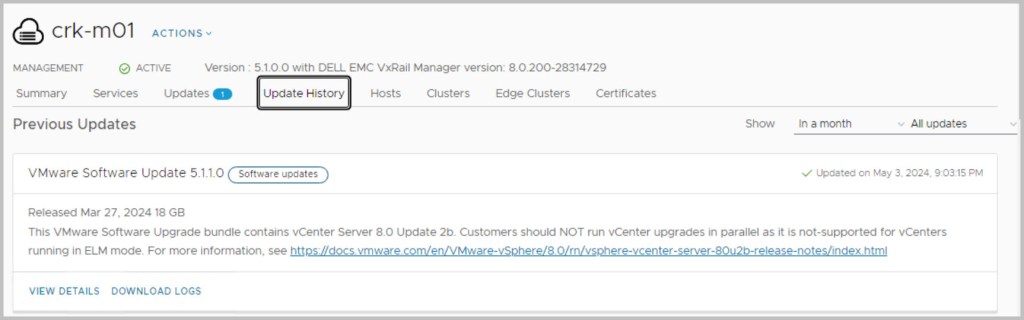
After all upgrades have completed successfully:
Reference:




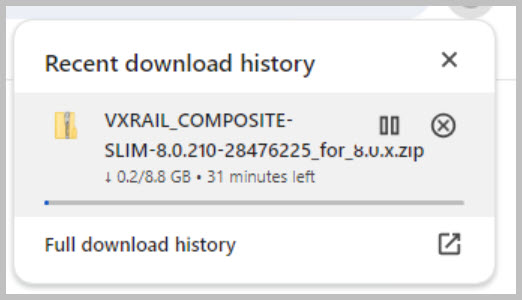
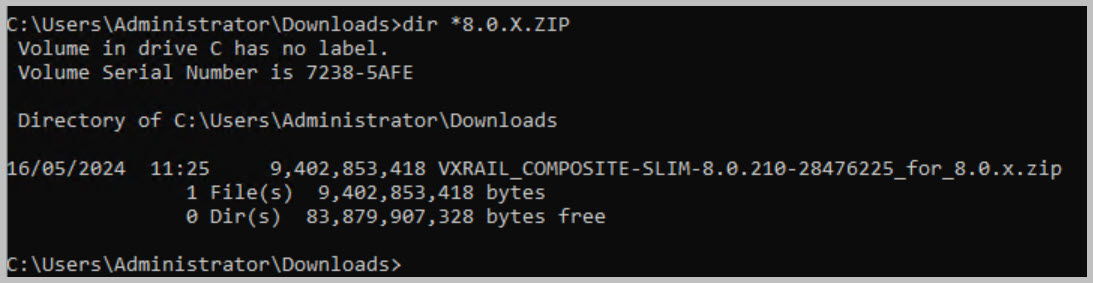
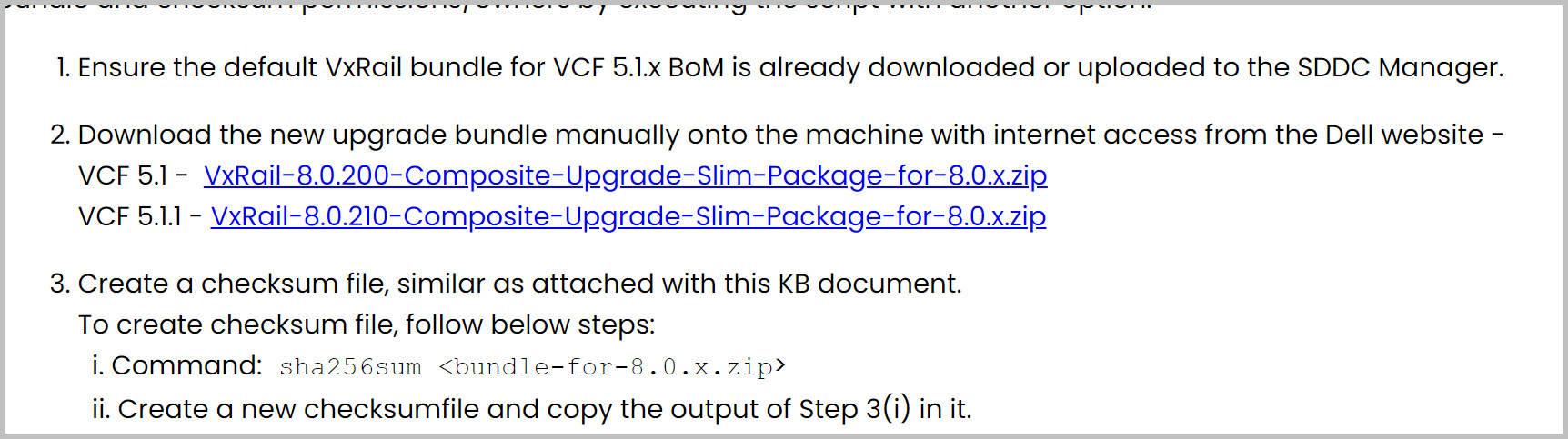

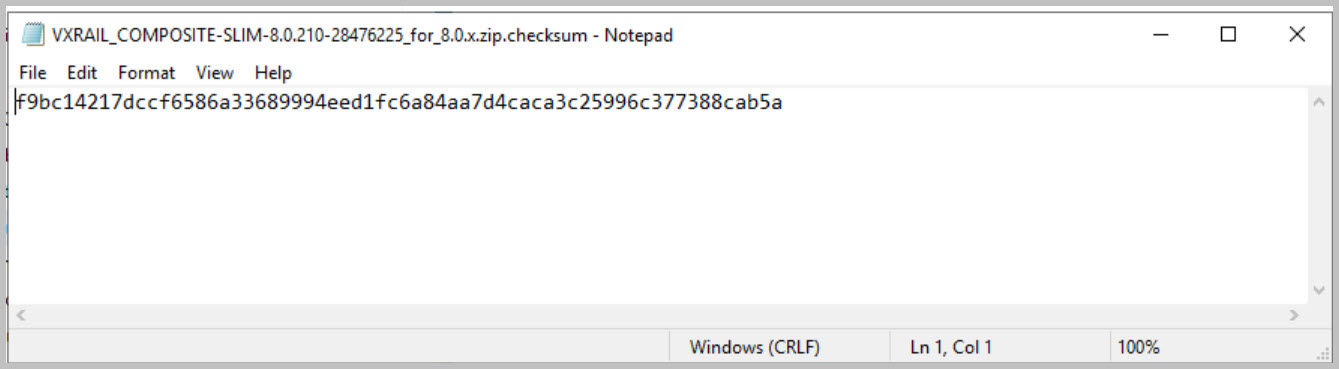




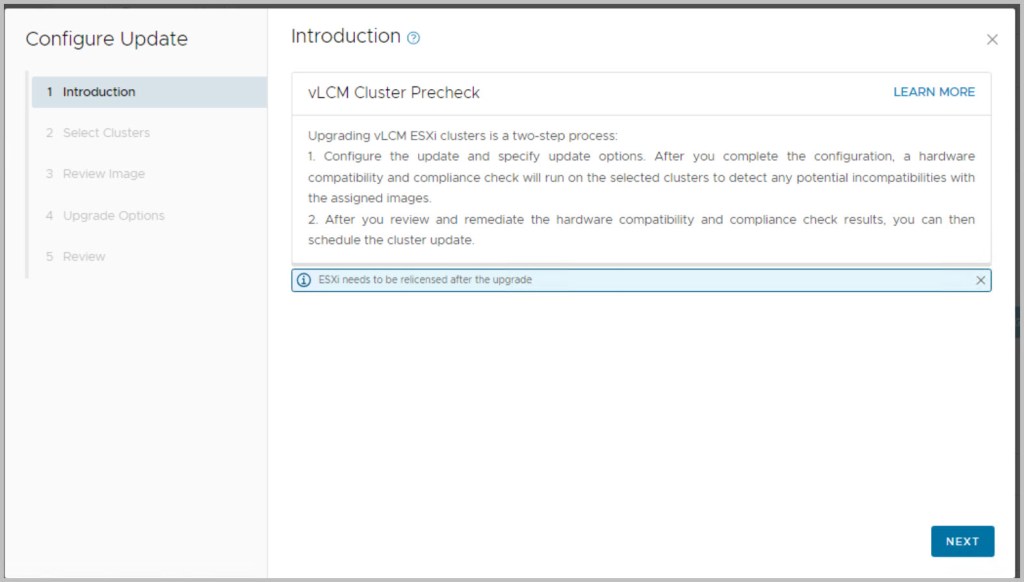
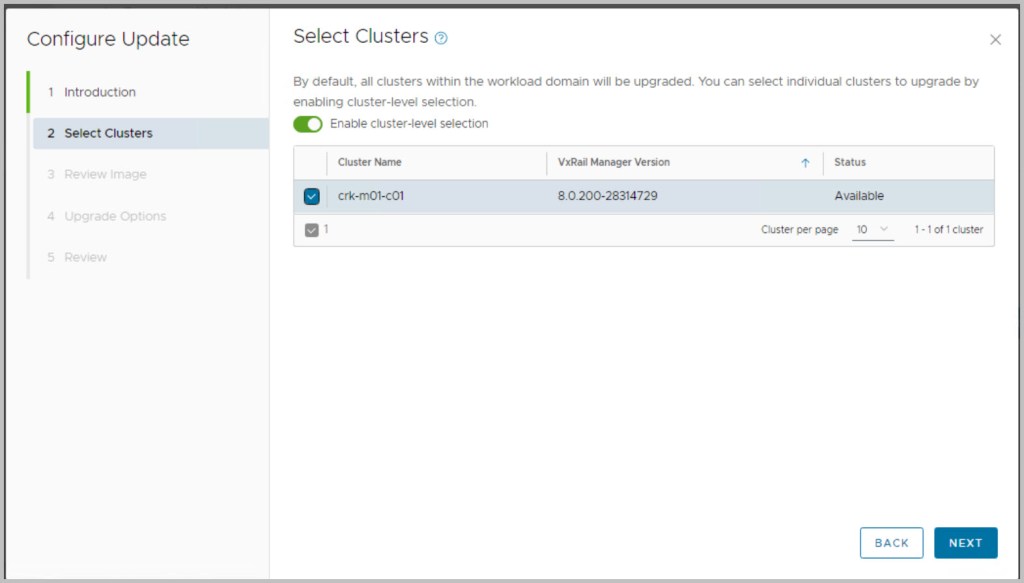
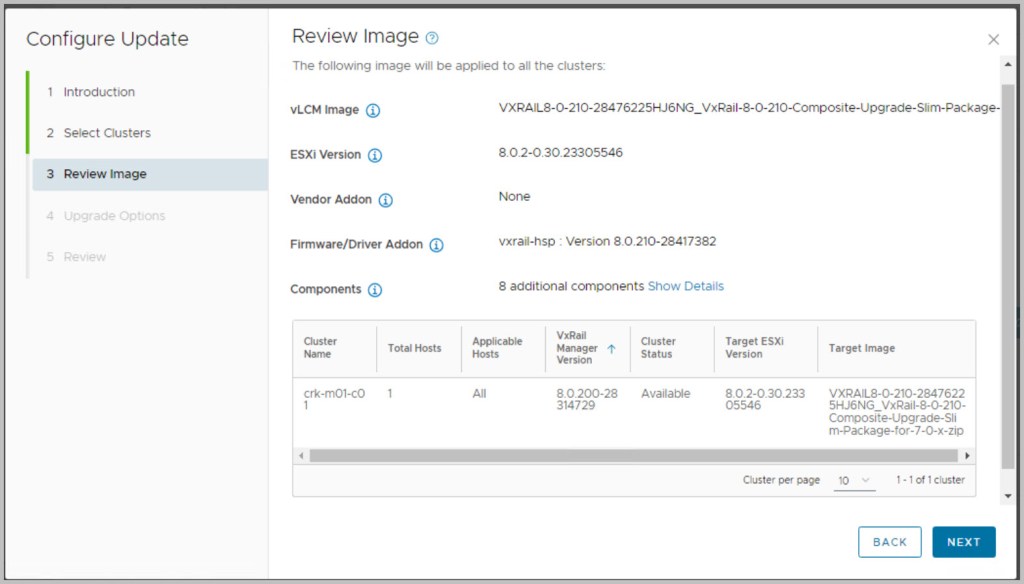
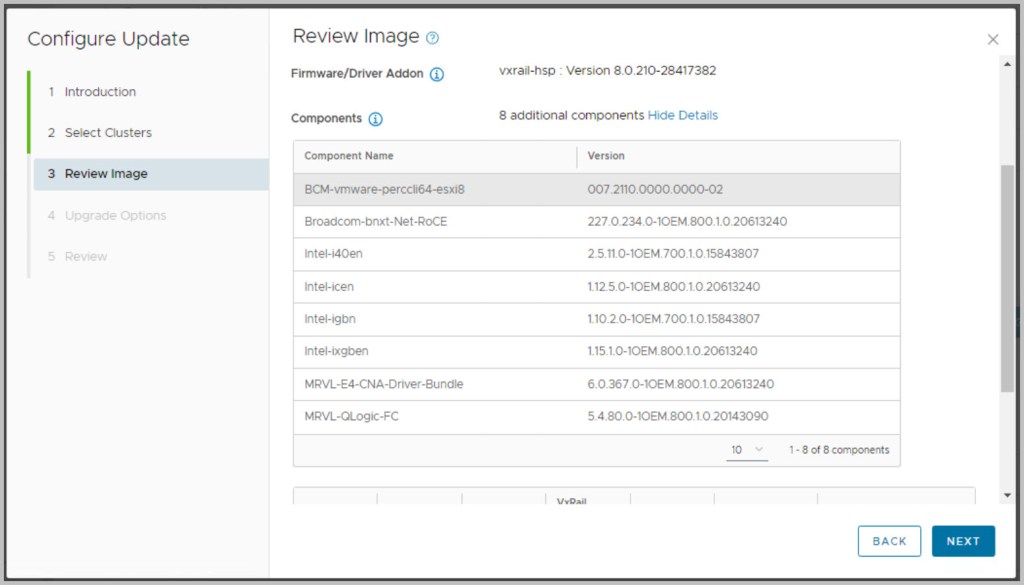
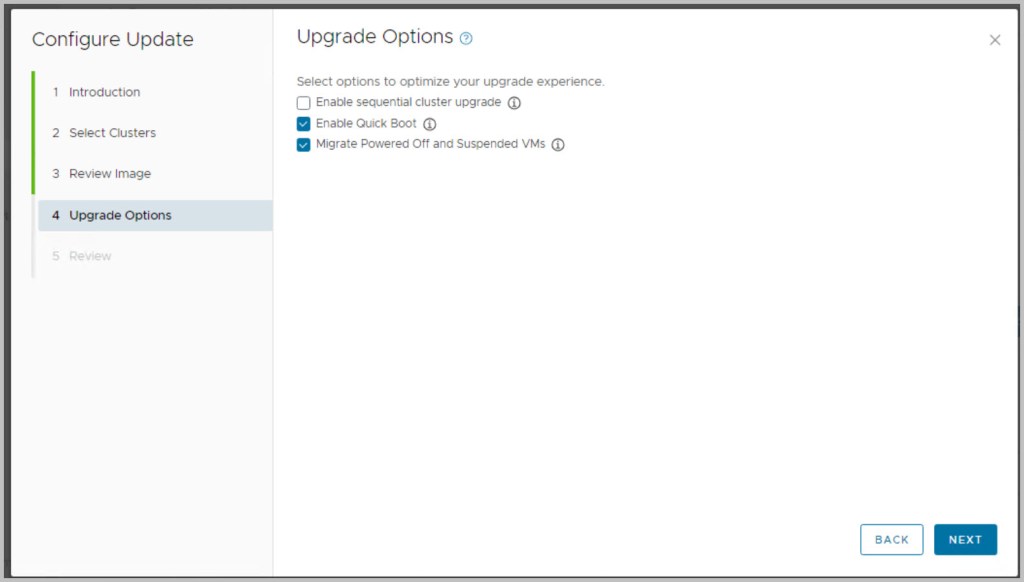
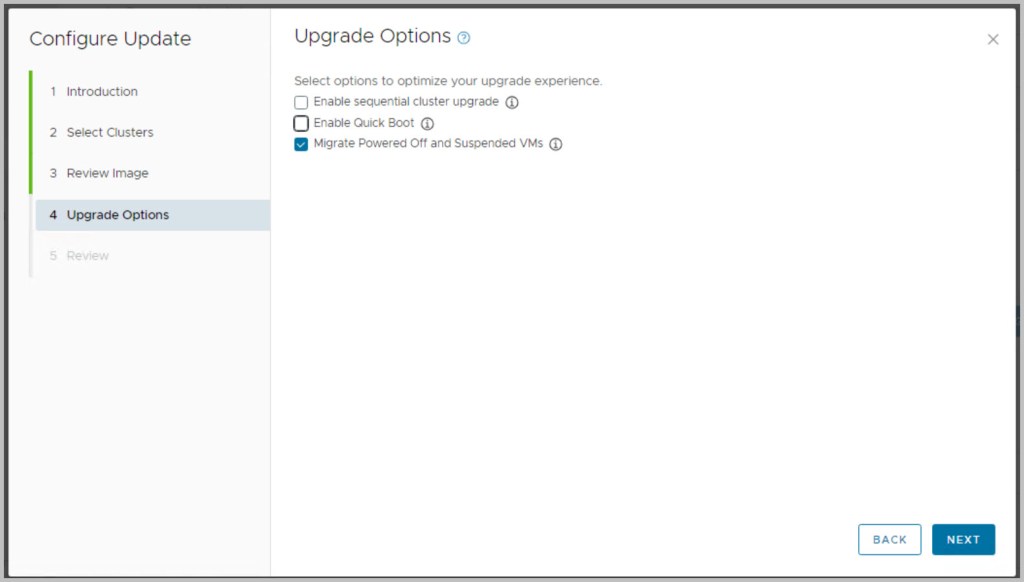
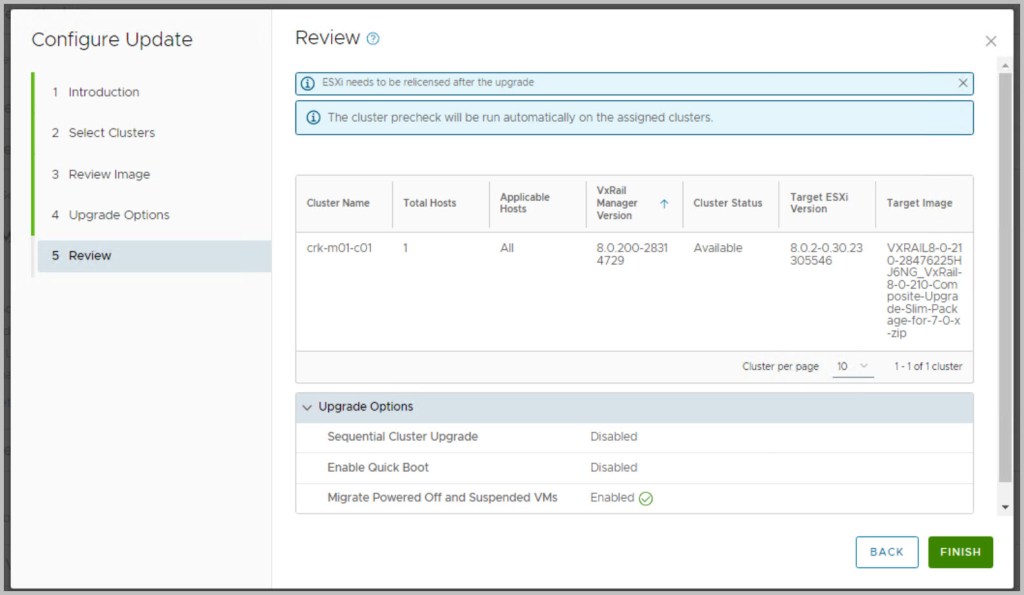
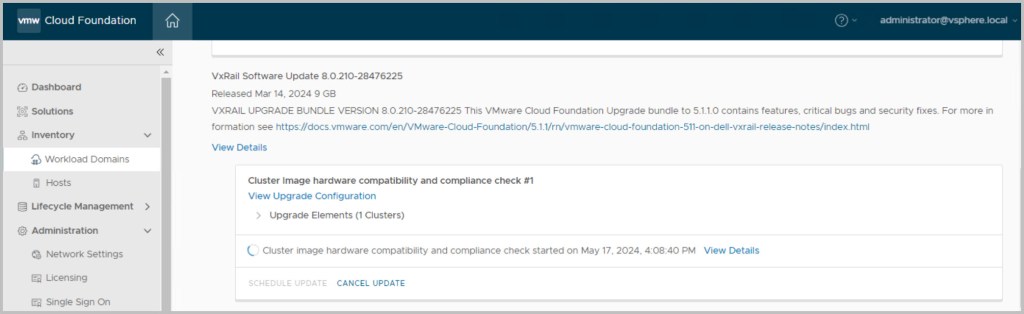



 DavidRing.ie
Great Article 🙂 Waiting for Part2