VCF
VCF 5.1 On VxRail 8.0.200 – Walkthrough (Part 4: VI WLD vLCM-based)
Note: this is an example for reference only please use the VxRail installation procedures & services provided by Dell. PART 1 PART 2 PART 3 This is the 4th in […]
Virtualization & Storage

Note: this is an example for reference only please use the VxRail installation procedures & services provided by Dell. PART 1 PART 2 PART 3 This is the 4th in […]
Note: this is an example for reference only please use the VxRail installation procedures & services provided by Dell.
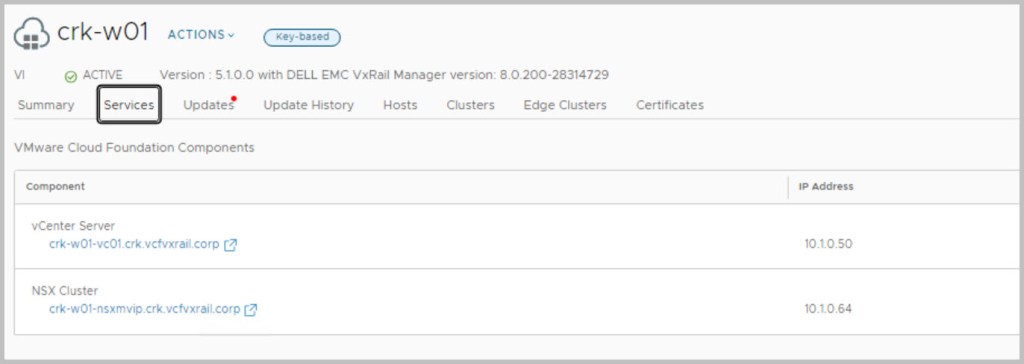
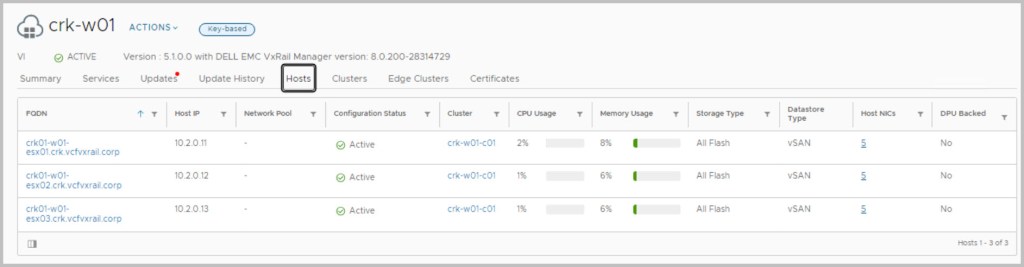
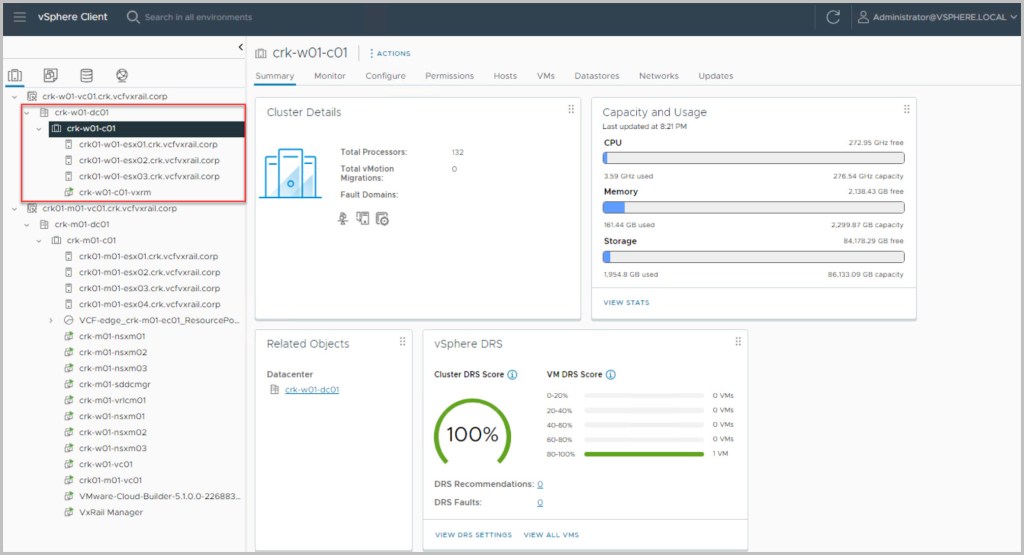
This is the 4th in a series of posts covering VCF 5.1 On VxRail 8.0.200. The following post provides an example walkthrough covering the process of deploying a vLCM-based VI Workload Domain using the UI for Workflow Optimization method.
VMware Cloud Foundation introduced support for Day-1 vLCM enablement in VI WLD for VCF On VxRail 5.1. The integration of vLCM with VCF On VxRail 5.1 is quite a significant development. Let’s break down the key points:
Overall, these advancements in VCF on VxRail signify a step forward in simplifying and automating the management of hyper-converged infrastructure, enhancing both operational efficiency and infrastructure reliability.
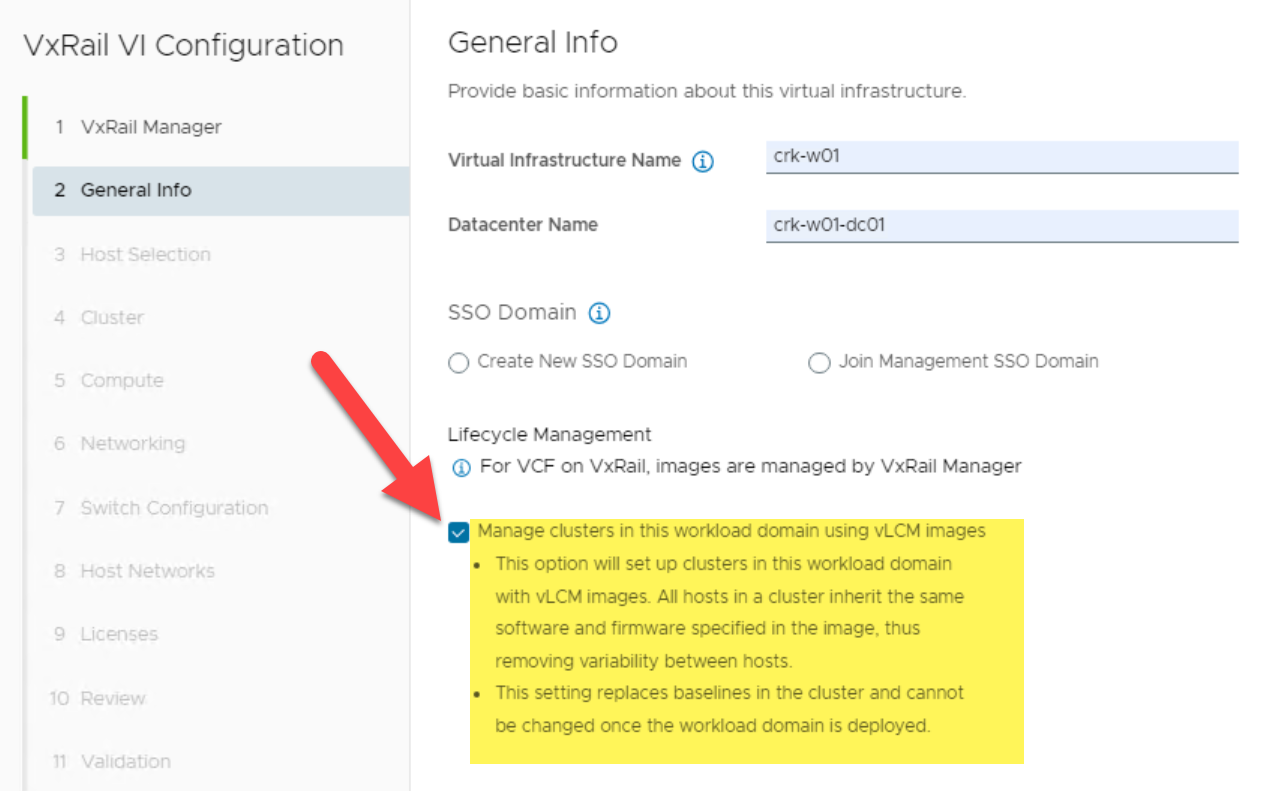
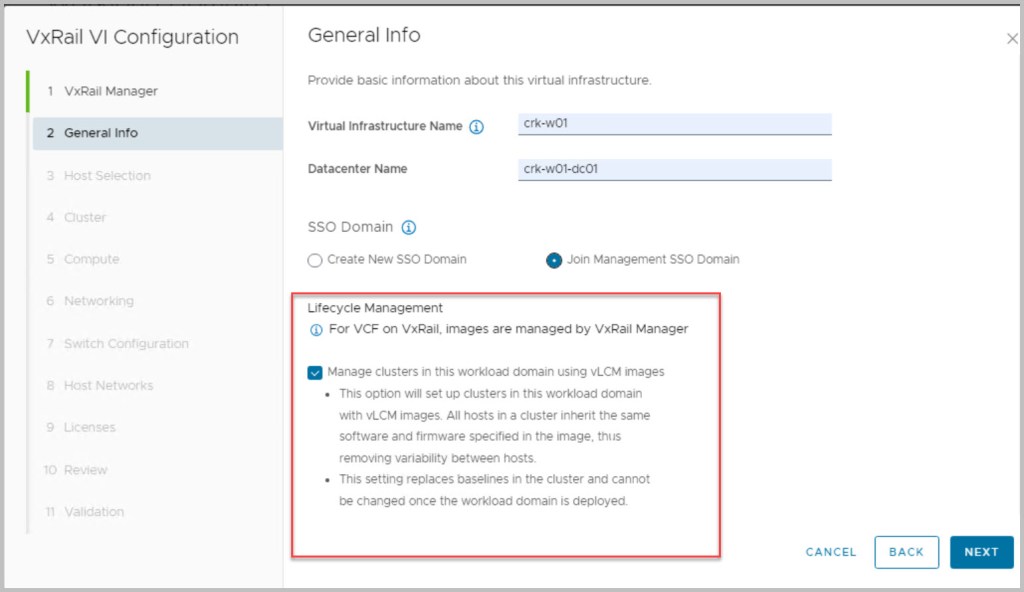
Users can create a vLCM-based workload domain (WLD) through either SDDC Manager using WFO UI or WFO API script method. The UI method is captured in the screenshot below showcasing enabling the checkbox: Manage clusters in this workload domain using vLCM images.
You can view a list of prerequisites and an overview of the procedure on the VMware site here.
Note: this is an example for reference only please use the VxRail Solve installation procedures provided by Dell.
Ensure to complete the following from within SDDC Manager UI:
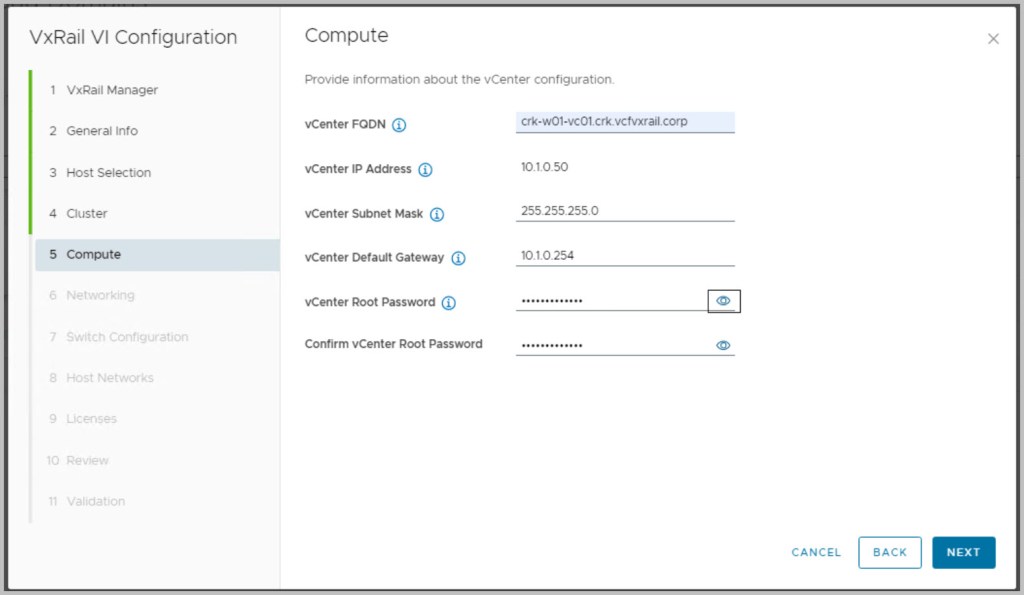
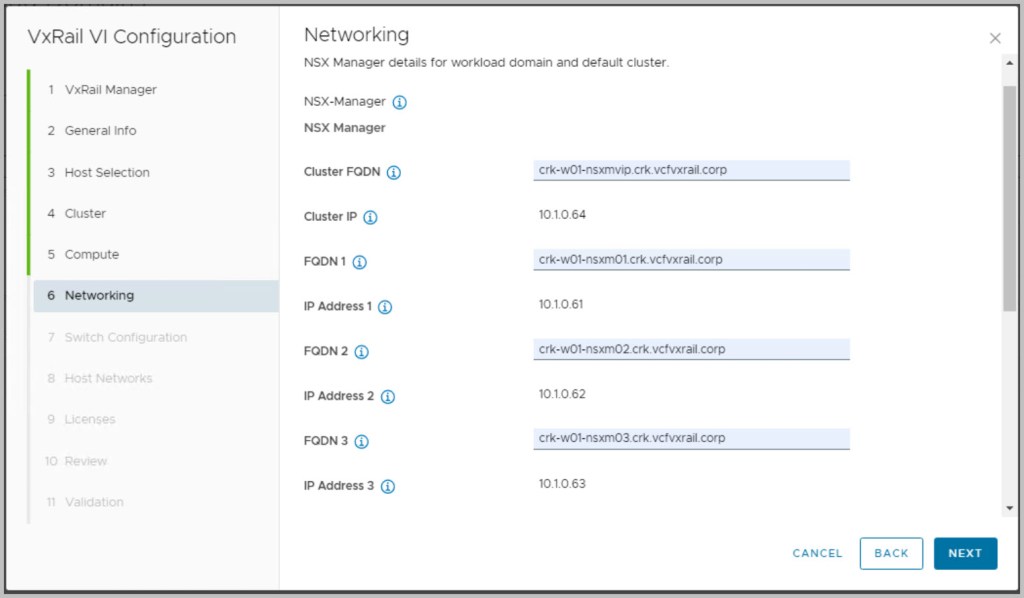
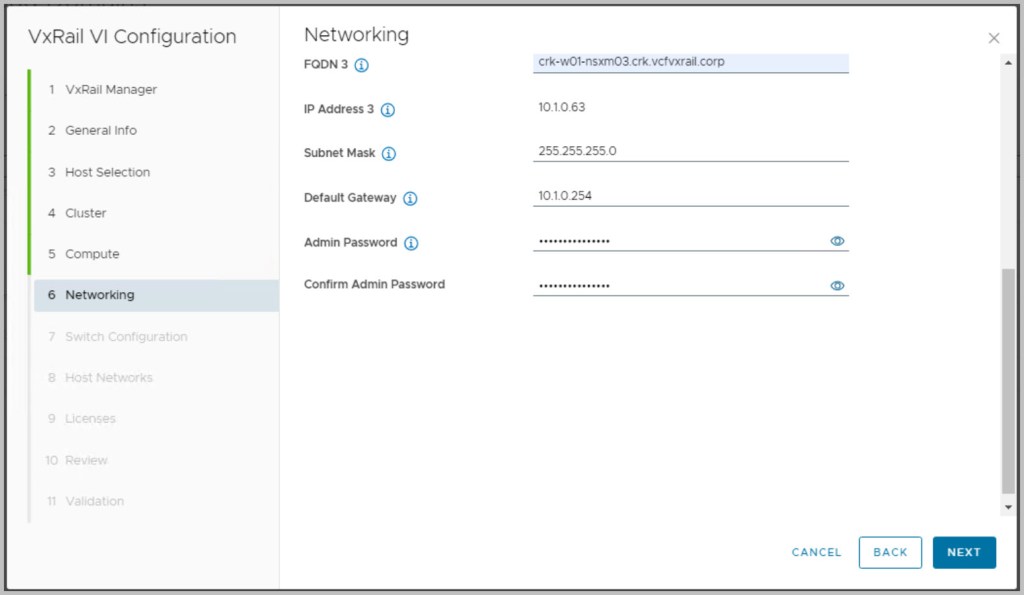
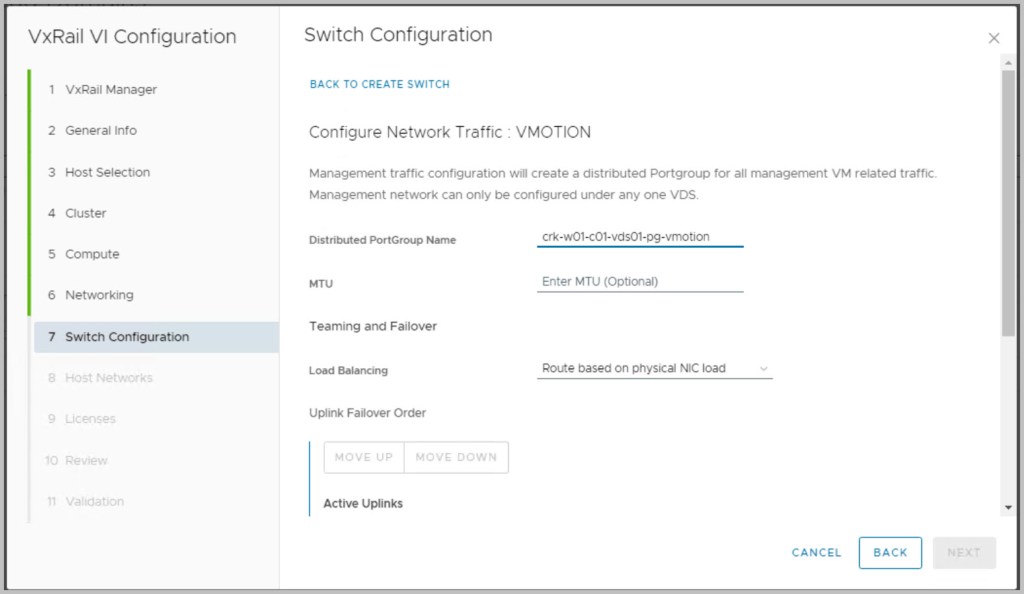
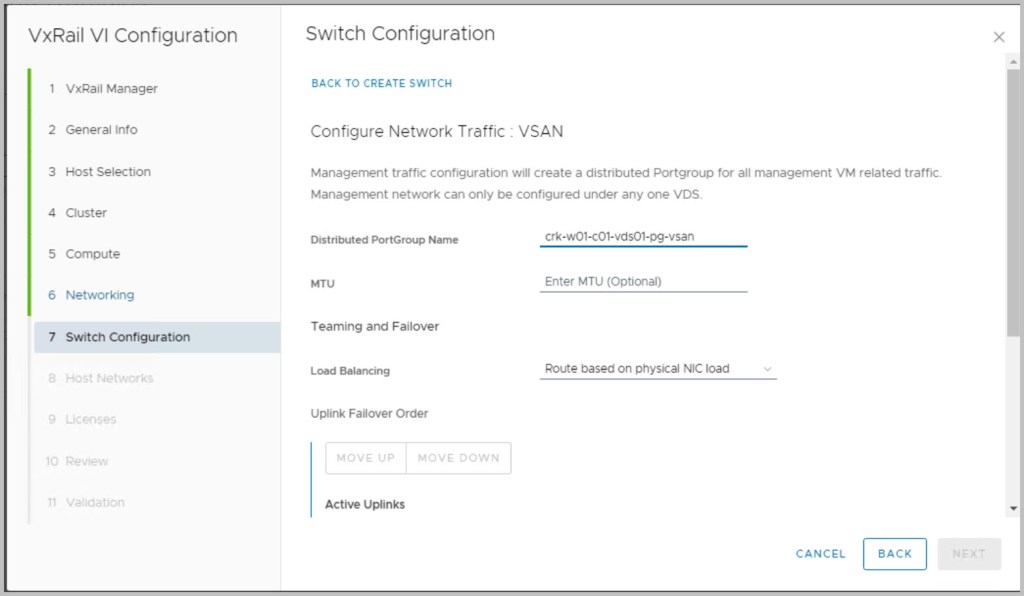
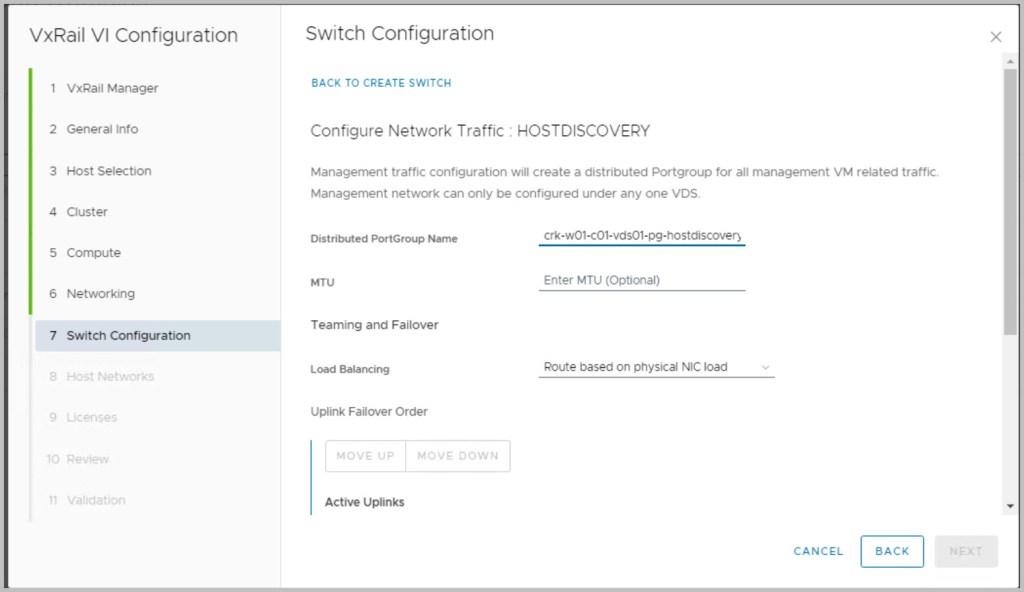
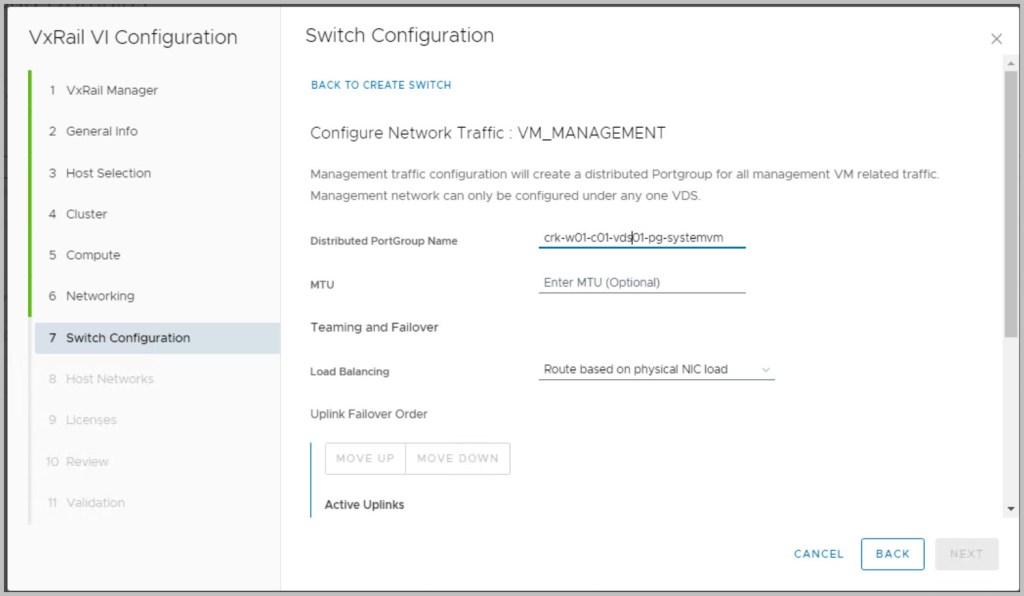
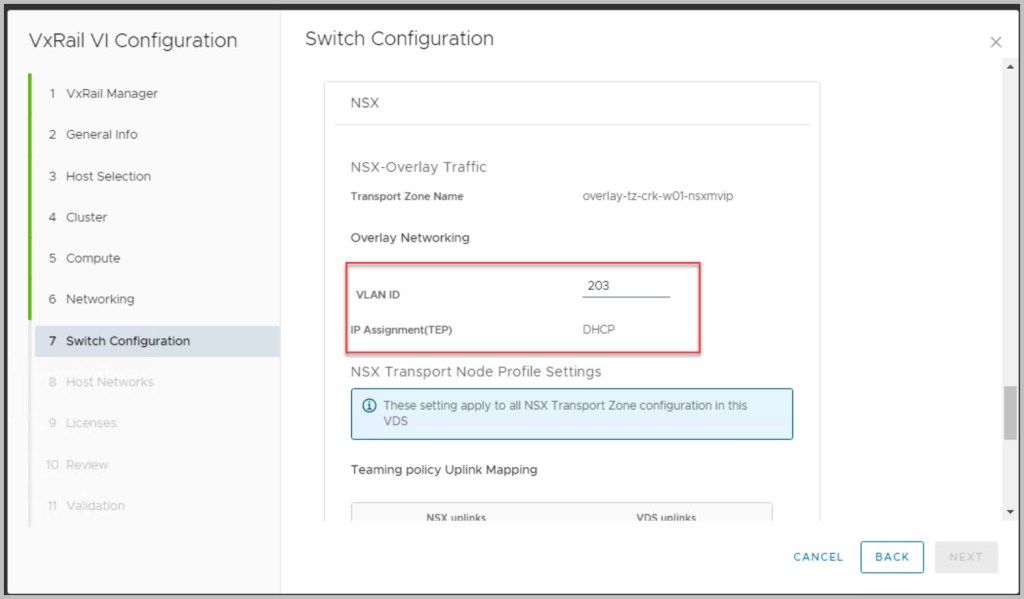
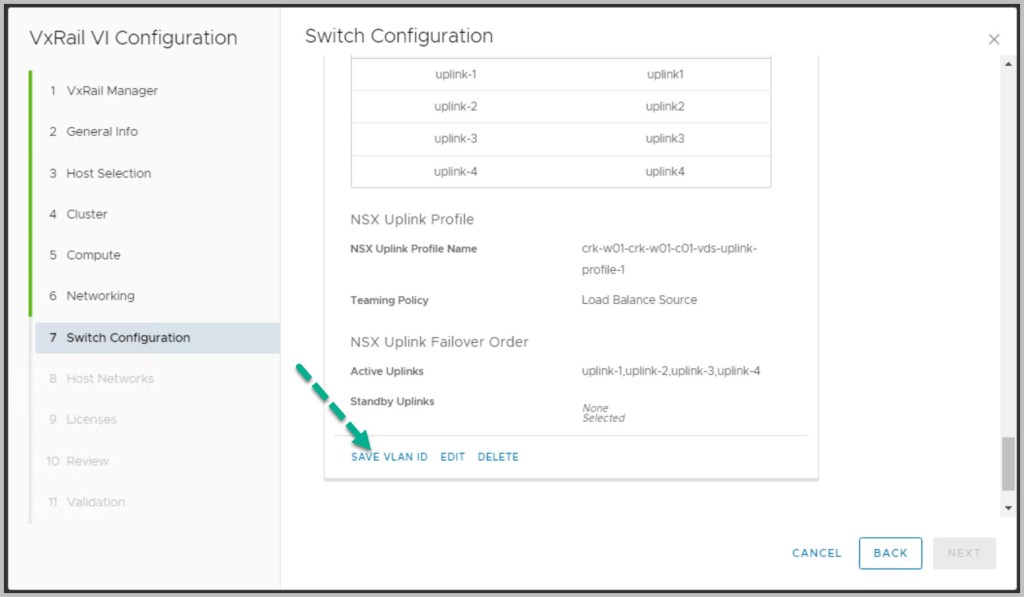
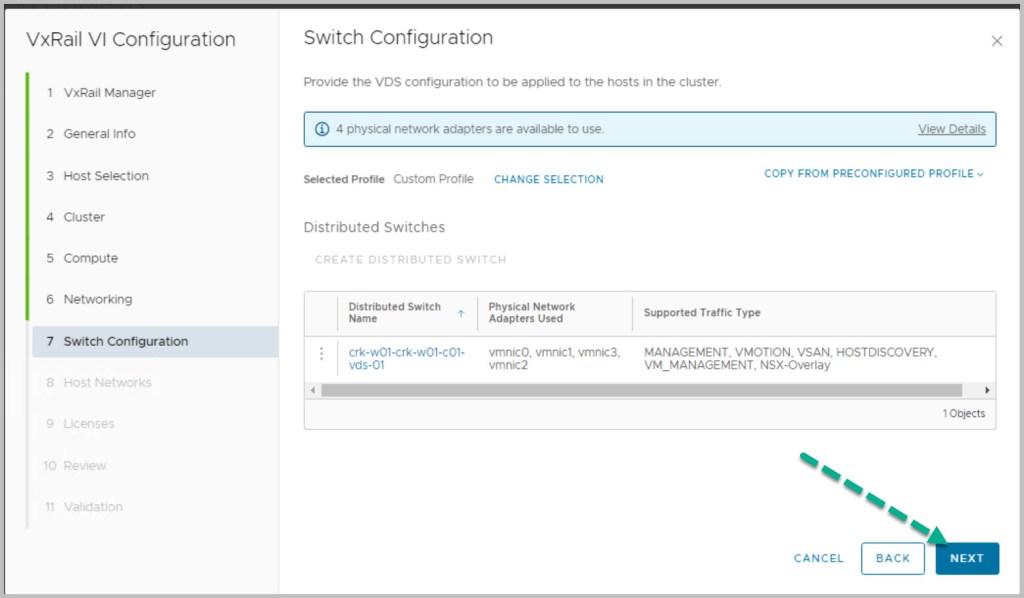
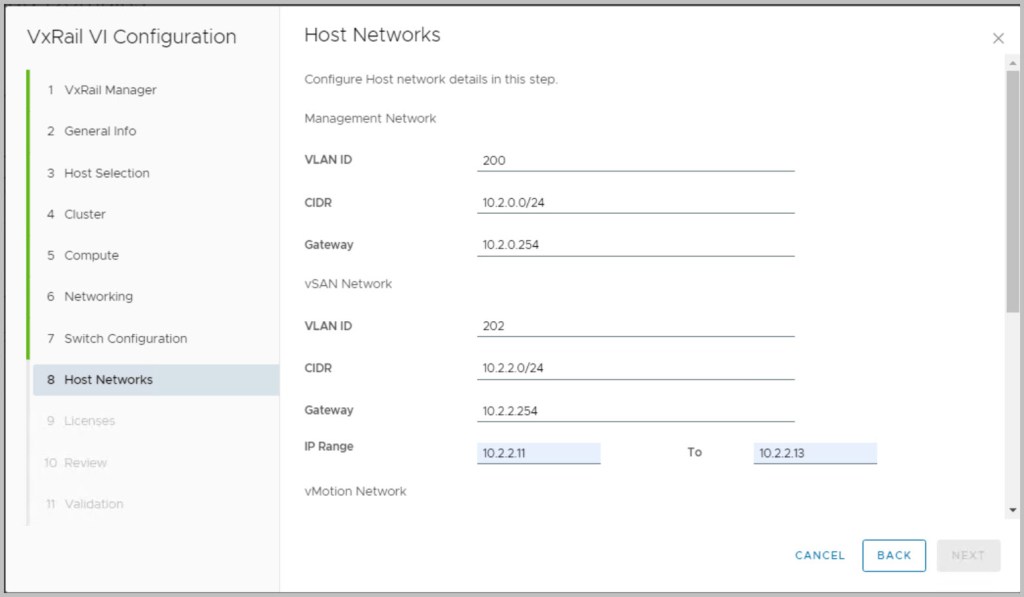
The following input values are required as per the process of creating a VI WLD from the SDDC Manager UI:
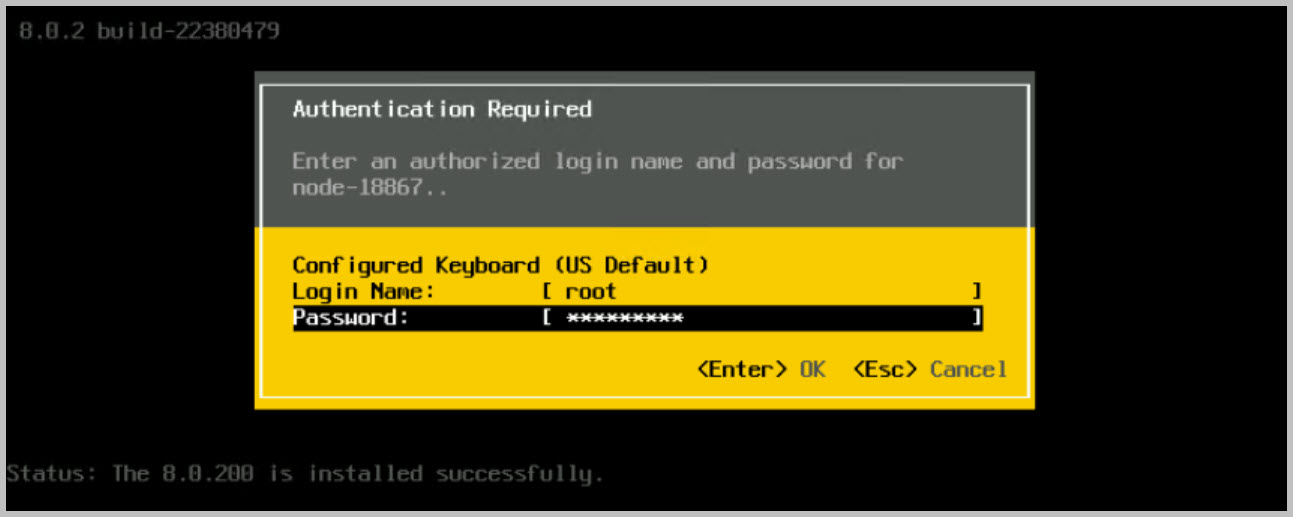
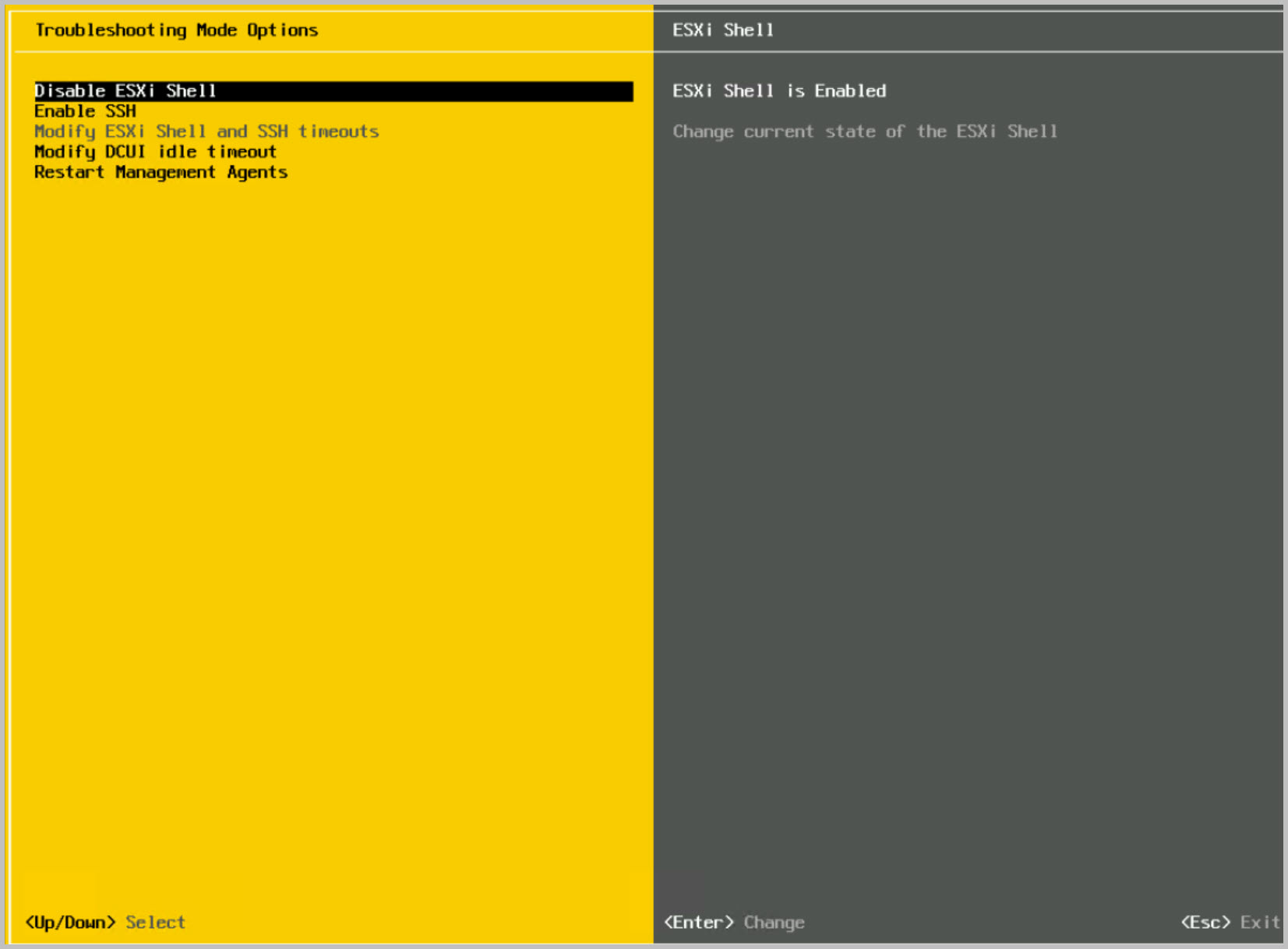
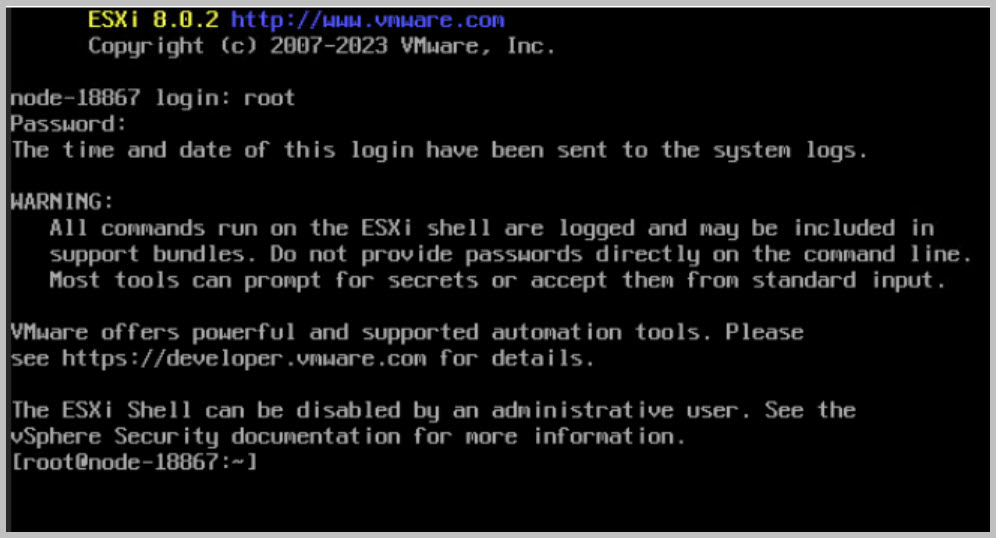
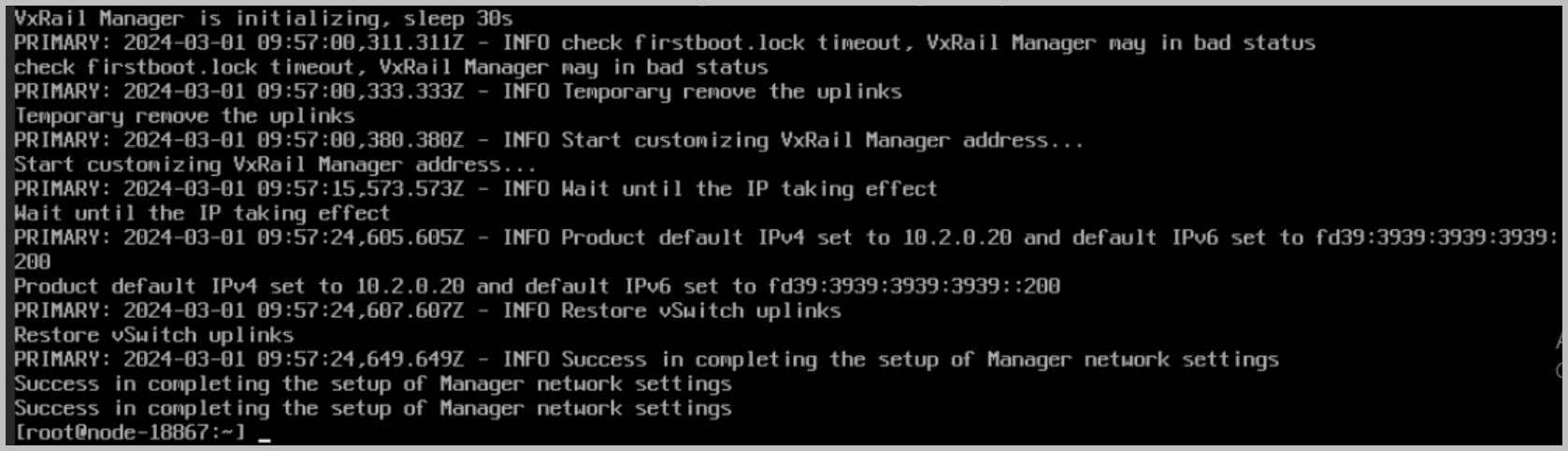
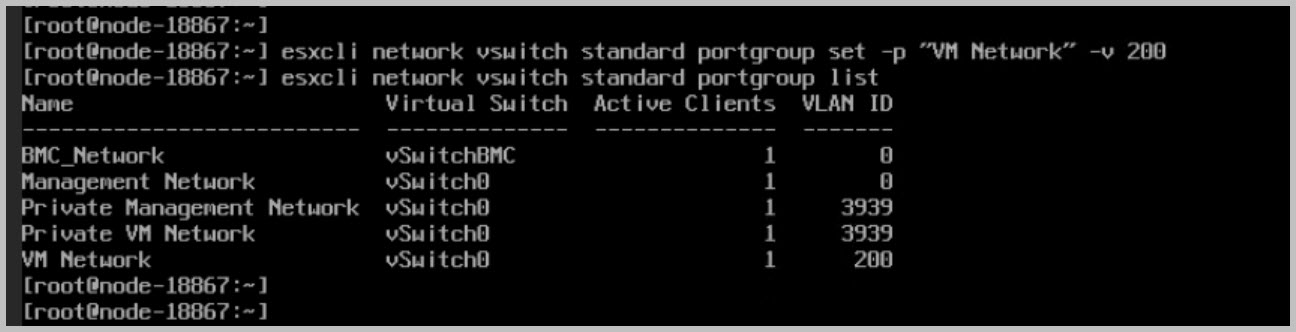
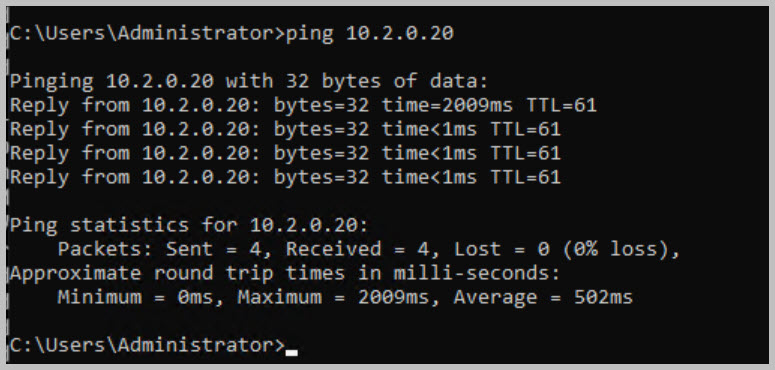
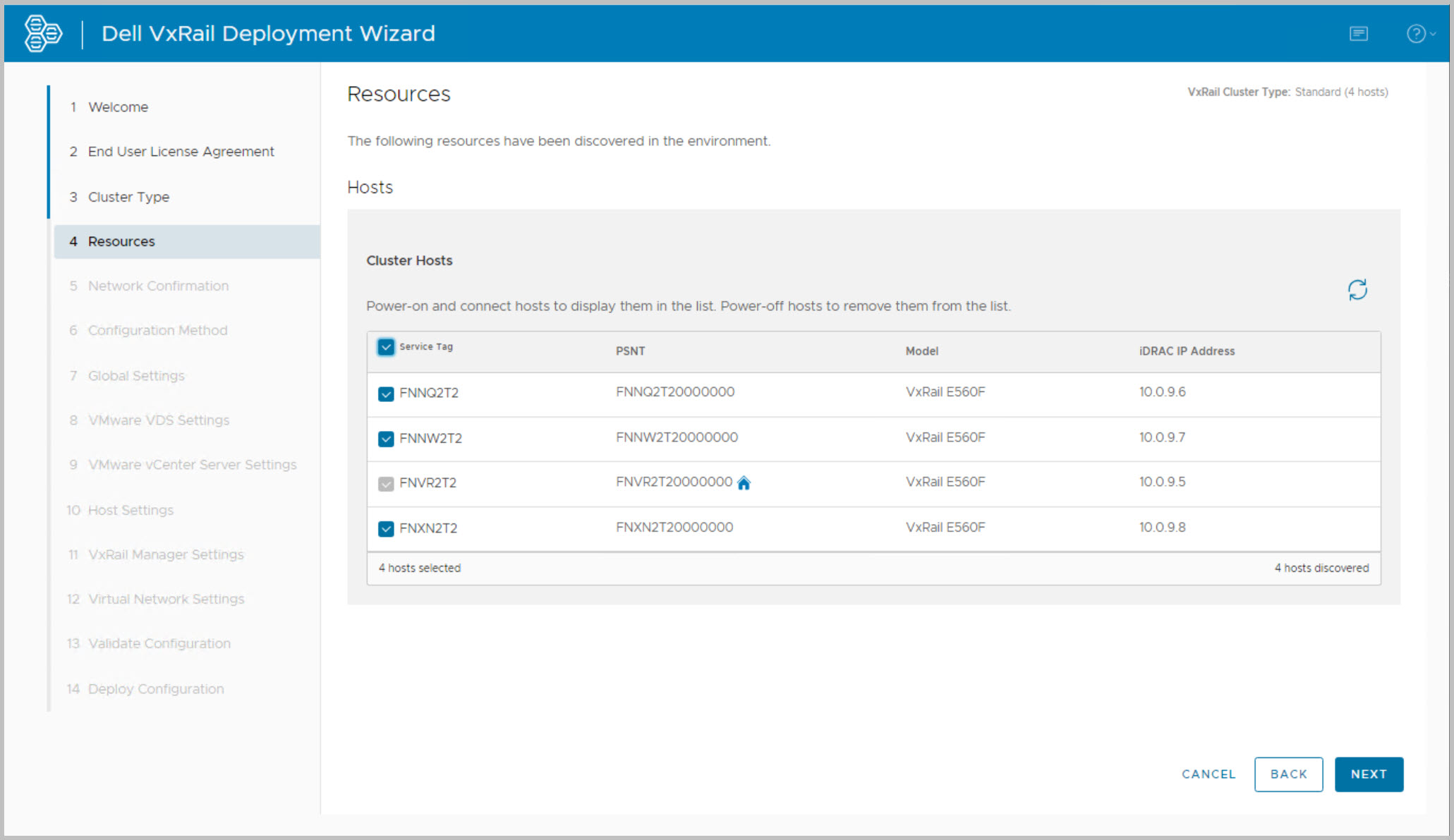
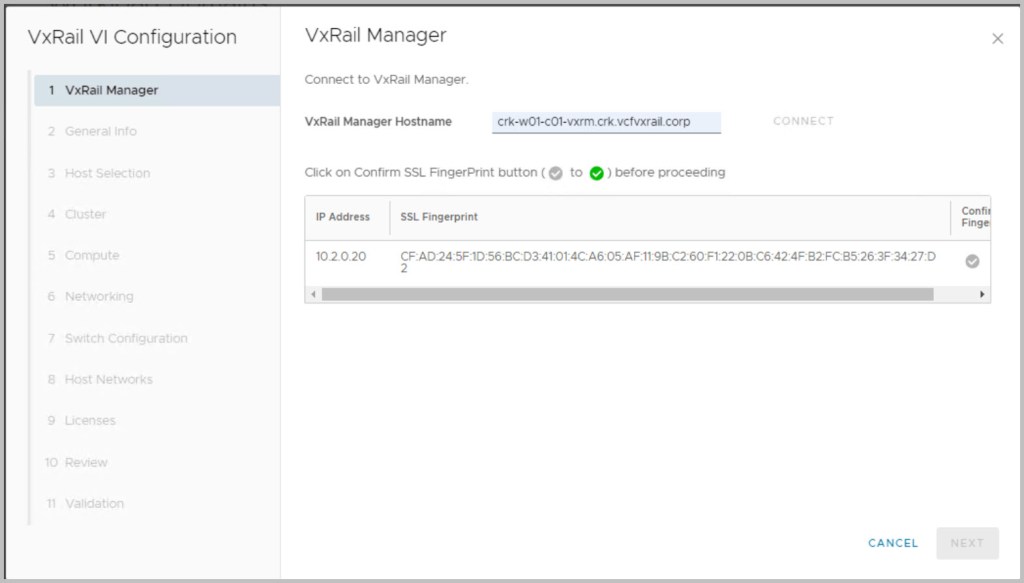
Change the VxRail Manger IP address & confirm discovery of hosts:
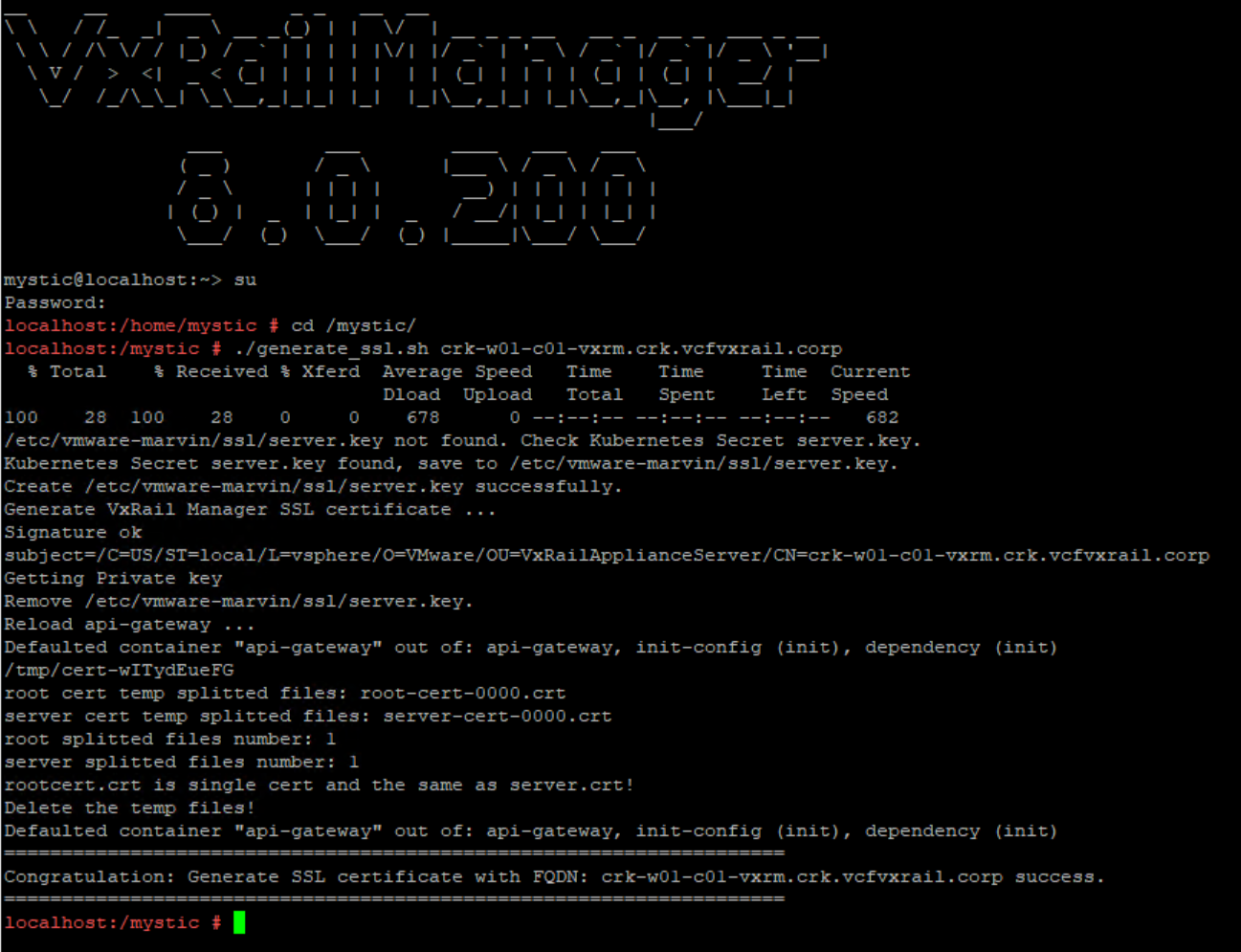
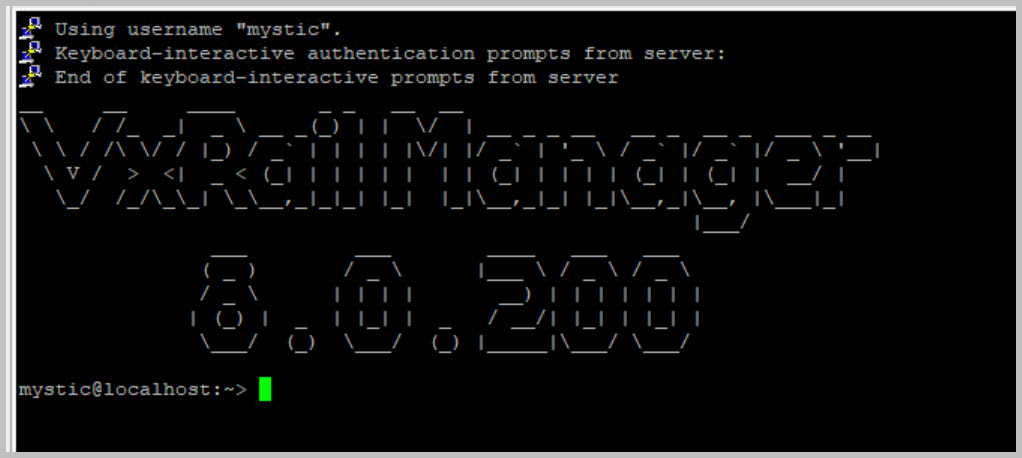
Update VxRail Manager Certificate with the correct Hostname by logging into VxRail Manager via ssh with mystic followed by su. cd /mystic dir and run the following script:
nslookup 10.2.0.20
./generate_ssl.sh crk-w01-c01-vxrm.crk.vcfvxrail.corp
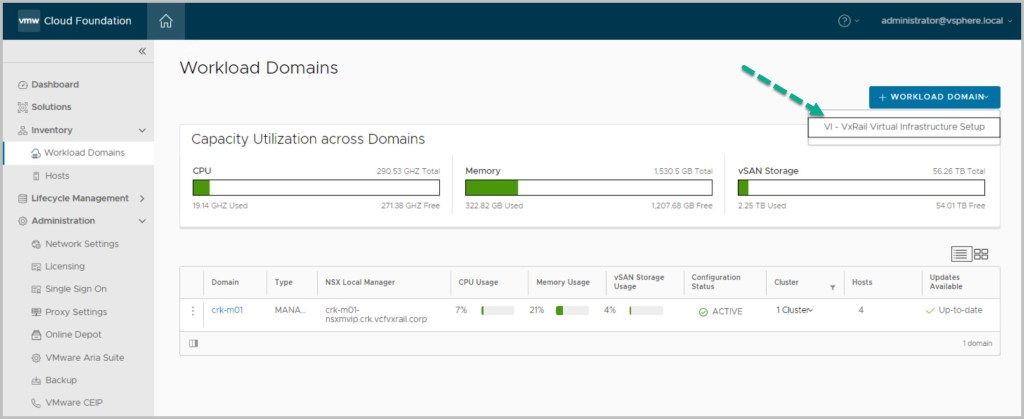
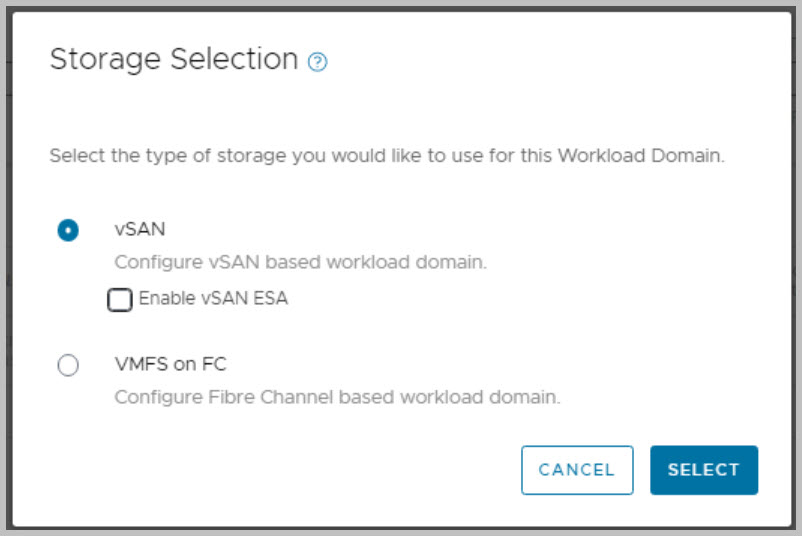
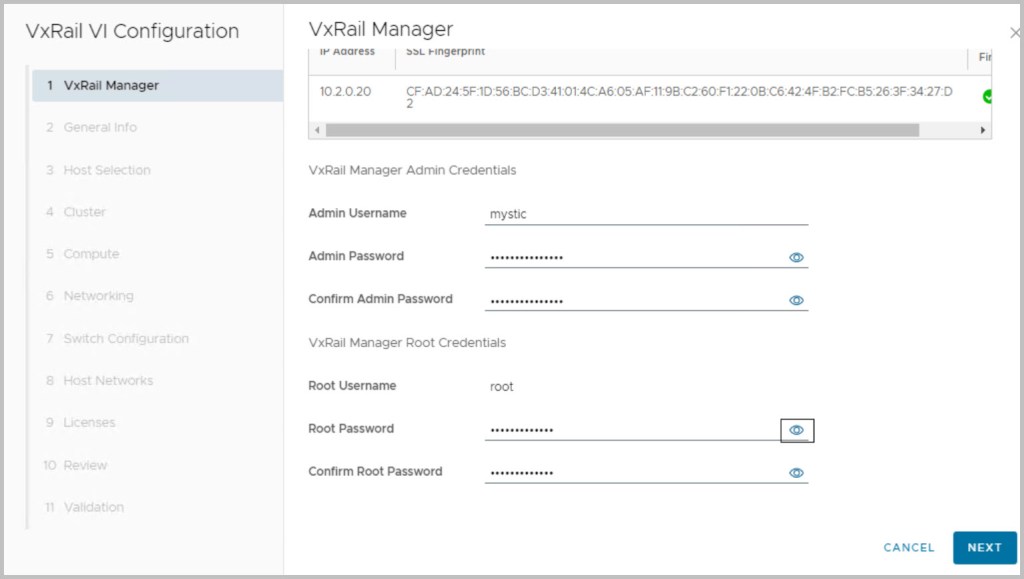
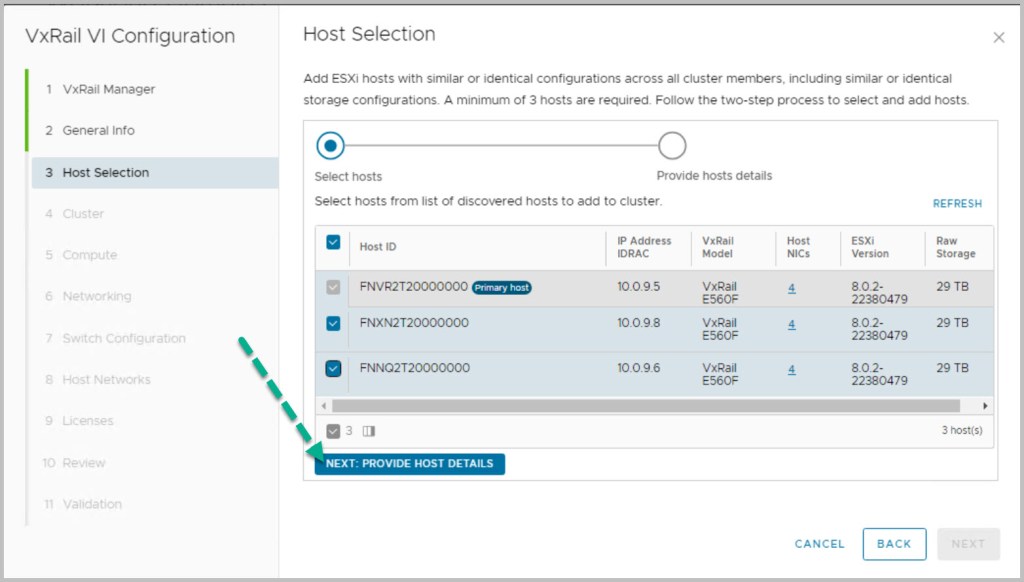
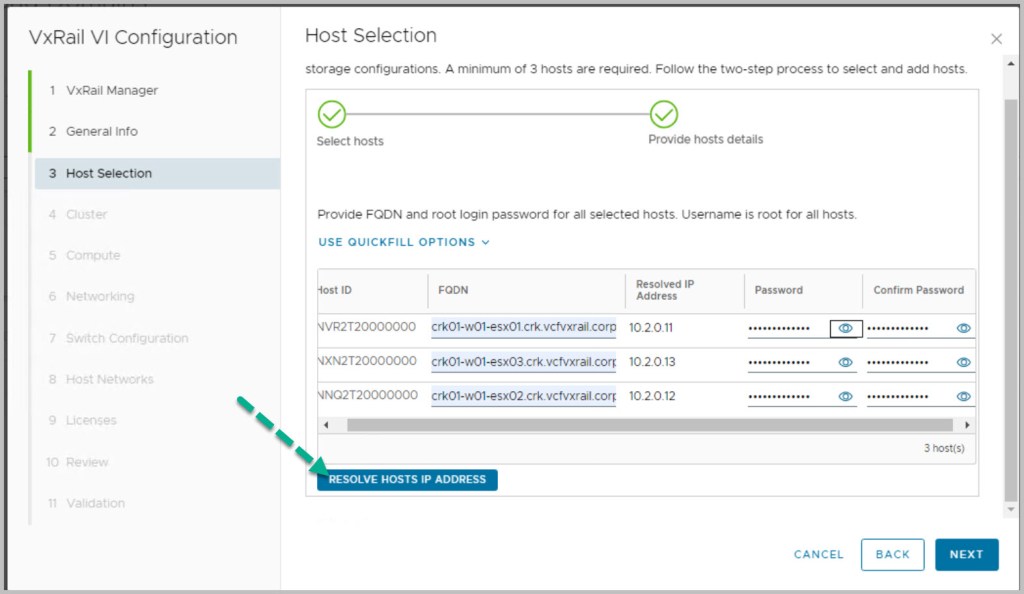
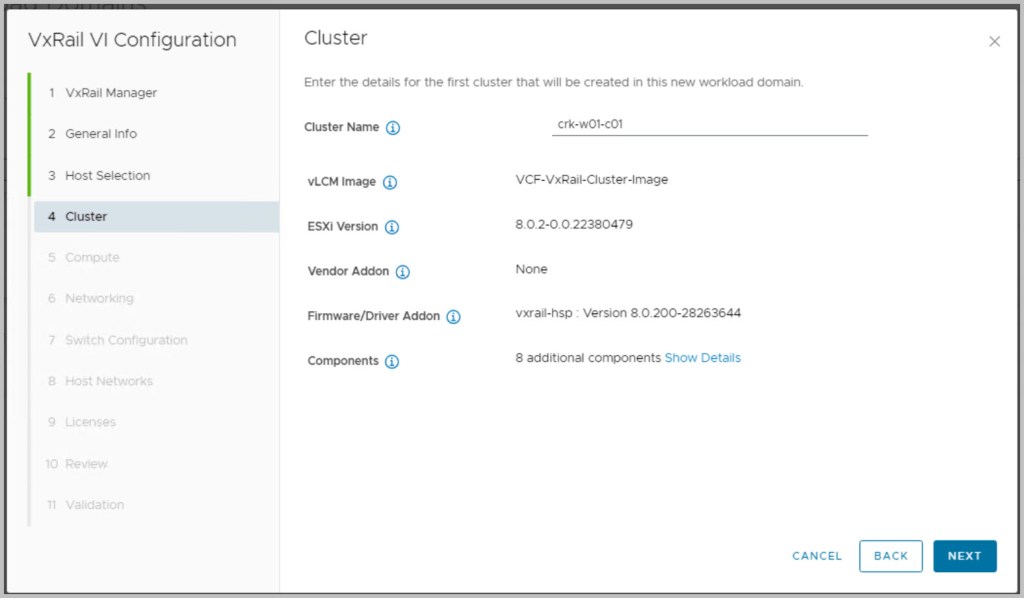
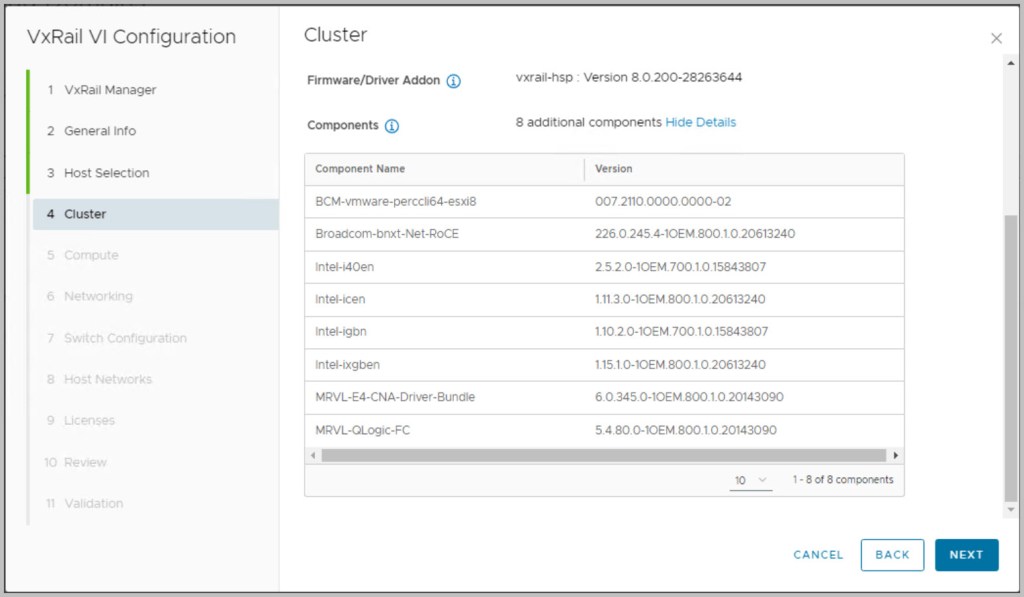
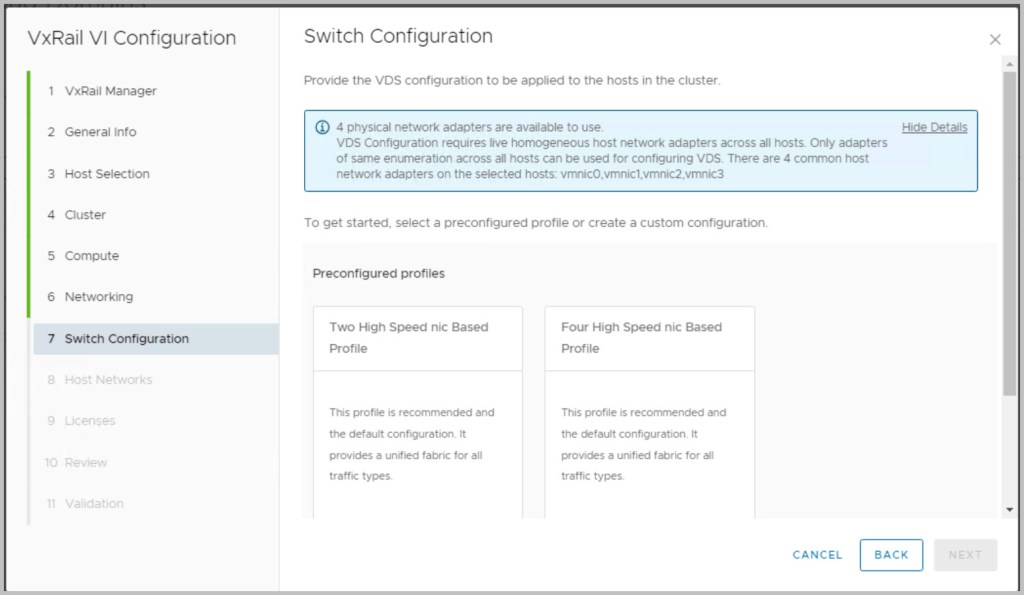
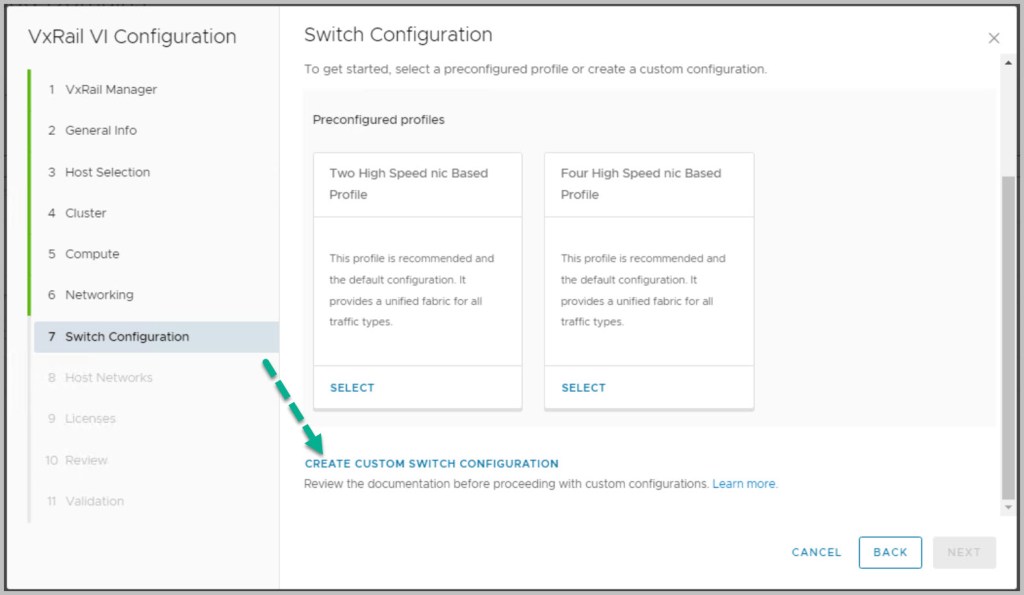
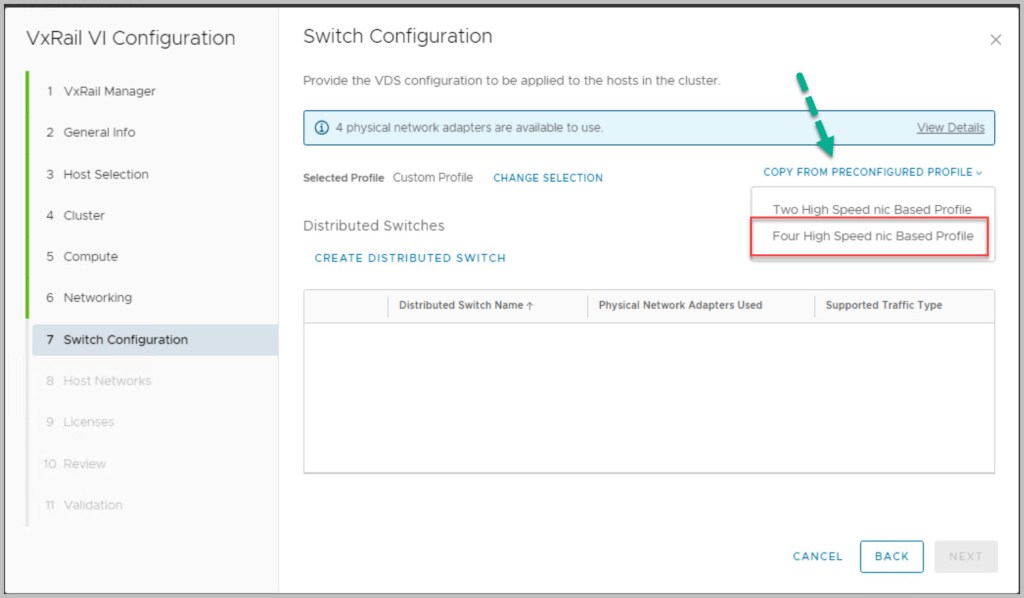
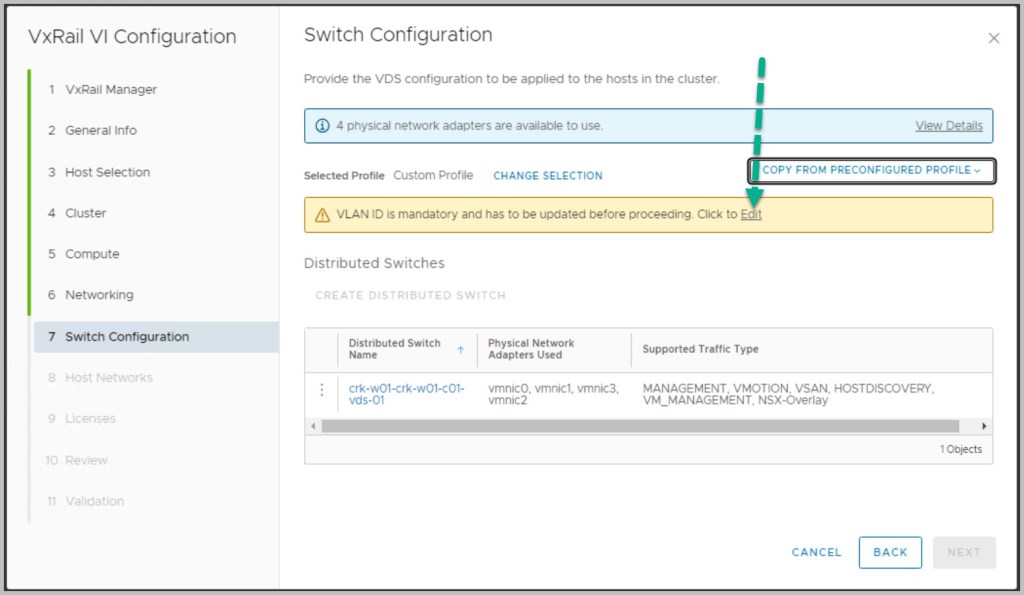
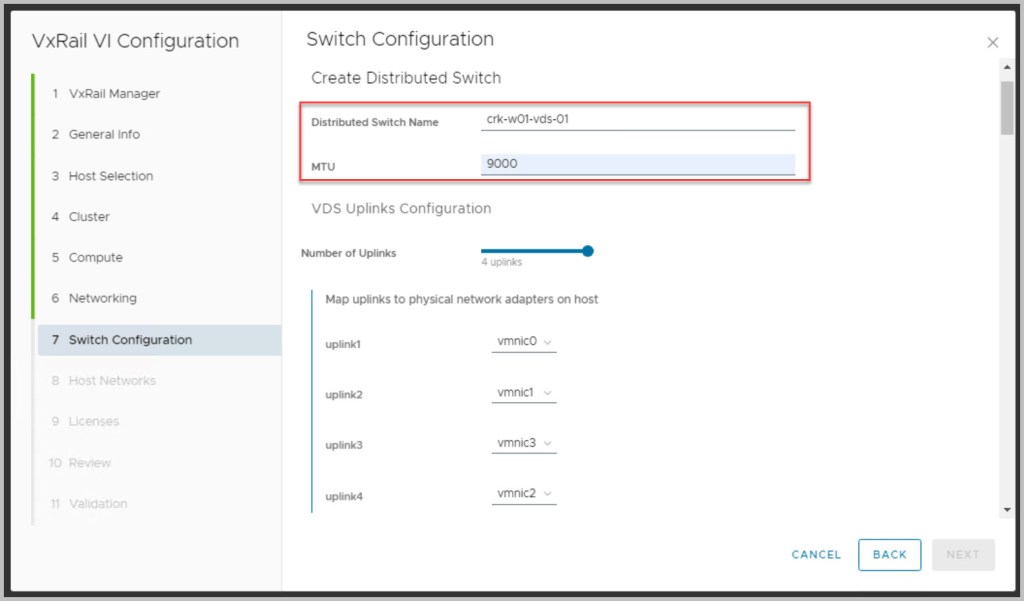
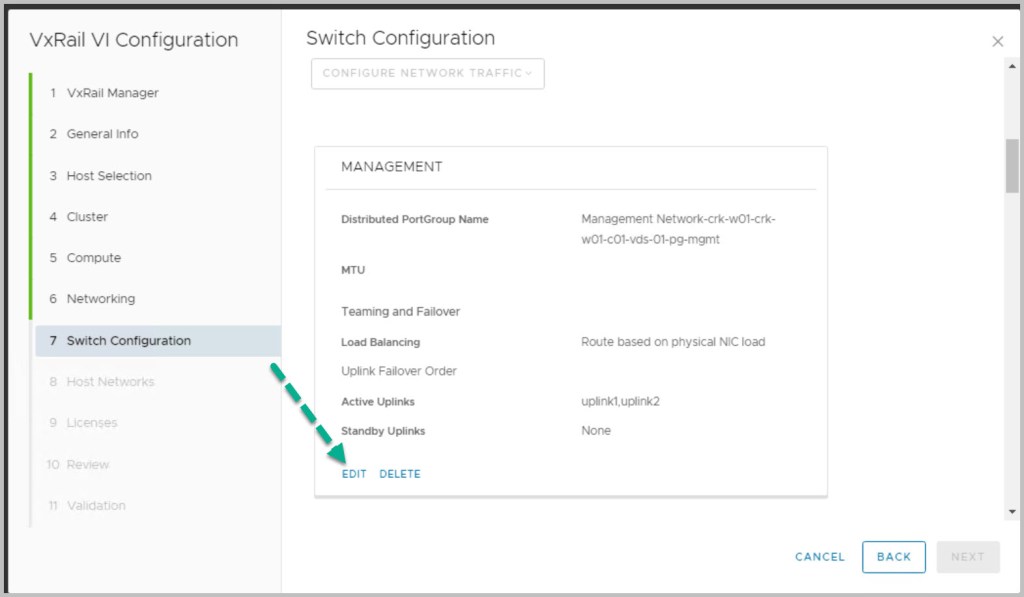
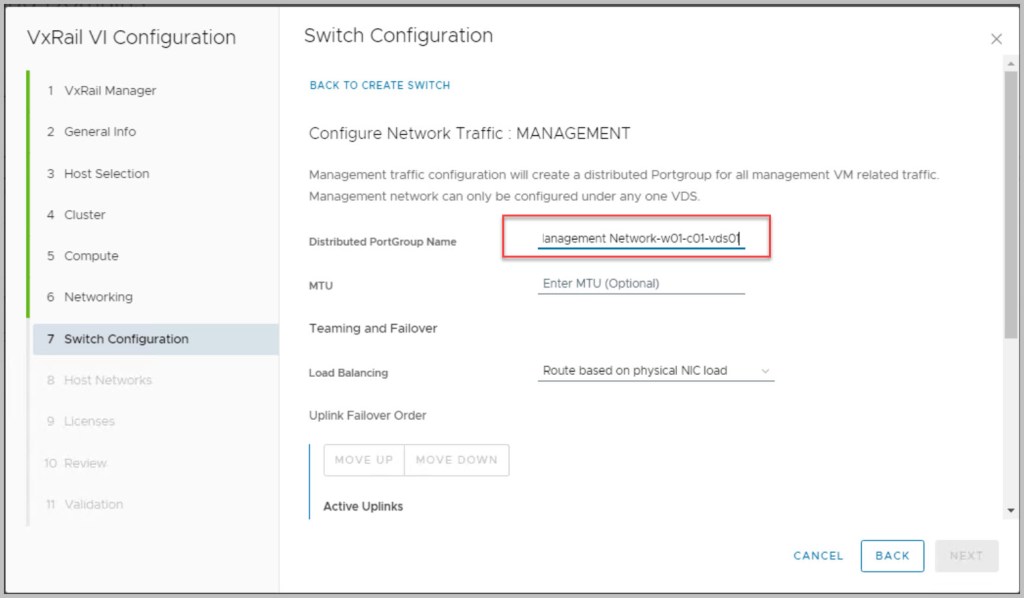
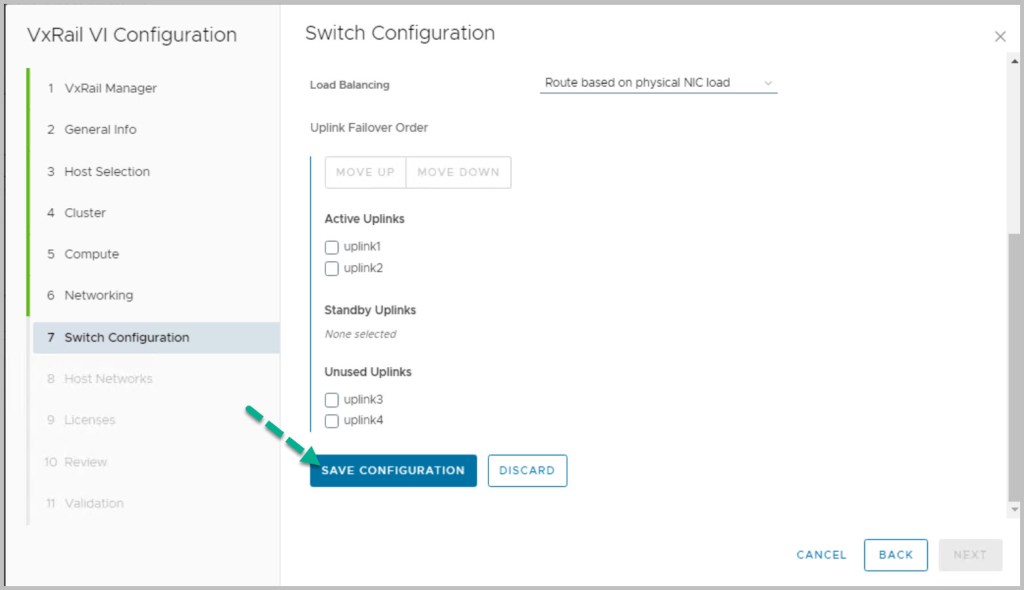
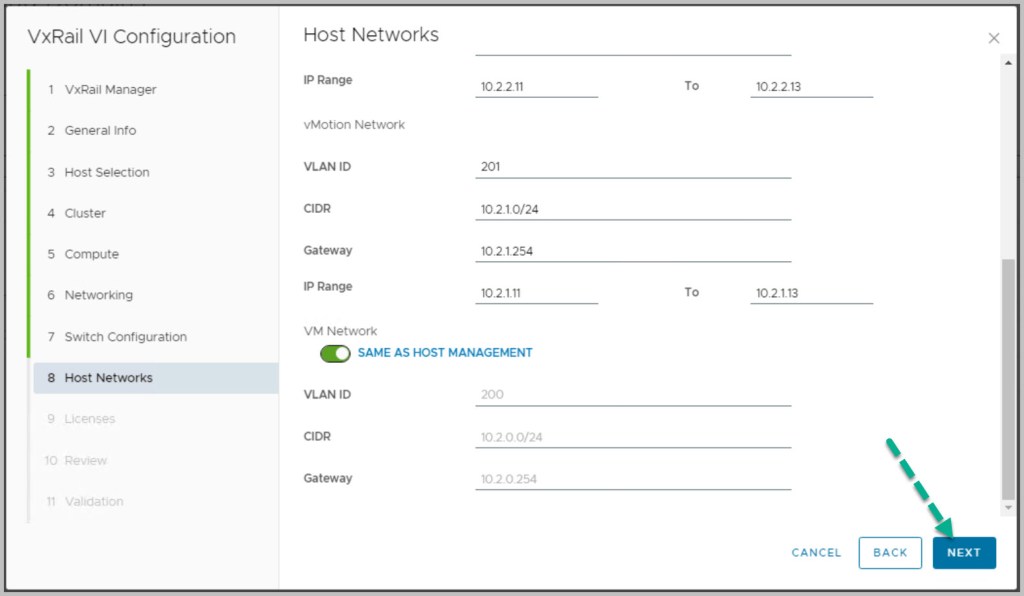
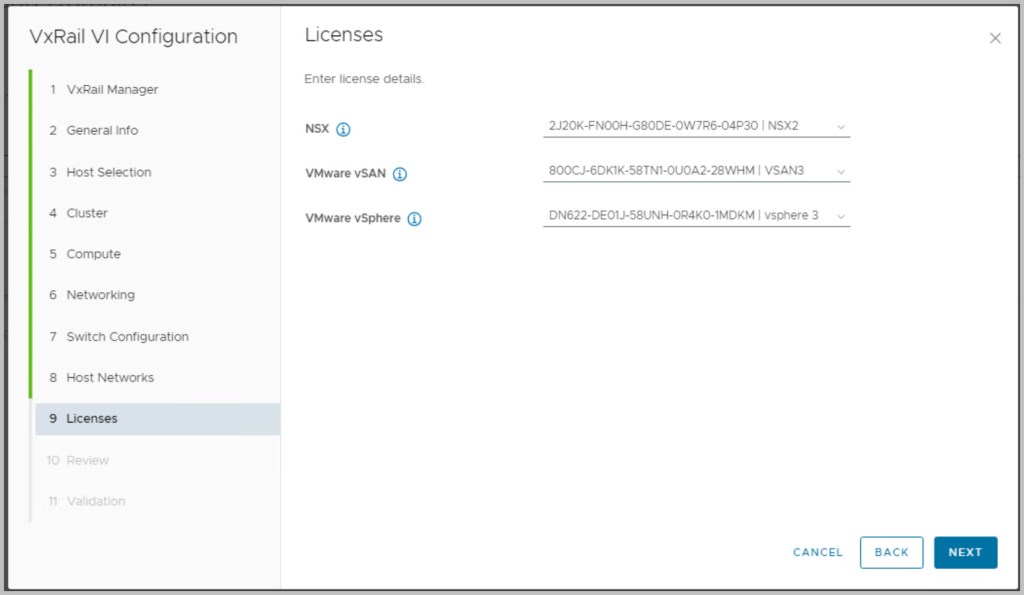
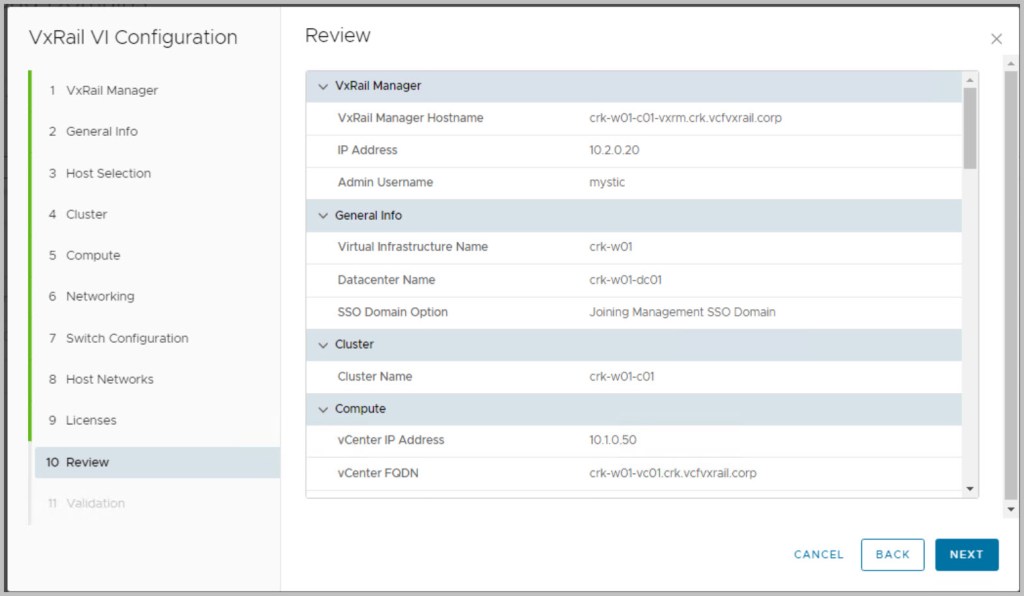
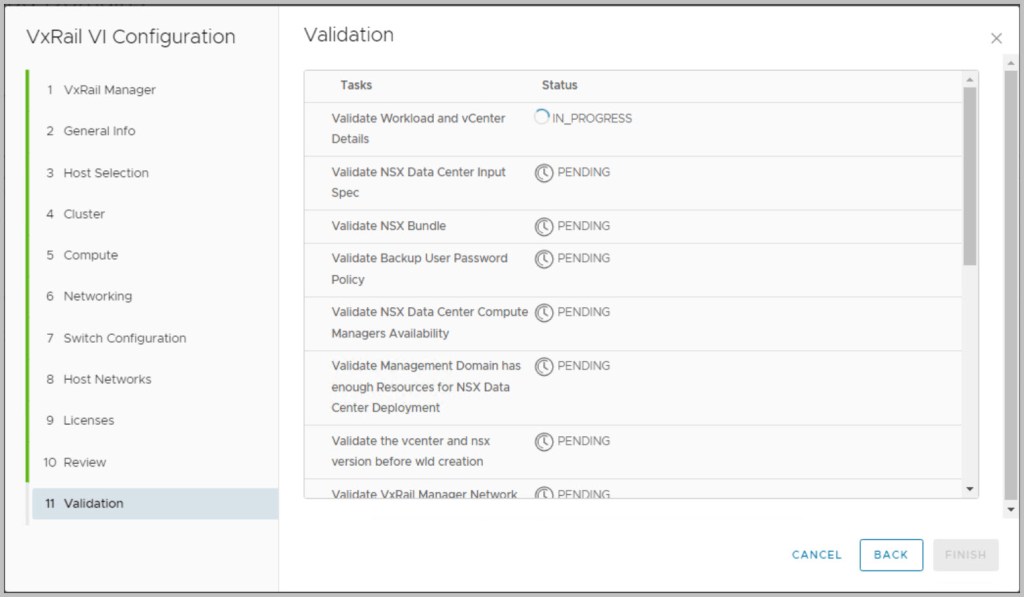
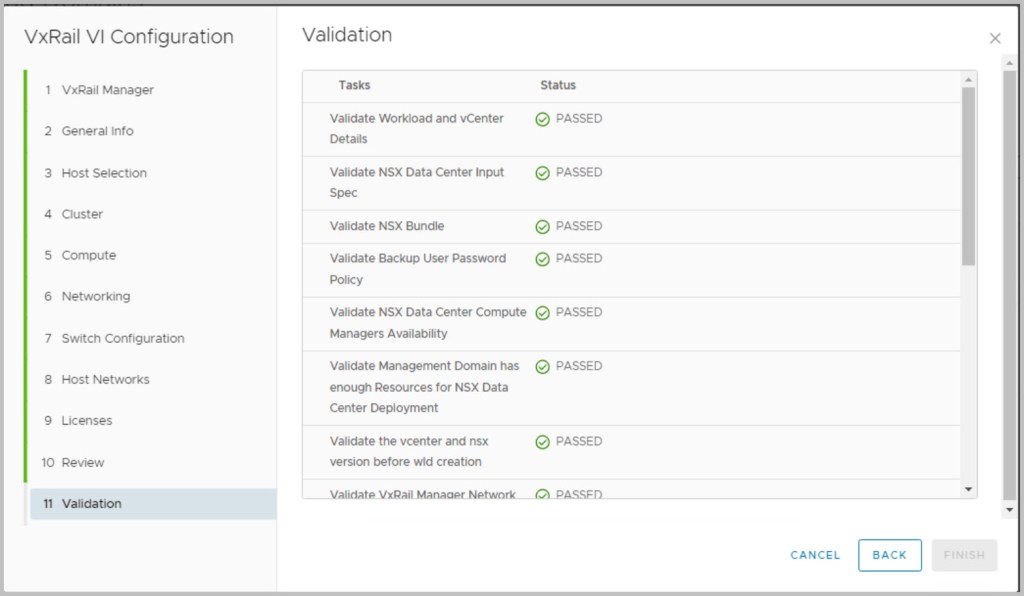
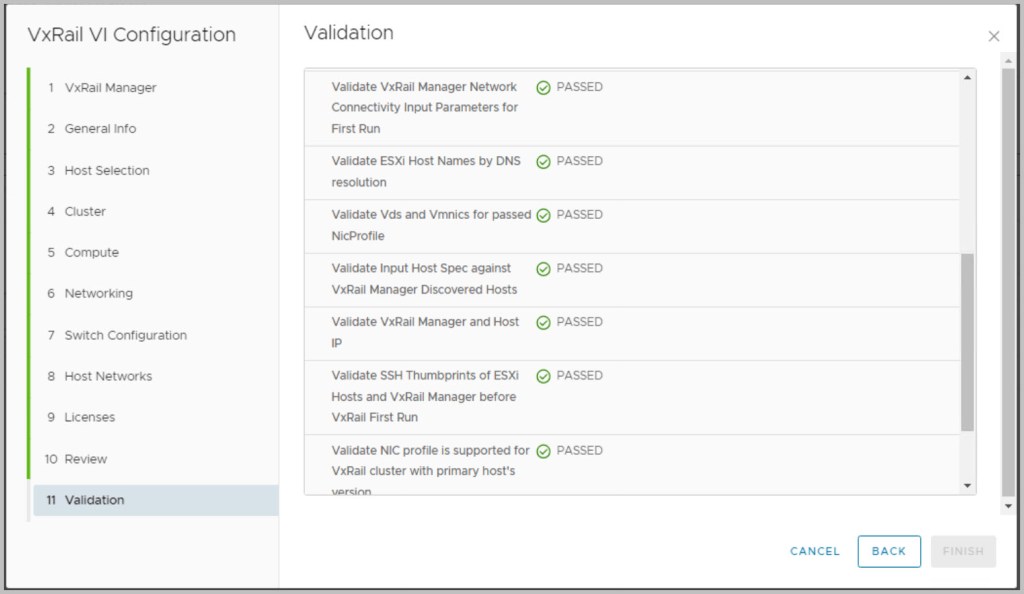
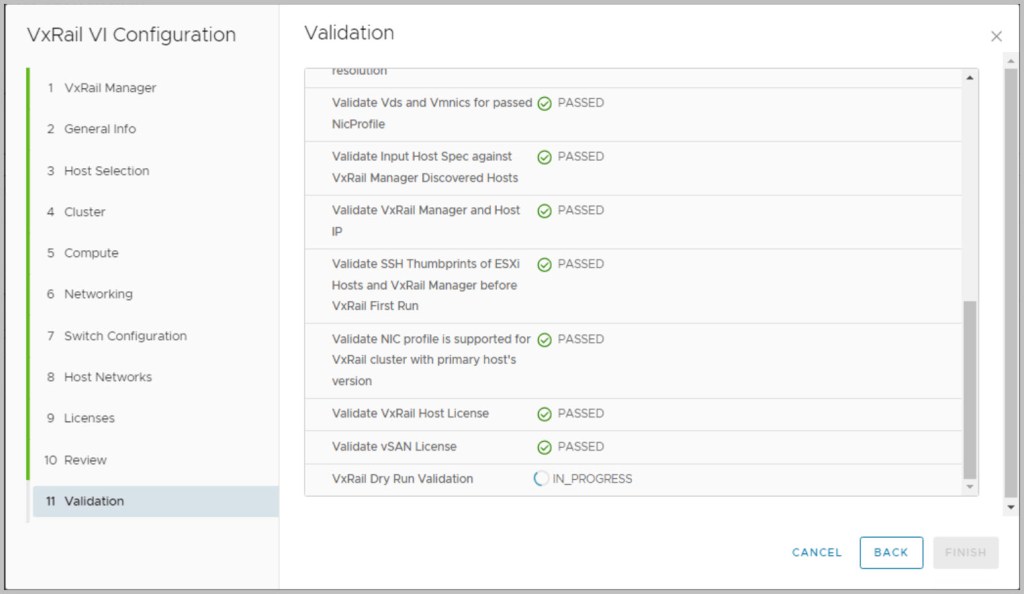
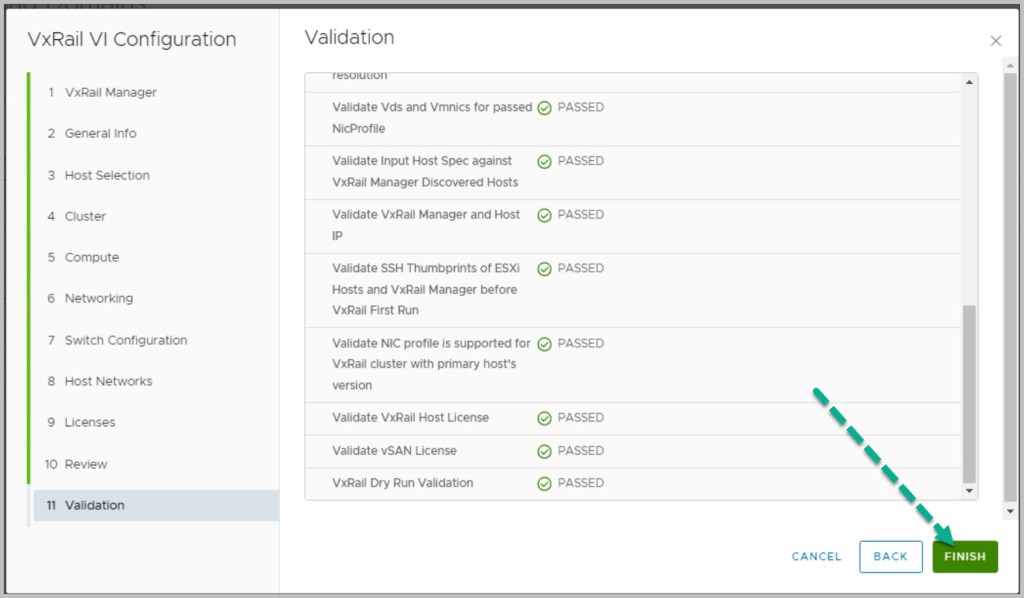
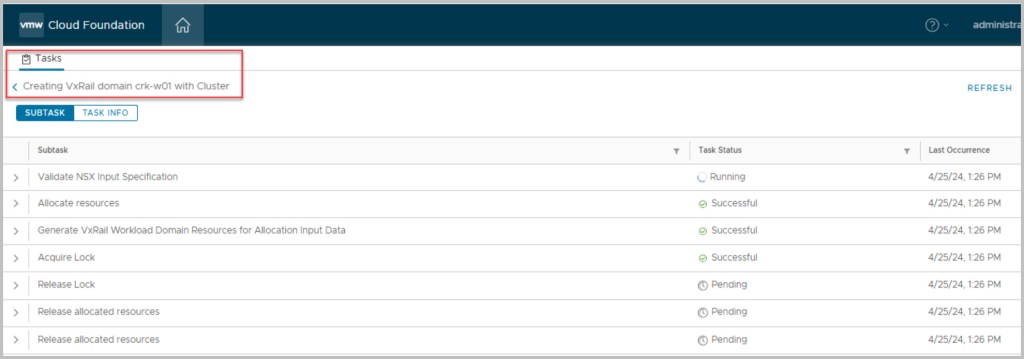
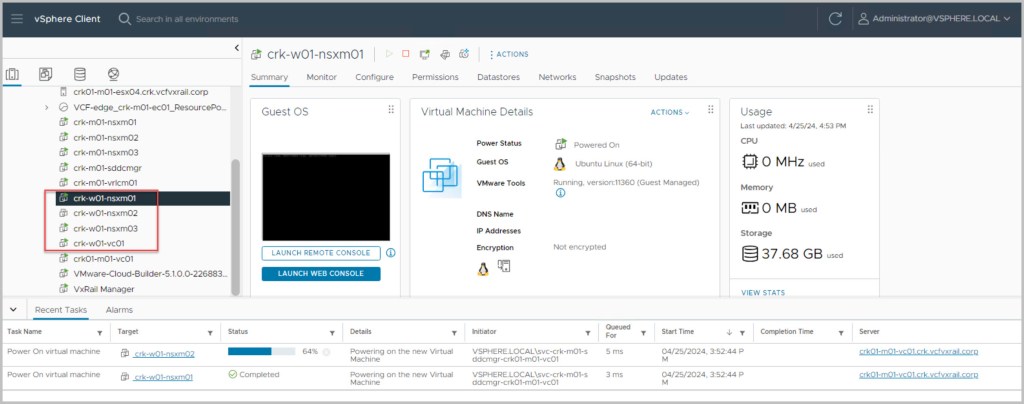
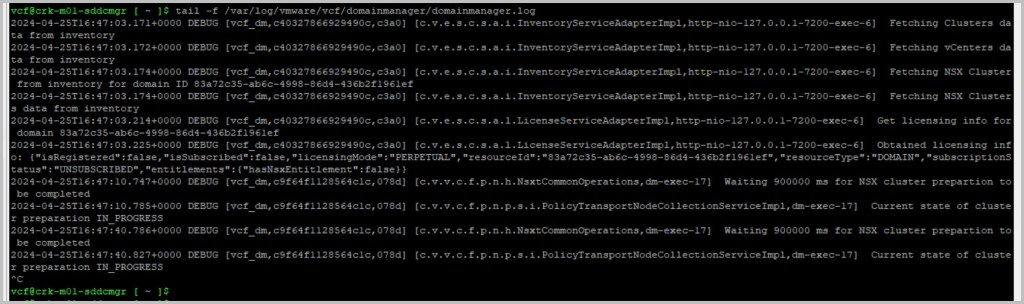
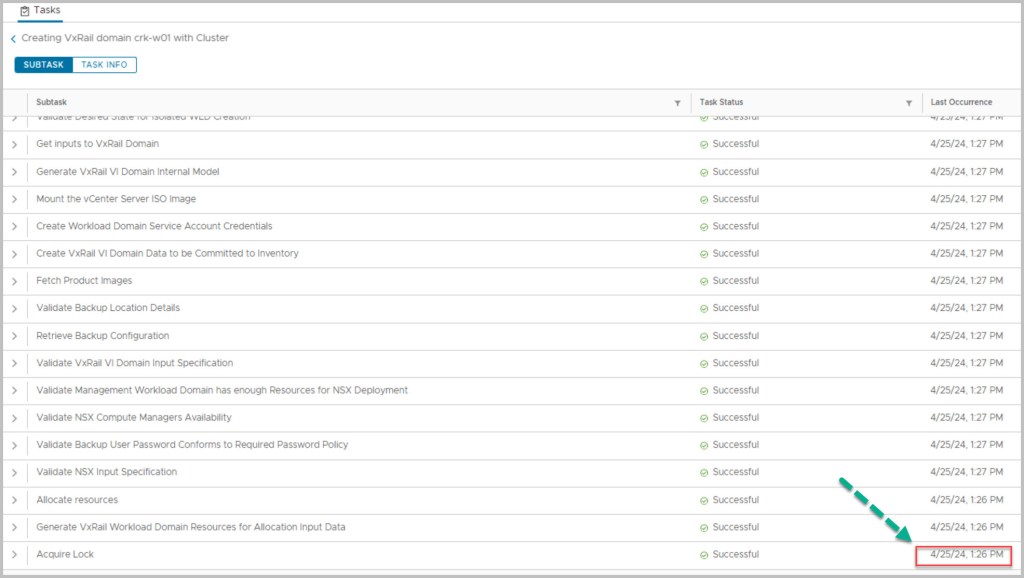
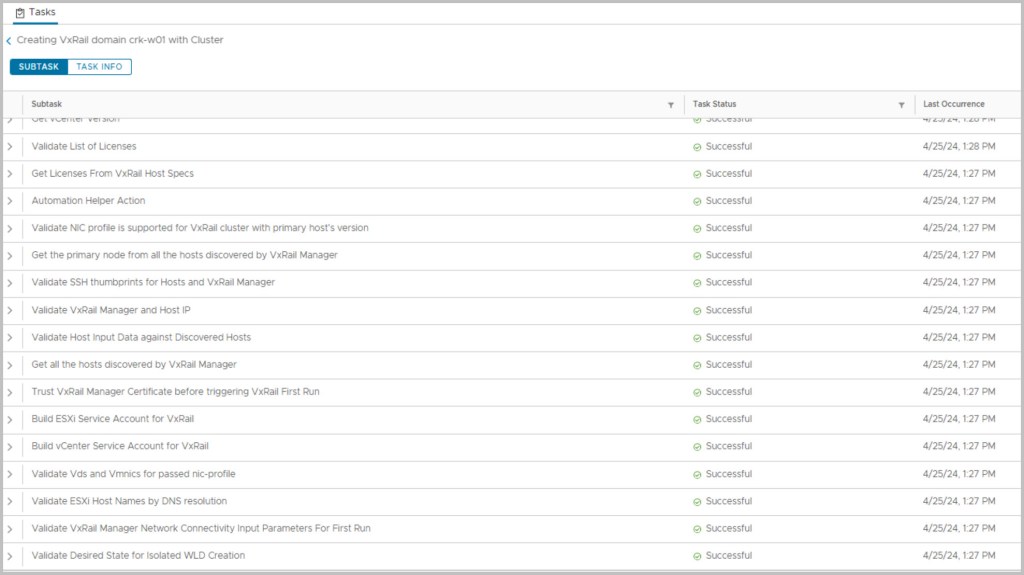
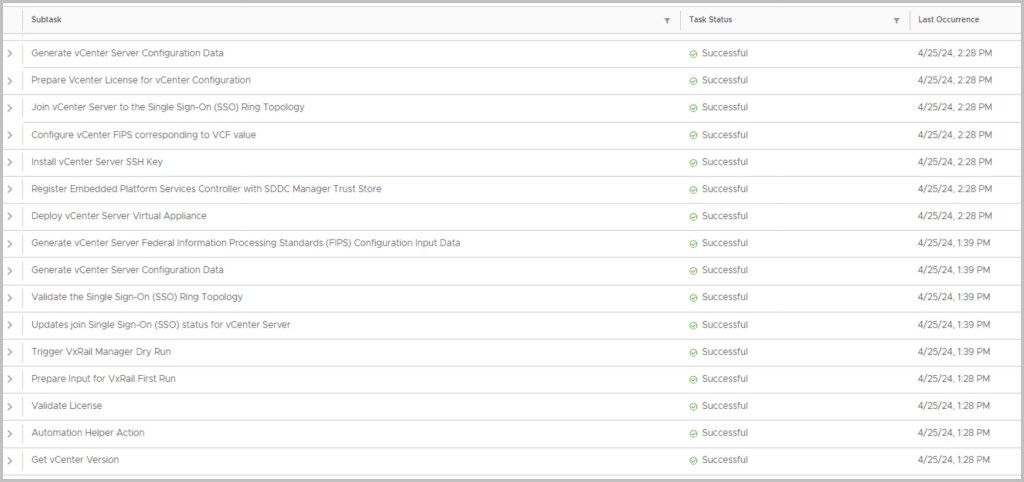
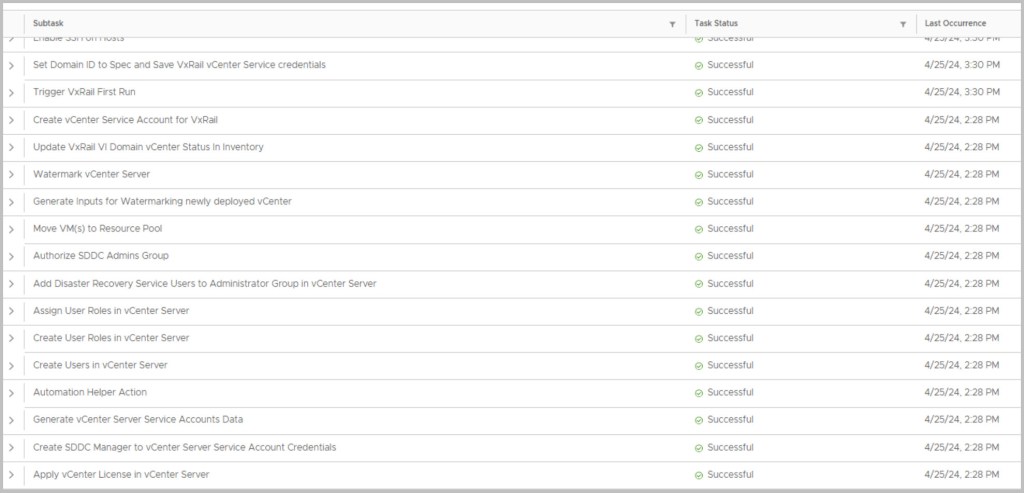
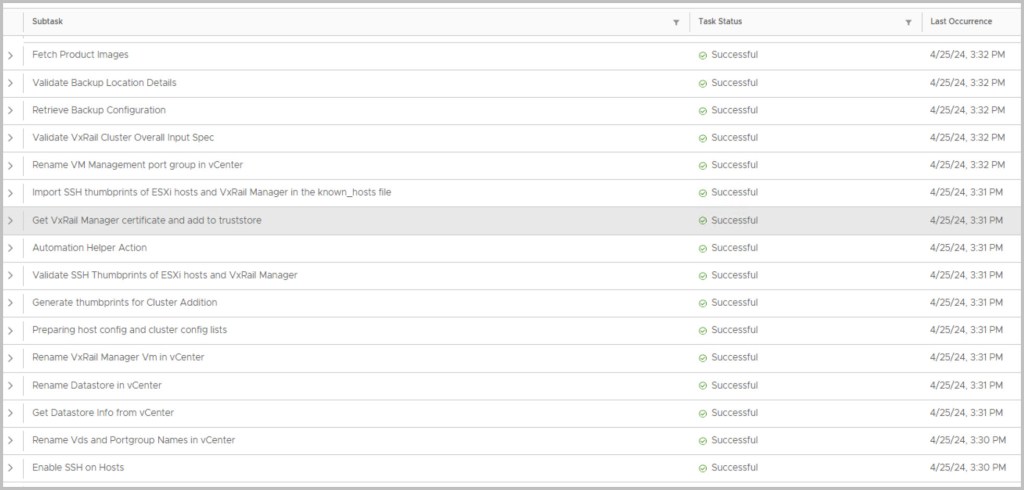
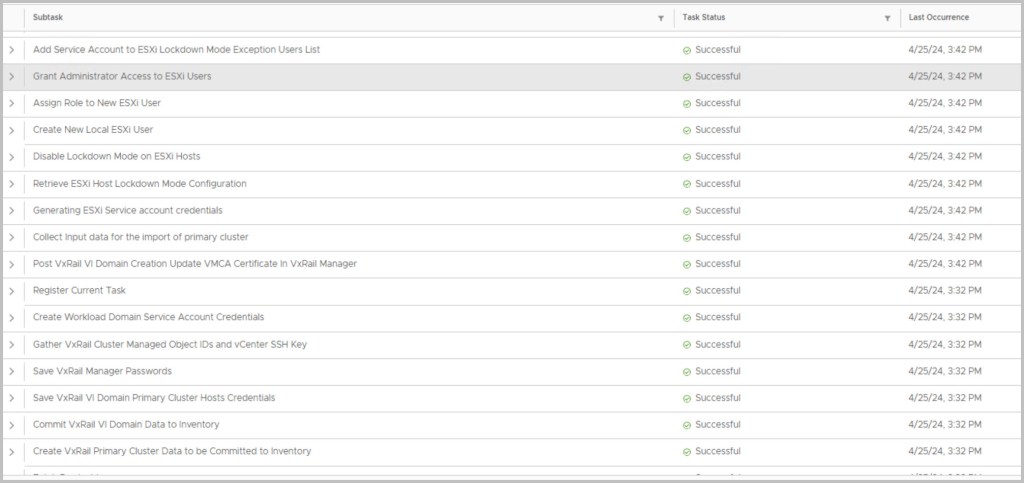
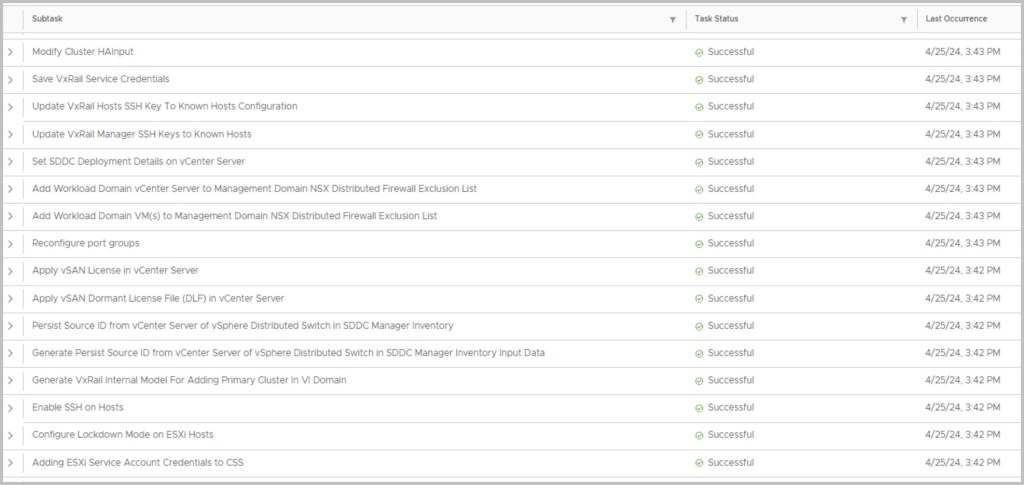
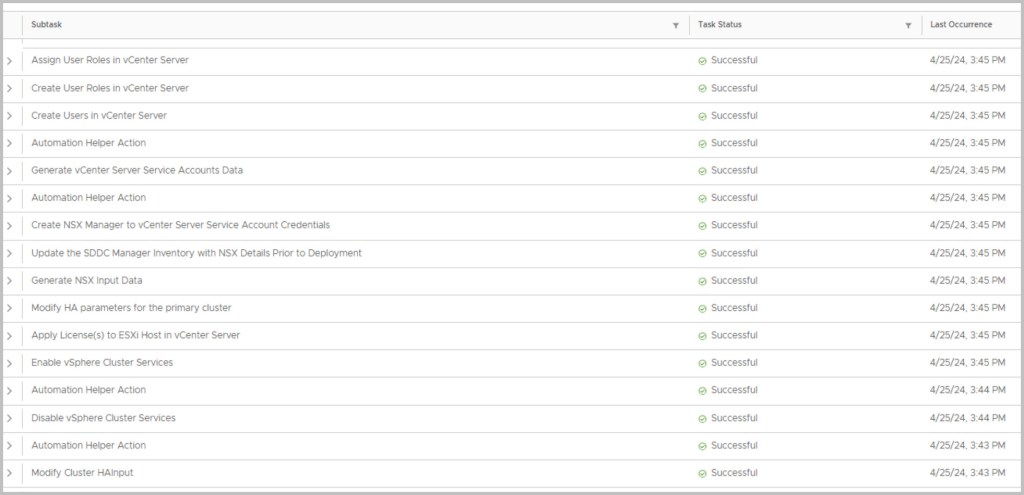
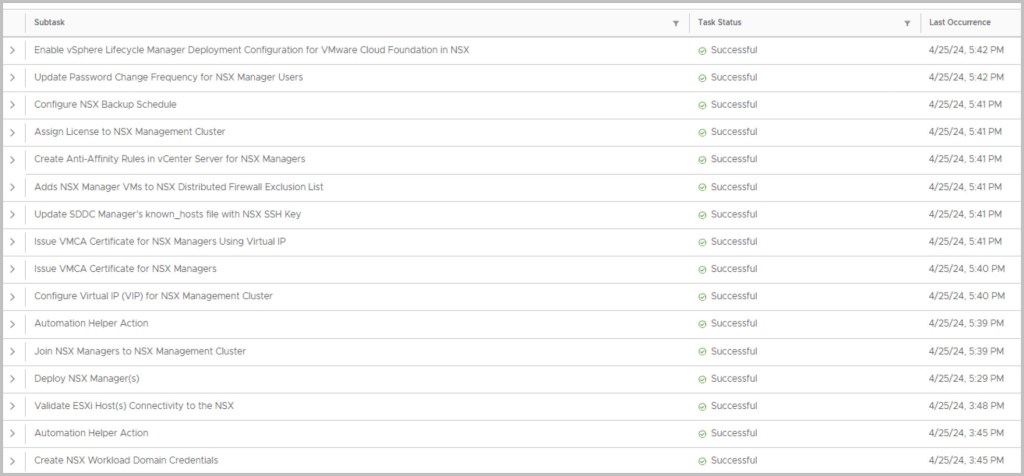
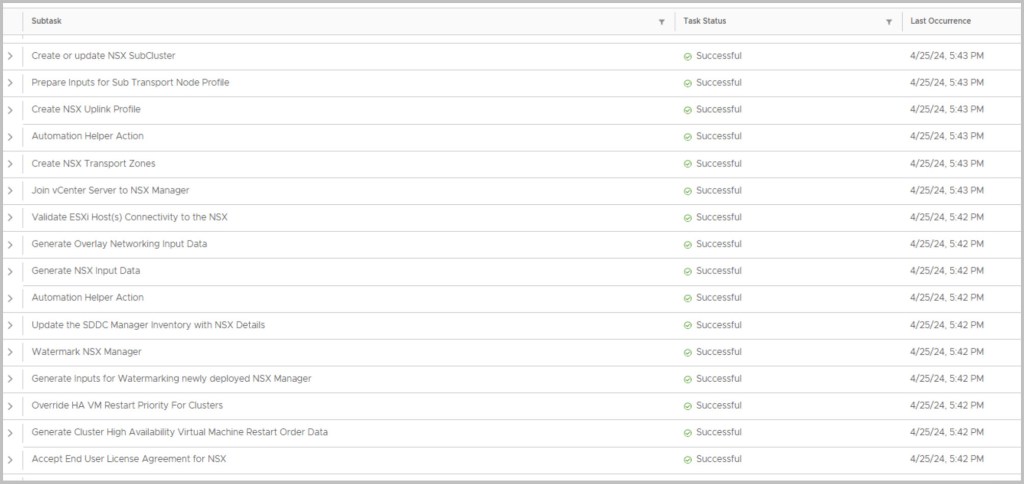
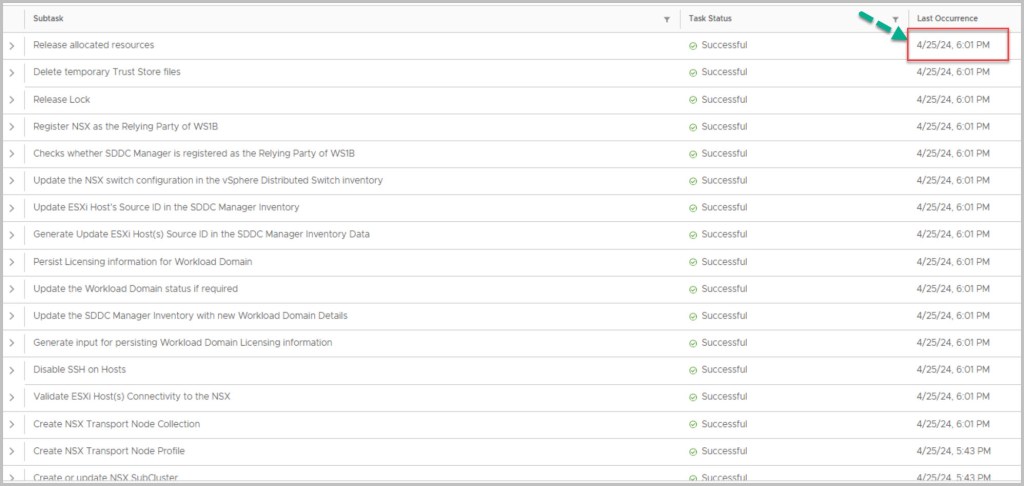
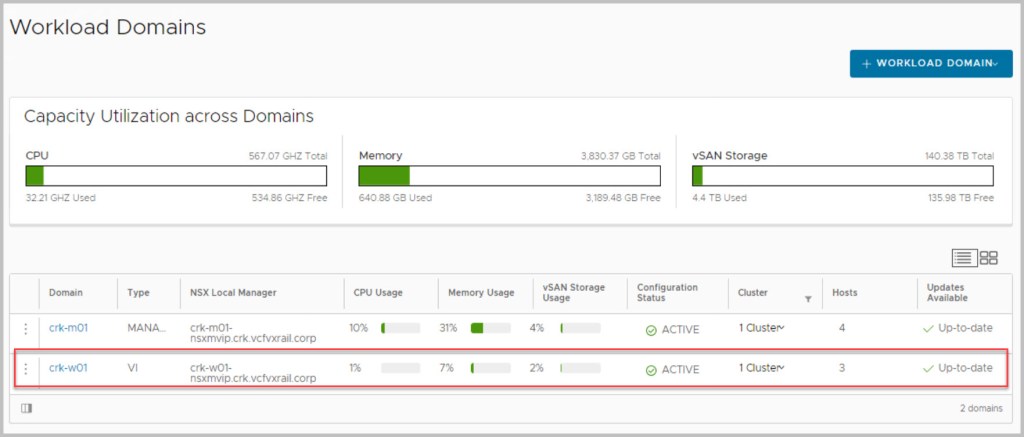
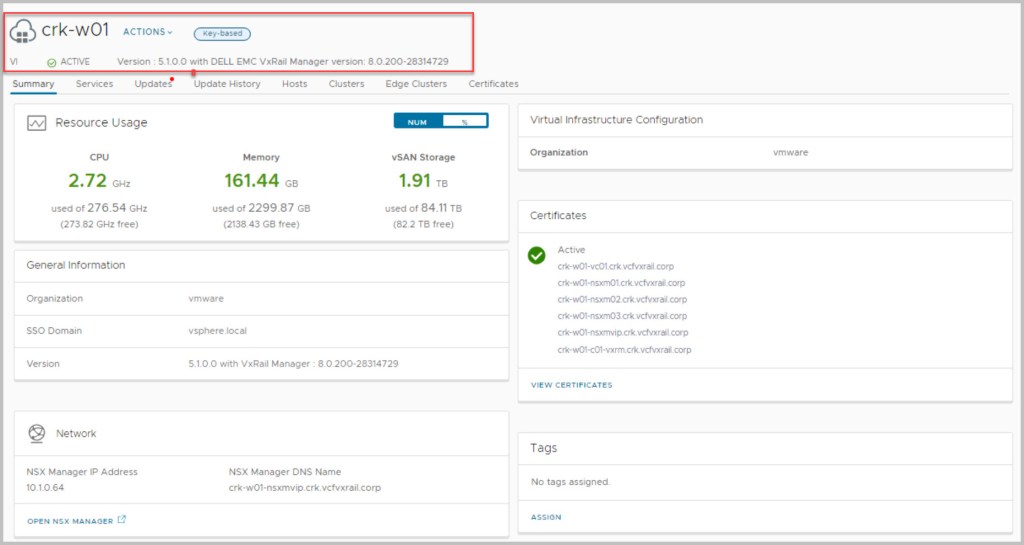
Login to SDDC Manager UI and complete the UI for WFO procedure to create a new VI WLD as per this example:
Note: this is an example for reference only please use the VxRail installation procedures provided by Dell.
Thanks for reading!





 DavidRing.ie
1 Comment »