VxRail
VxRail 8.0 – Install Notes
For VxRail 4.7 & 7.0 please see earlier posts: VxRail 4.7 – Install Notes VxRail 7.0 – Install Notes Note: this is an example for reference only please use the […]
Virtualization & Storage

For VxRail 4.7 & 7.0 please see earlier posts: VxRail 4.7 – Install Notes VxRail 7.0 – Install Notes Note: this is an example for reference only please use the […]
For VxRail 4.7 & 7.0 please see earlier posts:
Note: this is an example for reference only please use the VxRail installation procedures provided by Dell.
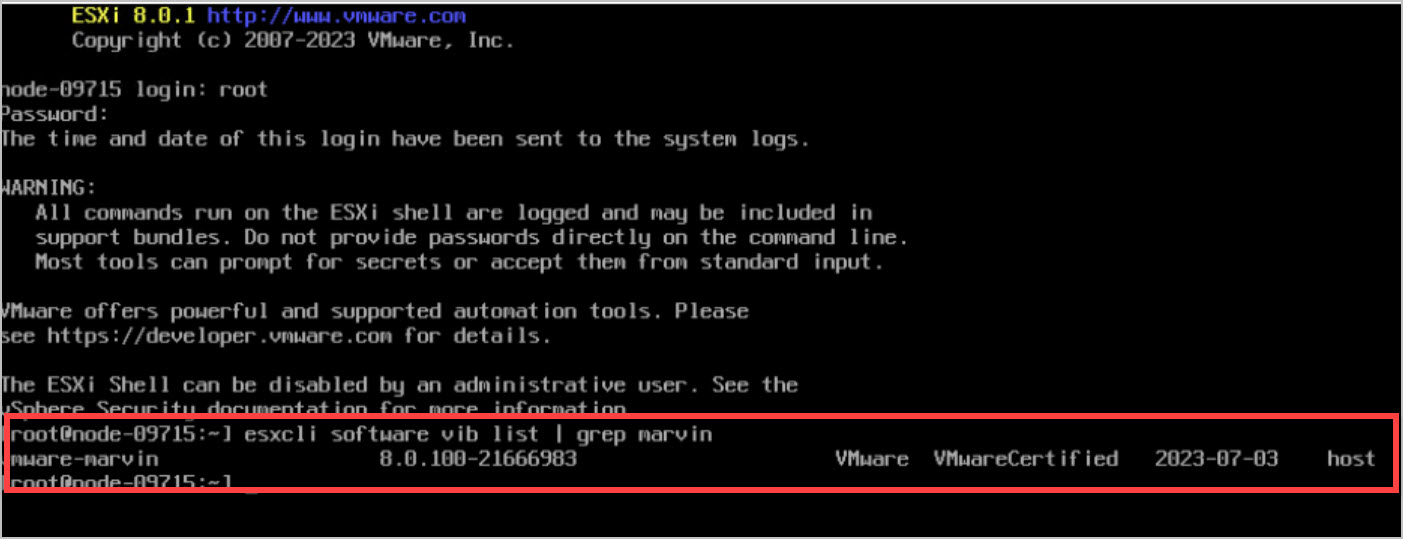
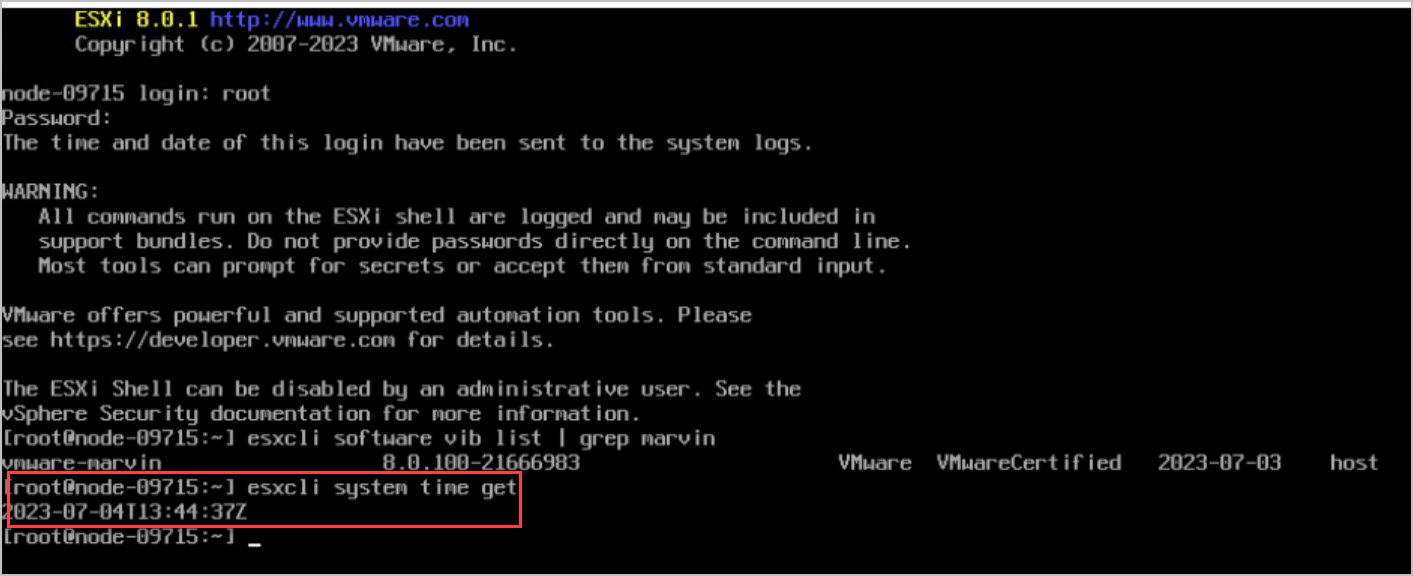
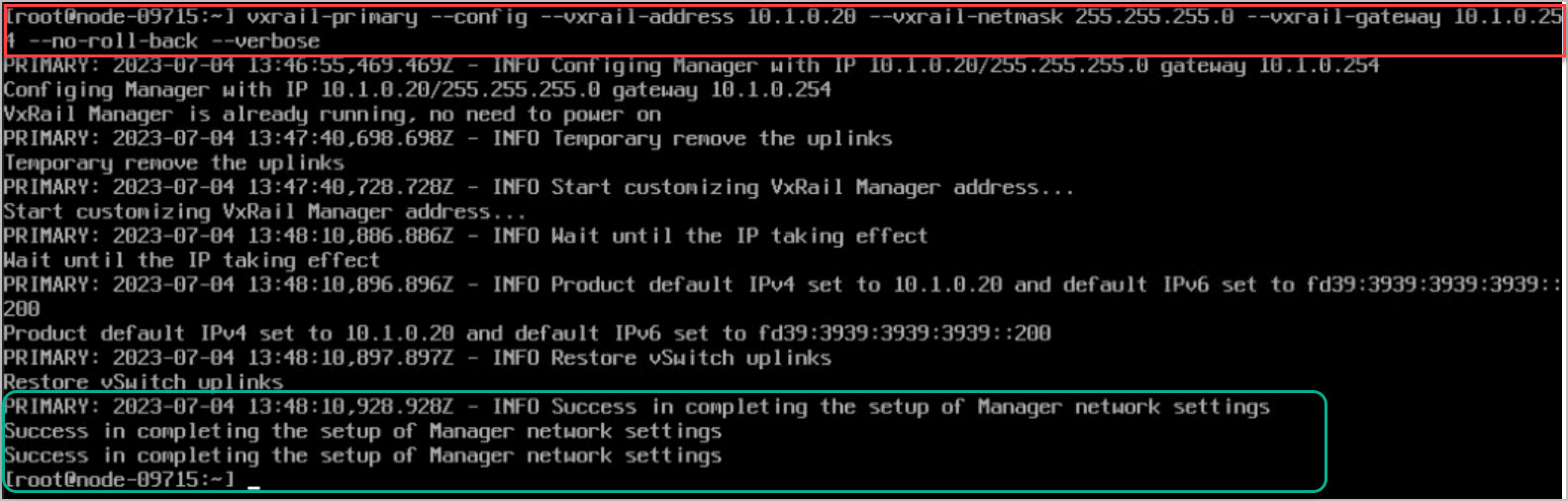
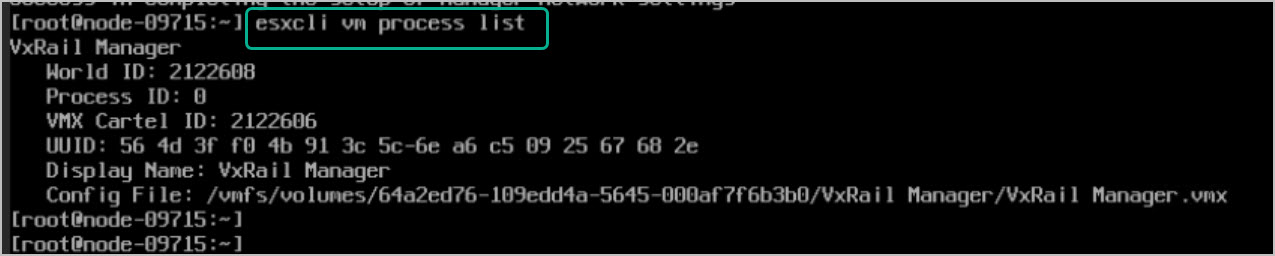
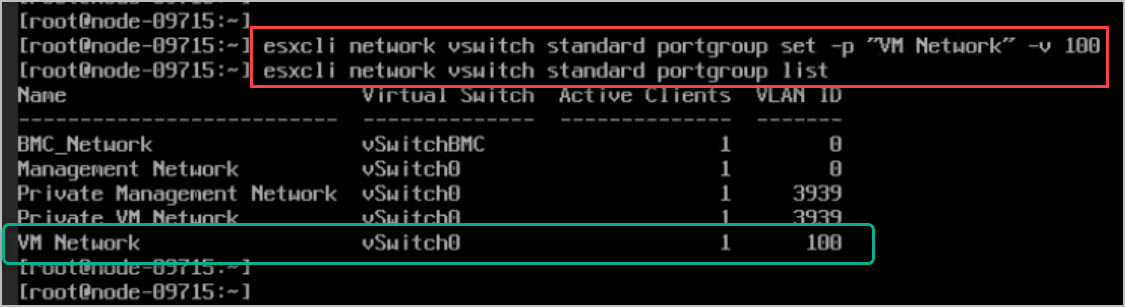
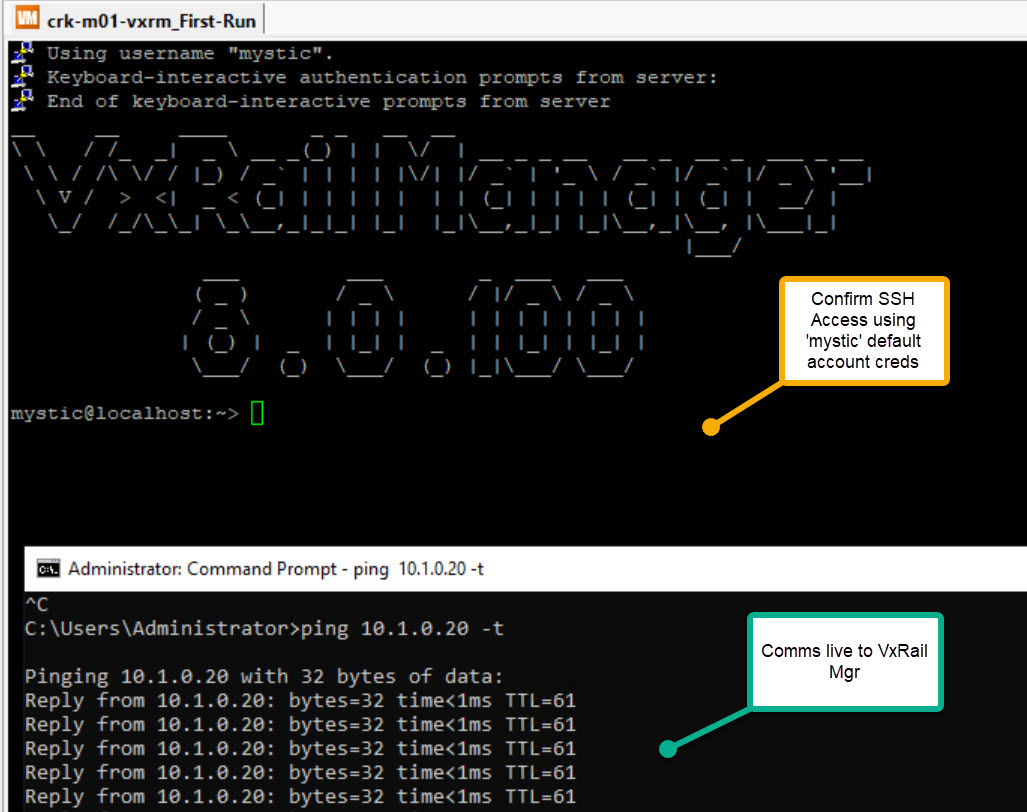
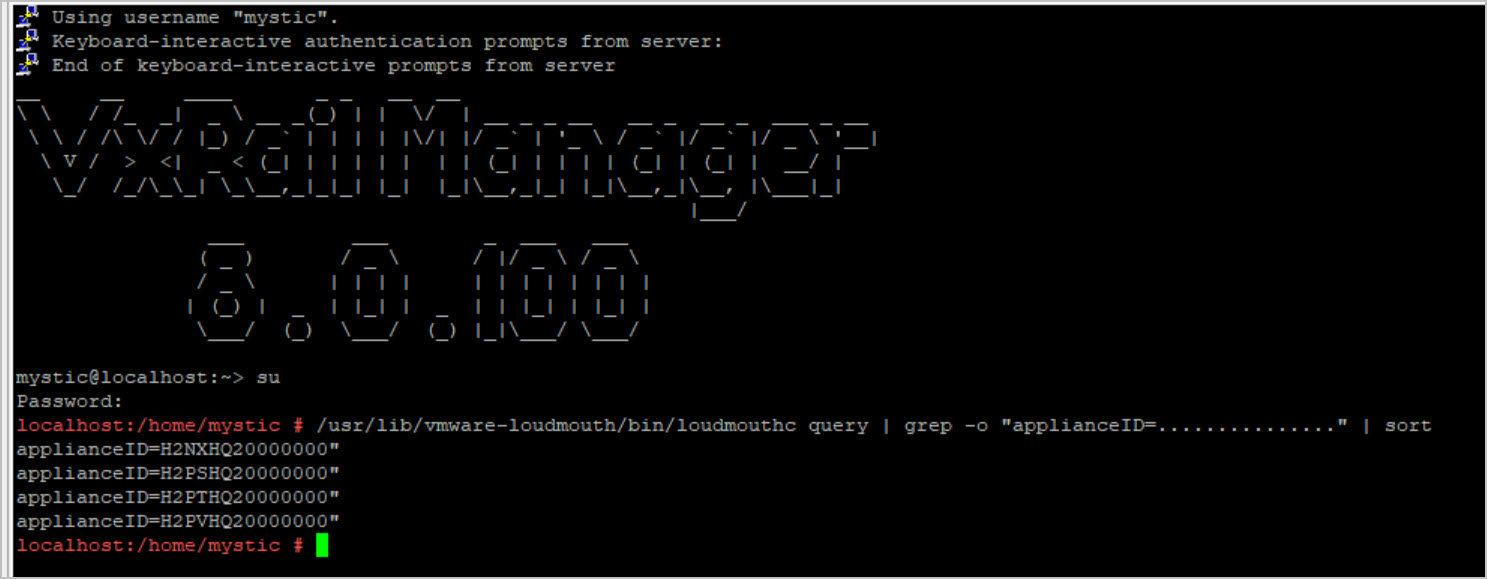
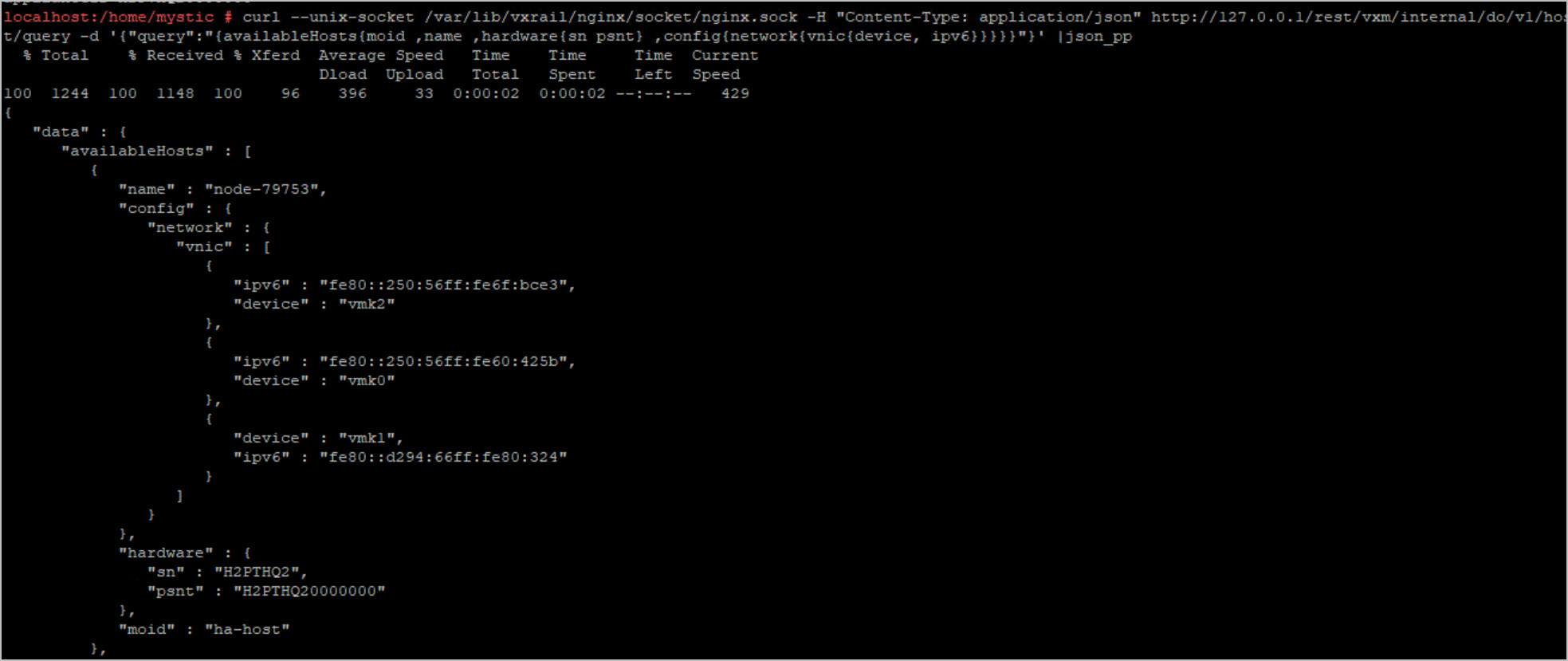
esxcli software vib list | grep marvinTOR01# configure terminalTOR01(config)# interface vlan 3939TOR01(conf-if-vl-3939)# description "VxRail Internal VLAN"TOR01(conf-if-vl-3939)# no shutdownTOR01(conf-if-vl-3939)# ipv6 mld snooping querierTOR01(conf-if-vl-3939)# copy running-configuration startup-configurationTOR01(conf-if-vl-3939)# exitTOR01(config)# exitTOR01# show interface vlan 3939TOR01# show ipv6 mld snooping summaryvxrail-primary --config --vxrail-address 10.1.0.20 --vxrail-netmask 255.255.255.0 --vxrail-gateway 10.1.0.254 --no-roll-back --verboseesxcli vm process listesxcli network vswitch standard portgroup listesxcli network vswitch standard portgroup set -p "VM Network" -v 100/etc/init.d/loudmouth restartsystemctl restart vmware-loudmouthCheck that VxRail Manager can discover available ESXi hosts; login to the VxRail Manager vm via SSH and run the following commands:
/usr/lib/vmware-loudmouth/bin/loudmouthc query | grep -o "applianceID=..............." | sort/usr/lib/vmware-loudmouth/bin/loudmouthc query | egrep -o "EMC........-..|..............-..-.." | sed 's/ {"//g' | sortcurl --unix-socket /var/lib/vxrail/nginx/socket/nginx.sock -H "Content-Type: application/json" http://127.0.0.1/rest/vxm/internal/do/v1/host/query -d '{"query":"{availableHosts{moid ,name ,hardware{sn psnt} ,config{network{vnic{device, ipv6}}}}}"}' |json_ppConfirm NIC’s are up:
esxcli network nic listesxcli network vswitch standard list
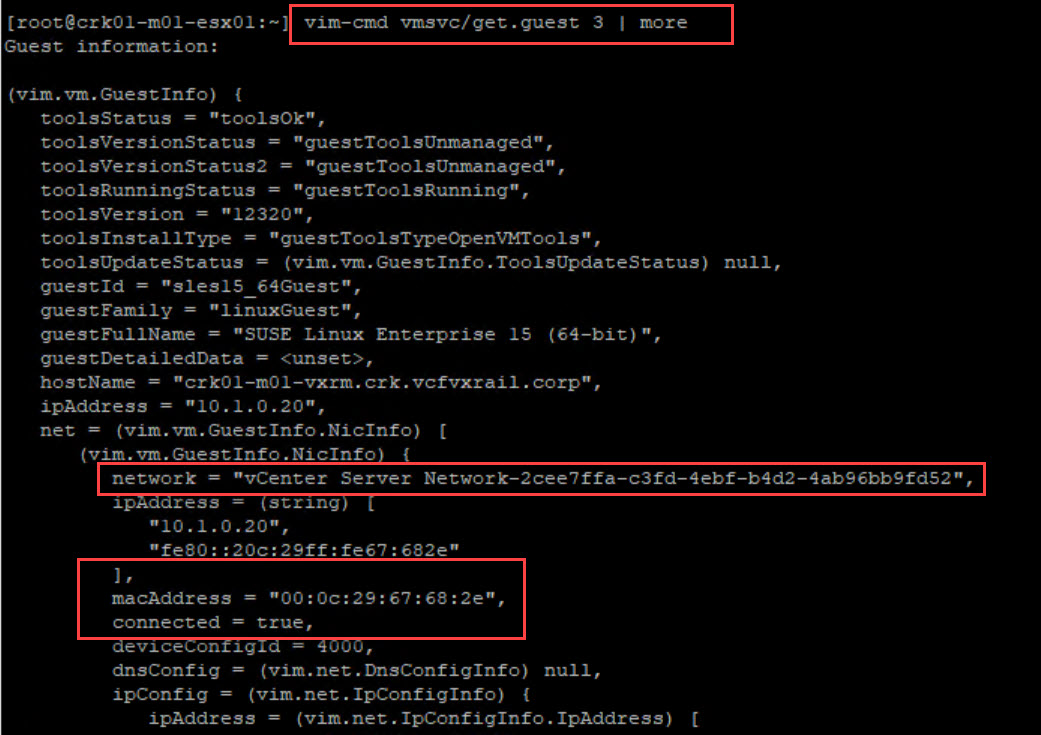
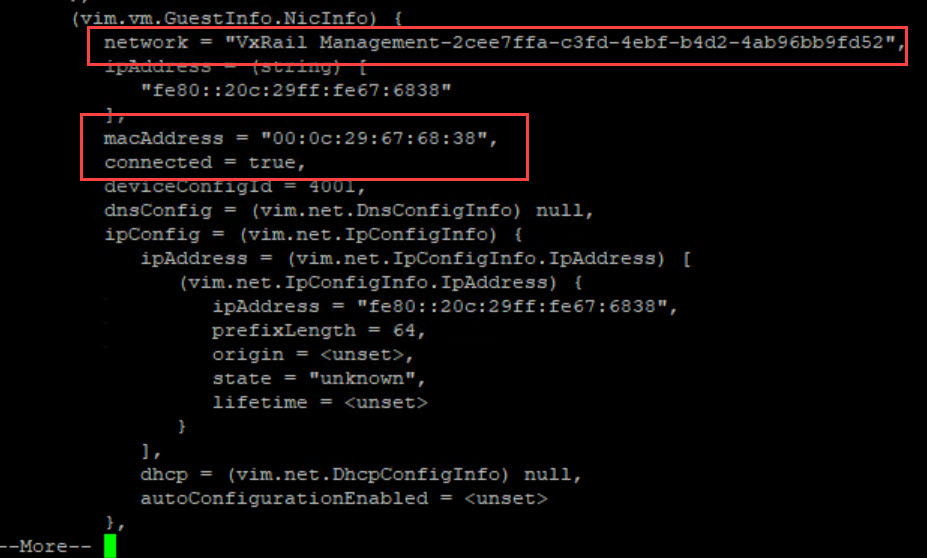
Confirm the mac address of VxRail Manager is showing up on the switch. You can find the VxRail Manager mac address from the ESXi console & compare to mac table on switch:
vim-cmd vmsvc/get.guest vmid | moreshow mac address-table!
interface virtual-network100
description virtual-network100
no shutdown
ip address 10.1.0.253/24
ip virtual-router address 10.1.0.254
!
!
virtual-network 100
member-interface ethernet1/1/1 vlan-tag 100
member-interface ethernet1/1/2 vlan-tag 100
member-interface ethernet1/1/3 vlan-tag 100
member-interface ethernet1/1/4 vlan-tag 100
vlti-vlan 100
!
vxlan-vni 100
!
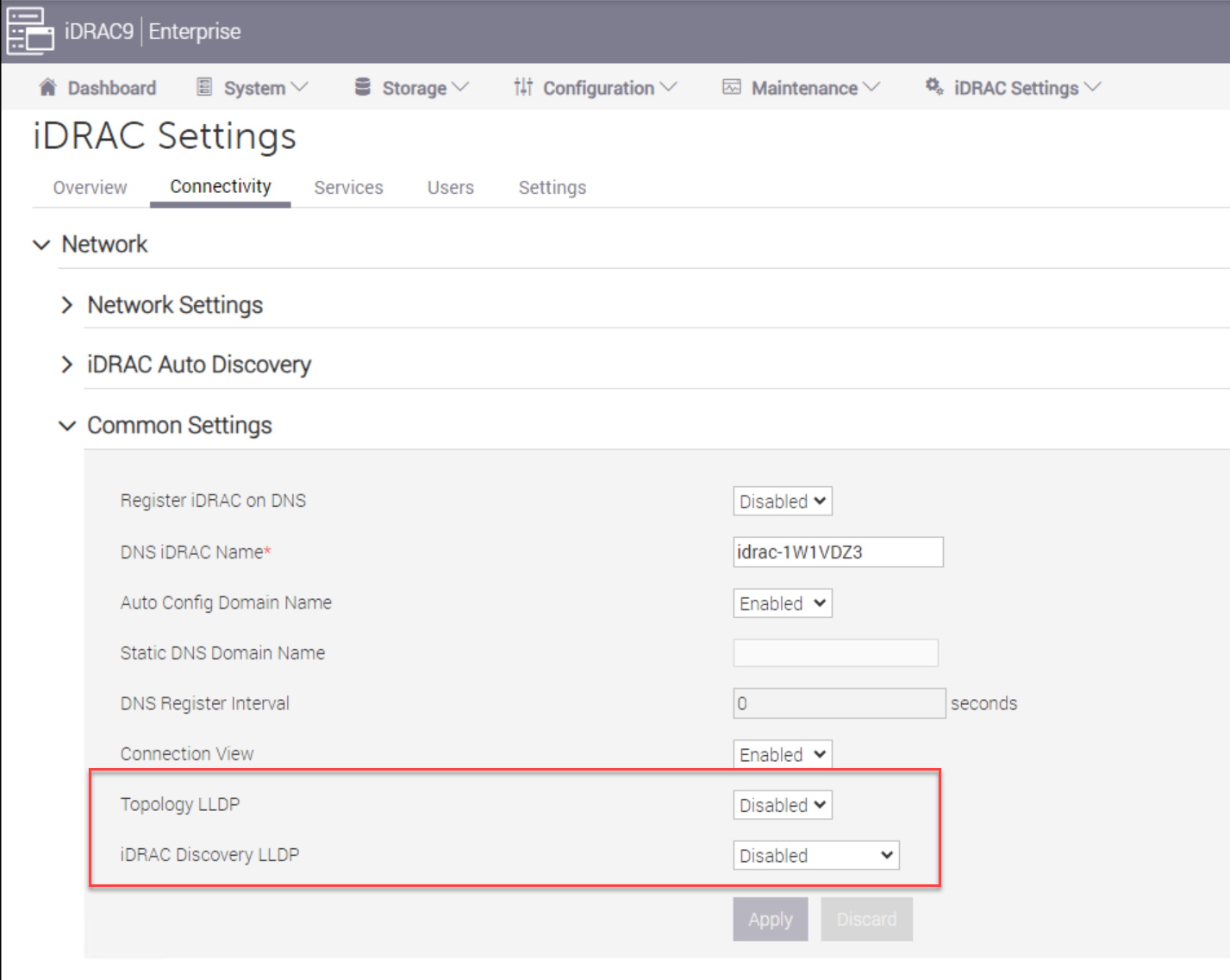
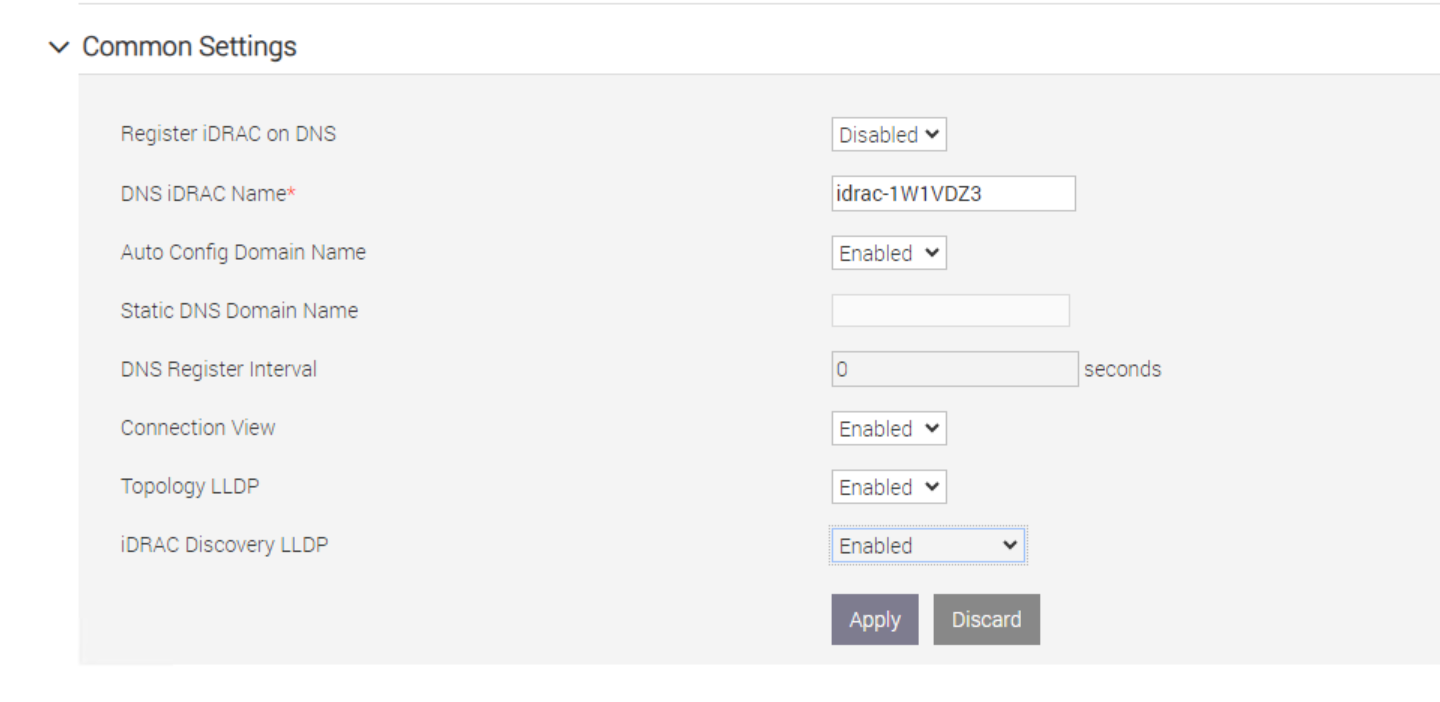
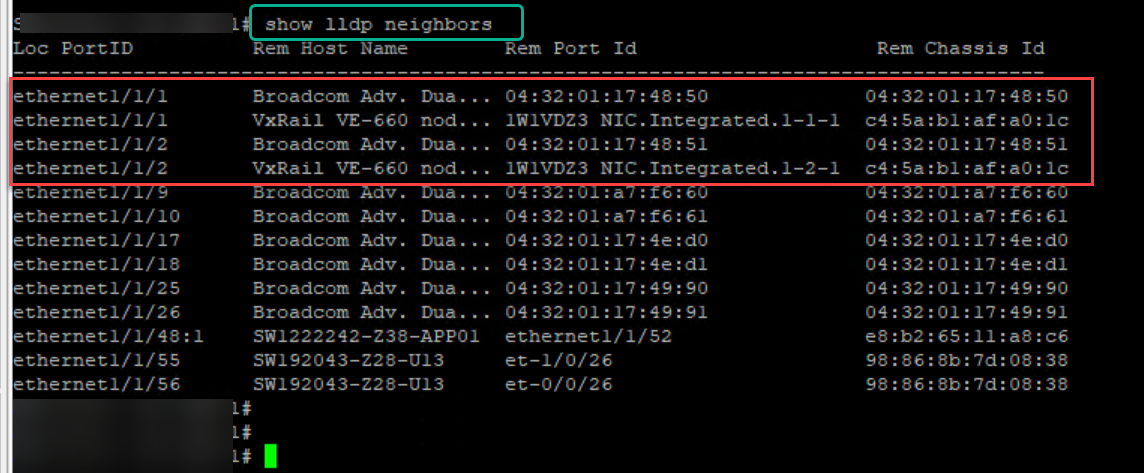
ENABLE LLDP IN IDRAC provides addtional host details other than just mac address such as VxRail model & service tag, when running ‘show lldp neighbors’ on switch:
Note On Cabling: For VxRail nodes with RJ45 NICs use Cat 6 or higher Ethernet cables. In the case of nodes with SFP+, SFP28, or QSFP28 NICs for Twinax connectivity use supported Twinax Direct-Attach-Copper cables with SFP+, SFP28, or QSFP28 connectors and in the case of FC use supported fiber cables SFP+, SFP28, QSFP28 optical transceivers.
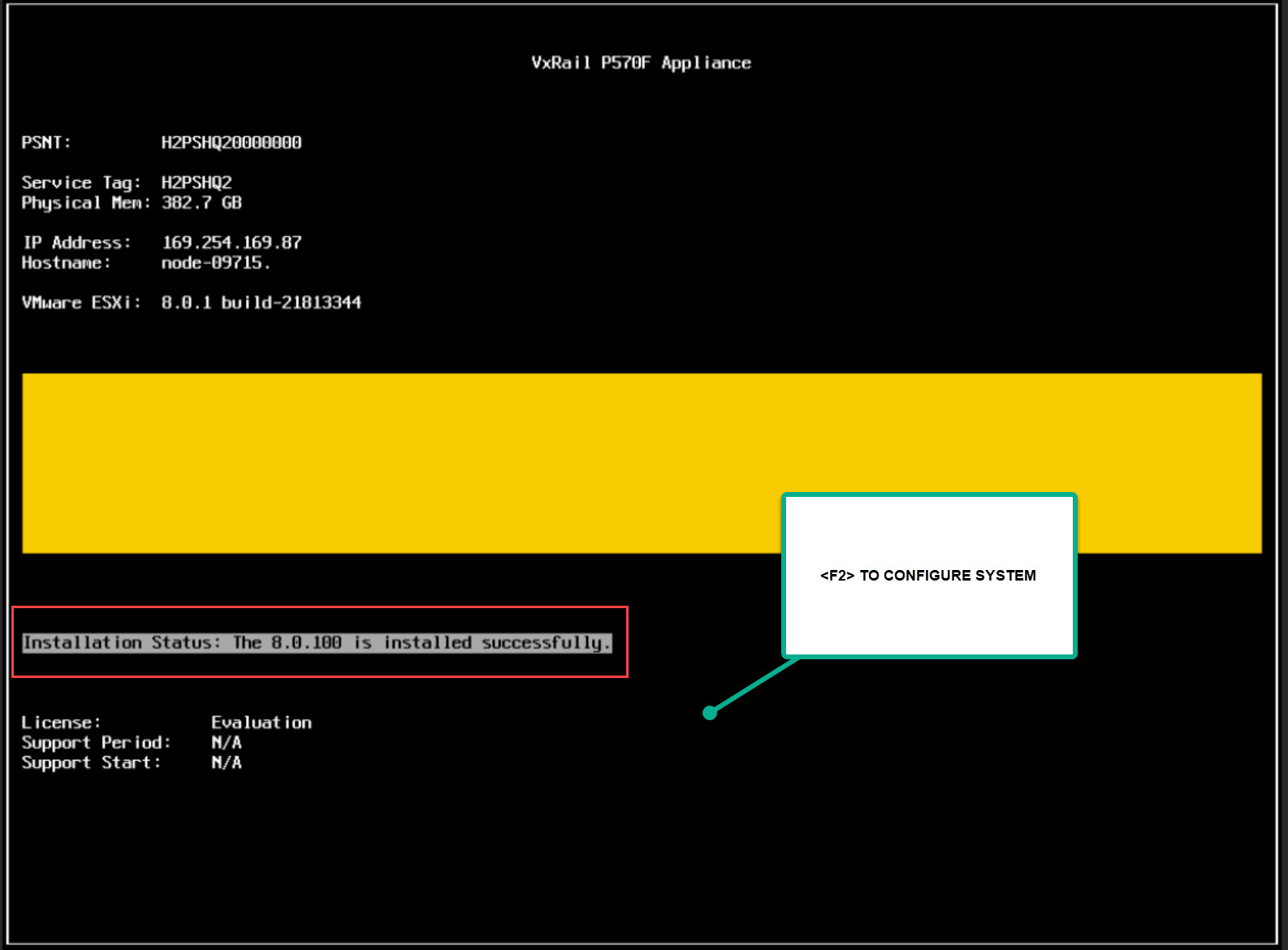
VxRail Software used in this example: 8.0.100 build 21666983
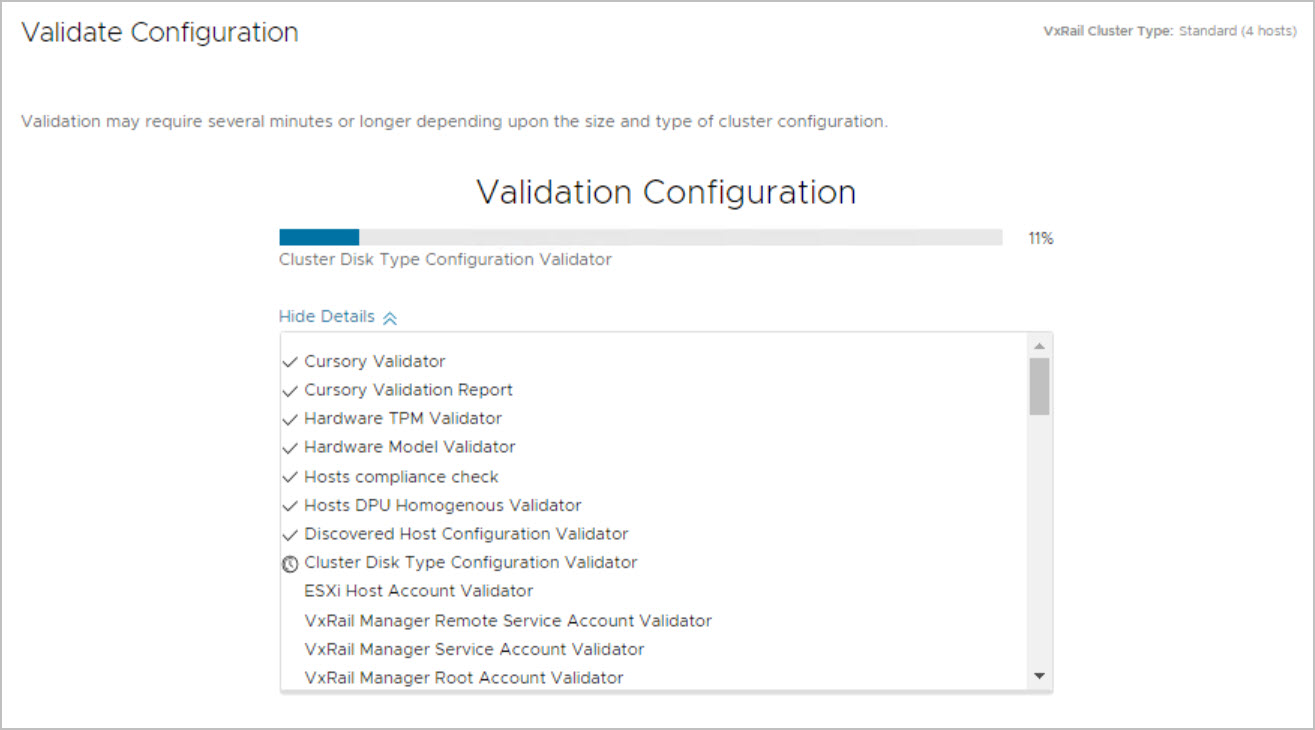
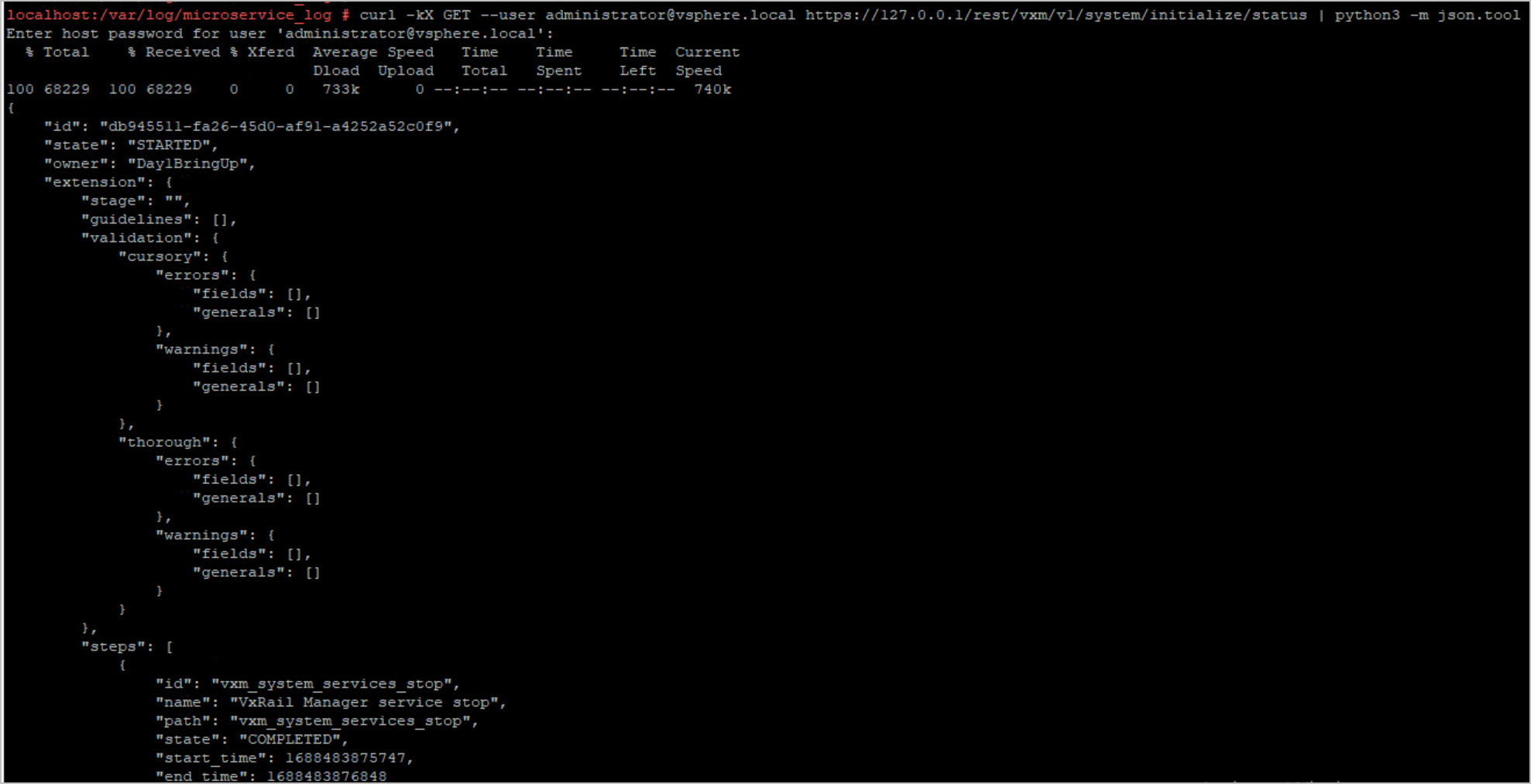
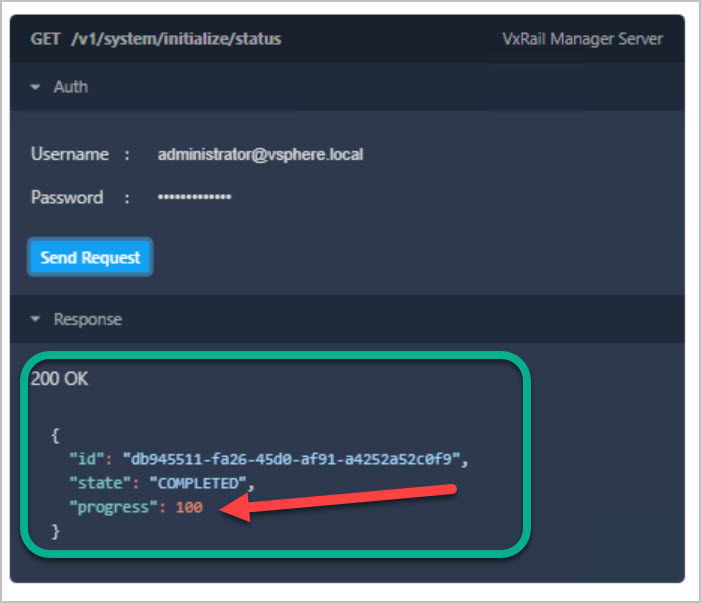
CURL Command to monitor install progress from VxRail Manager SSH console:
curl -kX GET --user administrator@vsphere.local https://127.0.0.1/rest/vxm/v1/system/initialize/status | python3 -m json.tool
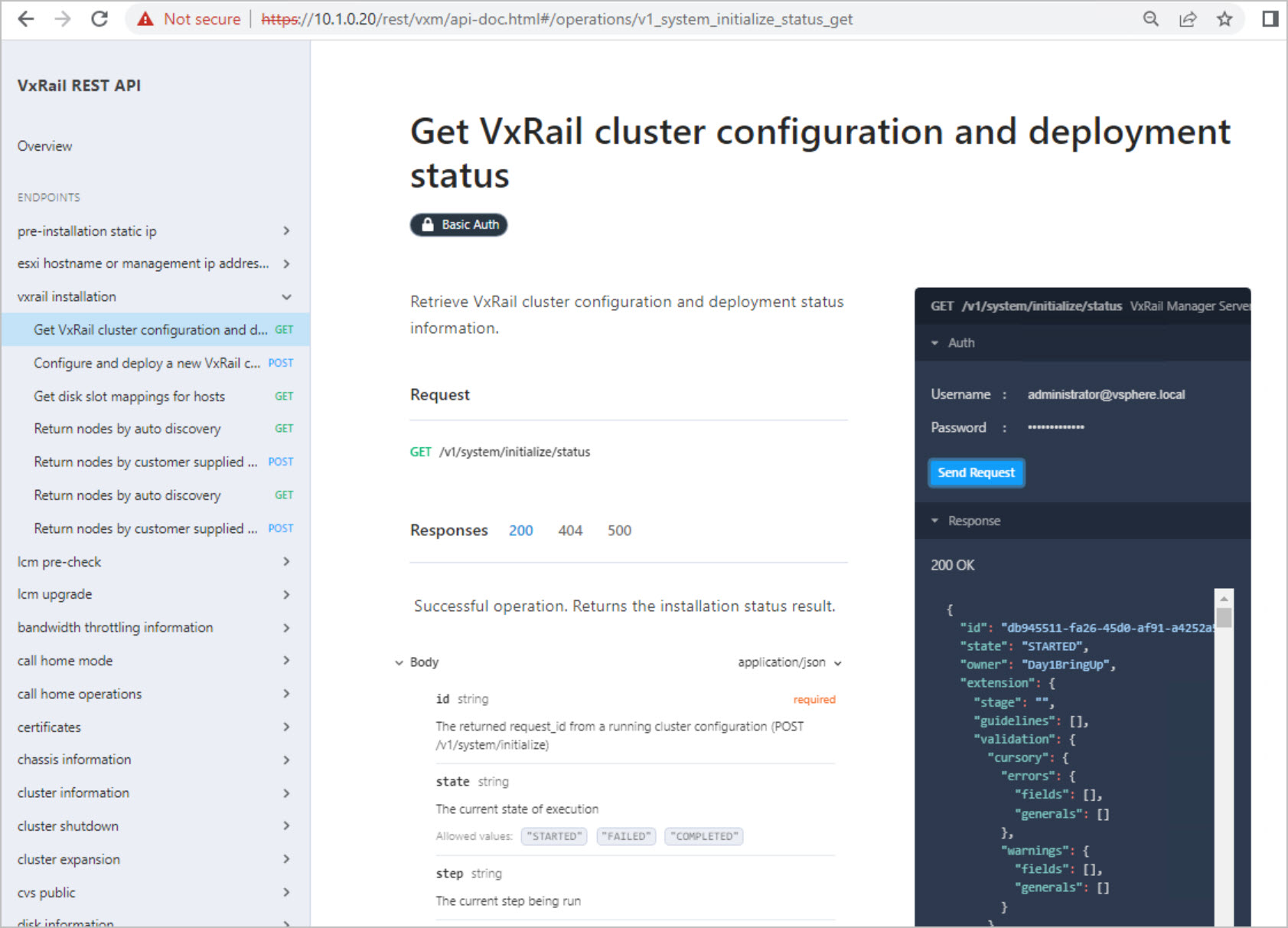
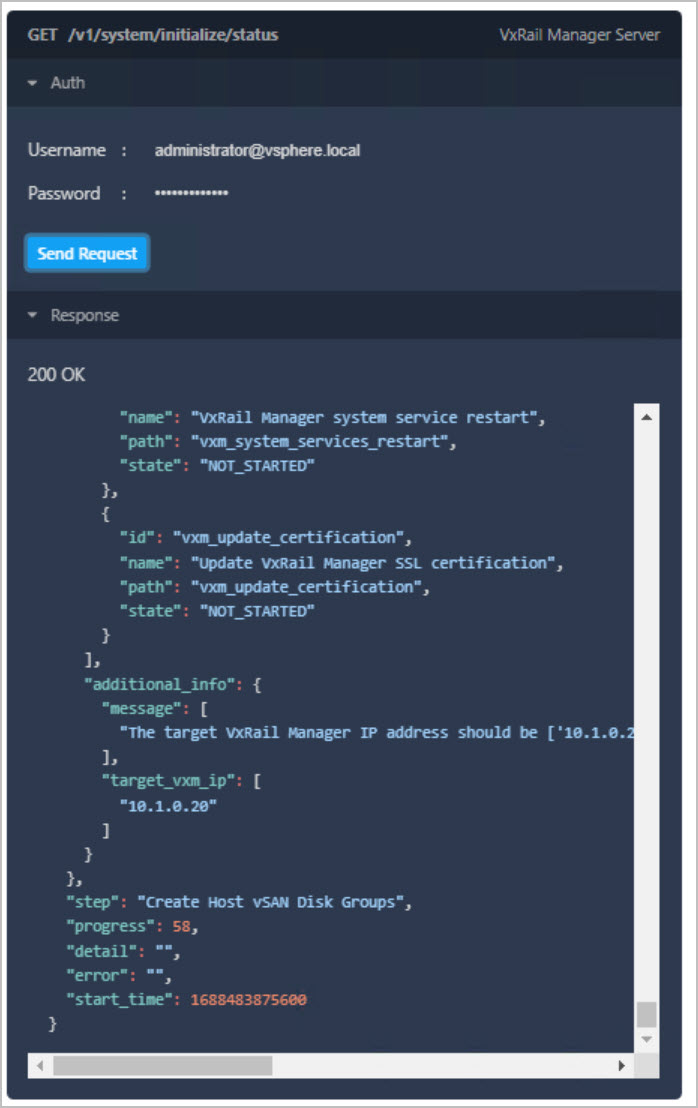
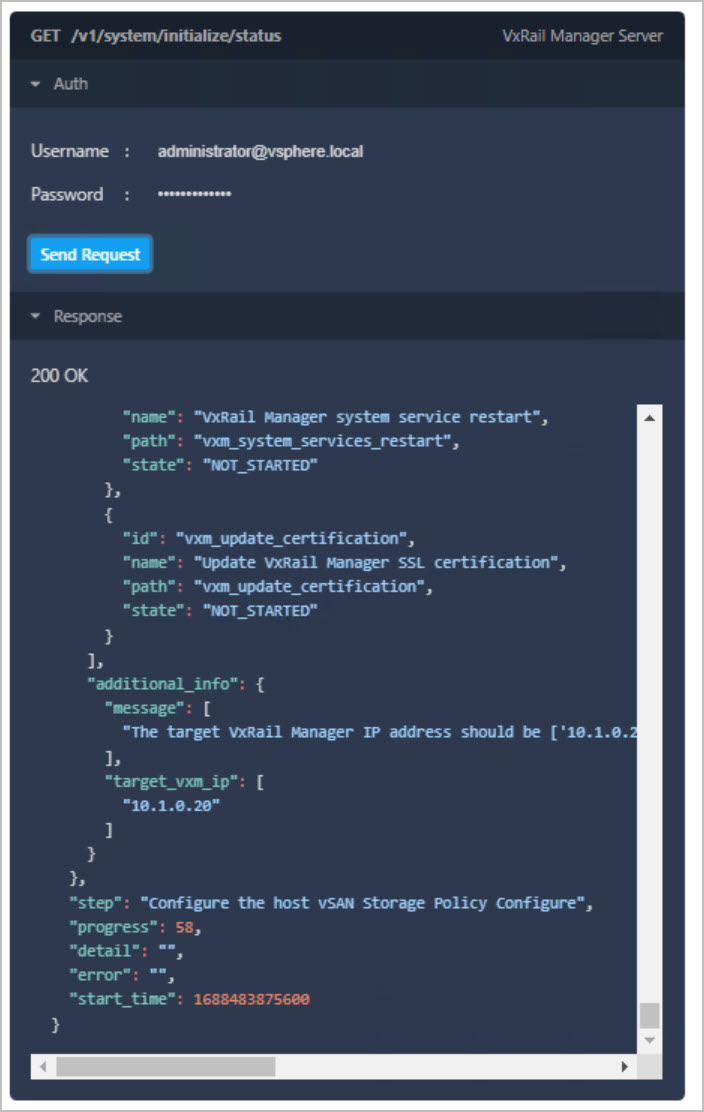
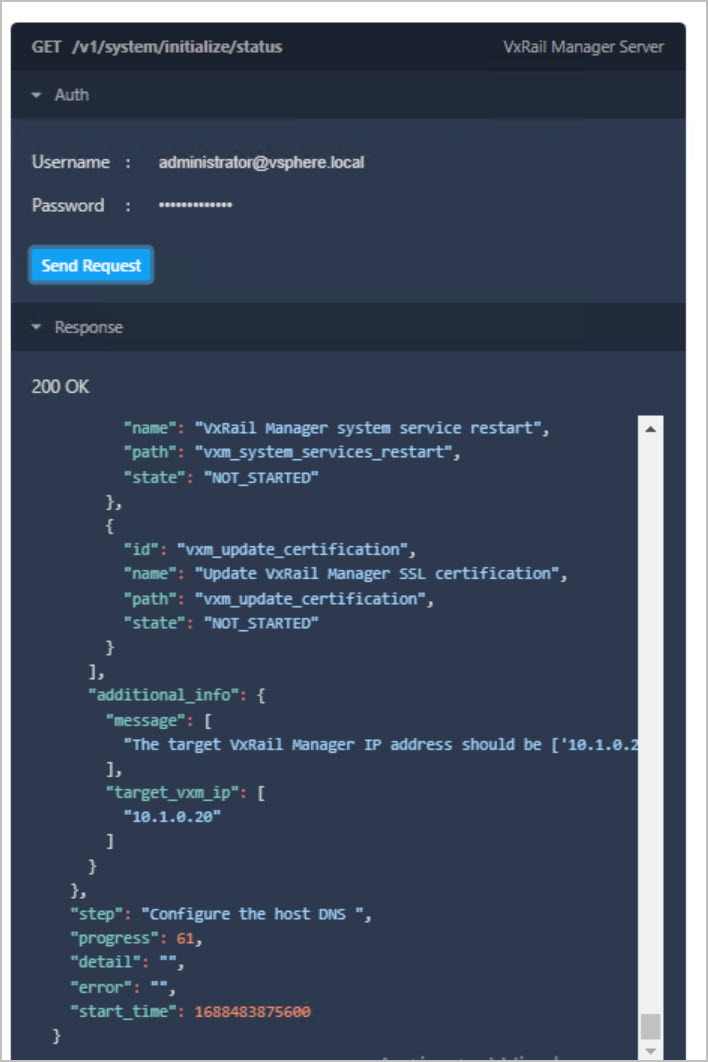
API to monitor Progress:
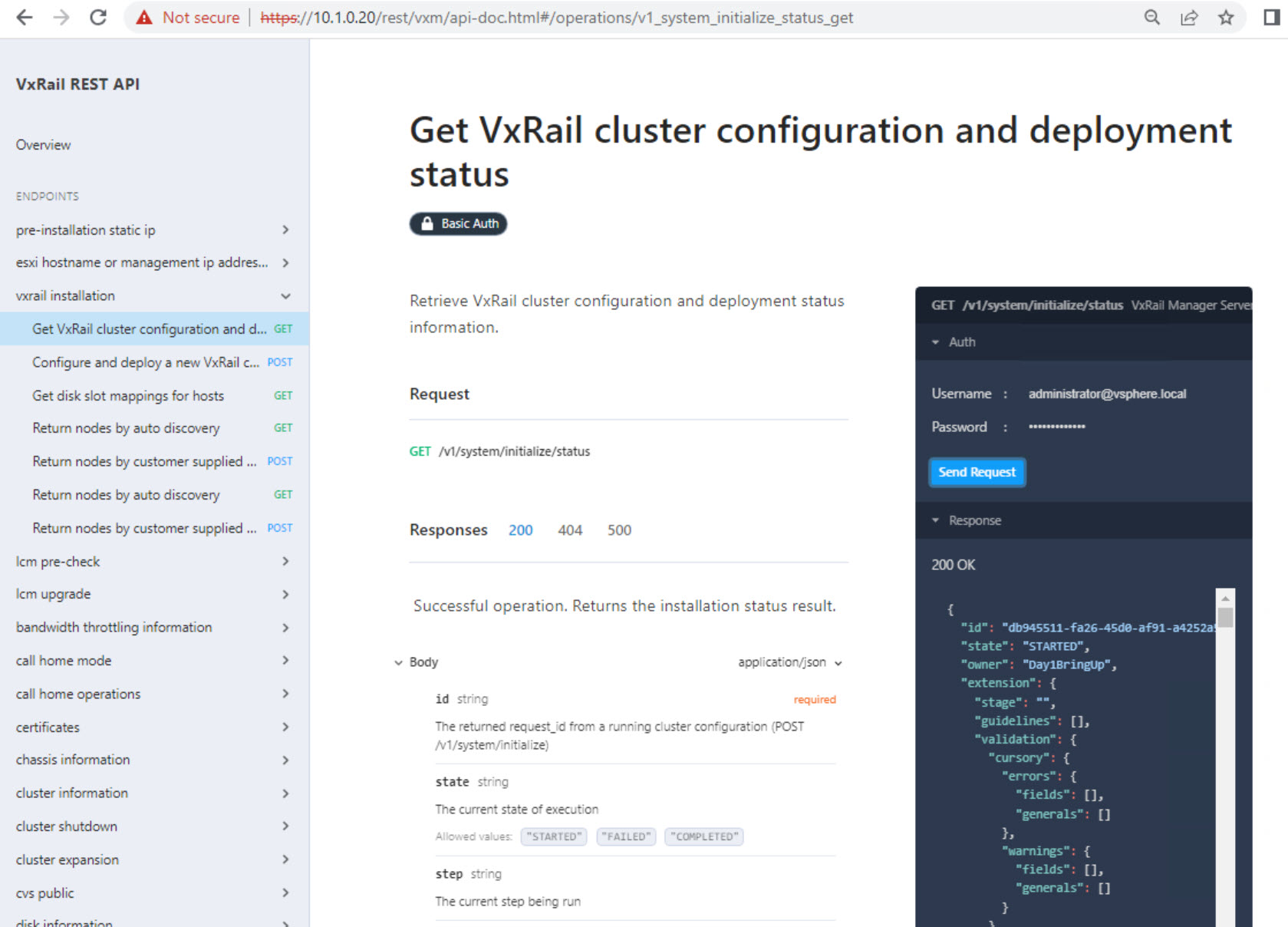
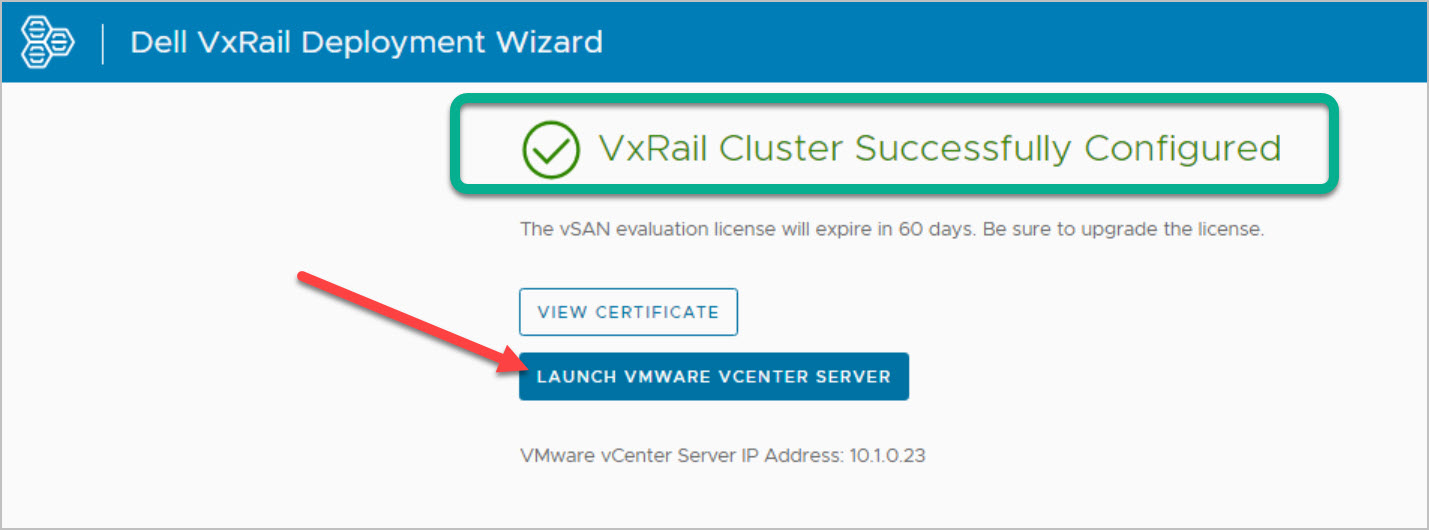
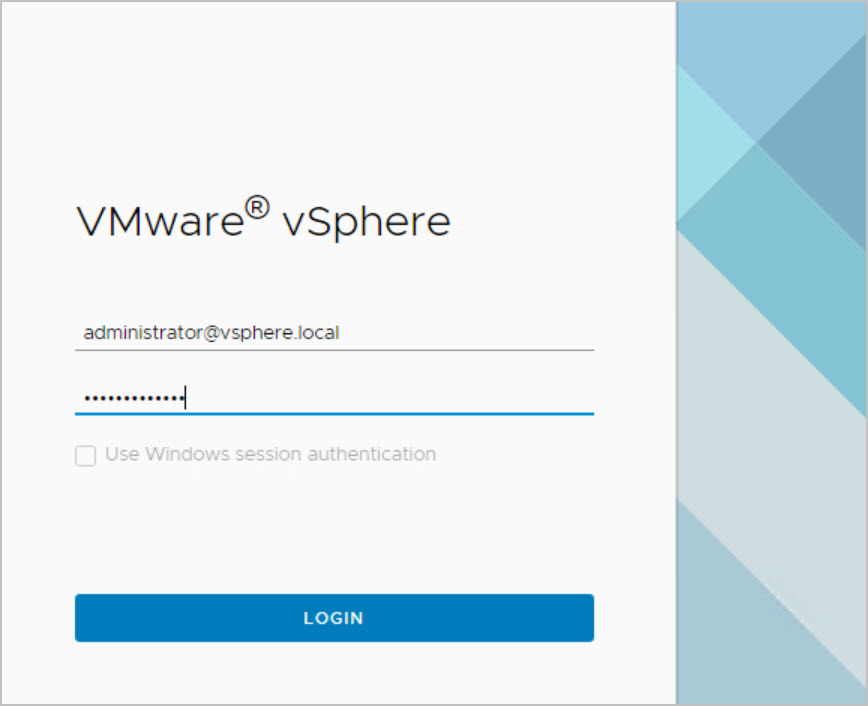
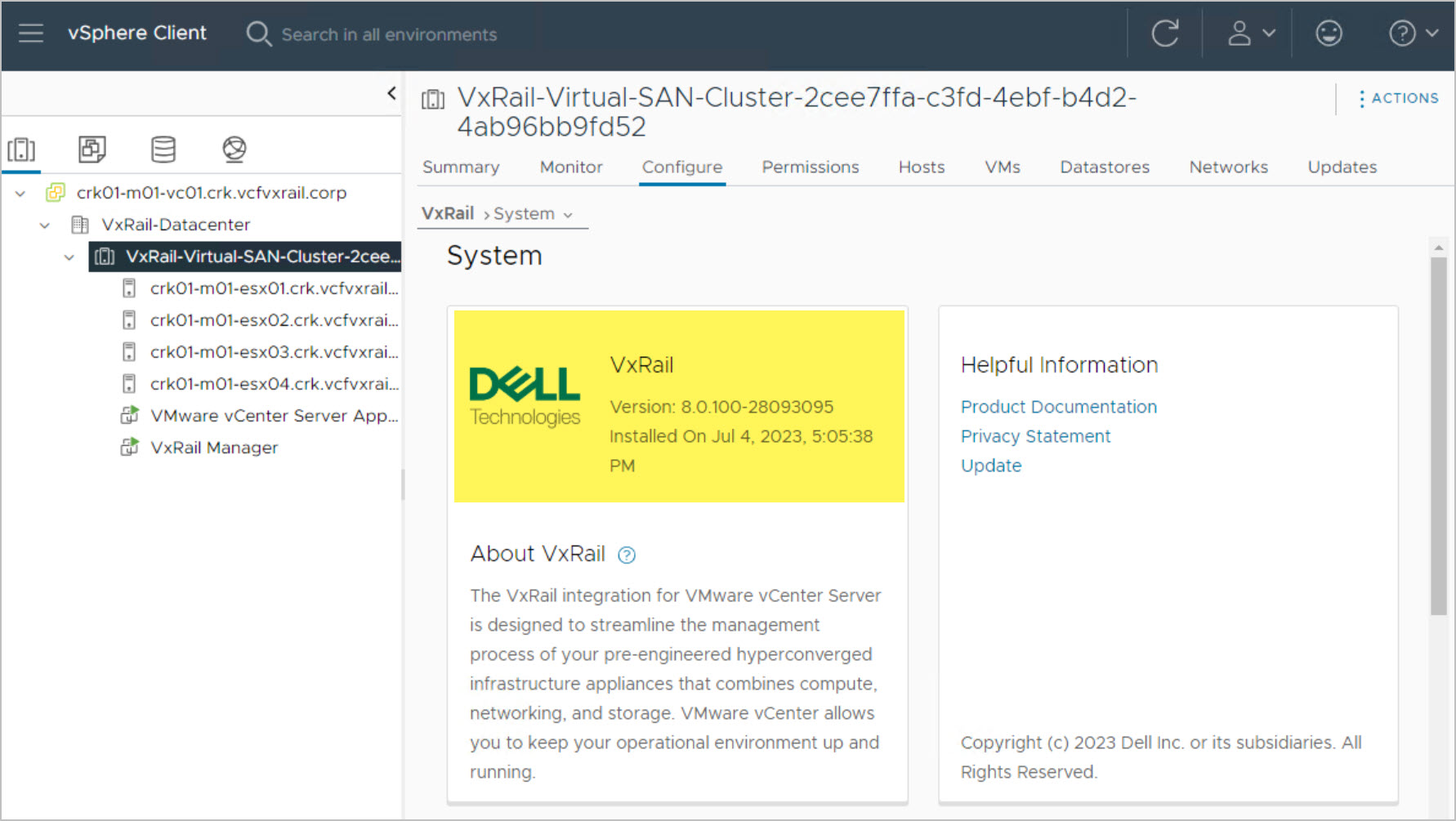
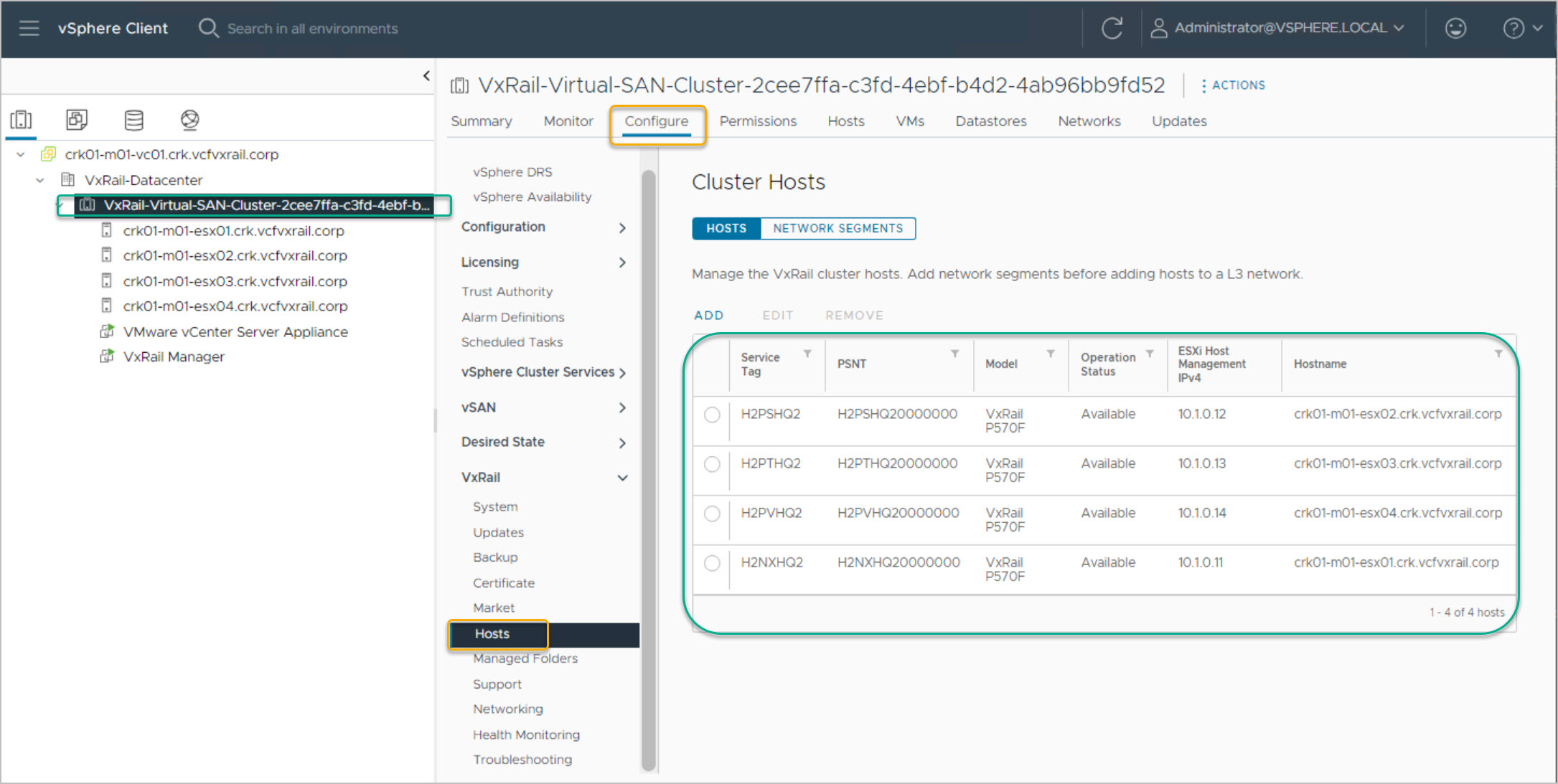
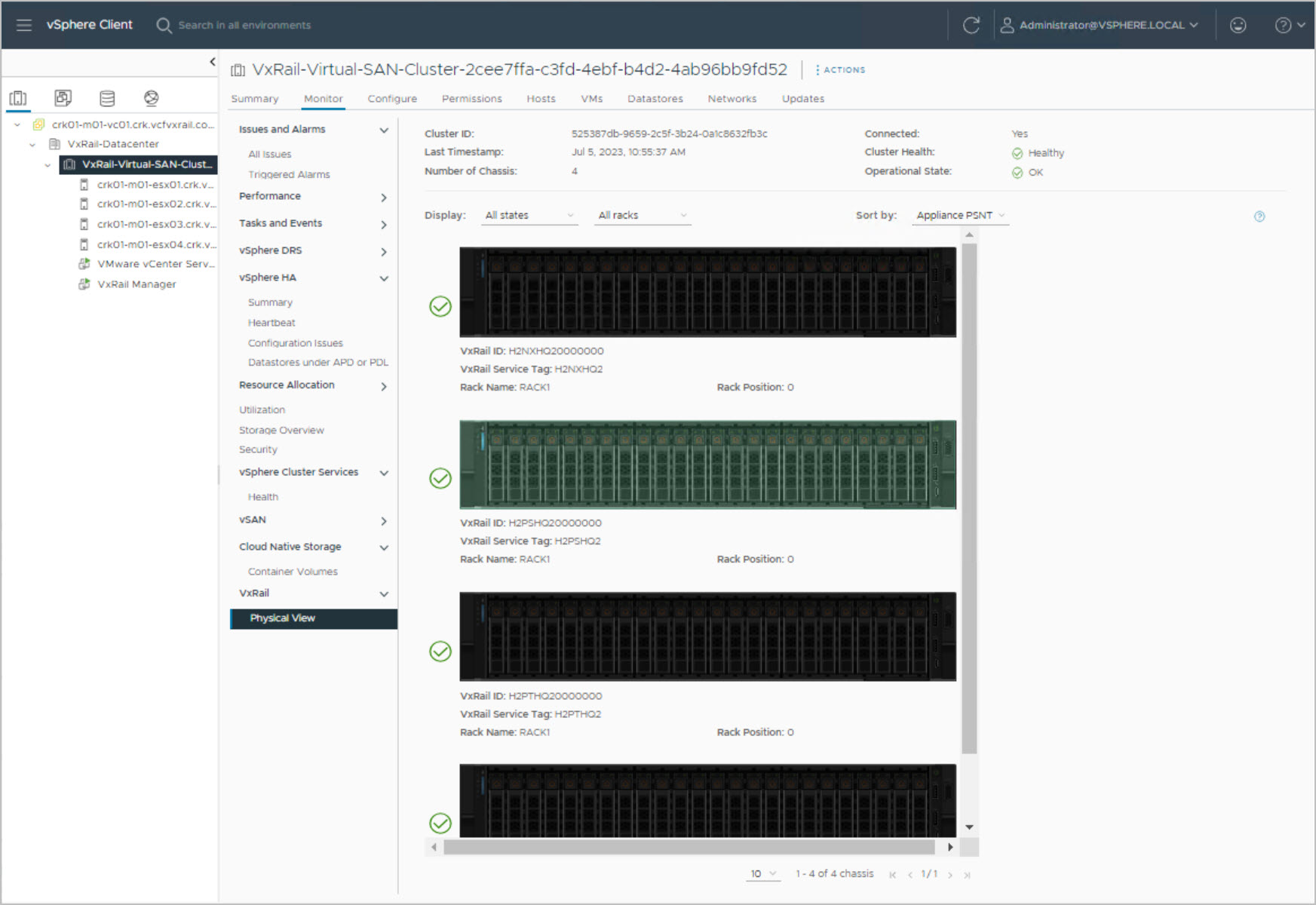
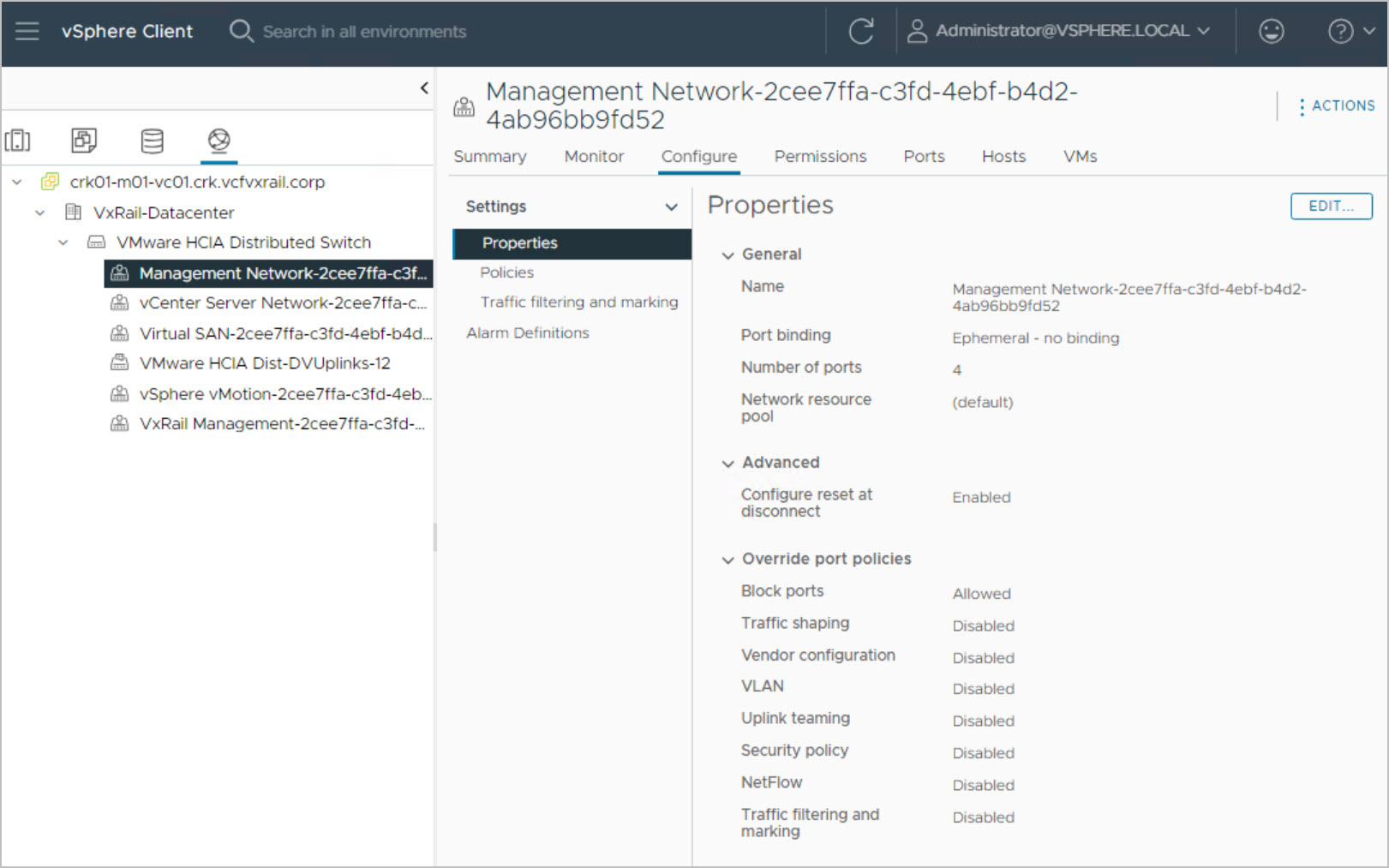
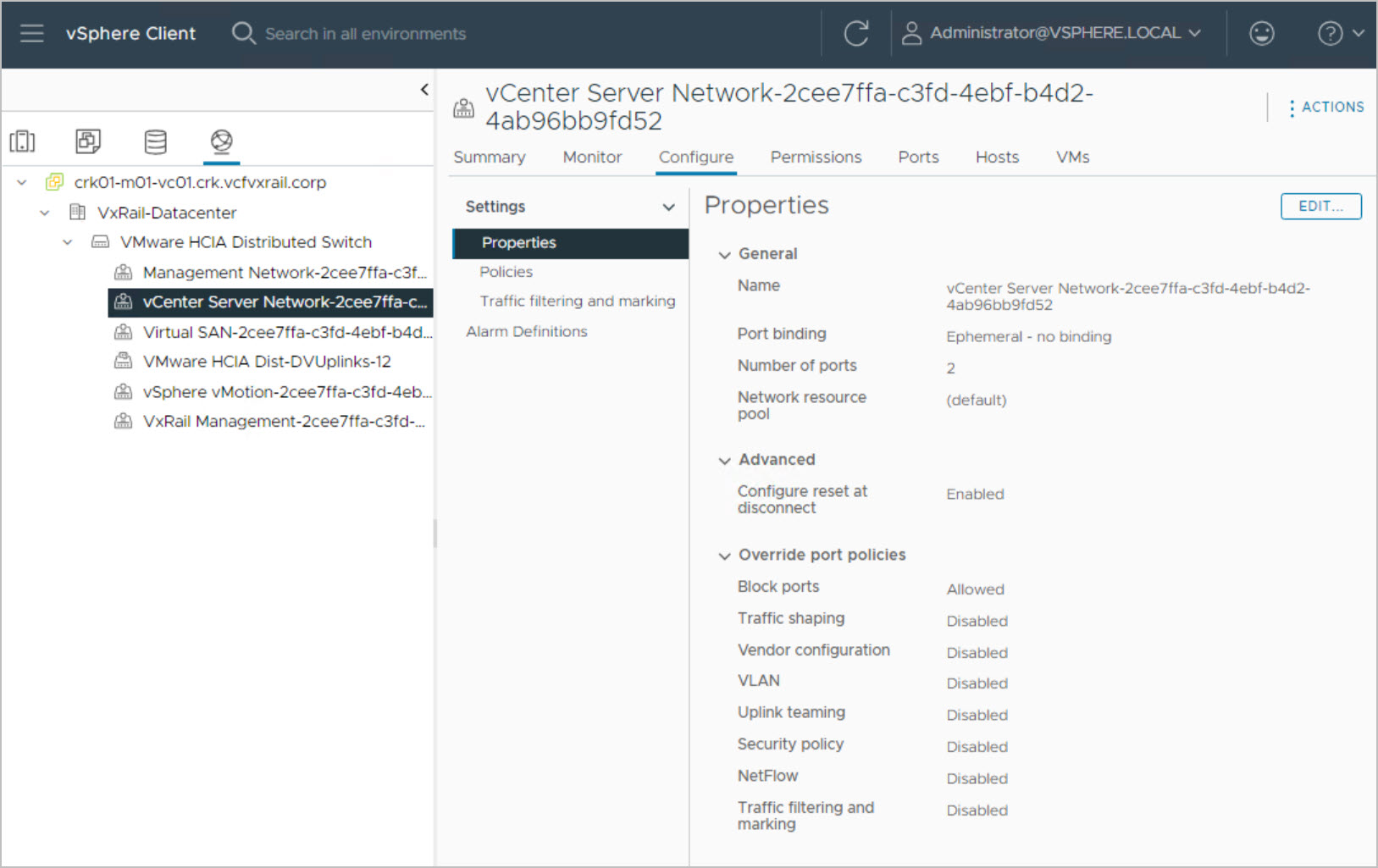
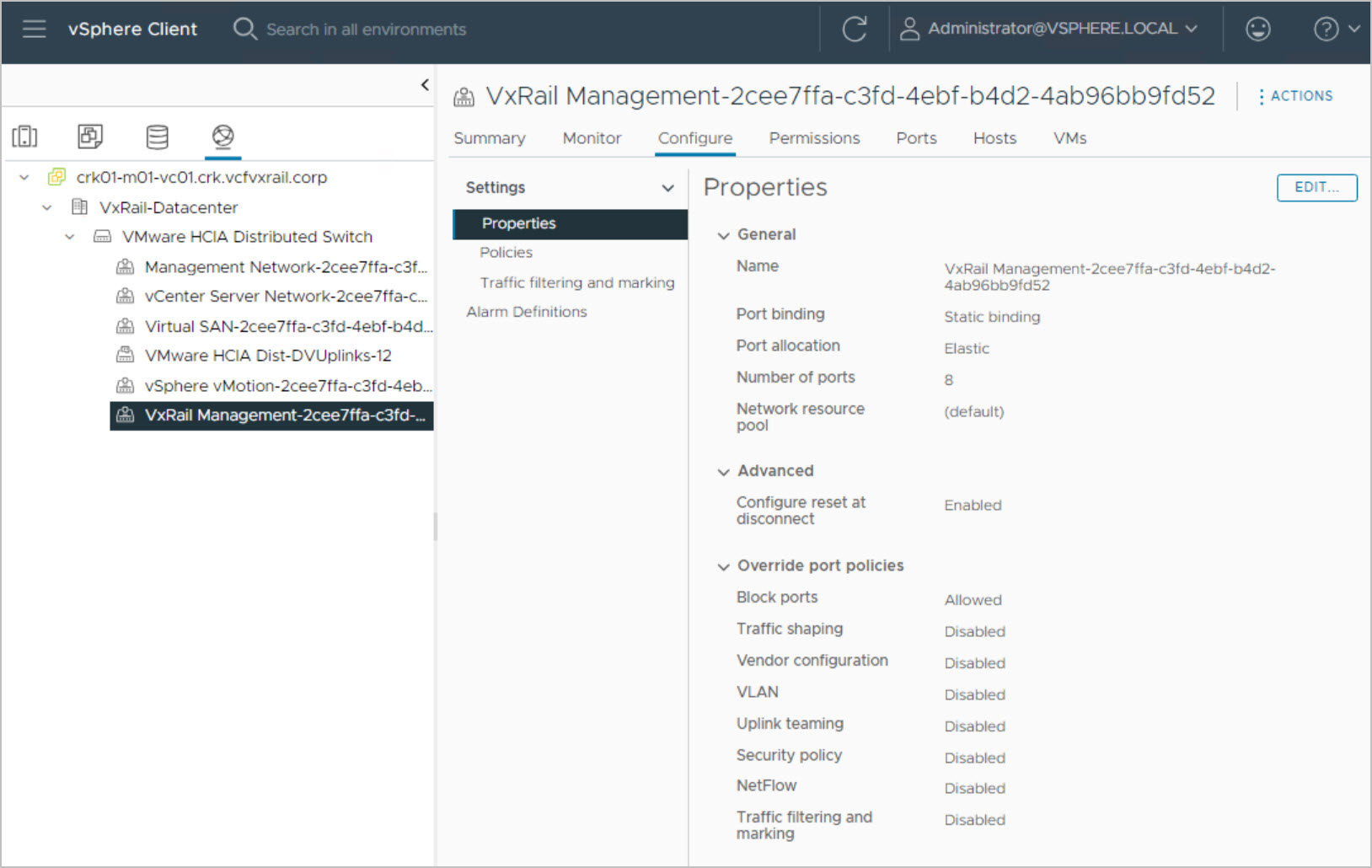
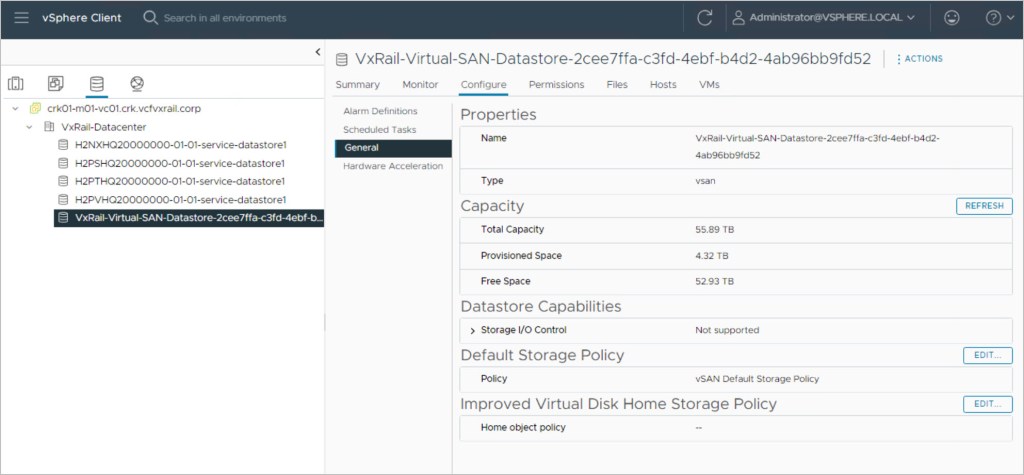
Here are some quick checks after a successful bring-up of VxRail. These checks are confirmed by logging into vCenter Server HTML client:
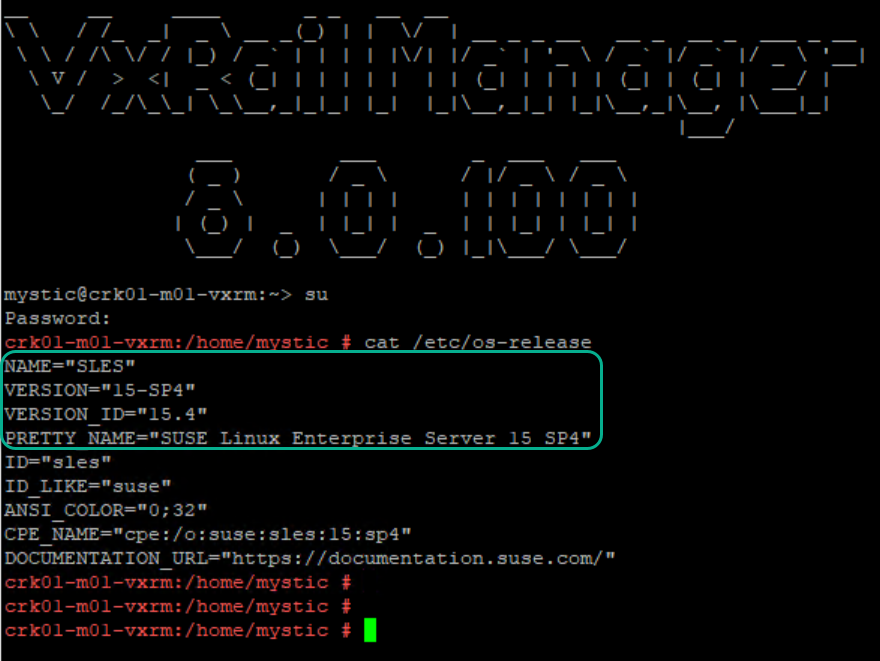
Note: SLES15 SP4 is the OS used for VxRail Manager. cat /etc/os-release
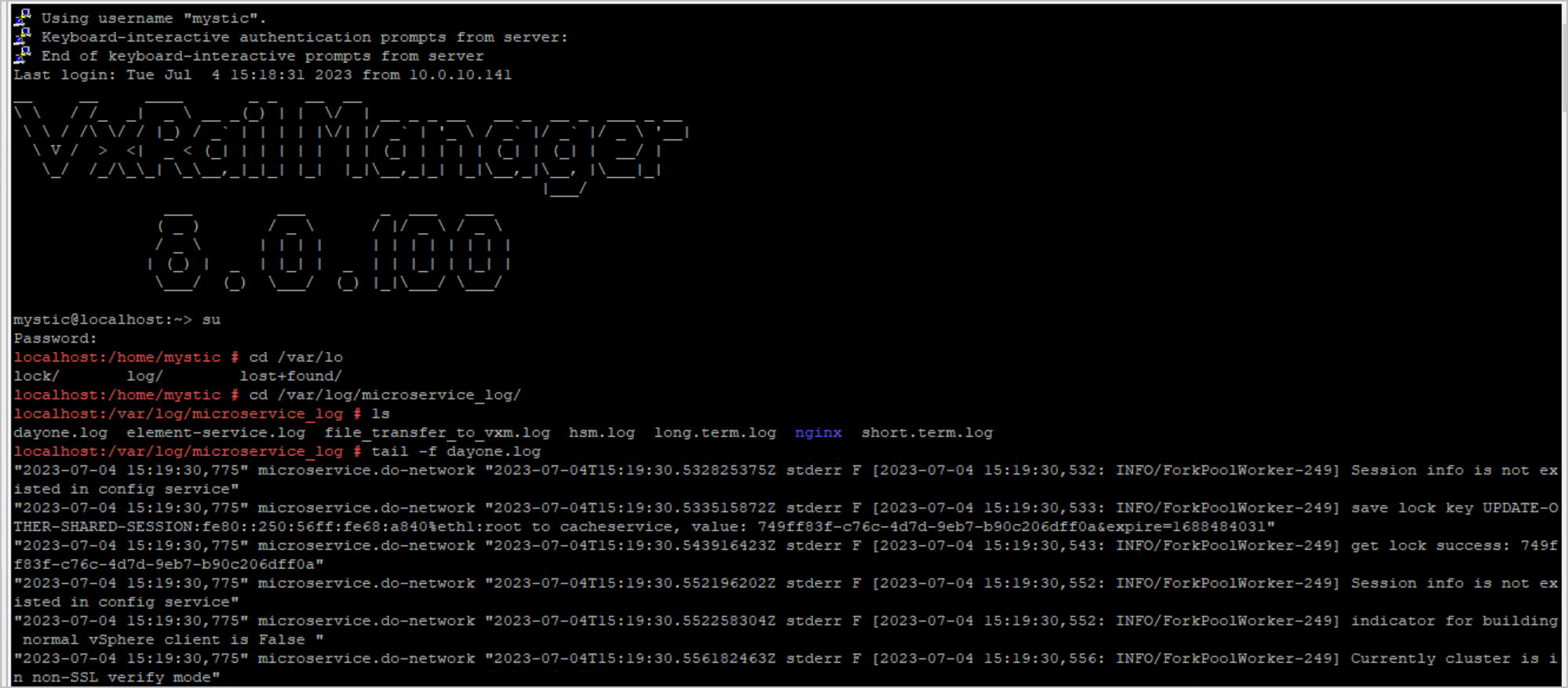
Monitor VxRail dayone.log , short.term.log & firstboot.log:
cd /var/log/microservice_log/
# cat dayone.log
# tail -f dayone.log
# tail -f dayone.log | grep ERROR
# tail -n 100 dayone.log
# more dayone.log
Confirm DNS entries in resolv.conf & DB:
cat /etc/resolv.conf
curl -X GET --unix-socket /var/lib/vxrail/nginx/socket/nginx.sock http://localhost/rest/vxm/internal/configservice/v1/configuration/keys/system_dns -H "accept: application/json" -H "Content-Type: application/json"
NTP Validation:
timeout 2 bash -c "</dev/udp/10.104.0.254/123"; echo $?
Returns 0
In terms of viewing a “Configuration complete!” equivalent message in the logs the string is :/var/log/microservice_log # cat dayone.log | grep "notify {'level': 'workflow', 'state': 'COMPLETED', 'progress': 100}"
RADAR VERSION:
/mystic/radar/radar --version
If VxRail Deployment Wizard fails to load or Vmware marvin service fails to start:
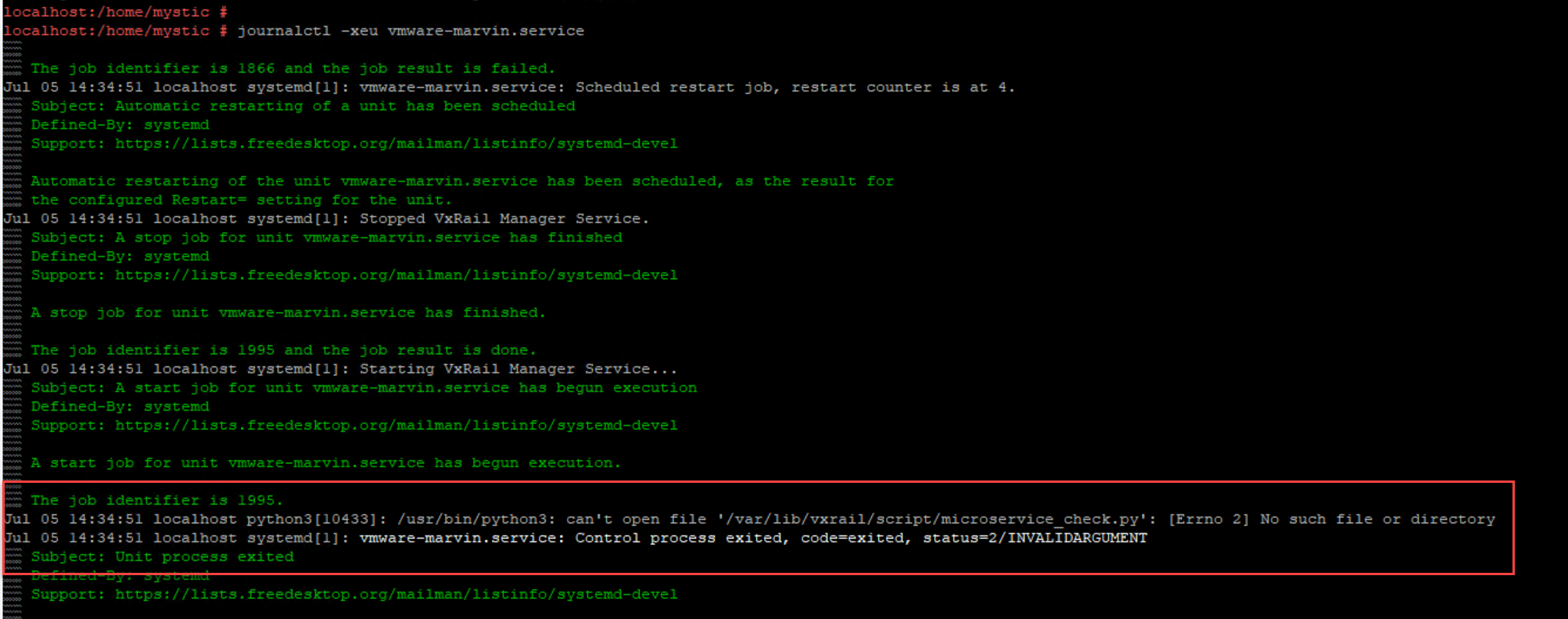
On the vxrail manager in /var/log/messages there are events indicating a duplicate IPv6 address is detected & kubernates fails to deploy:
cat /var/log/messages | grep "IPv6 duplicate address"

systemctl status runjars.service
systemctl status vmware-marvin.service
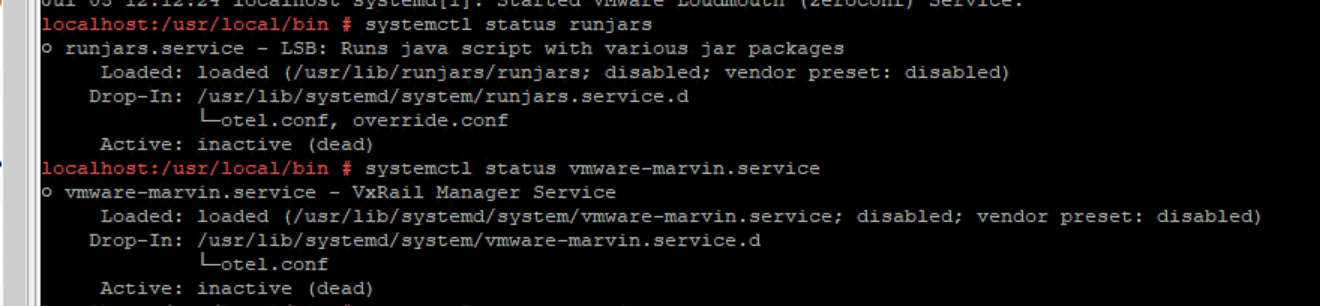
Modify the IPV6 address:
vi /etc/sysconfig/network/ifcfg-eth0
IPADDR0=’fd39:3939:3939:3939::180‘
Save & exit :wq!
systemctl restart network
Reboot VXRM.
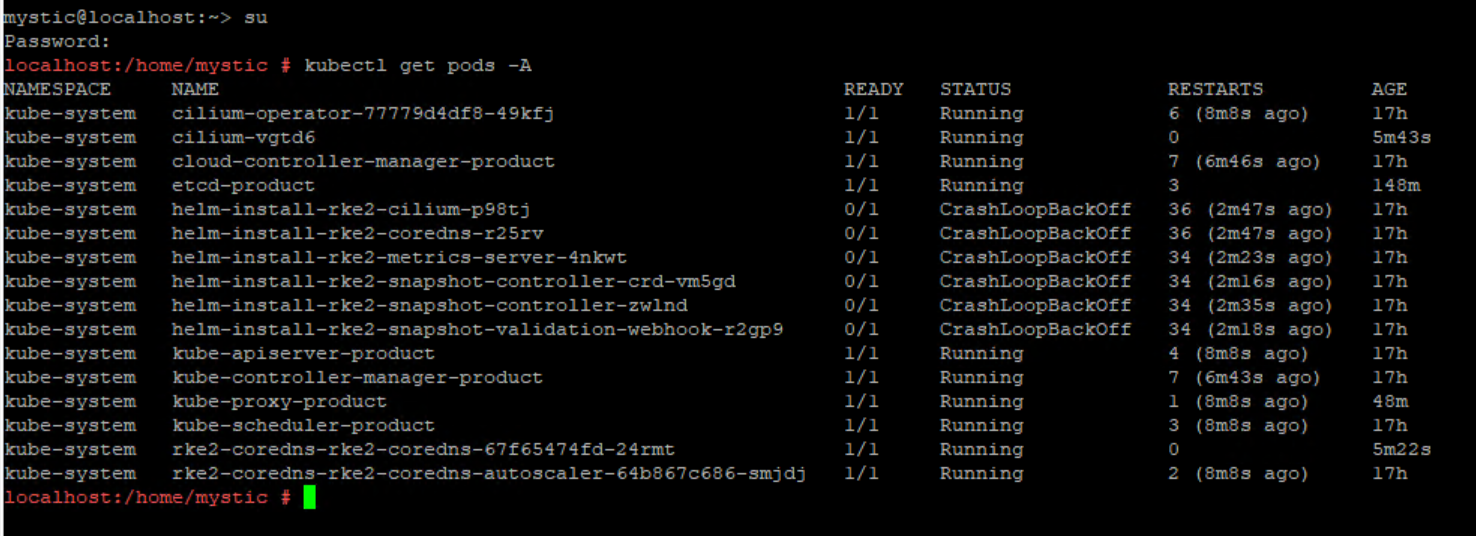
After ~10 minutes check that kubernates “helium” pods havd been deployed:
# kubectl get pods
# kubectl get pods -A
# kubectl get pods -o wide
# kubectl get deployments
Confirm services are active or start if not:
systemctl status runjars.service
systemctl status vmware-marvin.service
systemctl start vmware-marvin
systemctl start runjars








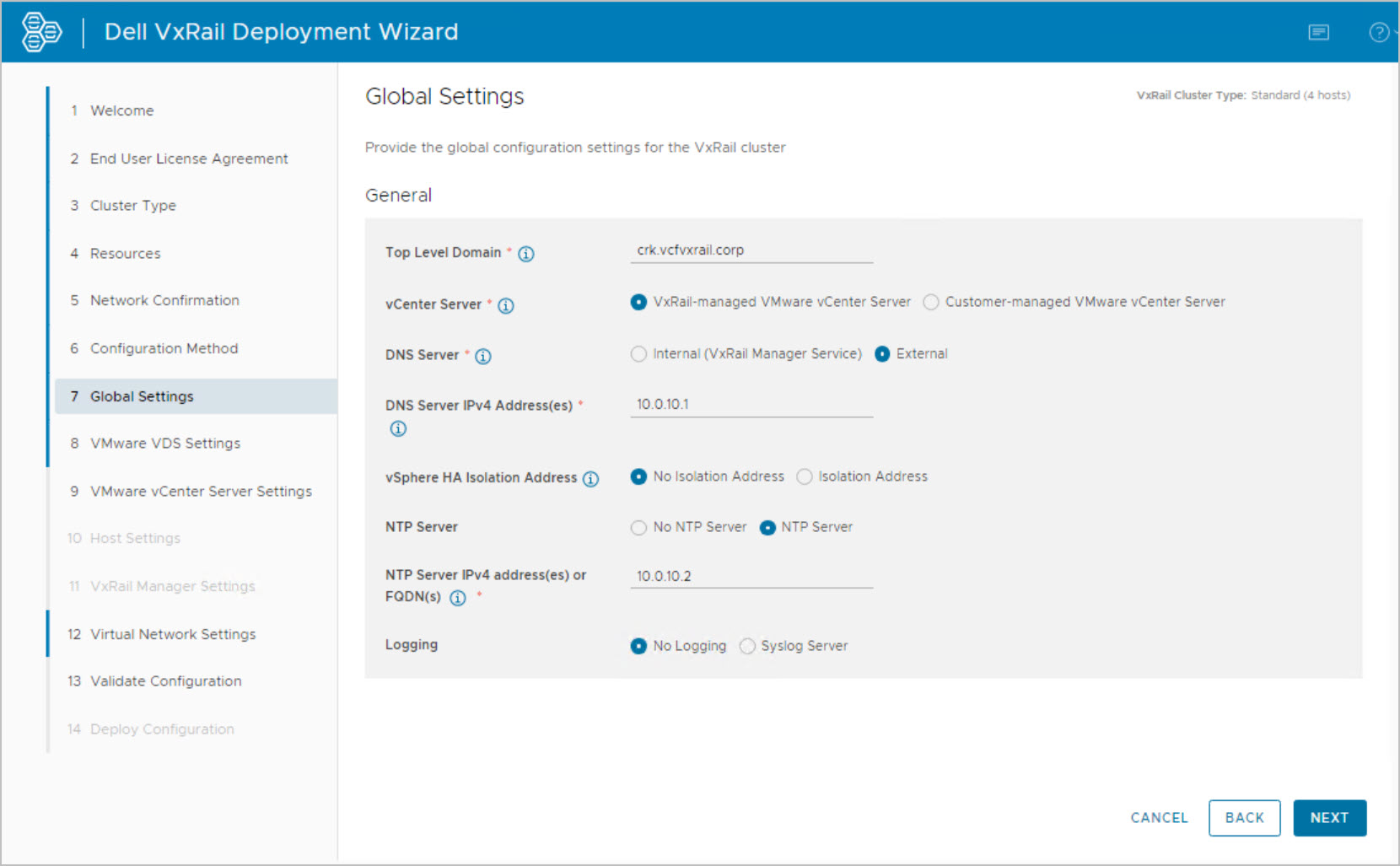
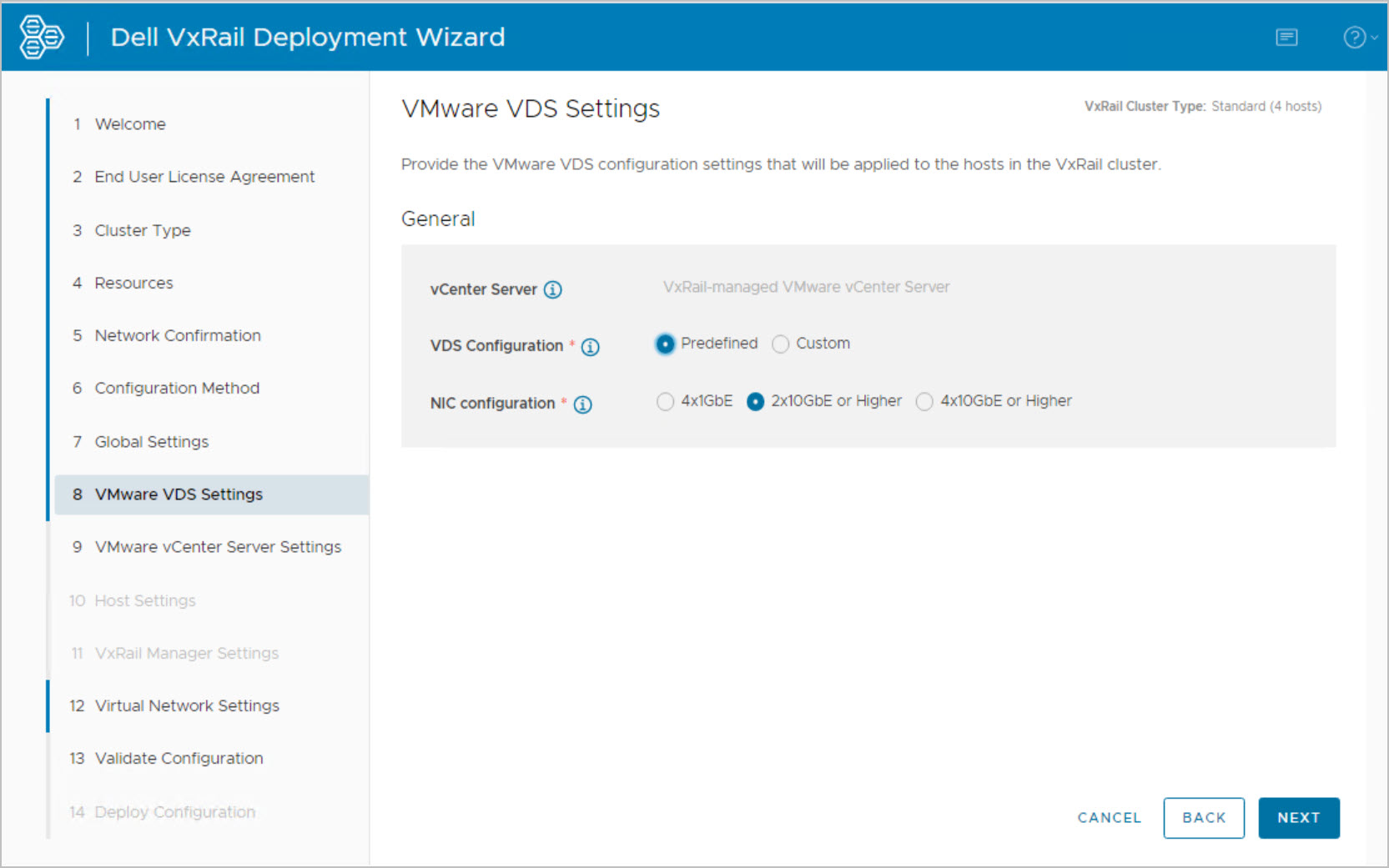
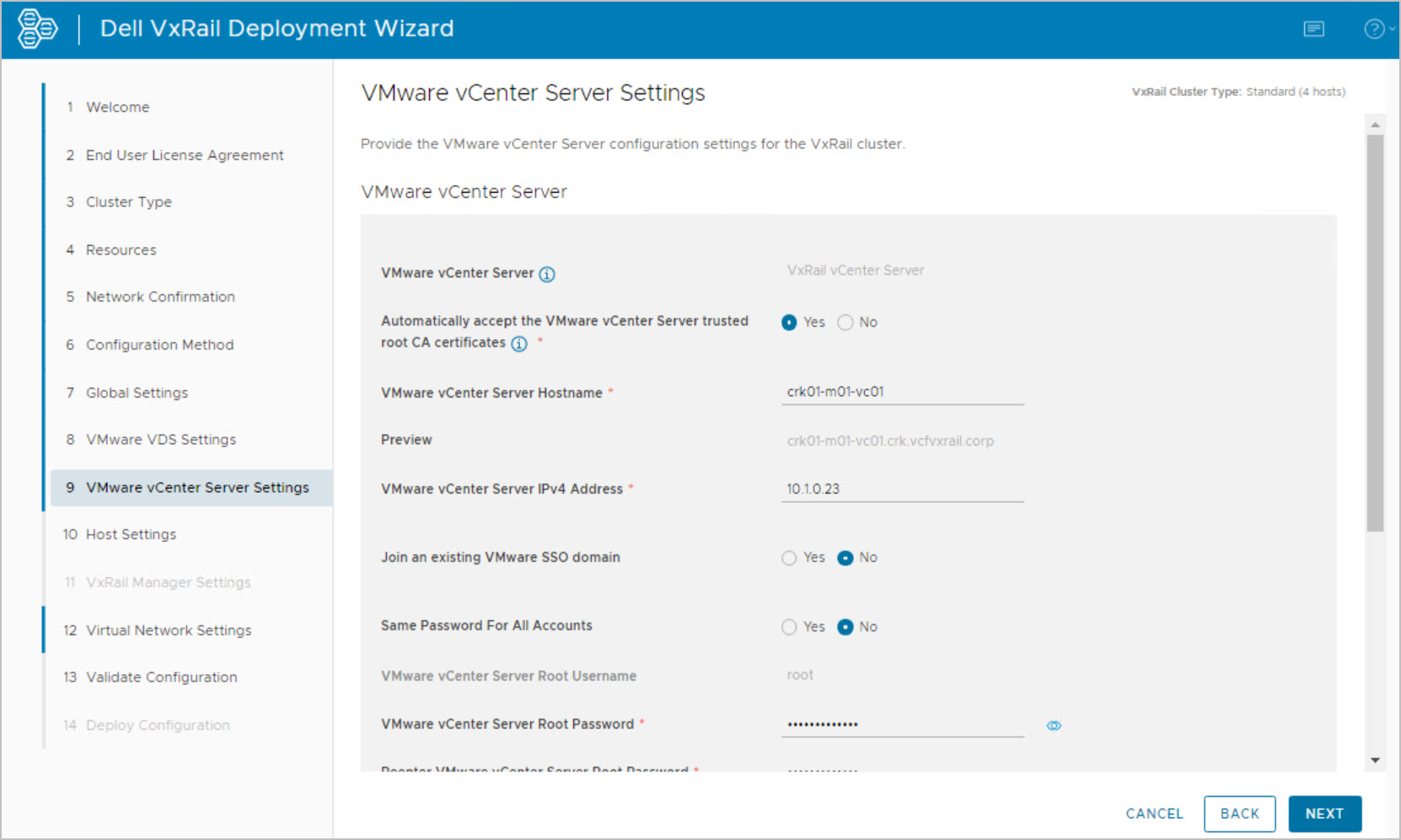
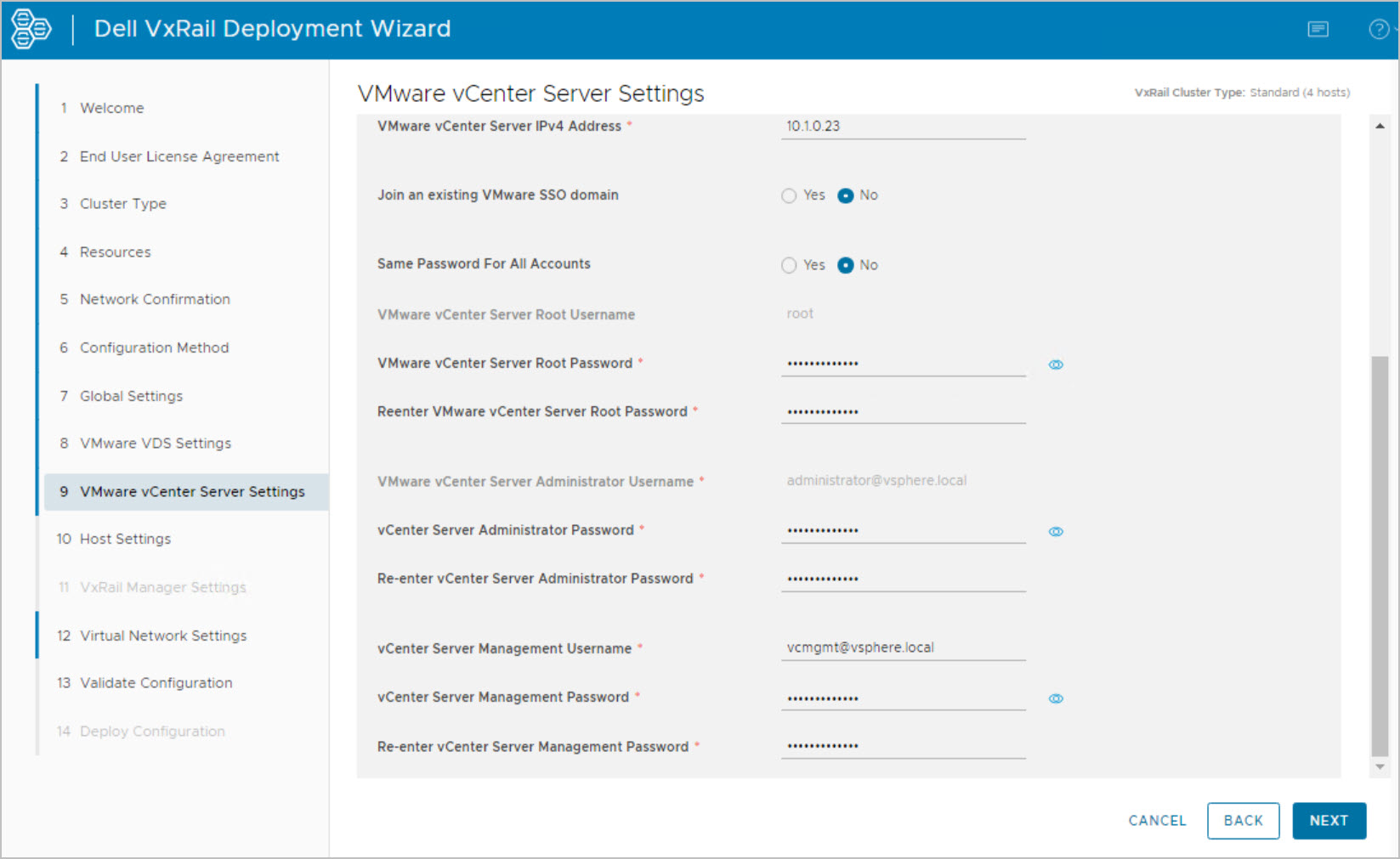






 DavidRing.ie