VCF
VCF 3.x On VxRail – Update/Rotate Passwords
SDDC Manager provides a centralized mechanism for password management from within the manager UI. As of code releases VxRail 4.7.410 & VCF 3.9.1; SDDC Manager now includes the ability to […]
Virtualization & Storage

SDDC Manager provides a centralized mechanism for password management from within the manager UI. As of code releases VxRail 4.7.410 & VCF 3.9.1; SDDC Manager now includes the ability to […]
SDDC Manager provides a centralized mechanism for password management from within the manager UI. As of code releases VxRail 4.7.410 & VCF 3.9.1; SDDC Manager now includes the ability to manage VxRail Manager root/mystic and ESXi root a/c passwords.
Before you can leverage the password update/rotate feature of SDDC Manager you first need to have configured dual authentication. Please see the following post explaining how to configure dual authentication(“privileged user”): VCF On VxRail – Configure Dual Authentication
You can update or rotate the following VCF components which also now includes VxRail Manager root & mystic accounts and ESXi root account (as of ‘VCF 3.9.1’) :
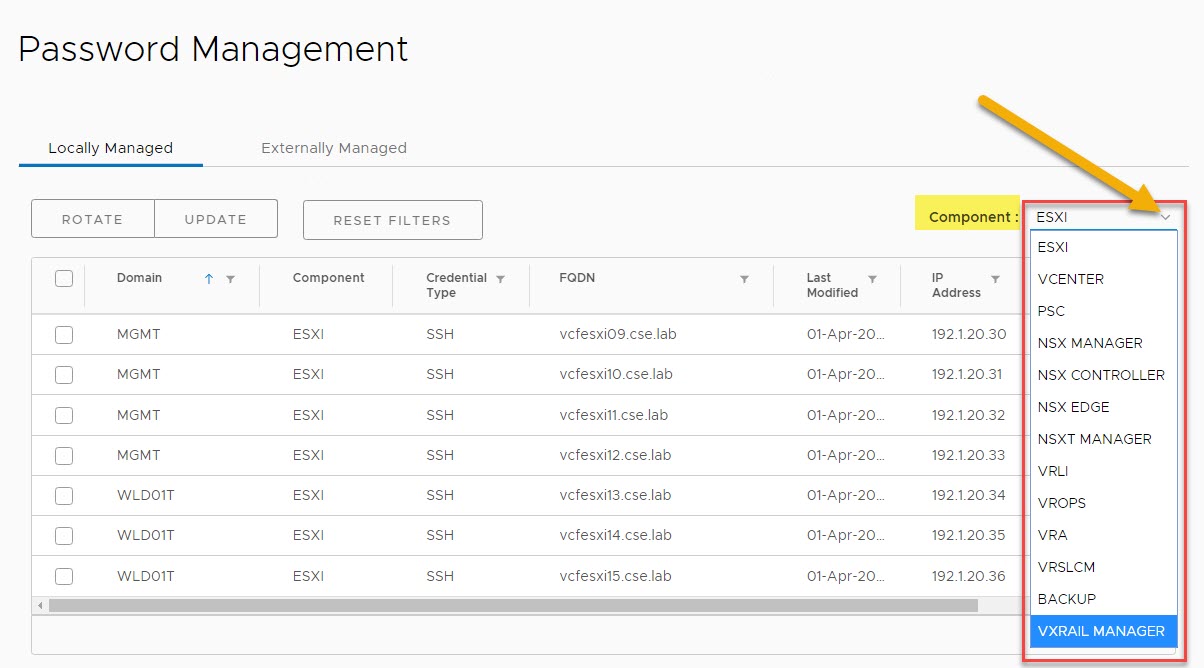
Below you will find examples of both methods rotate/update passwords, note the differences between rotate/update:
Update Passwords – Set password of choice for a single account per request.
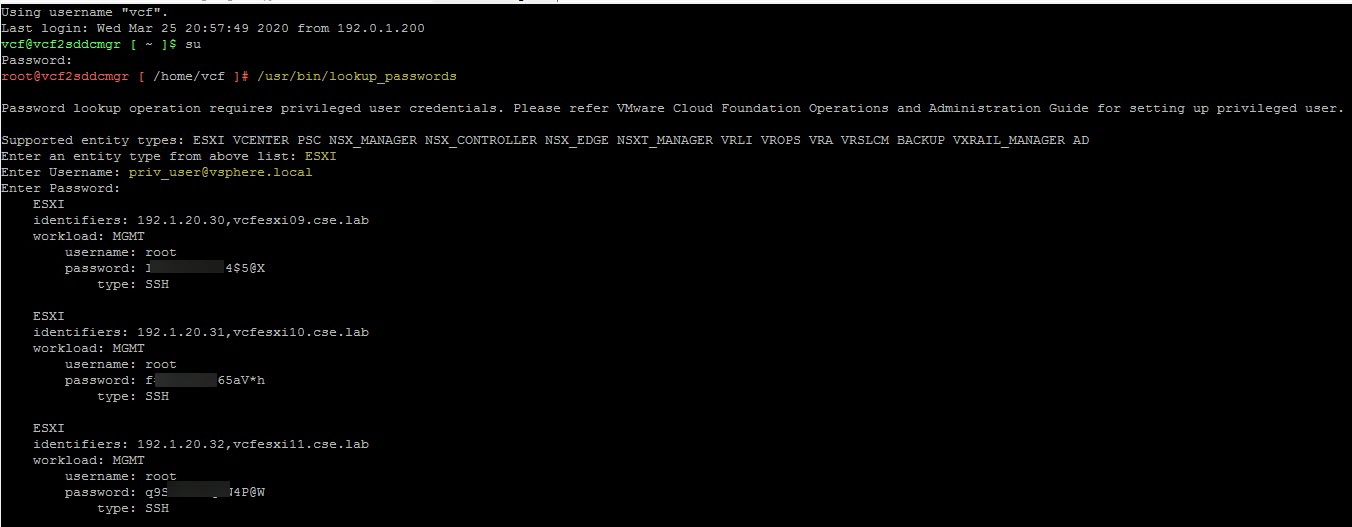
Rotate Passwords – Password(s) are changed with a unique randomized password, multiple accounts can be rotated in a single request. Leverage the lookup_passwords utility within the SDDC Manager shell to retrieve the randomize password(s), as you will see in the example below.
From within the SDDC Manager UI navigate to:
Administration-> Security-> Password Management-> Locally Managed
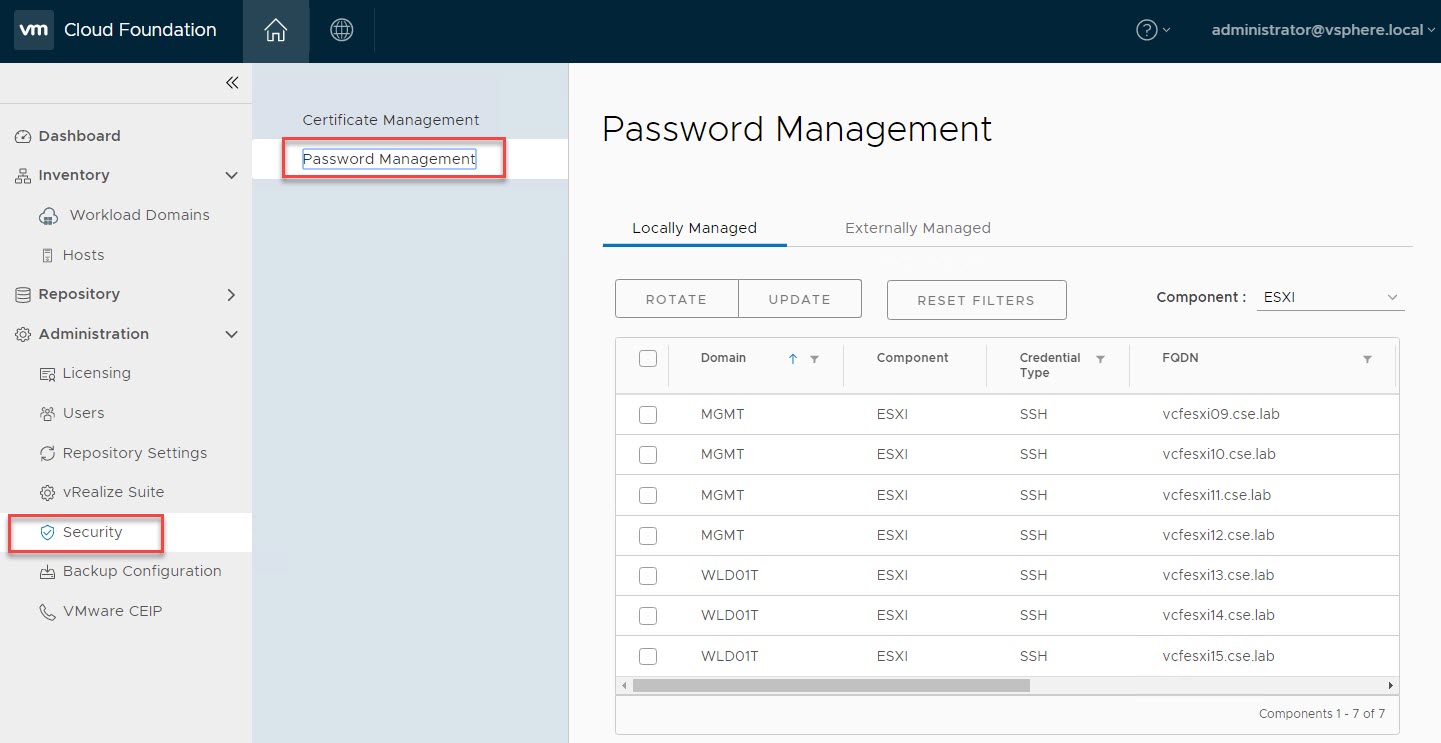
From the component drop down list select the component, in this example the ‘root’ account of all 7 available hosts spanning both the Management & VI WLDs are selected for password rotation. Click ‘ROTATE’:

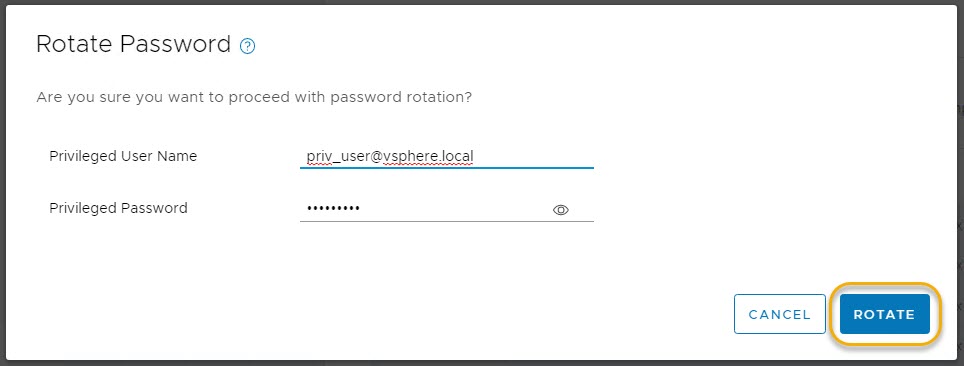
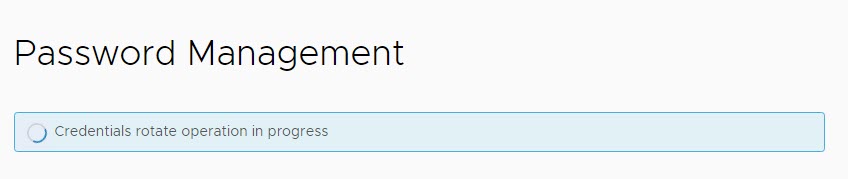
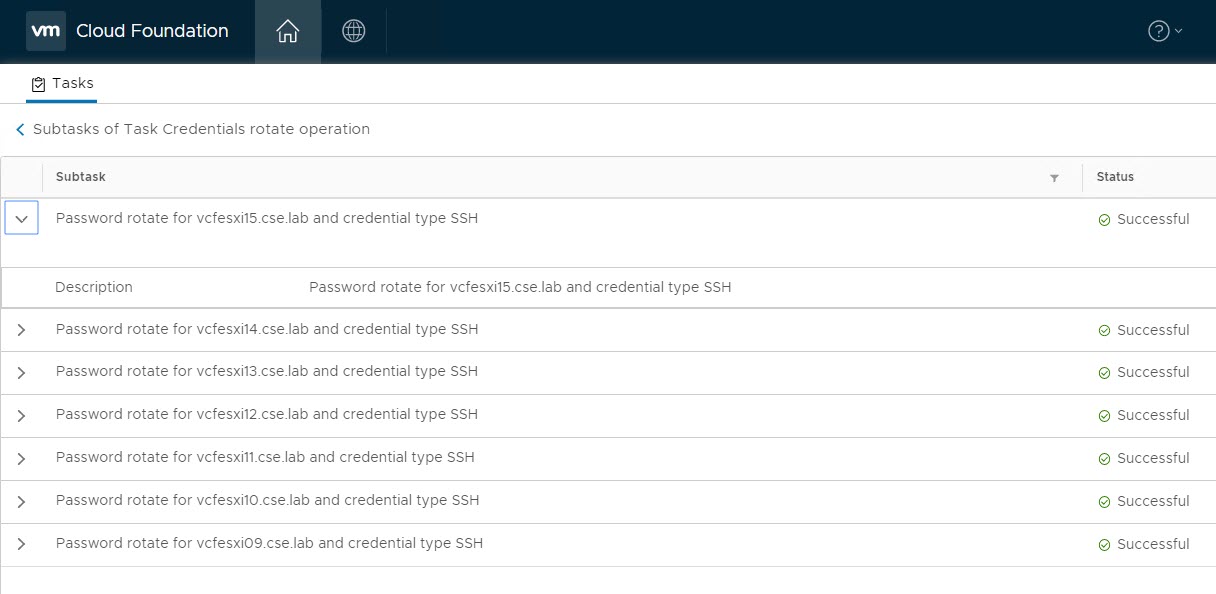
View task details to ensure the passwords rotated successfully:
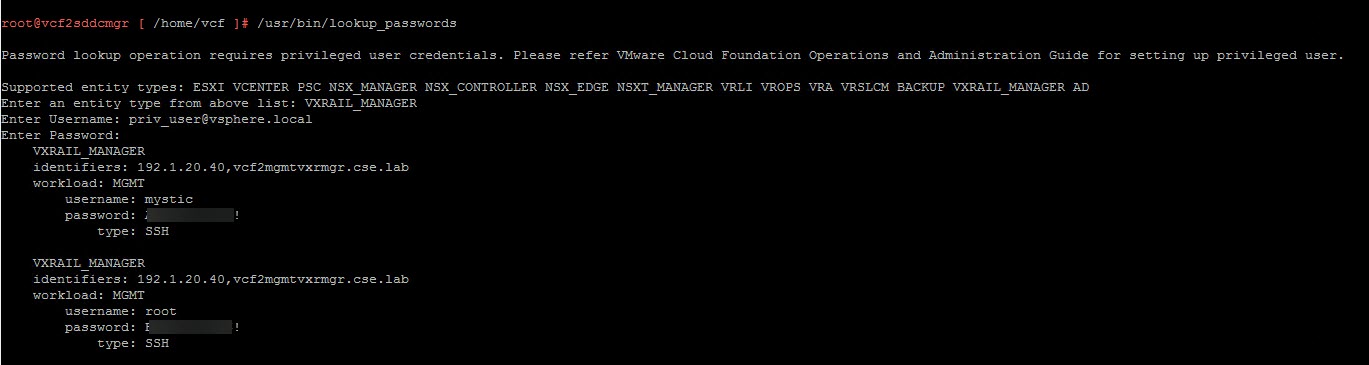
Retrieving the new ESXi root password leveraging the lookup_passwords utility:
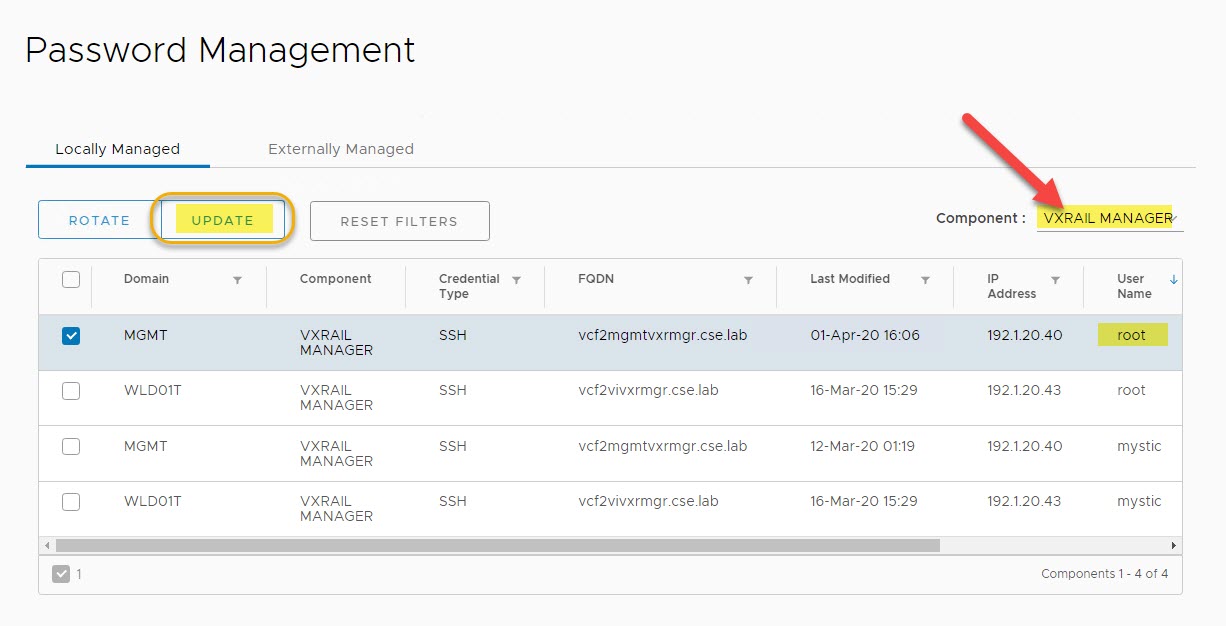
From the component drop down list select the component, in this example the ‘root’ account of the Management WLD VxRail Manager. Click ‘UPDATE’:
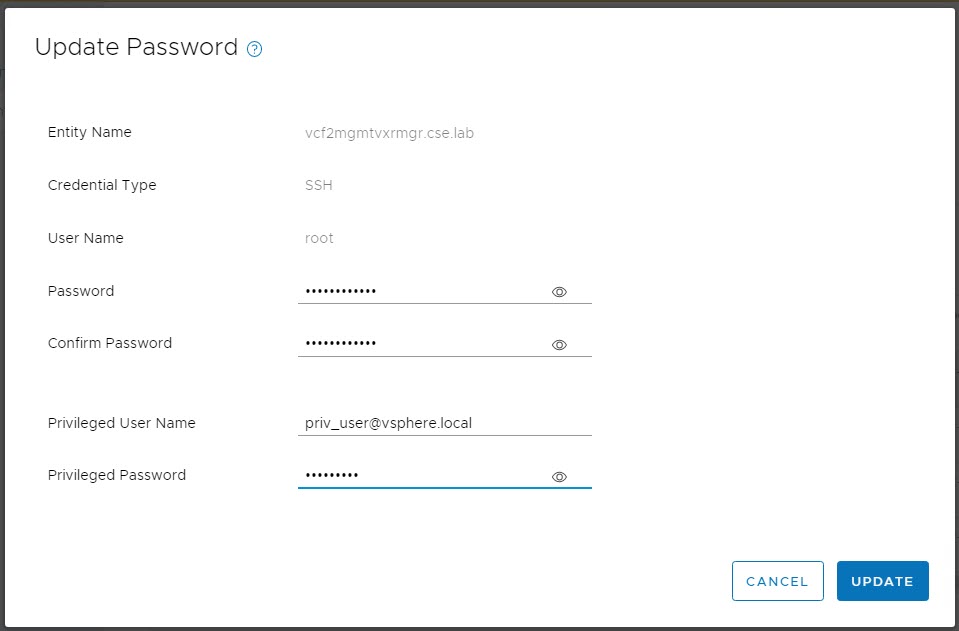
Enter the new root account password for VxRail Manager and input the privileged user details. Click ‘UPDATE’:
View task details to ensure the password updated successfully:

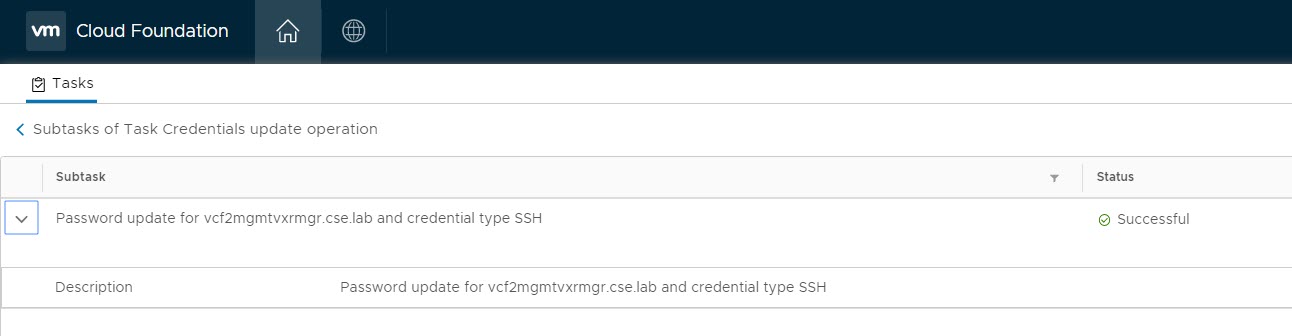
Confirm the new VxRail Manager root password leveraging the lookup_passwords utility:
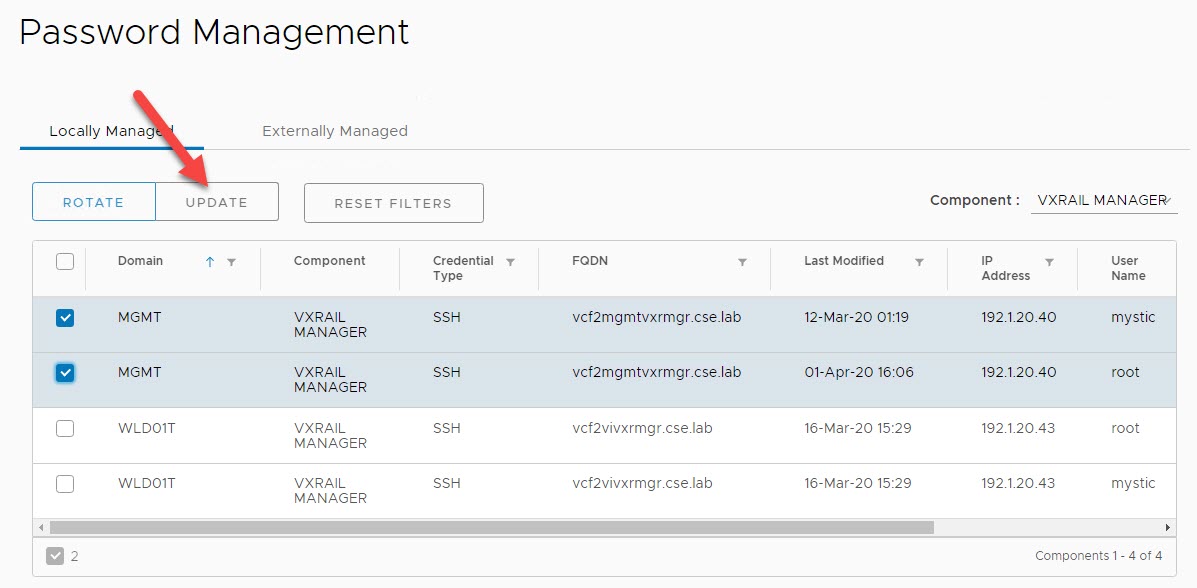
You will notice if you try to select multiple accounts the ‘UPDATE’ option is grayed out:
Hope that helped! Thanks as always for reading! Feel free to leave a comment/question below.
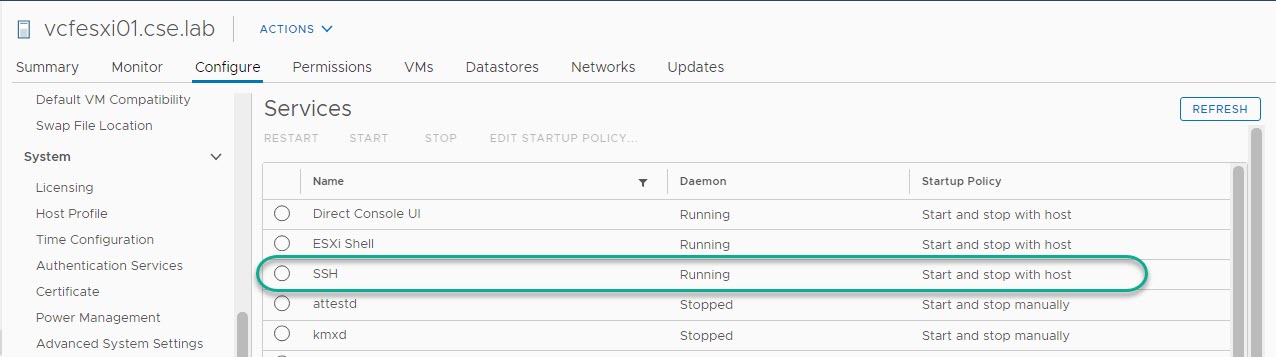
Note: Please ensure SSH is running on ESXi host(s) in advance of performing password update/rotate.



 DavidRing.ie