EMC VNX – List of Useful NAS Commands

Verify ‘NAS’ Services are running:
Login to the Control Station as ‘nasadmin’ and issue the cmd /nas/sbin/getreason from the CS console. The reason code output should be as follows (see detailed list of Reason Codes below):
10 - slot_0 primary control station
11 - slot_1 secondary control station
5 - slot_2 contacted
5 - slot_3 contacted

Complete a full ‘Health Check’:
/nas/bin/nas_checkup
Location of output:
#check Log:# cd /nas/log/
ls
cat /nas/log/checkup-rundate.log

Confirm the EMC NAS version installed and the model name:
/nasmcd/bin/nas_version
/nas/sbin/model

Stop ‘NAS’ Services:
/sbin/service nas stop
Start ‘NAS’ Services:
/sbin/service nas start

Check running status of the ‘DATA Movers’ and view which slot is active/standby:
nas_server -info -all

Verify connectivity to the VNX storage processors (SPs) from the Control Stations:
/nas/sbin/navicli -h SPA_IP domain -list
/nas/sbin/navicli -h SPB_IP domain -list

Confirm the VMAX/VNX is connected to the NAS:
nas_storage -check -all
nas_storage -list

View VNX NAS Control LUN Storage Group details:
/nas/sbin/navicli -h SP_IP storagegroup -list -gname ~filestorage

List the disk table to ensure all of the Control Volumes have been presented to both Data Movers:
nas_disk -list

Check the File Systems:
df -h

server_sysconfig server_2 -virtual
/nas/bin/nas_storage –info –all

View trunking devices created (LACP,Ethc,FSN):
server_sysconfig server_2 -virtual
Example view interface name “LACP_NAS”:
server_sysconfig server_2 -virtual -info LACP_NAS
server_2 :
*** Trunk LACP_NAS: Link is Up ***
*** Trunk LACP_NAS: Timeout is Short ***
*** Trunk LACP_NAS: Statistical Load Balancing is IP ***
Device Local Grp Remote Grp Link LACP Duplex Speed
------------------------------------------------------------------------
fxg-1-0 10002 51840 Up Up Full 10000 Mbs
fxg-1-1 10002 51840 Up Up Full 10000 Mbs
fxg-2-1 10002 51840 Up Up Full 10000 Mbs
fxg-2-0 10002 51840 Up Up Full 10000 Mbs

Check Code Levels:
List the datamovers: nas_server -list
Check the DART code installed on the Data Movers: server_version ALL
Check the NAS code installed on the Control Station: nas_version

View Network Configuration:
To display parameters of all interfaces on a Data Mover, type:
Control Station: /sbin/ifconfig (eth3 is the mgmt interface)
Data Movers: server_ifconfig server_2 -all
cat ifcfg-eth3

View VNX SP IP Addresses from the CS console:
grep SP /etc/hosts | grep A_
grep SP /etc/hosts | grep B_

Verify Control Station Comms:
/nas/sbin/setup_enclosure -checkSystem

Confirm the unified FLAG is set:
/nas/sbin/nas_hw_upgrade -fc_option -enable

Date & Time:
Control Station: date
Data Movers: server_date ALL

Check IP & DNS info on the CS/DM:
nas_cs -info
server_dns ALL

Log Files:
Log file location: /var/log/messages
Example of NAS services starting successfully:
grep -A10 “Starting NAS services” /var/log/messages*
Output:
Dec 8 19:07:27 emcnas_i0 S95nas: Starting NAS services
Dec 8 19:07:46 emcnas_i0 EMCServer: nas_mcd: MCD will monitor CS IPMI connection.
Dec 8 19:08:46 emcnas_i0 EMCServer: nas_mcd: slot 0 missed 10 heartbeats from slot 1.
Dec 8 19:08:50 emcnas_i0 EMCServer: nas_mcd: Install Manager is running on slot 0, skipping slot 1 reboot
Dec 8 19:08:50 emcnas_i0 EMCServer: nas_mcd: Slot 0 becomes primary due to timeout
Dec 8 19:08:52 emcnas_i0 mcd_helper: All NBS devices are up
Dec 8 19:09:08 emcnas_i0 kernel: kjournald starting. Commit interval 5 seconds

Check the Data Mover Logs:
server_log server_2

Failing over a Control Station:
Failover:
/nas/sbin/./cs_standby -failover
Takeover:
/nasmcd/sbin/./cs_standby -takeover
Or reboot:
nas_cs –reboot

Shutdown control station:
/sbin/shutdown -h now

Power off CS1 from CS0:
/nas/sbin/t2reset pwroff -s 1

List on which VMAX3 directors each CS and DM are located:
nas_inventory -list

List Datmover PARAMETERS:
/nas/bin/server_param server_2 -info
/nas/bin/server_param server_3 -info
/nas/bin/server_param server_2 -facility -all -list
/nas/bin/server_param server_3 -facility -all -list

Determine the failover status of the Blades (Datamovers):
/nas/bin/nas_server -info –all

Initiate a manual failover of server_2 to the standby Datamover:
server_standby server_2 -activate mover

List the status of the Datamovers:
nas_server -list

Review the information for server_2:
nas_server -info server_2
All DMs: nas_server -info ALL

Shutdown Datamover (Xblade):
/nas/bin/server_cpu server_2 -halt now

Power on the Datamover (Xblade):
/nasmcd/sbin/t2reset pwron -s 2

Restore the original primary Datamover:
server_standby server_2 -restore mover

To monitor an immediate cold restart of server_2:
server_cpu server_2 -reboot cold -monitor now
A cold reboot or a hardware reset shuts down the Data Mover completely before restarting, including a Power on Self Test (POST).

To monitor an immediate warm restart of server_2:
server_cpu server_2 -reboot -monitor now
A warm reboot or a software reset performs a partial shutdown of the Data Mover, and skips the POST after restarting. A software reset is faster than the hardware reset.

Clean Shutdown:
Shutdown Control Stations and DATAMovers:
/nasmcd/sbin/nas_halt -f now
finished when:exited on signal IS APPEARS

Powerdown Entire VNX Including Storage Processors:
nas_halt –f –sp now

Check if Product Serial Number is Correct:
/nasmcd/sbin/serial -db_check
Remove inconsistency between the db file and the enclosures:
/nasmcd/sbin/serial -repair

List All Hardware components by location:
nas_inventory -list -location
nas_inventory -list -location | grep “DME 0 Data Mover 2 IO Module”

Use location address to view specific component details:
nas_inventory -info “system:VNX5600:CKM001510001932007|enclosure:xpe:0|mover:VNX5600:2|iomodule::1”

List of Reason Codes:
0 – Reset (or unknown state)
1 – DOS boot phase, BIOS check, boot sequence
2 – SIB POST failures (that is, hardware failures)
3 – DART is loaded on Data Mover, DOS boot and execution of boot.bat, boot.cfg.
4 – DART is ready on Data Mover, running, and MAC threads started.
5 – DART is in contact with Control Station box monitor.
6 – Control Station is ready, but is not running NAS service.
7 – DART is in panic state.
9 – DART reboot is pending or in halted state.
10 – Primary Control Station reason code
11 – Secondary Control Station reason code
13 – DART panicked and completed memory dump (single Data Mover configurations only, same as code 7, but done with dump)
14 – This reason code can be set for the Blade for any of the following:
• Data Mover enclosure-ID was not found at boot time
• Data Mover’s local network interface MAC address is different from MAC address in configuration file
• Data Mover’s serial number is different from serial number in configuration file
• Data Mover was PXE booted with install configuration
• SLIC IO Module configuration mismatch (Foxglove systems)
15 – Data Mover is flashing firmware. DART is flashing BIOS and/or POST firmware. Data Mover cannot be reset.
17 – Data Mover Hardware fault detected
18 – DM Memory Test Failure. BIOS detected memory error
19 – DM POST Test Failure. General POST error
20 – DM POST NVRAM test failure. Invalid NVRAM content error (checksum, WWN, etc.)
21 – DM POST invalid peer Data Mover type
22 – DM POST invalid Data Mover part number
23 – DM POST Fibre Channel test failure. Error in blade Fibre connection (controller, Fibre discovery, etc.)
24 – DM POST network test failure. Error in Ethernet controller
25 – DM T2NET Error. Unable to get blade reason code due to management switch problems.

VMware PowerCLI – MS Windows Guest VM ‘IP&DNS’ Modification

The following script allows the user to modify an MS Windows Guest VM IP and DNS configuration. You may download the ‘IP&DNS_Modification.ps1‘ script HERE (Remove the .doc extension).

Begin by entering the ESXi/Vcenter Host IP Address, username and password:
PCLI_IP&DNS_Mod1

A list of all VM’s residing in ESXi/Vcenter will be returned, followed by a prompt to enter the VM name you wish to modify. Once the VM name is entered a list of all the MS Windows Ethernet interfaces and their respective configurations shall be returned:
PCLI_IP&DNS_Mod3

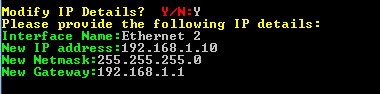
Provide the required IP configuration updates for the interface specified (‘Ethernet 2’ in this example):
PCLI_IP&DNS_Mod5

Specify whether you wish to modify the DNS entries:
PCLI_IP&DNS_Mod7

The script utilizes the Invoke-VMScript option to run Windows ‘Netsh’ commands on the network interface (Modify the script with your Windows username and password). These are the results as per the example given, along with the option to repeat the same process for another Windows Guest VM:
PCLI_IP&DNS_Mod9

SCRIPT IN FULL:


##########################################################
#
# Reference: MS Windows Guest IP Modification
# Script: PowerCLI IP&DNS Modification
#
# Date: 2015-04-21
#
# Version 1.0
#
##########################################################

Write-Host "Please enter the ESXi/Vcenter Host IP Address:" -ForegroundColor Yellow -NoNewline
$VMHost = Read-Host

Write-Host "Please enter the ESXi/Vcenter Username:" -ForegroundColor Yellow -NoNewline
$User = Read-Host

Write-Host "Please enter the ESXi/Vcenter Password:" -ForegroundColor Yellow -NoNewline
$Pass = Read-Host

Connect-VIServer -Server $VMHost -User $User -Password $Pass

do {
#Return list of VM's
Get-VM | select name

#Prompt for VM name
Write-Host "Please enter the VM Name that requires IP modification:" -ForegroundColor Yellow -NoNewline
$VM = Read-Host

Write-Host "The current VM Network Configuration:" -ForegroundColor Yellow
#Display Existing NIC Configuration
$shownet = "netsh interface ip show config"
Invoke-VMScript -ScriptText $shownet -VM $vm -GuestUser administrator -GuestPassword MSPassword -ScriptType Bat

################################
# Modify IP Configuration? y/n #
################################

Write-Host "Modify IP Details? " -ForegroundColor Yellow -NoNewline
Write-Host " Y/N:" -ForegroundColor Red -NoNewline
$IPChange = Read-Host

if ($IPChange -eq "y") {
Write-Host "Please provide the following IP details:" -ForegroundColor Yellow
#Prompt for IP Updates:
Write-Host "Interface Name:" -ForegroundColor Green -NoNewline
$NIC = Read-Host
Write-Host "New IP address:" -ForegroundColor Green -NoNewline
$IP = Read-Host
Write-Host "New Netmask:" -ForegroundColor Green -NoNewline
$NETMASK = Read-Host
Write-Host "New Gateway:" -ForegroundColor Green -NoNewline
$Gateway = Read-Host

#Invoke Windows netsh Script
$script = "netsh interface ip set address ""$NIC"" static $IP $NETMASK $Gateway"
Invoke-VMScript -ScriptText $script -VM $vm -GuestUser administrator -GuestPassword MSPassword -ScriptType Bat
}

#################################
# Modify DNS Configuration? y/n #
#################################
Write-Host "Modify DNS Details? " -ForegroundColor Yellow -NoNewline
Write-Host " Y/N:" -ForegroundColor Red -NoNewline
$DNSChange = Read-Host

if ($DNSChange -eq "y") {
#Prompt for Primary DNS IP:
Write-Host "Enter Primary DNS IP:" -ForegroundColor Green -NoNewline
$DNS1 = Read-Host
Write-Host "Enter Secondary DNS IP:" -ForegroundColor Green -NoNewline
$DNS2 = Read-Host

$DNSPrimary = "netsh interface ip set dnsservers name=""$NIC"" static $DNS1"
Invoke-VMScript -ScriptText $DNSPrimary -VM $vm -GuestUser administrator -GuestPassword MSPassword -ScriptType Bat

$DNSSecondary = "netsh interface ip add dnsservers name=""$NIC"" $DNS2 index=2"
Invoke-VMScript -ScriptText $DNSSecondary -VM $vm -GuestUser administrator -GuestPassword MSPassword -ScriptType Bat

}

# Display Network Configuration #
Invoke-VMScript -ScriptText $shownet -VM $vm -GuestUser administrator -GuestPassword MSPassword -ScriptType Bat

Write-Host "Change IP Configuration for another WINDOWS Guest VM? " -ForegroundColor Yellow -NoNewline
Write-Host " Y/N:" -ForegroundColor Red -NoNewline
$response = Read-Host
}
while ($response -eq "Y")

Thanks @CliffCahill and ‘Mike Leahy’ for your input, as always greatly appreciated!

CISCO UCS – Rebooting Fabric Interconnect(s)

Begin by connecting to the cluster IP over SSH and checking which FI is Primary/Subordinate:

FI-A# show cluster state
A: UP, PRIMARY
B: UP, SUBORDINATE

Note: show cluster extended-state will provide more detailed information.

Having confirmed the ‘B’ fabric switch is the subordinate connect to FI-B mgmt cli interface:

FI-A# connect local-mgmt B

From FI-B local-mgmt interface issue the reboot command:

FI-B(local-mgmt)# reboot
Before rebooting, please take a configuration backup.
Do you still want to reboot? (yes/no):yes

Run the ‘cluster state’ command again to check on the status of FI-B:

FI-A(local-mgmt)# show cluster state
A: UP, PRIMARY
B: DOWN, INAPPLICABLE
HA NOT READY
Peer Fabric Interconnect is down

Once the cluster enters a HA READY status, make FI-B the Primary switch in order to reboot FI-A:

FI-A(local-mgmt)# cluster lead b

Note: After initiating a fail over the SSH session will disconnect, re-connect to the cluster and confirm cluster state.

Connect to local mgmt ‘a’ and reboot FI-A:

FI-B# connect local-mgmt a
FI-A(local-mgmt)# reboot
Before rebooting, please take a configuration backup.
Do you still want to reboot? (yes/no):yes

Confirm HA READY status before setting FI-A back to PRIMARY:

FI-B# show cluster state
B: UP, PRIMARY
A: UP, SUBORDINATE
HA READY

Set FI-A as PRIMARY, this will need to be set from current PRIMARY FI-B mgmt interface:

FI-B# connect local-mgmt b
FI-B(local-mgmt)# cluster lead a

EMC XtremIO – VMware VMFS LUN Expansion

In this post I will detail how to increase an XtremIO volume and extend the associated VMware VMFS volume.

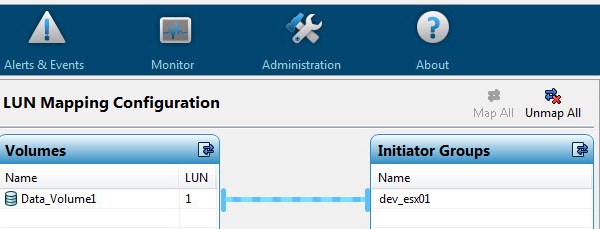
As can be seen form the XtremIO management interface the existing size of this XtremIO volume is 1TB:
XtremIO_EXP1

By right clicking the volume you are presented with an option to “Modify Volume”:
XtremIO_EXP4

The existing Xtremio and VMFS volume size is 1TB, this example will demonstrate increasing the volume size to 2TB:
XtremIO_EXP5

Note: you may also use the cli option for increasing an XtremIO LUN:
modify-volume vol-id="Data_VOLUME1" vol-size="2000G"

Login to Vcenter chose a host where the XtremIO volume is presented, under ‘Hardware’ navigate to ‘Storage’ and click on the ‘Configuration’ tab, from here chose the option to ‘Rescan All’ this will scan the host bus for newly assigned storage:
XtremIO_EXP3
XtremIO_EXP6

Once the rescan completes enter the volume properties, from here the additional 1TB of space will be visible under ‘Extents’, chose the option to ‘Increase’:
XtremIO_EXP7

Select the XtremIO volume and hit next:
XtremIO_EXP8

The next window will provide the breakdown of the existing volume and the available free space by which we can increase the volume:
XtremIO_EXP9

Chose ‘Maximum available size’ which is 1TB in this example:
XtremIO_EXP10

Click ‘Finish’:
XtremIO_EXP11

The ‘Data_Volume1’ VMFS datastore has been successfully increased by 1TB of XtremIO storage:
XtremIO_EXP12