EMC VMAX³ – Front-End FC WWPN’s & Zoning Considerations

Please begin by downloading the attached PDF here.

As you can see this is a fully compiled listing of all 256 possible FC WWPN’s available on a VMAX³ system. A 100K system can cater for a maximum of 64 FC Front-end connections, a 200K has a possible 128 ports, while the flagship 400K can have up to 256 FC Front-end connections.

VMAX3-WWN0

VMAX3-WWN-Decode1-a

Note: for demonstration purposes I am using X’s and a ? to explain the unique identifiers of a VMAX³ system. Please refer to the .pdf listing to help understand the concept.

X:XX:XX:X = System-wide Unique ID – as you will see from the provided WWPN listing this value is the unique identifier per VMAX³ system (a follow-on post focusing on decoding VMAX³ WWN’s shall explain this further). On a per VMAX³ system the X:XX:XX:X value will remain the same for all FC WWPN’s associated with that VMAX³ system.

There is a notable change from the previous VMAX usage of WWPN’s; there is now a unique identifier labeled as ? this uniquely identifies a pair of engines:

? = Unique ID For Engines 1&2 | 3&4 | 4&6 | 7&8

On previous VMAX generations all the X’s and ? were consistent across all FC Port WWPN’s with only the last 2 hex values of a WWPN acting as the unique port identifier, with the VMAX³ the unique port identifier is now the last three hex values. With VMAX³ the key point to note is the ? value remains the same throughout directors 1-4 then increments by one hex value for the next four directors, for example if C:04 is the unique ID for Director1 Port4 then for Director5 Port4 the C changes to D and remains at this value for directors 5-8 etc; so given this information and referring to the list provided:

Director1 Port4 has a value of 50:00:09:75:58:01:EC:04
Director5 Port4 has a value of 50:00:09:75:58:01:ED:04
Director9 Port4 has a value of 50:00:09:75:58:01:EE:04
Director13 Port4 has a value of 50:00:09:75:58:01:EF:04

There are two choices of FC Font-end I/O Modules to choose from:
• 8 Gbps four-port FC-module (Glacier) Non-Bifurcated, operational at speeds of 2/4/8Gbps, Populated left to right (Slots 2,3,8,9).
• 16 Gbps four-port FC-module(Rainfall) Bifurcated(meaning that the 8 lanes of PCIe are split into 2 connections of 4 lanes each), operational at speeds of 4/8/16Gbps, Populated right to left (Slots 9,8,3,2).
VMAX3 uses PCIe 3.0 thus allowing for maximum available port speeds.

Dual Fabric:One approach for cabling is to connect Even director ports to Fabric-A & Odd director ports connect to Fabric-B. Engine-1 Example:
VMAX3-WWN3
When using this approach in a single engine system the I/O ports from each director evenly span both SAN fabrics.

HOST or Cluster FA Port Usage: in order to ensure a balanced approach is maintained, connect a Host or cluster to 2xDirectors in a Single Engine system or 4xDirectors in a VMAX with greater than 1xEngine.
Single Engine example:Zoning a Host evenly across 2 directors and across both fabrics using ports 1D:4, 1D:31, 2D:28 & 2D:7:

VMAX3-WWN4

Two Engine example: Zoning a Host or Cluster evenly across 4 directors and across both fabrics using ports 1D:4, 2D:31, 3D:28 & 4D:7, this will spread load for performance and ensure fabric redundancy :

VMAX3-WWN5

These examples are a guideline for evenly balancing port utilization across all available director ports. See below for additional reading.

VMAX³ ACLX GK: The first physical FA port on the array will have the show ACLX flag set; thus any host attached to that port will be shown the ACLX device as LUN 000.

Hopefully these considerations and lists may assist you with planning (or automating) your zoning scripts for VMAX³ systems.

SYMCLI List all FA WWN’s: symcfg -sid xxx list -fa all -port -detail

Useful References:
VMAX3 Family New Features – A Detailed Review of Open Systems White Paper
http://www.emc.com/collateral/technical-documentation/h13578-vmax3-family-new-features-wp.pdf

VMAX3 Reliability, Availability, and Serviceability Tech Notes
http://www.emc.com/collateral/technical-documentation/h13807-emc-vmax3-reliability-availability-and-serviceability-tech-note.pdf

Cisco Nexus 5K – Unified Port Conversion

Nexus 5000 series UP switches have the option of either enabling individual ports as Ethernet or Fibre Channel ports. One of the strict guidelines is to begin enabling ethernet ports at the first port 1/1 and in the case of Fiber Channel begin at the last port of the module and work backwards. If this rule is not followed you will receive the following error(s):

ERROR: Ethernet range starts from first port of the module
ERROR: FC range should end on last port of the module

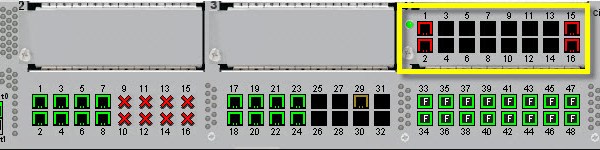
For this example we will configure Slot-4 on a 5596-UP switch; enabling all 16 ports on the modules for fibre channel connectivity. Here is the view of the switch prior to converting the ports to FC:

Blog_N5K_PortConversion0

As you can see the first Slot has 48 unified ports and we have added an additional unified module to Slot-4. Following the unified port guidelines we would start assigning FC ports at 1/48 for Slot-1 and 4/16 for Slot-4 (As per this example). With a 5596-UP switch the first Slot has 32 unified ports built in, with the option of adding an additional module to Slot-2, again following the guidelines for a 5548-UP switch the Ethernet ports begin at 1/1, FC at 1/32 and for Slot-2 Ethernet allocation begins at 2/1 and FC at 2/16.

Converting the entire Slot-4 module to FC:

switch# Show interface brief

Eth4/1 1 eth access down SFP validation failed 10G(D) —
Eth4/2 1 eth access down SFP validation failed 10G(D) —
Eth4/3 1 eth access down SFP not inserted 10G(D) —
Eth4/4 1 eth access down SFP not inserted 10G(D) —
Eth4/5 1 eth access down SFP not inserted 10G(D) —
Eth4/6 1 eth access down SFP not inserted 10G(D) —
Eth4/7 1 eth access down SFP not inserted 10G(D) —
Eth4/8 1 eth access down SFP not inserted 10G(D) —
Eth4/9 1 eth access down SFP not inserted 10G(D) —
Eth4/10 1 eth access down SFP not inserted 10G(D) —
Eth4/11 1 eth access down SFP not inserted 10G(D) —
Eth4/12 1 eth access down SFP not inserted 10G(D) —
Eth4/13 1 eth access down SFP not inserted 10G(D) —
Eth4/14 1 eth access down SFP not inserted 10G(D) —
Eth4/15 1 eth access down SFP validation failed 10G(D) —
Eth4/16 1 eth access down SFP validation failed 10G(D) —

Enter global config mode:
switch# configure terminal

Jump on Slot-4:
switch(config)# slot 4

Configure all 16 Ports on the unified module as a native Fibre Channel port:
switch(config-slot)# port 1-16 type fc

Save config:
switch(config-slot)# copy running-config startup-config

Important point to note here is that a full reload is not required when converting a port on an expansion module(GEM), you just need to simply power cycle the GEM card (In the case of converting a port on the main slot-1 then a full reload of the switch is required.):
switch(config-slot)# poweroff module 4
switch(config-slot)# no poweroff module 4

View the port configuration after power cycle of Slot-4:
switch# show interface brief

fc4/1 1 auto on up swl F 8 —
fc4/2 1 auto on up swl F 8 —
fc4/3 1 auto on sfpAbsent — — —
fc4/4 1 auto on sfpAbsent — — —
fc4/5 1 auto on sfpAbsent — — —
fc4/6 1 auto on sfpAbsent — — —
fc4/7 1 auto on sfpAbsent — — —
fc4/8 1 auto on sfpAbsent — — —
fc4/9 1 auto on sfpAbsent — — —
fc4/10 1 auto on sfpAbsent — — —
fc4/11 1 auto on sfpAbsent — — —
fc4/12 1 auto on sfpAbsent — — —
fc4/13 1 auto on sfpAbsent — — —
fc4/14 1 auto on sfpAbsent — — —
fc4/15 1 auto on down swl — —
fc4/16 1 auto on down swl — —

Blog_N5K_PortConversion1

Note: after issuing a conversion to FC on the switch you have 120 days to acquire a permanent license:
switch# show license usage

Feature Ins Lic Status Expiry Date Comments
Count
——————————————————————————–
FCOE_NPV_PKG No – Unused –
FM_SERVER_PKG No – Unused –
ENTERPRISE_PKG No – In use Grace 119D 20H
FC_FEATURES_PKG No – In use Grace 119D 20H
VMFEX_FEATURE_PKG No – Unused –
ENHANCED_LAYER2_PKG No – Unused –
LAN_BASE_SERVICES_PKG No – Unused –
LAN_ENTERPRISE_SERVICES_PKG No – Unused –
——————————————————————————–

EMC VNXe – Code Upgrade

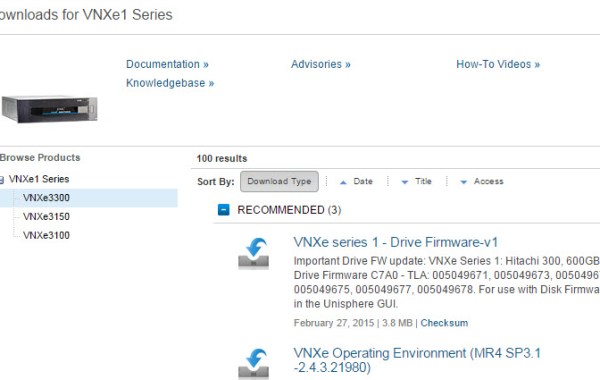
Before proceeding with any upgrade of code on the VNXe please reference the target code release notes on https://support.emc.com/. The VNXe landing page: http://emc.com/vnxesupport will provide you with all the relevant material and downloads for your upgrade.
VNXe_Code1

Code Upgrade Via UEMCLI
It is important there are no configurations on the VNXe taking place while an upgrade is in progress either through Unisphere or UEMCLI. For details around NDU or otherwise please ensure you reference the software candidate release notes. For single SP VNXe3100/3150 systems the array will be inaccessible during the system restart so best to plan to upgrade during a maintenance window.

1. Check the current version of code:
uemcli -d mgmt_ip -u Local/admin -p Password123# /sys/soft/ver show

ID = INST_1
Type = installed
Version = 2.4.2.21519
Release date = 2013-12-05 19:01:50

2. It is good practice to run a health check and resolve any issues prior to system upgrades:
uemcli -d mgmt_ip -u Local/admin -p Password123# /sys/general healthcheck

Operation completed successfully.

3. Upload the upgrade candidate software, in this case the upgrade candidate is Version 2.4.3.21980 of the VNXe Operating Environment. The VNXe OE upgrade files use an encrypted binary file format (.gpg files):
uemcli -d mgmt_ip -u Local/admin -p Password123# -upload -f “path:\VNXe-MR4SP3.1-upgrade-2.4.3.21980-RETAIL.tgz.bin.gpg” upgrade

Uploaded 784.54 MB of 784.54 MB [ 100.0% ] -PROCESSING-
Operation completed successfully.

4. Confirm the presence of the candidate file on the VNXe:
uemcli -d mgmt_ip -u Local/admin -p Password123# /sys/soft/ver show

ID = CAND_1
Type = candidate
Version = 2.4.3.21980
Release date = 2014-10-10 19:35:27
Image type = software

5. Perform the upgrade:
uemcli -d mgmt_ip -u Local/admin -p Password123# /sys/soft/upgrade create -candId CAND_1

Operation completed successfully.

6. Monitor the upgrade session (takes approx 1Hr to complete):
uemcli -d mgmt_ip -u Local/admin -p Password123# /sys/soft/upgrade show

Status = running
Creation time = 2015-02-09 19:44:51
Elapsed time = 8m 09s
Estimated time left = 10m 00s
Progress = Task 21 of 40 (reboot_peer_sp_if_required)