EMC VNX – ArrayConfig & SPCollect (Powershell Script)

——————————————————————-
Reference: VNX® Command Line Interface Reference for Block:

SPCollect : The naviseccli spcollect command selects a collection of system log files and places them in a single .zip file on the system. You can retrieve the file from the system using the managefiles command. Important: The SPCollect functionality can affect system performance (may degrade system performance).

ArrayConfig : The arrayconfig -capture command queries the system for its configuration along with I/O port configuration information. When issued, the command will capture a system’s essential configuration data. The information is formatted and stored on the client workstation. This generated file can be used as a template to configure other systems or rebuild the same system if the previous configuration is destroyed.
——————————————————————-

Using native Navi commands integrated with Powershell this script automates the process of backing up the current VNX configuration along with the latest SPCollect log files. You will just need to Complete a few simple user entries:
◊ SP ‘A’&’B’ IP Addresses
◊ Username & Password
◊ Backup Directory
The script will automatically create a sub-directory in the backup location provided. For example if you input a backup directory of C:\VNX this will result in a backup location of C:\VNX\VNXserial_timeDate

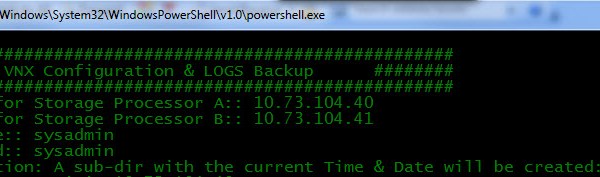
Example Script Input:
SPCScript_1

Expected Script Output:
SPCScript_2

The backup directory location will automatically open on completion of the script:
SPCScript_3

Download HERE and remove .doc extension replacing with .ps1! Or in full text format below:


############################
#
# Reference: VNX CLI Docs
# Script: VNX BACKUPS
# 	
# Date: 2015-01-23 14:30:00										 			 
#
# Version Update:                                         
# 1.0 David Ring            	
#					 
############################

######## Banner ########
Write-Host " "
Write-Host "#######################################"
Write-Host "## VNX Configuration & LOGS Backup  ##"
Write-Host "#######################################"


### VNX SP IP's, User/PW & Backup Location ###
$SPAIP = Read-Host 'IP Address for Storage Processor A:'
$SPBIP = Read-Host 'IP Address for Storage Processor B:'
$User = Read-Host 'VNX Username:'
$Password = Read-Host 'VNX Password:'
$BackupLocation = Read-Host "Backup Location:(A sub-dir with the current Time & Date will be created):"

$ArrayConfig = (naviseccli -user $User -password $Password -scope 0 -h $SPAIP getagent | Select-String "Serial No:")
$ArrayConfig = $ArrayConfig -replace “Serial No:”,“”
$ArrayConfig = $ArrayConfig -replace “           ”,“”

$BackupLocation = (join-path -Path $BackupLocation -ChildPath ($ArrayConfig +"_"+ "$(date -f HHmmddMMyyyy)"))	
IF(!(Test-Path "$BackupLocation")){new-item "$BackupLocation" -ItemType directory | Out-Null}
$BackupLocation =  "`"$BackupLocation`""


Write-Host "Storage Processor 'A':" $SPAIP
Write-Host "Storage Processor 'B':" $SPBIP
Write-Host "VNX Username:" $User
Write-Host "VNX Password:" $Password
Write-Host "VNX Serial Number:" $ArrayConfig
Write-Host "Backup Location Entered:" $BackupLocation

Start-Sleep -s 10


$BackupName = $ArrayConfig+"_"+$(date -f HHmmddMMyyyy)+".xml" ; naviseccli -user $User -password $Password -scope 0 -h $SPAIP arrayconfig -capture -output $BackupLocation"\"$BackupName

Write-Host $ArrayConfig "Configuration Data Has Been Backed Up In XML Format!"

Start-Sleep -s 5

### Gather & Retrieve SP Collects for both Storage Processors ###
Write-Host "Now Generating Fresh Storage Processor 'A' & 'B' Collects!"
$GenerateSPA = naviseccli -user $User -password $Password -scope 0 -h $SPAIP spcollect -messner  
$GenerateSPB = naviseccli -user $User -password $Password -scope 0 -h $SPBIP spcollect -messner
Start-Sleep -s 10


### Storage Processor 'A' LOG Collection ###

## WHILE SP_A '*RUNLOG.TXT' FILE EXISTS THEN HOLD ...RESCAN EVERY 90 SECONDS ##
Do {
$listSPA = naviseccli -user $User -password $Password -scope 0 -h $SPAIP managefiles -list | select-string "_runlog.txt"
$listSPA
Start-Sleep -s 90
Write-Host "Generating Log Files For Storage Processor 'A' Please Wait!"
}
While ($listSPA -like '*runlog.txt')  

Write-Host "Generation of SP-'A' Log Files Now Complete! Proceeding with Backup."

Start-Sleep -s 15

$latestSPA = naviseccli -user $User -password $Password -scope 0 -h $SPAIP managefiles -list | Select-string "data.zip" | Select-Object -Last 1
$latestSPA = $latestSPA -split "  "; $latestSPA=$latestSPA[6]
$latestSPA
$BackupSPA = naviseccli -user $User -password $Password -scope 0 -h $SPAIP managefiles -retrieve -path $BackupLocation -file $latestSPA -o

Start-Sleep -s 10


### Storage Processor 'B' LOG Collection ###

## WHILE SP_B '*RUNLOG.TXT' FILE EXISTS THEN HOLD ...RESCAN EVERY 15 SECONDS ##
Do {
$listSPB = naviseccli -user $User -password $Password -scope 0 -h $SPBIP managefiles -list | select-string "_runlog.txt"
$listSPB
Start-Sleep -s 15
Write-Host "Generating Log Files For Storage Processor 'B' Please Wait!"
}
While ($listSPB -like '*runlog.txt')  

Write-Host "Generation of SP-'B' Log Files Now Complete! Proceeding with Backup."

Start-Sleep -s 10

$latestSPB = naviseccli -user $User -password $Password -scope 0 -h $SPBIP managefiles -list | Select-string "data.zip" | Select-Object -Last 1
$latestSPB = $latestSPB -split "  "; $latestSPB=$latestSPB[6]
$latestSPB
$BackupSPB = naviseccli -user $User -password $Password -scope 0 -h $SPBIP managefiles -retrieve -path $BackupLocation -file $latestSPB -o

$BackupLocation = $BackupLocation -replace '"', ""
invoke-item $BackupLocation

Read-Host "Confirm Presence of 'Array Capture XML' and 'SP Collects' in the Backup Directory!"

———————————————-

See Also @Pragmatic_IO post: ‘EMC VNX – Auto Array Configuration Backups using NavisecCLI and Powershell’

VMware vSphere Host Path Limit

The VMware vSphere Host storage path limit as of vSphere 5.5 is 1024 and the maximum LUNs per host is 256.

Maximum LUNS PER ESXi HOST = 256
Maximum FC LUN ID =255
FC Number of paths to a LUN = 32
Number of total paths on a server = 1024

For more Max & Mins see @Virten‘s post: ‘VMware vSphere ESX and vCenter Configuration Maximums’

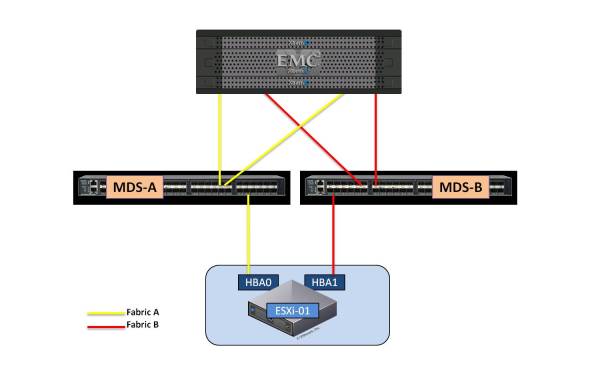
So what exactly does this mean; for example if a host consists of two FC HBA’s with HBA-0 connecting to Fabric-A and HBA-1 connecting to FabricB, as per the following diagram:

Zoning_XtremioSingleHost

As can be seen this example results in 4 paths (2 per fabric) from the ESXi host to the target storage, which is a common configuration and satisfies most workload requirements. Taking into consideration the storage maximums outlined above this configuration allows you to connect exactly 256 storage devices (not taking into consideration local storage) from the attached SAN (Xtremio in this case :-)) to your ESXi host. VMware supports up to 256 FC LUNs and 1024 storage paths per host – That assumes a max of 4 paths per LUN:

1024 / 4 = 256 Possible LUNs

VMware supports a maximum of 32 paths to an FC LUN. If you did 32 paths per LUN that would result in 1024/32 = 32 possible LUNs presented before you start having issues. Some issues that may result if exceeding this limit are: VMware rescans – Rescans taking a very long time and/or causing hosts to crash and possible LUN disconnects.

Please revert to your respective storage vendors documentation on best practices for the number of paths to use. While using more than the required number of paths restricts the number of LUNs you can present to a host, it may also affect host resources such as CPU cycles and also every path from a host requires an initiator record and there may be a limit to the number of initiators per storage system.
Large numbers of paths i.e in excess of 4 per host may be required in environments where bursts of I/O from other hosts sharing the storage system ports are unpredictable and severe, for example boot storm scenarios where 8 paths per host might be plausible.

Viewing the Number of Active Paths

From the VI Client navigate to >Configuration >Storage Adapters and select the HBA:

PathLimit5

Each HBA in this example has 512 paths – The maximum number of supported paths of 1024 has been reached.

Using a PowerCLI script to view the number of paths per ESXi Host (Thanks to @LucD22 ):

Connect-VIServer -Server 10.10.10.1 -User administrator@vsphere.local -password Password

$esx = Get-VMHost "HostName"

foreach($hba in (Get-VMHostHba -VMHost $esx -Type "FibreChannel"))
{
$target = ($hba.VMhost.ExtensionData.Config.StorageDevice.ScsiTopology.Adapter | where {$_.Adapter -eq $hba.Key}).Target
$luns = Get-ScsiLun -Hba $hba -LunType "disk"
$nrPaths = ($target | %{$_.Lun.Count} | Measure-Object -Sum).Sum

Write-Host $hba.Device "Targets:" $target.Count "Devices:" $luns.Count "Paths:" $nrPaths
}

PathLimit6

If the maximum number of paths is exceeded you will see the following entry in the ESXi host logs:

PathLimit1

Or examine the logs using PowerCLI for the entry: “The maximum number of supported paths of 1024 has been reached.”
Get-VIEvent $esx | Where {$_.FullFormattedMessage -match "The maximum number of supported paths of 1024 has been reached."} | Select CreatedTime,FullFormattedMessage

PathLimit3

Note: neither the UI or CLI will return a value that exceeds the maximum supported configuration. For example the HBA path count will not increment above 512 for the example above if we add an additional device. The logs are the best way to check for the exceeded limitation – afaik.

VMWare KB1020654- Maximum number of supported paths reached
Impact
Storage paths that are discovered after the first 1024 are not added to the system. You will not have access to some of the storage paths, and possibly some storage devices, that are configured to be accessible by the system.