EMC VMAX – Removal Of A TDEV

You may no longer have use for a specific TDEV volume in a Storage Pool and want to free this space to create a new volume or expand an existing volume. These are the steps involved to delete the TDEV and reclaim this space in the Pool.

This example details how to delete a single TDEV volume in a Storage Group. An example of such a configuration is in the case where a single TDEV was mapped and used as a dedicated VMware ESX boot volume with no other volumes being present in the Storage Group. Scenario: It may be a case where an ESX Host is being decommissioned and we are reclaiming the space used in the Storage Pool.

The steps involved are:

1. Delete the ESX Host Masking View
2. Remove ESX Boot volume (TDEV) from Storage group
3. Delete the ESX Host Storage Group
4. Mark the TDEV as not_ready
5. Unmap the TDEV from the FA ports
6. Unbind TDEV from Pool
7. (If) META Volume Dissolve
8. Delete the Device

In order to view the list of all TDEV’s created in the Pool (ESX-BOOT pool):
symcfg -sid xxx list -tdev -gb -thin -pool ESX-BOOT
List all TDEVs in the system:
symcfg -sid xxx list -tdev

1. Delete the ESX Host Masking View
List the all the views:
symaccess -sid xxx list view
Remove the ESX01_BOOT_MV Masking View:
symaccess -sid xxx delete view -name ESX01_BOOT_MV

2. Remove ESX Boot volume (TDEV) from Storage group
View the details of the storage group ESX01_BOOT_SG in order to gather the correct dev ID (for example 0234):
symaccess -sid xxx list -type STORAGE
symaccess –sid xxx show ESX01_BOOT_SG -type storage

Remove the dev 0234 from the Storage Group:
symaccess -sid xxx -name ESX01_BOOT_SG -type storage remove devs 0234

3. Delete the ESX Host Storage Group
symaccess -sid xxx -name ESX01_BOOT_SG -type storage delete

4. Mark the TDEV as not_ready
symdev -sid xxx not_ready 0234
If you require to change the status of all the devices in a SG:
symsg -sid xxx -sg SG-Name not_ready

5. Unmap the TDEV from FA ports
symconfigure -sid xxx -cmd “unmap dev 0234;” PREVIEW
symconfigure -sid xxx -cmd “unmap dev 0234;” COMMIT

If you require to Unmap a range of devs:
symconfigure -sid xxx -cmd “unmap dev 0234:0236;” COMMIT

6. Unbind TDEV from Pool
symconfigure -sid xxx -cmd “unbind tdev 0234 from pool ESX-BOOT;” PREVIEW
symconfigure -sid xxx -cmd “unbind tdev 0234 from pool ESX-BOOT;” COMMIT

Check if the Unbind was successful:
symcfg -sid xxx list -tdev -gb -thin -pool ESX-BOOT
Once the TDEV is unbound all pointers to the data pool are removed and those tracks that were consumed by the TDEV are marked as available space in the ESX-BOOT Pool.
If you require to Unbind a range of devs:
symconfigure -sid xxx -cmd “unbind tdev 0234:0235 from pool ESX-BOOT;”

7. Dissolve (IF) Meta Volume
symconfigure -sid xxx -cmd “dissolve meta dev 0234;” PREVIEW
symconfigure -sid xxx -cmd “dissolve meta dev 0234;” COMMIT

8. Delete the Device
symconfigure -sid xxx -cmd “delete dev 0234;” PREVIEW
symconfigure -sid xxx -cmd “delete dev 0234;” COMMIT

If you require to Delete a range of devs:
symconfigure -sid xxx -cmd “delete dev 0234:0235;” COMMIT
Comfirm Delete was successful:
symcfg -sid xxx list -tdev

##################################################################
Following on from Burhan’s comment below
Burhan Halilov (@7400N) says:
“If you use -unmap to “symaccess delete view” in 1. you can skip steps 4 and 5
Also you can run “symsg -sid xxx -sg yyy unbind” before you delete the SG in 3. and save step 6.
The symconfigure bind/unbind are being depreciated after se7.6 and replaced with symdev/symsg/symdg bind/unbind”

Here is another way of achieving the removal a TDEV in a quicker fashion as per above, but also including the scenario where the SG is associated with a FAST Policy:

1. Delete the ESX Host Masking View & Unmap the TDEV from FA ports
symaccess -sid xxx delete view -name MV-NAME -unmap -NOP

2. If the SG is associated with a Fast Policy then it will need to be disassociated
symfast -sid xxx disassociate -sg SG-NAME -fp_name FP-NAME

3. Unbind the SG TDEV(s) from Pool
symsg -sid xxx -sg SG-NAME unbind -NOP

4. Remove the TDEVs from the storage group
symaccess -sid xxx -name SG-NAME -type storage remove devs XXXX:XXXX

5. Delete the Storage Group
symaccess -sid xxx -name SG-NAME -type storage delete -NOP

7. Dissolve (IF) Meta Volume
symconfigure -sid xxx -cmd “dissolve meta dev XXXX:XXXX;” PREVIEW -NOP
symconfigure -sid xxx -cmd “dissolve meta dev XXXX:XXXX;” COMMIT -NOP
symcfg list -tdev

8. Delete the Device(s)
symconfigure -sid xxx -cmd “delete dev XXXX:XXXX;” PREVIEW -NOP
symconfigure -sid xxx -cmd “delete dev XXXX:XXXX;” COMMIT -NOP
symcfg list -tdev

VMAX3 TDEV Deletion Process:

Example TDEV '0234'

1. Delete the ESX Host Masking View & Unmap the TDEV from FA ports:
symaccess -sid xxx delete view -name MV-NAME -unmap -NOP

2. Remove the TDEVs from the storage group:
symaccess -sid xxx -name SG-NAME -type storage remove devs 0234

3. Delete the Storage Group:
symaccess -sid xxx -name SG-NAME -type storage delete -NOP

4. Free all Allocations associated with the device:
symconfigure -sid xxx FREE -ALL 0234 -NOP
If you need to FREE ALL for a range of devs:
symdev -sid 289 FREE -ALL -DEVS 0234:0236 -NOP

5. Delete the Device(s)
symconfigure -sid xxx -cmd “delete dev 0234;” PREVIEW -NOP
symconfigure -sid xxx -cmd “delete dev 0234;” COMMIT -NOP
symcfg list -tdev

If you need to delete a range of TDEVs on VMAX3:
Gather details:
symaccess -sid XXX list view -name MV-NAME -detail
symaccess -sid XXX list -type storage -name SG-NAME
symaccess -sid XXX -type storage show SG-NAME

Delete:
symaccess -sid XXX -name SG-NAME -type storage remove devs 00CE:00D0
symdev -sid XXX FREE -ALL -DEVS 00CE:00D0 -NOP
symconfigure -sid XXX -cmd “delete dev 00CE:00D0;” COMMIT -NOP

EMC UIM/P – Symmetrix VMAX Discovery (Verify SYMAPI Certificates)

During a UIM discovery of an ‘EMC VMAX’ you may encounter the following error:

UIM/P – VMAX DISCOVERY ERROR MESSAGE:
=================================================================
=================================================================
Action completed successfully…
10.X.X.X: found 1 reachable IP address out of 1 ping request
Discovering device type and communication protocols for device (10.X.X.X)
Device did not respond to authentication, please check the supplied credentials and/or port(s).
—-> Refer additional details below.
—->
—-> ADDITIONAL DETAILS
—-> SYM command ‘/opt/emc/SYMCLI/bin/symcfg list’ failed with exit status: 1 [ERRORCODE 3 (Permission Denied)]
—-> *** Verify SYMAPI client certificates are correct. ***
—-> Command output:
—-> >
—-> > The remote client/server handshake failed. Please consult symapi and storsrvd log files
—-> >
—-> ERR:Unable to get a session to Symmetrix 10.X.X.X using devicenative mechanism
!!! Could not discover credentials for device
=====================================================================
=====================================================================

If you experience the above error a common fix is to regenerate the certificate on the VMAX Agent server (SMI-S Provider) and to also regenerate the certificate on the UIM Host as per the following instructions:

Firstly before proceeding with Cert regeneration check the following:
1. Date&Time
Ensure the date and time is in sync between the UIM and VMAX Agent server.
2. Host File Entries
Ensure the VMAX Agent server host file has an entry for the UIM Server; else you will receive the following error:
UIM_VMAX8
3. Support Matrix
Search support.emc.com for:
Unified Infrastructure Manager/Provisioning Support Matrix
Ensure the SE version listed is the version installed.
4. ECOM Service
Also check that the ECOM service is running on the VMAX Agent server and the correct ECOM credentials are being used. Validate the credentials by logging into: https://localhost:5989/ecomconfig

If you have completed any of the 4 steps above then Retry the discovery of VMAX through UIM/P. At this stage if you are still failing to discover the VMAX then continue with the certificate regeneration:

Proceeding with Certificate Regeneration:
FROM THE UIM SERVER
1. Change (cd) to the /usr/emc/API/symapi/config/cert directory.
2. Run the following command from within this directory:
UIMHost:/usr/emc/API/symapi/config/cert # /opt/emc/SYMCLI/bin/manage_server_cert.sh create
The create script will read the hostname from the environment and recreate the certificate.
3. Ensure the UIM hostname used by the certificate file is correct:
UIMHost:/usr/emc/API/symapi/config/cert # /opt/emc/SYMCLI/bin/manage_server_cert.sh list

FROM THE VMAX AGENT SERVER
Regenerate the certificate on the Windows host using the Manage_Server_Cert.bat executable.
1. From the direcory \Program Files\EMC\SYMAPI\config\cert> run the create command:
D:\Program Files\EMC\SYMAPI\config\cert>”D:\Program Files\EMC\SYMCLI\bin\manage_server_cert.bat” create
Output:
The files symapisrv_cert.pem and symapisrv_key.pem were created in the directory
D:\Program Files\EMC\SYMAPI\config\cert.
1 file(s) copied.
1 file(s) copied.

2. Ensure the hostname is correct as per the certificate file:
D:\Program Files\EMC\SYMAPI\config\cert>”D:\Program Files\EMC\SYMCLI\bin\manage_server_cert.bat” list
Output:
The host names in this machine’s certificate:
storsrvd YourWindowsHostname

Now Retry the discovery of VMAX through UIM/P.

STILL FAILING – Continue:
If after completing the above steps and still the same error persists during UIM discovery, then continue with the following steps.

Open the storsrvd log file (drive letter:\Program Files\EMC\SYMAPI\log) and check for the error “sslv3 alert certificate expired”:
UIM_VMAX0

This is a known issue and details can be found on EMC Support KB190373.

Check the expiration date of the file using the storssl command from the cert directory:
D:\Program Files\EMC\SYMAPI\config\cert>storssl x509 -text -in symapisrv_trust.pem
You will notice the expired ‘Not After’ date from the output:

Validity
Not Before: AUG 23 10:40:34 2004 GMT
Not After : AUG 26 10:40:34 2014 GMT EXPIRED

FROM THE VMAX AGENT SERVER
1. Rename the existing “D:\Program Files\EMC\SYMAPI\config\cert\symapisrv_trust.pem” file to symapisrv_trust.pem.old
2. Stop the storsrvd service: Stordaemon shutdown storsrvd
3. Download the replacement symapisrv_trust.pem from KB190373 and save to the cert directory.
4. Run manage_server_cert update command from the cert directory:
UIM_VMAX6
5. Start the storsrvd service: Stordaemon start storsrvd
6. Check the certificate expiration date:
D:\Program Files\EMC\SYMAPI\config\cert>storssl x509 -text -in symapisrv_trust.pem
UIM_VMAX1
7. Verify the certificate (prints OK if good or ‘expired certificate’ if expired):
D:\Program Files\EMC\SYMAPI\config\cert>storssl verify symapisrv_trust.pem
UIM_VMAX2

FROM THE UIM SERVER
1. Rename the existing “/usr/emc/API/symapi/config/cert/symapisrv_trust.pem” file to symapisrv_trust.pem.old
2. Download the replacement symapisrv_trust.pem from KB190373 and save to the cert directory.
3. Run manage_server_cert update command from the cert directory:
vmuim01:/usr/emc/API/symapi/config/cert # /opt/emc/SYMCLI/bin/manage_server_cert.sh update
UIM_VMAX5
4. Check the certificate expiration date:
vmuim01:/usr/emc/API/symapi/config/cert # /opt/emc/SYMCLI/bin/storssl x509 -text -in symapisrv_trust.pem
UIM_VMAX3
5. Verify the certificate (prints OK if good or ‘expired certificate’ if expired):
vmuim01:/usr/emc/API/symapi/config/cert # /opt/emc/SYMCLI/bin/storssl verify symapisrv_trust.pem
UIM_VMAX4

At this stage you should be able to successfully discover the VMAX through UIM/P.

EMC VMAX – 20/40K Back-End Connectivity

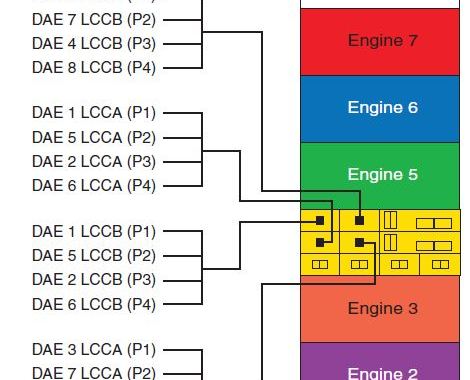
Each Engine has two Directors with each Director containing two Back-End Fibre Channel I/O Modules (Labeled MOD0 & MOD1). These modules (also known as DA’s – Disk Adapters) provide Fibre Channel Connectivity to the drives. As you can see from the image below there is just a single physical port on the Back-end IO Module, this single port is a Quad SFP port (QSFP). The connecting cable has a single copper QSFP transceiver connector consisting of 4 Fibre channel cables aggregated into one Single QSFP port. While at the Drive Bay side the 4 Fibre channel cables branch out as individual connections to the link control cards (LCC) as we will see shortly. Each DAE contains two LCC cards (LCCA & LCCB).

VMAX_BE0

The Engine diagram below provides the Port layout on the Engine and as you can see the lower director is the odd director and the upper director is the even director. On both directors there are two Back-end IO modules (MOD0 & MOD1) per director, the Back End IO Module MOD0 has connections A0,A1,B0,B1 and MOD1 has connections C0,C1,D0,D1.
VMAX_BE3

Here is an example of a Standard VMAX Storage Bay Configuration fully populated (8 Engines) with 10 storage BAYS as if viewed from the Front of the VMAX. In this fully populated configuration you have four direct connect storage bays (Bay 1’s) and six daisy chained Storage Bays (2’s & 3’s). Each octant represents connectivity from a Single Engine (2 x Directors).

VMAX_BE5

In order to keep this example simple I will focus on the First Engine in the VMAX which is Engine 4. Understanding how one engine connects to the backend will help to understand the remaining Back-end connectivity as the same rules apply. Below is ‘Disk Bay 1A’ (Rear) with DAE’s 1-8 populated, these are the DAE’s that Engine4 directly connects to:
VMAX_BE10

Engine 4 Backend IO Modules and QSFP Cables: Here are the four slics (MOD’s) on the Engine with each slic providing 4x4Gig FC links (Loops)
VMAX_BE11

We can see from the labeling on the image below of Engine4 that the Even Director (DIR8) connects to LCCB and the Odd Director (DIR7) connects to LCCA. MOD0 on both the even and odd directors connect to DAE’s 1,5,2,6 with MOD1 on both directors connecting to DAE’s 3,7,4,8.
VMAX_BE6

Checking the connectivity on DAE 1 you can see MOD0 from the Even Director (Dir8) connects to the primary port on LCCB and MOD0 from the Odd Director (Dir7) connects to the primary port on LCCA. Note that all connections from the Even Directors connect to LCCB and all the Odd directors connect to the LCCA cards. On the loop configuration you can see that DAE1 is on Loop0. There are 8 Redundant Loops in total from the Engine:
DAE1=LOOP0 (A0(P1))
DAE2=LOOP2 (B0(P3))
DAE3=LOOP4 (C0(P1))
DAE4=LOOP6 (D0(P3))
DAE5=LOOP1 (A1(P2))
DAE6=LOOP3 (B1(P4))
DAE7=LOOP5 (C1(P2))
DAE8=LOOP7 (D1(P4))

VMAX_BE8

Here is the full connectivity map for Engine 4: Also note the following translations for MOD0 A0=P1 A1=P2 B0=P3 B1=P4 and likewise for MOD1 C0=P1 C1=P2 D0=P3 D1=P4

VMAX_BE9

This completes the example of the direct attach Back-end cabling for Engine 4. The same rules apply as you add more engines. As a result of this design the back-end cabling provides dual access across directors to each drive eliminating any single point of failure (8 Redundant Loops).

To Summarize:
• 8 Redundant Loops – A0,A1,B0,B1,C0,C1,D0,D1
• LCCA Connects to the ODD number Director
• LCCB Connects to the EVEN number Director
• Each Engine supports a seperate octant
• Each Slic (MOD) has 4x4Gig FC Links (16 Backend FC Links Per Engine)

VMAX_BE12

Note: Please reference EMC Documentation for more detailed information specific to your configuration. Depending on Engine counts and Direct/Daisy configurations your cabling may expand differently.