EMC VNXe – Configuring E-Mail Alerts Via SMTP

The VNXe can send E-mail alerts of system events to a specified IP address when it
encounters alerts or error conditions.

View and Configure SMTP Server Settings

In order to View the IP addresses of the SMTP servers issue the following command:

uemcli -d VNXe_IP -u Local/admin -p password /net/smtp show
VNXE_SMTP1

As you can see no IP address has been configured at present.

The following command sets the IP address for the default SMTP server that the system will use:

uemcli -d VNXe_IP -u Local/admin -p password /net/smtp -id default set -addr 192.168.101.110
VNXE_SMTP4
Note: The system uses the first IP address you specify.

View Alert Settings

View the settings for how the system handles alerts:
uemcli -d VNXe_IP -u Local/admin -p password /event/alert/conf show
VNXE_SMTP2

As you can see no Alerts have been configured at present.

Configure E-Mail Alert Settings

Configure the settings for how the system handles alerts.

-emailFromAddr Type the e-mail address the system will use as the FROM address. The addresses will appear in the FROM field of the recipient’s e-mail application.
-emailToAddrs Type a comma-separated list of e-mail addresses the system will send alerts.
-emailSeverity Specify the minimal severity of alerts the system will send as e-mails. Value is critical, error, warning, or info.

The following command configures the alert settings:
uemcli -d VNXe_IP -u Local/admin -p password /event/alert/conf set -emailToAddrs USER1@Domain.com,USER2@Domain.com -emailSeverity warning

uemcli -d VNXe_IP -u Local/admin -p password /event/alert/conf showVNXE_SMTP5

Configuring VIA UNISPHERE
VNXE_SMTP6

Mapping ESXi Host Device ID’s to EMC VMAX Devices using SYMCLI

The mapping of ESXi host device ID’s to the corresponding VMAX device names is made quite easily through the use of EMC VSI (Virtual Storage Integrator) which can be downloaded through support.emc.com as a Plug-in to vSphere. (VSI Blog to follow)

This post demonstrates the use of SYMCLI (Solutions Enabler) to quickly identify the matching device in the event that VSI is not in use.

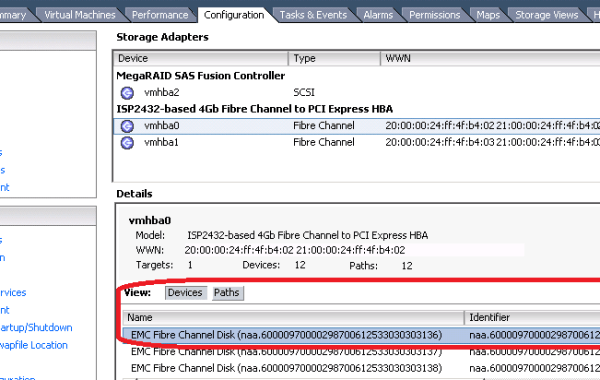
By looking up the device identifiers under Adpaters->Devices on an ESXi Host we can see all the devices associated with that particular Host:

VM_ID1

As an example say we want to match the ESXi device ID naa=60000970000298700612533030323343 with the corresponding VMAX device name by using SYMCLI issue the following command:

symdev -sid xxx list -tdev –wwn

As can be seen from the output the matching VMAX Device name is 023C (TDEV):
VM_ID2

To see more detailed information about TDEV 23C:
symdev -sid xxx show 23C

Or through Unisphere for VMAX:

VM_ID3

VM_ID4

NOTE:
If you wish to return the WWN of the TDEV 23C:
symdev -sid xxx list -dev 23C –wwn

To return a list of WWN’s including Regular Volumes use the following command:
symdev -sid xxx list –wwn

Retrieve a list of Meta Volumes:
symdev -sid xxx list -meta -tdev -wwn
Or a range of Meta Vols:
symdev -sid xxx list -meta -tdev -wwn -range xxxx:xxxx
If you wish to dump the results to a .txt file:
symdev -sid xxx list -meta -tdev -wwn -range xxxx:xxxx > WWNList.txt

EMC VMAX – Solutions Enabler & Unisphere Code Levels Per Enginuity Level

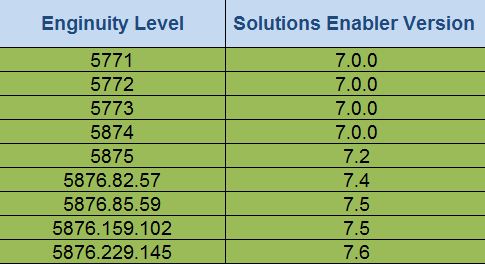
The following tables detail the Minimum required Solutions Enabler & Unisphere code levels per major Enginuity release and the EMC recommended target codes to ensure a stable environment:
SE_Version1

Uni_Version1

Note: Check EMC Online Support for the latest Solutions Enabler & Unisphere version and release notes. You may also reference:
“Solutions Enabler Target Revisions and Adoption Rates”
“Unisphere For VMAX Target Revisions and Adoption Rates”

This is also a very useful KB that was created and is maintained by Paul Martin‏ (EMC) @rawstorage: To confirm that your Solutions Enabler version is supported for the level of Enginuity running on your Symmetrix VMAX please reference the following Knowledge Base support.emc.com/kb/52982