In most cases a machines are connected to the internet which allows a PowerCLI user download the modules directly from the web using:
Install-Module -Name VMware.PowerCLI
In the event the machine you wish to run PowerCLI scripts from is offline, then you can perform the following method of installation.
-
- Download the modules from a machine connected to the internet:
Save-Module VMware.PowerCLI -Path $env:userprofile\PowerCLI-Offline

2. Select all the downloaded modules and copy them over to the WindowsPowerShell\Modules directory on the target offline machine:

3. When attempting to run a connect cmd for the first time you will notice the following warning/error about CEIP and Certificates:
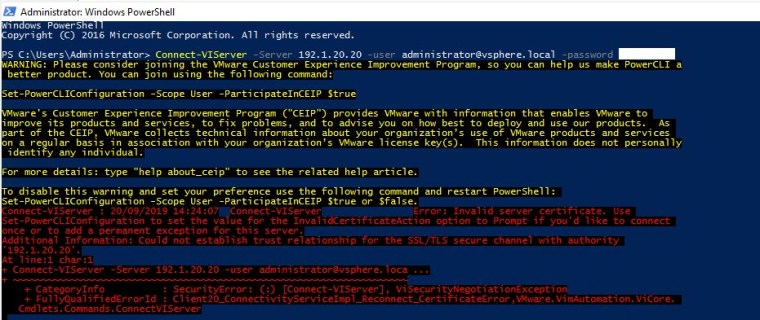
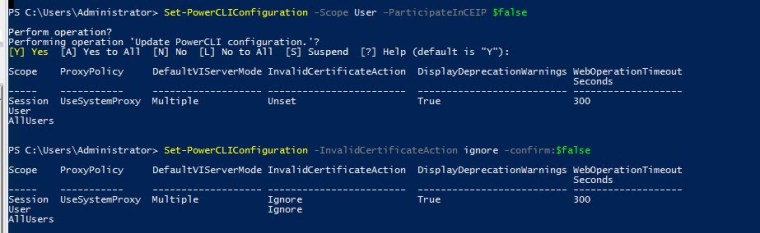
4. You can clear the above warning/error with the following 2 commands:
Set-PowerCLIConfiguration -Scope User -ParticipateInCEIP $false
Set-PowerCLIConfiguration -InvalidCertificateAction ignore -confirm:$false
5. Connect-VIServer successful:

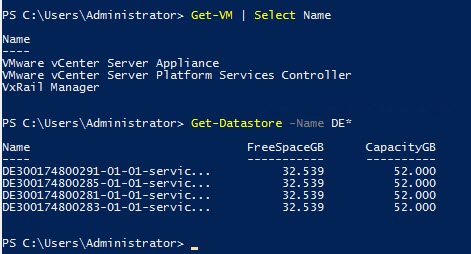
6. Validate connectivity with some simple commands:
Get-VM | Select Name
Get-Datastore -Name DE*
Useful Reference:
PowerCLI Cmdlet Reference





 DavidRing.ie