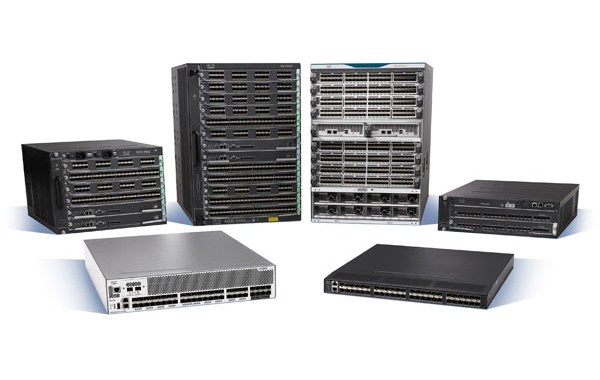
CISCO MDS – Useful ‘Show’ Commands

Cisco_MDS

CONFIG:
show startup-config
show running-config
show running-config diff
show run |include host|gateway|ntp|fcdomain|http|telnet|zoneset|vsan
show start |include host|gateway|ntp|fcdomain|http|telnet|zoneset|vsan
show install all status
show switchname
show wwn switch
show switch summary
show version
show cdp neighbors
show boot
show system internal flash
show snmp host
show ntp peers
show ssh server
show telnet server

Continue reading

EMC VNX2 – Drive Layout (Guidelines & Considerations)

Applies only to VNX2 Systems.

CHOICES made in relation to the physical placement of Drives within a VNX can have an impact on how the VNX performs. The intention here is to shed some light on how to best optimize the VNX by placing Drives in their best physical locations within the VNX Array. The guidelines here deal with optimising the Back-End system resources. While these considerations and examples may help with choices around the physical location of Drives you should always work with a EMC certified resource in completing such an exercise.

VNX2Layout1

Maximum Available Drive Slots
You cannot exceed the maximum slot count, doing so will result in drives becoming unavailable. Drive form factor and DAE type may be a consideration here to ensure you are not exceeding the stated maximum. Thus the max slot count dictates the maximum drives and the overall capacity a system can support.
VNX2Layout2

BALANCE
BALANCE is the key when designing the VNX drive layout:

Where possible the best practice is to EVENLY BALANCE each drive type across all available back-end system BUSES.This will result in the best utilization of system resources and help to avoid potential system bottlenecks. VNX2 has no restrictions around using or spanning drives across Bus 0 Enclosure 0.
VNX2Layout3

DRIVE PERFORMANCE
These are rule of thumb figures which can be used as a guideline for each type of drive used in a VNX2 system.
Throughput (IOPS) figures are based on small block random I/O workloads:
VNX2Layout4

Bandwidth (MB/s) figures are based on large block sequential I/O workloads:
VNX2Layout5

Recommended Order of Drive Population:

1. FAST Cache
2. FLASH VP
3. SAS 15K
4. SAS 10K
5. NL-SAS

Physical placement should always begin at Bus0 Enclosure0 (0_0) and the first drives to get placed are always the fastest drives as per the above order. Start at the first available slot on each BUS and evenly balance the available Flash drives across the first slots of the first enclosure of each bus beginning with the FAST Cache drives. This ensures that FLASH Drives endure the lowest latency possible on the system and the greatest RoI is achieved.

FAST CACHE
FAST Cache drives are configured as RAID-1 mirrors and again it is good practice to balance the drives across all available back-end buses. Amount of FAST Cache drives per B/E Bus differs for each system but ideally aim for no more than 8 drives per bus (Including SPARE), this is due to the fact that FAST Cache drives are extremely I/O Intensive and placing more than the recommended maximum per Bus may cause I/O saturation on the Bus.
VNX2Layout6

Note: Do not mix different drive capacity sizes for FAST Cache, either use all 100GB or all 200GB drive types.

Also for VNX2 systems there are two types of SSD available:
• ‘FAST Cache SSDs’ are single-level cell (SLC) Flash drives that are targeted for use with FAST Cache. These drives are available in 100GB and 200GB capacities and can be used both as FAST Cache and as TIER-1 drives in a storage pool.
• ‘FAST VP SSDs’ are enterprise Multi-level cell (eMLC) drives that are targeted for use as TIER-1 drives in a storage pool (Not supported as ‘FAST Cache’ drives). They are available in three flavors 100GB, 200GB and 400GB.

More detailed post on FAST Cache: ‘EMC VNX – FAST Cache’

DRIVE FORM FACTOR
Drive form factor (2.5″ | 3.5“) is an important consideration. For example if you have a 6 BUS System with 6 DAE’s (one DAE per BUS) consisting of 2 x 2.5” Derringer DAEs and 4 x 3.5” Viper DAEs as follows:
VNX2Layout7

MCx HOT SPARING CONSIDERATIONS
Best practice is to ensure 1 spare is available per 30 of each drive type. When there are different drives of the same type in a VNX, but different speeds, form factors or capacities, then these should ideally be placed on different buses.

Note: Vault drives 0_0_0 – 0_0_3 if 300GB in size then no spare is required, but if larger than 300G is used and user luns are present on the Vault then a spare is required in this case.

While all un-configured drives in the VNX2 Array will be available to be used as a Hot Spare, a specific set of rules are used to determine the most suitable drive to use as a replacement for a failed drive:

1. Drive Type: All suitable drive types are gathered.
2. Bus: Which of the suitable drives are contained within the same bus as the failing drive.
3. Size: Following on from the Bus query MCx will then select a drive of the same size or if none available then a larger drive will be chosen.
4. Enclosure: This is another new feature where MCx will analyse the results of the previous steps to check if the Enclosure that contains the actual Failing drive has a suitable replacement within the DAE itself.

See previous post for more info: ‘EMC VNX – MCx Hot Sparing’


Drive Layout EXAMPLE 1:

VNX 5600 (2 BUS)

VNX2Layout8
FAST Cache:
1 X Spare, 8 x FAST Cache Avail.
8 / 2 BUSES = 4 FAST Cache Drives Per BUS
1 x 2.5” SPARE Placed on 0_0_24
1 X Spare, 20 x Flash VP Avail.
———————————
Fast VP:
20 / 2 BUSES = 10 Per BUS
10 x 3.5” Placed on BUS 0 Encl 1
10 x 2.5” Placed on BUS 1 Encl 0
1 X 2.5” SPARE Placed on 1_0_24
———————————
VNX2Layout9


Drive Layout EXAMPLE 2:

VNX 5800 (6 BUS)
VNX2Layout10

VNX2Layout11


Drive Layout EXAMPLE 3:

VNX 8000 (16 BUS)

VNX2Layout12

VNX2Layout12a

Useful Reference:
EMC VNX2 Unified Best Practices for Performance

Cisco Nexus 3064 – Configuring Jumbo Frames

The default MTU size on a Nexus 3064 switch is 1500 bytes, the following details how to reconfigure the switch for a system wide MTU value of 9216(jumbo).

——————————————————————————–
Note: The Cisco Nexus 3000 Series switch does not fragment frames. As a result, the switch cannot have two ports in the same Layer 2 domain with different maximum transmission units (MTUs). A per-physical Ethernet interface MTU is not supported. Instead, the MTU is set according to the QoS classes. You modify the MTU by setting Class and Policy maps.
As per Cisco Documentation
——————————————————————————–

Configuring Jumbo Frames:
Begin by creating a policy-map of type network-qos named aptly in this example ‘JumboFrames’ and assign as the system-qos. (As stated above you cannot configure on a per interface level).


n3k-sw# config t
n3k-sw(config)# policy-map type network-qos ?
WORD Policy-map name (Max Size 40)
n3k-sw(config)# policy-map type network-qos JumboFrames
n3k-sw(config-pmap-nq)# class type network-qos class-default
n3k-sw(config-pmap-nq-c)# mtu 9216
n3k-sw(config-pmap-nq-c)# system qos
n3k-sw(config-sys-qos)# service-policy type network-qos ?
WORD Policy-map name (Max Size 40)
n3k-sw(config-sys-qos)# service-policy type network-qos class-default
n3k-sw(config-sys-qos)# show policy-map type network-qos
Type network-qos policy-maps
===============================
policy-map type network-qos JumboFrames
class type network-qos class-default
mtu 9216

Verification of the change can be validated by running a ‘show queuing interface’ command on one of the 3k interfaces (interface Ethernet 1/2 in this example):

n3k-sw# show queuing interface ethernet 1/2

Ethernet1/2 queuing information:
qos-group sched-type oper-bandwidth
0 WRR 100
qos-group 0
HW MTU: 9216 (9216 configured)
drop-type: drop, xon: 0, xoff: 0

If you run the ‘show interface’ command then a value of 1500 will be displayed despite the system wide change that was made:
n3k-sw# show queuing interface ethernet 1/2
Ethernet1/2 is up
Dedicated Interface
Hardware: 100/1000/10000 Ethernet
Description: 6296 2A Mgmt0
MTU 1500 bytes, BW 1000000 Kbit, DLY 10 usec