EMC VNXe – Shutdown Procedure


Shutdown via UNISPHERE using the Service Account

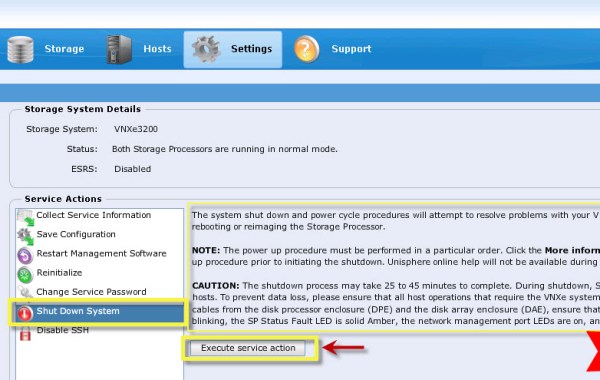
VNXe-Shutdown

Please read all notes provided in the ‘More Information..’ section highlighted in the above image before proceeding with shutdown.

Shutdown process as documented in the ‘More Information..’ section:
1. From Unisphere, select Settings > Service System.
2. Enter the Service password to access the Service System page.
3. Under Service Actions, select Shut Down System.
4. Click Execute service action to shut down the storage processors (SPs).
5. In the Service Confirmation dialog box, click OK.
6. Check the status of the shutdown process by looking at the SP LED indicators. The shutdown process is complete when all the Storage Processor Power LEDs are flashing green, the SP Status Fault LED is solid amber, the network management port LEDs are on, and all other Storage Processor LEDs are off.


Shutdown via SSH using the Service Account:

Shutdown command:
svc_shutdown –system-halt

service@(none) spb:~> svc_shutdown --system-halt
###############################################################################
WARNING: This action will shut down the system and you will have to manually
bring it back up afterwards.
###############################################################################
Enter "yes" if want to proceed with this action: yes
Normal Mode
1
1
Peer shutdown now in progress
System shutdown now in progress

EMC XtremIO – 4.0 Maximums

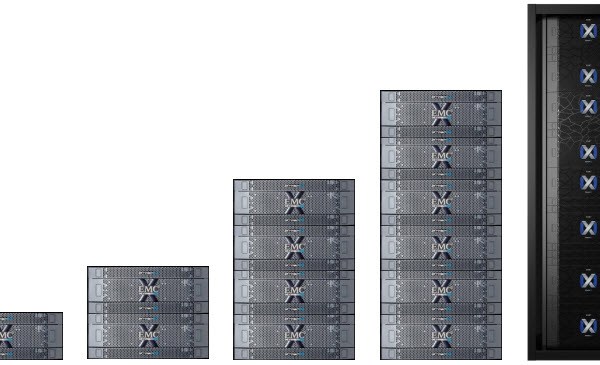
The following details the maximum values common to all four X-Brick models and the maximums applicable to each specific X-Brick model. As of XtremIO Verison 4.0 there are four types of X-Brick model to chose from:

1. 5TB Starter X-Brick
2. 10TB X-Brick
3. 20TB X-Brick
4. 40TB X-Brick

An XtremIO storage system has a Scale-Out architecture and can include a single X-Brick or a cluster of multiple XBricks(2,4,6 or 8 X-Brick clusters):
XtremIO 4 MAX

Universal Maximums
Maximum values common to all 4 X-Brick models:
• Storage Controllers per X-Brick = 2
• A single Xtremio Management Stations(XMS) can manage up to 8 clusters. XMS Multi-cluster support is a new feature of 4.0 and allows clusters running 4.x code and above to be managed by a single XMS. When an XtremIO 3.0 cluster is upgraded to 4.x then it can be added to an XMS 4.x managing multiple clusters.
• Initiators per cluster(FC or iSCSI) = 1024
If you consider a host has 2 initiators this would imply a max of 512 hosts.
• Initiators per Initiator Group = 64
If you consider a host has 2 initiators this would imply a max of 32 hosts per Initiator Group.
• Initiator Groups per cluster = 1024
• Volumes per cluster = 8192
• Number of Initiator Groups mappings per Volume = 64
• Number of Volumes mappings per Initiator Group = 2048

• Mappings per cluster (10 Volumes mapped to 10 Initiator Groups results in 100 mappings) = 16,384
Example: Maximum Mappings per cluster:
The only way we would ever reach the maximum of 16,384 mapping is if volumes were shared across multiple initiator groups. Example maximum mapping configuration:
2048volumes assigned to IG1 & IG2 = 4096 mappings
2048volumes assigned to IG3 & IG4 = 4096 mappings
2048volumes assigned to IG5 & IG6 = 4096 mappings
2048volumes assigned to IG7 & IG8 = 4096 mappings
TOTAL = 8192volumes / 16,384 mappings

• Snapshots per production Volume = 512
• Consistency Groups = 512
• Volumes per Consistency Groups = 256
• Consistency Groups per Volume = 4
• iSCSI portals per X-Brick = 16
• Physical iSCSI 10Gb/s Ethernet ports per X-Brick = 4
• iSCSI routes per cluster = 32
• Physical FC 8Gb/s ports per X-Brick = 4
• Largest block size supported = 4MB
• Maximum Volume size = 281.4TB / 256TiB (Starter X-Brick = 132TB / 120TiB)
• Maximum volumes presented to VPLEX = 4096

40TB X-Brick
25*1600 GB eMLC SSDs per X-Brick
• Number of X-Bricks per cluster = 8
• Raw Capacity = 40TB / 36.4TiB
• Usable physical capacity per X-Brick = 33.6TB / 30.55TiB (with no data reduction)
• Maximum logical capacity per X-Brick = 201.6TB / 183.3TiB (with the use of data reduction techniques such as Thin Provisioning, inline compression and inline deduplication. As you can see these figures are based on a 6:1 ratio (33.6TB * 6 = 201.6TB) and will vary depending on types of data sets residing on XtremIO.)

20TB X-Brick
25*800 GB eMLC SSDs per X-Brick
• Number of X-Bricks per cluster = 8
• Raw Capacity = 20TB / 18.2TiB
• Usable physical capacity per X-Brick = 16.7TB / 15.2TiB (with no data reduction)
• Maximum logical capacity per X-Brick = 100.2TB / 91.2TiB (with the use of data reduction techniques based on a 6:1 ratio (16.7TB * 6 = 100.2TB))

10TB X-Brick
25*800 GB eMLC SSDs per X-Brick
• Number of X-Bricks per cluster = 4
• Raw Capacity = 10TB / 9.1TiB
• Usable physical capacity per X-Brick = 8.33TB / 7.6TiB (with no data reduction)
• Maximum logical capacity per X-Brick = 50TB / 45.5TiB (with the use of data reduction techniques based on a 6:1 ratio (8.33TB * 6 = 50TB))

5TB Starter X-Brick
13*400 GB eMLC SSDs
A starter X-Brick has 13 eMLC SSDs(a standard X-Brick has 25 eMLC SSDs), a starter X-Brick can be expanded to a standard 10TB X-Brick by adding 12 SSDs. Once the starter X-Brick has been expanded to a 10TB X-Brick then it may be scaled-out as per a std. 10TB X-Brick to two and four X-Brick clusters.
• Number of X-Bricks per cluster = 1
• Raw Capacity = 5.2TB / 4.7TiB
• Usable physical capacity per X-Brick = 3.6TB / 3.3TiB (with no data reduction)
• Maximum logical capacity per X-Brick = 21.5TB / 19.5TiB (with the use of data reduction techniques based on a 6:1 ratio (3.6TB * 6 = 21.5TB))

Note: 1 Kilobyte = 1000 bytes whereas 1 Kibibyte = 1024 bytes ( 1TB = 1000(bytes)4 & 1TiB = 1024(bytes)4)

PERFORMANCE
Referenced from the following data sheet: EMC XTREMIO 4.0 SYSTEM SPECIFICATIONS
XtremIO 4 MAX2

EMC VNX – Registering RecoverPoint Initiators

The VNX will have been previously zoned to the RPAs at this stage. For example purposes the config below will have the RPA1-port-3 Zoned to the VNX SP-A&B Port 4 on Fabric-A and RPA1-port-1 Zoned to the VNX SP-A&B Port 5 on Fabric-B. Note: In a synchronous RP solution all 4 RPA ports should be zoned.

Parameters as follows:
Initiator Type = RecoverPoint Appliance (-type 31)
Failover Mode = 4 (ALUA – this mode allows the initiators to send I/O to a LUN regardless of which VNX Storage Processor owns the LUN)
RPA1_IP = IP Address of RPA1
RPA1_NAME = Appropriate name for RPA1 (E.g. RPA1-SITE1)

RPA WWNs can be recognized in the SAN by their 50:01:24:81:….. prefix.

Example:
Create a storage group for all RPAs on Site1:
naviseccli -User sysadmin -Password password -Scope 0 -h SP_IP storagegroup -create -gname RPA-Site1-SG

##############
## FABRIC A: ##
##############

RPA1-Port-3 initiator registered to both VNX SP A&B Port 4:

naviseccli -User sysadmin -Password sysadmin -Scope 0 -h SP_IP storagegroup -setpath -gname RPA-Site1-SG -hbauid 50:01:24:80:00:64:1C:E3:50:01:24:81:00:64:1C:E3 -type 31 -ip RPA1_IP -host RPA1_NAME -sp a -spport 4 -failovermode 4 -o

naviseccli -User sysadmin -Password sysadmin -Scope 0 -h SP_IP storagegroup -setpath -gname RPA-Site1-SG -hbauid 50:01:24:80:00:64:1C:E3:50:01:24:81:00:64:1C:E3 -type 31 -ip RPA1_IP -host RPA1_NAME -sp b -spport 4 -failovermode 4 -o

##############
## FABRIC B: ##
##############

RPA1-Port-1 initiator registered to both VNX SP A&B Port 5:

naviseccli -User sysadmin -Password sysadmin -Scope 0 -h SP_IP storagegroup -setpath -gname RPA-Site1-SG -hbauid 50:01:24:80:00:64:1C:E1:50:01:24:81:00:64:1C:E1 -type 31 -ip RPA1_IP -host RPA1_NAME -sp a -spport 5 -failovermode 4 -o

naviseccli -User sysadmin -Password sysadmin -Scope 0 -h SP_IP storagegroup -setpath -gname RPA-Site1-SG -hbauid 50:01:24:80:00:64:1C:E1:50:01:24:81:00:64:1C:E1 -type 31 -ip RPA1_IP -host RPA1_NAME -sp b -spport 5 -failovermode 4 -o

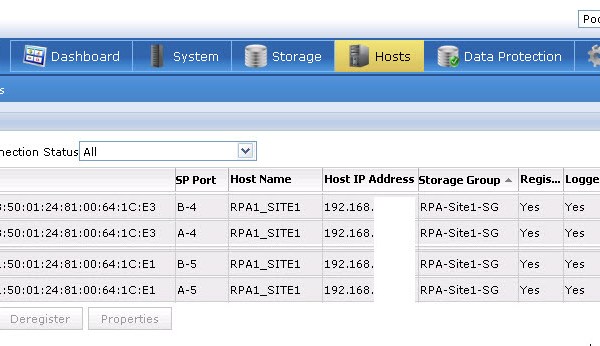
Registered Initiators displayed in Unisphere:

VNX-RP-INIT1

vSphere – Migrating A VM To A New VMFS Datastore (CLI: VMKFSTOOLS)

You may encounter a scenario where a vCenter server is not part of a solution and SVMotion is not an option to migrate a VM from one VMFS datastore to another. In this case you may use the vSphere VI Client datastore browser and copy/move the VM data files from one datastore to another or in the case outlined here you may use the CLI approach to migrate a specific VM to another datastore.

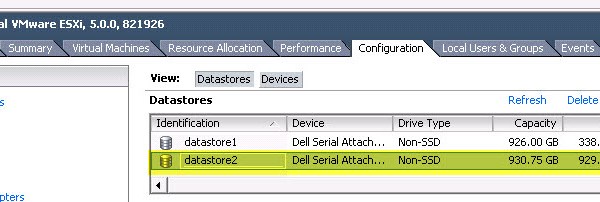
In this example a second RAID1 Mirror has been added to a standalone DELL Server and a new VMFS datastore has been created labelled ‘datastore2’:
MigrateVMToNewDS2

Note: Before proceeding ensure no snapshots are present on the VM being migrated.

1. Log into the ESXi host as ‘root’ via SSH.

2. List all VMs present on the ESXi host:
vim-cmd vmsvc/getallvms
MigrateVMToNewDS3
You can also use: esxcli vm process list

List the inventory ID of the virtual machine ‘MartinWIN7’ which is being migrated to the new datastore:
vim-cmd vmsvc/getallvms |grep MartinWIN7
MigrateVMToNewDS4
We can see from the output that the inventory ID for this VM is ‘9’
Check if VMID ‘9’ has a snapshot: vim-cmd vmsvc/get.snapshot 9
If necessary remove the snapshot: vim-cmd vmsvc/snapshot.remove 9

3. Shutdown the virtual machine ‘MartinWIN7’ VMID ‘9’:
Check the power state of the virtual machine with the following command:
vim-cmd vmsvc/power.getstate 9
MigrateVMToNewDS5
Shutdown the virtual machine with the command:
vim-cmd vmsvc/power.shutdown 9
MigrateVMToNewDS6

Alternative Power-off cmds:
vim-cmd vmsvc/power.off vmid
Or using esxcli: esxcli vm process kill –w world_id
How to gather the world_id: esxcli vm process list

4. Unregister the VM from the ESXi host:
vim-cmd vmsvc/unregister 9
MigrateVMToNewDS7

5. List the VMFS Volumes available on the ESXi host:
cd /vmfs/volumes/
ls -l

MigrateVMToNewDS8

6. Change directory to the VMFS volume where the VM currently resides (‘datastore1’) and gather the required information such as vmdk and vmx file names:
cd /vmfs/volumes/datastore1/
ls -l

MigrateVMToNewDS9
You can view the actual amount of space used by the vmdk files on ‘datastore1’ by using the cmd: du -ah
If the size displayed by a *.vmdk was zero this would imply the vmdk was a Thin disk and the *-flat.vmdk would display the actual used space of the Thinly provisioned vmdk, something similar to the following:
MigrateVMToNewDS24

cd /vmfs/volumes/datastore1/MartinWIN7/
ls -l

As you can see below each VM Disk has a flat file and a descriptor file, for example the virtual machine ‘MartinWIN7’ has a disk named MartinWIN7.vmdk and a corresponding MartinWIN7-flat.vmdk file.
MigrateVMToNewDS10

7. Change directory to the new VMFS volume where the VM will be migrated to and create a new folder for the VM files:

cd /vmfs/volumes/datastore2/
mkdir MartinWIN7
ls -l

MigrateVMToNewDS11

8.Using the ‘vmkfstools’ command to clone the VM to ‘datastore2’, once the cloning process has completed successfully then we can delete the original VM on ‘datastore1’. The ‘-i’ option used with vmkfstools creates a copy of a virtual disk, using the following syntax:
vmkfstools -i src dst
Where src is the current vmdk location (‘datastore1’) and dst is the destination (‘datastore2’) where you would like the vmdk file copied to.

You can chose the Disk format by using the -d –diskformat suboption. The 3 choices of disk format are:
zeroedthick (default) – all space is allocated during creation but only zeroed on first write, referred to a lazy zeroed.
eagerzeroedthick – all space is allocated and fully zeroed during creation.
thin – only the required space is allocated the remainder is allocated and zeroed over time on demand.

vmkfstools -i src dst -d –diskformat [zeroedthick|thin|eagerzeroedthick] -a –adaptertype [buslogic|lsilogic|ide]

Checking the Disk format using ‘vmkfstools -t0’ before cloning ‘MartinWIN7.vmdk’:
vmkfstools -t0 /vmfs/volumes/datastore1/MartinWIN7/MartinWIN7.vmdk
Example Output, the ‘VMFS Z‘ indicates that it is lazy zeroed (zeroedthick):
MigrateVMToNewDS22
You may also use ‘vmkfstools -D’ to check the Disk Format:
vmkfstools -D /vmfs/volumes/datastore1/MartinWIN7/MartinWIN7_1.vmdk
Example Output, the ‘tbz 0‘ indicates that it is eagerzeroedthick:
MigrateVMToNewDS23

The following example illustrates cloning the contents of the virtual disk ‘MartinWIN7.vmdk’ from /datastore1/MartinWIN7 to a virtual disk file with the same name on the /datastore2/MartinWIN7 file system:
vmkfstools -i “/vmfs/volumes/datastore1/MartinWIN7/MartinWIN7.vmdk” “/vmfs/volumes/datastore1/MartinWIN7/MartinWIN7.vmdk” -d zeroedthick -a LSILogic

MigrateVMToNewDS13

Cloning the second disk ‘MartinWIN7_1.vmdk’:
vmkfstools -i “/vmfs/volumes/datastore1/MartinWIN7/MartinWIN7_1.vmdk” “/vmfs/volumes/datastore2/MartinWIN7/MartinWIN7_1.vmdk” -d zeroedthick -a LSILogic

Monitoring progress:
MigrateVMToNewDS15

9. To copy (cp) the virtual machine configuration ( .vmx) file to the new folder, run the command:

cp “/vmfs/volumes/datastore1/MartinWIN7/MartinWIN7.vmx” “/vmfs/volumes/datastore2/MartinWIN7/MartinWIN7.vmx”

10. Next register the newly cloned virtual machine on ‘datastore2’ named ‘MartinWIN7’ on the ESXi host using the vim-cmd solo/registervm cmd:
vim-cmd solo/registervm /vmfs/volumes/datastore2/MartinWIN7/MartinWIN7.vmx MartinWIN7

List the inventory ID of the new virtual machine with the command:
vim-cmd vmsvc/getallvms |grep MartinWIN7

Power-on the virtual machine with VMID 10:
vim-cmd vmsvc/power.on 10

MigrateVMToNewDS16

You will receive a prompt on the vi client, chose the option ‘I copied it‘:
MigrateVMToNewDS17

Displaying the VM IP address (if you wish to RDP and confirm VM status):
vim-cmd vmsvc/get.guest 10 |grep -m 1 “ipAddress = \””
MigrateVMToNewDS18

11. If all looks well and you are happy the VM is operating normally then you may delete the old VM directory. Delete Directory and all contents:
cd /vmfs/volumes/datastore1/
rm -r MartinWIN7OLD/

MigrateVMToNewDS21
MigrateVMToNewDS20

Useful VMware KB’s:
Cloning and converting virtual machine disks with vmkfstools (1028042)
Cloning individual virtual machine disks via the ESX/ESXi host terminal (1027876)
Determining if a VMDK is zeroedthick or eagerzeroedthick (1011170)
Performing common virtual machine-related tasks with command-line utilities (2012964)

EMC VMAX3 – Adding Gatekeeper RDM Volumes To VMware MGMT VM

This post outlines how to create the VMAX Masking view for Gatekeeper RDM volumes and the Script to Automate Adding RDM Disk’s to a VMware MGMT VM.

First some notes on Gatekeeper volumes:
SE(CLI) and Unisphere(GUI) are the main tools used to manage a VMAX Array, Gatekeeper volumes are required in order to carry these commands from both CLI&GUI and generate low level commands which are sent to the VMAX Array to complete the required instruction such as IG,SG,PG,MV or volume creation. It is good practice to use dedicated Gatekeeper devices and avoid using any devices which contain user or application data which may be impacted by the I/O requirement from the instruction command. For example if the device used as a gatekeeper is also servicing application I/O then a scenario may arise if the VMAX is executing a command which takes some time, as a result of this latency the application may encounter poor performance. These are the reasons why EMC strongly recommends to create and map dedicated devices as Gatekeepers.

VMAX3: Creating the RDM Volumes and Associated Masking View

This is an example Masking View for a two node ESXi cluster on which the VMAX management virtual machine shall reside:

1. Create a Port Group with the VMAX FA ports that the ESXi hosts have been zoned to:
symaccess -sid 123 -name MGMT_VM_PG -type port create
symaccess -sid 123 -name MGMT_VM_PG -type port -dirport 1d:24,2d:31,3D:28,4d:27 add

2. Create the Initiator Group containing the ESXi hosts WWNS:
symaccess -sid 123 -name MGMT_VM_IG -type initiator create -consistent_lun
symaccess -sid 123 -name MGMT_VM_IG -type initiator -wwn 21000024ff5CXXF8 add
symaccess -sid 123 -name MGMT_VM_IG -type initiator -wwn 21000024ff5CXXF9 add
symaccess -sid 123 -name MGMT_VM_IG -type initiator -wwn 21000024ff55XX4C add
symaccess -sid 123 -name MGMT_VM_IG -type initiator -wwn 21000024ff55XX4D add

3. Create the Storage Group for the Gatekeeper RDM Volumes:
symsg -sid 123 create MGMT_VM_SG -slo optimized -srp SRP_1
Listing the SRP:
symcfg list -srp

4. Create the Gatekeeper volumes (10 Gatekeeper volumes in this example) and add to the MGMT_VM_SG:
symconfigure -sid 123 -cmd “create dev count=10, emulation=FBA, sg=MGMT_VM_SG, size=3 CYL, config=tdev”; preview -nop
symconfigure -sid 123 -cmd “create dev count=10, emulation=FBA, sg=MGMT_VM_SG, size=3 CYL, config=tdev”; prepare -nop
symconfigure -sid 123 -cmd “create dev count=10, emulation=FBA, sg=MGMT_VM_SG, size=3 CYL, config=tdev”; commit -nop

5. Create the Masking View:
symaccess -sid 123 create view -name MGMT_VM_MV -sg MGMT_VM_SG -pg MGMT_VM_PG -ig MGMT_VM_IG

View Configuration Details

Confirm that the HOSTS are logged into the correct VMAX ports:
symaccess -sid 123 list logins -wwn 21000024ff5CXXF8
symaccess -sid 123 list logins -wwn 21000024ff5CXXF9
symaccess -sid 123 list logins -wwn 21000024ff55XX4C
symaccess -sid 123 list logins -wwn 21000024ff55XX4D

Verify that the HBA is a member of the correct Initiator Group:
symaccess -sid 123 list -type initiator -wwn 21000024ff5CXXF8
symaccess -sid 123 list -type initiator -wwn 21000024ff5CXXF9
symaccess -sid 123 list -type initiator -wwn 21000024ff55XX4C
symaccess -sid 123 list -type initiator -wwn 21000024ff55XX4D

Storage Group details:
symaccess -sid 123 list -type storage -name AMP_SG -v
symaccess -sid 123 show AMP_SG -type storage

Port Group details:
symaccess -sid 123 list -type port -name AMP_PG -v
symaccess -sid 123 show AMP_PG -type port

Initiator Group details:
symaccess -sid 123 list -type initiator -name AMP_IG -v
symaccess -sid 123 show AMP_IG -type initiator

Masking View details:
symaccess -sid 123 list view -name AMP_MV
symaccess -sid 123 list view -name AMP_MV -detail

Gatekeeper details:
symdev -sid 340 list -cap 3 -captype cyl
symaccess -sid 123 list assignment -dev 049:052

If you need to remove the devs from the SG:
symaccess -sid 123 -name AMP_SG -type storage remove devs 049:052


####################################################################
Script to Automate Adding RDM Disk’s:

PowerCLI Script: Automate Adding RDM Disk’s
Here is a script which scans for the Host LUN ID and then attributes the $LUN_# parameter
to the ‘ConsoleDeviceName’. This greatly simplifies the process of adding large quantities of RDM Disk’s.

There are 4 parameters used in the script. The following 3 shall be prompted for:
“Your-ESXi-Hostname” $VMhostname
“Your-VM-Name” $VM
“Your-VMFS-DS-Name” $Datastore

Please edit the runtime name as required, the script default is :
“vmhba0:C0:T0:L#”

The following example script will automatically create 10 RDM Disks on a Virtual Machine and place the pointer files
in a VMFS Datastore based on the parameters provided.

#####################################################################

Write-Host “Please edit the runtime name in the script if required before proceeding, the default is:” -ForegroundColor Red
Write-Host “vmhba0:C0:T0:L#” -ForegroundColor Green

Write-Host “Please enter the ESXi/Vcenter Host IP Address:” -ForegroundColor Yellow -NoNewline
$VMHost = Read-Host

Write-Host “Please enter the ESXi/Vcenter Username:” -ForegroundColor Yellow -NoNewline
$User = Read-Host

Write-Host “Please enter the ESXi/Vcenter Password:” -ForegroundColor Yellow -NoNewline
$Pass = Read-Host

Connect-VIServer -Server $VMHost -User $User -Password $Pass

##########################################

$VMhostname = ‘*’

ForEach ($VMhostname in (Get-VMHost -name $VMhostname)| sort)
{

Write-Host $VMhostname

}

Write-Host “Please enter the ESXi Hostname where your target VM resides:” -ForegroundColor Yellow -NoNewline
$VMhostname = Read-Host

######################################

$Datastore = ‘*’

ForEach ($Datastore in (Get-Datastore -name $Datastore)| sort)
{

Write-Host $Datastore

}

Write-Host “From the list provided – Please enter the VMFS datastore where the RDM pointer files will reside:” -ForegroundColor Yellow -NoNewline
$Datastore = Read-Host

######################################

$VM = ‘*’

ForEach ($VM in (Get-VM -name $VM)| sort)
{
Write-Host $VM
}

Write-Host “From the list provided – Please enter the VM Name where the RDM volumes shall be created on:” -ForegroundColor Yellow -NoNewline
$VM = Read-Host

##############
Write-Host “ESXi Hostname you have chosen: ” -ForegroundColor Yellow
Write-Host “$VMhostname” -ForegroundColor Green
Write-Host “VMFS you have chosen: ” -ForegroundColor Yellow
Write-Host “$Datastore” -ForegroundColor Green
Write-Host “Vitual Machine you have chosen: ” -ForegroundColor Yellow
Write-Host “$VM” -ForegroundColor Green

################
## ACLX T0:L0 ##
################
$LUN_0 = Get-SCSILun -VMhost $VMhostname -LunType Disk | Where-Object {$_.runtimename -like “vmhba0:C0:T0:L0”} | Select ConsoleDeviceName,runtimename
$LUN_0 = $LUN_0 | Select ConsoleDeviceName
$LUN_0 = $LUN_0 -replace “@{ConsoleDeviceName=”, “”
$LUN_0 = $LUN_0 -replace “}”, “”
$LUN_0
New-HardDisk -VM $VM -DiskType RawPhysical -DeviceName $LUN_0 -DataStore $Datastore

#####################
## Gatekeepers x10 ##
#####################
$LUN_1 = Get-SCSILun -VMhost $VMhostname -LunType Disk | Where-Object {$_.runtimename -like “vmhba0:C0:T0:L1”} | Select ConsoleDeviceName,runtimename
$LUN_1 = $LUN_1 | Select ConsoleDeviceName
$LUN_1 = $LUN_1 -replace “@{ConsoleDeviceName=”, “”
$LUN_1 = $LUN_1 -replace “}”, “”
$LUN_1
New-HardDisk -VM $VM -DiskType RawPhysical -DeviceName $LUN_1 -DataStore $Datastore

$LUN_2 = Get-SCSILun -VMhost $VMhostname -LunType Disk | Where-Object {$_.runtimename -like “vmhba0:C0:T0:L2”} | Select ConsoleDeviceName,runtimename
$LUN_2 = $LUN_2 | Select ConsoleDeviceName
$LUN_2 = $LUN_2 -replace “@{ConsoleDeviceName=”, “”
$LUN_2 = $LUN_2 -replace “}”, “”
$LUN_2
New-HardDisk -VM $VM -DiskType RawPhysical -DeviceName $LUN_2 -DataStore $Datastore

$LUN_3 = Get-SCSILun -VMhost $VMhostname -LunType Disk | Where-Object {$_.runtimename -like “vmhba0:C0:T0:L3”} | Select ConsoleDeviceName,runtimename
$LUN_3 = $LUN_3 | Select ConsoleDeviceName
$LUN_3 = $LUN_3 -replace “@{ConsoleDeviceName=”, “”
$LUN_3 = $LUN_3 -replace “}”, “”
$LUN_3
New-HardDisk -VM $VM -DiskType RawPhysical -DeviceName $LUN_3 -DataStore $Datastore

$LUN_4 = Get-SCSILun -VMhost $VMhostname -LunType Disk | Where-Object {$_.runtimename -like “vmhba0:C0:T0:L4”} | Select ConsoleDeviceName,runtimename
$LUN_4 = $LUN_4 | Select ConsoleDeviceName
$LUN_4 = $LUN_4 -replace “@{ConsoleDeviceName=”, “”
$LUN_4 = $LUN_4 -replace “}”, “”
$LUN_4
New-HardDisk -VM $VM -DiskType RawPhysical -DeviceName $LUN_4 -DataStore $Datastore

$LUN_5 = Get-SCSILun -VMhost $VMhostname -LunType Disk | Where-Object {$_.runtimename -like “vmhba0:C0:T0:L5”} | Select ConsoleDeviceName,runtimename
$LUN_5 = $LUN_5 | Select ConsoleDeviceName
$LUN_5 = $LUN_5 -replace “@{ConsoleDeviceName=”, “”
$LUN_5 = $LUN_5 -replace “}”, “”
$LUN_5
New-HardDisk -VM $VM -DiskType RawPhysical -DeviceName $LUN_5 -DataStore $Datastore

$LUN_6 = Get-SCSILun -VMhost $VMhostname -LunType Disk | Where-Object {$_.runtimename -like “vmhba0:C0:T0:L6”} | Select ConsoleDeviceName,runtimename
$LUN_6 = $LUN_6 | Select ConsoleDeviceName
$LUN_6 = $LUN_6 -replace “@{ConsoleDeviceName=”, “”
$LUN_6 = $LUN_6 -replace “}”, “”
$LUN_6
New-HardDisk -VM $VM -DiskType RawPhysical -DeviceName $LUN_6 -DataStore $Datastore

$LUN_7 = Get-SCSILun -VMhost $VMhostname -LunType Disk | Where-Object {$_.runtimename -like “vmhba0:C0:T0:L7”} | Select ConsoleDeviceName,runtimename
$LUN_7 = $LUN_7 | Select ConsoleDeviceName
$LUN_7 = $LUN_7 -replace “@{ConsoleDeviceName=”, “”
$LUN_7 = $LUN_7 -replace “}”, “”
$LUN_7
New-HardDisk -VM $VM -DiskType RawPhysical -DeviceName $LUN_7 -DataStore $Datastore

$LUN_8 = Get-SCSILun -VMhost $VMhostname -LunType Disk | Where-Object {$_.runtimename -like “vmhba0:C0:T0:L8”} | Select ConsoleDeviceName,runtimename
$LUN_8 = $LUN_8 | Select ConsoleDeviceName
$LUN_8 = $LUN_8 -replace “@{ConsoleDeviceName=”, “”
$LUN_8 = $LUN_8 -replace “}”, “”
$LUN_8
New-HardDisk -VM $VM -DiskType RawPhysical -DeviceName $LUN_8 -DataStore $Datastore

$LUN_9 = Get-SCSILun -VMhost $VMhostname -LunType Disk | Where-Object {$_.runtimename -like “vmhba0:C0:T0:L9”} | Select ConsoleDeviceName,runtimename
$LUN_9 = $LUN_9 | Select ConsoleDeviceName
$LUN_9 = $LUN_9 -replace “@{ConsoleDeviceName=”, “”
$LUN_9 = $LUN_9 -replace “}”, “”
$LUN_9
New-HardDisk -VM $VM -DiskType RawPhysical -DeviceName $LUN_9 -DataStore $Datastore

$LUN_10 = Get-SCSILun -VMhost $VMhostname -LunType Disk | Where-Object {$_.runtimename -like “vmhba0:C0:T0:L10”} | Select ConsoleDeviceName,runtimename
$LUN_10 = $LUN_10 | Select ConsoleDeviceName
$LUN_10 = $LUN_10 -replace “@{ConsoleDeviceName=”, “”
$LUN_10 = $LUN_10 -replace “}”, “”
$LUN_10
New-HardDisk -VM $VM -DiskType RawPhysical -DeviceName $LUN_10 -DataStore $Datastore

##############
### VERIFY ###
##############
##Finding RDMs Using PowerCLI:##
# Detailed #
# Get-VM | Get-HardDisk -DiskType “RawPhysical” | Select Parent,Name,DiskType,ScsiCanonicalName,DeviceName,CapacityGB | fl
# Brief #
# Get-ScsiLun -VMHost $VMhostname -LunType disk
# NAA #
# Get-ScsiLun -VMHost $VMhostname -LunType disk | select CanonicalName

### Get IP Address for ViClient to check GUI ###
# Get-VMHost -Name $VMhostname | Get-VMHostNetworkAdapter