EMC VNX – Pool LUN Ownership

For every Pool LUN regardless of whether the LUN is thick or thinly provisioned there are 3 owner types assigned to each LUN:

Allocation Owner
Default Owner
Current Owner

There has been cases where inconsistencies in Current, Default & Allocation LUN ownership results in poor performance. Please review the EMC KB88169 written by Dave Reed for more detail.

Jon Klaus goes into good detail on the topic in his post ‘VNX Storage Pool LUN Ownership’

All three owner types need to align with the same ‘VNX Storage Processor’ (A/B) for best performance. If all 3 owners are aligned correctly then there is no need for the system to redirect I/O across the CMI to a peer Storage Processor. This is an example of a best practice LUN ownership configuration as viewable from the LUN properties in Unisphere:
VNX_LUN_OWN1

With VNX2 when you create multiple LUNs from Unisphere the ownership is evenly balanced between SP A/B, this results in a balanced LUN configration. With VNX1 you need to specify the owner under the advanced tab while creating the LUN(s) in Unisphere to keep the LUNs evenly balanced across Storage Processors, or you can create the LUNs using cli and specify the SP owner as follows:

naviseccli lun -create -type nonThin -poolName ‘PoolName’ -sp a -capacity 20 -sq gb -name ‘LunName_SPA’ -l 1

naviseccli lun -create -type nonThin -poolName ‘PoolName’ -sp b -capacity 20 -sq gb -name ‘LunName_SPB’ -l 2

To generate a report of all POOL LUN properties including Ownership values from Unisphere chose the system tab and click on the ‘Reports’ option:
VNX_LUN_OWN2
From the next window chose the reports window and select Pool LUNs:
VNX_LUN_OWN3
You will then be presented with a HTML report with details for each LUN:VNX_LUN_OWN4

You can also use the following Navicli command to generate a listing of all your LUNs Ownership values:
naviseccli -h SP_IP lun -list -alowner -default -owner

Example Output:
LOGICAL UNIT NUMBER 1
Name: LunName_SPA
Current Owner: SP A
Default Owner: SP A
Allocation Owner: SP A

LOGICAL UNIT NUMBER 2
Name: LunName_SPB
Current Owner: SP B
Default Owner: SP B
Allocation Owner: SP B

To lookup the ownership values on an individual LUN basis use the navicli command below or from Unisphere view the properties of the LUN (as per above):
naviseccli -h SP_IP lun -list -l 1 -alowner -default -owner
naviseccli -h SP_IP lun -list -l 2 -alowner -default -owner

Changing Ownership
Now we are going to look at how we can change the Pool LUN ownership types beginning with the Allocation owner. Changing the Allocation Owner is only recommended if you have an imbalance of SP LUN ownership in your system. The only way to achieve this (changing the Allocation Owner) is to create another LUN of equal characteristics but on the other Storage Processor and then migrate the source LUN to the newly created target LUN on the opposite SP as the following example demonstrates:

1. For example create a New pool LUN (target) to migrate the source LUN to:
naviseccli lun -create -type nonThin -poolName ‘PoolName’ -sp b -capacity 20 -sq gb -name ‘LunName_SPA’ -l 3

2. Migrate ‘LUN ID 1’ to the new LUN which now has an allocation owner of SP B (More on LUN migration HERE):
naviseccli -h SP_IP migrate -start -source 1 -dest 3 -rate asap

After the migration you can see that the Allocation Owner is now ‘SP B’ but the Current and Default Ownership’s remain with ‘SP A’:
naviseccli -h SP_IP lun -list -l 1 -alowner -default -owner

LOGICAL UNIT NUMBER 1
Current Owner: SP A
Default Owner: SP A
Allocation Owner: SP B

3. Changing the Default Owner using the LUN -modify command or change through the LUN properties window in Unisphere:
naviseccli -h SP_IP lun -modify -l 1 -sp B

4. To change the Current Owner you will need to execute a trespass command on the LUN using navicli or by right clicking on the LUN in Unisphere and click the trespass option:
naviseccli -h SP_IP trespass lun 1
If changing on multiple LUNs then running the trespass mine command from the SP will trespass all the LUNs that the SP has DEFAULT ownership of. For example to trespass LUNs with Default Ownership of ‘SP B’ but which are currently owned by ‘SP A’:
naviseccli -h SPB_IP trespass mine

After completing these 4 steps the LUN ID 1 now has Current and Default ownership to match the Allocation owner:
naviseccli -h SP_IP lun -list -l 1 -alowner -default -owner

LOGICAL UNIT NUMBER 1
Current Owner: SP B
Default Owner: SP B
Allocation Owner: SP B

Note: RAID Group LUNs do not have an allocation owner. With MCX Raid Group LUNs are truly symmetric active/active – Future enhancement for POOL based LUNs, until then please be aware of your LUN ownership values.

The Vblock vCake

Created by Cliff Cahill @CliffCahill

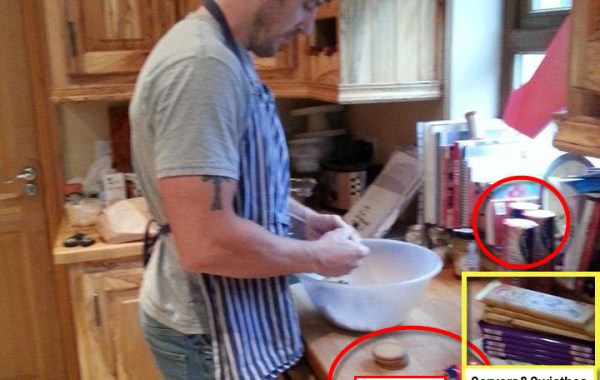
In conjunction with the announcement of the ‘Vblock 740’ @VCE’s latest addition to the Vblock range Cliff kindly put his creative and baking skills to good effect by creating the ‘Vblock 740 vCake’. The Vblock System 740 is VCE’s flagship converged infrastructure, an IT infrastructure built on industry-leading technology combining Network and Compute components from Cisco, Storage in the form of the EMC VMAX³ and virtualization from VMWare – all market leaders in their respective technology sectors.

The steps below outline the process that was followed in order to deliver the Vblock vCake:

1. Logical Configuration Summary(LCS) & Bill Of Materials(BOM)
2. Physical Build Commences
3. Configuring the Advanced Management Platform (AMP)
4. Configuring the Cisco Network Components (MDS, NEXUS) & Compute Components (Cisco UCS)
5. Configuring the EMC VMAX³ & VMWare Virtualization Infrastructure (ESXi, vCenter, VUM)
6. Logical Configuration QA
7. Vblock Sent to Distribution
8. Deployment and Implentation Begins
9. Deployment and Implentation Knowledge Transfer
10. Vblock Enters Production

1. Logical Configuration Summary and Bill of Materials
The vArchitect has taken the customers requirements and expertly sized the Vblock to deliver optimum performance for the customers mission critical applications. The bill of materials has been completed and the Technical Program Team has qualified and validated the solution design. The Logical Configuration Survey has been signed off with the customer and the Vblock has been added to the Production Schedule. All components are laid out in preparation for integration:

vCake1

2. Physical Build Commences
Next our manufacturing team place each part of the Vblock platform into its correct location within the cabinet:
vCake3

The Cisco UCS, fabric interconnects, network switches and EMC VMAX³ are now installed:
vCake4

Then the power outlet units (POU’s) and all network and power cabling get installed and connected to the appropriate ports based on a Master Port Map:
vCake7

3. Configuring the Advanced Management Platform (AMP)
Next the Vblock platform goes through the Logical integration phase where it is expertly configured by the LB Team to meet specific customer requirements, beginning with the AMP configuration which runs the software that manages the platform (Cisco C220 servers and EMC VNXe storage array):
vCake11

4. Configuring the Cisco Network Components (MDS, NEXUS) & Compute Components (Cisco UCS)
Code Upgrades are complete based on the fully tested and validated RCM. Initial and advanced scripting executed:
vCake10

5. Configuring the EMC VMAX³ & VMware Virtualization infrastructure (ESXi, vCenter, VUM)
The EMC VMAX³ Bin File has been loaded and the VMWare ESXi clusters are provisioned via UIM:
vCake12

6. Logical Configuration QA
Logical Configuration Complete, QA Done and VCE Vision verifies compliance with RCM. Hand Off Email Sent:
vCake13

7. Vblock Sent to Distribution
The Vblock is down in distribution and ready for dispatch. Customer agreed delivery date is achieved. Vblock is covered to ensure immaculate delivery to its proud new owner:
vCake14

8. Deployment and Implementation Begins
Vblock arrives at the customer site as a piece of truly converged infrastructure and the Deployment and Implementation phase commences:
photo 1
photo 2

9. Deployment and Implentation Knowledge Transfer
The Vblock has been integrated into the customer environment and Deployment & Implementation knowledge transfer begins:
photo 3

10. Vblock Enters Production
The Vblock is now in operation – End User is already after taking a few compute slices:
photo 4
photo 5

Vblock Infrastructure Platform is Transforming IT
vCake Final

BOM for Biscuit Cake
400g digestives
2 Crunchies
450g milk choc
90g butter
5tbsp double cream
1tbsp golden syrup

BOM for Ganache:
180ml double cream
28g butter
227g dark choc

Logical Build Instructions for vCake
Biscuit Cake
Melt milk choc with butter over pot of simmering water.
Break up biscuits and crush crunchies in a large bowl.
Once milk choc melted, cool slightly and then add cream and golden syrup.
Mix using a whisk until completely mixed through.
Add to digestives and make sure every biscuit is covered.
Put it in to a prelared tim lined with cling film and refrigerate.

Ganache
Break Dark chocolate into Single Squares and add to Glass Bowl
Slowly Bring cream and butter to the boil and poor over dark chocolate.
Allow to sit for a couple of minutes and then mix thoroughly until choc completely melted.
Allow to set until desired consistency has been reached.

VMware PowerCLI – Adding RDM Disk’s

See also: VMware PowerCLI – Adding VMFS Datastore’s

After creating the required LUN’s on your storage array and mapped the LUN’s to your ESXi hosts then you may use PowerCLI to add these new LUNs as RDM Disk’s to a Virtual Machine.

The first four steps outline how to use PowerCLI to add an individual RDM to a Virtual Machine and the second section provides the script to add multiple RDM volumes to a Virtual Machine(s).

1. Connect to vCenter:
Connect-VIServer -Server “vCenter_IP” -User UserName -Password Password

If you need to retreive the Cluster and Host names:
look up the Cluster Name:
Get-Cluster
look up the Host names in the cluster:
Get-Cluster ‘Cluster Name’ | Get-VMHost | Select Name

2. Retrieve the ConsoleDeviceName(s):
In order to use the New-HardDisk cmdlet we require the ‘ConsoleDeviceName’ parameter associated with each LUN. In this example we will use the Get-SCSILun cmd to return the ‘ConsoleDeviceName’, Capacity and Runtime name in order for us to match the unique naa with the correct LUN#.

Get-SCSILun -VMhost “Your-ESXi-Hostname” -LunType Disk | Select ConsoleDeviceName,CapacityGB,runtimename

cli_rdm1

I was able to sort the SCSI LUN’s by RuntimeName including the double digit’s ‘vmhba0:C0:T0:L##’ using the following script provided by Luc:

Get-ScsiLun -VMHost “Your-ESXi-Hostname” -LunType disk |
Select RuntimeName,ConsoleDeviceName,CapacityGB |
Sort-Object -Property {$_.RuntimeName.Split(‘:’)[0],
[int]($_.RuntimeName.Split(‘:’)[1].TrimStart(‘C’))},
{[int]($_.RuntimeName.Split(‘:’)[2].TrimStart(‘T’))},
{[int]($_.RuntimeName.Split(‘:’)[3].TrimStart(‘L’))}

cli_rdm2

3. Adding the New RDM Disk’s:
If you need to reference the name of the Virtual machine you will be using to add the RDM disk:
Get-VM | Select-Object Name

vSphere PowerCLI provides the New-HardDisk cmd to create an RDM Disk on a virtual machine:
New-HardDisk -VM “Your-VM-Name” -DiskType RawPhysical -DeviceName /vmfs/devices/disks/naa.6000etc

If you wish to specify the VMFS datastore to use for your RDM pointer files then add the -DataStore parameter:
New-HardDisk -VM “Your-VM-Name” -DiskType RawPhysical -DeviceName /vmfs/devices/disks/naa.6000etc -Datastore “Datastore-Name”

If you need to list the available Datastore’s:
Get-Datastore
Get-Cluster -name “ClusterName” | Get-VMhost | Get-Datastore

4. List all the Newly Created RDM Disk’s:
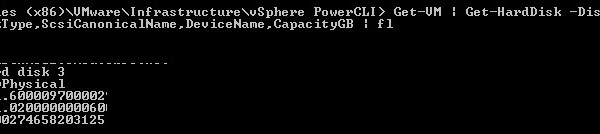
Get-VM | Get-HardDisk -DiskType “RawPhysical” | Select Parent,Name,DiskType,ScsiCanonicalName,DeviceName,CapacityGB | fl

cli_rdm3

******************************************************************************************

Script to Automate Adding RDM Disk’s

####################################################################
PowerCLI Script: Automate Adding RDM Disk’s
Here is a script which scans for the Host LUN ID and then attributes the $LUN_# parameter
to the ‘ConsoleDeviceName’. This greatly simplifies the process of adding large quantities of RDM Disk’s.

There are 4 parameters used in the script. The following 3 shall be prompted for:
“Your-ESXi-Hostname” $VMhostname
“Your-VM-Name” $VM
“Your-VMFS-DS-Name” $Datastore

Please edit the runtime name as required, the script default is :
“vmhba0:C0:T0:L#”

The following example script will automatically create 10 RDM Disks on a Virtual Machine and place the pointer files
in a VMFS Datastore based on the parameters provided.

#####################################################################

Write-Host “Please edit the runtime name in the script if required before proceeding, the default is:” -ForegroundColor Red
Write-Host “vmhba0:C0:T0:L#” -ForegroundColor Green

Write-Host “Please enter the ESXi/Vcenter Host IP Address:” -ForegroundColor Yellow -NoNewline
$VMHost = Read-Host

Write-Host “Please enter the ESXi/Vcenter Username:” -ForegroundColor Yellow -NoNewline
$User = Read-Host

Write-Host “Please enter the ESXi/Vcenter Password:” -ForegroundColor Yellow -NoNewline
$Pass = Read-Host

Connect-VIServer -Server $VMHost -User $User -Password $Pass

##########################################

$VMhostname = ‘*’

ForEach ($VMhostname in (Get-VMHost -name $VMhostname)| sort)
{

Write-Host $VMhostname

}

Write-Host “Please enter the ESXi Hostname where your target VM resides:” -ForegroundColor Yellow -NoNewline
$VMhostname = Read-Host

######################################

$Datastore = ‘*’

ForEach ($Datastore in (Get-Datastore -name $Datastore)| sort)
{

Write-Host $Datastore

}

Write-Host “From the list provided – Please enter the VMFS datastore where the RDM pointer files will reside:” -ForegroundColor Yellow -NoNewline
$Datastore = Read-Host

######################################

$VM = ‘*’

ForEach ($VM in (Get-VM -name $VM)| sort)
{
Write-Host $VM
}

Write-Host “From the list provided – Please enter the VM Name where the RDM volumes shall be created on:” -ForegroundColor Yellow -NoNewline
$VM = Read-Host

##############
Write-Host “ESXi Hostname you have chosen: ” -ForegroundColor Yellow
Write-Host “$VMhostname” -ForegroundColor Green
Write-Host “VMFS you have chosen: ” -ForegroundColor Yellow
Write-Host “$Datastore” -ForegroundColor Green
Write-Host “Vitual Machine you have chosen: ” -ForegroundColor Yellow
Write-Host “$VM” -ForegroundColor Green

################
## ACLX T0:L0 ##
################
$LUN_0 = Get-SCSILun -VMhost $VMhostname -LunType Disk | Where-Object {$_.runtimename -like “vmhba0:C0:T0:L0”} | Select ConsoleDeviceName,runtimename
$LUN_0 = $LUN_0 | Select ConsoleDeviceName
$LUN_0 = $LUN_0 -replace “@{ConsoleDeviceName=”, “”
$LUN_0 = $LUN_0 -replace “}”, “”
$LUN_0
New-HardDisk -VM $VM -DiskType RawPhysical -DeviceName $LUN_0 -DataStore $Datastore

#####################
## Gatekeepers x10 ##
#####################
$LUN_1 = Get-SCSILun -VMhost $VMhostname -LunType Disk | Where-Object {$_.runtimename -like “vmhba0:C0:T0:L1”} | Select ConsoleDeviceName,runtimename
$LUN_1 = $LUN_1 | Select ConsoleDeviceName
$LUN_1 = $LUN_1 -replace “@{ConsoleDeviceName=”, “”
$LUN_1 = $LUN_1 -replace “}”, “”
$LUN_1
New-HardDisk -VM $VM -DiskType RawPhysical -DeviceName $LUN_1 -DataStore $Datastore

$LUN_2 = Get-SCSILun -VMhost $VMhostname -LunType Disk | Where-Object {$_.runtimename -like “vmhba0:C0:T0:L2”} | Select ConsoleDeviceName,runtimename
$LUN_2 = $LUN_2 | Select ConsoleDeviceName
$LUN_2 = $LUN_2 -replace “@{ConsoleDeviceName=”, “”
$LUN_2 = $LUN_2 -replace “}”, “”
$LUN_2
New-HardDisk -VM $VM -DiskType RawPhysical -DeviceName $LUN_2 -DataStore $Datastore

$LUN_3 = Get-SCSILun -VMhost $VMhostname -LunType Disk | Where-Object {$_.runtimename -like “vmhba0:C0:T0:L3”} | Select ConsoleDeviceName,runtimename
$LUN_3 = $LUN_3 | Select ConsoleDeviceName
$LUN_3 = $LUN_3 -replace “@{ConsoleDeviceName=”, “”
$LUN_3 = $LUN_3 -replace “}”, “”
$LUN_3
New-HardDisk -VM $VM -DiskType RawPhysical -DeviceName $LUN_3 -DataStore $Datastore

$LUN_4 = Get-SCSILun -VMhost $VMhostname -LunType Disk | Where-Object {$_.runtimename -like “vmhba0:C0:T0:L4”} | Select ConsoleDeviceName,runtimename
$LUN_4 = $LUN_4 | Select ConsoleDeviceName
$LUN_4 = $LUN_4 -replace “@{ConsoleDeviceName=”, “”
$LUN_4 = $LUN_4 -replace “}”, “”
$LUN_4
New-HardDisk -VM $VM -DiskType RawPhysical -DeviceName $LUN_4 -DataStore $Datastore

$LUN_5 = Get-SCSILun -VMhost $VMhostname -LunType Disk | Where-Object {$_.runtimename -like “vmhba0:C0:T0:L5”} | Select ConsoleDeviceName,runtimename
$LUN_5 = $LUN_5 | Select ConsoleDeviceName
$LUN_5 = $LUN_5 -replace “@{ConsoleDeviceName=”, “”
$LUN_5 = $LUN_5 -replace “}”, “”
$LUN_5
New-HardDisk -VM $VM -DiskType RawPhysical -DeviceName $LUN_5 -DataStore $Datastore

$LUN_6 = Get-SCSILun -VMhost $VMhostname -LunType Disk | Where-Object {$_.runtimename -like “vmhba0:C0:T0:L6”} | Select ConsoleDeviceName,runtimename
$LUN_6 = $LUN_6 | Select ConsoleDeviceName
$LUN_6 = $LUN_6 -replace “@{ConsoleDeviceName=”, “”
$LUN_6 = $LUN_6 -replace “}”, “”
$LUN_6
New-HardDisk -VM $VM -DiskType RawPhysical -DeviceName $LUN_6 -DataStore $Datastore

$LUN_7 = Get-SCSILun -VMhost $VMhostname -LunType Disk | Where-Object {$_.runtimename -like “vmhba0:C0:T0:L7”} | Select ConsoleDeviceName,runtimename
$LUN_7 = $LUN_7 | Select ConsoleDeviceName
$LUN_7 = $LUN_7 -replace “@{ConsoleDeviceName=”, “”
$LUN_7 = $LUN_7 -replace “}”, “”
$LUN_7
New-HardDisk -VM $VM -DiskType RawPhysical -DeviceName $LUN_7 -DataStore $Datastore

$LUN_8 = Get-SCSILun -VMhost $VMhostname -LunType Disk | Where-Object {$_.runtimename -like “vmhba0:C0:T0:L8”} | Select ConsoleDeviceName,runtimename
$LUN_8 = $LUN_8 | Select ConsoleDeviceName
$LUN_8 = $LUN_8 -replace “@{ConsoleDeviceName=”, “”
$LUN_8 = $LUN_8 -replace “}”, “”
$LUN_8
New-HardDisk -VM $VM -DiskType RawPhysical -DeviceName $LUN_8 -DataStore $Datastore

$LUN_9 = Get-SCSILun -VMhost $VMhostname -LunType Disk | Where-Object {$_.runtimename -like “vmhba0:C0:T0:L9”} | Select ConsoleDeviceName,runtimename
$LUN_9 = $LUN_9 | Select ConsoleDeviceName
$LUN_9 = $LUN_9 -replace “@{ConsoleDeviceName=”, “”
$LUN_9 = $LUN_9 -replace “}”, “”
$LUN_9
New-HardDisk -VM $VM -DiskType RawPhysical -DeviceName $LUN_9 -DataStore $Datastore

$LUN_10 = Get-SCSILun -VMhost $VMhostname -LunType Disk | Where-Object {$_.runtimename -like “vmhba0:C0:T0:L10”} | Select ConsoleDeviceName,runtimename
$LUN_10 = $LUN_10 | Select ConsoleDeviceName
$LUN_10 = $LUN_10 -replace “@{ConsoleDeviceName=”, “”
$LUN_10 = $LUN_10 -replace “}”, “”
$LUN_10
New-HardDisk -VM $VM -DiskType RawPhysical -DeviceName $LUN_10 -DataStore $Datastore

##############
### VERIFY ###
##############
##Finding RDMs Using PowerCLI:##
# Detailed #
# Get-VM | Get-HardDisk -DiskType “RawPhysical” | Select Parent,Name,DiskType,ScsiCanonicalName,DeviceName,CapacityGB | fl
# Brief #
# Get-ScsiLun -VMHost $VMhostname -LunType disk
# NAA #
# Get-ScsiLun -VMHost $VMhostname -LunType disk | select CanonicalName

### Get IP Address for ViClient to check GUI ###
# Get-VMHost -Name $VMhostname | Get-VMHostNetworkAdapter

Cisco MDS – Upgrading Firmware

MDS 9000 Series Firmware Upgrade

It is always good practice to read the software ‘release notes’ before proceeding with an upgrade. The ‘Cisco MDS 9000 NX-OS and SAN-OS Software’ release notes can be found here.

These are the steps I follow when upgrading:

1. Open an SSH session to the switch.

2. Take a backup of your configuration. Firstly ensure that your running configuration has been applied to the startup-config:
copy running-config startup-config
Then backup your startup configuration. In this example we are backing up to an ftp server:
copy system:startup-config ftp://FTPserver_IP/startup-config.cfg

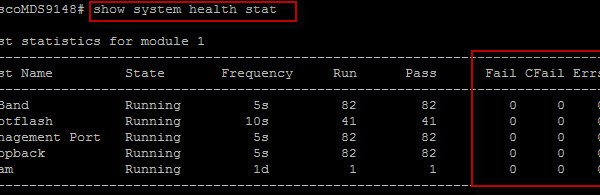
3. Ensure the switch is in a healthy state before proceeding:
MDSUPG0
If the MDS is a Director Level switch, then check the redundancy and module status:
show system redundancy status
show module

MDSUPG10
During the upgrade the standby supervisor is upgraded first. Once the upgrade has completed on the standby then an automatic switchover occurs and the upgraded standby becomes primary while the other supervisor is upgraded. The odd time I have experienced with a Director switch that the supervisor does not switch back to the original primary after the code upgrade has completed. In this scenario simply use these cmds to switch manually:
attach module #
system switchover (if running on standby)

4. Check the current firmware version:
MDSUPG1

5. Change directory to bootflash and upload the new bin files to the switch. This example uses an ftp transfer:
copy ftp://user@IP_Address/m9100-s3ek9-kickstart-mz.5.2.8c.bin m9100-s3ek9-kickstart-mz.5.2.8c.bin
copy ftp://user@IP_Address/m9100-s3ek9-mz.5.2.8c.bin m9100-s3ek9-mz.5.2.8c.bin

6. Ensure the code was uploaded to the bootflash directory successfully:
MDSUPG2

7. Determine if the upgrade will be non-disruptive:
show install all impact system bootflash:///m9100-s3ek9-mz.5.2.8c.bin
For a non-disruptive upgrade the switches are designed in such a way that the ports will remain connected and traffic flow will continue non-disrupted throughout the upgrade. This is so because the switch has been engineered in such a way that the control plane is separate to the data plane. In the case of a director level switch the modules are upgraded and rebooted in a rolling fashion one at a time non-disruptively(non-disruptively due to the separation of the control and data planes).

8. Check the MD5 and confirm the files validity:
show version image bootflash:///m9100-s3ek9-mz.5.2.8c.bin
show version image bootflash:///m9100-s3ek9-kickstart-mz.5.2.8c.bin

9. Check for any incompatibilities between the running and the upgrade code versions. This will check for features that are currently running on the switch but are not supported on the upgrade code level:
show incompatibility system bootflash:///m9500-sf2ek9-mz.5.2.8c.bin

10. Enter the following command to install the new firmware on the switch:
install all system m9100-s3ek9-mz.5.2.8c.bin kickstart m9100-s3ek9-kickstart-mz.5.2.8c.bin
MDSUPG3

11. Display the status of the upgrade:
‘show install all status’
MDSUPG4

12. Run ‘show version’ to ensure the switch is now running at the upgraded code level. As you can see from the below example the ‘system version’ is still on the previous firmware level – a reload is required to apply the upgrade. NOTE: A reload is disruptive to traffic flow (As pointed out by @dynamoxxx below). This is not common and I have only identified this with the 9148 Switch when upgrading from 5.0.x to 5.8.x.

MDSUPG5
MDSUPG6
After reload the system version should be at the upgraded version:
MDSUPG7

It is good practice to delete the old install files from the bootflash directory:
cd bootflash:
delete m9100-s3ek9-kickstart-mz.5.0.1a.bin
delete m9100-s3ek9-mz.5.0.1a.bin

MDSUPG9