XtremIO (xmcli) – Creating Initiator Groups and Mapping LUNs

1. Open an SSH session to the XtremIO Management Station
Firstly we need to open an SSH connection to the XtremIO Management Station (XMS), in this case I used putty to connect directly onto the XMS Virtual Machine. The second login prompt after ‘xmsadmin’ is required to access the xmcli> session.
DXMS18
The XMCLI session prompt appears allowing you to run the required commands. Utilizing ‘?’ within the console will provide a list of available options.

2. Create the Initiator Group Parent Folder
In order to keep Clusters organizied it is good practice to create a root Folder for each cluster in a multi-cluster configuration. In this example we will use the cluster name “VDICluster” as the folder name. Note: all the user defined values require parenthesis “…”

add-folder caption=”VDICluster” folder-type=ig parent-folder-id=”/”

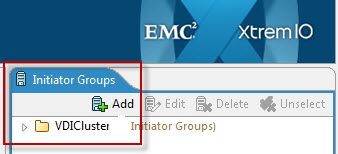
Once created the folder appears in the Initiator Groups pane:
DXMS20

3. Create Initiator Groups and add their associated Host Initiators
Create the IG and assign to the parent folder “VDICluster”:
add-initiator-group ig-name=”VB001_ESXI01″ parent-folder-id=”/VDICluster”

Add the ESXi HBA’s to the relevant IG:
add-initiator ig-id=”VB001_ESXI01″ initiator-name=”VB001_ESXI01-HBA0″ port-address=”20:00:00:25:xx:xx:xx:6F”
add-initiator ig-id=”VB001_ESXI01″ initiator-name=”VB001_ESXI01-HBA1″ port-address=”20:00:00:25:xx:xx:xx:6F”

add-initiator-group ig-name=”VB001_ESXI02″ parent-folder-id=”/VDICluster”
add-initiator ig-id=”VB001_ESXI02″ initiator-name=”VB001_ESXI02-HBA0″ port-address=”20:00:00:25:xx:xx:xx:7F”
add-initiator ig-id=”VB001_ESXI02″ initiator-name=”VB001_ESXI02-HBA1″ port-address=”20:00:00:25:xx:xx:xx:7F”

DXMS19

Initiator Group Validation:
show-ig-folders
show-initiators
show-initiators-connectivity
show-initiator-groups

4. Create Parent Folders for the Boot and DATA LUNs
add-folder caption=”VDICluster_BOOT” folder-type=vol parent-folder-id=”/”
add-folder caption=”VDICluster_DATA” folder-type=vol parent-folder-id=”/”
DXMS22

5. Create BOOT LUNs for both ESXi Hosts (20Gig Example)
add-volume alignment-offset=0 lb-size=512 vol-name=”ESXI01-BOOT” vol-size=”20g” parent-folder-id=”/VDICluster_BOOT”
add-volume alignment-offset=0 lb-size=512 vol-name=”ESXI02-BOOT” vol-size=”20g” parent-folder-id=”/VDICluster_BOOT”

6. Map the Individual Boot LUNs to the ESXi Hosts using HLU 0
This presents “ESXI01-BOOT” to the ESXi Host “VB001_ESXI01” as LUN 0:
map-lun vol-id=”ESXI01-BOOT” ig-id=”VB001_ESXI01″ lun=0

This presents “ESXI02-BOOT” to the ESXi Host “VB001_ESXI02” as LUN 0:
map-lun vol-id=”ESXI02-BOOT” ig-id=”VB001_ESXI02″ lun=0

7. Create two shared DATA LUNs (2TB Example)
This creates 2X 2TB LUNs named Datastore01&02 and enables VAAI-TP alerts:
add-volume alignment-offset=0 lb-size=512 vol-name=”Datastore01″ vol-size=”2048g” vaai-tp-alerts=enabled parent-folder-id=”/VDICluster_DATA”
add-volume alignment-offset=0 lb-size=512 vol-name=”Datastore02″ vol-size=”2048g” vaai-tp-alerts=enabled parent-folder-id=”/VDICluster_DATA”

8. Map the two DATA LUNs to both ESXi Cluster hosts using HLU1&2
map-lun vol-id=”Datastore01″ ig-id=”VB001_ESXI01″ lun=1
map-lun vol-id=”Datastore01″ ig-id=”VB001_ESXI02″ lun=1
Yes
map-lun vol-id=”Datastore02″ ig-id=”VB001_ESXI01″ lun=2
map-lun vol-id=”Datastore02″ ig-id=”VB001_ESXI02″ lun=2
Yes

Note: You will receive a prompt when adding the shared datastore’s to the second host: Are you sure you want to create additional LUN mapping for Volume Datastore01? (Yes/No): Yes This is something to be aware of when creating scripts to map a volume(s) to multiple hosts.

Validate the LUN Configuration:
show-volume-folders
show-volumes
show-volume vol-id=”Datastore01″
show-volume vol-id=”Datastore02″

Lun_Map_DS

CISCO UCS Blades – Memory Troubleshooting

This is a guest blog post kindly contributed by Eric Daly @daly_eric.

In an effort to pin point specific DIMMs within UCS that are throwing an error, please follow these simple steps. Be aware that an entire memory channel with up to 3 DIMMs may show as disabled in a channel, all because of one DIMM with uncorrectable errors.

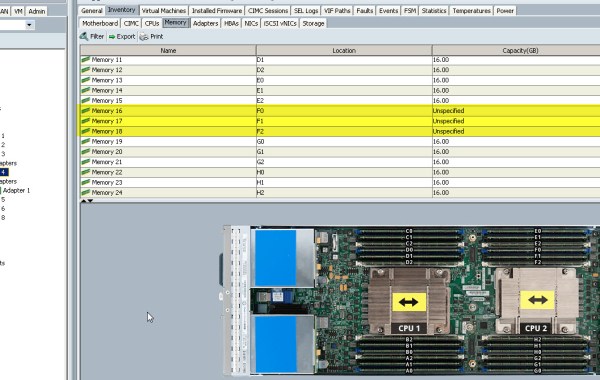
1) Check the Inventory > Memory tab to see which DIMMs are not registering. Make note of the DIMM Location (F0,F1,F2) as per Below:
TS_MEM1
2) Review the SEL Log and search for the specific DIMM throwing “uncorrectable” “memory error”. In this case you will see from the image below that the F2 DIMM was causing the issue. If nothing shows in SEL log perform steps 3-5.
TS_MEM2
3) Reset CIMC controller of blade (Recover Server > Reset CIMC (Server controller). Wait a minute or 2.
4) Re-acknowledge blade. Takes 2-3 mins
5) Review SEL Log again as per step 2 in order to identify the faulting DIMM.

DEEPER ANALYSIS
1) Download techsupport for the specific chassis where the suspect blade is located.
TS_MEM3
2) Extract the tar and then extract the relvant zip file for suspect blade. There are 2 files which will give you a clear picture of memory DIMM failures. MrcOut.txt and DimmBl.log
3) Locate the DimmBl.log file and open this with Word (not notepad).
TS_MEM4
4) You will get a summary of first page telling you if blade has any DIMMs with uncorrectable errors

====================== SUMMARY OF DIMM ERRORS ======================
NO DIMM ECC ERRORS ON THIS BLADE

====================== DIMM BL RAM DATABASE DUMP ========================

====== RAM DB DUMP =====
--- Control Header :
DataBaseFormatVersion : 2
FaultSensorInitDone : 0x00
SyncTaskInitDone : 0x01
DimmBLEnabledBySAM : FALSE
MostRecentHostBootTime : Sat Jun 28 19:07:28 2014
PreviousHostBootTime : Sat Jun 28 02:47:42 2014
MostRecentHostShutdownTime : Sat Jun 28 02:58:12 2014
ErrorSamplingIntervalLength : 1209600
DBSyncPeriod : 3600
CurrentIntervalIndex : 0

---------------------- PER DIMM ERROR COUNTS -----------
CORRECTABLE ERRORS UNCORRECTABLE ERRORS
DIMM ID Total This Boot Total This Boot
-----------------------------------------------------------
A0 0 0 0 0
A1 0 0 0 0
A2 0 0 0 0
B0 0 0 0 0
B1 0 0 0 0
B2 0 0 0 0
C0 0 0 0 0
C1 0 0 0 0
C2 0 0 0 0
D0 0 0 0 0
D1 0 0 0 0
D2 0 0 0 0
E0 0 0 0 0
E1 0 0 0 0
E2 0 0 0 0
F0 0 0 0 0
F1 0 0 0 0
F2 0 0 0 0
G0 0 0 0 0
G1 0 0 0 0
G2 0 0 0 0
H0 0 0 0 0
H1 0 0 0 0
H2 0 0 0 0

EMC XtremIO Redefined

Since XtremIO first became Generally Available back in November 2013 the momentum of the product has been incredible. Becoming the ‘Number 1’ All Flash Array (AFA) on the market in just a matter of a few months and crossing the $100 million mark in less than 6 months of GA. These statistics make XtremIO the fastest growing storage array on the market today. EMC have now added two new offerings to the XtremIO product line, a smaller 5TB single X-Brick and a larger six X-Brick configuration. New inline software Data Services have been added which result in an increase in performance, security and usable capacity. XtremIO customers can receive these new Data Services as a software upgrade to the XtremIO Operating System at no additional cost.

XtremIO Product Family
XIO_Family
Previously the XtremIO product offering was for 1, 2 or 4 X-Brick configurations, with a maximum of 8 active storage controllers and 80TB of capacity. The additional smaller X-Brick configuration called a “Starter X-Brick” is essentially the standard single X-Brick configuration with half a shelve of SSD Drives. The half shelve equates to 13 x 400GB drives in a 25-drive enclosure, providing 5.2TB raw and 3.7TB of usable storage. The Starter X-Brick is a great option for customers looking for the same peformance of a full X-Brick, but do not initially require the 10TB of raw storage (8.2 TB usable) available with a full X-Brick.

XIO_Starter

This for example is a perfect starter system for a VDI pilot deployment of 500-1000 desktops, providing the same perfomance, the same data services and features as the fully populated system. If you require the full 3500 Desktops then you may dynamically add the additional SSD’s to make a full shelve and the capacity will expand online non-disruptively. The Starter X-Brick is availble now with code level 2.4.1-12.

XIO_Expansion

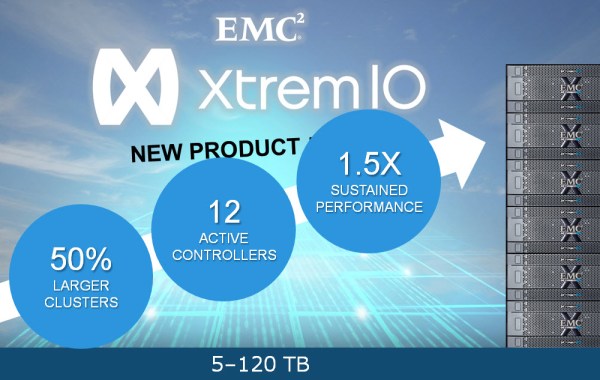
The new larger 6 X-Brick system consists of 12 active controllers which provides a 1.5X increase in performance and a 50% larger cluster configuration.

XIO_Large

3 New Data Services
Outside of the hardware improvements, EMC are now adding 3 new always-on and always inline data services to the XtremIO Array.
These 3 new services are in addition to the existing Data Services which consist of:
♦Thin provisioning
♦Global inline deduplication
♦Flash specific data protection scheme

XIO_3NewFeatures2

The three new features are:
1. Data At Rest Encryption (D@RE)
D@RE encrypts all the data that is stored at rest on the SSD’s in the array. Even though the drives are encrypted, the performance is not impacted because of D@RE. The reason why the performance of the array in not impacted is because the encryption is being handled inline in the data path. D@RE leverages self-encrypting SSDs with AES256 encryption. The array management control system locks the SSDs ‘media encryption key’, thus if any of the SSDs are taken or removed from the X-Brick the data on the SSD is unreadable outside of the XtremIO array. Existing and new 20TB X-Brick Customers can take advantage of D@RE if they wish to do so; as this is something that every 20TB X-Brick that shipped from the factory was already pre enabled for D@RE. For the 10TB X-Brick D@RE shall be available with any new X-Brick moving forward. D@RE is availble with code level 2.4.0-25 and above.

XIO_DARE

2. Always-On Inline Compression
The second new Data Service is Always-On Inline Compression, which compresses the unique blocks that remain in the array after deduplication, with no performance penalty. Typical application sets compress up to 4 times more, so it will be like getting free capacity out of your existing XtremIO array once the software upgrade is enabled. Availble with code level 3.0 Q42014.

XIO_Compression

Note: Today XtremIO combines deduplication and Thin Provisioning on every block of data as it comes into the array, so only new unique 4k blocks get written to the SSD’s – resulting in data reduction of anything between 5:1 – 20:1 depending on your workload!

3. Agile Writable Snapshots
Agile Writable Snapshots is the third advancement which is now available. XtremIO’s snapshots are totally in-memory, with 100% space-efficiency for both user data and the metadata that describes the volumes. These snapshots apply a clean-sheet approach specifically for flash, leveraging inline data reduction capabilities to only ever write unique changed blocks. As a result, all snapshots, parents and children, have full performance, are created in-memory in milliseconds, and there is no performance degradation regardless of how many snaps you create. All snapshot operations including creates, deletes and IO operations all occur in RAM, thus perfoming at RAM speeds. Snapshots are availble with code level 2.4.0-25 and above.

XIO_snaps

EMC VMAX – Next Generation VMAX³ (Everest)

VMAX_Heading1
The overall theme of the Mega Launch IV is “Redefine Possible” – What EMC focused on in the new VMAX³ (“to the power of 3”) was the agility and scale of the cloud model and how to redefine what is possible in the Datacenter of today’s world.
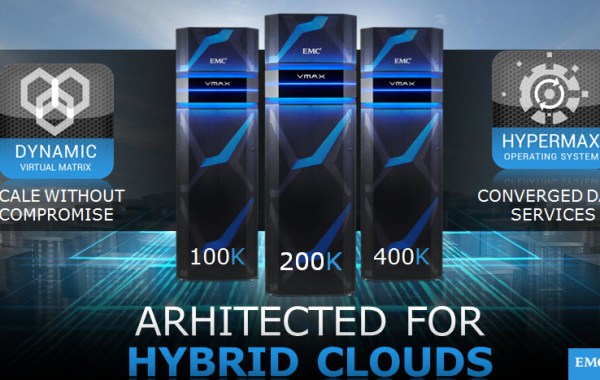
This has certainly been delivered upon with the VMAX³, incorporating a complete overhaul of the VMAX architecture with advancements made from Integrated System/Drive Bays Standardised at 24” wide racks to Front-End connectivity. Vault disk technology has been moved to dedicated Flash modules as standard, therefore there is no longer a requirement to plan for Power Vault drives on the first 5 drives per loop as explained here in an earlier post. Using Intel IVY BRIDGE processors we can now scale up to 3X faster system perfromance. The Back-End is now converted to Native SAS 6 GB/s offering 3X bandwidth to the Back-End devices utilizing 2x 4 Port SAS I/O modules per director and the Front-End now supports 16 Gbps FC using 4 Port I/O Modules (Codenamed Rainfall). Two options for High Density Disk Array Enclosures, chosing between a 60 Drive 3.5″ DAE code named Voyager allowing up to 360 drives per Engine or a 2.5″ 120 Drive DAE codenamed Viking (DAE120) which allows for up to 720 Drives per Engine. System Bay Dispersion of up to 25 meters from System Bay 1 (No Drive Bay dispersion). Three new VMAX models 100K, 200K & 400K (collectively referred to as “VG3R”) built on revolutionary technology that has been architected for Hybrid Cloud scale, with one of those technologies being the “DYNAMIC VIRTUAL MATRIX” this is an extension of the existing “Virtual Matrix” but allowing for much greater scale and more importantly much greater flexiblity and on top of that you have the “HYPERMAX OPERATING SYSTEM” which is a new Operating System based on the existing OS but designed to bring the Data Services that reside outside of the array into the VMAX Array also. An all Flash VMAX³ delivering 1 Million IOPS with sub-millisecond response times and ~600TB on a single floor tile with options to scale up to 4PB. New “Hybrid Cloud Scale” snapshot feature called SNAPVX, allows for up to 1,024 snaps per individual source without the requirement for a dedicated snapshot reserve volume.

VMAX3_1

DYNAMIC VIRTUAL MATRIX
When VMAX was first introduced it brought with it the “Virtual Matrix”, now with VMAX³ we have what is called the “Dynamic Virtual Matrix”. Leveraging the multiple CPU cores within the box with the largest 400K system we will have 384 CPU cores allowing them to be dynamically allocated to Front-End resources, to Back-End resources and to Data Services. Think of it as 3 sets of pools, there is a pool for Front-End resources, a pool for Back-End resources and a pool for Data Services and within a pool cores can be Dynamicaly assigned to their respective ports in order to cater for any particular workload. For example if you had a hot port on the Front-End traditionally this was a fixed port to CPU relationship and you were limited by the perfromance of the CPU assigned to that port. In order to fully understand the static nature of this previous design the following diagram helps depict this CPU to port relationship for the VMAX 40K:

40K Director Map
(for 10K and 20K diagrams see the following PDF Link)

As you can see with this older design 1 Core was statically allocated per Front-End Slice and 2 Cores per Back-End Slice. This design is now gone away with the VMAX³ and has been rearchitected with the “Dynamic VIRTUAL MATRIX”:

Dynamic_Virtual_Matrix

For example if you now have a hot port with a VMAX³ Array and it requires additional CPU resources then it can pull CPU allocation from the entire Front-End pooled resources to service the required workload and the same can be achieved on a Back-End Port if the Port requires additonal CPU resources it can dynamically pull from the Back-End pooled resources. An important thing to note here is that not only do we now have the horizontal movement within the specific pools but you can also have the vertical movement of CPU resources also. For example if you have a high performing OLTP type workload and you need additional Front-End CPU resources then you can manually allocate CPU core resources from the Back-End to the Front-End. Likewise if you have a DSS workload that’s heavy on the Back-End you can allocate cores from the Front-End to the Back-End to better service that workload.

HYPERMAX OS
EMC are now introducing the “HYPERMAX OS”, this is a revolutionary step which brings forward a new version of Operating System which provides a significant enhancement to Enginuity. In addition to providing the traditional Enginuity best of breeed in Data Services, it is providing an embedded storage Hypervisor that will allow users to run other Data Services that traditionally ran outside of the storage array, such as management consoles, file gateways, cloud gateways, replication appliances, data mobility solutions, protection solutions etc.
The “Dynamic Virtual Matrix” works in conjunction with the “HYPERMAX OS”; using it’s new core mobility and core isolation functionality, the VMAX³ can run these Data Services on their own threads and on their own CPU cores so they do not interfere with the other activities that are running within the VMAX³ Array.

HYPERMAX_OS3

These Data Services can all be run within the VMAX³ from the Storage Hypervisior and protected with the VMAX³ in-built high availabilty features. The resources shall be allocated by the “Dynamic Virtual Matrix” to guarantee the required performance is achieved for the Data Service.

HYPERMAX_OS
Thus with this new version of VMAX³, not only can we have a greater level of consolidation with the increased density of the box but we can also begin to start consolodating some of those other services that had previously run outside of the VMAX³ into the Array itself due to the power of the “HYPERMAX OS”. This helps lower CAPEX and lower OPEX costs, as energy and space is greatly reduced. Bringing these Data Services into the Array also helps with the performance of the Data Services because we are leveraging direct access to the VMAX Hardware and so reducing the latency factor associated with having these Services external to the Array. This is a great example of the VMAX³ Array combining the control & trust and the agility of the Hybrid Cloud. Obviously this does not mean we can consolodate the application workloads or network services, as of course they are perform better outside of the Storage Array.
HYPERMAX_OS2

Service Level Objectives (SLO)
All storage in the VMAX³ Array is virtually provisioned, and all of the pools are created in containers called “Storage Resource Pools (SRP)”.

SLO0

This entire box has been built and optimized to manage storage in a whole new way, allowing you to provision applications to a “Service Level Objective” (SLO) and leveraging deep automation within the Array to make sure you receive guaranteed and predictable performance levels as you scale. For example if you have a variety of workloads that take individual management you now have the option of categorising these workloads by their performance requirements, instead of:
• calculating a number of different types of disk drives to cater for the workload
• determining how much flash you need
• the sku
• how to apply tiering
All these decisions are now no longer required, instead these decision points have been taken away and you will only have to enter your performance objectives i.e metric requirements. For example; do you require sub millisecond reponse times or does 1ms to 10ms response times suffice for your workload characteristics.

SLO3

Based on these types of metric requirements (at GA the main priority being focused on is response time levels) a service level shall be created for each workload that you will be provisioning on the VMAX.

SLO4

The system will use all this intelligence in order to use the dynamic capabilities of the VMAX so that you are guaranteed to receive the performance levels required throughout the lifecycle of the application. As the system workloads change over time and other workloads are added to the Array, the VMAX will continue to dynamically add resources in order to guarantee that you continue to get the required level of performance to match the SLO defined. This is of course provided those reources are available in the Array, if the workload increases and you need to add more resorces to the VMAX (such as adding additional flash drives) you will be alerted in advance. Alerts would be enabled by default for a fixed list of KPIs and the system will provide remediation options in order to cater for this increasing resource demand. If you have an application runnning at one Service Level, for example the Silver Service Level and this no longer satisfies the workload requirements, then you can elevate to a higher Service Level in order to meet a better performance level. This can be achieved with a single click and the VMAX will automatically assign the additional resources as available to ensure the SLO is achieved.

New High Density Disk Array Enclosures
DAEs are available in two options: a 4U enclosure that can hold 60 3.5” drives and a 3U enclosure that can hold 120 2.5” drives, with each Engine having two “loops” upon which to connect the DAEs. You may have a combination of both types of DAEs based upon DAE population rules – more on this later. Each System Bay can support from a minimum of one to a maximum of 6 DAEs of any combination while the storage bay can support from quantity of 1 up to a maximum of 8 DAEs of any combination. DAEs can be added or upgraded in single or multiple increments.

VOYAGER DAE
Voyager1
Connectivity
• Connectivity: 6G SAS
• Connectors: 8 x4 mini SAS connectors
Mechanical
• 4U, 19” wide NEMA, 39.5” deep
• Loaded Weight: 225 lbs
• Max. Drive Count: 60 3.5″ drives
Power/Cooling
• Max. Output Power: 1200W (15W/drive slot)
• Power Architecture: N+1
• Total Power Inputs: 4 (AC) power cords (2 on each rail)
• Cooling Mode: N+1 fans with adaptive cooling

VIKING DAE
Viking
Connectivity
• Connectivity: 6G SAS
• Connectors: 8 x4 mini SAS connectors
Mechanical
• 3U, 19” wide NEMA, 39.5” deep
• Loaded Weight: 150 lbs
• Max. Drive Count: 120 2.5” drives
Power/Cooling
• Max. Output Power: 2160W (10W/drive slot)
• Power Architecture: N+1
• Total Power Inputs: 4 (AC) power cords (2 on each rail)
• Cooling Mode: N+2 fans with adaptive cooling

New Ultra Performing Engines
Based on the Megatron Engine design EMC have delivered three new Engine models to cater for each of the new VMAX³ systems. The 4U Engine Enclosure consists of 2 Director Boards, one set of SPS (battery back-up) modules with each Director board having its own redundant power and cooling, using Intel IVY BRIDGE processors.
VMAX3_ENGINE_Front
Each engine consists of 2 Management Modules and supports 11 I/O slots per Director. Each Engine requires a minimum of 2 VTF SLICs, 2 FE SLICs and 1 DAE. Since the vaulting process on the platforms uses Flash SLICs instead of vault drives, each engine will require a set of Flash SLICs to support any instances of vaulting. The size of the Flash SLICs will be determined by the amount of cache in that system and the metadata required by the config. Flash SLICS are available in 175GB, 350GB and 700GB capacities.

VMAX3_ENGINE_Back1

VMAX³ 100K System
The 100K (Lapis) uses a Megatron-lite Engine with the following specifications:
• Supports 1-2 Engines Engine (2.1GHz, 24 IVB core) 512GB, 1TB Memory
• 1440 2.5” drives
• 720 3.5” drives
• 2 TBr cache memory
• 440 TBu capacity Using 4 TB Drive
• 250K IOPs
• 64 FE ports
• Integrated service processor Management Module & Control Station (MMCS)
• InfiniBand fabric 56Gb/s Link speeds 12 Port Switch

VMAX³ 200K System
The 200K (Alexandrite) uses a Megatron Engine with the following specifications:
• Supports 1-4 Engines Engine (2.6 GHz, 32 IVB core) 512GB, 1TB, 2TB memory
• 2880 2.5” drives
• 1440 3.5” drives
• 8 TBr cache memory
• 1.8 PBu capacity Using 4 TB Drive
• 850K IOPs
• 128 FE ports
• Integrated service processor Management Module & Control Station (MMCS)
• InfiniBand fabric 56Gb/s Link speeds 12 Port Switch

VMAX³ 400K System
The 400K (Ruby) uses a Megatron-heavy Engine with the following specifications:
• Supports 1-8 Engines Engine (2.7GHz, 48 IVB core) 512GB, 1TB, 2TB Memory
• 5760 2.5” drives
• 2880 3.5” drives
• 16 TBr cache memory
• 3.8 PBu capacity Using 4 TB Drive
• 3.2M IOPs
• 256 FE ports
• Integrated service processor Management Module & Control Station (MMCS)
• InfiniBand fabric 56Gb/s Link speeds 18 Port Switch
VMAX3_Models

VMAX has been repositioned from just a storage array to an enterprise data service platform – POWERFUL, TRUSTED AND AGILE, making VMAX³ the top Enterprise class Array on the market today.