EMC VMAX – Access Control Logix (ACLX) Gatekeeper Mapping

Access Control Logix (ACLX) gatekeeper mapping is required for initial device masking configuration on the VMAX via the Administration host and also required for the Control Station when using a NAS VG Gateway with the VMAX.
The Symmetrix configuration recommendation is to assign only the ACLX (Access Control Logix) gatekeeper volume to the Administration Host or Control Station.

In this example the ACLX volume is already mapped as LUN ff to the Director FA ports: 2g1,3g1 which are zoned to the Administration Host.
We need to MAP the ACLX Volume(003C) to the FA Ports 1f1,2f1,3f1,4f1 which will be used for the NAS Control Station. The ACLX device must be at LUN address 00E when mapping to the Control Station.

Mapping ACLX (volume 003C) Via UNISPHERE:

Firstly we navigate to the ACLX Volume 003C, choosing the MAP option and then proceed to select FA Ports 1f1,2f1,3f1,4f1
UNI1

Configure ACLX as target and LUN 0E – this must be done for each FA Port
UNI2

UNI3

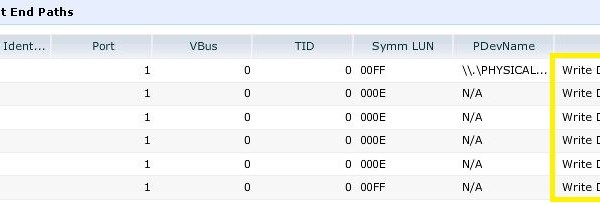
Next we choose the option to ‘Set Volume Status’ and configure as Write Disable
UNI4

UNI5

ACLX is now mapped to both our Administration Host and Control Station as Lun 0FF and 00E respectfully:
UNI6

You can review the task of Mapping the LUN to the FA Ports by navigating to System->Job List:
UNI7

Mapping ACLX (volume 003C) Via SYMCLI:
You can also use symcli to Map the ACLX volume as follows

symdev -sid 1151 list -aclx -v provides the symdev number and other detailed information for the ACLX volume
CLI1
CLI2

Map the ACLX volume to the specified director and port, with the specified FA LUN number:
symconfigure -sid xxx -cmd “map dev 003C to dir 1f:1 lun=00E;” commit
symconfigure -sid xxx -cmd “map dev 003C to dir 2f:1 lun=00E;” commit
symconfigure -sid xxx -cmd “map dev 003C to dir 3f:1 lun=00E;” commit
symconfigure -sid xxx -cmd “map dev 003C to dir 4f:1 lun=00E;” commit
symdev -sid xxx write_disable 003C -FA ALL

List all details for dev 003C including FA and DA mappings as well as disk group used:
symdev -sid xxx list -dev 003C -v

List the details for each FA port and ensure the ACLX is mapped to each:
symcfg -sid xxx -dir 1f -p 1 list -addr -avail
symcfg -sid xxx -dir 2f -p 1 list -addr -avail
symcfg -sid xxx -dir 3f -p 1 list -addr -avail
symcfg -sid xxx -dir 4f -p 1 list -addr -avail

List Connections via ACLX:
CLI3

If you require to UNMAP the ACLX Volume from FA ports 1F1-4F1:
symconfigure -sid xxx -cmd “unmap dev 003C from dir 1f:1;” commit
symconfigure -sid xxx -cmd “unmap dev 003C from dir 2f:1;” commit
symconfigure -sid xxx -cmd “unmap dev 003C from dir 3f:1;” commit
symconfigure -sid xxx -cmd “unmap dev 003C from dir 4f:1;” commit

Unmap dev from all Directors:
symconfigure -sid xxx -cmd “unmap dev 003C from dir ALL:ALL;” commit

CISCO MDS – Verifying VNX & VMAX Connectivity

Somtimes you may have encountered an issue where a VNX/VMAX front-end port gets cabled to the wrong MDS Switch Port that you had designed for and in fact the port description that was applied to the MDS Port is incorrect. In this case it is invaluable to have a command to verify the VNX/VMAX port connected to the MDS. There are many situations where this command would be useful; for example you may not have the ability to do a physical check as the DC is remote and you need to ensure the interface description that you are assigning the MDS FC Port is correct and resulting zoning configurations are accurate. Confirming these connections remotely through a command on the MDS is very benneficial during these types of situations. Else you may end up zoning to ports you did not design for.

VMAX Example

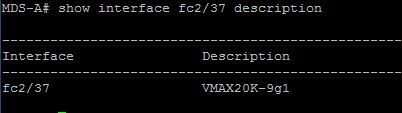
So lets take an example: the design and expectation here is to have the VMAX Port 9G:1 connected to MDS FC Interface 2/37 and the interface was given the relevant description:

1

From this result we can see that the port was labeled as per design as VMAX 9G:1. Now we need to confirm this is the actual port connected to FC2/37.

To analyse the connectivity of a specific interface we first need to retrieve the FCID for this port:
show interface fc2/37

2

Now that we know the FCID is 0x010440, we can run our magic Cisco cmd to verify which VMAX FA Port is actually connected to the MDS Port FC2/37 :

show fcns database fcid 0x010440 detail vsan 10

Note: FCNS = Fibre Channel Name Server.
3

From the output we can confirm that there is a problem; the expected VMAX Port was 9G1 but in fact 7G1 is the VMAX port patched to FC2/37 (SYMMETRIX::000195701570::SAF- 7gB::FC::5876_229). Thus either we update the description of the interface or have the correct VMAX Port patched.

To modify the description:
interface fc2/37
Switchport description VMAX20K-7g1
no shutdown

VNX Example

Interface FC1/25 as per design is connected to Service Processor ‘A2’ front-end port 2:
VNX1

Running show interface fc1/25 in order to confirm port description and retrieve the FCID:
VNX3

Now that we know the FCID is 0x010500, we can query the FCNS database for details of what is connected at the other end of FC1/25:
show fcns database fcid 0x010500 detail vsan 10
VNX4
From the output we can confirm the correct port is connected from the VNX.

Another method of confirming the correct port is connected, is by gathering the WWPN from the VNX/VMAX port and then running the show flogi database interface fc 1/25 command on the MDS:
VNX2
VNX5

Reverse Lookup
From the VNX we can run a “naviseccli -h SP_IP port -list”:
VNX6

From the output we can see that SPA_6(Logical Port) is connected to the MDS interface WWN 20:19:54:7f:ee:e2:9e:f8.
Given this information we can lookup the Interface Port number by issuing: show fcs database | include 20:19:54:7f:ee:e2:9e:f8
VNX7
Thus we can conclude from this output that the VNX Physcial Port SPA:2_2 is connected to MDS Port FC1/25.

Note: If we want to look up the details of all the switch ports on the MDS this is the command:
show fcns database detail

EMC VNX&VMAX – Updating EMULEX HBA Firmware On LINUX

Firstly download the latest version from the EMC-approved section of the Emulex website for EMC VNX/VMAX:
http://www.emulex.com/downloads/oem-qualified/emc/

In this example we are downloading the Emulex LPe16002 Firmware and BootCode version 1.1.43.3:
Emulex3

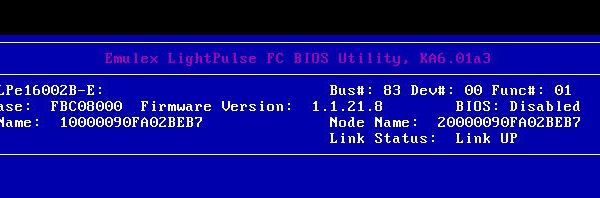
To view the existing firmware during boot (Ctrl+E at Emulex BIOS Prompt):
Emulex1
Or you you can also check via console:
[root@hpdb1 ~]# cat /sys/class/scsi_host/host*/fwrev
1.1.21.8, sli-4:2:b
1.1.21.8, sli-4:2:b
1.1.21.8, sli-4:2:b
1.1.21.8, sli-4:2:b

Applying Update Using OneCommand Manager CLI:
After downloading the zip file from the EMC-approved section of the Emulex website I then extracted the file A11433.grp to the appropriate directory: /usr/sbin/lpfc

Execute the command hbacmd listhbas | grep ‘Port WWN’, and record the Port WWN information for all adapters within the host:

[root@hpdb1 ~]# hbacmd listhbas | grep ‘Port WWN’
Port WWN : 10:00:00:90:fa:02:be:76
Port WWN : 10:00:00:90:fa:02:be:77
Port WWN : 10:00:00:90:fa:02:be:b6
Port WWN : 10:00:00:90:fa:02:be:b7

Next run the “hbacmd” command to install Firmware and BootCode version 1.1.43.3 (hbacmd Download WWPN|MAC Filename):

hbacmd download 10:00:00:90:fa:02:be:76 /usr/sbin/lpfc/A11433.grp
hbacmd download 10:00:00:90:fa:02:be:77 /usr/sbin/lpfc/A11433.grp
hbacmd download 10:00:00:90:fa:02:be:b6 /usr/sbin/lpfc/A11433.grp
hbacmd download 10:00:00:90:fa:02:be:b7 /usr/sbin/lpfc/A11433.grp

Emulex4

Confirm Update was successful:
Emulex5

[root@hpdb1 /]# cat /sys/class/scsi_host/host*/fwrev
1.1.43.3, sli-4:2:b
1.1.43.3, sli-4:2:b
1.1.43.3, sli-4:2:b
1.1.43.3, sli-4:2:b

Thank you @CliffCahill for your assistance.