EMC VNX 7500 – 48GB Memory Configuration

Offered with 05.32 release (INYO) is an expanded memory option on the VNX7500 model. This larger memory option allows for a memory upgrade from 24Gig to 48Gig per Service Processor. As with all VNX models there will be a certain amount of memory used for the FAST suite. The amount of memory consumed by FAST suite differs for each system. There is a certain breakdown of memory usage within the FAST suite itself with Data services (FAST VP, Thin & Compression enablers) using a predefined amount of cache and FAST Cache using approx. ~1.6MB of DRAM per usable GB of FAST Cache. The maximum write cache available on the 48GB model is 16.6GB whereas with the 24GB model this wc/max is 14.25GB. But the point to note is on the 48GB model the wc/max is not affected by FAST suite whereas the 24GB model with all FAST Suite enablers installed and with FAST cache to the maximum usage the wc/max could potentially drop to ~7.5GB. This is all relative and depends entirely on your workload.

Configuring The Read and Write Cache
This example has the data service enablers installed and 916GB of FAST cache (10 x 200GB).
naviseccli -h 10.10.10.1 cache -fast -info -status
Mode: Read/Write
Raid Type: r_1
Size (GB): 916
State: Enabled

The following configuration example will use the full wc/max of 16.6 and the remaining available cache (This depends on data services and FC usage as described above) will be assigned to read cache.
Please be cautious about making these changes in production environments as performance will be affected. Note that write cache is system wide and mirrored across SP’s.

Zero out both the Write and Read Cache and Disable Both:
naviseccli -h 10.10.10.1 setcache -wsz 0 -wc 0
naviseccli -h 10.10.10.1 setcache -rsza 0 -rca 0 -rszb 0 -rcb 0

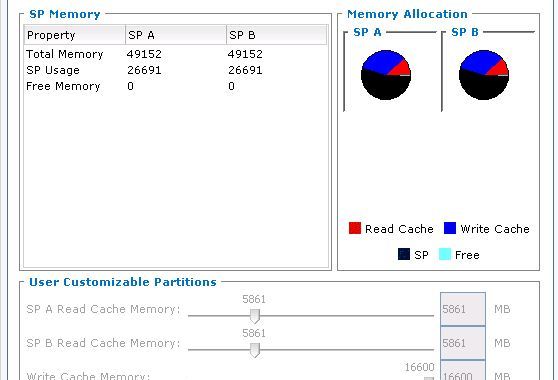
Retrieve the current SP memory information to make our calculations:
naviseccli -h 10.10.10.1 getcache
Cache0

Thus the Read Cache per SP is calculated as follows:
49152MB Total Memory – 26691MB System Memory = 22461MB Available for R/W Cache
22461 – 16600(wc/max) = 5861 Read Cache Per SP

Setting write to 16.6G and 5861MB to read cache:
naviseccli -h 10.10.10.1 setcache -wsz 16600
naviseccli -h 10.10.10.1 setcache -rsza 5861 -rszb 5861

Enable Cache:
naviseccli -h 10.10.10.1 setcache -wc 1 -rca 1 -rcb 1

Get SP Memory Information:
naviseccli -h 10.10.10.1 getcache

Cache1

Cache2

EMC VMAX – Vault Overview

What is Vaulting
Symmetrix VMAX systems are configured with vault drives on back-end Fibre Channel loops. Vaulting is the mechanism used to protect your VMAX data when: 1. powering down the array, 2. a power outage occurs or 3. in the event some environmental change such as an air conditioning failure occurs resulting in ambient temperature being exceeded (VMAX Operating temperature is 59-90F | 15 to 32C). On a failure of the array the SPS’s maintain power to the array for 300 Seconds, this allows the VMAX to write the data in global cache memory to the Vault devices and to shutdown the array in a controlled manner. Two copies of the cache memory is written to independent vault devices allowing for a fully redundant Vault. Successfully writing all data in cache memory to Vault devices is very important in ensuring the consistency of application data stored on the VMAX.

How Vaulting Operates
1. The first part of the vault process is to stop all transactions to the VMAX. Once all the I/O is stopped the directors will then write all the global memory data to the vault devices. Shutdown of the VMAX will then complete.
2. The second part of the vault process is restoring the cache memory from Vault. During this process the array will re-initialize the physical memory, check the integrity of the data in Vault and then restore the data to global cache. The VMAX resumes operation once the SPS’s are sufficiently recharged to support another Vault operation.

Configuration Considerations
The following table lists the amount of dedicated vault space and number of devices that is required per engine for Vault across the three VMAX systems 10K/20K/40K:
Vault

◆All drives types can be used for vault. Vault is supported on EFDs, however if your Enginuity code level is below 5875 configuring Vault devices on Flash drives is not supported although Flash drives are supported at Enginuity 5875 but they require an RPQ. Ideally Vault would be placed on less expensive drives than EFD.
◆ The vault space is for internal use only. No other device can reside in this space.
◆ Five vault drives per loop are required to enable sparing.
VMAX 10K – Five drives per loop containing vault devices are required on the first four loops of each engine.
VMAX 20K/40K – Five drives per loop containing vault devices are required on all 8 loops of each engine.
◆ Vault drives are eligible for permanent sparing and direct sparing. For further drive sparing details please refer to the EMC white paper DRIVE SPARING IN EMC SYMMETRIX VMAX FAMILY SYSTEMS
◆ The total capacity of all vault devices in the system will be at least sufficient to keep
two logical copies of the persistent portion of physical memory.

The example below shows how the first five disks in each of the 8 loops for Engine 4 (Directors 7&8) are automatically configured with a vault device:
VAULT1

For EMC VMAX Vaulting considerations please reference EMC KB78550 – Vaulting in Symmetrix considerations and basic checks to be performed.

VMware VAAI XCOPY Primitive with VNX OE Release 32

UPDATE: The issue outlined below with code level R32 has now been fixed. This issue is addressed in VNX OE for Block 05.32.000.5.209 (Inyo MR1 SP3). This was covered in EMC Technical Advisory (ETA) 172796 and KB article 172796.

Original Post:
There is a known latency issue with the VMware XCOPY primitive when used with EMC VNX Operating Environment Release 32. The problem is detailed in EMC KB90433 please read this before proceeding with any changes.

“EMC are developing a fix for this issue for the next release of OE R32 currently scheduled for Q4 2013”

The following operations may trigger the bug:
Deploying Templates with VMware
Storage VMotions
Any ESX operation which is used to copy or migrate data within the same physical array

Until the fix is released it would be adivisable to disable the XCOPY primitive. The other VAAI Primitives are functioning correctly.

Please refer to VMware KB http://kb.vmware.com/kb/1033665 on details of how to disable the VAAI Primitives.

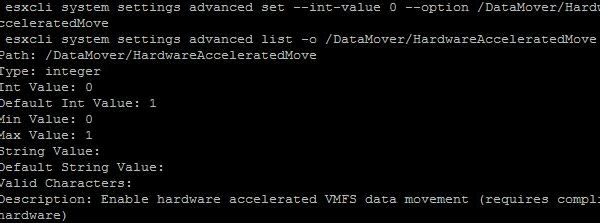
On ESX 5.x hosts, to determine if VAAI XCOPY is enabled, run the following command and check if Int Value is set to 1 (enabled):

# esxcli system settings advanced list -o /DataMover/HardwareAcceleratedMove

Expected output for XCOPY ENABLED:

XCOPY1

Command to change the XCOPY to DISABLED mode on an ESX 5.X host:
# esxcli system settings advanced set –int-value 0 –option /DataMover/HardwareAcceleratedMove
XCOPY0

Disabling VAAI using the vSphere Client:

1.Click the Configuration tab.

2.Under Software, click Advanced Settings.

3.Click DataMover.

4.Change the DataMover.HardwareAcceleratedMove setting to 0.

XCOPY2

VAAI USAGE:
HardwareAcceleratedLocking Atomic Test & Set (ATS), which is used during creation of files on the VMFS volume
HardwareAcceleratedMove Clone Blocks/Full Copy/XCOPY, which is used to copy data
HardwareAcceleratedInit Zero Blocks/Write Same, which is used to zero-out disk regions

esxcli system settings advanced list –option=/VMFS3/HardwareAcceleratedLocking
esxcli system settings advanced list –option=/DataMover/HardwareAcceleratedMove
esxcli system settings advanced list –option=/DataMover/HardwareAcceleratedInit

EMC VMAX – 10K Zoning with Cisco MDS Switches

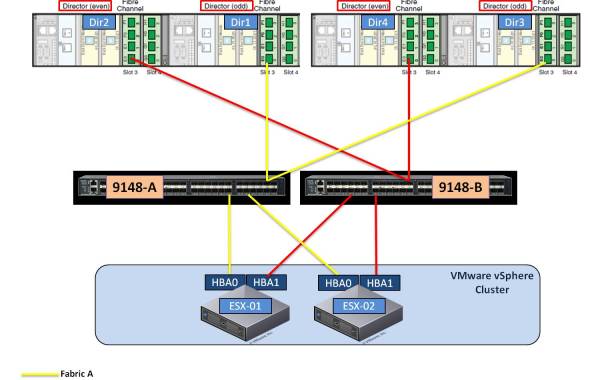
In this example I will show how to complete the zoning for a two Host ESX Cluster (ESX01 & ESX02), using a dual Fabric connecting to a EMC VMAX 10K Dual Engine SAN. As can be seen from the image below this configuration will provide redundancy for the ESX host on both HBA’s as well as on the Switch and VMAX levels.

VMAX10_Zoning9148

This example will detail Zoning the ESX Cluster Hosts to front-end ports on a VMAX10K (2xEngines/4xDirectors) using FA ports 1E0,2E0,3E0,4E0. The Best Practice for the VMAX10K, if beginning with 2 or more engines, is to assign a cluster across 2 VMAX Engines, one port per director for a total of 4 ports.

Each VMAX Engine will have connectivity to each SAN Fabric.
◆ Odd directors are connected to Fabric A (1E0,3E0).
◆ Even directors are connected to Fabric B (2E0,4E0).

In this configuration, the zones are created with one HBA and one FA port (2 Zones per HBA):
◆ ESX HBA-0 is zoned to one port on each Engine. Using Director 1 Engine 1 and Director 3 of Engine 2. (Fabric A)
◆ ESX HBA-1 is zoned to one port on each Engine. Using Director 2 Engine 1 and Director 4 of Engine 2. (Fabric B)

A good rule of thumb is to use all the “zero” ports on directors first before utilizing the “one” ports –Go wide before you go deep.

MDS-SERIES Zoning Commands

The configuration steps below will detail creating:
◆Alias’s for ESX Host’s
◆Alias’s for VMAX-10K Target’s
◆Creating Zones
◆Creating Zonesets

FABRIC ‘A’ SCRIPT

##### Alias’s for ESX Host’s (Initiator’s)#####
fcalias name esx-01_hba0 vsan 10
member pwwn 20:00:00:25:B5:01:A0:01

fcalias name esx-02_hba0 vsan 10
member pwwn 20:00:00:25:B5:01:A0:02

##### Alias’s for VMAX-10K (Target’s)#####
fcalias name VMAX10K_1e0 vsan 10
member pwwn 50:00:09:75:F0:xx:xx:00

fcalias name VMAX10K_3e0 vsan 10
member pwwn 50:00:09:75:F0:xx:xx:08

##### Create ZONES #####
Single-initiator-single-target is the preferred zoning practice.
Note: EMC always recommends using one initiator and one target in each zone.

ESX-01 HBA-0:
zone name esx-01_hba0-VMAX10K_1E0 vsan 10
member fcalias esx-01_hba0
member fcalias VMAX10K_1E0

zone name esx-01_hba0-VMAX10K_3E0 vsan 10
member fcalias esx-01_hba0
member fcalias VMAX10K_3E0

ESX-02 HBA-0:
zone name esx-02_hba0-VMAX10K_1E0 vsan 10
member fcalias esx-02_hba0
member fcalias VMAX10K_1E0

zone name esx-02_hba0-VMAX10K_3E0 vsan 10
member fcalias esx-02_hba0
member fcalias VMAX10K_3E0

##### ZONESET #####
zoneset name vsan10_zs vsan 10
member esx-01_hba0-VMAX10K_1E0
member esx-01_hba0-VMAX10K_3E0
member esx-02_hba0-VMAX10K_1E0
member esx-02_hba0-VMAX10K_3E0

zoneset activate name vsan10_zs vsan 10
zone commit vsan 10
end

##### CONFIRM NEW ADDITIONS #####
show zoneset brief
show zoneset name vsan10_zs
show zoneset active
show zone active vsan 10 | grep esx-01_hba0
show zone active vsan 10 | grep esx-02_hba0
show zone active vsan 10 | grep 20:00:00:25:B5:01:A0:01
show zone active vsan 10 | grep 20:00:00:25:B5:01:A0:02

FABRIC ‘B’ SCRIPT

##### Alias’s for ESX Host’s (Initiator’s)#####
fcalias name esx-01_hba1 vsan 11
member pwwn 20:00:00:25:B5:01:B1:01

fcalias name esx-02_hba1 vsan 11
member pwwn 20:00:00:25:B5:01:B1:02

##### Alias’s for VMAX-10K (Target’s)#####
fcalias name VMAX10K_2E0 vsan 11
member pwwn 50:00:09:75:F0:xx:xx:0C

fcalias name VMAX10K_4E0 vsan 11
member pwwn 50:00:09:75:F0:xx:xx:04

##### Create ZONES #####
zone name esx-01_hba1-VMAX10K_2E0 vsan 11
member fcalias esx-01_hba1
member fcalias VMAX10K_2E0

zone name esx-01_hba1-VMAX10K_4E0 vsan 11
member fcalias esx-01_hba1
member fcalias VMAX10K_4E0

zone name esx-02_hba1-VMAX10K_2E0 vsan 11
member fcalias esx-02_hba1
member fcalias VMAX10K_2E0

zone name esx-02_hba1-VMAX10K_4E0 vsan 11
member fcalias esx-02_hba1
member fcalias VMAX10K_4E0

##### Create ZONESET #####
zoneset name vsan11_zs vsan 11
member esx-01_hba1-VMAX10K_2E0
member esx-01_hba1-VMAX10K_4E0
member esx-02_hba1-VMAX10K_2E0
member esx-02_hba1-VMAX10K_4E0

zoneset activate name vsan11_zs vsan 11
zone commit vsan 11
end

##### CONFIRM NEW ADDITIONS #####
show zoneset brief
show zoneset name vsan11_zs
show zoneset active
show zone active vsan 11 | grep esx-01_hba1
show zone active vsan 11 | grep esx-02_hba1
show zone active vsan 11 | grep 20:00:00:25:B5:01:B1:01
show zone active vsan 11 | grep 20:00:00:25:B5:01:B1:02

By using VMware ESX Servers with multiple physical HBA’s and connecting to multiple directors in different engines this will benefit I/O intensive workloads and will increase redundancy. Balancing accross resources is always the best approach. This is an example configuration and it is always advisible to utilize the EMC tools available to help determine your exact required configuration.

EXAMPLE SINGLE ENGINE DESIGN:
This is the proposed design with the ports cabled as follows for the initial Cluster:

Cluster 1 – FABRIC_A 2E0, 1G0
FABRIC_B 1E0, 2G0
Essentially splitting ports from each director across different fabrics as per the following diagram:

10kSingle

Then Incrementing Port usage per cluster for example:
Cluster 2 – FABRIC_A 2F0, 1H0
FABRIC_B 1F0, 2H0

From such a configuration if a switch failure occurs then we lose half the ports on each director but at least both directors can cater for the workload as opposed to one director.