EMC RecoverPoint Architecture and Basic Concepts

This is my first blog on RecoverPoint; in this initial post I will detail some of the basic concepts and terminology around RecoverPoint and the GEN 5 hardware appliance specification.

•Overview
•Gen5 Hardware
•Terminology

Overview

RecoverPoint provides continuous data protection for storage arrays running on a dedicated appliance (RPA) allowing for the protection of data at both local and remote levels. RecoverPoint provides bi-directional replication enabling the recovery of data to any point in time while replicating data over any distance; within the same site (CDP), to another distant site (CRR), or both concurrently (CLR). Data transfer inside the same site is performed using fibre channel connectivity and for transfer between sites both FC and IP (WAN) is supported. Synchronous replication is supported when the remote sites are connected through FC and provides for a zero RPO. For a synchronous configuration the lag between the production and the remote is always zero since RecoverPoint does not acknowledge the write before it reaches the remote site. Asynchronous replication provides crash-consistent protection and recovery to specific points in time.

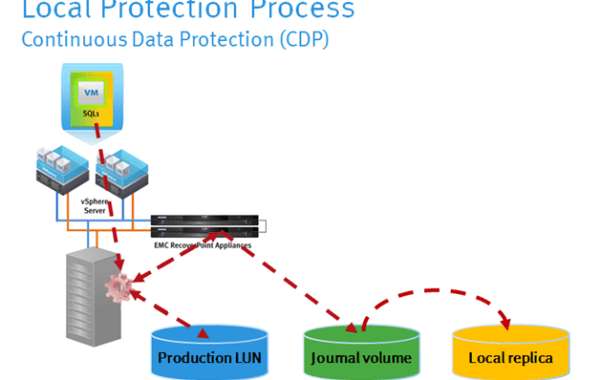
An example of a local Continuous Data Protection (CDP) solution:
Untitled2

From the above image you can see that the splitter sends a copy to the Production LUN and the RPA.The write is acknowledged by the LUN and the RPA. The RPA writes the data to the journal volume along with a time stamp and bookmark metadata.The data is then distributed to the local replica in a write-order-consistent manner. This means that if your consistency groups contains many LUNs, all the data being written is write-order consistent.

An example of a Continuous Remote Replication (CRR) solution:
Untitled

If we examine the IO sequence of the CRR solution we can see again that the IO is split sending one copy to the production LUN and the other to the RPA. The Process as mentioned can be:

1. Asynchronous – In Asynchronous repl the write IO from the host is sent to the RPA. The RPA acks it as soon as data arrives into its memory.
2. Synchronous – In Sync mode no data is ack’d by the RPA until it reaches the memory of the DR’s RPA or DR persistent storage depending on whether the “measure lag to remote RPA” flag setting is enabled in the configuration. Sync replication can be run over FC or IP with the requirement that when using FC the latency limit does not exceed 4ms for a full round trip and for IP the latency does not exceed 10ms for a full round trip.

For a concurrent local and remote (CLR) solution, both CDP and CRR occur simultaneously to provide CLR.

The RecoverPoint family consists of three license offerings:
RecoverPoint/CL (Classic) for replicating across EMC Arrays and non-EMC storage platforms with the use of VPLEX. Note: capacity is ordered per RPA cluster not per RP system. Supports all EMC array splitters.
RecoverPoint/EX for VMAXe™, VPLEX™, VNX™ series, VNXe3200, CLARiiON® CX3 and CX4 series, XtremIO, ScaleIO and Celerra® unified storage environments.
RecoverPoint/SE for VNX series, VNXe 3200, CLARiiON CX3 and CX4 series, and Celerra unified storage environments.

Gen5 Hardware

The RecoverPoint appliance (RPA) is a 1u hardware based server (Intel R1000). The specification of the RPA is as follows:

• 2 x Quad Core Sandy Bridge Processors
• Two 300GB 10K RPM 2.5” SAS Drives in RAID1 configuration
• 6 x 1GE ports (RJ-45) WAN, LAN & Remote management + 3 ports are unused
• 16 Gig DDR3 Memory
• PCIe slot 1: Quad Port 8GB FC QLogic 2564 Card (PCIe slot 2 is empty)

From the image below you can see the port usage for WAN, LAN and the HBA Port Sequence (left to right) 3-2-1-0. For each RPA, we use two Ethernet cables to connect the Management (LAN) interface to eth1 and the WAN interface to eth0.

GEN5 RPA:

RP_GEN5_Rear

Note: RecoverPoint clusters must have a minimum of 2 RPAs and a maximum of 8 RPAs. Cluster sizes must be the same at each site of an installation. A RecoverPoint Environment can have up to 5 clusters either local or remote although RP/SE has a limit of two clusters. GEN4 & GEN5 RPAs can co-exist in the same RP cluster.

Terminology

Splitter – The function of the Array-based splitter is to ensure that the RPA receives a copy of each write to the protected LUN. In the Production site the function of the splitter is to split the IO’s so that both the RPA and the storage receive a copy of the write while maintaining write-order fidelity. In the DR site, the responsibility of the splitter is to block unexpected writes from hosts and support the various types of image accesses.

RecoverPoint Repository Volumes – are dedicated volumes on the SAN-attached storage at each site, one repository volume is required for each RPA cluster. The repository holds the configuration information about the RPAs and consistency groups. Repository volumes are only exposed to the RPAs. The minimum size for the repository is 2.86GB.

RecoverPoint Journal Volumes – are SAN-attached storage volume(s) for each copy that is used in a consistency group (the production copy, local replica copy, and remote replica copy). Again journal volumes are exposed only to the EMC RPAs, not to the hosts. There are two types of journal volumes:
1. Replica journals – used to hold snapshots that are either waiting to be distributed, or that have already been distributed to the replica storage. It also holds the meta-data for each image and bookmarks. The replica journal holds as many snapshots as its capacity allows.
2. Production journals – are used when there is a link failure between sites, in this situation marking information is then written to the production journal and synced to the replica when the link comes online. This process is known as delta marking (Marking Mode). The production journal does not contain snapshots used for PIT recovery. Note: Minimum size of journal volumes is 10GB for a standard consistency group and 40GB for a distributed consistency group.

Replication Set – a protected SAN-attached storage volume from the production site and its replica (local or remote) are known as a replication set.

Consistency Group – consists of replication sets grouped together to ensure write order consistency across all the replication sets’ primary volumes. A configuration change on a consistency group will apply to all its replication sets, such as changing compression and bandwidth limits on the group. A RecoverPoint system has a maximum limit of 128 CGs max per RP system and a max of 64 CGs per RPA, if an RPA in the cluster fails the CGs running on that RPA will fail over to another RPA in the cluster.

Distributed Consistency Group – in order to obtain higher throughput rates it is possible to configure the CG as a DCG which can use up to 4 RPAs (1 RPA is used per standard CG), you can configure a maximum of 8 DCGs. 128 CGs (CG&DCG) max per RP system.

Image Access – refers to providing host access to the replication volumes, while still keeping track of source changes. Image access can be physical (also known as logged), which provides access to the actual physical volumes, or virtual, with rapid access to a virtual image of the same volumes.

In the next RecoverPoint blog I will detail sizing and performance characteristics for the Journal and Replica volumes.

EMC VNXe Configuration Using Unisphere CLI (Part 2)

This is the second part in the series on configuring the VNXe via command line. Here I will detail the Steps involved in creating both NFS and iSCSI datastores. The configuration steps outlined in Part2 will be the following:

  • LACP Configuration
  • Create the Network Interface for NFS
  • NFS Shared Folder Server Configuration
  • Create NFS datastores
  • Creating iSCSI Interfaces/Nodes/Datastores

LACP Configuration

Link aggregation lets you link physical ports on a SP to a single logical port. It is possible to use up to 4 ports on an SP. If your system has two SPs, and you link two physical ports, the same ports on both SPs are linked for redundancy. In this example, we will link port 2 and port 3, the system creates a link aggregation for these ports on SP A and a link aggregation on SP B. Each link aggregation is identified by an ID. Link aggregation has the following advantages:

  • Increased throughput since two physical ports are linked into one logical port.
  • Load balancing across linked ports
  • Redundant ports

The following command shows the existing port settings:

uemcli -d 10.0.0.1 -u Local/admin -p Password#123 /net/port show

Configure LACP for Ethernet Ports 2 and 3:

uemcli -d 10.0.0.1 -u Local/admin -p Password#123 /net/la create -ports eth2_SPA,eth3_SPA” -mtuSize 9000

The following command shows the link aggregations on the system:

uemcli -d 10.0.0.1 -u Local/admin -p Password#123 /net/la show

Create the Network Interface for NFS.

This will create the Network interface for controlling access to the NFS file storage. You assign the interface to a Shared Folder Server (Next Step Below). iSCSI interfaces are used for controlling access to iSCSI storage and get assigned to the iSCSI nodes (Shown Below).

The system configures each interface on an SP port. You have the option of indicating which SP the interface will use, either a physical port or a link aggregation port. You also have the option of specifying a virtual LAN (VLAN) ID, for communicating with VLAN networks. Each interface is identified by an ID.

Create a network interface on the LACP we have created above that uses VLAN ID 100. The interface receives the ID if_0:

uemcli -d 10.0.0.1 -u Local/admin -p Password#123 /net/if create -port eth2_SPA -ipv4 static -addr 10.16.17.20 -netmask 255.255.255.0 -gateway 10.16.17.254

The following command displays all interfaces on the system:

uemcli -d 10.0.0.1 -u Local/admin -p Password#123 /net/if show

NFS Shared Folder Server Configuration

Now we will create an NFS shared folder. Once we create the shared folder, we can create the NFS network shares and use the ID of the shared folder to associate it with a share.

The following command creates a Shared Folder Server with these settings:

  • Name is NFS-SF
  • Associated to interface if_0
  • The server receives the ID file_server_0

uemcli -d 10.0.0.1 -u Local/admin -p Password#123 /net/nas/server create -name ” NFS-SF ” -enableNFS yes -if if_0

Show details:

uemcli -d 10.0.0.1 -u Local/admin -p Password#123 /net/nas/server show

Create NFS datastores

Create an NFS Datastore and Assign to NFS Shared Server with these settings:

  • Named NFS-01
  • Use  Shared Folder Server file_server_0
  • Uses the VMWARE-NFS storage pool
  • NFS datastore size is 200 GB
  • Host Access is root (Read/write root access to primary storage)
  • 40G is the amount of protection storage to allocate for the NFS datastore
  • The protection size, entered for the -protSize qualifier, is automatically adjusted in proportion with changes to the size of the primary storage

uemcli -d 10.0.0.1 -u Local/admin -p Password#123 /stor/prov/vmware/nfs create -name ” NFS-01″ -server file_server_0 -pool VMWARE-NFS -cached no -size 200G -defAccess root -protSize 40G -autoProtAdjust yes

View details:

uemcli -d 10.0.0.1 -u Local/admin -p Password#123 /stor/prov/vmware/nfs show

Creating iSCSI Interfaces/Nodes/Datastores

The following commands create the network interfaces used by the iSCSI nodes and uses VLAN ID 200. The interfaces receive the IDs if_2 and if_3 on both SPA and SPB respectfully:

uemcli -d 10.0.0.1 -u Local/admin -p Password#123 /net/if create -port eth10_SPA -vlanId 200 -ipv4 static -addr 10.16.17.21 -netmask 255.255.255.0 -gateway 10.16.17.254

uemcli -d 10.0.0.1 -u Local/admin -p Password#123 /net/if create -port eth10_SPB -vlanId 200 -ipv4 static -addr 10.16.17.22 -netmask 255.255.255.0 -gateway 10.16.17.254

The following commands creates the first iSCSI node with these settings:

  • Alias is ISCSIA-21
  • Network interface if_2 assigned

The iSCSI node receives ID iSCSI_node_0:

uemcli -d 10.0.0.1 -u Local/admin -p Password#123 /net/iscsi/node create -alias ISCSIA-21 -if if_2

Create the second iSCSI node with these settings:

  • Alias is ISCSIB-22
  • Network interface if_3 assigned

The iSCSI node receives ID iSCSI_node_1:

uemcli -d 10.0.0.1 -u Local/admin -p Password#123 /net/iscsi/node create -alias ISCSIB-22 -if if_3

Lists all iSCSI nodes on the system:
uemcli -d 10.0.0.1 -u Local/admin -p Password#123 /net/iscsi/node show

 Creating iSCSI Datastores

Check ESXi Host vdiskhost ID’s to use in assigning the datastores:

uemcli -d 10.0.0.1 -u Local/admin -p Password#123 /remote/host show -detail

We can now create the iSCSI datastores:

Create iSCSI Datastores from the Performance Pool and assign to ESXi Hosts with ID’s 1001,1002:

uemcli -d 10.0.0.1 -u local/admin -p Password#123 /stor/prov/vmware/vmfs create -name “iSCSI-LUN01” -node iscsi_node_0 -pool performance -size 200G -thin yes -vdiskHosts “1001,1002”

Create iSCSI Datastores from the Capacity Pool and assign to ESXi Hosts with ID’s 1003,1004:

uemcli -d 10.0.0.1 -u local/admin -p Password#123 /stor/prov/vmware/vmfs create -name “iSCSI-LUN02” -node iscsi_node_1 -pool capacity -size 200G -thin yes -vdiskHosts “1003,1004 “

EMC VNXe Configuration Using Unisphere CLI (Part 1)

This is the first in a series of blog posts on configuring VNXe using the command line. All the configurations here will be performed using “uemcli” which can be downloaded here . If you prefer to use the GUI interface then Henri has a very good series of blog posts here. The following scripts defined here are very useful if like me you need to configure VNXe systems on a weekly basis. VNXe is the base storage for the Vblock VB100 series and also used as the shared storage for management hosts in the VB300 and VB700 series.

The configuration steps outlined in Part 1 will be the following:
• Accept License Agreement
• Change Admin Password
• Create a New User
• Change the Service Password
• Commit IO Modules
• Perform a Healthcheck
• Code Upgrade
• Create a Storage Pool
• Add Hot Spare
• DNS Configuration
• NTP Configuration

Accept License Agreement
uemcli -d 10.0.0.1 -u Local/admin -p Password123# /sys/eula set -agree yes

Change Admin Password
First run the show command to get the –id of the user account to change. In this case we are changing the Admin password which will have an ID of user_admin:
uemcli -d 10.0.0.1 -u Local/admin -p Password123# /user/account show
uemcli -d 10.0.0.1 -u Local/admin -p Password123# /user/account -id user_admin set -passwd NewPassword -oldpasswd Password123#

Create a New User
uemcli -d 10.0.0.1 -u Local/admin -p Password123# /user/account create -name newUser -type local -passwd Password -role administrator
The role for the account can be:
• administrator — Administrator
• storageadmin — Storage Administrator
• operator — Operator (view only)

Change the Service Password
The Service password is used for performing service actions on the VNXe.
uemcli -d 10.0.0.1 -u Local/admin -p Password123# /service/user set -passwd newPassword -oldpasswd Password123#

Commit IO Modules
The following commits all uncommitted IO modules:
uemcli -d 10.0.0.1 -u Local/admin -p Password123# /env/iomodule commit
The following command displays a list of system IO modules:
uemcli -d 10.0.0.1 -u Local/admin -p Password123# /env/iomodule show

Perform a Healthcheck
uemcli -d 10.0.0.1 -u Local/admin -p Password123# /sys/general healthcheck

Code Upgrade
In a dual SP VNXe this will be an NDU. Services will failover between SP’s during upgrade.
Perform a Healthcheck of the system prior to upgrade and resolve any issues first.
Firstly we upload the new code to the VNXe using the -upload switch before creating the upgrade session:
uemcli -d 10.0.0.1 -u Local/admin -p Password123# -upload -f PathToSoftware\VNXe-MR4-upgrade-2.4.0.20932-RETAIL.tgz.bin.gpg upgrade
The following command displays details about the installed system software and details about the uploaded upgrade candidate.We also need to run this command to get the -candId of the uploaded upgrade candidate:
uemcli -d 10.0.0.1 -u Local/admin -p Password123# /sys/soft/ver show
Now we create a session to upgrade the system software using candidate CAND_1:
uemcli -d 10.0.0.1 -u Local/admin -p Password123# /sys/soft/upgrade create -candId CAND_1
Status of Upgrade:
uemcli -d 10.0.0.1 -u Local/admin -p Password123# /sys/soft/upgrade show
Confirm software version:
uemcli -d 10.0.0.1 -u Local/admin -p Password123# /sys/soft/ver show

Create a Storage Pool
View the Storage profile. Storage profiles are preconfigured settings for configuring storage pools based on Raid type, capacity and stripe length. We will choose a storage profile that best suits the server workload:
uemcli -d 10.0.0.1 -u Local/admin -p Password123# /stor/config/profile show
Next view details about disk groups on the system. We will need the disk group ID to create the pool from:
uemcli -d 10.0.0.1 -u Local/admin -p Password123# /stor/config/dg show
Here we create the “VMWARE-NFS” pool for vmware using 5 disks from the disk group disk_group_1 and using storage_cap_0 profile:
uemcli -d 10.0.0.1 -u Local/admin -p Password123# /stor/config/pool create -name VMWARE-NFS -descr “VMware NFS Pool” -storProfile storage_cap_0 -diskGroup disk_group_1 -drivesNumber 5 -resType vmware -usage datastore
View the Pool configuration:
uemcli -d 10.0.0.1 -u Local/admin -p Password123# /stor/config/pool show -detail

Add Hot Spare to the pool
uemcli -d 10.0.0.1 -u Local/admin -p Password123# /stor/config/dg -id disk_group_1 set -spares 1

DNS Configuration
The following command adds two DNS servers to the domain dcr.com. The servers are grouped by domain under the ID dcr.com:
uemcli -d 10.0.0.1 -u Local/admin -p Password123# /net/dns/domain create -name “dcr.com” -nameServer “10.0.0.2, 10.0.0.3”
List all DNS server domains:
uemcli -d 10.0.0.1 -u Local/admin -p Password123# /net/dns/domain show

NTP Configuration
The following creates an NTP server record
uemcli -d 10.0.0.1 -u Local/admin -p Password123# /net/ntp/server create -server 10.0.0.4
uemcli -d 10.0.0.1 -u Local/admin -p Password123# /net/ntp/server show

In the next post (part 2) I will show how to script the iSCSI and NFS server configurations and creation of datastores for each.

EMC Symmetrix VMAX – Masking Views for VMware ESX Boot & Shared Cluster VMFS Volumes

This script is a result of having to create quite a large number of dedicated Masking views for VMware ESX 5.x server boot volumes and Masking Views for shared vmfs datastore clusters. In this example I will create two dedicated ESX server MV’s and one Cluster Masking View consisting of the two ESX Hosts sharing a VMFS datastore.

Each VMware ESX server boots from a SAN-attached boot volume presented from the VMAX array. As an example the boot LUNs are 20GB devices which are configured from a dedicated RAID5 3+1 disk group:
symconfigure -sid xxx -cmd “create dev count=2, config=Raid-5, data_member_count=3, emulation=FBA, size=20GB, disk_group=1;” COMMIT
List the newly created devices:
symdev -sid xxx list -disk_group 1

If you wish to confirm that a device has not already been assigned to a host:
symaccess -sid xx list assignment -dev xxx
Or if you need to check a series of devices:
symaccess -sid xxx list assignment -dev xxx:xxx

“symaccess” command performs all Auto-provisioning functions. Using the symaccess command we will create a port group, initiator group and a storage group for each VMware ESX host and combine these newly created groups into a Masking View.

Port Group Configuration
1. Create the Port Group that will be used for the two hosts:
symaccess -sid xxx -name ESX-Cluster-PG -type port create
2. Add FA ports to the port group; in this example we will add ports from Directors 8&9 From Engines 4&5 8e:0,9e:0:
symaccess -sid xxx -name ESX-Cluster-PG -type port -dirport 8e:0,9e:0 add

Note on Port Groups: Where possible to achieve best performance and availability hosts should be mapped to two or more Front-End ports on directors. If you have multiple engines then spread across engines and directors – Rule 17 (20/40K). Please see post: EMC VMAX 10K Zoning with Cisco MDS Switches

Check that the Host HBAs are logging in:
symaccess -sid xxx list logins -dirport 8e:0
symaccess -sid xxx list logins -dirport 9e:0

Host ESX01 Masking View Configuration
1. Create the Initiator Group for ESX01:
symaccess -sid xxx -name ESX01_ig -type initiator create -consistent_lun
2. Add the ESX Initiator HBA WWNs to the Initiator Group:
symaccess -sid xxx -name ESX01_ig -type initiator -wwn wwn_A add
symaccess -sid xxx -name ESX01_ig -type initiator -wwn wwn_B add

3. Create the Storage Group for the first ESX host Boot volume:
symaccess –sid xxx -name ESX01_sg -type storage create
4. Add the Symmetrix boot volume device to the Storage Group:
symaccess -sid xxx -name ESX01_sg -type storage add devs ####
5. Create the Masking View:
symaccess -sid xxx create view -name ESX01_mv -sg ESX01_sg -pg ESX-Cluster-PG -ig ESX01_ig

Host ESX02 Masking View Configuration
1. symaccess -sid xxx -name ESX02_ig -type initiator create -consistent_lun
2. symaccess -sid xxx -name ESX02_ig -type initiator -wwn wwn_A add
symaccess -sid xxx -name ESX02_ig -type initiator -wwn wwn_B add
3. symaccess -sid xxx -name ESX02_sg -type storage create
4. symaccess -sid xxx -name ESX02_sg -type storage add devs ####
5. symaccess -sid xxx create view -name ESX02_mv -sg ESX02_sg -pg ESX-Cluster-PG -ig ESX02_ig

Configuration of Cluster1 (ESX01,ESX02) with shared VMFS Datastore
1. We begin by cascading the cluster hosts into a single Initiator Group:
symaccess -sid xxx -name Cluster1_IG -type initiator create -consistent_lun
symaccess -sid xxx -name Cluster1_IG -type initiator -ig ESX01_ig add
symaccess -sid xxx -name Cluster1_IG -type initiator -ig ESX02_ig add

2. Create the Storage Group containing the shared Datastore(s):
symaccess -sid xxx -name Cluster1_SG -type storage create
4. Add the Symmetrix shared Datastore(s) device(s):
symaccess -sid xxx -name Cluster1_SG -type storage add devs ####(:####)
5. The Port Group contains the director Front-End ports zoned to the ESX Hosts (As per the PG created above):
symaccess -sid xxx -name ESX-Cluster-PG -type port create
symaccess -sid xxx -name ESX-Cluster-PG -type port -dirport 8e:0,9e:0 add

6. The Masking View for the entire ESX cluster:
symaccess -sid xxx create view -name Cluster1_MV -sg Cluster1_SG -pg ESX-Cluster-PG -ig Cluster1_IG

View Configuration Details
To view the configuration of the groups PG,IG,SG and MV (use -v for more detail):
symaccess -sid xxx list -type storage|port|initiator -v
symaccess -sid xxx list -type storage|port|initiator -name group_name
symaccess -sid xxx show group_name -type storage|port|initiator
symaccess -sid xxx list view -v
symaccess -sid xxx list view -name view_name
symaccess -sid xxx list view -name view_name -detail
symaccess -sid xxx list assignment -dev DevID

Examples:
symaccess -sid xxx list -type port (Lists all exisiting port group names)
symaccess -sid xxx show ESX-Cluster-PG -type port
symaccess -sid xxx list -type port -dirport 8e:0 (Lists all port groups that a particular director port belongs to)
symaccess -sid xxx show -type initiator Cluster1_IG -detail
symaccess -sid xxx list logins -wwn xxxx (Verify that wwn xxx is logged in to the FAs)
symaccess -sid xxx list -type initiator -wwn xxxx(Verify that the HBA is a member of the correct Initiator Group)
symaccess -sid xxx show Cluster1_SG -type storage
symaccess -sid xxx show view Cluster1_MV
symaccess -sid xxx list assignment -dev XXXX
(Shows the masking details of devices)

Verify BOOT|DATA LUN Assignment to FA Port(s) (LUN To PORT GROUP Assignment):
symaccess -sid xxx list assignment -devs ####
symaccess -sid xxx list assignment -devs ####:####

Backup Masking View to File
The masking information can then be backed up to a file using the following command:
symaccess -sid xxx backup -file backupFileName
The backup file can then be used to retrieve and restore group and masking information.

The SYMAPI database file can be found in the Solutions enabler directory: for example “D:\Program Files\EMC\SYMAPI\db\symapi_db.bin” if you wish to confirm the SE install location quickly then issue the following registry query cmd:
reg.exe query “HKEY_LOCAL_MACHINE\SOFTWARE\EMC\EMC Solutions Enabler” /v InstallPath

Note: On the VMAX Service Processor the masking information is automatically backed up every 24 hours by the Scheduler. The file (accessDB.bin) is saved to O:\EMC\S/N\public\user\backup.

Restore Masking View from File
To restore the masking information to Symmetrix enter the following command:
symaccess -sid xxx restore -file backupFileName